
Getting “Something Went Wrong (1013)” in Google Gemini? Learn what causes Gemini Error 1013 and follow proven solutions to restore access and continue using Gemini.
We’ve all been there: you are deep into a productive workflow when the AI suddenly freezes and throws the dreaded message:
“Something went wrong. Please try again. (1013)”
In most cases, the gemini error 1013 is caused by corrupted activity data, a desynchronized account session, or temporary server-side rate limits. Google has not published a single official cause for this exact code, but people dealing with the same problem often find that standard fixes like clearing the cache aren’t always enough. If you are locked out of your prompts while your other Google services work perfectly fine, you are likely dealing with a localized session bug.
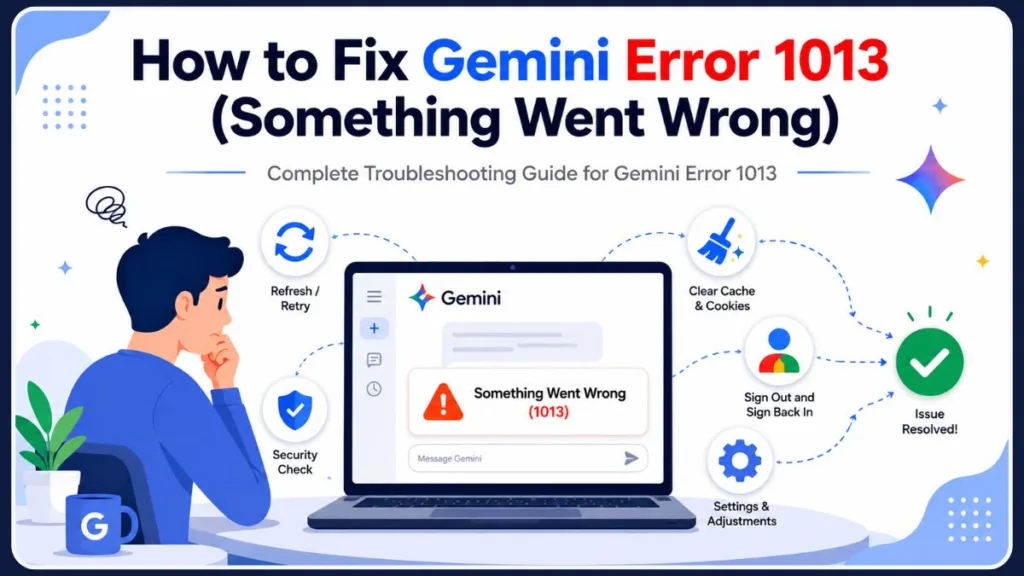
In this guide, we will explore what causes this block and provide the best troubleshooting steps to get your gemini web app and mobile experience running smoothly again.
Quick Fixes for Gemini Error 1013
- Reset Gemini Activity
- Sign out and back in
- Verify Google Account age settings
- Clear browser cache
- Try Incognito mode
- Start a new chat
- Use the mobile app
What Does Error Code 1013 Mean on Google Gemini?
At its core, the gemini 1013 error code indicates that your specific account session has encountered a conflict that prevents it from processing your text or image prompts. When Google’s backend cannot validate your session tokens, read your activity history, or confirm your account status, it throws this generic failure message.
If you are wondering why is gemini blocking my prompts, the issue is rarely a permanent ban. It usually means your local browser data is out of sync with Google’s servers, or you have hit a temporary snag with the Gemini Pro processing queue.
How to Fix “Something Went Wrong (1013)” on Gemini
If your workflow is completely frozen, here are the most effective google gemini error 1013 solutions, ordered from the most successful community tricks to standard tech support steps.
1. Reset Your Gemini Activity (Best Fix)
One of the most reliable ways to fix gemini something went wrong 1013 is to toggle your activity tracking. Sometimes, a corrupted history file blocks new prompts from generating.
- Open your Gemini Activity settings from the sidebar.
- Turn Gemini Apps Activity OFF.
- Wait for about 1 minute to let the servers register the change.
- Turn the activity tracking ON again.
- Refresh your page and test a new prompt.
2. Sign Out and Sign Back In
A corrupted authentication session is a major culprit for the gemini app not working 1013 issue. Simply refreshing the page won’t clear phantom authentication blocks.
- Click your Google profile picture in the top right corner.
- Select Sign out.
- Close your browser tab completely.
- Open a new tab, navigate back to Gemini, and Sign back in.
3. Check Google Account Age Verification
You may not realize it, but account restrictions play a huge role in AI access. If Google’s system suddenly loses verification that you meet the age requirements for generative AI, it will block your queries.
- Go to your main Google Account settings.
- Navigate to Personal Info.
- Check your birthday to ensure your google account age verification is set correctly to 18 or older.
4. Clear Browser Cache and Cookies
If you notice that gemini works in incognito but not signed in normally, you likely have corrupted site data or a conflicting browser extension.
- Open your browser settings and navigate to privacy or history.
- Choose to clear browser cache and cookies (specifically for the last 24 hours or for Google sites).
- Restart your browser completely.
- Alternatively, open an incognito mode window. If the AI works perfectly there, disable your ad-blockers or privacy extensions one by one to find the culprit.
5. Start a New Chat or Switch Devices
Sometimes, a specific conversation simply breaks. If you feed the AI an exceptionally long document or prompt, that specific thread can become corrupted.
- Copy your most important context from the broken chat.
- Click New Chat and paste your summary to start fresh.
- If your desktop browser is still throwing the error, try opening the Gemini app on your Android or iPhone. Switching devices forces a new server handshake and can often bypass the gemini pro error 1013.
Why Does My Gemini Chat Randomly Stop Working?
Understanding the root cause can help you avoid this frustrating roadblock in the future.
Corrupted Gemini Activity Data
As you chat, the system continuously logs your conversation state. If your internet connection drops for a split second while you are generating a massive response, that data block can corrupt, causing the 1013 error on all subsequent prompts in that thread.
Backend Server Loads
During peak hours, you might be facing heavy server traffic. Google implements rate-limiting to manage cloud computing loads. If you submit multiple complex prompts back-to-back, you might trigger a temporary timeout.
Check Gemini Server Status
Sometimes, it’s not your computer at all. If you have tried all the steps above and find the gemini app not responding on mobile or desktop, you might just need to wait it out.
- Visit the Google Workspace Status Dashboard to see if any official service disruptions are reported.
- Check Downdetector for real-time Google or Gemini outages.
- Give it 15 to 30 minutes, as temporary backend glitches often resolve themselves quickly. If you are seeing different numbers pop up, you might be running into related server blocks like Something went wrong 1099 error in Gemini AI or even the systemic Gemini App Error Code 1076.
How to Prevent Gemini Error 1013
Once you get your AI working again, keep these best practices in mind to maintain a smooth connection:
- Keep chats focused: Avoid extremely long, never-ending chat threads. Start new conversations for new topics to keep the context window light.
- Watch your extensions: Aggressive script blockers frequently interfere with Google’s web apps. Whitelist Gemini if you use strict privacy tools.
- Feed data in chunks: Instead of pasting an entire book into the prompt box, break your data down. This prevents the server from timing out while trying to process your request.
Frequently Asked Questions (People Also Ask)
What is the Gemini 1013 error code? It indicates a session synchronization failure. This means your browser and Google’s servers are struggling to communicate, often due to a corrupted activity log, an expired login token, or heavy server traffic.
How to fix google gemini 1013 permanently? While you cannot prevent server-side outages, you can fix local issues by resetting your Gemini Apps Activity, completely logging out of your Google account and logging back in, and verifying your account age settings.
Why does Gemini work in incognito but not signed in? If you experience this, your regular browser profile has a corrupted cookie or a third-party extension (like an ad-blocker) that is blocking Google’s scripts. Clearing your cache or disabling the extension will fix the problem.
How to contact Gemini support if the error persists? If you need to know how to contact gemini support, the fastest way is through the platform itself. Click the gear icon (Settings) in the bottom left corner of the web app and select Help & Feedback to report the issue directly to the engineering team.
Why am I getting “Something went wrong (1013)” every time I send a prompt? This relentless error loop means the system cannot process your inputs due to a temporary session lock or a conflict in your logged cloud activity.
Is Gemini down right now or is the problem only affecting my account? If other Google services are working perfectly and third-party monitoring sites show green lights, the issue is highly localized and only affecting your specific user account session.
Why does Gemini work when logged out but show Error 1013 when I log in? This occurs because the issue is completely tied to your user profile data or account parameters. When logged out, Gemini utilizes a clean guest context, bypassing your profile’s corrupted tokens.
Has anyone found a permanent fix for Gemini Error 1013? While there is no single magical switch for everyone, users find that toggling activity settings off and back on provides the closest thing to a permanent fix for local cache desyncs.
Why did Gemini suddenly stop working after a week of normal use? Accumulated browser cookies, script updates on Google’s backend, or a sudden change in security extension protocols can abruptly brick your access even after flawless operation.
Does Gemini Error 1013 happen because I’ve reached a usage limit? It is highly possible. Heavy server demand or rapid-fire prompt processing triggers protective backend rate-limits, masking the cap behind this generic warning.
Why am I getting Error 1013 on both the web app and mobile app? When the error follows you across devices, it rules out a browser problem. It indicates that the cloud data tied directly to your core Google account profile is stuck. This deep profile disconnect is very similar to what causes Something went wrong 13 error in Google Gemini during active sessions.
Can a corrupted chat conversation trigger Error 1013? Yes. A malformed string, interrupted token generation, or an overextended context window within a specific conversation thread can permanently break that individual chat.
Does deleting chat history fix Gemini Error 1013? It frequently does. Clearing out the corrupted thread or completely clearing old entries removes the broken data structures blocking the backend.
Why does Gemini fail only in long conversations? As a conversation grows, the active context window consumes more memory and processing bandwidth, leading to sudden network communication collapses.
Is Error 1013 related to Gemini Apps Activity settings? Absolutely. The internal storage of your prompts often encounters synchronization glitches, making the activity toggle an essential fix.
Why does Gemini return Error 1013 when uploading files or images? Multimodal processing demands higher server payloads. The system will throw the error if the server times out while scanning your attachment or if your profile lacks permission to process specific data types. This processing hang often mimics the behavior seen when Google Gemini throws error 1097 during heavy data transfers.
Can browser extensions cause Gemini Error 1013? Yes. Aggressive ad-blockers, anti-tracking tools, or script-disabling extensions can block essential Google authentication packages from running.
Does using Incognito Mode fix the issue? Using a private window disables local cookies and extensions, proving immediately whether your main browser profile is the source of the conflict.
Why am I getting Error 1013 even though my internet connection is fine? The error code points to a structural data mismatch or a server block on Google’s side, meaning local bandwidth or a strong Wi-Fi signal will not bypass it.
Is Gemini Error 1013 a server-side problem from Google? Yes, it is ultimately a server-side rejection, meaning the Google cloud platform is explicitly declining to complete the handshake with your profile.
How long does Gemini Error 1013 usually last? If it is caused by a system outage or rate-limiting block, it typically resolves automatically within 15 minutes to a few hours once server loads normalize. If the backend stabilization takes longer, it might morph into a broader authentication lock like the Something went wrong 1100 error on Google Gemini.
Why does Gemini keep saying “Something went wrong” without explaining the actual problem? Google utilizes blanket generic error wrappers for security and simplicity, preventing the interface from exposing complex backend code bugs to the end user.
Does signing out and signing back in resolve Error 1013? Yes, it forces your browser to clear old authentication keys and request entirely fresh session tokens from Google’s core servers.
Is Error 1013 related to Google account verification requirements? Yes, sudden changes to security flags, identity updates, or unresolved age verification parameters can trigger an automatic lockout.
Hopefully, these solutions helped you clear the error and get back to your projects! If you found a different trick that restored your connection, let us know in the comments below so we can share it with others dealing with the same problem.
Visit Our Post Page: Blog Page
Discover more from Izoate
Subscribe to get the latest posts sent to your email.