
Worried about suspicious activity on your Amazon account in 2026? Learn how to check Amazon login history using simple methods. From viewing connected devices and checking recent account activity to reviewing order history and securing your account. Take control of your Amazon account today.
Have you recently received a suspicious login notification from Amazon? Maybe you noticed an unfamiliar order, a new shipping address, or unusual account activity that made you wonder whether someone else has access to your account. If so, you may be looking for a way to check your “Amazon login history.”
Amazon accounts often contain sensitive information, including saved payment methods, delivery addresses, subscriptions, Kindle content, Amazon Prime benefits, digital purchases, and personal account settings. Because of this, keeping track of who can access your account is an important part of maintaining your online security, account privacy, and identity protection.
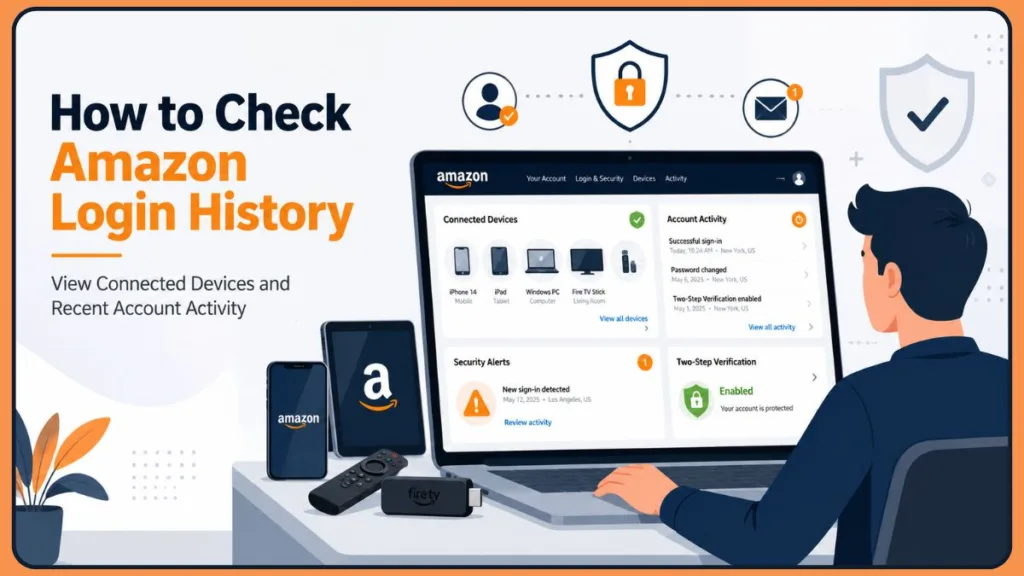
However, many users are surprised to discover that Amazon does not offer a dedicated “login history page” that shows every sign-in attempt, login location, IP address, or device access record like some social media platforms and email providers do.
The good news is that there are still several ways to monitor account access, review registered devices, and identify potential security issues. By checking your connected devices, account activity, browsing history, search history, and recent orders, you can gain valuable insight into whether your Amazon account is being used by someone else.
In this guide, you’ll learn how to check Amazon login history alternatives, view devices logged into your account, review recent account activity, and secure your account if you discover anything suspicious. You’ll also learn how Amazon’s device management system, account security settings, and digital content controls can help you monitor access to your account.
Does Amazon Have a Login History Feature?
One of the most common questions users ask is:
“Does Amazon have a login history feature?”
The short answer is no.
Unlike platforms such as Google, Facebook, Microsoft, and some banking services, Amazon does not provide a dedicated dashboard where you can see a complete “Amazon account sign in history.” You won’t find a page showing every successful login, failed login attempt, IP address, location, device fingerprint, or timestamp associated with your account.
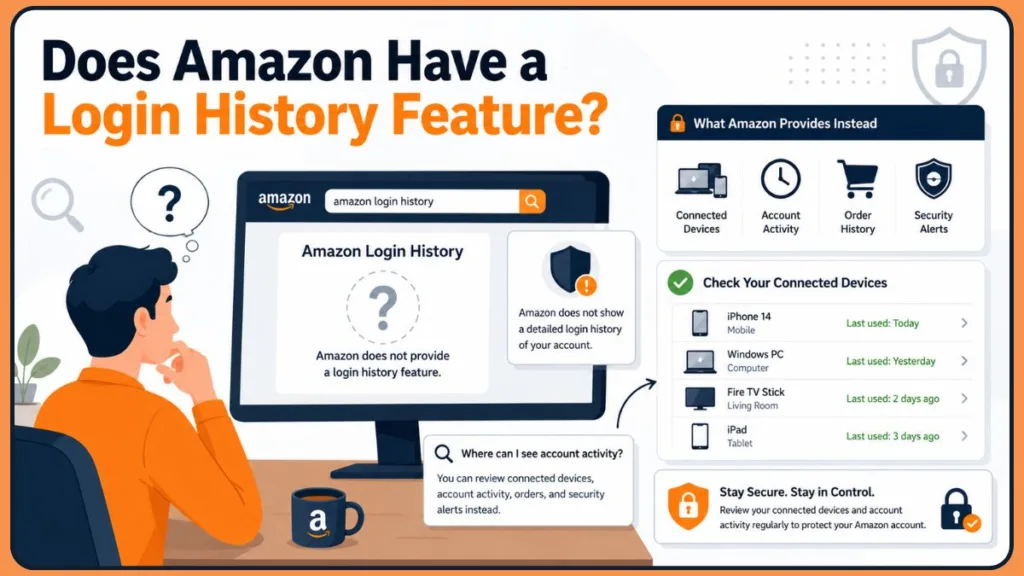
This often causes confusion because many people search for terms like:
- Amazon login history
- Amazon account sign in history
- Amazon view my recent account activity page
- How to check my Amazon history
Unfortunately, Amazon does not currently provide that level of visibility to regular users.
That does not mean you’re completely in the dark, however.
Amazon offers several tools that can help you determine whether your account is secure. These include:
- Registered device management
- Login and security settings
- Order history
- Browsing history
- Search history
- Account notifications and security alerts
When combined, these tools provide a fairly accurate picture of recent account usage, device activity, and potential unauthorized access attempts.
For example, if someone gained access to your account, you might notice an unfamiliar device listed under your registered devices, unexpected purchases in your order history, changes to your account settings, modifications to your payment methods, or unusual activity in your browsing history.
Important: If you’re searching for “Amazon login activity,” the “Devices” section is often the best place to start. It can reveal which devices currently have access to your Amazon account and help you identify anything unfamiliar. Amazon may also send security alerts, verification emails, or two-step verification notifications when unusual sign-in activity is detected.
How to Check What Devices Are Logged Into Your Amazon Account
If you’re trying to find out whether someone else is using your Amazon account, reviewing your connected devices is one of the most effective methods available.
Many users ask:
- How do I see my devices on Amazon?
- How do I check what devices are logged into my account?
- How do I check if other devices are logged into my Amazon account?
- How can I get a list of all connected devices?
Fortunately, Amazon makes this information accessible through the “Content and Devices” section of your account.
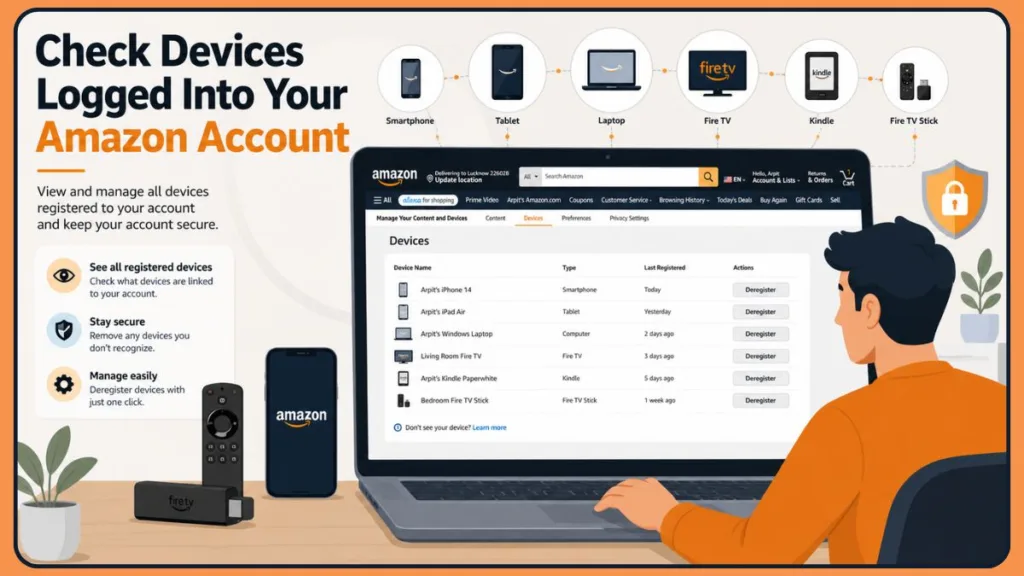
How Do I See My Devices on Amazon Using a Web Browser?
If you’re using a desktop computer or laptop, follow these steps:
- Sign in to your Amazon account.
- Hover over “Account & Lists” near the top-right corner of the page.
- Select “Content & Devices.”
- Open the “Devices” tab.
Once you’re inside the Devices section, Amazon will display a list of devices associated with your account.
Depending on the services you use, you may see Kindle e-readers, Fire tablets, Fire TV devices, Alexa-enabled devices, smart TVs, smartphones, tablets, streaming devices, and other hardware that has accessed Amazon content or services.
Take some time to review the list carefully. If you recognize every device, your account is likely in good shape. If you spot a device you no longer own or don’t recognize at all, further investigation may be necessary.
As of recent Amazon account management updates, the Devices page remains one of the most reliable ways to review registered hardware, digital content access, and account-linked devices.
How Do I Check If Other Devices Are Logged Into My Amazon Account Using the Mobile App?
You can also view registered devices directly from the Amazon mobile app.
To do this:
- Open the Amazon app on your smartphone.
- Sign in if necessary.
- Tap the profile or menu icon.
- Navigate to “Your Account.”
- Locate “Manage Content and Devices.”
- Open the “Devices“ section.
You should now see a list of devices currently associated with your Amazon account.
This is particularly useful if you frequently use Amazon Prime Video, Kindle, Audible, Alexa, Amazon Music, or other Amazon services across multiple devices.
Checking this section regularly can help you identify unauthorized access, shared account misuse, or forgotten devices before they become a larger problem.
How Do I Know How Many Devices Are Connected to My Amazon Prime?
Another common question users ask is:
“How do I know how many devices are connected to my Amazon Prime?”
Amazon Prime itself does not provide a dedicated counter showing the total number of connected devices. However, the Devices section gives you the closest available alternative.
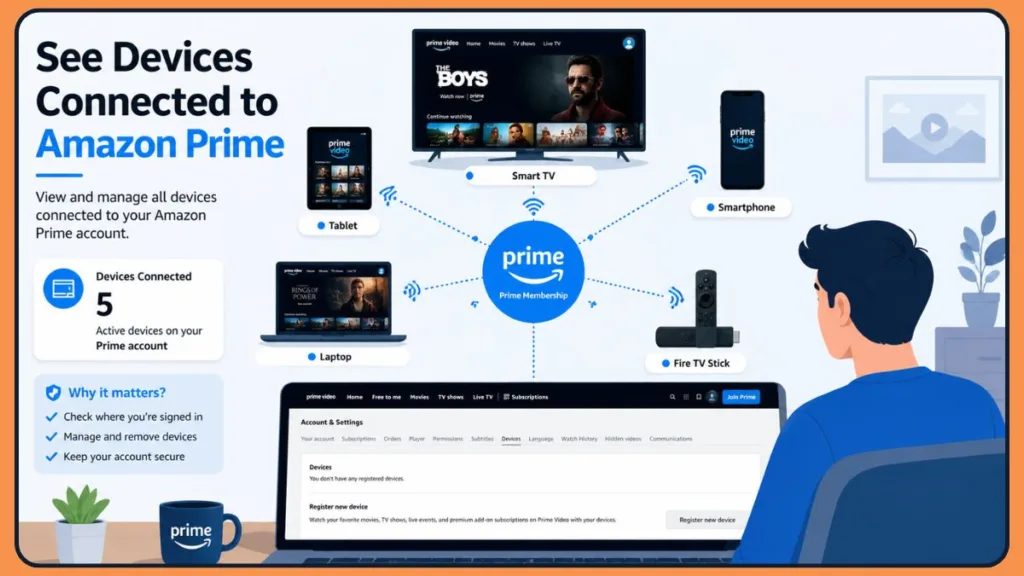
When you review your registered devices, you’ll be able to see all devices that have been linked to your Amazon account for services such as:
- Prime Video
- Kindle
- Audible
- Fire TV
- Alexa
This allows you to estimate how many devices currently have access to your Prime benefits, digital subscriptions, and streaming services.
Keep in mind that having a device listed does not necessarily mean it is actively being used. Some devices may have been registered years ago and remain associated with your account even if you no longer own them.
For this reason, it’s a good idea to periodically review and clean up your device list, especially if you’ve upgraded phones, replaced tablets, sold streaming devices, or shared your account with family members in the past.
Regular device audits can improve account security, reduce unauthorized access risks, and help maintain control over your Amazon ecosystem.
What Information Can You See About Logged-In Devices?
Although Amazon doesn’t provide a full “Amazon login history report,” the Devices page still offers useful information.
When reviewing connected devices, you may be able to see details such as:
- Device name
- Device type
- Registration information
- Amazon service associated with the device
- Device category
For example, you might see entries for:
- Kindle Paperwhite
- Fire TV Stick
- iPhone
- Android phone
- Smart TV
- Tablet
- Echo device
This information helps you determine whether every registered device belongs to you or someone you trust.
If you share your Amazon account with family members, you may see multiple legitimate devices listed. However, if you notice a device name that doesn’t look familiar, it’s worth investigating further.
In some cases, an unfamiliar device may simply be an old phone, tablet, streaming device, or smart TV that you forgot about. In other situations, it could indicate unauthorized access, account compromise, or someone using your Amazon services without permission.
Reviewing your registered devices regularly is one of the easiest ways to monitor Amazon account activity, maintain control over who can access your account, and strengthen your overall Amazon account security posture. Combined with two-step verification, strong passwords, and regular reviews of your order history, search history, and account settings, device monitoring remains one of the most effective alternatives to a traditional “Amazon login history” feature.
How to Check if Your Device Is Linked to Another Device
Sometimes the issue isn’t necessarily that someone has hacked your Amazon account. Instead, you may be dealing with an old device that remains connected to your account or a shared device that still has access to your Amazon services, including Amazon Prime, Prime Video, Kindle, Audible, Alexa, and Amazon Music.
This is why many users search for questions such as:
“How to check if your device is linked to another device?”
Amazon allows multiple devices to access the same account, which is convenient when you use Prime Video on your TV, read Kindle books on your tablet, listen to Audible audiobooks, and shop from your smartphone. However, over time, it can become difficult to remember which devices still have access. This is especially true if you frequently switch devices, upgrade phones, or share your account with family members through Amazon Household.
A good starting point is to review the Devices section discussed earlier. If you recently purchased a used device, replaced an older phone, logged into a smart TV, or shared your Amazon credentials with family members, you may notice devices that no longer belong to you.
Pay close attention to device names and device categories. While some entries clearly identify themselves as an iPhone, Fire TV, Kindle, Echo device, Android device, or Fire Tablet, others may use generic names that require a closer look.
If you’re unsure whether a device belongs to you, ask yourself a few questions:
- Do you currently own this device?
- Have you sold, traded, or given away a device with a similar name?
- Have family members used your Amazon account on their devices?
- Have you logged into Amazon on a friend’s device, hotel TV, gaming console, or shared computer?
Answering these questions can often help you identify whether a device is legitimate, authorized, or potentially unauthorized.
Tip: If you cannot confidently identify a device connected to your account, it’s generally safer to remove it and sign in again later if necessary. This is one of the simplest ways to improve your Amazon account security.
How to Tell If Someone Else Logged Into Your Amazon Account
Since Amazon does not offer a dedicated Amazon login history page, recognizing the warning signs of unauthorized access becomes even more important.
Fortunately, there are several clues that can help you determine whether someone else has gained access to your account.
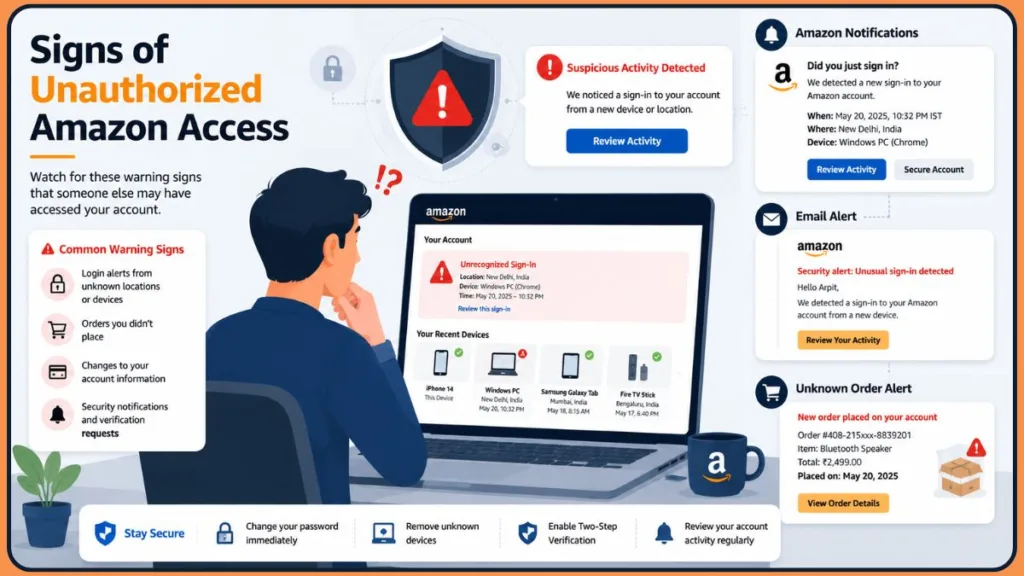
One of the most obvious signs is finding a device you don’t recognize in your registered device list. While unfamiliar devices aren’t always a sign of compromise, they should never be ignored.
Another warning sign is receiving security notifications about login attempts that you don’t remember making. Amazon may occasionally send emails requesting account verification, OTP verification, or alerting you to unusual sign-in activity from a new browser, device, or location.
You can review your Amazon Login & Security Settings to verify your account information.
Unexpected purchases are another major red flag. If you notice products in your Amazon order history that you didn’t buy, someone may have access to your account.
You should also pay attention to changes made to your account information. Unauthorized users often modify account settings to maintain access. This can include changing email addresses, updating phone numbers, adding payment methods, modifying billing information, or creating new shipping addresses.
Your Amazon browsing history can also provide useful clues. If you see products you never searched for appearing in your browsing activity, recommendations, recently viewed items, or personalized suggestions, it could indicate that another person is using your account.
You can review your Amazon Browsing History to check for unusual activity.
In some situations, users discover unauthorized access after noticing unusual Prime Video watch history, Kindle activity, Audible content, Alexa interactions, or Amazon Music listening history linked to their account.
Additionally, Amazon may send alerts regarding suspicious activity if it detects sign-ins from unfamiliar locations or devices. Monitoring these alerts can help you identify potential security issues early.
Common Signs of Amazon Account Compromise
If you notice any of the following, it’s worth investigating further:
- Unrecognized devices in your account.
- Unexpected order confirmations.
- Password reset emails you didn’t request.
- New shipping addresses.
- Unfamiliar payment methods.
- Changes to account settings.
- Strange browsing or search history.
- Prime Video titles you never watched.
- Unexpected subscription purchases.
- Unauthorized digital content downloads.
- Security alerts from Amazon.
One warning sign alone doesn’t always mean your account has been hacked. However, multiple signs appearing together should prompt immediate action.
How to Kick a Device Out of Your Amazon Account
Many users eventually reach the point where they ask:
“How do I kick a device out of my Amazon account?”
The good news is that Amazon allows you to remove devices directly from your account through the Deregister feature.
Deregistering a device removes its connection to your Amazon account and revokes access to Amazon services associated with that account.
This is especially useful if:
- You sold an old device.
- You upgraded to a new phone.
- You no longer use a particular tablet.
- You accidentally signed in on a shared device.
- You suspect unauthorized access.
- You lost a device.
- A family member no longer needs access.
How to Remove a Device From Amazon
Open the Devices section of your Amazon account and locate the device you want to remove. You can access device management through Manage Your Content and Devices.
After selecting the device, look for the “Deregister” option. Amazon will ask you to confirm your choice before proceeding.
Once completed, that device will no longer have access to your Amazon account unless someone signs in again using your credentials.
The process typically takes only a few moments and can significantly improve your account security, privacy protection, and device management.
What Happens After Deregistering a Device?
Many users worry about what happens after removing a device.
In most cases, deregistering simply disconnects the device from your Amazon account. Any Amazon services linked to your account will stop functioning on that device until it is registered again.
For example:
- Prime Video access may be removed.
- Kindle content may no longer sync.
- Audible content may become inaccessible.
- Amazon Music services may stop working.
- Alexa integrations may require reauthorization.
- Purchased digital content may no longer be available on that device.
This makes deregistration an effective way to immediately cut off access to devices you no longer trust.
What to Do Immediately After Finding an Unknown Device
Finding an unfamiliar device connected to your Amazon account can be alarming, but it’s important to act quickly and methodically.
The first step is to remove the device from your account using the deregistration process.
Once the device has been removed, you should immediately change your Amazon password.
Even if you’re unsure whether the device represents unauthorized access, updating your password helps ensure that anyone who may have had access can no longer sign in.
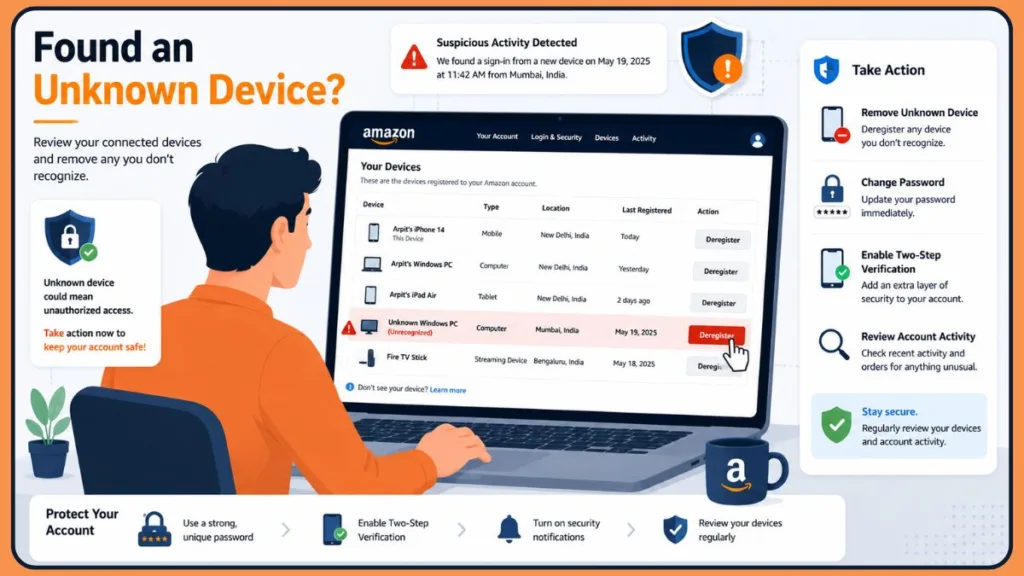
When creating a new password, avoid reusing passwords from other websites. A strong password should be unique, complex, and difficult to guess. Consider using a reputable password manager to generate and store secure passwords.
After changing your password, review your Login & Security settings. Verify that your email address, phone number, and account recovery information are all correct.
Next, examine your recent order history. Look for purchases, subscriptions, gift card transactions, or digital content you don’t recognize. Unauthorized users sometimes make small purchases first before attempting larger transactions.
It’s also worth reviewing your payment methods, billing details, and shipping addresses to ensure that no changes have been made without your knowledge.
Finally, consider enabling Amazon’s Two-Step Verification feature if you haven’t already done so. This adds an extra layer of protection by requiring a verification code during sign-in attempts. As of recent Amazon security recommendations, enabling Two-Factor Authentication (2FA) remains one of the most effective ways to protect your account from unauthorized access. You can configure this through Amazon’s Two-Step Verification Settings.
Important Security Tip: If you discover both an unknown device and suspicious account activity, treat the situation as a potential account compromise. Remove the device, change your password, enable two-step verification, review all recent account activity immediately, and contact Amazon Customer Support if you believe your account has been compromised.
Why Regular Device Reviews Matter
Many people only check their Amazon devices after receiving a suspicious notification. However, routine account reviews can help you identify problems long before they become serious.
Technology habits change over time. You replace phones, upgrade tablets, purchase new streaming devices, connect smart TVs, use gaming consoles, and occasionally sign into Amazon from temporary locations.
Months or years later, these devices may still appear in your account.
Regularly reviewing your registered devices helps you maintain a cleaner, more secure Amazon account while reducing the chances of unauthorized access going unnoticed. It also helps improve overall account management, digital security, and privacy protection. You can periodically review connected devices through Manage Your Content and Devices.
Think of it as a periodic security checkup. Just as you might review your bank statements, monitor your credit reports, update your passwords, or check your online security settings, reviewing your Amazon devices every few months can help keep your account protected.
By routinely checking connected devices, monitoring account activity, reviewing security settings, and enabling Two-Step Verification, you can significantly reduce the risk of unauthorized access and maintain better control over your Amazon account.
How to Check My Amazon Account History
By now, you’ve learned that Amazon does not provide a dedicated “Amazon login history” page. However, that doesn’t mean you can’t investigate recent activity, account access, or potential unauthorized logins on your account.
Many users searching for terms like “check my Amazon account history”, “how to check my Amazon history”, or “amazon view my recent account activity page” are actually looking for evidence that someone has accessed their account.
Fortunately, Amazon stores several types of account activity data that can help you build a clearer picture of what’s happening.
Your Amazon account history isn’t limited to purchases. It can also include browsing activity, search history, device registrations, digital purchases, Prime Video activity, Kindle activity, Audible activity, Alexa interactions, and account setting changes. Reviewing these areas regularly can help you identify unusual behavior and confirm whether your account is being used only by you.
Think of these sections as pieces of a puzzle. While none of them provide a traditional “Amazon account sign-in history”, they collectively offer valuable insight into recent account activity, security events, and potential account compromise indicators.
If you suspect someone has accessed your account, it’s worth checking every available activity section rather than focusing solely on connected devices.
Key Term: Amazon account activity includes purchases, searches, browsing behavior, registered devices, payment method changes, shipping address updates, and digital content usage.
How Do I Check My Amazon Order History?
One of the first places you should look when reviewing account activity is your Amazon order history.
Many unauthorized users leave behind traces in the form of purchases, subscriptions, gift card transactions, or digital content orders. Even if a suspicious user hasn’t completed a large purchase, they may have tested access through a small transaction.
To check your Amazon order history, sign in to your account and navigate to Returns & Orders from the top menu. This section displays your recent purchases, order statuses, subscriptions, and digital transactions.
As you review your order history, pay attention to:
- Orders you don’t remember placing.
- Digital purchases you didn’t authorize.
- Subscription renewals you didn’t initiate.
- Gift card purchases you didn’t make.
- Orders shipped to unfamiliar addresses.
If you share your account with family members, confirm whether they made the purchase before assuming your account has been compromised.
Why Order History Matters for Security
Your “Amazon orders my recent history” page can reveal much more than purchase information.
Unauthorized users often explore an account before attempting larger actions. Sometimes they will add products to a cart, place small test orders, or purchase digital content that is less likely to attract attention.
Reviewing your order history regularly helps you catch suspicious activity, fraudulent purchases, and unauthorized transactions early before they develop into a larger security issue.
Security Tip: If you find an order you didn’t place, immediately review your payment methods(monitor your Amazon Wallet, saved credit cards, gift card balance, and subscription services for unusual activity.), change your Amazon password, and remove any unfamiliar devices connected to your account.
How to View Amazon Browsing History
Another useful section to review is your Amazon browsing history.
Many users search for:
- Amazon my account browse history
- Amazon your browsing history
- How to check my Amazon browsing history
Browsing history contains a record of products you’ve recently viewed while logged into your Amazon account.
This feature is primarily designed to improve product recommendations, shopping suggestions, and make it easier to revisit products you’ve previously explored. However, it can also provide useful clues when investigating account activity.
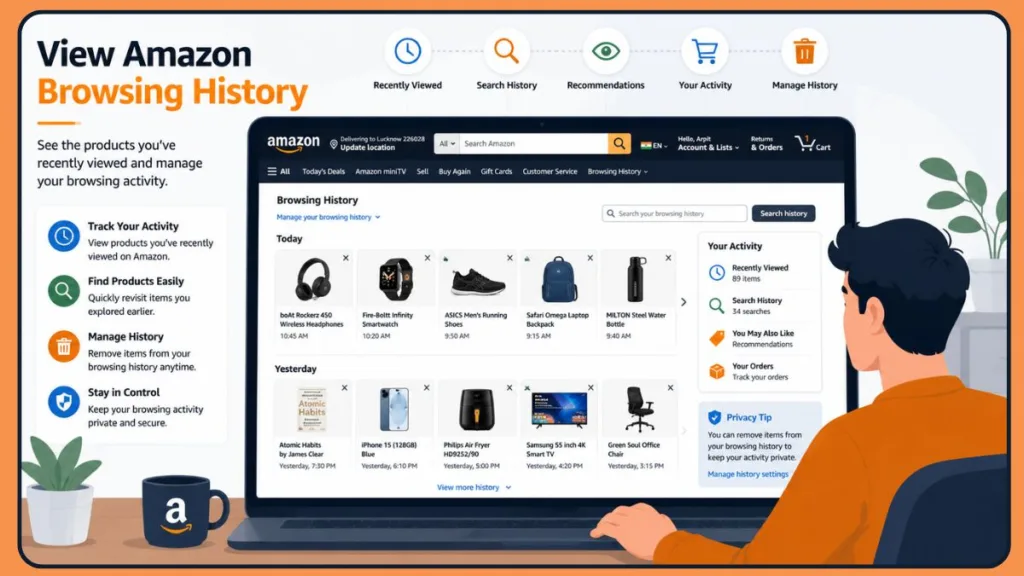
If you notice products that don’t match your interests or shopping habits, it may indicate that another person has been using your account.
For example, if you primarily shop for electronics but suddenly see pet supplies, automotive parts, or unrelated products appearing throughout your browsing history, it may be worth investigating further.
How to Access Amazon Browsing History
You can typically access your browsing history through your Amazon account menu or by opening the Browsing History section from your account dashboard.
Once there, you’ll be able to review recently viewed products and remove items if necessary.
While browsing history alone does not prove unauthorized access, it becomes more meaningful when combined with other warning signs such as unfamiliar devices, unexpected orders, account setting changes, or unusual search activity.
Key Term: “Amazon browsing history” can help identify shopping behavior that doesn’t match your normal usage patterns.
How to Check Amazon Search History
Your Amazon search history can provide another useful layer of information when reviewing account activity.
Many users search for:
- Amazon search history
- How to check my Amazon search history
- Amazon recent searches
Every time you search for products while signed into Amazon, the platform may use that information to personalize recommendations and improve search suggestions.
If another person is using your account, their searches may influence the products displayed throughout Amazon.
For example, you may notice recommendations for products you’ve never considered purchasing. In many cases, those recommendations originate from previous searches performed on the account.
When reviewing search history, pay attention to:
- Searches you don’t recognize.
- Product categories outside your normal interests.
- Repeated searches for unusual items.
- Search terms related to purchases you didn’t make.
Although search history is not as conclusive as order history, it can help identify unusual account behavior.
Why Search History Matters
Many users overlook search history when investigating Amazon account security.
However, search activity often appears before purchases occur. Someone exploring your account may conduct product searches long before placing an order.
Because of this, search history can provide an early warning sign that someone else is accessing your account.
How to View Recent Amazon Account Activity
Since users cannot access a dedicated “Amazon login history page”, many people wonder whether Amazon provides any kind of recent activity dashboard.
The answer is both yes and no.
Amazon does not offer a centralized activity log showing every account action. Instead, activity is spread across several areas of your account.
To build a complete picture of recent account usage, review:
- Registered devices.
- Recent orders.
- Browsing history.
- Search history.
- Payment methods.
- Shipping addresses.
- Login and Security settings.
- Digital content activity.
Together, these sections provide the closest thing to an Amazon account activity history report.
When reviewing recent account activity, look for inconsistencies. A single unusual search may not be cause for concern. However, if you notice unfamiliar devices, strange searches, new shipping addresses, payment method changes, and unexpected purchases all occurring around the same time, the likelihood of unauthorized access increases significantly.
This is why security experts often recommend reviewing multiple activity sources rather than relying on a single indicator.
Key Term: “Recent Amazon account activity” includes device registrations, account setting modifications, purchase history, digital content usage, and security-related changes.
Amazon continues to encourage users to enable Two-Step Verification (2SV) through the Login & Security section to help protect accounts from unauthorized access attempts.
How to Check If Your Amazon Order Has Been Archived
Another question that occasionally arises when reviewing account history is:
“How do I check if my Amazon order has been archived?”
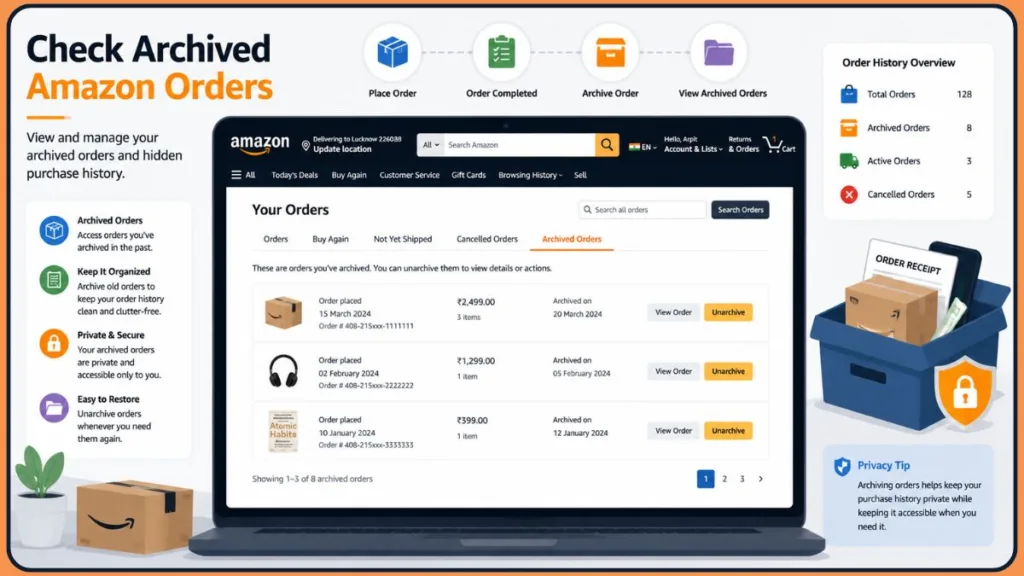
Archived Orders is a feature that allows users to hide certain purchases from their main order history. This is commonly used for gifts, shared accounts, or personal purchases that users prefer to keep separate from their primary order list.
It’s important to understand that archived orders are not deleted.
Instead, they are simply moved to a separate section of your Amazon account.
How Archived Orders Work
When an order is archived, it remains associated with your account and can still be accessed later.
If you’re reviewing your order history and believe a purchase is missing, it may have been archived rather than removed.
This distinction is important because some users mistakenly assume that missing orders indicate suspicious activity when the order was actually archived intentionally.
Why Archived Orders Matter During Security Reviews
When investigating possible unauthorized access, reviewing archived orders can help ensure you aren’t overlooking purchases.
If someone gained access to your account, they could potentially archive an order to make it less visible within your standard order history.
For this reason, checking archived orders can be a useful step when performing a complete Amazon account security review.
Combined with device monitoring, browsing history analysis, search history reviews, and order tracking, archived orders provide another layer of visibility into how your Amazon account is being used.
Important: If you discover purchases, archived orders, digital transactions, unfamiliar devices, or account changes you don’t recognize, review your account security settings immediately, update your password, verify your contact information, and take steps to secure your account before further activity occurs.
How to Enable Two-Step Verification on Your Amazon Account
If you’re concerned about unauthorized access, enabling Two-Step Verification (2SV) is one of the most effective Amazon account security measures you can take.
Many users only start looking for Amazon login history, Amazon sign-in activity, or Amazon account access logs after they notice suspicious activity. However, preventing unauthorized access is always easier than recovering an account after it has been compromised.
Two-Step Verification (2SV) adds an extra layer of security beyond your password. Even if someone manages to obtain your password through a data breach, phishing attack, credential stuffing attack, or reused credentials from another website, they still won’t be able to access your Amazon account without the verification code.
When enabled, Amazon requires a second verification step whenever a sign-in attempt is made from a new browser, device, or location. This additional authentication layer helps protect your Amazon Prime, Kindle, Audible, Alexa, and Prime Video services from unauthorized access.
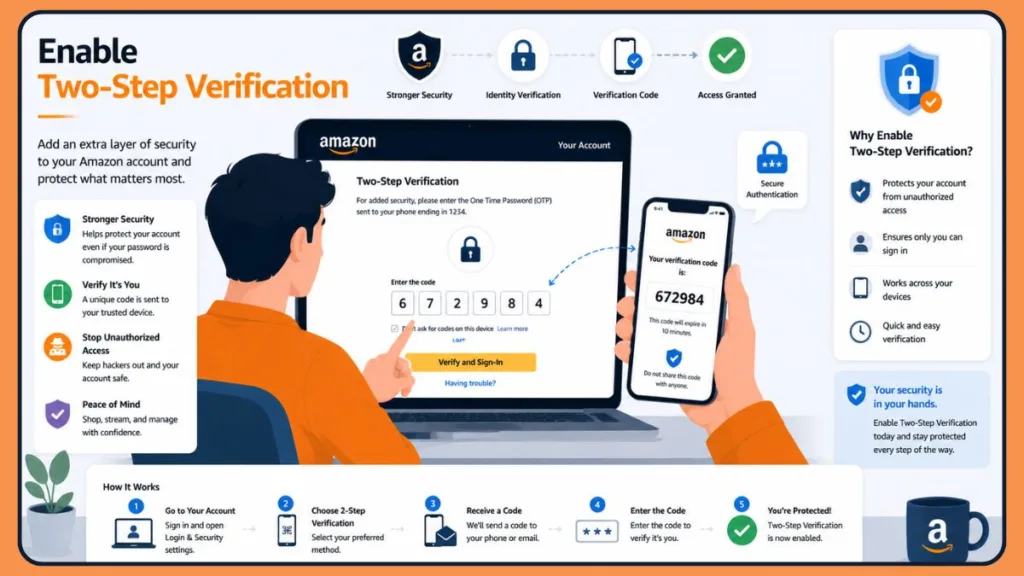
How to Turn On Amazon Two-Step Verification
You can enable Two-Step Verification through your Amazon account settings.
Start by signing in to your Amazon account and opening the Login & Security section. From there, locate the Two-Step Verification (2SV) settings and follow the setup instructions.
Amazon typically allows you to receive verification codes through:
- SMS text messages
- Authentication apps
- Backup verification methods
Once configured, you’ll receive a verification code whenever Amazon needs to confirm your identity.
Two-Step Verification (2SV) is also commonly referred to as Multi-Factor Authentication (MFA) or Two-Factor Authentication (2FA), both of which are widely recommended cybersecurity practices.
Why Two-Step Verification Matters
Many account compromises occur because users reuse passwords across multiple websites.
For example, if another website experiences a data breach and you’re using the same password for Amazon, attackers may attempt to access your account using those leaked credentials.
Two-Step Verification helps prevent this type of attack.
Even if someone knows your password, they would still need access to your verification code to complete the sign-in process.
Security Recommendation: If you’re reviewing your Amazon account because of suspicious activity, enable Two-Step Verification immediately after changing your password and removing unfamiliar devices.
According to cybersecurity experts, enabling multi-factor authentication can significantly reduce the risk of unauthorized account access compared to password-only protection.
What to Do If Your Amazon Account Has Been Compromised
Discovering that someone may have accessed your Amazon account can be stressful. However, acting quickly can significantly reduce the potential impact.
The first priority is securing your account before additional activity occurs.
Begin by changing your password immediately. Choose a strong password that is unique to Amazon and not used on any other website. If you’re unable to access your account or suspect someone has changed your security settings, visit Amazon’s Secure Your Account recovery page to start the account recovery process.
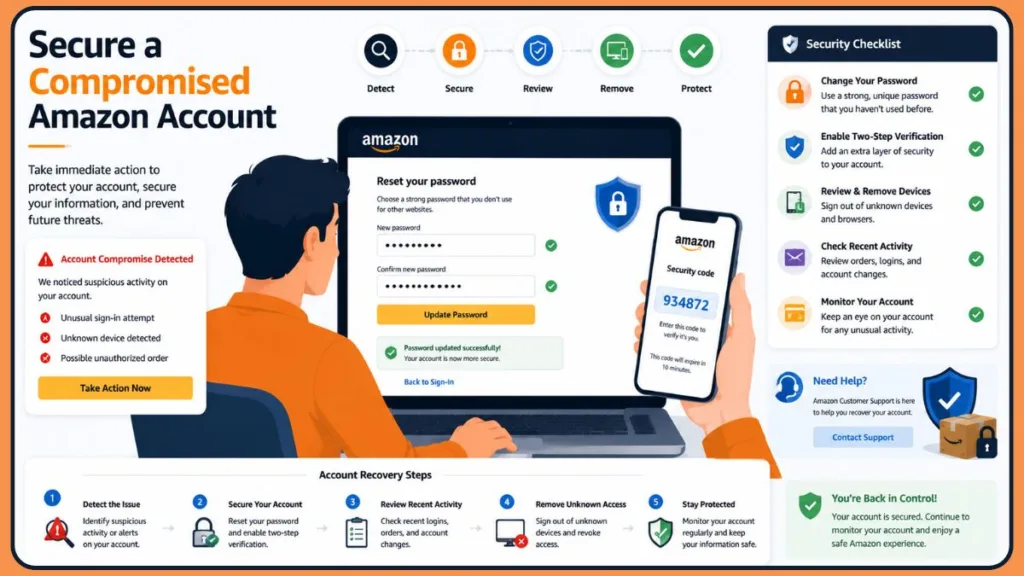
Next, review the Devices section and remove any unfamiliar devices. This helps revoke access from hardware that should not be connected to your account. You can learn more about managing connected devices through Amazon’s Manage Your Content and Devices page.
After that, review your account information carefully. Verify that your:
- Email address is correct.
- Mobile phone number is correct.
- Shipping addresses belong to you.
- Payment methods are legitimate.
- Login & Security settings haven’t been changed.
You should also review your recent order history, digital purchases, subscriptions, and archived orders. If you notice changes you didn’t make, use Amazon’s Secure Your Account tool to verify your identity and secure your account.
If you notice unauthorized transactions, contact Amazon Support as soon as possible. The sooner suspicious activity is reported, the easier it is to limit potential damage.
Complete Amazon Account Security Checklist
If you suspect your account has been compromised, work through the following checklist:
✓ Change your Amazon password.
✓ Enable Two-Step Verification.
✓ Remove unknown devices.
✓ Review recent orders.
✓ Check archived orders.
✓ Review browsing history.
✓ Review search history.
✓ Verify payment methods.
✓ Verify shipping addresses.
✓ Check digital content purchases.
✓ Review Prime Video activity.
✓ Use Amazon’s Secure Your Account recovery page if you cannot access your account.
✓ Contact Amazon Support if necessary.
Following these steps can help you regain control of your account and reduce the likelihood of future security issues.
Account Recovery Tip: If you believe your Amazon account has been hacked, also review your email account security because attackers often target both accounts simultaneously.
Frequently Asked Questions
Does Amazon Have a Login History Feature?
No. Amazon does not provide a traditional login history dashboard that shows every sign-in attempt, device location, IP address, or access timestamp.
Instead, you can monitor account activity through registered devices, order history, browsing history, search history, and security settings.
How Do I Check What Devices Are Logged Into My Account?
You can view connected devices by opening Manage Your Content and Devices and selecting the Devices tab.
This section displays devices associated with your Amazon account, including:
- Kindle devices
- Fire TV devices
- Smartphones
- Tablets
- Other registered hardware
How Do I See My Devices on Amazon?
Sign in to Amazon and navigate to:
Account & Lists → Your Account → Content & Devices → Devices
You’ll then see a list of devices linked to your account.
How Can I Get a List of All Connected Devices?
The Devices section of your Amazon account serves as your connected device list.
It provides the most complete overview of devices currently registered to your account.
How Do I Check If Other Devices Are Logged Into My Amazon Account?
Open the Devices section and carefully review every registered device.
If you see unfamiliar devices, investigate further and remove any devices you don’t recognize.
“Connected Devices” may include Kindle eReaders, Fire Tablets, Fire TV Sticks, Echo devices, mobile apps, and web browsers associated with your Amazon account.
How Do I Kick a Device Out of My Amazon Account?
Select the device from the Devices section and choose Deregister.
This immediately removes the device’s connection to your Amazon account and revokes access to Amazon services associated with that account.
How Do I Know How Many Devices Are Connected to My Amazon Prime?
Amazon does not provide a dedicated Prime device counter.
However, reviewing your registered devices can help you identify all devices currently associated with your Prime-enabled Amazon account.
How Do I Check My Amazon Order History?
Open the Returns & Orders section of your Amazon account.
There you can view:
- Recent purchases
- Subscriptions
- Digital orders
- Transaction history
Can I View My Amazon Browsing History?
Yes.
Amazon maintains a browsing history that displays products you’ve recently viewed while signed into your account.
Reviewing this section can help identify unusual shopping activity.
Can I See My Amazon Search History?
Amazon search activity influences recommendations and product suggestions.
While search visibility varies across Amazon services and interfaces, unusual recommendations and browsing behavior can often indicate unfamiliar search activity.
How Do I Check If My Amazon Order Has Been Archived?
Archived orders can typically be accessed through your order management section.
Remember that archived orders are hidden, not deleted, and remain associated with your account.
Archived Orders are commonly used to hide gift purchases or organize order history, but they can also be reviewed during a security audit.
Final Thoughts
While Amazon does not provide a dedicated Amazon login history page, you still have several powerful ways to monitor account access and identify suspicious activity.
For most users, the best approach is to combine multiple account monitoring methods rather than relying on a single source of information.
Regularly reviewing your registered devices, order history, browsing history, search history, payment methods, and account security settings can help you detect unusual activity before it becomes a serious problem.
If you ever discover an unfamiliar device, unexpected purchase, or suspicious account change, act quickly. Remove unauthorized devices, update your password, enable Two-Step Verification, and review your recent account activity.
By taking a proactive approach to Amazon account security, you can continue using Amazon Prime, Prime Video, Kindle, Audible, Alexa, Amazon Shopping, and other Amazon services with greater confidence and peace of mind.
Best Practice: Regularly review your account settings, connected devices, payment methods, and purchase history to maintain strong account security and reduce the risk of unauthorized access.
The next time you wonder how to check Amazon login history, remember that the answer isn’t a single page. Instead, it’s a combination of device management, account monitoring, digital security awareness, and cybersecurity best practices that help you maintain complete control over your Amazon account.
Visit Our Post Page: Blog Page
Discover more from Izoate
Subscribe to get the latest posts sent to your email.