
Worried Kindle Unlimited will charge you again or remove your books? Learn how to cancel your Kindle subscription safely and end your membership without losing access.
You sign into Amazon expecting to buy something simple, then notice a Kindle Unlimited charge you forgot about. Or maybe your free trial is about to renew and you just want to stop the next payment before it happens.
Then the real frustration starts.
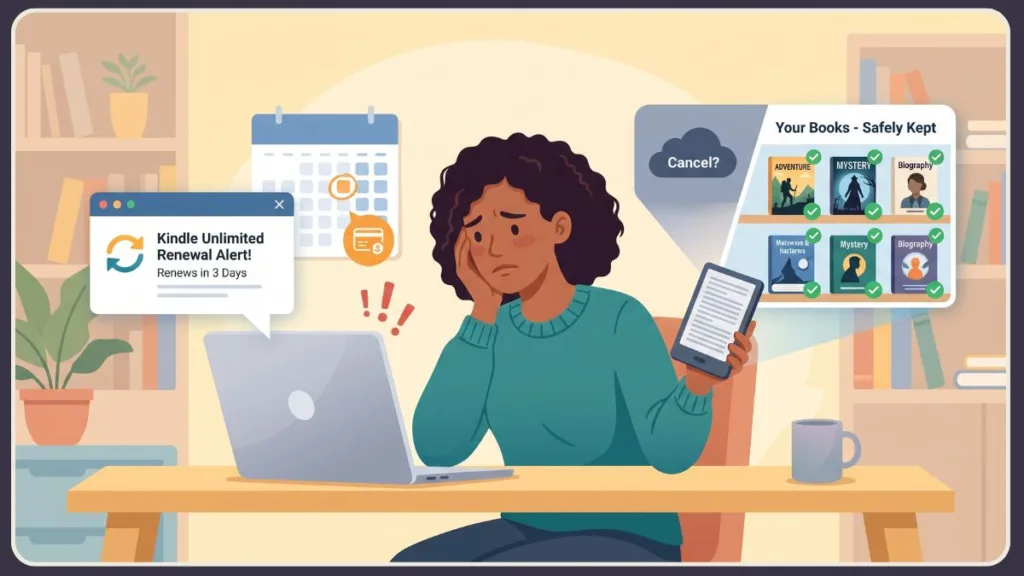
The cancel option is hard to find, the Kindle app keeps redirecting you, and suddenly you are wondering whether cancelling will remove your books or affect your Kindle device completely.
If that sounds familiar, you are not alone.
Many Kindle Unlimited users run into the same confusion because Amazon manages subscriptions separately from the Kindle app itself. The good news is that cancelling your membership is usually quick once you know where to look, and you can stop future charges without losing your purchased Kindle books.
What Really Happens to Your Kindle Books After Cancelling Kindle Unlimited?
Before cancelling, most people want reassurance that they are not about to lose their entire Kindle library. Here is what actually happens after your membership ends.
Borrowed Kindle Unlimited books stop working: Books borrowed through Kindle Unlimited are only accessible while your subscription remains active. Once the membership expires, Amazon removes access to those borrowed titles from your account. If the books were previously downloaded to your Kindle device, they may still appear for a short time until the device syncs with Amazon, but you will no longer be able to open or read them afterward.
Purchased Kindle books stay permanently in your account: Any ebooks you purchased normally from Amazon remain completely safe after cancellation because they are separate from Kindle Unlimited borrowing. Cancelling the subscription does not remove purchased books from your library, affect your ownership rights, or prevent future downloads. You can continue reading purchased titles normally across your Kindle device and Kindle apps even after the membership ends.
Your Kindle device and Amazon account continue working normally: Many users worry that cancelling Kindle Unlimited might disable their Kindle device or interfere with their Amazon account, but that does not happen. Kindle Unlimited is simply an optional subscription attached to your Amazon account, so your Kindle device, Kindle app, purchased library, syncing features, and other Amazon services continue functioning normally after cancellation.
Your membership usually stays active until the billing period ends: In most cases, Amazon allows you to continue using Kindle Unlimited until the current billing cycle or free trial period officially expires. This means cancelling today usually stops future renewal charges without immediately removing your reading access. Because of this, many users cancel as soon as they start a free trial in order to avoid forgetting later while still keeping access until the trial end date.
Notes, highlights, and bookmarks are usually retained: Another common concern is losing reading progress, notes, or highlights after cancelling. In most situations, Amazon keeps your bookmarks, highlights, notes, and reading progress connected to your account, especially for books you purchased permanently. However, access to annotations connected specifically to borrowed Kindle Unlimited titles may depend on whether you borrow those books again later in the future.
How to Cancel Kindle Unlimited From a Web Browser
If you tried cancelling through the Kindle app and could not find the option, you are not doing anything wrong. Amazon handles Kindle Unlimited management through your Amazon account settings, which works much more reliably in a web browser.
Here is how to cancel your membership from a desktop browser.
Step 1: Sign in to Your Amazon Account
Open Amazon in your preferred browser and sign into the account connected to your Kindle Unlimited membership. This matters because many users accidentally log into a second Amazon account and cannot find their active subscription afterward.
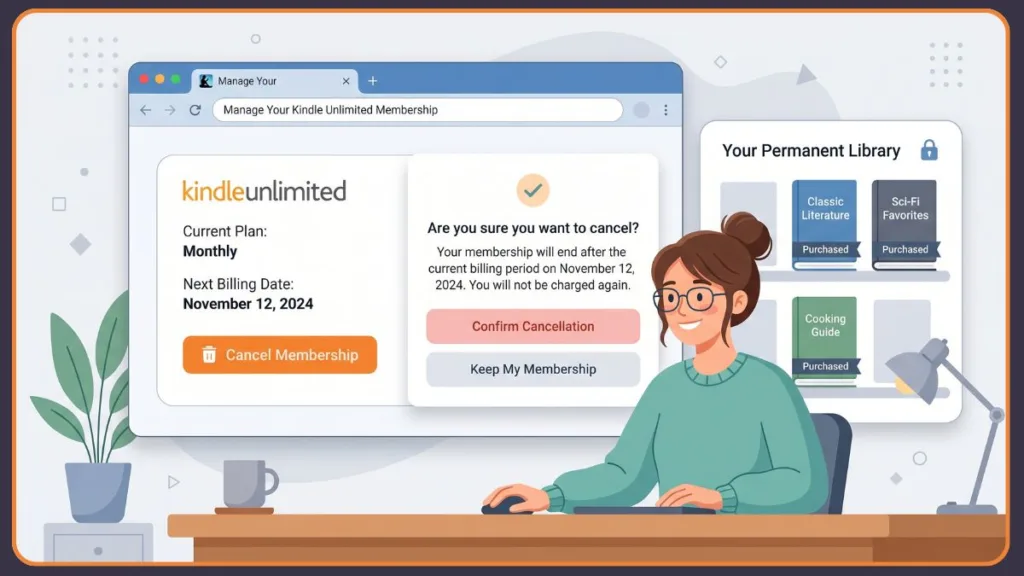
Once signed in, open the Kindle Unlimited membership management page by navigating to Account > Memberships & Subscriptions > Kindle Unlimited from your Amazon account settings.
Step 2: Open Your Kindle Unlimited Membership Settings
Inside your membership page, Amazon normally shows your upcoming renewal date. If a future billing date appears there, your subscription is still active and will continue renewing unless you cancel it manually.
Step 3: Select “Cancel Kindle Unlimited Membership”
Look for the option labeled:
“Cancel Kindle Unlimited Membership”
Amazon may try to keep you subscribed by showing discounted renewal offers, free extra months, or reminders about losing access to borrowed books. If you still want to continue with cancellation, move through the confirmation screens until Amazon confirms the request.
Step 4: Confirm Your Cancellation Date
After cancellation, Amazon normally displays the exact date your membership will end.
This step is important because many users think they cancelled successfully but actually stopped before reaching the final confirmation screen. Your account should now show that automatic renewal has been turned off along with the final membership expiration date.
You can continue reading borrowed Kindle Unlimited books until that date arrives.
How to Cancel Kindle Unlimited on iPhone or Android
One of the biggest frustrations users face is trying to cancel Kindle Unlimited directly inside the Kindle app.
In most cases, the Kindle app itself does not properly support subscription cancellation. Instead, Amazon typically requires users to manage the membership through a mobile web browser.
That means the easiest solution is usually opening Amazon in Safari, Chrome, or another browser on your phone.
Step 1: Open Amazon in Your Mobile Browser
Launch Chrome, Safari, or your preferred mobile browser and sign into the Amazon account connected to your Kindle Unlimited subscription.
Avoid using the Kindle app for this process because many users report missing subscription settings or endless redirects back to the app homepage.
Step 2: Access Your Membership Settings
After signing in, navigate to your Amazon account settings and open the Memberships & Subscriptions section to find Kindle Unlimited settings.
On some phones, Amazon may simplify the mobile layout and hide certain account controls. If that happens, switching to the desktop version of the site inside your browser usually makes the cancellation options easier to locate.
Step 3: Cancel the Membership
Tap the cancellation option and continue through Amazon’s confirmation prompts.
Just like on desktop, Amazon may display retention discounts, free extension offers, or reminders about borrowed Kindle Unlimited books before allowing you to finish the process. Continue until you reach the final confirmation page showing your membership end date.
Trying to Cancel a Kindle Unlimited Free Trial Before You’re Charged?
Many users search for cancellation steps right before their free trial renews because they do not want to forget and get charged automatically later. Fortunately, Amazon handles free trial cancellations almost the same way as regular memberships.
Cancel Early Without Losing Access
You can cancel the trial early through your Kindle Unlimited membership settings, and in most cases, Amazon still allows you to keep access until the official trial expiration date. This means you can stop the upcoming renewal charge while continuing to use Kindle Unlimited during the remaining trial period instead of losing access immediately.
Check the Renewal Date
Before cancelling, check the renewal date carefully inside your membership page. Amazon normally displays the exact day your free trial converts into a paid subscription, which helps you avoid unexpected charges later.
Confirm the Cancellation Worked
If you are unsure whether the cancellation worked, return to the membership page afterward and confirm that automatic renewal is disabled and an expiration date appears instead of a future billing date.
Why You May Not See the Kindle Unlimited Cancel Option
One of the most frustrating parts of cancelling Kindle Unlimited is opening Amazon settings and discovering that the cancel button is missing completely.
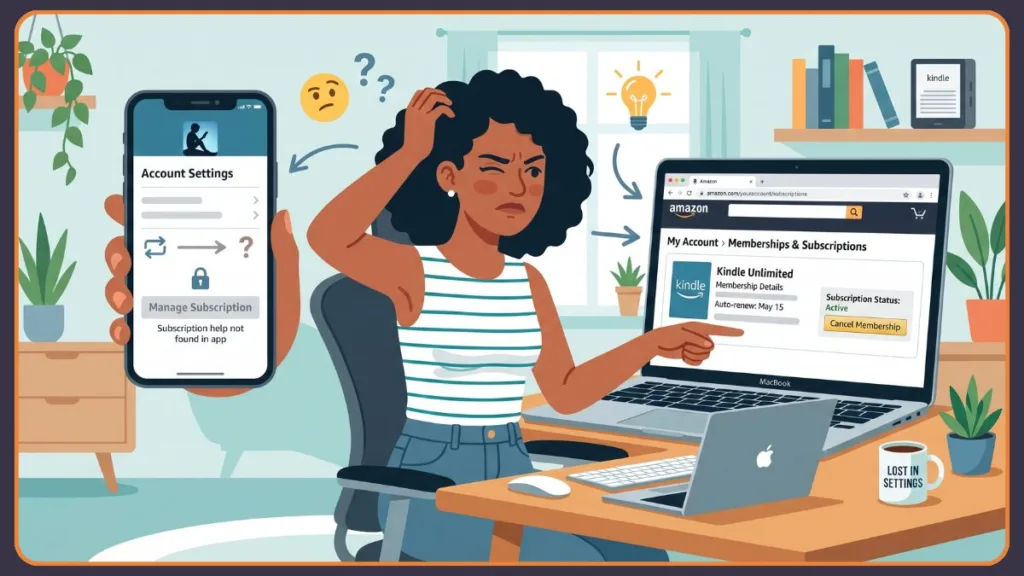
In most cases, this happens because of account confusion, app limitations, or expired memberships rather than a technical problem with your Kindle account itself.
You May Be Logged Into the Wrong Amazon Account
Many users have more than one Amazon account without realising it, especially if they use different email addresses for shopping, Kindle purchases, or Prime memberships.
If the Kindle Unlimited section shows no active membership, check whether you are signed into the same Amazon account that originally started the subscription. This is one of the most common reasons the cancellation option disappears.
The Kindle App Often Does Not Show Subscription Controls
Another major reason users cannot find the cancellation option is that the Kindle app itself does not fully support membership management.
Instead of displaying subscription controls directly, the app may redirect you repeatedly, hide account settings, or send you back to the homepage. If this happens, switch to Chrome, Safari, or another web browser and open Amazon there instead. The browser version usually exposes the full subscription settings page properly.
Your Membership May Already Be Expired
If your Kindle Unlimited subscription already ended, Amazon may remove the cancellation button because there is no active renewal left to stop.
In that situation, you might still see past billing information or old membership details, but the account no longer requires cancellation.
Checking your renewal status inside the Memberships & Subscriptions page usually confirms whether the membership is still active.
Household Sharing or Regional Accounts Can Create Confusion
Some users access Kindle content through shared Amazon households or accounts connected to different Amazon regions. In those cases, the membership controls may appear under another account owner or regional Amazon site instead of the one currently signed in.
If the cancel option seems completely missing despite active charges, verifying the account owner and regional Amazon marketplace can help locate the correct subscription settings.
Can You Restart Kindle Unlimited Later?
Cancelling Kindle Unlimited does not permanently lock your account out of the service.
1. Restart Your Membership Anytime
If you decide later that you want access to Kindle Unlimited again, you can simply restart the membership from your Amazon account. Your Kindle device, reading apps, and Amazon account remain fully functional after cancellation, so rejoining the service is usually quick and straightforward.
2. Borrow Your Favorite Books Again
If books you enjoyed are still available inside the Kindle Unlimited catalog later, you can usually borrow them again after restarting your membership.
This helps many users feel more comfortable cancelling because they know they are not permanently losing access to the service forever.
3. Look Out for Returning-Member Deals
Amazon frequently offers returning members discounted pricing or extra free months. Because of this, some users temporarily cancel the membership during periods when they are reading less frequently and rejoin later when they want access again.
FAQ
Can You Cancel Kindle Unlimited Anytime?
Yes, Amazon allows you to cancel Kindle Unlimited whenever you want. In most cases, your access continues until the current billing cycle or free trial period officially ends, but future renewal charges stop after cancellation is confirmed.
Will Amazon Refund a Kindle Unlimited Charge?
Amazon does not always guarantee refunds for Kindle Unlimited charges, especially after a billing cycle has already started. However, some users have successfully received refunds by contacting Amazon customer support shortly after an unexpected renewal. Refund decisions usually depend on account history and timing.
Does Cancelling Kindle Unlimited Remove Purchased Books?
No, cancelling Kindle Unlimited only removes access to borrowed Kindle Unlimited titles. Any ebooks you purchased normally through Amazon remain permanently connected to your account and continue working normally after cancellation.
Why Does Amazon Keep Charging for Kindle Unlimited?
This usually happens because the subscription was not fully cancelled or because the account owner signed into the wrong Amazon account while checking membership settings. If you still see active charges, open the Memberships & Subscriptions section again and confirm that automatic renewal has actually been turned off.
Can You Cancel Kindle Unlimited From the Kindle App?
In most cases, the Kindle app itself does not properly support direct subscription cancellation. Amazon normally requires users to manage Kindle Unlimited through a web browser instead, which is why many users switch to Chrome, Safari, or a desktop browser to complete the process successfully.
How Do You Check Your Kindle Unlimited Renewal Date?
You can check your renewal date by opening your Amazon account settings and visiting the Kindle Unlimited membership page. Amazon normally displays the next billing date or membership expiration date directly inside the subscription settings section.
Conclusion
Cancelling Kindle Unlimited is usually much easier once you know where Amazon hides the subscription settings.
Most frustrations happen because the Kindle app does not fully support membership management, or because users accidentally sign into the wrong Amazon account. Furthermore, Amazon’s cancellation flow includes several confirmation screens that can cause confusion before the process actually finishes.
The important thing to remember is that cancelling Kindle Unlimited does not remove your purchased Kindle books, disable your Kindle device, or affect your Amazon account. In most cases, it simply stops future renewal charges while allowing you to keep access until the current billing period ends.
If you ever decide to return later, Amazon usually allows you to restart the membership anytime.
Visit Our Post Page: Blog Page
Discover more from Izoate
Subscribe to get the latest posts sent to your email.