
Can’t find the Spotify Cancel Subscription button? Learn how to cancel Spotify Premium, stop auto-renewal, fix billing issues, and avoid future charges.
If you’ve been searching for a “Cancel Subscription” button on Spotify and it just isn’t there, you’re not losing your mind. This is one of the most common complaints Spotify users run into right now: you open the app, it sends you to the account page, the account page tells you to check the app, and somehow you end up right back where you started with no cancel option in sight.
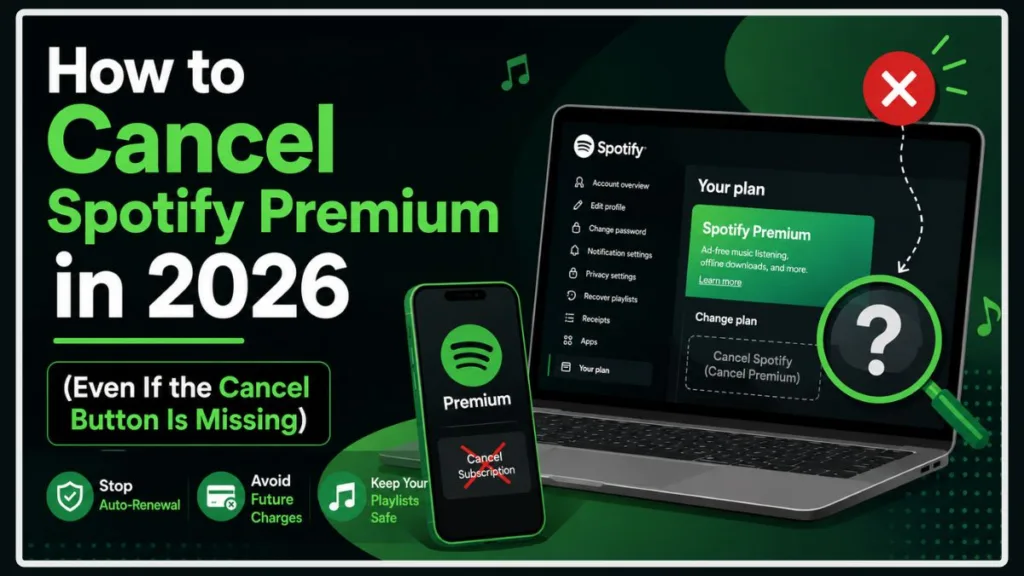
Here’s the good news: you don’t have to kill your credit card or delete the app and hope for the best. In this guide, you’ll learn exactly why the cancel button hides, the fastest way to cancel no matter how you’re billed, and a few backdoor tricks for when the standard steps just won’t cooperate.
Why Is the Spotify “Cancel Subscription” Button Missing?
Before you try anything else, it helps to know why this happens in the first place.
The mobile app restriction: Spotify’s iOS and Android apps don’t let you cancel your subscription directly inside the app. This is widely believed to be a way of avoiding the commission Apple and Google charge on subscription changes made through their app stores, though Spotify doesn’t spell this out publicly. Either way, the result is the same: tapping around inside the app for a cancel button is a dead end.
The redirect loop: If you’ve been bounced back and forth between the app and the website with no way out, it usually happens because the system can’t immediately confirm how your account is billed. Your mobile browser and the native app end up pointing at each other instead of showing you the actual cancel page.
The quick fix: Stop trying to do this from your phone’s app or mobile browser. Switch to a full desktop browser (or request the “Desktop site” version on your phone) and the option almost always appears.
Check Who’s Actually Billing You First
Here’s the part most guides skip, and it’s the actual root cause behind most “the button won’t show up” complaints: Spotify can only cancel a subscription that it’s actually billing.
If you signed up through Apple, Google Play, or a mobile carrier, Spotify’s own account page has no cancel button to give you, because Spotify isn’t the one charging your card.
To check, log in at spotify.com/account on a browser and look at the payment details under your plan. You’re generally billed by one of these:
- Direct (Spotify): Charged straight to a card or PayPal through Spotify. You’ll cancel through the website.
- Apple: Charged through the App Store. You’ll cancel through your iPhone or iPad’s subscription settings.
- Google Play: Charged through the Play Store. You’ll cancel through your Google account.
- Partner or bundle: Charged through a mobile carrier, internet provider, or a bundle like a phone plan or another service’s package. You’ll cancel through that partner, not Spotify.
Tip: If your bank or card statement shows a charge labeled something like “SPOTIFY USA,” “SPOTIFY AB STOCKHOLM,” “APPLE.COM BILL,” or “GOOGLE *SPOTIFY,” that’s a fast way to confirm who’s actually billing you before you go hunting for the cancel button.
How to Cancel Spotify Premium, By Billing Method
Once you know who’s billing you, cancellation is usually quick. Here’s exactly where to click for each method.
If You’re Billed Directly by Spotify (Desktop Method)
- Open a desktop browser — Chrome, Safari, or Edge — on a computer, not a phone.
- Go to spotify.com/account and log in.
- Under the Your plan section, click Change plan.
- Scroll down to the Cancel Spotify section and select Cancel Premium.
- Spotify will show you what you’ll lose and may offer a discount or a pause instead. Click Continue to cancel if you still want to proceed.
- Confirm by clicking Yes, cancel. You’ll get a confirmation email right away.
Your Premium benefits stay active until your next billing date, then your account automatically switches to Spotify Free.
If You’re Billed by Apple (iPhone or iPad)
- Open the Settings app — not the Spotify app.
- Tap your name or Apple ID banner at the top.
- Tap Subscriptions.
- Find Spotify in the list.
- Tap Cancel Subscription and confirm.
If Spotify doesn’t show up in this list, you likely didn’t sign up through Apple, so check the other methods below.
If You’re Billed by Google Play (Android)
- Open the Google Play Store app.
- Tap your profile icon in the top right corner.
- Select Payments & subscriptions, then Subscriptions.
- Choose Spotify and tap Cancel subscription.
If You’re Billed by a Carrier or Third-Party Partner
If your Spotify Premium came bundled with your phone plan, internet service, or another provider’s package, Spotify can’t cancel it for you. You’ll need to log directly into that provider’s account portal — think Verizon, Vodafone, AT&T, Telstra, or Xfinity — and turn off the Spotify add-on from there.
If You’re Managing a Family or Duo Plan
Only the plan manager — the person who set up and pays for the plan — can cancel a Family or Duo subscription, and only from the account page (using the steps above). If you cancel as the plan manager, every member loses Premium starting from the next payment date, so it’s worth giving everyone a heads-up first.
If you’re a plan member rather than the manager, following the cancel steps on your own account will only remove you from the plan. It won’t cancel the subscription itself. To fully cancel, the plan manager needs to do it, or you can update the payment method if you’ve taken over as manager.
Still Stuck? 3 Backdoor Tricks to Force a Cancellation
If you’ve tried everything above and the cancel option genuinely still won’t appear, these are the workarounds people are actually using to get unstuck.
Trick 1: The “Close Account” Loophole
This one catches a lot of people by surprise. Navigate to your account’s data and privacy settings and start the process to close your account and delete your data. Before Spotify actually deletes anything, it will usually prompt you with something like, “Do you want to permanently delete your account or cancel Premium?” Choose to cancel Premium instead, and you’ll get a clean cancellation without losing your account entirely.
Trick 2: The Support Chatbot Spam
Head to Spotify’s official Contact Us page and open the support chat. Type “Cancel Subscription” clearly, and keep declining the automated troubleshooting suggestions the bot offers. Stay persistent. Eventually, the chatbot will either trigger a one-click unsubscribe option or connect you with a live human agent who can cancel the account manually on their end.
Trick 3: The Virtual Card Pivot (Emergency Method Only)
Warning: This is a last resort, not a real cancellation. Read this before you try it.
This trick stops the charge, not the subscription. If you’ve genuinely exhausted every other option above, you can swap your saved payment method for a temporary virtual or “burner” card from your banking app, then delete that virtual card immediately after. When Spotify tries to bill you again, the payment will simply fail.
The catch: this doesn’t cancel your Spotify contract, it just blocks the payment. Spotify may flag your account for non-payment instead of cleanly canceling it, which can get messy if you ever want to resubscribe later. Only use this if Pathways A through E and Tricks 1 and 2 above haven’t worked for you.
2026 Update: Why Are So Many Users Canceling? (Price Hikes)
In the last couple of years, Spotify has steadily increased its subscription costs across the board. Following the widely discussed 2024 and 2025 price hikes, many users are now paying significantly more for Individual, Duo, and Family plans than they were just a few years ago. With the rollout of new pricing tiers—including the long-rumored, higher-priced Platinum tier and unbundled Basic plans that remove audiobook access—many listeners are re-evaluating their budgets and jumping ship to competitors like Apple Music or YouTube Music.
The FTC “Click-to-Cancel” Rule: Why It Didn’t Save Us
If you’re wondering why the government hasn’t stepped in to make canceling easier, they actually tried. The U.S. Federal Trade Commission (FTC) recently passed a highly publicized “Click to Cancel” provision under its Negative Option Rule, which mandated that companies make canceling a subscription just as easy as it was to sign up.
Unfortunately for consumers, a federal appeals court recently voided the FTC’s amendments, ruling that the procedural process the FTC used was insufficient. Because this federal push was blocked, subscription services are still legally operating in a gray area in many regions—meaning they can still rely on complex “retention flows” and hidden menus to make you reconsider leaving.
How to Export Your Spotify Playlists Before You Cancel
If you’re canceling to move to another streaming service like Apple Music, TIDAL, or YouTube Music, you don’t have to leave your carefully curated music library behind.
Before your account switches to the free tier, you can seamlessly transfer your library using a third-party migration tool. The most popular, reliable options in 2026 are TuneMyMusic (which is officially partnered with several major platforms) and Soundiiz.
- TuneMyMusic: Allows you to select Spotify as your source, pick the exact playlists you want to move, and port them directly to your new destination via their official APIs.
- Soundiiz: Offers a comprehensive dashboard to manage and sync your playlists across 45 different music services, making it easy to migrate your data securely.
Tip: Export your playlists before your current Premium billing cycle ends. While your playlists are safe on Spotify’s free tier, third-party syncing tools often work much faster and more reliably when pulling data from an active Premium account.
What Happens After You Cancel Spotify Premium?
A lot of people put off canceling because they’re worried about losing everything they’ve built up. Here’s the reality:
- Your playlists, liked songs, and saved albums are completely safe. Nothing gets deleted when you cancel Premium.
- Premium sticks around until the end of your billing cycle. You won’t lose access the moment you click cancel — you keep ad-free listening and offline downloads until your next billing date, then your account automatically switches to Spotify Free.
- The free tier has real limits. Ads return between tracks, offline downloads disappear, audio quality drops, and on mobile, playback on individual playlists and artists switches to shuffle-only rather than full on-demand.
- You can resubscribe anytime. If you change your mind later, reactivating Premium takes seconds. The only exception is a zero-priced free trial — if you cancel during a free trial, it can’t be reactivated the same way.
Frequently Asked Questions
Can I cancel Spotify Premium directly from the mobile app?
No. Spotify’s app doesn’t include a cancel option by design. You’ll need to use a desktop browser, your phone’s subscription settings (Apple or Google), or your carrier’s portal, depending on how you’re billed.
Why does Spotify keep charging me after I deleted the app?
Deleting the app only removes it from your phone — it doesn’t touch your billing. Your subscription is a separate, ongoing agreement that keeps running until you actually cancel it through the correct method above.
Why is my account stuck in an endless loop when I click “Manage Plan”?
This usually happens on mobile, when the app and browser can’t agree on how to show your billing details. Switch to a full desktop browser, or request the desktop site on your phone, and the loop typically clears up.
Do I get a refund when I cancel Spotify Premium?
Generally, no. Canceling stops future charges, but it doesn’t refund the current billing period — you keep your Premium benefits through the end of the cycle you already paid for, then it switches to Free.
How do I stop Spotify auto-renewal if I forgot my login credentials?
Use Spotify’s account recovery options to regain access first. If you subscribed through a carrier or bundle and can’t recover your Spotify login, you may still be able to stop the charge by canceling the add-on directly through your carrier’s account.
How do I cancel a Spotify Family or Duo plan?
Only the plan manager can cancel it, using the same steps as an individual plan. If you’re a plan member instead of the manager, removing yourself only takes you off the plan — it doesn’t cancel the subscription for everyone else.
The Bottom Line
The key to beating the missing cancel button is figuring out who’s actually billing you, then switching to a desktop browser if you’re stuck in a loop. From there, cancellation usually takes under five minutes.
Which method worked for you? Drop a comment below and let us know — and if you ran into a redirect loop or a billing quirk this guide didn’t cover, tell us about it so we can help the next person stuck in the same spot.
Visit Our Post Page: Blog Page
Discover more from Izoate
Subscribe to get the latest posts sent to your email.