
Struggling with meeting conflicts and incorrect availability? Learn how to change working hours in Outlook 2026 using the easiest methods for desktop, web, mobile, and Teams.
To begin with, navigating the modern hybrid workplace can often feel like a juggling act. Consequently, if you find yourself constantly fielding meeting requests that clash with your personal time or remote days, you are definitely not alone.
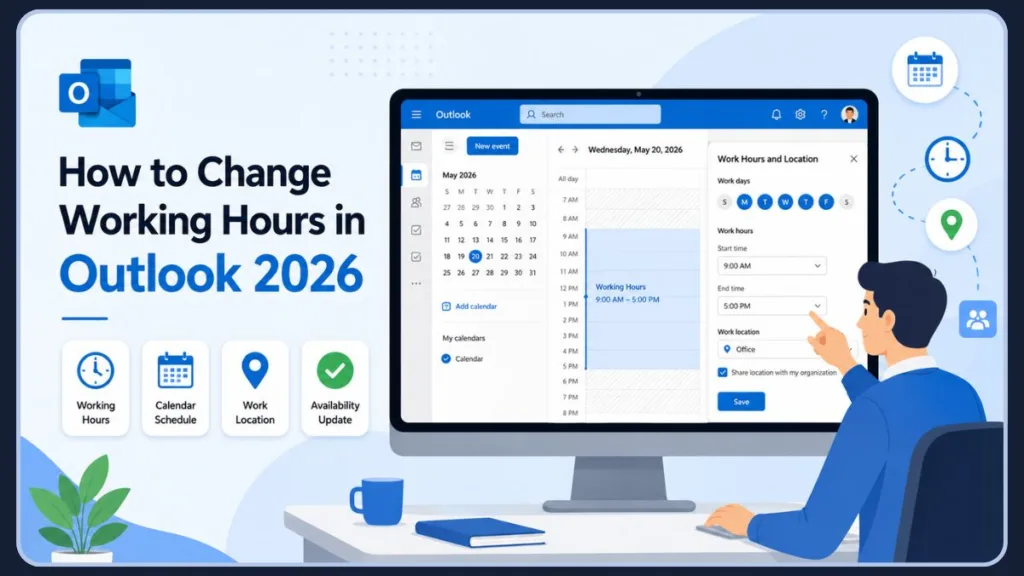
If you are wondering, “How do I change working hours in Outlook?” to reflect this new reality, you are in the right place.
3 Steps to Reclaiming Your Day
Basically, the secret to taking back control lies right inside your Microsoft 365 calendar settings. Here is exactly what mastering this setup achieves:
- Prevents endless scheduling disasters by keeping your team informed.
- Teaches you how to change working hours in Outlook 2026 across all your devices.
- Acts as a cornerstone for mastering your daily productivity and finding a healthy balance.
Therefore, whether you are commuting to the office or working from your living room, setting up your calendar correctly is a must. Furthermore, by making these quick tweaks, you ensure your team always knows exactly when you are truly available. Next, let’s dive into exactly why this quick calendar fix is an absolute game-changer for your workday.
What Are Working Hours in Outlook?
Working hours in Outlook define the days and times you are normally available for work. Outlook uses these settings to improve meeting suggestions, display availability in the Scheduling Assistant, sync information with Microsoft Teams, and visually separate working and non-working hours in your calendar.
For example, you might configure your schedule to match a standard Monday through Friday, 9:00 AM to 5:00 PM routine, or adjust it to accommodate alternative arrangements such as a four-day, compressed work week or alternating remote shifts. Setting this profile accurately serves as the foundation for modern workplace transparency, ensuring that automated booking systems and colleagues respect your personal boundaries.
Why You Need to Adjust Working Hours in the New Outlook
First and foremost, you might be wondering why you should even bother diving into these settings. Essentially, updating your schedule goes far beyond just keeping your own day organized. Instead, it acts as a silent, helpful communicator to everyone in your organization.
The Top Benefits of a Synchronized Schedule
Here is a breakdown of how customizing your calendar improves your daily workflow:
- Accurate Scheduling Assistant Data: For instance, the moment you update your calendar, the Scheduling Assistant instantly reflects your true availability. As a result, it becomes visually clear to your colleagues exactly when they can book time with you, drastically reducing the frustrating back-and-forth of email tag.
- Seamless Microsoft Teams Sync: Moreover, your Outlook settings do not exist in a vacuum. Specifically, adjusting your schedule directly syncs with your hybrid work schedule Outlook profile and Microsoft Teams. Consequently, your presence status remains perfectly accurate across your company’s entire network, ensuring no one is left guessing where you are.
- Stronger Work-Life Boundaries: Finally, defining your daily hours helps you establish firm, healthy boundaries. Without a doubt, having your calendar accurately reflect your Exchange Online account schedule prevents well-meaning coworkers from booking meetings during your precious downtime.
Ultimately, taking five minutes to customize these settings is a massive win for both your team collaboration and your peace of mind.
Do Outlook Working Hours Sync With Teams?
Yes. Outlook and Microsoft Teams share availability data through Microsoft 365. When you update your working hours in Outlook, Teams automatically uses that information to improve scheduling visibility. Once you save your schedule in Outlook, Teams automatically pulls that cloud-hosted data to dynamically update your availability status and determine your organization-wide profile status.
Does Teams Use Outlook Work Hours Automatically?
Absolutely. Because both applications operate within the unified Microsoft 365 ecosystem, Teams continuously listens to changes made to your primary Exchange Online calendar configuration. You do not need to manually configure duplicate operating schedules inside Teams; an update to your work hours on the Outlook desktop app or Outlook on the web establishes a single source of truth that Teams references natively for calculating calendar availability, scheduling suggestions, and presence statuses.
Step-by-Step: How to Change Working Hours in Outlook 2026
Next, let’s get down to business. Basically, the exact steps to configure your calendar depend heavily on which version of the app you are currently using. Therefore, I have broken down the instructions below for every major platform. Consequently, you can easily find the exact solution that fits your specific Outlook 2026 work schedule setup.
Updating Times in the New Outlook for Windows & Web App
Specifically, if you are using the modern desktop application or relying on Outlook web app configurations, the interface is beautifully streamlined. Furthermore, this modern version actually allows you to set different hours for different days! If you are asking, “Can I set different working hours for different days in Outlook?” the answer is a resounding yes. Here is how to adjust working hours new Outlook:
- First, click the Settings gear icon located in the top-right corner of your screen.
- Next, navigate to the Calendar tab on the left sidebar.
- Then, select the Work hours and location menu.
- After that, check the boxes for the specific days you actually work.
- Subsequently, define your unique Start time and End time for each selected day using the dropdown menus.
- Finally, click Save to lock in your new availability.
Pro Tip for Flexible Schedules: Interestingly, if you work non-traditional hours, the modern interface has a hidden gem. Specifically, you can click the “+” icon next to a day to create split shifts (e.g., working a morning shift, taking the afternoon off, and logging back on in the evening). Without a doubt, this is perfect for modern remote workers!
Modify Default Work Week in Classic Outlook for Windows
In contrast, many corporate enterprise users are still utilizing the legacy desktop application. Undoubtedly, if you need to modify default work week Outlook calendar settings in this version, the process looks a bit different. Many users ask, “How do I change my work week in Outlook?” or “How do I set a four-day work week in Outlook?” Basically, to set custom work week Outlook parameters, follow these simple instructions:
- To begin, open your application and click on File in the top-left menu.
- Next, select Options at the very bottom of the list.
- Consequently, a new window will pop up where you should select Calendar from the left sidebar.
- Furthermore, scroll down to the Work time section to find your scheduling settings.
- Then, establish your universal Start time and End time.
- Finally, check the boxes for your active workdays and click OK to save.
Can I Customize Which Days Appear in Work Week View?
Yes! The checkboxes you select here directly control your calendar display. If you often wonder, “Why is Friday missing from my Outlook Work Week view?”, it is because Friday is accidentally unchecked in this exact menu.
Important Limitation: Crucially, Classic Outlook only allows you to set one universal time block for all your selected workdays. Therefore, if you have a schedule that varies from day to day, we highly recommend logging into the web version to make those specific, per-day tweaks!
Customizing Your Calendar View to Show Only Working Hours
A very common frustration among users is visual clutter. You might be wondering, “How do I make Outlook show only my working hours?” or “Why does Outlook still display 24 hours even after setting working hours?”
Here is the truth: How do I remove non-working hours from Outlook Calendar? You cannot completely delete or hide off-hours. Outlook does not allow you to restrict the calendar grid solely to your shift. If you are asking, “Why is Outlook showing midnight to 11 PM instead of my work schedule?” it is because the default scale displays the full day.
However, you can improve the view. Can Outlook automatically start the calendar view at my working hours? Yes. When you configure your hours properly using the steps above, Outlook will shade your non-working hours in a darker gray and keep your active hours bright white, automatically scrolling to your start time when you open the app. Why is Work Week view different from my working hours? The Work Week view controls which days appear, while working hours control the shaded times on those days. If you want to know how to make Work Week view display only business hours, adjusting the “Time Scale” in the View tab to 30 or 60 minutes can help compress the visual space.
Adjusting the Outlook for Mac & Mobile Apps
Additionally, we cannot forget about Apple users and mobile warriors! Ultimately, keeping your calendar updated across all devices is crucial to update working times Outlook seamlessly.
- For Mac Users: Simply open your app and navigate to Outlook > Preferences > Calendar > Work schedule to adjust your daily times.
- For Mobile Users: People frequently ask, “Can I change working hours in Outlook Mobile?” and “Why can’t I edit work hours on iPhone Outlook?” Crucially, the iOS and Android apps are designed primarily for viewing rather than editing. Why are work hour settings missing on Outlook iOS? Because the app pulls this data directly from your server profile. Therefore, you must log into your web portal or use your desktop app to make these changes. Does Outlook Mobile sync working hours from desktop? Yes! As a result, your new schedule will instantly and automatically sync directly to your mobile device. (Note: If you are wondering how to change quiet hours in Outlook Mobile to stop evening notifications, tap your profile icon in the app, hit the bell icon, and configure your “Do Not Disturb” times there).
Quick Calendar View Tip: Furthermore, did you know you can easily make one-off changes directly from your calendar? Basically, just click on the work plan icon on a specific day in your calendar view to quickly update your hours, without having to dig back into the main settings menu!
Crucial Things to Remember About Your Schedule
Before you move on, it is essential to understand exactly how these settings impact your workday. Therefore, keep these important rules in mind:
- Hours Do Not Block Meetings: Most importantly, setting your hours does not automatically decline meeting invitations. Many users ask, “Why can people still schedule meetings outside my working hours?” or “Can Outlook automatically block meetings outside work hours?” The answer is no. Do working hours affect Scheduling Assistant? Yes, it shades your off-hours gray so colleagues know you are off the clock. But why is Outlook suggesting meetings outside my work hours? If a colleague ignores the gray shading, the system will still let the invite through. How do I appear unavailable outside my work schedule? and How do I prevent after-hours meeting invitations? Consequently, you must manually create recurring “Busy” calendar blocks or use an Out of Office reply to actively prevent colleagues from booking over your personal time.
- Watch Out for Time Zone Traps: Additionally, if your working hours suddenly look completely wrong, check your device’s time zone adjustments. Often, traveling can silently throw your local time out of sync, causing massive scheduling headaches.
How to Set Work Hours and Location in Outlook
To build a flawless hybrid setup, you must target the cohesive Outlook Work Hours and Location menu. This integrated panel allows you to coordinate when and where you are working simultaneously. Configuring your Work Hours and Location Outlook details ensures that your profile serves as an interactive blueprint for your team.
To initialize these comprehensive parameters:
- Navigate to Settings > Calendar > Work hours and location within the New Outlook or web portal.
- Select your active weekly days and assign customized time intervals to each individual date.
- Directly beneath your assigned schedule, toggle your regional workspace preferences, specifying whether you are occupying an office desk, operating from a domestic remote setting, or working from an alternative location.
- Click Save to distribute these rules globally across your Microsoft account.
Advanced Tips: Optimizing Hybrid Schedules, Split Shifts, and Global Time Zones
Furthermore, once you have mastered the foundational basics of your calendar, it is time to unlock the true potential of the newest Microsoft ecosystem. Essentially, the modern workplace is rarely a traditional 9-to-5 grind anymore. Consequently, Microsoft has rolled out some incredibly robust, highly requested features tailored specifically for complex, global, and highly flexible work environments.
Ultimately, taking advantage of these advanced tools will elevate you from a casual user to an absolute calendar pro. Next, let’s explore how to customize your setup for maximum efficiency and clarity.
Mastering the Split Shift Schedule
Specifically, if your workday is frequently broken up by school drop-offs, midday gym sessions, or dedicated evening deep-work blocks, you absolutely need to know how to set different working hours for each day in Outlook. Even better, the newest update finally allows you to set multiple working hours in Outlook for a single, individual day.
Basically, here is how you can leverage this incredible flexibility to map out a highly customized routine:
- Utilize the “+” Icon: To begin with, navigate to your Work hours and location settings in the web or new desktop app. Next, simply click the “+” icon located next to any specific day.
- Add Multiple Timeslots: Consequently, this action generates a new row, empowering you to add up to three distinct timeslots per day. For example, you can easily configure your Monday to show availability from 8:00 AM to 12:00 PM, and then again from 3:00 PM to 6:00 PM.
- Establish Clear Boundaries: Therefore, during that three-hour midday gap, your profile will clearly indicate that you are offline, completely eliminating the anxiety of missing a meeting while you are taking a well-deserved break.
Work Location Tags for Remote and Office Days
In addition, coordinating a hybrid team can rapidly devolve into chaos if no one knows who is actually sitting in the building. Many users ask, “How do I set work location in Outlook?” or “Can I mark specific days as remote in Outlook?” Therefore, figuring out how to show work location in Outlook is an absolute lifesaver for in-person collaboration. Undoubtedly, configuring your remote and office location settings makes planning physical meetings seamless.
- Specify Your Daily Location: First, right next to your daily time slots, utilize the dropdown menu to tag yourself as Remote, Office, or even a specific building on your corporate campus.
- Control Your Privacy: You might wonder, “Can coworkers see my work location?” or “Why is my workplace location visible to colleagues?” Interestingly, Microsoft has built-in excellent privacy safeguards. How do I share office location details in Outlook? or Can I hide my office location from other users? Specifically, you can toggle the ‘Share Office Location Details’ option on or off, allowing you to maintain strict control over how much geographical information you broadcast to your wider organization.
- Enjoy Visual Enhancements: As a result of setting these tags, a helpful little location icon will automatically populate on your calendar days. Furthermore, when colleagues use the Scheduling Assistant, a tiny site icon will appear directly behind your name, instantly communicating your exact working status.
Can Teams Show Whether I’m Working Remotely or in the Office?
Yes, if your organization allows it, your location tag will directly populate into your Teams profile. This provides a clear, real-time spatial reference to your team, allowing managers and peers to see your exact working layout instantly.
Why Isn’t My Work Location Appearing in Teams?
If your specified office status fails to bridge over, it usually means your company’s IT administrator has disabled this specific sync feature, or your individual account cache requires a hard refresh. Additionally, cross-app location synchronization demands a fully active Microsoft 365 business tier, meaning personal consumer mailboxes will lack the background architecture to project this data.
Navigating Multiple Time Zones Like a Pro
Moreover, if you frequently collaborate with international clients or manage a widely distributed global team, relying on mental math to schedule meetings is a recipe for disaster. As a result, mastering your time zone adjustments is completely non-negotiable for maintaining your professional reputation. If you are asking “How do I manage Outlook working hours across multiple time zones?”, read on.
- Enable a Secondary Time Zone: Users often ask, “How do I add a second time zone in Outlook?” To implement this, open your Classic Outlook desktop app and navigate to File > Options > Calendar > Time Zones. Next, you can establish a primary time zone and actively add a secondary time zone for quick reference.
- Visualize the Global Gap: Consequently, Outlook will elegantly display both time zones side-by-side directly on your calendar grid. Therefore, you can instantly pinpoint the perfect overlap between your morning in New York and your colleague’s afternoon in London.
- Beware the Daylight Saving Trap: However, always remain vigilant during seasonal transitions. Crucially, Daylight Saving Time shifts do not always align globally, which can temporarily skew your carefully planned international meetings if you aren’t paying close attention. Why are my Outlook working hours showing the wrong time zone? or Why does Outlook think I’m in another time zone? This usually happens when your laptop updates to local time during travel, but your Outlook account server does not sync immediately. Why is Scheduling Assistant showing the wrong time? It relies on your PC’s base time zone. How do I fix Outlook work hours after changing time zones? You must manually enter your calendar settings and re-select your current, correct home base time zone.
Integrating Third-Party Absence Trackers
Finally, while Outlook natively handles your daily routine and basic location tags flawlessly, growing organizations often require a much broader solution for team-wide logistics. Basically, if your department struggles with managing complex vacation approvals, floating holidays, and unexpected sick leave, you need to step outside the default settings.
For instance, you can easily integrate absentify for Microsoft Teams vacation tracking to completely automate these cumbersome approval processes. Ultimately, pairing a meticulously customized Outlook schedule with a dedicated absence-tracking tool ensures that your team’s coordination is entirely foolproof, transparent, and completely free of scheduling conflicts.
How Outlook Working Hours Sync With Microsoft Teams
To optimize your daily deployment, it helps to analyze exactly how data moves across your communication clients. While Outlook functions as your primary operational database, Microsoft Teams translates that scheduling information into instant, real-time presence indicators.
| Feature | Outlook | Teams |
| Working Hours | Yes | Uses Outlook Data |
| Work Location | Yes | Displays When Supported |
| Availability | Yes | Yes |
| Scheduling Assistant | Yes | Limited |
Troubleshooting Common Outlook Calendar Sync Issues
Nevertheless, technology occasionally throws a curveball. Users frequently search for answers to questions like “Why are my Outlook working hours not updating?”, “Why are my calendar settings not syncing?”, and “Why do Outlook Web and Desktop show different work schedules?” Basically, if you have followed the steps above but your new hours simply refuse to save or display correctly, do not panic.
If you are asking, “Why won’t Outlook update my work week after changing workdays?” or “Why is Outlook ignoring my work hours settings?”, referencing a centralized matrix can clear up anomalies instantly.
Quick Fix Troubleshooting Guide
| Problem | Likely Cause | Fix |
| Working hours not saving | Sync issue or active local glitch | Restart Outlook app completely |
| Wrong work week display | Incorrect calendar day selection | Reconfigure Work Week options |
| Teams availability mismatch | Delayed background enterprise sync | Hard refresh or restart Teams client |
| Wrong shift times listed | Regional time zone mismatch | Update Time Zone configurations |
| Missing options/settings | Corporate IT admin restriction | Contact IT support or helpdesk |
- The Time Zone Trap: Often, the biggest culprit is a mismatched time zone. Specifically, if you travel frequently, your laptop’s clock might update, but your calendar settings might lag behind. Navigate back to File > Options > Calendar > Time Zones to ensure your local time perfectly matches your configured working hours.
- Clear the Cache & Disable Add-ins: Interestingly, third-party Outlook add-ins can sometimes block calendar updates. To fix this, navigate to File > Options > Add-ins and try temporarily disabling them. How do I refresh Outlook calendar settings? Alternatively, clearing your app data cache, signing out of the web client, and restarting the application can force a stubborn calendar to finally refresh and sync.
- Check for IT Admin Restrictions: Basically, if the location and hour options are completely greyed out or missing from your menu, it is likely an intentional block by your organization. Consequently, your IT department might be using PowerShell policies to standardize hours across the entire company. Therefore, reach out to your IT helpdesk to confirm your access rights.
FAQ
Finally, to wrap up this guide, let’s tackle a few of the most frequently asked questions floating around the web regarding the newest Outlook update. Undoubtedly, these quick answers will clear up any lingering confusion.
How do I make Outlook show only working hours?
Outlook does not allow you to completely hide or delete the 24-hour clock grid. However, setting your hours ensures non-working times are shaded gray, allowing your active business hours to stand out visually.
Can I set different working hours for different days in Outlook 2026?
Yes! Specifically, if you are using the New Outlook desktop app or the Web version, you can completely customize each individual day. However, remember that Classic Outlook still restricts you to one universal timeframe.
How do I show my work location in Outlook?
Simply navigate to Settings (gear icon) > Calendar > Work hours and location. From there, you can use the dropdown menus next to each day to tag yourself as Remote, Office, or at a specific building.
Do Outlook working hours sync with Microsoft Teams?
Yes. When you update your hours in Outlook, Teams automatically reads that data and updates your availability and presence indicators, ensuring your colleagues know exactly when you are online.
Why is Outlook showing the wrong time zone?
If your working hours look shifted, it is usually because you traveled and your computer’s local clock updated, but Outlook did not sync. You can fix this by navigating to your Calendar Options and manually resetting the Time Zone.
How do I add a second time zone in Outlook?
In the Classic Outlook app, navigate to File > Options > Calendar > Time Zones. Check the box to “Show a second time zone” and select the global region you want to display alongside your local schedule.
Does changing my Outlook hours automatically block my calendar?
No. Crucially, setting your hours only changes how your availability appears to others in the Scheduling Assistant; it does not automatically decline meeting invites. Therefore, you must still manually set recurring “Busy” blocks or use your Out of Office replies to physically block off your personal time.
Can I change working hours in Outlook Mobile?
No, the Outlook mobile app for iOS and Android does not allow you to edit your work hours. You must make the changes via the web or desktop application, and the settings will automatically sync to your phone.
Why Won’t Outlook Update My Work Week After Changing Workdays?
This issue typically stems from a local database cache conflict or an identity sync lag between your local Outlook instance and the Exchange Online server. To fix this, close your Outlook application, clear your local Outlook web or desktop cache, and perform a fresh login to force a manual pull of your calendar parameters from the server.
Why Is Friday Missing From My Outlook Work Week View?
Friday drops out of your Work Week view if it has been unchecked within your master options configuration. To reinstate it, clear any custom view parameters by heading to File > Options > Calendar (Classic) or Settings > Calendar > Work hours and location (New/Web) and verify that the checkbox for Friday is marked.
Can Coworkers See My Work Location?
Yes, coworkers inside your corporate tenant can see your work location flags via the Scheduling Assistant, global address book search filters, and shared profile cards. If you wish to protect your spatial privacy, navigate to your calendar settings and toggle off the ‘Share Office Location Details’ preference to restrict your geographic metadata.
Why Do Outlook Web and Desktop Show Different Work Schedules?
Display discrepancies arise when your local application configuration has failed to perform a successful background synchronization with your cloud profile, or when the desktop client is locked into a different physical time zone than your web browser. Ensuring that both platforms are pointing to identical time zone coordinates and restarting the desktop application will unify the two views.
Conclusion
Ultimately, taking a few minutes to configure your calendar is one of the highest-ROI activities you can do for your work-life balance. By updating your working hours, work week, work location, and time zone settings in Outlook, you can reduce scheduling conflicts, improve Microsoft Teams availability, and maintain better control over your work-life balance. A meticulously maintained calendar is the secret weapon to a stress-free workday, dramatically reducing awkward scheduling conflicts and protecting your valuable focus time.
So, how does your current schedule look? Are you managing a split shift, coordinating across global time zones, or happily sticking to a standard 9-to-5? Let me know in the comments below, and don’t forget to share this guide with that one coworker who keeps trying to schedule 5:00 PM Friday meetings!
Official Outlook Support Guides
- Set Your Work Hours and Location in Outlook: Official Microsoft guide for configuring working hours, workdays, office location, remote work settings, and location visibility in New Outlook and Outlook on the web. It also explains how to update recurring work plans directly from the Outlook calendar.
- Change Your Work Hours and Days in Outlook: Step-by-step Microsoft instructions for modifying work schedules, changing start and end times, selecting workdays, and customizing your work week in Classic Outlook.
- Manage Time Zone Settings in Outlook: Official Microsoft resource for changing your primary time zone, adding a second time zone, and resolving scheduling problems caused by incorrect time settings.
- Show Your Hybrid-Work Location, Availability to Meet, Work Hours, and More: Microsoft guide explaining how work location, availability, profile cards, and hybrid work settings appear across Outlook and Teams. It also covers how location updates are displayed and synchronized.
- Change How You View Your Outlook Calendar: Official documentation covering calendar views, work week settings, work hours visibility, and calendar display customization in New Outlook.
- Change the Calendar Time Scale in Outlook: Microsoft instructions for adjusting calendar time intervals, which can help make Work Week and business-hour views easier to read.
- Microsoft Teams Help & Learning: Official Teams support hub covering availability, presence indicators, calendar integration, meeting scheduling, and Teams settings. Useful for readers troubleshooting Outlook and Teams synchronization.
- Suggestion to Update Your Work Hours: Microsoft resource explaining Outlook’s intelligent work-hour recommendations and automatic schedule suggestions.
- Outlook Calendar Help & Learning Center: Comprehensive Microsoft learning hub covering Outlook Calendar, scheduling, availability settings, recurring meetings, and productivity features.
- Microsoft Outlook Support Home: Central Outlook support portal for troubleshooting calendar sync issues, account configuration problems, work-hour settings, and Outlook updates.
Visit Our Post Page: Blog Page
Discover more from Izoate
Subscribe to get the latest posts sent to your email.