
Seeing “Something Went Wrong (1096)” on Google Gemini? Don’t panic. Follow this complete troubleshooting guide to fix Error 1096, understand its causes, and get Gemini working again.
If you are currently trying to use Google’s AI to generate text or analyze data and suddenly encounter a roadblock, you are certainly not alone. In fact, throughout May and June 2026, user reports across Reddit and the official Gemini Apps Community surged regarding a cluster of related backend interruptions, specifically errors 1095, 1096, and 1099.
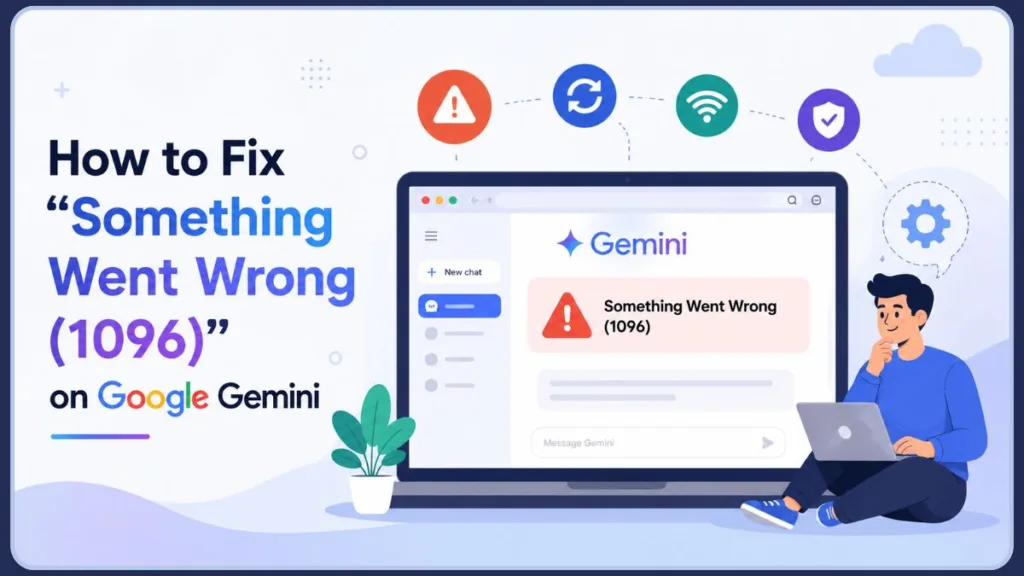
Many users report seeing the specific, frustrating message below:
“Something went wrong. (1096)”
This specific Google Gemini error 1096 often strikes without warning. Furthermore, it can appear even when the interface looks completely normal and other websites load perfectly fine.
While it disrupts your workflow, the good news is that this issue is usually temporary. More importantly, it rarely results from user error, so you can rest assured that you haven’t broken anything.
In this comprehensive guide, we will walk you through exactly what this error means, why the AI on Google Search might fail to respond, and the specific steps you must take to fix it quickly. As community Product Experts often point out in official Google Help threads, because this involves Google’s backend capacity, local fixes are about forcing a clean connection rather than repairing a broken device.
What We Found During Research
Google has not published an official, detailed explanation for Error 1096 at the time of writing. Based on user reports across the Gemini Community, Reddit discussions, and general web troubleshooting experiences, the error appears to be closely associated with temporary backend communication failures, authentication mismatches, or session-related problems. The solutions presented below are drawn from community-tested workarounds rather than an official Google technical document.
What Does “Something Went Wrong (1096)” Mean in Gemini?
To better understand the problem, we must first define what the error actually signals.
This message suggests Gemini was unable to process your specific request at that exact moment. It does not automatically indicate an account ban, a permanent failure, or that the Google servers have crashed completely.
Think of it like a dropped cell phone call; the network is generally active, but your specific connection failed to register. In most cases, the error points to one of the following specific triggers:
- A temporary service interruption: The backend servers may be momentarily overwhelmed by user traffic. This is sometimes observed during peak global usage hours or right after major model updates.
- A session or authentication problem: Your digital “key” to the site has expired or become corrupted.
- An incomplete account profile: In some instances, users have speculated that missing details on a Google profile might cause a server mismatch during the login handshake, though this is not universally confirmed.
Users commonly experience this when the Gemini app something went wrong 1096 message pops up. You might see it right after clicking “Send,” or repeatedly even after refreshing the page. Although this inconsistency can be confusing, it effectively helps us narrow down the root cause. It is also worth noting that if you are using the desktop web app at gemini.google.com/app to access existing saved Chats or Gems, the server routing can occasionally drop the session and throw this error.
Why This Error Happens
Based on real usage patterns and Gemini web app troubleshooting, this error usually stems from one or more of the specific reasons below.
1. Potential Google Account Metadata Issues
Some users in community discussions have reported that completing missing profile information appeared to resolve the issue. While not officially documented, if your Google account sign-in profile is missing a last name or a verified birthdate, it is theorized the server might reject the session to comply with account security standards.
2. Authentication or Session Problems
If your secure session expires, becomes unstable, or fails to sync properly, Gemini may reject your requests. This frequently happens after long idle periods or when you try switching between multiple Google accounts within the exact same browser window.
3. Browser or App Session Corruption
A corrupted browser session can cause the error to repeat instantly. In these specific cases, refreshing alone won’t help because the stored data itself is bad. Consequently, the browser keeps sending “confused” data to the server, which the server consistently rejects.
4. Network, VPN, or Region Restrictions
Network routing issues frequently trigger this error. Using aggressive VPNs, having an unstable internet connection, or dealing with regional filtering can prevent your prompts from reaching Google’s AI correctly.
5. Context Token Overload (Speculative)
Occasionally, if you feed the AI a massive document or keep a single conversation going for far too long, you might hit a hidden output token limit. Some users believe this can trigger a vague error message instead of a standard “limit reached” notification, though this is difficult to verify without backend logs. This is particularly relevant for heavy users pushing the boundaries of Gemini’s expansive context windows.
Quick Checks Before You Try Fixes
Before you dive deep into complex troubleshooting settings, you should quickly run through this diagnostic checklist to save time:
- Does the error happen for every prompt, even simple ones like “Hello”?
- Does the error still appear when you switch to Incognito mode or Private Browsing?
- Does the same issue occur on another browser (e.g., switching from Chrome to Firefox) or the mobile app?
If you answered “yes” to most of these questions, the issue is highly likely temporary or session-related rather than a deep technical failure on your computer.
How to Fix Gemini Error 1096: 6 Step Guide
To learn exactly how to resolve error 1096 on Gemini efficiently, follow these practical steps in order. We strongly recommend that you do not skip ahead, as the simpler fixes often work best! These steps align closely with general advice often given by Google Help Community Product Experts.
Step 1: Start a New Chat
In many cases, the current conversation might be stuck in an error loop due to too much context. Therefore, you should start a new chat to completely reset the AI’s memory. Simply abandoning the old thread can sometimes instantly bypass immediate context overloads.
Step 2: Log Out and Log Back In
Logging out completely resets your secure authentication session. This single step effectively fixes a large number of cases involving session mismatches—where your browser thinks you are logged in, but the server disagrees. After logging back in, you might also want to try completely restarting your web browser, or even rebooting your device, to ensure a truly fresh start.
Step 3: Verify Your Google Profile Metadata
Because missing information might block the web interface, you should verify your profile is complete. Go to your Google Account settings, click on “Personal Info,” and verify that you have a Last Name and Birthdate entered. Some community members have claimed that even adding a simple period (.) as a placeholder last name helped them regain access.
Step 4: Clear Browser Cache and Cookies
If the error appears immediately every time you load the site, clearing your browser cache and cookies eliminates the corrupted session data that might be causing the issue. Accumulated site data is a known trigger for repeating session drop-outs.
- For Chrome Users: Go to Settings > Privacy and security > Clear browsing data. This forces the browser to pull a fresh, uncorrupted version of the site.
Step 5: Disable VPN or Switch Network
VPNs and certain network routes can easily block or delay requests. Temporarily disabling your VPN or switching from Wi-Fi to a mobile hotspot often resolves the network connection error. Remember, a stable internet connection is vital for continuous cloud communication.
Step 6: Try Another Device
Testing Gemini on a different device—like using the mobile app instead of the desktop site—helps isolate whether the issue is strictly device-specific. If the mobile app works flawlessly, your computer’s network settings or browser likely need adjustment.
Error 1096 on Mobile vs Desktop
Many users specifically encounter this issue depending on the platform they are using. If you are searching for Gemini Error 1096 Android or Gemini Error 1096 iPhone, the underlying causes are largely the same as the desktop version (session timeouts, network connectivity, or backend server issues).
However, on mobile devices, clearing the app cache via your phone’s settings (Android) or offloading and reinstalling the app (iOS) can often resolve corrupted local data faster than attempting to navigate browser settings. Additionally, ensure your mobile device isn’t switching between cellular data and Wi-Fi during a prompt, as this network handoff can sometimes drop the connection to the Gemini servers.
Is Gemini Down Right Now? How to Tell
Google’s AI platforms can experience partial service issues where some features fail while others remain perfectly accessible. This means you might still be able to load your chat history, but new prompts simply won’t process.
You should always check the official Google Workspace Status Dashboard first. Additionally, third-party services like DownDetector can provide real-time user reports to confirm if others are facing the same outage.
However, strong signs of a wider issue include:
- The error appears for every single prompt you attempt.
- Absolutely none of the fixes work across browsers or devices.
- The issue persists without change for more than 15 minutes.
When this happens, patiently waiting is often the only effective solution, as the engineering team at Google actively works to restore the service.
Why the Status Page May Still Look Normal
Status indicators typically track massive, core systems, not every individual feature. Therefore, they may not reflect:
- Regional access issues specific to your immediate location.
- Authentication failures affecting only specific accounts.
- Frontend or interface-level rendering problems.
That is exactly why you can see an error even when everything officially appears “operational” on the dashboard.
Can This Error Affect Advanced or Workspace Users?
Yes, absolutely. Authentication or session issues can also affect users on premium tiers or business workspaces. Even users leveraging Gemini Advanced on the Google AI Pro or Ultra plans, which offer massive 1-million token context windows, are not immune to backend timeouts.
You may successfully log in but still encounter failures when executing prompts via Gemini Advanced or using connected Google Workspace extensions. In these cases, the exact same fixes—session resets, metadata updates, or simply waiting—apply perfectly.
How to Prevent This Error in the Future
While you cannot prevent all server-side issues, you can significantly reduce the chances of seeing this error again by maintaining good “browser hygiene.”
To keep your connection stable:
- Avoid using unstable or constantly changing VPN connections during active sessions.
- Keep only one active session open at a time and try not to leave the AI idle in multiple tabs.
- Ensure your Google profile information remains complete and up to date.
- Use fully updated browsers on reliable networks to ensure smooth data transmission.
These simple steps help maintain a clean, stable session and prevent those pesky “something went wrong” errors from interrupting your valuable work.
Related Gemini Error
While troubleshooting Error 1096, it’s helpful to be aware that the Gemini platform occasionally presents other numerical error codes that require similar, or sometimes different, approaches:
- Gemini Error 1095: Often related to prompt processing timeouts or transient network instability.
- Gemini Error 1099: Usually points to issues with file uploads or accessing connected Google Workspace documents.
- Gemini Error 1152: Typically associated with session synchronization issues, especially when using Gemini Canvas or extremely long conversations.
FAQs
What Is Gemini Error 1096 and Why Does It Happen?
Error 1096 suggests that Gemini was unable to maintain or complete a request between the user interface and Google’s backend systems. The server could not process the request at that exact moment, usually due to temporary service overload, session timeouts, or occasionally, speculative issues like missing account metadata. The application cannot fetch a response within the designated window, so it safely drops the connection rather than hanging indefinitely. It is often grouped alongside similar backend communication errors like 1095 and 1099.
How do I clear my browser cache to fix Gemini AI errors?
Simply access your browser’s privacy or history settings, and select the option to clear browsing data and cookies. Afterwards, you will just need to sign back into your account.
Does Gemini restrict VPN usage?
Yes, some VPN routes can trigger request failures or access issues, especially if the IP address has a bad reputation or an unusually high traffic volume.
How long does this error usually last?
In most cases, the error lasts only a few minutes. However, if it happens to be tied to account metadata, some users report it persists until you update your Google profile.
Is this an account issue or a server issue?
Most of the time, it is a temporary service or session issue—not a permanent ban or a major problem with your specific account.
Why does Gemini work in a new chat but not an old one?
An old chat may have an overloaded context window or a corrupted session state on Google’s servers. Starting a new chat provides a fresh slate with zero context load, bypassing the glitch affecting the previous thread.
Is Gemini down right now?
If multiple troubleshooting steps fail, Gemini might be experiencing a global or regional outage. You can check sites like Downdetector or the Google Workspace Status Dashboard to see if other users are reporting the same “Something went wrong” errors.
Will clearing my browser cache fix error 1096?
Clearing your cache can help when corrupted session data is involved, but it will not fix a Google-side outage or backend service issue. Because this is often a server-side account communication error, clearing your cache, deleting cookies, or using Incognito mode alone will not fully resolve the root server handshake issue unless combined with a fresh login session or waiting for server capacity to return.
When to Contact Google Support
If you have exhaustively tried all local troubleshooting steps and the error persists for an extended period (more than 24-48 hours) while other users seem to be using the service normally, it may be time to seek direct assistance.
Particularly for Google Workspace or Gemini Advanced subscribers paying for premium access, contacting official Google Support is a viable next step. You can usually initiate a support ticket through your Google Workspace admin console or via the direct support links provided in your Gemini Advanced subscription dashboard.
What to Do If Nothing Works
If you have tried every single step to Fix Gemini error 1096 listed above and the error still appears, the best option is to stop retrying and wait. Additionally, community experts highly recommend officially reporting persistent issues directly to Google. On the web app, click the Cog wheel icon > Settings & help > Send Feedback. On mobile, tap your Profile picture > Feedback. Be sure to include a screenshot of the “Something went wrong” message (while redacting personal info) to help engineers trace the failure.
Repeated attempts during a temporary issue won’t speed things up and may actually trigger further rate limits, making the experience more frustrating. We highly recommend you step away for a bit and try again once conditions naturally stabilize. In the vast majority of cases, the error resolves without any further action required on your end, allowing you to get back to creating content seamlessly!
If you are encountering other platform glitches, be sure to check out our complete AI troubleshooting hub for more in-depth solutions. For more specific platform edge-cases, check out our guide on how to resolve the Gemini image formatting bug or learn about bypassing the Gemini 1152 synchronization timeout or how to tackle Gemini error 13.
Visit Our Post Page: Blog Page
Discover more from Izoate
Subscribe to get the latest posts sent to your email.