
Can’t find HP Command Center on Windows 11 in 2026? Learn how to download HP Command Center using simple steps. From installing required HP drivers to reinstalling the app and fixing Microsoft Store errors. Get your thermal profiles and performance settings working again today.
In today’s fast-paced digital landscape, efficient device management is absolutely essential for optimizing workplace productivity and keeping your hardware running smoothly. For HP laptop owners, the HP Command Center serves as a crucial tool in this regard, tailoring system functionality to meet the unique needs of various users—from individual consumers to large organizations.
Whether you are trying to squeeze out extra frames during a gaming session or trying to keep your laptop completely silent during an important business presentation, understanding its capabilities can drive better utilization, ultimately enhancing operational efficiency. The app acts as your personal dashboard, helping you seamlessly manage critical hardware tasks like switching thermal profiles, adjusting fan behavior, cycling through performance modes, and optimizing your overall laptop cooling settings.
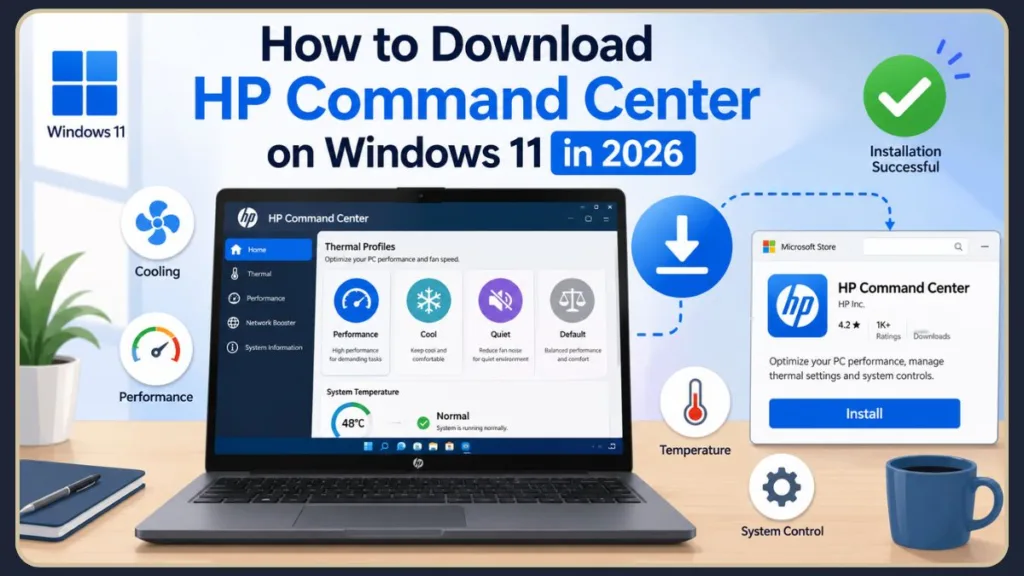
However, managing this utility isn’t always smooth sailing. One of the most common issues users face occurs right after a clean operating system setup: the HP Command Center missing after Windows reinstall dilemma. Many find that the app is suddenly not available in Microsoft Store searches, or they face outright installation failures and find the app not opening on Windows 11.
If you are currently staring at a blank search page or an error screen, you are in the right place. This ultimate guide dives deep into the core aspects of the HP Command Center, exploring its features, user experiences, setup procedures, and step-by-step troubleshooting workarounds to get your laptop running perfectly again.
As we move deeper into 2026, the demands on our hardware have never been higher. With AI-driven local processing and heavy multitasking becoming the norm, proper thermal management is no longer a luxury—it is a necessity to prevent hardware degradation. This guide has been fully updated to address the latest Windows 11 architecture changes, ensuring you have the most accurate, up-to-date solutions at your fingertips.
What Is HP Command Center?
The HP Command Center is an advanced, proprietary software solution engineered to bridge the gap between user control and hardware optimization. It encompasses various device management tools that enable effective administration of HP devices. By integrating closely with backend services like the HP System Event Utility, it provides a centralized platform to tailor your hardware behavior on the fly.
This utility is not just for individual users; it is also highly valued by IT managers for its integrated device management capabilities. For small to medium enterprises (SMEs), using this software across a fleet of devices can drastically reduce downtime and streamline automated updates, providing peace of mind in any business setup.
What Does HP Command Center Do?
At its core, the software gives you a command seat over your system’s physical and electrical properties. Instead of letting your laptop make general assumptions about your workload, the tool lets you declare exactly what you need.
- Thermal management controls: Dynamically adjust how hot your internal components are allowed to run based on your physical environment.
- Performance mode switching: Instantly scale the power delivery to your CPU and GPU up or down.
- Fan optimization: Take command of your acoustics by telling the fans exactly when and how aggressively to kick in.
- Temperature management: Keep the laptop chassis cool to the touch, ensuring prolonged device health and asset longevity.
- Battery and power optimization: Adjust background power draws to extend battery life when you are working away from an outlet.
Beyond these immediate controls, the app also provides real-time analytics and reporting. This means you can monitor device health, track performance rates, and receive proactive alert notifications before minor heating issues turn into hardware failures.
Key Features of HP Command Center
The true power of this utility lies in its customizable user profiles. The interface provides a clean, intuitive dashboard with clear visual indicators for device statuses and alerts, offering four distinct modes:
| Thermal Profile Mode | Ideal Scenario | Core Behavior |
| Recommended Mode | Everyday multitasking, web browsing, and office work. | Automatically balances performance, fan noise, and skin temperature. |
| Performance Mode | Gaming, 3D rendering, and heavy video editing. | Maximizes CPU/GPU power delivery and ramps up fans for maximum cooling. |
| Cool Mode | Working with the laptop literally on your lap or while traveling. | Increases fan speeds and slightly throttles power to keep the chassis cool. |
| Quiet Mode | Libraries, classrooms, recording studios, or late-night work. | Silences the fans completely by lowering power consumption ceilings. |
Additionally, recent updates to the ecosystem often bundle Network Booster features within the same interface. This allows you to prioritize bandwidth for specific applications—like giving your Zoom call or online game priority over a background file download—making it a holistic command hub.
Does HP Command Center Work on Windows 11?
Yes, the software is fully optimized for modern operating systems, though compatibility heavily depends on your specific laptop architecture and underlying driver packages.
Because Microsoft continually updates Windows 11, HP works closely with them to ensure seamless API integration. This guarantees that when you change a power setting in the HP app, Windows 11 instantly recognizes and respects that command without conflict.
Supported Windows Versions
The application is built to run natively on modern 64-bit Windows environments.
- Windows 11: Fully supported, featuring interface updates that align beautifully with the clean design language of the OS.
- Windows 10: Backward compatible with Windows 10 (version 1903 or higher).
It is highly recommended to stay on the latest version of Windows 11 (such as the 24H2 update or newer). Older builds may lack the necessary Microsoft Store framework required to authenticate and download OEM-specific applications securely.
Supported HP Laptop Models
While the app is a staple of HP’s premium lineups, it is not universally installed on every single machine they manufacture. It is primarily designed for:
- HP Spectre: Built-in to manage the tight thermal constraints of these ultra-thin premium chassis.
- HP ENVY: Standard equipment for creators who need to quickly switch to Performance mode for rendering.
- HP OMEN (where applicable): Available on certain multi-purpose OMEN models, though many dedicated gaming variants utilize the specialized OMEN Gaming Hub instead.
- HP Pavilion Aero: Supported on select thin-and-light configurations to maximize portable efficiency.
- Other supported models: Various premium business notebooks and high-end peripherals.
Keep in mind that budget models or older laptops lacking specific internal thermal sensors simply do not have the physical hardware required to support the app’s advanced features, which is why the software is intentionally restricted on those devices.
How to Check If Your HP Laptop Supports HP Command Center
The easiest way to confirm support is to visit the official HP Support website, enter your laptop’s unique serial number, and check the “Software and Drivers” section. If the HP System Event Utility and an associated thermal profile driver are listed under your system utilities, your laptop is fully compatible.
Pro Tip: If you aren’t sure what your laptop’s serial number or exact model is, simply press Win + R, type msinfo32, and hit Enter. Your “System Model” and “System SKU” will be listed right there on the main summary screen, making it incredibly easy to search the HP database.
How to Download HP Command Center on Windows 11
When everything is working smoothly, getting the application onto your system is a brief, user-friendly process.
The installation has been streamlined to utilize Microsoft’s secure app delivery network, ensuring you receive an untampered, virus-free version of the software.
Download HP Command Center from Microsoft Store
- Open the Microsoft Store by clicking its icon on your taskbar or searching for it in the Start Menu.
- Type HP Command Center into the top search bar and press Enter.
- Select the official application from the search results (ensure the publisher is listed as HP Inc.).
- Click the blue Install or Get button.
- Once the download completes, click Launch to open the program.
Before beginning, double-check that you are actively signed into your Microsoft Account within the Store. Sometimes, downloading OEM applications requires a verified account session to validate your digital license.
Direct Microsoft Store Link Method
Many users encounter a frustrating glitch where the app completely fails to appear in standard search results, leaving them unable to find the listing. If the Microsoft Store cannot find the software, you can use a direct web link to force the app to appear.
Important Setup Trick: Open your web browser—ideally Microsoft Edge, as alternative browsers like Chrome or Opera can occasionally fail to hand off the command to the native storefront application—and go directly to the official web listing: https://apps.microsoft.com/store/detail/hp-command-center/9P92N00QV14J
Clicking “Get in Store app” from this link will force your desktop storefront to open up directly to the hidden download page.
This trick works because Microsoft Edge natively supports deep-link URI (Uniform Resource Identifier) protocols that directly trigger hidden app IDs within the Windows operating system, completely bypassing the broken search index.
How to Install HP Command Center After Reinstalling Windows 11
Performing a fresh operating system setup is fantastic for removing bloatware, but it can occasionally break native machine features.
Restoring these features requires a very specific sequence. If you install the app before installing the foundational drivers, the software will not be able to communicate with your hardware.
Why HP Command Center Disappears After a Clean Windows Installation
When you execute a clean Windows installation, the installer completely overwrites your hard drive with generic, stock Windows files. This completely removes all Original Equipment Manufacturer (OEM) software. Because the Command Center relies on proprietary motherboard configurations and custom hardware communication layers, the generic Windows update system won’t always automatically reinstall it.
Unlike the factory-installed Windows image that came on a hidden recovery partition on your hard drive, a fresh ISO downloaded from Microsoft is a “vanilla” version. It lacks the specialized HP driver injections needed for thermal management.
Reinstall HP Command Center Step-by-Step
To restore your thermal controls safely, follow this structured setup procedure:
1.Update Windows Fully:Establishes a secure OS foundation.
Go to Settings > Windows Update and run a full check. Install all cumulative updates and restart your computer to ensure your core system files are fully up to date.
2.Install Core HP Drivers:Enables hardware communication.
Launch the HP Support Assistant or visit the HP website to install critical drivers, specifically focusing on the chipset, advanced thermal drivers, and the HP PC Hardware Diagnostics package.
3.Install HP System Event Utility:The mandatory prerequisite.
Download and install the HP System Event Utility from the official HP site. This hidden background driver translates your laptop’s physical keyboard actions and power states into commands the software can read.
4.Download the Application:Pulling the software file.
Use the direct Microsoft Store link method via Microsoft Edge to fetch and install the official app file container.
5.Perform a Hard System Restart:Finalizes system integration.
Reboot your machine completely. This allows the newly installed system services to initialize alongside your hardware components at startup.
Verification Step: After the reboot, right-click your Start button and open Device Manager. Expand the “System devices” category and verify that the “HP Application Driver” or “HP Thermal Framework” is listed without any yellow warning triangles.
HP Command Center Not Available in Microsoft Store? Try These Fix
If you are encountering a blank screen or regional lockout issues, you are not alone. Tech communities on platforms like Reddit frequently discuss this exact storefront problem. Try these verified workarounds to get past the roadblock.
Addressing Microsoft Store bugs is often a matter of clearing out stuck data. Here is exactly how to troubleshoot it from the easiest fix to the most advanced.
Fix 1: Verify Laptop Compatibility
Make sure your hardware actually supports the software. If your laptop was never built to communicate with this specific app hub, the Microsoft Store will automatically hide the download button to protect your system configuration.
You can cross-reference the exact model number printed on the sticker on the bottom of your laptop case with the official HP documentation to confirm compatibility.
Fix 2: Update Microsoft Store
An outdated storefront application can cause download errors and search failures. Open the Microsoft Store, click on the Library icon in the bottom-left corner, and click Get updates to patch the storefront itself to the latest version.
In Windows 11, the Store app updates itself silently in the background, but forcing a manual update ensures you have the latest secure server connections.
Fix 3: Change Region Settings
Many users have discovered that the application is occasionally subject to accidental regional distribution blocks.
- The Fix: Go to Windows Settings > Time & Language > Language & Region. Change your “Country or region” drop-down selection to the United States. Completely close and restart the Microsoft Store, and the download listing will often immediately appear.
This happens because HP occasionally rolls out updates in staged, region-specific batches. Switching to the US region bypasses local server delays.
Fix 4: Reset Microsoft Store Cache
Corrupted local store data can easily cause search mechanics to break entirely. Press Win + R on your keyboard, type wsreset.exe into the Run dialogue box, and hit Enter. A blank command prompt window will flash briefly while the cache clears, and the store will automatically reopen fresh.
This command is completely safe and will not delete your installed apps or account settings; it simply wipes the temporary browsing files the Store uses to load pages faster.
Fix 5: Install Pending Windows Updates
Certain system frameworks require specific Windows 11 cumulative patches before they will allow native utilities to install. Check your Windows Update panel to ensure nothing is stuck mid-download.
Be sure to also check the Advanced Options > Optional Updates menu in Windows Update. Essential HP firmware patches are frequently categorized as optional and won’t install automatically.
Fix 6: Sign Out and Sign Back Into Microsoft Store
If your user profile authentication token gets desynchronized, the store may block OEM app installations. Click your profile picture at the top of the store app, select Sign out, restart the app, and sign back in with your primary Microsoft account credentials.
If you have both a personal account and a work/school account linked to Windows, ensure you are signed into the Store using the personal account, as enterprise restrictions can sometimes block administrative software downloads.
HP Command Center Won’t Install on Windows 11
If the download finishes but the actual installation wizard errors out or fails to complete, your system is missing structural prerequisites.
These errors usually present themselves with cryptic alphanumeric codes (like 0x80073D05). Don’t panic—resolving them just requires a bit of system cleanup.
Check Required HP Drivers
The software cannot run floating on its own; it requires underlying communication hooks. Ensure the HP Thermal Framework driver is present inside your Windows Device Manager under system devices.
If you see a generic “Unknown Device” listed, right-click it, select “Update driver,” and choose to search automatically so Windows can fetch the missing HP component.
Install HP System Event Utility
To ensure HP Command Center runs smoothly on Windows 11 and can successfully communicate with your laptop’s physical hardware, it relies on a few critical background drivers and services. If any of these are missing, outdated, or corrupted, the software will fail to launch, display a “Device not supported” error, or fail to adjust your thermal profiles.
Here are the essential driver dependencies you need, followed by exactly how to verify they are installed and functioning in your Windows Device Manager.
1. Essential Driver Dependencies
- HP System Event Utility: This is the foundational bridge. It translates physical hardware events (like pressing a function key) and power state changes into data that the HP Command Center can read.
- HP Application Driver (HSA Component): Standing for Hardware Support App, this driver allows modern Microsoft Store applications (like the Command Center) to safely interact with the proprietary hardware configurations on your motherboard.
- HP Dynamic Power / HP Thermal Framework: This driver is explicitly responsible for reading internal system temperatures and sending the commands to adjust your fan speeds and CPU wattage caps.
- Intel Dynamic Tuning Technology (or AMD equivalent): Depending on your processor, HP relies on the CPU manufacturer’s baseline thermal framework to safely execute the power profile changes you select in the Command Center.
2. How to Verify These Drivers in Device Manager
You can check if these specific components are installed, recognized, and error-free by using the built-in Windows Device Manager.
Step 1: Open Device Manager
- Right-click the Start button on your Windows 11 taskbar (or press
Win + X). - Select Device Manager from the pop-up menu.
Step 2: Check “Software components”
- In the Device Manager window, scroll down and click the arrow next to Software components to expand the list.
- Look for HP Application Driver.
- Verification: Double-click it to open its properties. Under the “General” tab, the Device status should say “This device is working properly.”
Step 3: Check “System devices”
- Scroll down and expand the System devices category.
- Look for Intel(R) Dynamic Tuning Processor Participant (or AMD equivalent) and the HP System Event Utility (if it isn’t listed under Software components, it will often sit here).
- Verification: Ensure there is no yellow triangle with an exclamation mark next to any of these icons. A yellow triangle indicates a missing or corrupted driver.
Step 4: Verify the HSA Background Service
While the drivers live in Device Manager, the actual execution service must be running in the background.
- Press
Win + R, typeservices.msc, and hit Enter. - Scroll down the list of services until you find HP App Helper HSA Service.
- Verification: Look at the “Status” column. It should say Running. The “Startup Type” should be set to Automatic. If it is stopped, right-click it and hit “Start”.
If you find that any of these components are missing from your Device Manager entirely, you will need to open the HP Support Assistant app (or visit the official HP driver download page for your specific laptop model) to download and install the missing chipset and utility drivers.
Update BIOS and Firmware
An outdated motherboard BIOS can prevent modern Windows 11 applications from interacting with your system’s power delivery rails. Visit your official HP driver page to see if a system BIOS update is waiting for your machine.
Important Safety Warning: When updating your BIOS, ensure your laptop is plugged into a reliable wall outlet and your battery is charged to at least 50%. A power loss during a BIOS update can cause severe system damage.
Run Windows Store Troubleshooter
Windows 11 includes built-in diagnostics to fix app setup issues. Navigate to Settings > System > Troubleshoot > Other troubleshooters, locate Windows Store Apps, and click Run.
This automated tool will scan your registry keys, verify your background Intelligent Transfer Services, and repair any broken permissions preventing the installation.
Reinstall the Application
If an installation attempt gets corrupted halfway through, navigate to your Windows Apps & Features menu, uninstall the partial instance completely, clear your temporary system files, and try the direct download link again.
If the standard Windows uninstaller fails to remove it, you can utilize the Get-AppxPackage command in PowerShell (run as Administrator) to forcefully scrub the broken app package from your drive before trying again.
HP Command Center Not Working on Windows 11
If the app successfully installs but behaves erratically, crashes, or fails to alter your system hardware states, use these target diagnostic steps.
Troubleshooting functionality issues requires looking past the app itself and examining what might be interfering with it in the background.
HP Command Center Opens Then Closes
This typical behavior points directly to a missing background service layer. Press Win + R, type services.msc, and hit Enter. Scroll down to locate HP App Helper HSA Service. Right-click it, choose properties, change the startup type to Automatic, and click Start.
If the service refuses to start, check the Windows Event Viewer (under Windows Logs > Application) to see if a specific .dll file is causing the service to crash upon execution.
HP Command Center Crashing After Launch
If the application crashes during data initialization, a local configuration file is likely corrupted. Go to Settings > Apps > Installed Apps > HP Command Center > Advanced Options, and click the Reset button to wipe clean the app’s local memory footprint.
Additionally, try pressing Win + R, typing %temp%, and deleting all the temporary files in that folder. Cluttered temp folders can sometimes choke app initialization.
Performance Modes Not Changing
If clicking on different profiles has zero effect on your machine’s actual hardware delivery, your Windows power slider is likely conflicting with the app. Ensure your primary Windows battery power plan is set to “Balanced” so the software can take over active management.
Also, temporarily disable aggressive third-party antivirus software. Some security suites block OEM utilities from making deep-level changes to CPU power states.
Fan Controls Not Responding
If your laptop is melting hot but the fans refuse to spin up after selecting Performance mode, your HP PC Hardware Diagnostics layer may need an update to correctly read internal thermal states.
Keep in mind that software can only do so much. If your fans aren’t responding at all, use compressed air to ensure the physical exhaust vents aren’t entirely blocked by dust accumulation.
Thermal Profiles Missing
If the main menu of your application shows up empty with no profiles to choose from, your specific system configuration drivers have likely been overridden by general Windows updates. Reinstall the standalone HP thermal configuration package from your product’s driver webpage.
If reinstalling the driver doesn’t bring the profiles back, perform a hard power drain: turn off the laptop, unplug the charger, and hold the physical power button down for 30 seconds to reset the motherboard’s embedded controller.
How to Use HP Command Center
Once the utility is fully functional, managing your computer’s day-to-day characteristics becomes incredibly straightforward.
Navigating the clean, user-friendly interface minimizes the learning curve, allowing you to optimize your workflow immediately without needing advanced technical knowledge.
Change Performance Mode
Launch the application and find the Thermal Profile tab on the left-hand navigation menu. From there, you can view your real-time usage statistics and select a mode with a single click.
Pro Tip: Pin the Command Center to your Windows 11 taskbar for instant access, allowing you to jump between modes rapidly without interrupting your workflow.
Switch Thermal Profiles
Depending on whether you need a silent environment or intensive processing capacity, toggle between the macro profiles. The app will immediately update your system’s internal power limitations behind the scenes.
You will often notice an immediate difference in screen brightness or fan pitch the exact second you click a new profile.
Reduce Laptop Overheating
If your laptop is feeling too warm on your lap, click into Cool Mode. This safety-focused profile proactively accelerates the internal cooling fans while moderating CPU performance, keeping the outer chassis at a comfortable temperature.
This mode is absolutely vital for longevity if you frequently use your device on soft surfaces like beds or couches, which naturally block passive heat dissipation.
Optimize Laptop Performance for Gaming
Before launching an intensive game or hardware-heavy app, click into Performance Mode. This clears out power constraints, feeds extra wattage to your processing cores, and lets the cooling fans spin at maximum speeds to prevent thermal throttling.
Combining this mode with a solid laptop cooling pad will ensure you maintain the highest possible frame rates without experiencing sudden stuttering during intense moments.
Reduce Fan Noise
If you are sitting in a quiet office space or recording audio, switch your dashboard over to Quiet Mode. The software will immediately lower the performance ceiling, which drastically lowers heat production and lets the fans spin down to near-silent acoustics.
This is highly recommended for lengthy reading sessions or web browsing where raw processing speed is entirely unnecessary.
Best HP Command Center Settings for Different Scenarios
To help you get the most out of your hardware, use this optimized settings profile map tailored for real-world scenarios:
[Everyday Tasks] ---> Select: HP RECOMMENDED MODE
                      Benefit: Automated, balanced efficiency.

[Gaming / Video] ---> Select: PERFORMANCE MODE
                      Benefit: Maximum wattage, zero thermal throttling.

[On-the-Go Work] ---> Select: COOL MODE
                      Benefit: Protects lap comfort, stabilizes temps.

[Quiet Spaces]   ---> Select: QUIET MODE
                      Benefit: Near-silent acoustic signature.
Tailoring your profile to your current task is the secret to extending your battery life and ensuring your components don’t degrade from unnecessary thermal stress.
- Best Settings for Everyday Use: Stick to HP Recommended Mode. It manages everything automatically based on live data analytics, keeping things quiet when you are just reading articles and stepping up only when you open heavy files. (Typical CPU temps will hover comfortably between 45°C and 55°C).
- Best Settings for Gaming: Always opt for Performance Mode. Gaming forces components to run at their structural limits; keeping the fans pinned at maximum speed protects long-term hardware longevity.
- Best Settings for Video Editing: Use Performance Mode. Rendering massive video project Timelines causes huge CPU and memory spikes, requiring immediate and aggressive heat dissipation.
- Best Settings for Battery Life: Switch over to Quiet Mode. By intentionally dropping component power draw ceilings, your battery doesn’t have to work nearly as hard, buying you extra time away from the wall outlet. (Expect a noticeable 15-20% boost in unplugged lifespan).
- Best Settings for Quiet Operation: Utilize Quiet Mode. This profile values low acoustic signatures over raw speed, perfect for environments where sudden fan noises would cause an unwanted distraction.
Alternatives If HP Command Center Is Not Supported
If your specific model cannot run this particular application suite, don’t worry. You can still manage your hardware efficiently using these alternative solutions:
There is an entire ecosystem of built-in Windows features and supplementary HP tools designed to give you comparable control.
- HP Support Assistant: A broader, comprehensive platform that handles automated system updates, driver installations, and quick troubleshooting diagnostics.
- HP OMEN Gaming Hub: If you own an explicitly gaming-focused HP computer, this powerful platform offers incredibly deep overclocking tools, custom fan curves, and network optimization options.
- Windows 11 Power Modes: You can adjust performance directly via Windows. Go to Settings > System > Power & battery, and tweak the “Power mode” drop-down selection to Best Performance, Balanced, or Best Power Efficiency.
- BIOS Performance Settings: For technical users, restarting your system and entering your BIOS menu (by tapping F10 during startup) often reveals baseline hardware cooling and fan configurations built directly into the motherboard firmware.
While some advanced users turn to third-party freeware like Notebook FanControl, we advise caution. Using non-native software to override manufacturer fan curves can inadvertently void your warranty if it causes overheating.
Common HP Command Center Error Messages and Solutions
Even with a perfect setup, occasional software hiccups can generate error codes. Here is how to translate and resolve them quickly.
HP Command Center Not Found
- The Cause: The core application files are entirely missing from your Windows system index.
- The Solution: Use the direct web store link inside Microsoft Edge to locate the download listing and click install. Ensure your antivirus hasn’t falsely flagged and quarantined the executable.
This Device Is Not Supported
- The Cause: You are trying to run the tool on an incompatible laptop model or the core HP System Event Utility isn’t running in the background.
- The Solution: Install the latest System Event Utility driver package from the HP support portal and restart your machine. If it still fails, check your system SKU to verify true hardware compatibility.
Unable to Apply Thermal Profile
- The Cause: An underlying communication failure between your application software layer and your motherboard firmware.
- The Solution: Run a quick BIOS flash update and reset your Microsoft Store app cache using
wsreset.exe. This re-establishes the clean communication path to the hardware sensors.
Microsoft Store Installation Error
- The Cause: Corrupted local Windows Appx package installer data or account authentication hiccups.
- The Solution: Clear your local cache, log out of your Microsoft Store account, update your Windows OS completely, and log back in. Running the Windows App Troubleshooter is also highly effective here.
HP Command Center Missing After Update
- The Cause: A major Windows feature update has accidentally swapped out your dedicated OEM driver communication blocks for general Windows alternatives.
- The Solution: Reinstall the HP System Event Utility and the standalone HP Advanced Thermal Framework driver package to restore the proprietary HP links.
Frequently Asked Questions
When it comes to advanced system utilities, users naturally have questions. Here are clear, practical answers to the most common inquiries.
How do I download HP Command Center on Windows 11?
You can grab it directly through the Microsoft Store. If it doesn’t appear in your app’s built-in search results, use Microsoft Edge to go straight to the direct store link: [https://apps.microsoft.com/store/detail/hp-command-center/9P92N00QV14J](https://apps.microsoft.com/store/detail/hp-command-center/9P92N00QV14J). Make sure your system meets all basic Windows 11 requirements first.
Is HP Command Center free?
Yes, it is a completely free, native system utility developed and provided by HP Inc. for supported hardware ecosystems. You will never be asked to pay a subscription fee to manage your laptop’s thermal profiles.
Why can’t I find HP Command Center in Microsoft Store?
This typically points to regional software distribution blocks or temporary store caching glitches. Try switching your Windows OS Region configuration over to the United States or use the direct browser link workaround to force open the hidden page. Ensuring your Windows version is fully updated also helps bypass this issue.
How do I reinstall HP Command Center after resetting Windows 11?
First, ensure you run all pending Windows Updates and install the mandatory HP System Event Utility alongside your laptop’s core thermal drivers. Once those components are installed, pull down the main application package using the direct Microsoft Store link. Do not skip the restart step between driver installations.
Does HP Command Center work on all HP laptops?
No. The application is specifically designed for select premium consumer and business configurations, such as the HP Spectre, ENVY, and select Pavilion models. If your laptop lacks the embedded physical thermal sensors required, the software cannot be used.
Can I control fan speed with HP Command Center?
Yes, though you don’t control the fans by picking exact RPM numbers. Instead, you select specialized thermal profiles (like Performance, Cool, or Quiet) that automatically scale your fan behavior profiles up or down behind the scenes. This method ensures your system remains safe and stable.
Why is HP Command Center not working on my HP laptop?
This usually happens because a critical background service—specifically the HP App Helper HSA Service—has been disabled or a major Windows feature update has overwritten your custom OEM drivers. Manually setting the service to ‘Automatic’ in the Windows Services panel resolves this most of the time.
What should I do if HP Command Center is missing after a Windows reinstall?
Follow our dedicated step-by-step reinstallation sequence: install your native system framework updates, install the mandatory HP System Event Utility, and then use the direct link method to download the application package directly from the Microsoft Store. Without the foundational utility, the app simply won’t appear.
Conclusion
The HP Command Center is an invaluable strategic tool for keeping your laptop running fast, cool, and highly efficient. While clean Windows reinstalls and occasional Microsoft Store glitches can make installing the software a bit tricky, following the direct link workarounds and installing the prerequisite HP System Event Utility will bypass almost every common issue. Keep your BIOS updated, align your thermal choices with your tasks, and you’ll maintain peak system performance year-round.
Summarizing our key takeaways: managing your device efficiently saves you money, reduces frustration, and drastically improves workflow productivity. By addressing missing HP drivers and navigating the Microsoft Store with the direct URI links provided, you can completely overcome the barriers of regional restrictions and fresh Windows installations.
Visit Our Post Page: Blog Page
Discover more from Izoate
Subscribe to get the latest posts sent to your email.