
Accidentally scheduled the wrong post? Discover how to edit scheduled Facebook posts, reschedule content, and troubleshoot missing posts in Meta Business Suite.
You’re reviewing your upcoming Facebook content calendar when you spot a typo, outdated information, or the wrong publishing time in a post that’s scheduled to go live in a few hours. Naturally, your first question is: how do you edit scheduled posts on Facebook?
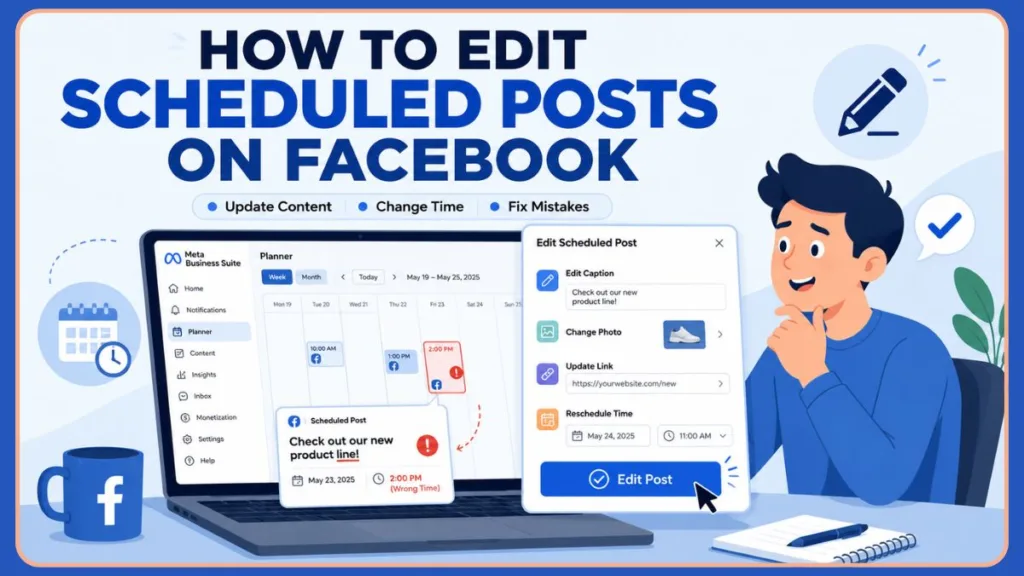
Fortunately, Facebook allows Page admins and content creators to edit scheduled posts before they are published. Whether you’re using Meta Business Suite, the Facebook mobile app, or managing a business page with multiple admins, updating scheduled content is usually straightforward.
This guide will show you exactly how to edit scheduled Facebook posts, reschedule them, fix common Meta Business Suite issues, and recover missing scheduled posts when Facebook isn’t behaving as expected.
Can You Edit Scheduled Posts on Facebook?
Yes. Facebook allows you to edit scheduled posts before they are published. Because your content is safely stored in a queue waiting for a specific timestamp, you have the flexibility to jump in and make adjustments.
Understanding the Architecture: A Technical Perspective
Scheduled posting in Facebook operates on a backend system that leverages a queue managed by Facebook’s content delivery network (CDN). When a post is scheduled, its data—including text, media URLs, and associated metadata (e.g., targeted audience, call-to-action parameters)—is stored within Facebook’s cloud infrastructure. A cron-like job scheduler then automatically triggers the publication process at the designated timestamp. The ability to edit a scheduled post effectively modifies the data payloads within this queue before the publication trigger execution occurs. This involves accessing the stored post data through the native Facebook interface or, for specialized programmatic workflows, via the Marketing API.
Key Benefits of Scheduled Posting:
- Time Zone Optimization: Reach global audiences in different geographical locations at their peak engagement times without working overnight.
- Content Calendar Adherence: Maintain a highly structured, consistent content release strategy.
- Workflow Efficiency: Batch create and schedule content all at once, freeing up valuable daily operational time for other marketing tasks.
- Campaign Management: Coordinate complex social media campaigns seamlessly alongside other cross-channel marketing activities.
You can typically modify:
- Post caption and text
- Hashtags
- Photos and videos
- Links
- Tagged pages and people
- Scheduled date
- Scheduled time
- Audience targeting settings
However, the editing options available may vary depending on whether you’re using Meta Business Suite, Facebook Mobile, or an older Facebook Page experience.
What Can You Change Before a Scheduled Post Goes Live?
Here are the Editable Elements you can adjust while your post is still in the queue:
- Post text and captions: Fix typos, tweak messaging, add hashtags, or update mentions.
- Images and videos: Swap out visual assets, adjust layouts, or add new items from your camera roll.
- Links and link previews: Update the destination URL or adjust the attached preview display metadata.
- Tags and mentions: Ensure you are crediting the right partner brands, creators, or profiles.
- Publishing date: Move the post to a different day to better align with real-time shifts.
- Publishing time: Adjust the exact hour and minute parameters to maximize initial organic reach.
- Audience settings: Refine specific demographic or targeting parameters (if previously configured).
What Happens After Publication?
Once a post is officially live on your Page timeline, your editing capabilities change. While you can still easily edit the caption text, hashtags, and tags, you cannot change the visuals. If you uploaded the wrong video or image, you will have to delete the published post entirely and upload it again.
Tip: Always review your scheduled post before saving changes. This helps prevent publishing mistakes and last-minute edits.
How to Edit Scheduled Posts on Facebook Using Meta Business Suite
Managing your content calendar on a desktop browser is generally the most stable and feature-rich method. This method is typically the most straightforward for individual post modifications and works across both the New Pages Experience and older formats.
- Step 1: Open Meta Business Suite. Log in to Facebook with administrator or editor access and navigate to your Page’s backend. Alternatively, for Classic Pages, click “Publishing Tools” at the top of your Page, or access the “Creator Studio” button if your interface layout retains it.
- Step 2: Go to Planner. Click on the Planner tab in the left-hand menu to view your visual calendar. You can also look under the “Posts & Stories” or “Content Calendar” sections for a list view of your upcoming assets.
- Step 3: Find Your Scheduled Post. Locate the specific date and click on the post you wish to modify to bring up the preview window.
- Step 4: Click Edit. Click the three-dot menu (
...) and select Edit Post. - Step 5: Update Your Content. From this screen, you can edit the caption, replace media, update links, or change the schedule.
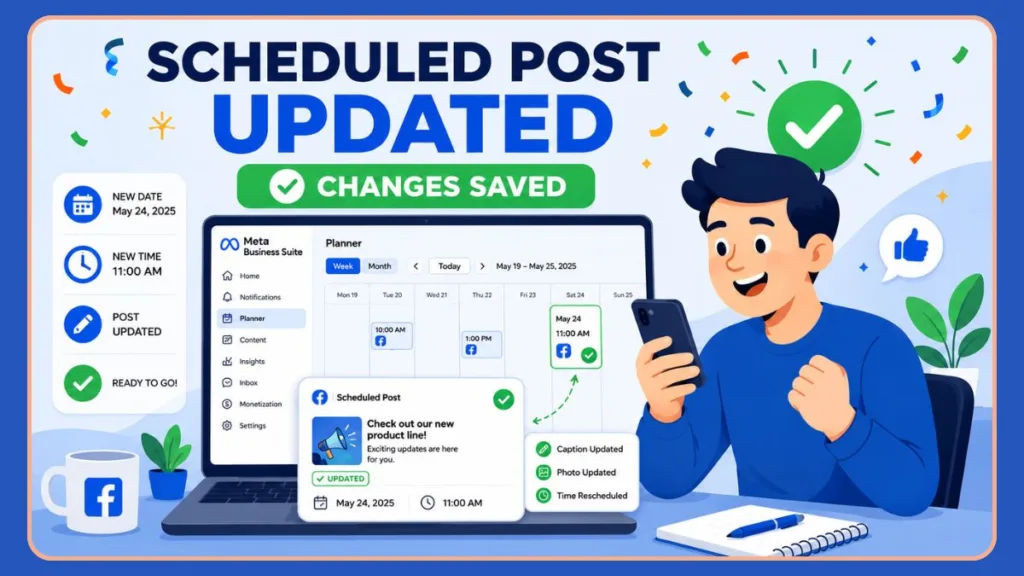
- Step 6: Save Changes. Review your updates and click the Save or Update button to apply the changes to the queue.
| Step | Action Summary | Location |
| 1 | Log in and access Page | Meta Business Suite / Professional Dashboard / Publishing Tools |
| 2 | Navigate to queue | Planner / Content Calendar / Posts & Stories -> Scheduled |
| 3 | Select targeted content | Click on specific scheduled post |
| 4 | Open interface | Click ‘Edit‘ or the three-dot menu (…) -> ‘Edit Post‘ |
| 5 | Apply modifications | Update text, media, link preview, targeting, or time |
| 6 | Secure changes | Click ‘Save‘ or ‘Update‘ to refresh the queue |
Tip: If you cannot find your post in Planner, check Content > Scheduled instead.
How to Edit Scheduled Posts on Facebook Mobile (iPhone & Android)
When you are on the go, you can easily make quick adjustments using the native Facebook app on your smartphone to boost your day-to-day productivity.
- Step 1: Open the Facebook App. Ensure you are logged into the correct account to reach the homepage interface.
- Step 2: Go to Your Profile or Page. Switch to your professional Page view or navigate to the bottom panel and tap on the Menu icon.
- Step 3: Open Manage Posts. Scroll down your profile and tap on the Manage Posts button to open your content library.
- Step 4: Select the Scheduled Post. Find the content you want to adjust and tap on it to view it.
- Step 5: Tap the Three-Dot Menu. This is located in the top right corner of the post.
- Step 6: Choose Edit Post. Make your necessary text or media changes. To modify the caption, tap directly on the caption area. To add more photos, tap on the Photos Icon below the post, choose items from your camera roll, and tap Next. To tag friends, tap the Tag option, select the profiles, and tap Done.
- Step 7: Save Your Changes. Tap Save at the top right of the screen to finish making changes.
Tip: Mobile editing is useful for quick corrections when you’re away from your computer.
How to Reschedule a Facebook Post
Sometimes you don’t need to edit the actual content—you simply need to change when it goes live.
- How to Change the Date: Open the post editor using the steps above, navigate to the scheduling options at the bottom of the screen, and select a new day from the drop-down calendar.
- How to Change the Publishing Time: In the same scheduling section, adjust the hour and minute parameters.
- How to Move a Post to a Better Engagement Window: If a news event breaks, push your evergreen post a few days back. Simply edit the time to align with when your specific audience is most active online.
Tip: Schedule posts when your audience is most active to improve reach and engagement.
How to Delete a Scheduled Facebook Post
If a post is no longer relevant and needs to be scrapped entirely, you can easily remove it.
- Delete Scheduled Posts in Meta Business Suite: Locate the post in your Planner or Content tab, click the three-dot menu, and select Delete Post.
- Delete Scheduled Posts on Mobile: Go to Manage Posts, tap the three dots on the specific post, and select Delete.
- What Happens After Deletion? Deleted scheduled posts cannot be restored. Once you hit confirm, the post data is permanently erased from the queue, and you will have to rebuild it from scratch if you change your mind.
Can’t Find Your Scheduled Posts? Try These Fix
Lately, many social media managers have reported severe syncing glitches inside Meta’s ecosystem. If your posts seem to have vanished, don’t panic.
Common Mistakes to Avoid During Audits
- Forgetting to Save: Always double-check that you’ve fully executed the save action before closing tabs.
- Accidental Deletion: Be highly cautious when clicking removal prompts, as the action is entirely irreversible.
- Overlooking Time Zone Differences: Ensure your scheduled publication clock matches your target audience’s region.
- Not Proofreading: Review your freshly edited copy for secondary typos introduced during the change.
- Incompatible Media Formats: Confirm that your chosen replacement media formats are natively supported by the app.
Scheduled Posts Missing from Planner
- Planner bug: The Planner frequently glitches, displaying “0 Scheduled” even when you have a full queue.
- Content tab workaround: Bypass the Planner entirely. Navigate to the Content tab on the left menu, and click the Scheduled filter at the top. Your posts will almost always appear here.
- Refreshing Business Suite: Simply doing a hard refresh of your browser or clearing your cache can sometimes force the Planner to sync.
Scheduled Posts Disappeared Completely
- Drafts vs Scheduled tabs: Make sure you actually scheduled the post. It is very common to accidentally save a post as a Draft instead of scheduling it. Check the “Pre-published” tab or “Drafts” view to make sure it didn’t get miscategorized.
- Sync issues: The mobile app often fails to sync with the desktop version. If a post disappears on mobile, always double-check Meta Business Suite on a computer.
- Meta Business Suite glitches: If there is an active platform outage, your posts are likely safe in the backend and will reappear once Meta resolves the server issue.
Can’t See Posts Scheduled by Another Admin
- Admin permissions: Ensure you have full Admin or Editor access. If your role was recently changed, it can disrupt your view.
- Shared page management issues: Sometimes, posts created by a third-party scheduling tool by another team member take time to reflect across all native Business Suite views.
Tip: Many users report finding “missing” scheduled posts under Content > Scheduled even when Planner appears empty.
Why Can’t I Edit My Scheduled Facebook Post?
The Edit Button Is Missing
If you only see an option to delete or publish, verify your Page role. You must be an Admin or Editor. Additionally, if the post was scheduled using a third-party site or platform (like Loomly), you may need to edit it directly within that app instead of the native Facebook dashboard.
Facebook Says the Post Cannot Be Edited
This usually happens if the post is scheduled to go live in the next few minutes. Facebook locks the post as it prepares to publish. Solution: Reschedule the post for an hour later, make your edits, and then move the time back.
Scheduled Post Has No Preview
If your link preview is missing or broken, Facebook’s scraper might be caching old data. Solution: Run the URL through the Facebook Sharing Debugger (developers.facebook.com/tools/debug/) to clear the cache and force the system to fetch the newest preview image.
Unable to Duplicate or Copy Scheduled Posts
If clicking “Edit” opens a completely blank screen (a very common 2026 bug), do not try to force it. Solution: Use the three-dot menu to select Duplicate Post. The copy will retain all your media and text. Make your edits on the duplicate, schedule it, and delete the bugged original.
| Bug / Error Symptom | Real-World Solution |
| ‘Post Cannot Be Edited’ | Reschedule the post slightly further out, apply edits, then save. |
| Changes Not Reflected | Input URL into Facebook’s Sharing Debugger to clear server cache. |
| Missing Edit Options | Verify account role is set to Administrator or Editor. |
| API Errors / Response Codes | Review API response strings and consult developer reference files. |
Why Didn’t My Scheduled Facebook Post Publish?
Publishing Failed
This is often caused by an expired access token between your page and the scheduling tool, or a media file that violates Facebook’s size/ratio guidelines.
Post Stayed Scheduled Forever
Also known as a “ghost post,” this happens when a server timeout misses the publishing window. Solution: Duplicate the post and publish the new version manually.
Facebook Published Immediately Instead
If you accidentally click the main blue “Publish” button instead of “Schedule” while inside the editor, the post goes live instantly. Always double-check your button clicks!
Meta Business Suite Scheduling Errors
During broad Meta outages, the scheduling cron jobs fail. Always check a site like Downdetector if multiple posts fail to go live across your accounts.
Best Practices for Managing Scheduled Facebook Content
- Review Scheduled Posts Weekly: Catch typos, broken links, or tone-deaf messaging before it reaches your audience. Maintain a strict content audit trail or use a shared version control log (like a Google Sheet) for accountability.
- Double-Check Time Zones: Ensure your Meta Business Suite is set to your target audience’s timezone, not just your local time.
- Keep a Content Calendar: Plan your themes in advance using a spreadsheet so your Facebook queue is always strategic.
- Monitor Post Performance: Use Meta analytics to see which scheduled times yield the highest engagement.
- Save Important Campaign Content Separately: Keep your high-value assets and copy in a Google Doc.
Tip: Maintaining a backup of major campaigns can help if Meta Business Suite experiences scheduling issues. You may also want to learn how to schedule pinned posts on Facebook to keep these important high-value announcements right at the top of your page.
FAQs About Editing Scheduled Posts on Facebook
How do I edit a scheduled post on Facebook?
Navigate to the Planner or Content tab in Meta Business Suite, locate the post, click the three-dot menu, and select Edit Post.
Can I edit a scheduled Facebook post from mobile?
Yes. Go to your Page profile on the mobile app, tap Manage Posts, select the scheduled post, and choose Edit Post from the menu.
Where are scheduled posts in Meta Business Suite?
They are located in two places: visually on the calendar in the Planner tab, or listed in a feed under Content → Scheduled.
Why can’t I edit my scheduled Facebook post?
You may lack the correct Admin permissions, the post might be too close to its publishing time, or Meta Business Suite may be experiencing a “blank screen” glitch.
Can I change the date and time of a scheduled post?
Absolutely. Open the post editor and adjust the scheduling calendar options at the bottom before clicking save.
Why did my scheduled posts disappear?
They are likely caught in a Planner display bug. Check the “Content” tab instead, or verify they weren’t accidentally saved as Drafts.
Can multiple admins edit scheduled posts?
Yes, anyone with Editor or Admin permissions on the Facebook Page can edit posts scheduled by other team members.
Does editing a scheduled Facebook post affect reach?
No. Modifying a post while it is still in the queue does not negatively impact the algorithm or your organic reach.
How do I recover missing scheduled posts?
Check the Content tab, switch from the mobile app to a desktop browser, or clear your browser cache to force the dashboard to sync.
Can I delete a scheduled Facebook post?
Yes. Click the three-dot menu on the post and select Delete. Remember, this is permanent.
Can I edit photos in a scheduled Facebook post?
Yes. As long as the post has not been published yet, you can remove, swap, or add new photos and videos.
Is there a limit to how many times I can edit a scheduled post?
No. Facebook allows unlimited edits to a scheduled post right up until a few minutes before its designated publish time.
Can I see a history of changes made to a scheduled post?
Unfortunately, Facebook does not provide an internal version history log for scheduled posts. It is best to manually track changes in your internal content calendar spreadsheets.
Does editing a scheduled post alter its Post ID?
No. Making modifications to an upcoming post updates its content parameters but keeps the assigned Post ID identical.
Conclusion: Keep Your Scheduled Facebook Content Accurate and Up to Date
Scheduled posts make it easier to maintain a consistent Facebook presence, but mistakes, updates, and last-minute changes are inevitable. Fortunately, Facebook gives you several ways to edit scheduled posts through Meta Business Suite and mobile devices before they go live.
By knowing where to find scheduled posts, how to reschedule content, and how to troubleshoot common Meta Business Suite issues, you can keep your content calendar organized and avoid publishing errors.
Whether you’re managing a business page, a brand account, or a creator profile, regularly reviewing scheduled posts ensures your content remains accurate, relevant, and ready to engage your audience.
Visit Our Post Page: Blog Page
Discover more from Izoate
Subscribe to get the latest posts sent to your email.