
Want to update your Facebook profile in 2026? Learn how to edit bio on Facebook using simple steps. From changing your short intro to fixing hidden legacy About sections and using the Activity Log. Stay in control of your social media presence today.
Updating your social media profile should be a five-second task, but if you’ve recently tried to figure out how to edit your bio on Facebook, you’ve probably realized it isn’t always that simple. With Facebook constantly updating its layout and mobile app, finding the right “edit” button can feel like a maze.
To make matters worse, many users find themselves stuck with embarrassing, outdated relationship statuses or old quotes that seem completely impossible to delete.
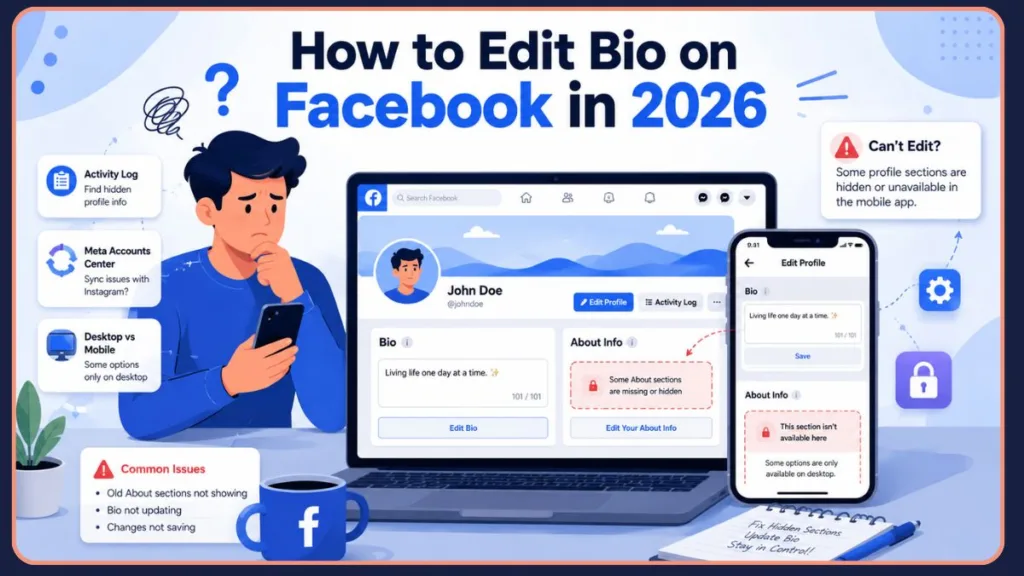
Whether you just want to change your Facebook bio to something fresh, or you’re pulling your hair out trying to find a hidden legacy “About You” section, this guide covers it all.
Quick Answer
To edit your bio on Facebook, open your profile, tap Edit Profile, select Bio, make your changes, and tap Save. If older About sections are missing, you may need to use Facebook desktop or the Activity Log workaround. Also, check your Meta Accounts Center if your bio is linked and synced with your Instagram profile.
Facebook Bio vs. About Section: What’s the Difference?
Before we dive into the steps, it is crucial to know exactly which part of your profile you are trying to change. Facebook users (and sometimes Facebook’s own menus) often confuse the “Bio” with the “Intro” or “About” section.
Here is how to tell them apart:
| Feature | The “Bio” | The “About” / “Intro” Section |
| Length | Max 101 characters | Unlimited (Multiple categories) |
| Content | A short, text-only public blurb | Work, education, location, relationships |
| Visibility | Always Public | Can be customized (Public, Friends, Only Me) |
| Placement | Directly under your profile picture | Below the Bio, or in a separate tab |
How to Edit Bio on Facebook (The 101-Character Short Bio)
If you are looking to update that short, 101-character blurb right beneath your profile picture, here is how to update your Facebook bio on both mobile and desktop.
Keep in mind that spaces and emojis count toward your 101-character limit, so use them sparingly.
On the Mobile App (iOS & Android)
- Open the Facebook app and tap your Profile Picture to go to your main profile page.
- Tap the Edit Profile button located just beneath your name and profile picture.
- Scroll down slightly to the “Bio” section and tap Edit (or Add if you don’t currently have one).
- Select Edit Bio from the pop-up menu.
- Type your new bio and hit Save in the top right corner.
On a Desktop Browser
If you prefer using Facebook on a computer, the desktop method gives you slightly more control and can even reveal older hidden profile sections missing from the mobile app.
- Go to Facebook.com and click your Profile Icon in the top right corner, then click your name.
- Click the gray Edit Profile button located on the right side, just beneath your cover photo.
- A pop-up menu will appear. Scroll down to the “Bio” section and click Edit.
- Customize your text and click Save.
How to Edit Your “About” Info (Work, Education, and Relationships)
If you want to update your workplace, graduation year, or relationship status, you need to edit your Facebook profile description in the About section.
- Navigate to your profile and tap/click Edit Profile.
- Scroll all the way to the bottom of this menu.
- Tap Edit your about info.
- Here, you will see categorized blocks for Work, Education, Places Lived, and Basic Info. Tap the pencil icon next to any item to edit or delete it.
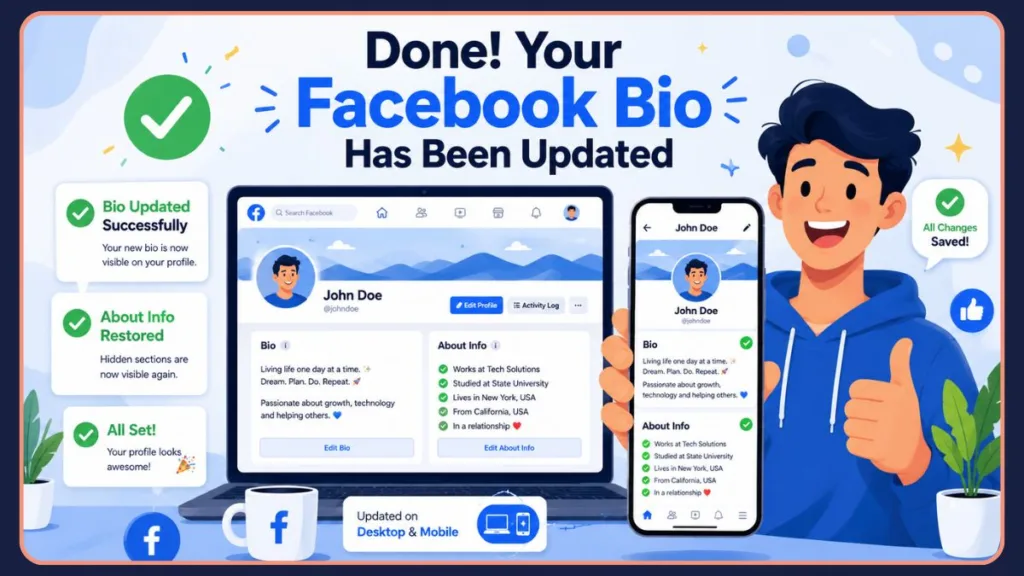
Advanced Troubleshooting: Why Can’t I Edit My Facebook Bio or About Info?
If you are reading this, there is a good chance the standard steps above didn’t work for you. Recently, users on Reddit highlighted a massive frustration: finding an old Facebook about section missing from the mobile edit screen, making it impossible to delete outdated personal information.
Important: Some legacy Facebook profile fields created years ago may no longer appear inside the modern app interface. In some cases, only desktop Facebook or Activity Log access will reveal them.
If you cannot edit your Facebook about you section, try these three advanced workarounds.
1. The “Desktop-Only” Legacy Bug
The Problem: Over the years, Facebook has phased out certain text boxes and profile fields. If you filled these out 10 years ago, they might still display on your public profile, but the modern mobile app has no button to edit them.
The Fix: You must log into Facebook on a desktop computer or laptop. Legacy profile sections that are invisible on the mobile app can often still be edited or deleted from the desktop web browser.
2. The Activity Log Backdoor Method
The Problem: The old data is completely hidden from the standard “Edit Profile” screen on both mobile and desktop, leaving you with no hidden Facebook bio edit options.
The Fix: Use the Activity Log to hunt down the buried data.
- Go to Settings & Privacy.
- Click on Activity Log.
- Select Personal Information, then click on Profile Information.
- Navigate to the About section. From here, you can often locate and delete legacy data that doesn’t appear anywhere else.
3. Professional Mode and Page Glitches
If your personal profile is linked to a Facebook Business Page or you recently turned on Professional Mode, app caching can sometimes freeze your bio. In Professional Mode, your profile layout changes to resemble a Page, and edits sometimes require you to navigate through your Professional Dashboard rather than the standard profile settings. It might look like you changed it, but the old one keeps reappearing. To fix this, try logging out, clearing your app cache (in your phone’s settings), and logging back in, or make the edit on a desktop browser instead.
Facebook Bio Not Updating? Try These Fixes
If you’ve followed the steps but your new text won’t save, you are likely running into a sync or cache error. Try these fixes:
- Meta Accounts Center Sync: If your Facebook and Instagram accounts are linked via the Meta Accounts Center, syncing issues can cause your bio to revert or fail to update. Go to Settings > Accounts Center > Profiles to ensure your profiles aren’t continuously overwriting each other.
- Clear cache: Go to your phone’s settings, find the Facebook app, and clear the local cache data.
- Update app: Check the iOS App Store or Google Play Store to make sure you aren’t running an outdated, buggy version of Facebook.
- Switch devices: If the mobile app is glitching, try editing from an iPad, tablet, or secondary phone.
- Desktop workaround: Bypass the app entirely and update your bio directly on Facebook.com via a computer browser.
- Internet issues: A weak Wi-Fi or cellular connection can prevent the app from communicating with Facebook’s servers. Toggle airplane mode on and off to reset your connection.
Frequently Asked Questions (People Also Ask)
What is the character limit for a Facebook bio?
The short bio located directly under your profile picture has a strict limit of 101 characters. Keep in mind that every space, punctuation mark, and emoji takes up at least one of these characters. If you need to share more information, use the “About” section instead.
How do I make my Facebook bio private?
You cannot make your short 101-character bio private; it is always public by default. However, you can change the privacy settings (to Friends or Only Me) for specific details in your deeper “About” section.
How do I delete an old Facebook intro?
To completely remove your bio, go to your profile, tap Edit Profile, scroll to the Bio section, tap Edit, and then select Remove. To delete an old “About You” section, you may need to log in on a desktop computer and delete the text manually.
Now you know how to edit your bio on Facebook, remove outdated About information, and fix hidden profile sections that no longer appear in the app. Whether you are updating your intro, deleting embarrassing old profile details, or troubleshooting a Facebook bio that refuses to change, these methods should help you regain control of your profile.
Visit Our Post Page: Blog Page
Discover more from Izoate
Subscribe to get the latest posts sent to your email.