
Accidentally sharing posts with everyone? Learn how to edit your Close Friends list on Facebook in 2026. Control your privacy, manage custom lists, and choose exactly who sees your updates.
Accidentally shared a personal life update with your entire friends list, including your boss or that judgmental distant relative? Learn the only way to truly curate your inner circle: mastering the Facebook Close Friends and Custom Lists features. Get comprehensive, step-by-step guides for mobile and desktop in the latest 2026 Meta interface.
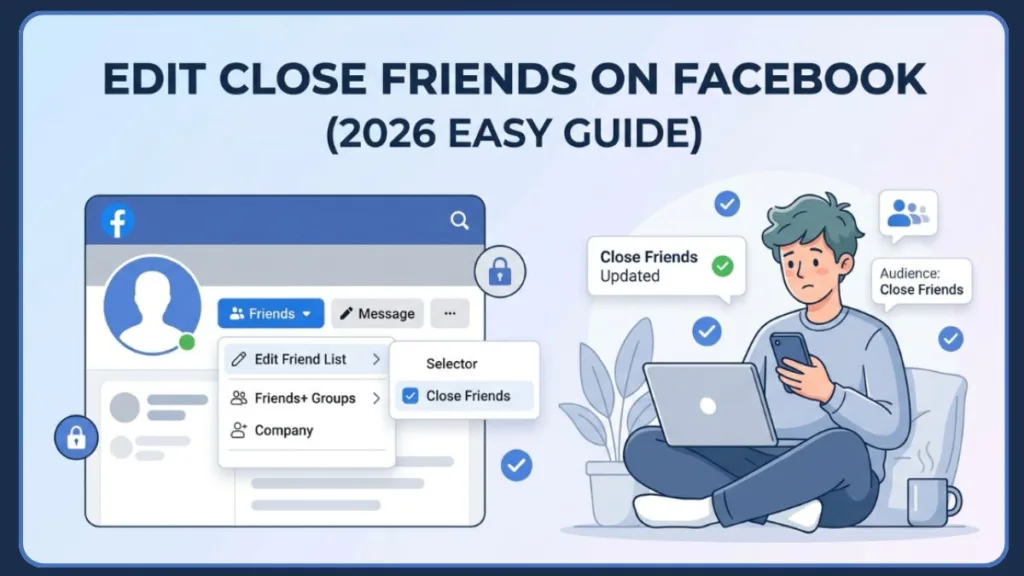
You’re about to post a photo from a private dinner, but you hesitate. You know that if you hit “Post,” it will land right in front of everyone you’ve ever met since 2009. You’re left wondering, “how do I edit my Close Friends on Facebook so only the right people see this?”
Can You Hide Posts from Specific People in 2026?
Let’s answer that immediately: Yes, you can, and it is easier than you think. While Facebook has moved these settings several times over the years, the Close Friends feature remains the most effective tool for privacy. However, simply adding a friend isn’t the whole story. To truly take control, you need to know how to navigate the Audience and Visibility hub and manage your Custom Lists.
In the current Facebook close friends list 2026 landscape, these settings are powered by Meta’s new Andromeda AI, a predictive engine that learns your Friendship interactions algorithm patterns. By manually refining your lists, you are effectively training this AI to prioritize “Meaningful Social Interactions” over generic engagement. This ensures that when you Limit who can see my Facebook posts, the system understands the nuances of your different Facebook friend list categories, such as distinguishing between casual acquaintances and your genuine inner circle.
This guide will show you exactly how to do that, explain the difference between various list types, and provide strategies for managing your social privacy gracefully. It covers both mobile and desktop, clearly separates adding/removing friends from managing notifications, and includes tips for creating a clutter-free news feed.
How to Edit Close Friends on Mobile (iPhone & Android)
Since most social interactions happen on the go, the Facebook app is the fastest place to audit your inner circle. The 2026 interface has streamlined these settings into a single privacy hub.
Step-by-Step on the Facebook App:
- Open the Facebook app and go to your profile by tapping your mini-avatar.
- Tap the three dots (…) next to your profile name or the Settings (gear icon) in the top right.
- Scroll down to the Audience and visibility section.
- Tap on Posts, then select Who can see your future posts?
- Choose Specific friends. From here, you can check or uncheck names to build your Close Friends group.
- To edit an individual friend directly, visit their profile, tap the Friends button, select Edit Friend List, and toggle Close Friends.
Beyond the standard settings menu, Meta has introduced a dedicated Facebook Friends tab in 2026, which you can pin the tab to your main navigation bar for instant access. This tab is a central station to Manage Facebook close friends list memberships without digging through deep sub-menus. If you are looking for How to add people to close friends on Facebook app workflows that save time, this new tab allows you to see recent interactions and quickly toggle users into your “Close Friends” or “Favorites” categories. This is particularly useful for users who frequently need to Remove someone from Facebook close friends list as relationships change over time.
Tip: Acting within the Audience and Visibility section allows you to set a default “Close Friends” filter for all future Reels and Stories simultaneously, saving you from manual selection every time you post.
How to Edit Close Friends on Desktop (PC & Mac)
The desktop version of Facebook offers the most robust tools for bulk-managing lists and viewing specific feed filters. This is ideal if you have hundreds of friends to sort through.
Step-by-Step on Desktop:
- Log in to Facebook and click your profile picture in the top right corner.
- Navigate to your Friends tab located below your cover photo.
- On the left-hand sidebar, click on Custom Lists. (If you don’t see it, click “See More“).
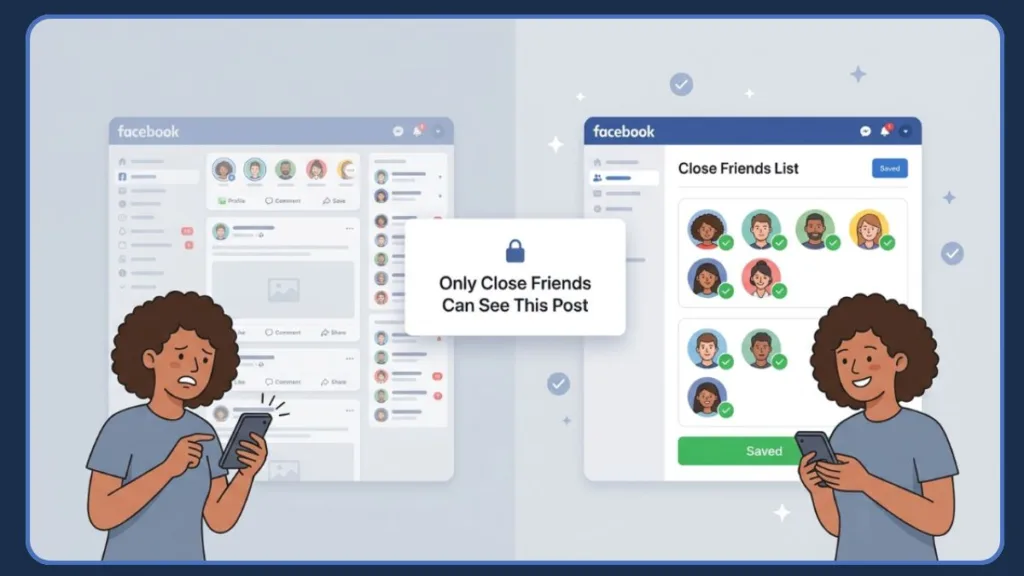
- Click on the Close Friends list to open the management dashboard.
- To add people, use the Add Friends search bar on the right. To remove them, click the X on their profile card within the list.
- To manage alerts, click the Notifications button at the top of the list to choose if you want to be notified of their updates.
When you View close friends list Facebook mobile vs desktop versions, you will notice the desktop site provides a much clearer view of your Facebook close friends notification settings. The 2026 desktop interface allows you to Organize Facebook friends into lists using a drag-and-drop interface, making it the superior choice for deep-cleaning your digital presence. This is also where you can Edit custom friend lists Facebook metadata, such as renaming lists or adjusting the Facebook Feed preferences for each specific group to ensure your main feed isn’t overwhelmed by repetitive updates.
Tip: The desktop method is the only way to access the “List Feed,” a dedicated news feed that shows you only updates from your Close Friends, completely bypassing the noise of the main algorithm.
What to Do After You Categorize Your Friends
Once your lists are organized, you can change the way you interact with the platform to ensure a stress-free experience:
- Audit Your “Restricted” List: If someone is too nosy but you can’t unfriend them (like a coworker or relative), move them to the Restricted list. They will only see your Public posts and will never know they’ve been limited.
- Use the Audience Selector: Every time you create a new post, look for the privacy dropdown (it usually says “Public” or “Friends“). Click it and select Close Friends to instantly apply your new list.
- Set Up Smart Lists: Facebook automatically creates lists for Work, School, and City. Check these regularly to ensure the “Smart” algorithm hasn’t accidentally added someone who doesn’t belong there.
Understanding the Restricted list vs Close Friends list distinction is vital for maintaining professional boundaries in 2026. While the Close Friends list is for “sharing in,” the Restricted list is for “blocking out” without the social fallout of a full block. Furthermore, the Meta Accounts Center now offers a unified way to manage these boundaries, allowing you to sync your Custom audience privacy settings across both Facebook and Instagram. This means you only have to how to edit close friends on facebook once to have those same protections apply to your Instagram Stories, provided your accounts are linked.
Tip: Transparency is key for your own peace of mind. Remember: Facebook never notifies a user when they are added to or removed from a Close Friends, Acquaintance, or Restricted list.
Managing Your News Feed and Notifications
Editing Close Friends isn’t just about who sees you—it’s about who you see.
Close Friends vs. Favorites
- Close Friends: Controls your privacy. It limits who can see your sensitive posts, stories, and reels.
- Favorites: Controls your feed priority. Adding someone to Favorites ensures their posts appear at the very top of your feed and gives them a star icon.
To truly master your Facebook Close Friends settings, you should also utilize the See First feature within your Facebook Favorites list. While the Close Friends list manages your outgoing privacy, Favorites manages your incoming attention. In the 2026 update, Meta’s Andromeda AI prioritizes “Dwell Time” and “Private Shares” in your feed; by adding someone to your Favorites, you are manually overriding the algorithm to ensure their content never gets buried. This is the best way to answer the common user question: Who are my Top Friends on Facebook? by looking at who consistently appears in your prioritized “Friends” tab.
How to Silence the Noise
If you want to stay friends with someone but their posts are overwhelming your feed, don’t just remove them from Close Friends—move them to the Acquaintances list. Facebook’s algorithm automatically deprioritizes Acquaintances, showing you significantly less of their content without the drama of unfriending them.
FAQs About Editing Facebook Friend Lists
1. How do I edit my Close Friends on the latest Facebook app update? Go to the Audience and Visibility section in your settings, or visit a friend’s profile directly and tap the Friends button to access the Edit Friend List menu. You can also use the newly pinned Friends Tab on your home screen for faster access.
2. Will my friends be notified if I remove them from my Close Friends list? No. Meta does not send notifications for list changes. Your friends will only notice if they suddenly stop seeing posts that you have restricted to that specific group.
3. Where did the “Friend Lists” option go on Desktop? It is now located under the Custom Lists tab in the left-hand sidebar of your home feed or within the Friends section of your profile. In 2026, this section has been renamed in some regions to “Network Categories” to align with Meta Accounts Center branding.
4. Can I have more than one Close Friends list? You can only have one official “Close Friends” list, but you can create unlimited Custom Lists (e.g., “Besties,” “Family Only,” “Gym Crew“) that function exactly the same way.
5. What is the “Restricted” list and how is it different? The Restricted list is a “ghost” filter. People on this list stay your friends, but they can only see your Public content. It is the best tool for managing professional or awkward social boundaries.
6. How do I see a news feed of only my Close Friends? On Desktop, go to Custom Lists and click Close Friends. This opens a private, real-time feed of only that group. On mobile, you can achieve this by filtering your main feed using the “Friends” tab in your navigation bar.
7. How to hide friends list on Facebook so others can’t see my Close Friends? You can adjust this by going to Settings > Audience and visibility > How people find and contact you. Change the setting for “Who can see your friends list?” to Only Me to ensure your private circles remain private.
Conclusion: Mastering Your Social Privacy
Managing your Facebook Close Friends list is the key to a curated, high-quality social media experience. By using the Activity Log and Custom Lists tools, you can ensure that your private moments stay private and your news feed stays relevant.
Tip: Regularly review your “Custom Lists” every few months. As relationships evolve, your digital boundaries should too, ensuring your Facebook interactions remain fun, organized, and entirely under your control.
Visit Our Post Page: Blog Page
Discover more from Izoate
Subscribe to get the latest posts sent to your email.