
Trying to track down an old order on Amazon in 2026? Learn how to find archived orders using simple steps — from checking the classic Archived Orders page (if your account still has it) to searching your regular order history and setting up Amazon Family for future privacy. Get back to your past purchases today.
Online shopping on Amazon has become second nature for millions of people around the world. It’s fast, convenient, and filled with endless options — which also means your order history can get long and hard to sort through, especially if you ever used the Archive Order feature to tidy things up. Whether you archived a gift purchase, a personal item, or just an old order you wanted out of the way, learning how to find archived orders on Amazon in 2026 can save you a lot of scrolling.
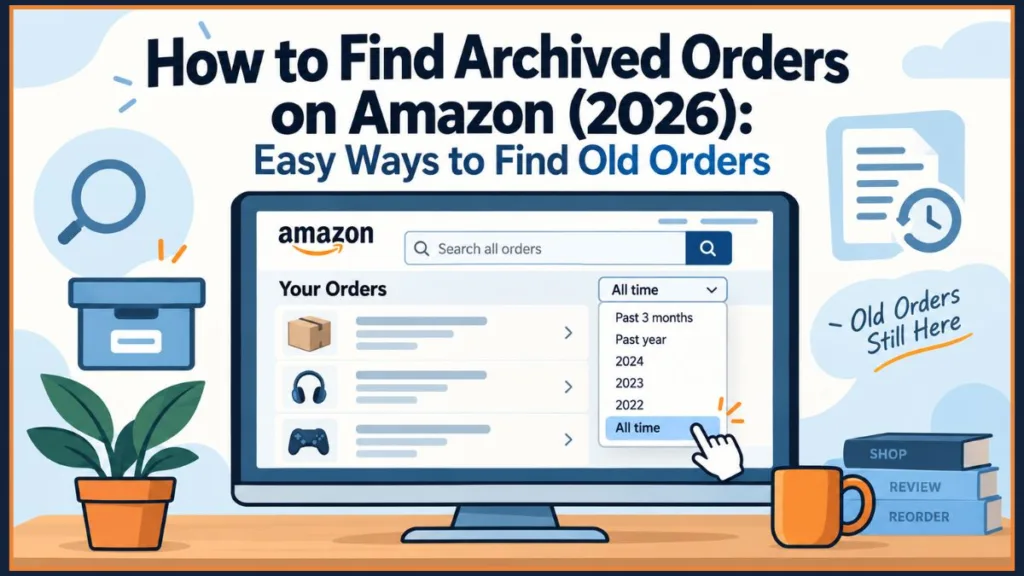
In 2025, Amazon made a major change — the Archive Order feature, once a simple way to tuck a purchase out of your main order list, has been quietly removed or limited across most accounts. This shift has left plenty of shoppers unable to find that “Archived Orders” tab they used to rely on.
Fortunately, your archived orders were never deleted, and there are still reliable ways to track them down. Let’s walk through these methods step by step so you can get back to your old purchases.
Why You Might Be Looking for an Archived Amazon Order
There’s nothing unusual about wanting to check on a purchase you once tucked away. Amazon never lets you permanently delete order history, so archiving was really just a way to manage visibility — and now that many accounts no longer have that option, people are searching for those same orders again for a few common reasons:
- Checking order details: You need a receipt, invoice, or delivery date from a purchase you archived months or years ago.
- Reordering an item: You want to buy the same product again but can’t remember the exact name or seller.
- Starting a return or warranty claim: An archived item needs servicing, and you need the original order number.
- General account cleanup: You’re reviewing your full purchase history and want to see everything in one place, archived or not.
Regardless of your reason, Amazon still gives you a few reliable tools — order search, date filters, and in some cases the legacy Archived Orders page — to track down what you’re looking for.
Can You Still Find Archived Orders on Amazon in 2026?
For years, the Archive Order button moved a purchase into a dedicated Archived Orders section, out of your main list but never truly gone. In 2025, Amazon began removing that dedicated view in phases. Here’s what changed, according to Amazon’s own help documentation:
“Starting August 19, 2025, the Archived Orders view will be removed. Any previously archived orders will now appear in your main order history.”
This means, heading into 2026:
- Some accounts still have the Archived Orders section, typically older accounts, business accounts, or accounts in certain regions.
- Most accounts no longer see it at all, especially on the Amazon mobile app.
- The rollout is nearly complete globally, so even where the old page is still accessible, treat that as temporary rather than something to count on.
If your account still supports it, you can use the Archived Orders page directly. If it doesn’t, your archived purchases haven’t disappeared — they’ve simply moved back into your regular order history, where you can still search for them. Below is a detailed guide for both situations.
How to View Archived Orders on Amazon Using Desktop
If your Amazon account still shows the legacy Archive option, here’s how to find it.
Step-by-Step Guide to View Archived Orders
- Sign in to your Amazon account using a desktop web browser (this option doesn’t appear on the mobile app).
- Go to Accounts & Lists > Your Orders.
- Open the time-period filter dropdown above your order list (it usually shows something like “past 3 months”).
- Scroll to the bottom of that dropdown and select Archived Orders.
- You’ll see a list of every order you previously archived, complete with order details.
Tip: If there’s no “Archived Orders” option at the bottom of that dropdown, your account has already been switched to the new system — jump ahead to the search method below.
How to Search Your Order History for an Archived Purchase
If the Archived Orders page is gone from your account, or you just want a faster way to pull up one purchase, Amazon’s regular order search will still surface it.
- Go to Accounts & Lists > Your Orders.
- Find the search box above your order list.
- Type in the product name, brand, or a keyword you remember from the order.
- Click Search Orders.
- Your previously archived order should appear in the results, right alongside your regular purchases.
If you don’t remember enough details to search by keyword, use the filter dropdown to browse by year instead. This works well when you know roughly when you bought something but not its exact name. This is also exactly what Amazon’s own Order History help page currently recommends: search Your Orders or filter by the date range the order was originally purchased.

How to Unarchive an Order
If your account still has the Archived Orders section and you want to move a purchase back into your everyday order list permanently:
- Open Your Orders, then the time-period filter dropdown, and select Archived Orders.
- Find the order you want to restore.
- Click Unarchive Order — it will immediately reappear in your main order list.
Key Points to Remember
- Archiving hides an order from your main list, but it does not delete it permanently.
- You can archive up to 500 orders per account.
- The Archived Orders page has only ever been available on desktop browsers.
- Archived orders can still be found through search, even without the dedicated page.
How to Find Archived Orders Without the Archive Button
If your account no longer shows the Archive Order button or the Archived Orders page at all, don’t worry — your orders are still tied to your account. You just need a slightly different route to reach them.
Search and Filter Method (Works Without the Archive Page)
- Go to Your Orders on desktop or in the Amazon app.
- Use the search bar to look up the item by name, brand, or seller.
- If that doesn’t turn it up, switch to the time-period filter and select the year you likely made the purchase.
- Open the order to view its details, tracking, or return options.
Notes About This Method
- This works whether or not your account ever had the dedicated Archive feature.
- It’s the same method Amazon itself now points customers toward, since the standalone Archived Orders view is being phased out.
- On mobile, if you want to check for a lingering legacy Archived Orders link, switch to Desktop Site Mode in your browser rather than the app.
How to Keep Future Orders Private Using Amazon Family
If the reason you originally archived orders was to keep certain purchases out of a shared account’s view, it’s worth knowing that Amazon Family (Amazon’s rename of the former Amazon Household) is now the more dependable long-term option, since it doesn’t rely on a feature that’s disappearing.
How to Set Up Amazon Family
- Visit the Amazon Family setup page.
- Click Add Adult.
- Enter the other person’s email address.
- Have them accept the invitation.
Benefits of Using Amazon Family
- Separate order histories: Each person’s orders stay private from the other.
- Shared Prime membership: You still get Prime benefits like free shipping and Prime Video.
- Ideal for couples and households: Useful for anyone who shares an account but wants independent purchase histories.
- More accurate recommendations: Suggestions are based on each person’s own activity instead of a shared account’s.
Keep in mind this only protects future orders — it won’t retroactively hide anything already sitting in your shared order history.
Additional Ways to Track Down an Old Amazon Order
Even with search and filters, a handful of other tools can help you confirm or locate a purchase.
1. Check Your Email for Order Confirmations
- Search your inbox for “amazon.com order” or the product name.
- Amazon sends a confirmation email for every order, which includes the order number you can plug straight into the Your Orders search box.
2. Use the Buy Again Section
- Amazon’s Buy Again list often surfaces past purchases, including ones you may have archived, based on your purchase history rather than your current order list.
3. Try Desktop Site Mode on Mobile
- If the app isn’t showing what you need, open Amazon in your phone’s browser and switch to desktop site mode for the full filter options.
4. Contact Amazon Customer Service
- If you genuinely can’t locate an old order through search, Amazon’s support team can look up order details tied to your account.
Each of these methods works alongside the main search and filter approach, so you’re rarely stuck with just one option.
Limitations of Finding Archived Orders on Amazon
Even with all these tools, there are a few things worth keeping in mind:
- You cannot permanently delete order history — archived or not, it stays on your account.
- The dedicated Archived Orders page only works on desktop browsers, and it’s being phased out.
- Amazon limits archiving to 500 orders per account.
- Once the Archive feature is completely removed from your account, search and filtering become your only route to old archived purchases.
Understanding these limits helps you know what to expect as you track down older purchases.
Final Thoughts on How to Find Archived Orders on Amazon
Amazon has removed the dedicated Archived Orders page for most accounts, but that doesn’t mean your old purchases are gone — it just changes where you’ll find them.
To summarize:
- Use the Archived Orders page directly if your account still has it.
- If it’s missing, search your regular order history by product name, seller, or date range.
- Check your email confirmations or the Buy Again list if search comes up short.
- Set up Amazon Family if your real goal is keeping future orders private, since it doesn’t depend on a feature that’s disappearing.
Either way, nothing you’ve ever purchased has actually left your account for good — it’s just a matter of knowing where to look now.
Frequently Asked Questions (FAQ)
Q1: Are my archived orders on Amazon deleted?
No. Archiving never deleted your order, and Amazon still doesn’t offer a way to permanently delete purchase history. Your order is either sitting in a legacy Archived Orders section or, if your account has been updated, back in your main order history.
Q2: Why can’t I find the Archived Orders page anymore?
Amazon has been removing the dedicated Archived Orders view in phases since 2025, and that rollout is now essentially complete. If yours is gone, your previously archived orders have simply been moved into your regular Your Orders list.
Q3: Can I find archived orders on the Amazon app?
The app has never had a separate Archived Orders page — that part has only ever been available on desktop. But if your account has already switched to Amazon’s updated system, your old archived orders appear in the app’s regular Your Orders list, where you can search or filter by year.
Q4: How many orders can you archive on Amazon?
Amazon allows up to 500 archived orders per account.
Q5: Does Amazon Family show my order history to other people?
No. Amazon Family gives each adult their own separate order history while sharing Prime benefits, so your purchases stay private from the other account holder — but only going forward, not retroactively.
Visit Our Post Page: Blog Page
Discover more from Izoate
Subscribe to get the latest posts sent to your email.