
Can’t find your Facebook Business Page ID anymore? Meta moved it. Learn every working way to find your Page ID in 2026 using Facebook and Meta Business Suite.
If you’ve been searching “I can’t find my Facebook Business Page ID anymore,” you’re definitely not alone. Since Meta rolled out its latest interface overhaul, countless page owners and social media managers have been left scratching their heads. The old tutorials keep pointing to About > Page Transparency, but that path may no longer work the way it used to. Some official Facebook Help Center articles still reference older navigation while Meta continues rolling out interface updates — meaning what you see on your account may differ slightly from older documentation or screenshots.
Whether you’re trying to connect your page to a third-party app, set up a CRM integration, configure a scheduling platform, or work with the Facebook Graph API, you’ll need your Facebook Business Page ID. This guide gives you every working method in 2026 — on mobile, desktop, and through Meta Business Suite — so you can stop searching and start building.
Key Takeaways
- The old About > Page Transparency route may no longer reliably show your Page ID, depending on which interface version your account is currently running.
- Meta Business Suite is generally the most reliable place to find your Page ID — typically under a Pages or Business Assets section in Settings, though exact menu names may vary.
- Your Facebook Page ID is different from your Business Manager ID and your Business Portfolio ID — each serves a different purpose.
- You may also be able to find your Page ID from the Meta Business Suite URL in your browser’s address bar.
- Non-admins generally cannot look up a Page ID for pages they don’t manage.
Before You Start: Quick Checklist
Before jumping into the steps, run through this quick checklist:
- You’re logged into the correct Facebook account (the one connected to your page)
- You have an admin or full control role on the business page
- Your Facebook app is updated to the latest version
- You know whether your page is managed through a personal profile or a Meta Business Portfolio
- You have access to a browser (desktop) or the Facebook or Meta Business Suite app (mobile)
If you’re unsure about your admin status, check out our guide on how to add an admin to a Facebook Page to understand page roles.
Note: Facebook and Meta often roll out interface updates gradually. Your menus, buttons, or navigation may look slightly different from the steps shown here depending on your region, account type, app version, or whether you’re using the New Pages Experience. If one method doesn’t match your screen, try one of the alternative methods later in this guide.
At a Glance: Which Method Should You Use?
Not sure where to start? This quick table points you in the right direction based on your situation. Keep in mind that exact menu names may vary depending on your interface version.
| If You Want To… | Best Method |
|---|---|
| Find your Page ID on Android or iPhone | Tap your Page name and check Transparency (if available in your version) |
| Find your Page ID on desktop | Click your Page name or use Meta Business Suite |
| Can’t find the Transparency section | Use Meta Business Suite — typically the most reliable fallback |
| Need the Page ID for developers or API integrations | Use Meta Business Suite or the Meta Developers tools |
| Manage or look up multiple Facebook Pages | Meta Business Suite’s Pages or Business Assets section |
Why Do You Need Your Facebook Business Page ID?
Your Facebook Page ID is a unique numeric code assigned to every Facebook Page the moment it’s created. It never changes, even if you rename your page or update your username. Think of it as your page’s permanent identity in Facebook’s system.
Here’s why you might need it:
- API integrations: Connecting your page to the Facebook Graph API requires your Page ID as the primary identifier.
- Scheduling tools: Platforms like Buffer, Hootsuite, Later, and Sprout Social often ask for your Page ID during setup.
- CRM integrations: Tools like HubSpot, Salesforce, and Zoho may require it to link your Facebook page to your customer database.
- Meta Developer tools: Building a custom Facebook app? Your Page ID is essential.
- Analytics platforms: Third-party analytics and social listening tools use the Page ID to pull data from your page.
- Automation services: Zapier, Make (formerly Integromat), and similar platforms require the Page ID to automate page actions.
- Marketing tools: Facebook Pixel setup, custom audience creation, and ad targeting sometimes reference the Page ID.
Quick Tip: Your Page ID is not the same as your Page URL. Your URL might use a readable username like
facebook.com/yourbrand, but the Page ID is a long string of numbers that powers backend connections.
Why Can’t I Find My Facebook Business Page ID Anymore?
This is the question everyone is asking right now, and there’s a straightforward explanation.
Meta has redesigned Facebook Pages multiple times over the years, each time shifting where settings, information, and page details are located. The introduction of the New Pages Experience — now the default for most new business pages — brought significant navigation changes that separated it from the classic Pages layout. Interface refinements have continued rolling out since then, and different accounts may be on different versions depending on region, account type, and when updates were deployed to them.
One of the most impactful changes affects where Page Transparency information lives. For years, the well-known path was: go to your page → click About → scroll to Page Transparency → find your Page ID. That route may now be gone, buried, or labeled differently depending on which interface version Facebook has deployed to your account. This is why different tutorials, screenshots, and official documentation often don’t match what you actually see on screen.
Here’s what users have been running into:
- Page Transparency has moved: In many accounts, you can now only find Transparency by clicking the Facebook page name directly, not under the About tab. The old About-tab method may no longer apply depending on your interface.
- Older tutorials may be outdated: Most guides published before recent interface updates still reference navigation paths that have since changed. Some official Facebook Help Center articles also reflect older layouts while updates continue rolling out across accounts.
- The interface varies by account: Meta has moved things around in recent updates, and the old “About → Page Transparency” route doesn’t consistently show up for all users anymore. Some accounts may still see the old layout; many won’t.
- New Pages Experience changes things further: Pages that use the New Pages Experience have a different settings architecture than classic Pages, which adds another layer of variation across accounts.
- App vs. desktop differences: The Facebook mobile app and the desktop website don’t always match, which adds to the confusion.
The result? Many page owners genuinely believe their Facebook Business Page ID is missing, when it has simply moved to a different location — or is now more reliably found through Meta Business Suite. Let’s find it.
Method 1: Find Your Facebook Business Page ID on Mobile (Android & iPhone)
This method works on Android devices — including Samsung Galaxy, Google Pixel, Motorola, OnePlus, Xiaomi, Redmi, POCO, Vivo, OPPO, and Realme — as well as on iPhone and iPad.
Step 1: Open the Facebook App
Launch the Facebook app on your device. Make sure you’re signed into the account that has admin or full control access to your business page.
Step 2: Switch to Your Business Page Profile
Tap your profile picture in the top-right corner (or top-left, depending on your app layout). A dropdown menu will appear showing all profiles and pages connected to your account. Tap the name of your Business Page to switch into it.
Step 3: Tap Your Page Name at the Top
Once you’re in your page’s profile view, look at the top of the screen. Tap directly on your Page name (the bold text at the very top). In many interface versions, a pop-up card opens — scroll down and you may see a section labelled “Transparency and Privacy Policy” or similar.
Step 4: Find Your Page ID
Within the transparency pop-up, scroll down to locate your Facebook Page ID — it’s a string of numbers displayed under the transparency details. Tap and hold to copy it.
Warning: If you don’t see a transparency pop-up when tapping your page name, your Facebook app may need an update, or your account may have a slightly different interface version. In that case, skip ahead to Method 3 (Meta Business Suite), which works reliably on all accounts.
Method 2: Find Your Facebook Business Page ID on Desktop
This method works on Windows PCs and Macs using browsers like Google Chrome, Microsoft Edge, Firefox, and Safari.
Step 1: Go to Facebook.com and Open Your Page
Log in at facebook.com and navigate to your Business Page. You can search for it in the search bar or switch to your page from the profile switcher in the top-right corner.
Step 2: Click Your Page Name
Look at the top of your page profile. Click directly on the page name — not the About tab, not the settings menu, but the clickable page name itself.
Step 3: Open the Transparency Section
Depending on your interface version, a pop-up or side panel may appear with basic page information. In many accounts, clicking the page name triggers a Page Transparency view — scroll through this panel to look for your Page ID. If this pop-up doesn’t appear for you, that’s normal for certain interface versions. Skip ahead to Method 3 (Meta Business Suite), which is generally more consistent across accounts.
Step 4: Copy Your Page ID
Once you see the numeric Page ID, copy it and save it somewhere accessible — in a notes app, a spreadsheet, or your team’s documentation. You’ll likely need it again.
Quick Tip: If the transparency pop-up doesn’t appear on desktop, try logging out and back in, then clearing your browser cache. Sometimes Facebook serves a cached version of the old interface. Also try switching browsers — what doesn’t show in Chrome might appear correctly in Firefox or Edge.
Method 3: Find Your Facebook Business Page ID Using Meta Business Suite
This is currently the most reliable method in 2026, especially if the transparency pop-up isn’t appearing for you. Meta Business Suite works on both desktop and mobile browsers, and there’s also a dedicated Meta Business Suite app for Android and iPhone.
Step 1: Go to Meta Business Suite
On desktop, navigate to business.facebook.com. On mobile, open the Meta Business Suite app from your home screen.
Step 2: Open Settings
In the left sidebar (desktop) or the hamburger menu (mobile), look for a Settings option. Depending on your interface version, this may be labelled Settings, Business Settings, or something similar.
Step 3: Look for Your Pages or Business Assets
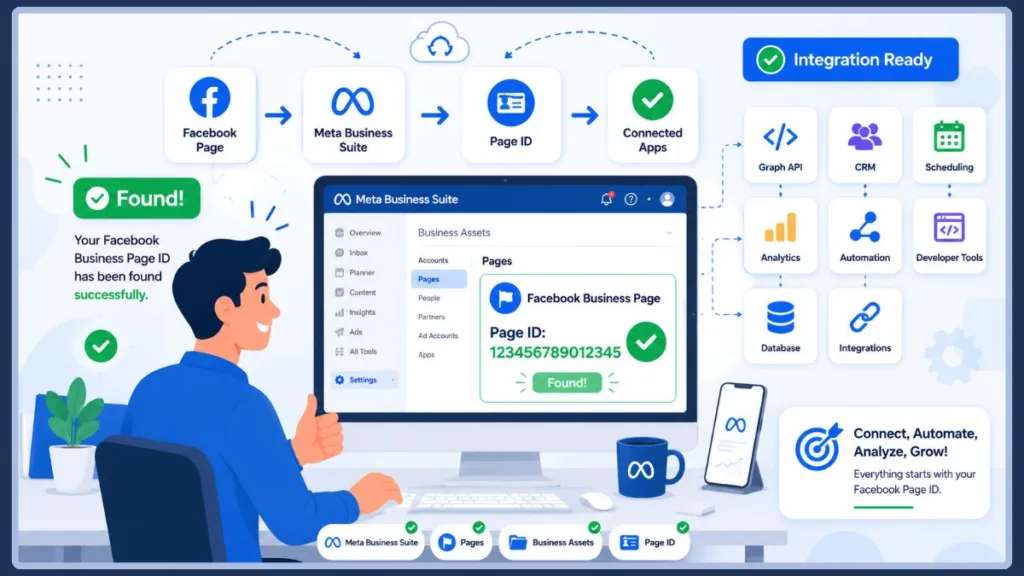
Once inside Settings, look for a section related to Accounts, Pages, or Business Assets — the exact label may vary based on your interface version. In most accounts, clicking into the Pages section will show your connected pages, with the Page ID displayed next to or beneath your page name.
That’s it. This method generally shows your Facebook Business Page ID without needing to navigate through the page transparency section at all.
Alternative: Read It from the Meta Business Suite URL
If you’re already inside Meta Business Suite viewing your page, there’s a potentially faster trick. Look at the URL in your browser’s address bar. In many Meta Business Suite URLs, you’ll see something like:
https://business.facebook.com/latest/home?business_id=1234567890&asset_id=9876543210In many interface versions, the value after asset_id= corresponds to your Facebook Page ID. The value after business_id= is typically your Business Portfolio ID — a different identifier entirely. Keep in mind that URL parameters may vary depending on Meta’s current interface, so always verify the ID you find against the Pages section in Settings before using it in an integration.
Quick Tip: If the URL method works for your account, it can be a fast way to grab your Page ID in seconds. But if you’re unsure, the Settings → Pages path is the more reliable confirmation.
Can’t Find the Privacy and Transparency Section?
If the Transparency section isn’t appearing at all for you, here are the most likely reasons:
| Possible Reason | What to Do |
|---|---|
| You’re viewing a personal profile, not a page | Switch to your Page profile before looking |
| You’re viewing someone else’s page as an outsider | Log in with an account that has an admin role on the page |
| Facebook has rolled out a newer interface to your account | Use Meta Business Suite (Method 3) instead — it’s generally more consistent |
| You’re not a page admin or don’t have Full Control access | Ask the current admin to grant you access — see our Facebook Page admin guide |
| Your Facebook app is outdated | Update the app via the Google Play Store or Apple App Store |
| The page uses the New Pages Experience | Try Meta Business Suite — look for a Pages or Business Assets section under Settings |
| Facebook is mid-rollout of a UI update | Try again in 24 hours, or switch to a desktop browser |
If none of these apply, jump straight to the Meta Business Suite method — it bypasses the transparency pop-up entirely and shows your Page ID directly in the settings.
Facebook Page ID vs Business Manager ID vs Business Portfolio ID
These three IDs confuse a lot of people, especially those working with developers or agencies who ask for “your Facebook ID.” Here’s exactly what each one is and where to find it:
| ID Type | What It Identifies | Where to Find It | Who Needs It |
|---|---|---|---|
| Facebook Page ID | Your individual Facebook Business Page | Meta Business Suite → typically under Pages or Business Assets in Settings; or check asset_id= in the URL | Developers, app integrations, API users, scheduling tools |
| Business Manager ID | Your Meta Business Manager account | Meta Business Suite → typically under Business Info or Business Settings | Agencies, ad managers, partner access requests |
| Business Portfolio ID | Your Meta Business Portfolio (formerly Business Manager) | Meta Business Suite → typically under Business Portfolio Info or Business Settings | Portfolio-level access, partner integrations |
Important: Your Meta Business ID is not the same as your Facebook Page ID or Ad Account ID. Always double-check which one is being requested before copying and sharing.
To find your Business Manager ID: Access Meta Business Suite, go to the Settings section, and select Business Info — you’ll find your Facebook Business Manager ID listed beneath your Business Name.
To find your Business Portfolio ID: Go to Meta Business Suite’s Settings, click “Business portfolio info” on the left, and copy the business ID number under the portfolio name.
Can You Find a Facebook Page ID Without Being an Admin?
This is a common question, especially for developers or marketers trying to look up a competitor’s page or prepare for a client handover.
The short answer: it’s very limited in 2026.
Facebook does not make page IDs publicly visible to users who do not have a role on the page. Third-party tools that once offered this functionality have largely been restricted or discontinued due to Facebook API changes.
Here are your options if you’re not an admin:
- For public pages: You can sometimes find a page’s ID by using the Facebook Graph API Explorer (via the Meta Developer portal) with a public access token and querying the page’s username. This requires developer knowledge.
- From the page URL source: On some public pages, you may be able to right-click → View Page Source on a desktop browser and search for
page_idin the HTML. This doesn’t always work, and Facebook actively limits this kind of extraction. - Ask for admin access: The cleanest solution is to ask the page owner to add you as an admin or editor temporarily so you can retrieve the ID yourself. See our guide on how to add an admin to a Facebook Page.
If you’re frequently working with pages you don’t manage, the Graph API is the most reliable technical method — but it requires a Meta Developer account and an approved app.
What If Your Facebook Business Page ID Is Still Missing?
If you’ve tried all three methods above and your Page ID still isn’t showing up, work through this troubleshooting checklist:
- Refresh Facebook — Sometimes a hard refresh (Ctrl+Shift+R on Windows, Cmd+Shift+R on Mac) clears a display bug.
- Update the Facebook app — Older app versions may display an outdated interface. Check the Play Store or App Store for updates.
- Switch devices — If you’re on mobile, try desktop, and vice versa. The two interfaces sometimes behave differently.
- Try a different browser — Chrome, Edge, Firefox, and Safari can render Facebook’s interface differently. If one doesn’t show the transparency section, another might.
- Clear cache and cookies — Go to your browser’s settings and clear cached data, then reload Facebook.
- Check your page access role — You must have Full Control (formerly Admin) or Editor access to see Page settings. If you’ve been removed or downgraded, you won’t have access to the ID.
- Verify admin permissions — Log into Meta Business Suite and confirm your role under Settings → People.
- Use Meta Business Suite directly — Navigate to business.facebook.com/latest/settings, click Pages under Accounts, and look for your Page ID there.
- Wait if Facebook is rolling out changes — Meta sometimes deploys UI changes in waves. If your interface looks unusual, it may stabilize within 24–48 hours.
- Contact Facebook Support — As a last resort, Meta offers support through Meta Business Help Center. Be ready to verify your identity and page ownership.
Common Mistakes to Avoid
- Copying the Business ID instead of the Page ID: In the Meta Business Suite URL,
business_id=is NOT your Page ID. Your Page ID followsasset_id=. These are easy to mix up. - Searching in the wrong profile: Make sure you’ve switched to your Page profile before looking — if you’re in your personal profile, you won’t see page-level settings.
- Using outdated tutorials: Most guides published before mid-2025 will show the old About → Page Transparency path. That doesn’t reliably work anymore.
- Thinking the Page URL contains the ID: A URL like
facebook.com/yourbrandnameuses your custom username, not your Page ID. The Page ID is always a long string of numbers. - Sharing your Business Manager ID instead: If a developer asks for your Facebook Page ID and you send them your Business Manager ID, integrations will fail. Always verify which ID is being requested.
Frequently Asked Questions
Why can’t I find my Facebook Business Page ID anymore?
Meta’s 2026 interface update moved Page Transparency out of the About section. You can only find Transparency now when you click the Facebook page name directly, not under About. The most reliable way to find your Page ID now is through Meta Business Suite → Settings → Pages.
Where did Facebook move Page Transparency?
Rather than sitting under the About tab, Page Transparency is now accessed by clicking directly on your page’s name at the top of the page profile. A pop-up or panel appears showing transparency details including your Page ID. If this doesn’t appear, the Meta Business Suite settings page is your fallback.
Is the Facebook Page ID the same as the Business Manager ID?
No. A Meta Business ID is also known as a Business Portfolio ID or Partner ID. However, it differs from a Facebook Page ID and a Facebook Ad Account ID. Each one identifies a different asset in the Meta ecosystem.
Can I use my Page URL instead of my Page ID?
For basic linking purposes, yes — your URL works fine. But for API integrations, developer tools, CRM setups, and automation platforms, the numeric Page ID is required. The URL alone isn’t accepted by most technical integrations.
Do I need my Page ID for the Facebook Graph API?
Yes. The Facebook Graph API uses your Page ID as the primary identifier when pulling page data, managing posts programmatically, or reading page insights. Without the Page ID, you can’t make page-specific API calls.
Can I find my Page ID on Android?
Yes. Open the Facebook app, switch to your Business Page, then tap directly on your page name to open the Transparency pop-up. Your Page ID appears there. If it doesn’t, open Meta Business Suite on your Android device and go to Settings → Pages.
Can I find my Page ID on iPhone?
Yes, the same steps apply on iPhone and iPad. Open Facebook, switch to your Page profile, and tap the page name to trigger the Transparency pop-up. Alternatively, use the Meta Business Suite app on iOS and navigate to Settings → Pages.
Does Meta Business Suite show the Page ID?
Yes — and it’s currently the most reliable method in 2026. Go to business.facebook.com/latest/settings, click Pages under Accounts, and your Page ID will appear next to your page name on the right side of the screen.
Why do older tutorials no longer work?
Because Facebook’s interface has changed. Meta moved everything, so you need to access the ID through Meta Business Suite now — go to Settings and choose your page. Most tutorials published before 2026 reference the old About → Page Transparency path, which no longer applies for most accounts.
Why does Facebook Help look different from what I see?
Facebook’s Help Center documentation often lags behind actual product updates. Meta’s interface changes roll out in stages across different accounts and regions, meaning what you see on your screen may differ from both the Help Center and older tutorials for weeks or even months after an update.
Pro Tips for Managing Your Page ID
- Save it somewhere accessible: Once you’ve found your Page ID, store it in your browser’s password manager, a team documentation tool like Notion or Google Docs, or your company’s internal wiki. You’ll likely need it again.
- Keep Facebook and Meta Business Suite updated: Navigation changes happen frequently. Staying on the latest version of both apps means you’re less likely to hit interface bugs when searching for Page information.
- Create a quick-reference doc for your team: If multiple people manage your Facebook presence, share the Page ID in a shared doc so no one has to hunt for it each time.
- Double-check before sharing with developers: Always verify you’re copying the Page ID (from
asset_id=or the Pages settings), not the Business ID or Ad Account ID. Sending the wrong number causes integration failures. - Bookmark the Meta Business Suite Pages settings URL: The direct URL to your Pages list in Meta Business Suite loads faster than navigating through menus every time.
Conclusion
If you’ve been frustrated by the message “I can’t find my Facebook Business Page ID anymore” — now you know why, and more importantly, you know exactly where to look. Meta’s 2026 interface update moved Page Transparency away from the About section, leaving thousands of page owners confused and relying on outdated guides.
The fastest solution today is through Meta Business Suite: head to Settings → Pages and your Page ID is right there. You can also find it by clicking your page name directly on Facebook (which triggers the transparency pop-up), or by reading the asset_id= value from your Meta Business Suite URL.
Just remember: your Facebook Page ID, your Business Manager ID, and your Business Portfolio ID are three separate numbers. Make sure you’re grabbing the right one for whatever integration or tool you’re setting up.
Have questions or running into a specific error? Drop a comment below — we’re happy to help you troubleshoot.
Visit Our Post Page: Blog Page
Discover more from Izoate
Subscribe to get the latest posts sent to your email.