
Learn how to give someone admin access to your Facebook Business Page in 2026. Follow step-by-step instructions to add, manage, or remove Page admins using Facebook’s latest settings.
If you’re tired of being the only person managing your Facebook Business Page, adding another admin can make life a whole lot easier. Whether you’re bringing on a social media manager, working with a marketing agency, onboarding a new team member, or simply need a backup in case you’re unavailable — Facebook lets you share access safely without handing over your personal login credentials.
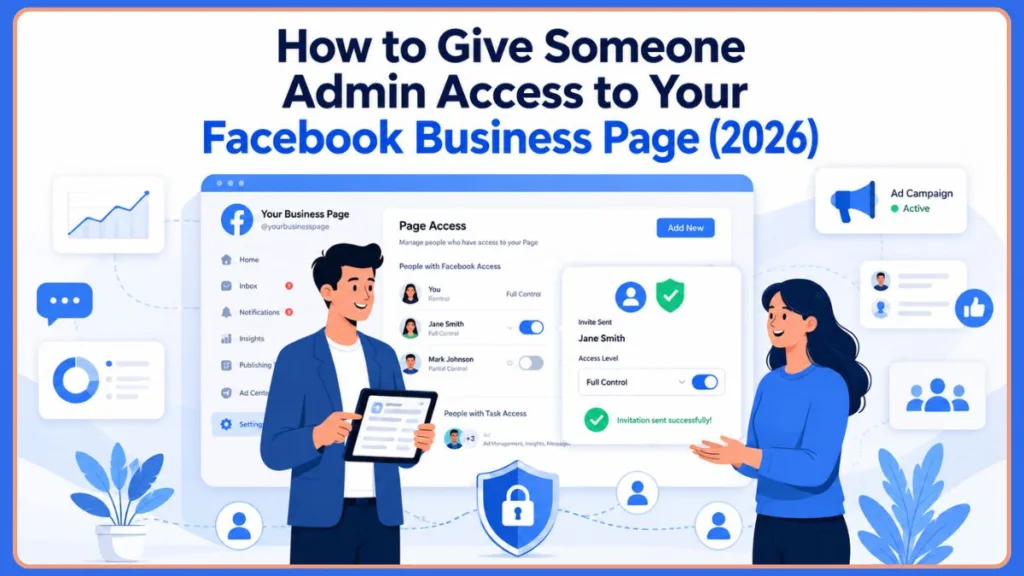
In this guide, you’ll learn exactly how to give someone admin access to your Facebook Business Page in 2026, covering desktop, mobile, and Meta Business Suite. You’ll also learn how Facebook’s current permission system works, what Full Control actually means, and how to fix it when things don’t go as planned.
Quick Answer: To give someone admin access to your Facebook Business Page, switch to your Page profile, go to Settings → Page Setup → Page Access, click Add New, search for the person, enable Full Control, and select Give Access. The person must accept the invitation before they can manage the Page.
What Does a Facebook Business Page Admin Do?
Before adding anyone, it’s worth understanding what you’re actually granting. A Facebook Business Page admin — now called Facebook Access with Full Control — is the highest level of permission available on a Page. Someone with Full Control can do everything you can, including:
- Create, edit, and delete posts, Stories, and Reels
- Respond to comments and direct messages as the Page
- Manage Page settings, including the Page name and vanity URL
- Run and manage ad campaigns
- Access Page Insights and analytics
- Add and remove other people’s access
- Link or unlink connected Instagram accounts
- Delete the Page entirely
Important: Full Control is serious authority, and it should only go to people you completely trust.
Facebook Admin vs Full Control: What’s Changed in 2026?
If you’ve added admins before and the process looks different now, you’re not imagining it. Facebook has moved away from the old “Admin, Editor, Moderator, Advertiser, Analyst” role system and replaced it with a cleaner two-tier model under the New Pages Experience.
Here’s what the system looks like now:
Facebook Access (Full Control) — This is the modern version of the old Admin role. Someone with Full Control can manage all Page settings, assign and remove people, delete the Page, and switch into the Page directly on Facebook.
Facebook Access (Partial Control) — This replaced the Editor role. The person can create and manage content, reply to messages, and interact as the Page, but they cannot change Page settings or manage access for others.
Task Access — This is the replacement for Moderator, Advertiser, and Analyst roles. Rather than assigning a fixed role, you choose specific tasks: content creation, ads management, community activity, insights, or messages and calls. Task Access users generally can’t switch into the Page directly — it’s designed for agencies and team members who need tool-level access without full account control.
Important: Most people still search for “Facebook Page Admin,” and that’s completely fine. When you see “Full Control” in your Page settings, that’s what they mean. The old terminology is gone from the interface, but the intent is the same.
Why Add Another Admin to Your Facebook Business Page?
The business case for sharing access
Managing a Facebook Page alone works fine when things are small. But as your business grows, you’ll quickly hit a point where one person can’t cover everything. Here are the most common reasons to add an admin:
- You’ve hired a social media manager and need them to post, reply, and run ads without logging into your personal account
- You’re working with a marketing agency that needs to manage campaigns and Page content
- You need business continuity — if you’re sick, on vacation, or unavailable, someone else can keep things running
- You want to separate responsibilities across team members without creating one shared login
- You want to avoid sharing your personal password, which violates Facebook’s terms of service and puts your entire account at risk
Can two people manage a Business Page on Facebook?
Yes, absolutely. Facebook allows multiple people to manage the same Business Page at the same time. You can assign Full Control to multiple team members, or give specific individuals Task Access based on what they need to do. There’s no cap on the number of people who can have access.
Can there be more than one admin for a Facebook Page?
Yes. You can have as many Full Control admins as your business needs. That said, limiting Full Control to a small group of trusted individuals is a smart practice. Every person with Full Control can remove other admins — including you.
Before You Add Someone as an Admin
What you need before getting started
Jumping straight into the steps is tempting, but a little preparation avoids headaches later. Here’s what to confirm before you start:
You must already have Full Control. Only someone with Facebook Access with Full Control can add others. If you have Partial Access or Task Access, you won’t see the option to add new people.
Know who you’re adding. Have their name or email address ready. Being Facebook Friends is no longer a requirement in 2026 — you can invite anyone using the email linked to their Facebook account.
Decide what level of access they need. Full Control is for trusted managers and partners who need complete authority. Task Access is better for contractors, junior team members, or agencies that only need specific capabilities.
Verify their identity. This sounds obvious, but always confirm you’re adding the right person, especially for Full Control. One wrong invitation can give a stranger complete authority over your Page.
Pro Tip: If you’re working with a marketing agency, consider giving them Task Access (selecting Ads and Insights) rather than Full Control. They get the tools they need without the ability to remove admins, change settings, or delete your Page.
How to Give Someone Admin Access on Facebook Business Page on Desktop
If you’re wondering how to make someone an admin on a Facebook Business Page, the table below shows which method fits your situation before you dive in:
| Method | Best For | Difficulty |
|---|---|---|
| Desktop | Most users managing a single Page | Easy |
| Mobile App | Quick changes on the go | Easy |
| Meta Business Suite | Agencies, teams, and multi-asset management | Moderate |
Here’s how to make someone an admin on a Facebook Business Page on desktop — the most common method, working in any web browser.
Step 1: Switch into your Facebook Page
Log into Facebook, click your profile icon in the top right, then select your Business Page from the “Profiles” or “Pages You Manage” section. You need to be viewing Facebook as your Page, not as your personal profile.
Step 2: Open Settings
Click on your Page’s profile picture icon in the top right corner and go to Settings & Privacy > Settings.
Step 3: Navigate to Page Setup → Page Access
Inside Settings, click Page Setup on the left menu. Then click View next to “Page access.” You’ll see a list of everyone who currently has access, broken into “People with Facebook access” and “People with task access.”
Step 4: Click Add New
Under “People with Facebook Access,” click Add New. A brief overview of what Full Control means will appear.
Step 5: Click Next and Search for the Person
Click Next, then type the person’s name or email address. Their Facebook profile should appear in the search results. Select the correct person.
Step 6: Toggle Full Control On
You’ll see a switch labeled Allow this person to have full control. Turn it on. The toggle will turn blue, confirming Full Control is enabled.
If you want to give Partial Access instead, leave the toggle off and they’ll receive limited content creation and interaction permissions.
Step 7: Click Give Access
Click Give Access to confirm. Facebook will prompt you to enter your personal Facebook password for security verification.
Step 8: Wait for Them to Accept
Once you confirm, Facebook sends the person an email notification and an in-app alert. They need to click Accept before they gain any access to your Page. Until then, you’ll see their status listed as pending.
Important: The invitation expires after a set period. If the person doesn’t receive it or misses it, you can resend from the same Page Access screen.
How to Give Someone Admin Access on Facebook Business Page on Mobile
Here’s how to make someone an admin on a Facebook Business Page on mobile, covering both Android and iPhone.
Using the Facebook App on Android
- Open the Facebook app and tap the menu icon (three horizontal lines) at the top right, or tap your profile picture
- Tap the down arrow next to your name and select the Page you want to manage
- Tap the profile icon (your Page picture in a circle) or the ≡ menu
- Tap Settings & Privacy, then tap Settings
- Scroll down and tap Page Setup
- Tap View next to “Page access”
- Under “People with Facebook Access,” tap Add New
- Tap Next, then type the person’s name or email address
- Select their profile from the results
- Tap the toggle to enable Full Control (it turns blue)
- Tap Give Access and confirm with your Facebook password
The person will receive a notification to accept the invitation.
Using the Facebook App on iPhone
The steps on iPhone are nearly identical to Android, with a slight difference in navigation:
- Open the Facebook app and tap Menu (three lines) at the bottom right of the screen
- Tap the down arrow next to your profile name and switch to your Page
- Tap the ≡ icon at the bottom of the screen
- Tap Settings & Privacy > Settings
- Tap Page Setup, then tap View next to “Page access”
- Tap Add New under “People with Facebook Access”
- Tap Next and search for the person by name or email
- Select the correct profile and toggle on Full Control
- Tap Give Access, confirm your password
Pro Tip: If the steps look slightly different on your phone, it may be because your Page is still in the Classic Pages Experience. In that case, look for Page Roles inside Settings instead of “Page Access.”
How to Give Someone Admin Access on Facebook Page on Computer (Quick Recap)
If you’re on a desktop or laptop computer and want the short version:
- Switch to your Facebook Page profile using the account switcher
- Go to Settings > Page Setup > Page Access
- Click Add New under “People with Facebook Access”
- Search for the person by name or email
- Enable the Full Control toggle
- Click Give Access and confirm your password
- Wait for them to accept the email or in-app invitation
That’s it. The process takes about two minutes once you know where to look.
How to Add an Admin on Facebook Page Using Meta Business Suite
Meta Business Suite is the preferred method for larger teams, agencies, or businesses managing multiple Pages, ad accounts, and Instagram profiles together. It gives you more control over permissions and makes it easier to manage access across all your Meta assets in one place.
What is Meta Business Suite?
Meta Business Suite (accessible at business.facebook.com) is Facebook’s centralized dashboard for managing business accounts. It connects your Facebook Page, Instagram account, ad campaigns, and team permissions under a single business portfolio. If you’re managing a team of more than two or three people — or working with an outside agency — using Business Suite is the smarter option.
Steps to Add an Admin Through Meta Business Suite
Step 1: Open Meta Business Suite
Go to business.facebook.com and log in. Make sure you’re in the correct business account if you manage more than one.
Step 2: Go to Settings
Click the gear icon in the left-hand menu to open Business Settings.
Step 3: Navigate to Users > People
In the left sidebar under “Users,” click People. This shows everyone who currently has access to your business portfolio.
Step 4: Click Invite People
Click Invite People and enter the email address of the person you want to add. This email must be linked to their Facebook account.
Step 5: Assign Business Role and Permissions
Click Next. You’ll be asked whether to give them Admin-level access to the entire business portfolio (all Pages, ad accounts, and assets) or to limit their access to specific assets only.
- For a trusted full business partner, toggle Admin Access at the business level
- For someone who should only manage your specific Facebook Page, skip the business-level admin toggle and instead assign access at the Page level in the next step
Step 6: Assign Business Assets
Select the specific Page (and other assets like ad accounts or Instagram) you want this person to access. At the Page level, you can grant Full Control or more limited permissions depending on their role.
Step 7: Send the Invitation
Review everything and click Invite. The person receives an email and must accept the Meta Business Suite invitation before gaining access. Until they click Accept, their status shows as pending.
Important: There are two distinct admin levels in Meta Business Suite. A Business Portfolio Admin has authority over all your connected assets — Pages, ad accounts, pixels, catalogs, and more. A Facebook Page Full Control admin only manages that specific Page. Be intentional about which you’re granting.
If the admin options seem missing or you’re having trouble assigning permissions, see our detailed guide on how to add admin to Meta Business Suite in 2026.
Full Control vs Task Access: Which One Should You Choose?
Here’s a quick breakdown to help you decide:
| Feature | Full Control | Task Access |
|---|---|---|
| Create and manage posts | ✅ | ✅ (Content task) |
| Reply to messages and comments | ✅ | ✅ (Messages task) |
| Manage ads | ✅ | ✅ (Ads task) |
| View Page Insights | ✅ | ✅ (Insights task) |
| Switch into the Page directly | ✅ | ❌ |
| Manage Page settings | ✅ | ❌ |
| Add or remove other admins | ✅ | ❌ |
| Delete the Page | ✅ | ❌ |
| Change Page name or URL | ✅ | ❌ |
| Link Instagram account | ✅ | ❌ |
Give Full Control to: Business co-owners, trusted senior managers, your agency if they need complete authority, and anyone who needs to manage Page settings or other admins.
Give Task Access to: Social media managers who only handle content, customer service reps who handle messages, advertising specialists who run campaigns, analytics team members who review data.
How to Upgrade an Existing Person to Full Control
If someone already has Partial Access or Task Access and you want to give them Full Control:
- Go to Settings > Page Setup > Page Access
- Find their name in the list
- Click the three dots (…) next to their name
- Select Edit Access
- Enable the Full Control toggle
- Click Update Access and confirm your password
Changes take effect once confirmed.
If someone already has limited permissions, you can follow our guide on upgrading an admin to Full Control on a Facebook Page to grant them complete access.
How to Accept a Facebook Page Admin Invitation
If you’re the one receiving an invitation to manage a Page, here’s what to do:
Via Email: Check your inbox (and spam folder) for an email from Facebook. Click the link inside to accept.
Via Facebook Notifications: Open Facebook on any device and check your notifications bell. Look for a “Page Access Request” notification and click Accept.
What happens after you accept: Your access activates immediately. If you were given Full Control, you’ll now be able to manage the Page fully, including switching into it as the Page profile.
How long does the invitation stay active? Facebook doesn’t publicly specify an expiration time, but invitations typically expire within 30 days. If the invite goes unanswered, the Page owner can resend it from the Page Access settings.
How to Edit or Remove Facebook Page Admin Access
Changing someone’s access level
- Go to Settings > Page Setup > Page Access
- Find the person’s name
- Click the three dots (…) next to their name
- Select Edit Access
- Adjust the toggle or task permissions as needed
- Click Update Access
If you’re transferring ownership or replacing a primary administrator, see our guide on how to change admin of a Facebook Page.
Removing someone from Page admin access on desktop
- Go to Settings > Page Setup > Page Access
- Find the person
- Click … next to their name
- Select Remove Access
- Confirm by entering your Facebook password
Removing someone from Page admin access on mobile
- Switch to your Page in the Facebook app
- Go to Menu > Settings > Page Setup > Page Access
- Find the person’s name
- Tap … or their name
- Tap Remove Access and confirm
Important: If a former employee or contractor had Full Control, remove their access immediately after they leave. They retain the ability to manage your Page — including removing you — until their access is revoked.
Need to leave the Page yourself? Here’s how to remove yourself as admin on a Facebook Page without affecting other managers.
Still Seeing Page Roles Instead of Page Access?
If you open your Facebook Page settings and see Admin, Editor, Moderator, Advertiser, and Analyst as role options instead of “Page Access” and “Full Control,” your Page is still using the older Classic Pages Experience. The interface looks different, but the process is just as straightforward.
In the Classic Experience:
- Go to Settings > Page Roles
- Type the person’s name or email in the “Assign a New Page Role” box
- Click the dropdown and select Admin
- Click Add and confirm with your Facebook password
The person will receive an invitation to accept, just like in the New Pages Experience. Once they accept, they have full administrative authority over the Page — the same as Full Control in the updated system.
Note: Facebook has been gradually migrating all Pages to the New Pages Experience. If your Page is still on Classic, it may be updated automatically at some point. The steps above will work in the meantime.
Why Can’t You Add an Admin to Your Facebook Page?
If you’re running into errors or missing options, here are the most common causes and how to fix them:
You don’t have Full Control yourself
This is the most common reason. Only someone with Facebook Access with Full Control can add others. Editors, task access users, and Partial Control users cannot manage page permissions. Ask your current admin to upgrade your access first.
The user can’t be found
Double-check the name or email address. Make sure you’re using the email tied to their active Facebook account. Facebook Friend status is no longer required, but the account must exist and be active.
The invitation wasn’t accepted
You can invite someone and the system considers it done — but they don’t actually have access until they click Accept. Remind them to check both their email inbox and their Facebook notifications.
The account is too new
Facebook restricts some administrative actions on newly created accounts to prevent spam and fraud. If the person’s Facebook account is very new, try giving them Task Access temporarily and upgrading to Full Control later.
Two-factor authentication is missing
Some admin-level actions require that your account has 2FA enabled. Go to Settings > Security and Login > Two-Factor Authentication and set it up if you haven’t already.
Business Manager restrictions
If your Page is connected to a Meta Business Portfolio, permissions may be managed at the business level rather than directly on the Page. Check your Business Suite settings at business.facebook.com to confirm nothing is blocked there.
Why can’t I give someone access to my Facebook Page?
Beyond the reasons above, a few other situations can block access:
- Your Page may have an ownership conflict if it was created under a different personal account or business
- The Page may be temporarily restricted due to a policy violation, which blocks role changes
- If your Page is managed inside Business Manager by an agency or partner, the asset owner may have locked certain permission-level changes
Pro Tip: If none of the standard fixes work, try switching to Meta Business Suite to manage access from there — it sometimes succeeds when the direct Page method doesn’t.
Facebook Business Page Admin Settings Explained
Understanding what’s actually inside your Page Access panel helps you manage permissions cleanly and catch any unexpected access over time.
People with Facebook Access shows everyone who can switch into the Page, manage settings, and take full (or partial) actions on your behalf. This is the section you manage for anyone acting as an admin.
People with Task Access shows contractors, agencies, and specialists who can perform specific functions — content, ads, insights, messages — without having full Page authority.
Managing existing admins is done from the same screen. Click the three dots next to any name to edit their access, upgrade it, or remove it entirely.
Reviewing permissions regularly is something most business owners skip and then regret. Make it a habit to audit your Page Access settings every few months, especially after onboarding new team members or ending relationships with agencies.
Best Practices for Managing Facebook Page Admins
Limit Full Control access
The fewer people with Full Control, the easier it is to keep your Page secure. Every additional Full Control admin is another potential point of vulnerability. Use Task Access for most team members and reserve Full Control for the people who truly need it.
Never share your password
Giving someone your personal Facebook password to manage your Page is a security risk and violates Meta’s terms of service. The official Page Access system exists precisely so you don’t have to do this.
Important: If anyone asks for your login credentials to manage your Page, use the proper invitation process instead.
Audit admin access regularly
Check your Page Access settings every quarter — or any time a team member leaves, a contract ends, or an agency relationship changes. Access that isn’t removed immediately can linger indefinitely, leaving former employees or partners in control of your Page without you realizing it.
Remove former employees immediately
This one can’t be overstated. The moment someone leaves your organization, remove their Page access. Even if things ended on good terms, there’s no reason for ex-employees to retain the ability to post, change settings, or manage your audience.
Use Meta Business Suite for larger teams
If you manage multiple Pages, have several team members, or work with external agencies, managing everything through business.facebook.com gives you better control, cleaner organization, and easier auditing than managing access directly on each Page.
Frequently Asked Questions
How do I give someone admin on my Facebook Business Page?
Switch to your Page profile, go to Settings > Page Setup > Page Access, click Add New under “People with Facebook Access,” search for the person, toggle on Full Control, and click Give Access. They’ll receive an invitation to accept.
How do I add someone as admin to a business page?
You can do it directly through Page settings or through Meta Business Suite. Both methods end with the same result: the person receives an invitation and gains access once they accept.
Can two people manage a Business Page on Facebook?
Yes. There’s no limit on how many people can manage a Facebook Business Page. You can assign Full Control to multiple people or give different team members Task Access based on their responsibilities.
Can there be more than one admin for a Facebook Page?
Yes. Multiple admins are common and recommended for business continuity. Just make sure everyone with Full Control is someone you completely trust.
Why can’t I add an admin to my Facebook Page?
The most common reasons are: you don’t have Full Control yourself, the person’s account can’t be found or is too new, the invitation wasn’t accepted, or your Page has Business Manager restrictions. See the troubleshooting section above for specific fixes.
Why can’t I give someone access to my Facebook Page?
This is usually caused by missing Full Control permissions on your own account, a Page ownership conflict, or restrictions inside Meta Business Suite. Try managing access through business.facebook.com if the direct Page method isn’t working.
How do I make someone admin on Facebook?
Go to your Page’s Settings > Page Setup > Page Access > Add New. Search for the person, toggle Full Control on, and click Give Access.
How do I become an admin on Facebook?
You can’t assign yourself admin access — another person with Full Control needs to add you and send an invitation. Once they do, accept it through your email or Facebook notifications.
How do I give Facebook Business access?
Through either Page Settings or Meta Business Suite. For a single Page, use Page Settings. For agency relationships and multi-asset access, Meta Business Suite at business.facebook.com is the better tool.
What’s the difference between Full Control and Task Access?
Full Control gives complete authority over the Page — settings, roles, content, everything. Task Access gives limited authority over specific tasks like managing posts, running ads, viewing insights, or handling messages, without access to settings or the ability to manage other people’s permissions.
Final Thoughts
Giving someone admin access to your Facebook Business Page doesn’t have to be complicated — once you know where Facebook has moved everything in 2026. Here’s a quick summary of what you learned:
- Desktop method: Switch to your Page > Settings > Page Setup > Page Access > Add New > enable Full Control > Give Access
- Mobile method (Android and iPhone): Switch to your Page > Menu > Settings > Page Setup > Page Access > Add New > toggle Full Control > Give Access
- Meta Business Suite method: business.facebook.com > Settings > People > Invite People > assign permissions > Invite
- Full Control is the modern Admin role — highest authority, most responsibility, limited to trusted people only
- Task Access is ideal for contractors, agencies, and specialists who need specific tool access without full Page authority
Before you close this tab, take two minutes to review your current Page Access settings. You may find old agencies, former employees, or outdated access that should have been removed months ago. Keeping your admin list clean is one of the simplest and most effective things you can do to protect your Page.
Whether you’re adding a business partner, employee, social media manager, or agency, Facebook’s Page Access system allows you to share responsibilities without compromising account security. Just remember that anyone with Full Control has the same authority you do, so review your admin list regularly and remove access that’s no longer needed.
Have questions about adding admins, upgrading permissions, or dealing with access issues on your Facebook Business Page? Drop them in the comments below — we’re happy to help.
Useful Official Resources for Managing Facebook Business Page Admin Access
If you want reliable, Meta-backed information about adding admins, managing Page permissions, and controlling business access, the following official resources are worth reviewing. They cover Facebook’s latest Page Access system, Meta Business Suite permissions, security settings, and troubleshooting common access issues safely.
Page Access on Facebook – Official Help Center: Meta’s official guide explaining how Facebook Access with Full Control, Partial Access, and Task Access work under the New Pages Experience. This resource helps you understand the different permission levels available before granting admin access to another person.
Meta Business Suite – Manage People and Permissions: A detailed support guide covering how to invite team members, assign business roles, manage Page permissions, and control access across Facebook Pages, Instagram accounts, ad accounts, and other business assets from a centralized dashboard.
Facebook Page Access vs Task Access: Meta’s documentation explaining the difference between granting someone Full Control of a Facebook Page and assigning limited Task Access for content creation, advertising, analytics, or customer communication. This is particularly useful if you’re deciding whether someone truly needs admin-level permissions.
Business Settings and User Management: Official documentation outlining how to manage people, partners, and business assets within Meta Business Suite. It covers assigning permissions, reviewing existing access, and maintaining secure business account management practices.
Facebook Security Center: Meta’s security resource covering account protection, two-factor authentication, login alerts, and other security features that help protect your Facebook Business Page from unauthorized access.
Manage Facebook Page Roles and Permissions: A comprehensive help guide covering how to update, remove, or change access permissions for existing Page managers. This is useful if you need to upgrade someone to Full Control, downgrade permissions, or remove former employees and agencies.
Two-Factor Authentication for Business Accounts: Meta’s security documentation explaining how to enable two-factor authentication (2FA) for business users. Many Page access and business management features work more reliably when 2FA is enabled for administrators.
Visit Our Post Page: Blog Page
Discover more from Izoate
Subscribe to get the latest posts sent to your email.