
Can’t launch your game or Office app? Fix the 0xc0000142 error in minutes with these 13 proven steps to solve “the application was unable to start correctly.
You sit down at your computer, double-click your favorite game or open a work document, and instead of the program loading, you are greeted with this frustrating popup:
“The application was unable to start correctly (0xc0000142). Click OK to close the application.”
If you are dealing with this right now, take a deep breath. This 0xc0000142 error can appear when launching many different types of programs, including Microsoft Office, Adobe applications, games on Steam, web browsers, utilities, and other Windows software.
The good news? This problem doesn’t necessarily mean your application is completely broken. If several unrelated apps display the exact same error, the underlying cause usually involves Windows system files, shared runtime components, permission glitches, or a recent system change. Often, the 0xc0000142 error is heavily linked to how Windows 10 and Windows 11 handle shared resources behind the scenes.
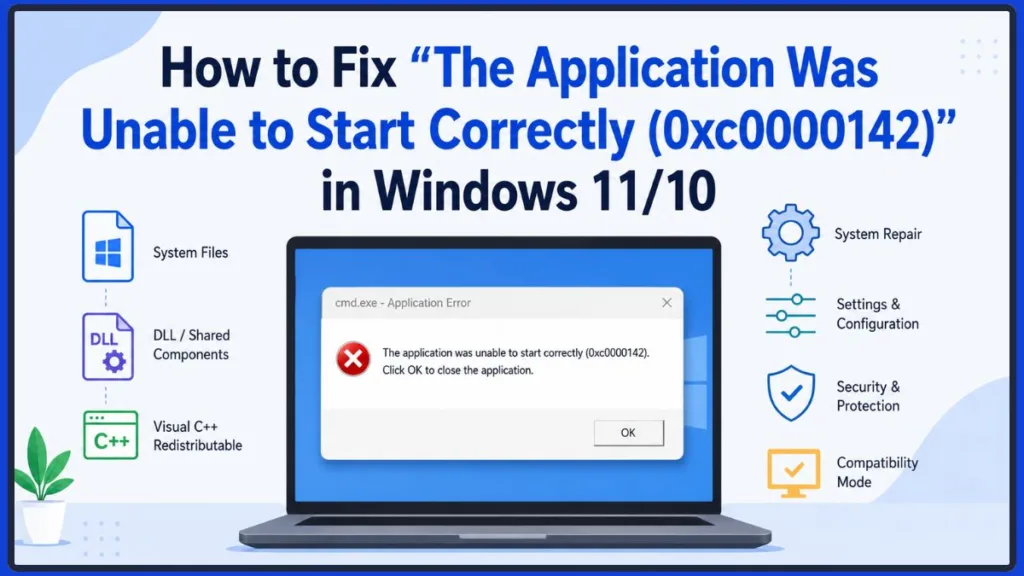
You can try several ways to troubleshoot and fix this issue without immediately resorting to reinstalling Windows. Let’s get your PC running smoothly again.
What Does “The Application Was Unable to Start Correctly (0xc0000142)” Mean?
In simple terms, this error means that Windows tried to open a program but failed to load the necessary background files it needs to run.
- The 0xc0000142 error code represents an initialization failure. Windows couldn’t gather the required resources to start the software. In official Microsoft documentation, this specific code is designated as STATUS_DLL_INIT_FAILED. It explicitly indicates that the initialization of a dynamic link library (DLL) failed, forcing the process to terminate abnormally.
- It is heavily associated with DLL (Dynamic Link Library) failure. DLLs are shared files that multiple programs use. If one is missing or damaged, the program can’t start. For advanced troubleshooting, Microsoft recommends using the Process Monitor (Procmon) tool to trace exactly which DLL file is failing to load during application startup.
- Files can be intact, but initialization still fails. Even if your application’s specific files are perfect, Windows may fail to initialize it if the shared Windows components it relies on are compromised.
- It strikes across different applications. Because many completely different programs rely on the exact same shared Windows background files, you might see this error pop up on Word, Photoshop, and a PC game all at the same time.
Is 0xc0000142 an Application Error or a Windows Error?
Understanding this distinction will save you hours of troubleshooting:
- If only one application is affected: The issue is likely specific to that application’s installation or permissions.
- If several applications are affected: You are potentially dealing with a Windows, runtime, DLL, or system-level issue.
Keep this distinction in mind—it will guide exactly which fixes you should prioritize below.
Why Does the 0xc0000142 Error Occur?
Before you start clicking around, it helps to know what usually triggers this application error. Here are the most common culprits:
- Corrupted Windows system files: Damaged core system components can prevent any application from initializing correctly.
- Damaged application files: A broken, interrupted, or incomplete software installation can cause the error in a particular program.
- Missing or corrupted DLL/runtime components: Applications often rely on shared Windows components and runtime libraries to function. When multiple applications are affected simultaneously, a shared runtime dependency is almost always the root cause.
- Microsoft Visual C++ Redistributable problems: Many heavy programs and games heavily depend on specific Visual C++ runtime packages. If these are corrupted, multiple applications will throw the 0xc0000142 error simultaneously.
- Outdated Windows or application software: Compatibility problems frequently appear after updates, or when older applications try to interact with newer Windows 11 components.
- Permission problems: An application may crash at launch when it simply cannot access the background components it requires.
- Compatibility issues: Older legacy programs may require specific compatibility settings to run correctly on modern operating systems. This is especially common when trying to run software designed for Windows 7 on a modern Windows 11 machine.
- Background software conflicts: Aggressive security software, startup services, gaming overlays, and other programs can interfere with application startup.
- Recent system changes: A interrupted Windows update, a new driver, a newly installed application, or a configuration tweak may have triggered the problem.
- Console host errors: If you are running PowerShell scripts that rapidly call the
Console.Writemethod, a known bug inconsolehost.dllcan temporarily trigger this error.
Quick Checks Before You Try the Fixes
Before you dive into the technical steps, ask yourself a few quick diagnostic questions. This will help you figure out if your problem is application-specific or system-wide:
- Does the error appear with only one application?
- Do multiple unrelated applications show 0xc0000142?
- Did the problem start immediately after a Windows or software update?
- Can other applications on your computer open normally?
- Does the application work when you launch it as an administrator?
- Does the error appear every single time, or only occasionally?
Your answers will help you decide whether to focus on fixing a single app, or repairing your Windows system files.
How to Fix “The Application Was Unable to Start Correctly (0xc0000142)”
If you’re ready to fix error 0xc0000142, work your way through these solutions in order. We will start with the fastest, least disruptive fixes first.
Step 1: Restart Your Windows PC
It sounds basic, but a simple restart is often the magic cure. Restarting your computer clears temporary processes, unlocks files stuck in the background, restarts failed background services, and finalizes pending Windows update states.
Restart your PC and try opening the application again before moving to step 2.
Step 2: Run the Application as Administrator
Sometimes, an app just needs elevated privileges to access the files it requires to launch.
- Right-click the application’s desktop shortcut or .exe file.
- Select Run as administrator.
If the program opens successfully, you can set it to do this permanently:
- Right-click the application and select Properties.
- Go to the Compatibility tab.
- Check the box that says Run this program as an administrator.
- Click Apply, then OK.
Step 3: Update Windows
Pending Windows updates can cause massive compatibility or component problems.
- Open your Windows Settings.
- Navigate to Windows Update.
- Click Check for updates and install any available packages.
- Restart your computer and test the affected application again.
Windows updates frequently contain patches for the .NET Framework and core system files that directly resolve STATUS_DLL_INIT_FAILED errors.
Step 4: Update the Problematic Application
If only one application is producing the error, the software itself might be outdated or buggy.
- Check the application’s built-in updater if you can access it.
- Go to the official developer’s website and download the latest version.
- Avoid unofficial installers or modified versions, as these often lack the correct DLL dependencies.
Newer software releases frequently contain patches specifically designed to fix Windows compatibility and runtime problems.
Step 5: Repair the Application
Many programs offer a built-in repair tool that replaces damaged application components without requiring a complete reinstall.
- Open Windows Settings and go to Apps.
- Click on Installed apps.
- Scroll down to find your problematic application, click the three dots (or click the app), and look for Advanced options or Modify.
- Select the Repair option and follow the prompts.
Note: Not every desktop application provides a built-in Repair option. If you don’t see it, move on to the next step.
Step 6: Run DISM to Repair Windows Components
If multiple applications are failing, or if you suspect your Windows components themselves are damaged, the DISM (Deployment Image Servicing and Management) tool is your best friend.
- Click the Start menu, type cmd, right-click Command Prompt, and select Run as administrator.
- Type the following command exactly and press Enter:
DISM /Online /Cleanup-Image /RestoreHealth - Allow the process to finish completely. It may take a few minutes and appear stuck at times—just let it run.
On both Windows 11 and Windows 10, DISM relies on Windows Update to fetch the files necessary to repair corruptions. Ensure your PC is connected to the internet before running this command.
Step 7: Run System File Checker (SFC)
Once DISM is done, you should run an SFC scan. SFC checks your protected Windows system files and attempts to automatically repair any corrupted ones it finds.
- In the same administrator Command Prompt window, type:
sfc /scannow - Press Enter.
- Wait until the verification reaches 100%.
- Restart Windows afterward.
SFC acts as a local verification tool, whereas DISM repairs the master component store. This is why the correct order is always DISM followed by SFC.
Should You Run DISM or SFC First?
Always run DISM first, then SFC. DISM repairs the core Windows component store that the SFC tool relies on. If the component store is broken, SFC won’t be able to pull the fresh files it needs to fix your computer.
Step 8: Repair or Reinstall Microsoft Visual C++ Redistributables
Many heavy applications (especially video editors and games) depend heavily on Visual C++ Redistributable packages. If these shared runtimes are damaged, application startup will fail instantly.
- Open Control Panel and go to Programs and Features (or use the Installed Apps menu in Settings).
- Look for any programs named Microsoft Visual C++ Redistributable. You will likely see several from different years.
- Right-click the most recent ones (usually 2015-2022) and select Change or Modify.
- Click Repair and follow the prompts.
If repairing doesn’t work, you may need to uninstall them and download the latest redistributable packages directly from Microsoft’s official source. It is highly recommended to download the latest supported Visual C++ Redistributable packages from Microsoft Learn. If you are running a 64-bit version of Windows 11 or Windows 10, install both the x86 and x64 versions, as 32-bit applications still rely on the x86 files.
Step 9: Install or Repair DirectX Components
If you are trying to launch a game, multimedia application, or older Windows software, a missing DirectX component is a highly likely culprit. Updating Windows 11 doesn’t necessarily mean every older DirectX file required by legacy software is present on your PC. You can download the DirectX End-User Runtime Web Installer from Microsoft to fill in any missing gaps.
Step 10: Try Compatibility Mode
If you are trying to run older software, it might just be incompatible with your current operating system architecture.
- Right-click the application’s .exe file and select Properties.
- Go to the Compatibility tab.
- Check Run this program in compatibility mode for: and select an older version of Windows (like Windows 7 or Windows 8) from the dropdown menu.
- Click Apply and try launching the app again.
Step 11: Check Windows Security and Other Security Software
Aggressive antivirus software can sometimes falsely flag and block legitimate application files (like DLLs), causing the 0xc0000142 error.
- Open Windows Security.
- Go to Virus & threat protection and click on Protection history.
- Check whether your application (or one of its background components) was recently blocked or quarantined.
- If you find it there, you can restore the file and add it to your exclusions.
Only add exclusions for software you 100% trust. Never permanently disable your antivirus protection to play a game or run an app.
Step 12: Perform a Clean Boot
If several unrelated applications suddenly start showing 0xc0000142, a third-party service or background startup program might be interfering. A clean boot starts Windows with a minimal set of drivers and startup programs.
- Press Windows Key + R, type
msconfig, and press Enter. - On the Services tab, check the box to Hide all Microsoft services.
- Click Disable all to turn off third-party services.
- Go to the Startup tab, open Task Manager, and disable all startup items.
- Restart your PC.
If the application works in a clean boot, you know a background program is causing the conflict.
Step 13: Reinstall the Problematic Application
If nothing else has worked, it’s time for a fresh installation.
- Uninstall the application completely via your settings.
- Restart Windows to clear out leftover temporary files.
- Download the latest installer from the official source.
- Install the software again.
- Test the application.
- When downloading the installer, temporarily disable any aggressive third-party antivirus software, as they can sometimes falsely quarantine DLL files during installation, immediately causing the 0xc0000142 error upon first launch.
Remember, reinstalling only the application may not solve the problem if multiple applications are affected—that points to a Windows issue.
What to Do If 0xc0000142 Happens With Multiple Applications
If Word, your Adobe software, your Steam games, and your web browser all fail with the same code, repeatedly reinstalling each application is a waste of time. Focus your efforts here instead:
Check Windows System Files
Prioritize the system repair tools. Run DISM and SFC immediately (as outlined in steps 6 and 7) to fix core corruption.
Check Shared Runtime Components
Multiple apps crashing usually means a shared library is broken. Repair your Visual C++ Redistributables, check your DirectX installation, and look for other required application runtimes (like the .NET Framework).
Check Recent Windows or Software Changes
Think back to when the problem started. Did you recently:
- Install a Windows update?
- Update a graphics driver?
- Install new, heavy software?
- Add a new antivirus suite?
- Use a registry cleaner or system-optimization tool? (These often delete necessary DLLs by mistake).
Use a Clean Boot
Use the clean boot method (Step 12) to isolate broad software conflicts causing system-wide issues.
How to Fix 0xc0000142 in Different Apps and Software
Depending on what you are trying to open, your troubleshooting steps might look slightly different.
Microsoft Office
If you are getting an 0xc0000142 Office error on Word, Excel, PowerPoint, or Microsoft 365:
- Use the built-in Windows tool to Repair Office.
- Update Office from within any working app via File > Account.
- Update Windows.
- Repair Visual C++ components where relevant.
- According to official Microsoft Support guidance for Office error 0xC0000142, you can force an update using the Task Scheduler. Type Task Scheduler in your Windows search bar, expand Task Scheduler Library > Microsoft > Office, find Office Automatic Updates 2.0, right-click it, and select Run.
- If you are running an older version of Office, open the Windows Services app and ensure the Office Software Protection Platform service is set to Automatic and is currently running.
Adobe Applications
For software like Photoshop, Premiere Pro, or After Effects:
- Focus on application repair or reinstallation via the Creative Cloud app.
- Ensure all Windows updates are installed.
- Pay special attention to Visual C++ runtime components, as Adobe leans heavily on them.
- Run the software as an administrator to bypass permission blocks.
Games and Steam Applications
If you are hit with 0xc0000142 games while launching a title:
- Verify game files through your launcher (Steam, Epic, EA App) to automatically replace missing data.
- Run as administrator.
- Install or repair your Visual C++ and DirectX files.
- Update the game.
- Reinstall the game only as a last resort.
Command Prompt, PowerShell, or Windows Utilities
If the error affects Windows utilities themselves (like a 0xc0000142 cmd.exe application error), the situation is a bit more significant.
- Prioritize running DISM and SFC.
- Check for pending Windows updates.
- Try a Clean boot.
- If you cannot open Command Prompt normally to run SFC, you may need to boot into Windows Safe Mode or use System Recovery options.
- If you are seeing this error when running PowerShell scripts, it may be due to the script pushing too many
Console.Writecommands simultaneously. Stopping the script and restarting the console will usually bypass the temporary initialization error.
How to Fix 0xc0000142 When It Appears at Windows Startup
Some people don’t even have to click an app—they see this 0xc0000142 startup message immediately after signing into Windows.
Check Startup Apps
If the error pops up on boot, a program trying to launch automatically is failing. Look for suspicious or recently installed programs.
Identify the Application Causing the Error
To find out what is crashing:
- Open Task Manager (Ctrl + Shift + Esc).
- Go to the Startup Apps tab.
- Check Event Viewer (search for it in the Start menu) under Windows Logs > Application to see exactly which program threw the error at boot.
Disable Unnecessary Startup Programs
Once you are in the Startup Apps tab in Task Manager, right-click and disable non-essential programs one by one. Restart your PC to test whether a specific program is triggering the message.
Perform a Clean Boot
If the source isn’t obvious, perform a clean boot to stop all third-party services from launching at startup, allowing you to narrow down the culprit.
How to Find Which Program Is Causing Error 0xc0000142
Figuring out exactly which program is crashing is half the battle. The exact application name matters immensely.
- Read the error dialog carefully: The popup box often lists the exact .exe file in the title bar (e.g., cmd.exe – Application Error).
- Check Task Manager: See what is running or stalling in the background.
- Check Startup Apps: See what is trying (and failing) to launch at boot.
- Use Event Viewer: This is the most accurate way to trace application crashes.
- Look for recently installed software: New apps often bring conflicting files.
- Test applications individually: Open them one by one to see what works and what doesn’t.
Your simple diagnosis guide:
- One application affected = Investigate that specific application first.
- Several applications affected = Investigate Windows system files and shared components first.
What If 0xc0000142 Still Won’t Go Away?
If you have tried all the steps above and are still blocked, you need to move into advanced recovery options.
Create a New Windows User Account
Sometimes, a damaged user profile can produce highly unusual application behavior. Creating a fresh, new administrator account on your PC can bypass corrupted registry keys linked to your profile.
Use System Restore
If the problem began after a recent system change, Windows update, or driver install, use System Restore to roll your computer back in time to a date when everything worked perfectly.
Perform an In-Place Windows Repair
An in-place upgrade allows you to reinstall and repair the core Windows operating system while preserving all of your personal files, settings, and installed applications. In Windows 11, you can easily do this by navigating to Settings > System > Recovery and selecting Fix problems using Windows Update. This will reinstall your current version of Windows without deleting your apps or files.
Reset or Reinstall Windows
Present this as your absolute last resort. If system corruption is so deep that DISM, SFC, and an in-place repair fail, you may need to back up your personal files and reset Windows entirely.
FAQs
What does error code 0xc0000142 mean?
It means an application failed to initialize properly, usually because it couldn’t access a shared Windows file, a DLL was corrupted, or it lacked necessary permissions. In developer terms, it is recognized as STATUS_DLL_INIT_FAILED.
How do I fix “The application was unable to start correctly 0xc0000142”?
Start by restarting your PC, running the app as an administrator, running an SFC/DISM scan, and reinstalling Microsoft Visual C++ Redistributables.
Why am I getting 0xc0000142 on Windows 11?
Windows 11 can trigger this due to corrupted system files from a recent update, missing legacy components, or compatibility issues with older software.
Can SFC fix error 0xc0000142?
Yes. If the error is caused by missing or corrupted core Windows system files, the sfc /scannow command will detect and replace them.
Should I run DISM or SFC first for 0xc0000142?
Always run DISM first. DISM repairs the Windows component image, ensuring that SFC has healthy files to pull from when it repairs your system.
Can Visual C++ Redistributable fix 0xc0000142?
Absolutely. Many programs and games rely heavily on Visual C++ libraries. Repairing or updating them is one of the most successful fixes for this error.
Why are multiple applications showing error 0xc0000142?
If multiple apps show this error, it means the problem lies with Windows itself—usually a corrupted shared DLL file, a broken runtime library, or registry damage, rather than an issue with the individual apps.
How do I fix 0xc0000142 without reinstalling Windows?
Focus on repairing the components apps share. Use DISM, SFC, update your Visual C++ files, verify game files, and try clean booting your PC to find software conflicts.
Why does 0xc0000142 appear when Windows starts?
This happens when a background application, service, or utility is set to launch at startup but fails to initialize. You can find the culprit using Task Manager’s Startup tab.
Can 0xc0000142 affect games?
Yes, frequently. Games rely on heavy runtime libraries like DirectX and Visual C++. If these are missing or if game files are corrupted, the game will fail to launch.
Can 0xc0000142 affect Microsoft Office?
Yes. Word, Excel, and other Office apps can throw this error. Running the built-in Microsoft Office Repair Tool usually resolves it quickly.
How do I fix 0xc0000142 when Command Prompt won’t open?
If the CMD utility itself crashes, you will need to boot your computer into Windows Safe Mode or use the Windows Advanced Recovery Environment to run system repairs.
What to Do If Nothing Works
If you have reached the end of this guide and are still struggling, here is your practical escalation path:
- If one application is affected: Stop troubleshooting Windows. Focus entirely on completely uninstalling, deleting leftover folders, and reinstalling that specific application from scratch.
- If several applications are affected: Focus heavily on DISM, SFC, updating shared runtimes (Visual C++), looking for recent system changes, and using clean boot troubleshooting.
- If Windows utilities themselves fail: If things like the Command Prompt or Task Manager are throwing the 0xc0000142 error, the corruption is deep. Move straight toward System Restore, an in-place Windows repair, or a system reset.
- Don’t waste time uninstalling everything: Avoid repeatedly reinstalling completely unrelated applications when the same error is affecting your entire system. Treat the root Windows cause, not the symptoms.
Error 0xc0000142 looks incredibly intimidating, but remember that it is almost always repairable without having to replace your software or entirely wipe your hard drive. Work through the system files, check your permissions, and your apps will be back up and running in no time.
Visit Our Post Page: Blog Page
Discover more from Izoate
Subscribe to get the latest posts sent to your email.