
Frustrated by a ChatGPT Network Error? Discover 15 proven fixes to resolve interrupted responses, code generation timeouts, and connection issues quickly in 2026.
It is incredibly frustrating when you are in the middle of a productive workflow and suddenly, the text stops generating. You are left staring at a red ChatGPT Network Error message, wondering if your internet dropped or if your prompt was simply too long. Whether you are generating a lengthy blog post, writing complex code, or uploading data files, this error is a common roadblock.
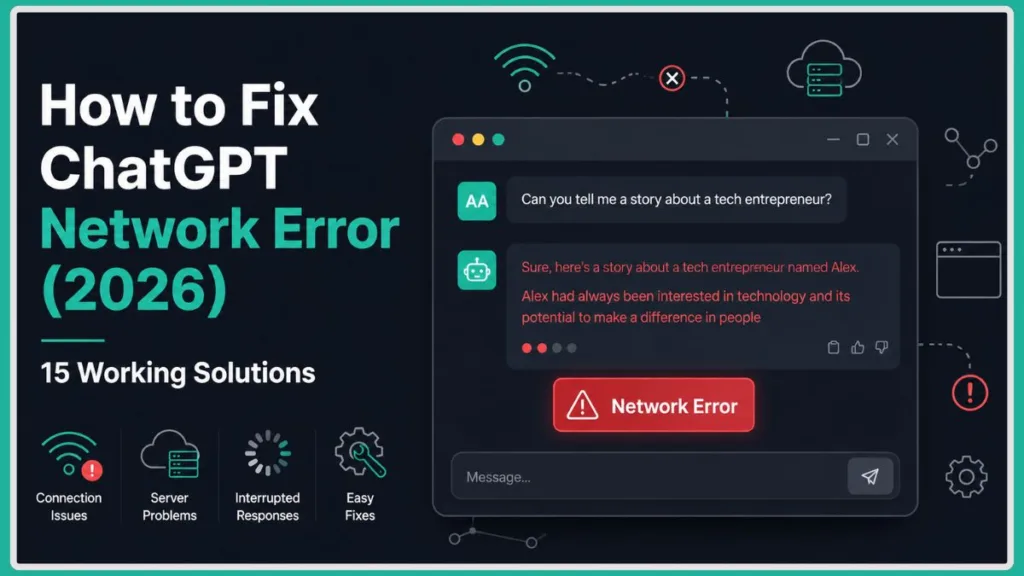
The good news is that this problem is usually temporary and highly fixable. Before you worry about being locked out of your account or dealing with a permanent system failure, know that a few quick tweaks can usually get you back on track. In this guide, we will walk you through exactly why this happens and provide working solutions for both desktop browsers and mobile devices.
Essential “Before You Start” ChatGPT Troubleshooting Checklist
Before you start tweaking your device settings or diving into deep troubleshooting, quickly run through this checklist to rule out the most common and easily fixable culprits:
- Confirm you are signed into ChatGPT: Occasionally, an expired login session may cause silent failures.
- Ensure you are using the latest browser or ChatGPT app: Keeping your software updated helps ensure compatibility with the latest features and streaming protocols.
- Check that you do not have multiple ChatGPT tabs open: Running multiple tabs simultaneously might increase browser resource usage or occasionally contribute to session-related issues.
- Verify your internet connection is stable: Make sure your Wi-Fi hasn’t briefly disconnected.
- Check whether OpenAI is experiencing an outage: A system-wide issue means local troubleshooting will not resolve the problem.
Quick Fix to Resolve the ChatGPT Network Error Fast
If you are seeing a ChatGPT Network Error, try these quick fixes first to instantly refresh your connection:
- Sign out and sign back in: This may force OpenAI to issue a fresh authentication token for your session.
- Refresh the conversation page: Reloading the page can re-establish a brand-new text streaming connection.
- Check the official OpenAI Server Status page: This instantly tells you if the problem is a global outage rather than an issue with your device.
- Test your internet connection: Ensure you have a stable signal, as even a micro-drop might sever the connection.
- Temporarily disable your VPN or proxy service: Some VPN servers may introduce routing changes that interrupt the stream.
- Reduce the length and complexity of your prompt: Shorter requests process faster, which can reduce the chance of a server timeout.
- Clear your browser cache and cookies: This removes potentially corrupted temporary files that might be blocking the ChatGPT interface.
- Try using an Incognito window, a different browser, or the ChatGPT mobile app: This bypasses any interfering browser extensions or local glitches.
- Ask ChatGPT to generate long responses in smaller, separate sections: This lessens the processing load on the server for a single request.
If these quick steps didn’t do the trick, don’t worry. Let’s dive into exactly what this error means and how to permanently resolve it.
What Exactly Does a ChatGPT Network Error Mean?
To fix the issue, it helps to understand how the platform works. ChatGPT delivers its answers to you by streaming text in real-time. Instead of waiting to load an entire page of text all at once, it sends the response word by word.
A Network Error simply means that the invisible digital connection between your client (browser or mobile app) and OpenAI’s servers was interrupted before the response finished streaming. It does not necessarily mean your home internet is completely offline or that you have been banned from the platform. It just means the live feed was momentarily severed.
Beyond basic text generation, you might also run into this exact error while:
- Uploading PDFs, CSVs, or large documents for data analysis.
- Uploading images for vision processing.
- Generating images.
- Creating exceptionally long conversations that may overload the context window.
- Using newer ChatGPT capabilities like Projects, interacting with custom GPTs, utilizing Advanced Voice, or running complex reasoning tasks.
Comparing Common ChatGPT Error Messages
To help you understand exactly what you are dealing with, here is a quick comparison of the most common ChatGPT error messages and what they typically indicate:
- Network Error: The connection was interrupted while streaming a response.
- Internal Server Error: There is likely a temporary problem on OpenAI’s servers.
- Error 429: You have made too many requests or hit a temporary rate limit.
- Error in Message Stream: The response streaming failed unexpectedly mid-sentence.
- Conversation Not Found: The specific conversation could not be loaded or accessed.
- Error 404: A requested page or resource could not be found.
If you encounter a completely blank screen or a failed interface load, you might be dealing with a ChatGPT Error 404 or a ChatGPT Something Went Wrong message instead. However, if you are seeing a “Network Error” or a ChatGPT Error in Message Stream, the troubleshooting steps below are designed specifically for you.
Why Does ChatGPT Keep Showing a Network Error?
Network errors generally fall into a few predictable categories. Pinpointing which one applies to you will help you choose the right fix. Because errors can have multiple causes, no single fix works in every situation, but organizing them helps you troubleshoot logically. Different users may experience different causes for the same error.
- OpenAI-related causes: The servers might be experiencing active outages, undergoing routine maintenance, dealing with high traffic congestion, or suffering from temporary platform bugs affecting specific features.
- Internet-related causes: You might be dealing with unstable Wi-Fi, background packet loss, momentary latency fluctuations, ISP issues, or mobile data instability when switching between cell towers.
- Browser-related causes: A corrupted cache, outdated cookies, conflicting browser extensions (especially ad blockers), an outdated browser version, or hardware acceleration conflicts can sometimes sever the connection.
- Prompt-related causes: Requesting extremely long responses, generating huge code blocks, uploading massive files, maintaining endless conversation threads, or asking for highly complex reasoning requests heavily increases the risk of a timeout.
- Device/App-related causes: Using an outdated ChatGPT mobile app, having insufficient device resources, or running into background app restrictions on your phone might kill the active stream.
15 Proven Methods to Fix the ChatGPT Network Error
Based on official OpenAI guidance and standard software troubleshooting practices, here are 15 actionable methods that may resolve your connection issues.
Method 1. Sign Out and Sign Back In to Refresh Your Authentication Session
Why it works: Sometimes, your browser’s saved login token becomes corrupted or expires silently in the background. By signing out completely and signing back in, you force OpenAI’s servers to issue a fresh, valid authentication session. When to use it: Try this if ChatGPT loads fine but immediately gives you an error the moment you press “Send,” or if you have left the tab open for several days. What to do next: If a fresh login doesn’t fix the problem, the issue is likely tied to your connection rather than your account. Common mistake to avoid: Do not just close the browser tab—you must manually click the Sign Out button in the ChatGPT menu.
Method 2. Refresh Your Browser to Re-establish the Streaming Connection
Why it works: A momentary glitch in your network might cause the real-time text stream to freeze. Reloading the page forces your browser to establish a brand-new WebSocket connection to OpenAI’s servers. When to use it: Whenever the AI stops typing mid-sentence or if the page seems unresponsive. What to expect: The page will reload, and you will likely need to click “Regenerate” to start the response over.
Method 3. Check the OpenAI Server Status for Active Outages
Why it works: It prevents you from wasting time fixing your own devices when the problem is actually on OpenAI’s end. When to use it: If you are experiencing sudden, repeated errors across multiple devices. How to check: Visit the official OpenAI Status page. Look for red bars indicating a system-wide outage. If you see one, no amount of local troubleshooting will help; you simply need to wait for their engineers to resolve the issue. Note: A green “All Systems Operational” page does not always rule out isolated account-specific or regional issues.
Method 4. Test Your Internet Connection for Hidden Packet Loss
Why it works: Streaming AI responses requires a highly stable connection, not just fast download speeds. Even if you have gigabit internet, severe packet loss or fluctuating latency might snap the connection. When to use it: If you are on a public Wi-Fi network, a mobile connection, or far away from your router. Troubleshooting steps:
- Restart your Wi-Fi router by unplugging it for 30 seconds.
- Connect your computer to a mobile hotspot to see if the issue is isolated to your local network.
- Run an advanced internet speed test that checks for packet loss and ping spikes to ensure your line is truly stable.
Method 5. Split Long Prompts to Prevent ChatGPT Network Errors
Why it works: When you ask for a massive amount of text at once, the server takes much longer to process and stream the data. This extended time window drastically increases the chance of a timeout occurring. Shorter responses process much faster and are far less likely to fail. When to use it: When generating essays, long reports, or comprehensive guides.
- Instead of requesting: “Write a complete 5,000-word SEO article.”
- Try this instead: “Write the introduction and the first main heading.”
Pro Tip: For lengthy writing projects, ask ChatGPT to generate one heading or section at a time instead of requesting an entire article in one prompt. This drastically reduces timeouts and makes reviewing the generated content significantly easier.
Method 6. Break Complex Coding Requests into Smaller Modules
Why it works: Code generation requires heavy logic processing and complex formatting. Asking for hundreds of lines of code at once overloads the context and frequently leads to a connection timeout. When to use it: When writing scripts, building web applications, or debugging large files.
- Instead of requesting: “Generate the entire application code.”
- Try this instead: “Write the user authentication module first.”
- Alternative solution: If the code stops generating halfway, tell ChatGPT to “Continue exactly from line 50.”
Method 7. Optimize File Uploads to Avoid Data Transfer Timeouts
Why it works: Uploading large PDFs, massive CSV files, or high-resolution images can cause data transfers to time out before the AI even begins analyzing them. Optimizing these files speeds up the transfer. When to use it: When you receive a network error specifically while trying to attach a file. Troubleshooting steps:
- Verify the uploaded file format is officially supported.
- Compress your PDFs to significantly reduce the file size.
- Ensure CSV files are clean and free of massive, empty columns.
- Remove unnecessary pages from large documents before uploading.
Method 8. Temporarily Disable Your VPN or Proxy Settings
Why it works: Using a Virtual Private Network (VPN) is great for privacy, but some VPN servers may introduce additional latency, routing changes, or intermittent connection instability. These micro-drops can occasionally interrupt long streaming responses. When to use it: If you always leave your VPN running in the background. What to expect: Pausing your VPN and refreshing the page often instantly resolves the streaming issue. This is an officially recommended troubleshooting step by OpenAI.
Method 9. Clear Your Browser Cache and Cookies for a Clean Slate
Why it works: Over time, your browser saves temporary data that can become corrupted and interfere with how web apps load. Clearing this data gives your browser a clean slate. When to use it: When a hard refresh doesn’t work and the error happens consistently in one specific browser. Troubleshooting steps:
- Hard Refresh: First, try a hard refresh using your browser’s refresh options or keyboard shortcut to bypass the local cache.
- Clear Cache: Go to your browser’s settings and clear your cookies and cached images. Check your cookie permissions to ensure ChatGPT is allowed to store essential session data.
- If clearing your cache logs you out, simply sign back in with your credentials.
Method 10. Disable Ad Blockers and Privacy Extensions
Why it works: Strict privacy extensions, ad blockers, and script blockers can sometimes mistakenly block the specific background scripts ChatGPT needs to stream text. When to use it: If you have recently installed new security extensions or if your ad blocker is set to maximum strictness. Troubleshooting steps:
- Open ChatGPT in an Incognito or Private window.
- If the platform works perfectly in Incognito mode, an extension is definitively the culprit.
- Test your browser with all extensions disabled, then re-enable them individually to find the exact troublemaker.
Method 11. Try Another Browser Engine or Fresh User Profile
Why it works: Sometimes a specific browser update will introduce a temporary bug that conflicts with OpenAI’s interface. Switching to another browser engine (such as moving from Chrome to Firefox or Safari) bypasses these local bugs. When to use it: If you have already cleared your cache and disabled extensions but the error persists. Alternative solution: Creating a fresh browser profile can also help. This allows you to rule out corrupted browser settings, damaged profiles, or deeply cached site data without affecting your primary profile.
Method 12. Update or Reinstall the Official ChatGPT Mobile App
Why it works: Keeping your ChatGPT app updated helps ensure compatibility with the latest features, bug fixes, security improvements, and performance enhancements. Outdated apps may struggle to connect to OpenAI’s newest servers. When to use it: If you are specifically experiencing network errors on your Android or iPhone. Troubleshooting steps:
- For Android: Go to Settings > Apps > ChatGPT. Tap Force Stop, then go to Storage and tap Clear Cache. If that doesn’t fix it, uninstall and reinstall the app from the Google Play Store.
- For iPhone: Open the App Store and check for any pending updates. If that fails, delete the app, restart your device, and reinstall a fresh copy.
Method 13. Bypass Enterprise Firewalls on Work or School Networks
Why it works: Corporate firewalls, proxy servers, secure gateways, filtering software, and network security policies may restrict the persistent network connections ChatGPT relies on for real-time streaming. When to use it: If ChatGPT works perfectly at home but constantly fails at the office or on campus. What to do: Test ChatGPT on a personal network or a mobile hotspot to isolate the issue. If it works on your hotspot but not your office Wi-Fi, you may need to contact your organization’s IT administrator to troubleshoot the network’s filtering rules.
Method 14. Schedule Heavy Tasks Outside of Peak OpenAI Usage Times
Why it works: During major product rollouts or busy workday hours, OpenAI’s servers may experience massive strain. When millions of people are generating text at once, response interruptions can naturally increase. When to use it: If you are attempting highly complex prompts during the middle of the workday and continuously timing out. What to expect: While having a ChatGPT Plus subscription can offer priority access during these busy periods, it does not make you completely immune to network errors. If possible, try working on complex prompts during off-peak hours or weekends.
Method 15. Contact OpenAI Support for Account-Specific Glitches
Why it works: Sometimes, rare backend glitches may be tied directly to your unique account data, and no amount of local troubleshooting will fix them. When to use it: If you have verified your internet is stable, cleared your cache, shortened your prompts, and tested the platform across multiple devices with no success. What to do next: Use the help widget on the official OpenAI Help Center to report the issue directly to their support team. Be sure to mention all the troubleshooting steps you have already tried.
When the Problem Exists Entirely Outside of Your Control
It is important to remember that not every error is your fault. Sometimes, the issue exists entirely outside your control. Situations where local troubleshooting may not resolve the error immediately include:
- Regional service degradation: OpenAI servers in your specific geographic area might be struggling.
- Temporary OpenAI service disruptions: Minor backend adjustments can occasionally cause brief connection drops.
- Feature-specific outages: Tools like image generation, file uploads, Advanced Voice, Projects, or custom GPTs might be temporarily offline while basic text chatting works fine.
- High platform demand: Unprecedented spikes in global traffic can strain OpenAI’s infrastructure.
If you suspect any of these are the case, taking a break and trying again later is often the best and only remedy.
Why Do ChatGPT Network Errors Frequently Occur During Long Responses?
A ChatGPT network error on long response generation is incredibly common due to the mechanics of how data streaming works. When you ask the AI to output a large volume of text, it takes significantly longer for the servers to “think” and “type.”
The longer that connection remains open, the higher the chance that a minor internet fluctuation on your end, or a server-side timeout on OpenAI’s end, will cut the cord. While there is no strict token limit that guarantees a crash, massive outputs are inherently more fragile than short, concise answers.
Practical Ways to Recover an Unfinished ChatGPT Response
If ChatGPT suddenly stops typing halfway through a brilliant response, try these recovery methods instead of abandoning the chat and starting over:
- Click the Continue generating button if it appears above the text box. Note that this option may not appear in every conversation, and its availability might depend on the interface or model being used.
- If the button is unavailable, you can simply ask ChatGPT to continue from the last completed sentence (e.g., “Continue from the paragraph starting with…”).
- Start an entirely new chat and paste the previous context in to give the AI a fresh memory slate.
- Break the unfinished portion of your request into a smaller, secondary prompt.
Why ChatGPT Network Errors Frequently Occur During Code Generation
Coding requires precise logic, strict syntax, and extensive formatting. When you ask ChatGPT to build an entire program, it attempts to format multiple files, write verbose comments, and provide long explanations all at once. This heavy data load can frequently overwhelm the connection.
To avoid this, you should adopt a modular workflow. Ask for one function at a time, request code in smaller sections, and if the stream stops naturally, simply tell the AI to continue from the exact point it cut off.
Proactive Habits to Prevent Future ChatGPT Network Errors
By adjusting a few simple habits, you can drastically reduce the number of errors you encounter on the platform in the future.
- Start a new chat for very long projects: If your chat history is incredibly long, you risk encountering a memory bloat issue. A fresh chat may solve this.
- Keep your prompts highly focused and specific: Avoid extremely large prompts that ask the AI to do a dozen complex tasks at once.
- Save important responses regularly: Copy crucial outputs to a separate document as you work to avoid losing progress if the page crashes.
- Always keep your web browser and ChatGPT mobile app updated.
- Close unnecessary ChatGPT tabs: Only keep one active tab open to avoid unnecessary browser resource usage.
- Pause large downloads while using ChatGPT: High bandwidth usage on your network can cause the latency spikes that snap your stream.
Final Troubleshooting Checklist Before You Give Up
If you have tried multiple fixes and are still seeing a red error box, run through this final checklist to ensure you haven’t missed anything obvious:
- Test another internet connection (like switching from Wi-Fi to a cellular hotspot).
- Try another web browser entirely (like Edge or Safari).
- Test on another device (like your smartphone versus your laptop).
- Double-check the OpenAI Status page for unannounced outages.
- Wait a few hours and retry later to rule out temporary server congestion.
Frequently Asked Questions About ChatGPT Network Error
Why does ChatGPT keep saying Network Error?
ChatGPT keeps stopping when the real-time connection between your device and OpenAI’s servers is severed. This may be caused by unstable internet, massive prompt requests, or high traffic on OpenAI’s end.
Is the ChatGPT Network Error caused by my internet?
It certainly can be. Even a brief micro-disconnect from your Wi-Fi or ISP might interrupt the text stream, causing the error message to appear.
Why does ChatGPT stop generating even with fast internet?
Fast download speed doesn’t mean a perfectly stable connection. High packet loss, minor latency fluctuations, or server-side timeouts on OpenAI’s end can interrupt the stream regardless of your overall speed.
Can a VPN cause a ChatGPT Network Error?
Yes. Some VPN servers may introduce additional latency, routing changes, or intermittent connection instability, which can occasionally interrupt long streaming responses.
Why does the ChatGPT Network Error only happen in one browser?
If it only happens in a specific browser, you may have a corrupted browser cache, an outdated browser version, or a conflicting extension (like an ad blocker) installed specifically on that browser.
Can antivirus software cause a ChatGPT Network Error?
Yes, aggressive antivirus software or web security tools can sometimes misidentify ChatGPT’s real-time connections as suspicious and actively block the incoming data stream.
Why does ChatGPT stop halfway through a response?
This occasionally happens because the requested response is too large, which may cause the server connection to time out before the AI can finish typing.
Does ChatGPT Plus fix the Network Error?
A Plus subscription can offer priority server access during high-traffic times, which may reduce server-side errors, but it does not protect you from local internet drops or extremely large prompt timeouts.
Is a Network Error different from an Internal Server Error?
Yes. A network error usually means the connection dropped between you and the platform. An Internal Server Error typically indicates that something is actively experiencing problems on OpenAI’s backend infrastructure.
Can browser extensions cause a ChatGPT Network Error
Absolutely. Strict privacy extensions, ad blockers, and script blockers might mistakenly identify ChatGPT’s text stream as intrusive tracking data and block it from completing.
Why does ChatGPT fail during file uploads?
Large files, unsupported formats, or corrupted data can occasionally cause the server to struggle with processing, resulting in a connection timeout before the analysis is complete.
Conclusion: Getting Back to a Smooth ChatGPT Experience
Dealing with a ChatGPT Network Error can certainly disrupt your workflow, but it is important to remember that most of these connection issues are entirely temporary. The problem usually boils down to OpenAI server struggles, local internet connectivity issues, or a prompt that is simply too large for the system to process smoothly.
Always start with the simplest fixes first. A quick page refresh, disabling your VPN, or a glance at the OpenAI status page often resolves the issue within minutes. If the problem continues across multiple browsers, devices, and internet connections—even when OpenAI reports normal service—it may indicate an account-specific issue worth reporting to OpenAI Support.
By keeping ChatGPT, your browsers, and your devices updated, and by smartly breaking your lengthy prompts into smaller sections, you can minimize connection problems and get back to generating content without frustration.
Visit Our Post Page: Blog Page
Discover more from Izoate
Subscribe to get the latest posts sent to your email.