
Are you getting Steam Error Code 54? Learn 10 proven ways to fix game launch failed errors on Steam in 2026. Get back to gaming without losing your save files!
If you are cIf you are currently trying to launch your favorite game and suddenly encounter a roadblock, you are certainly not alone. With tens of millions of concurrent players relying on the platform daily, unexpected launch failures are incredibly common, especially right after major system updates or during massive seasonal sales.
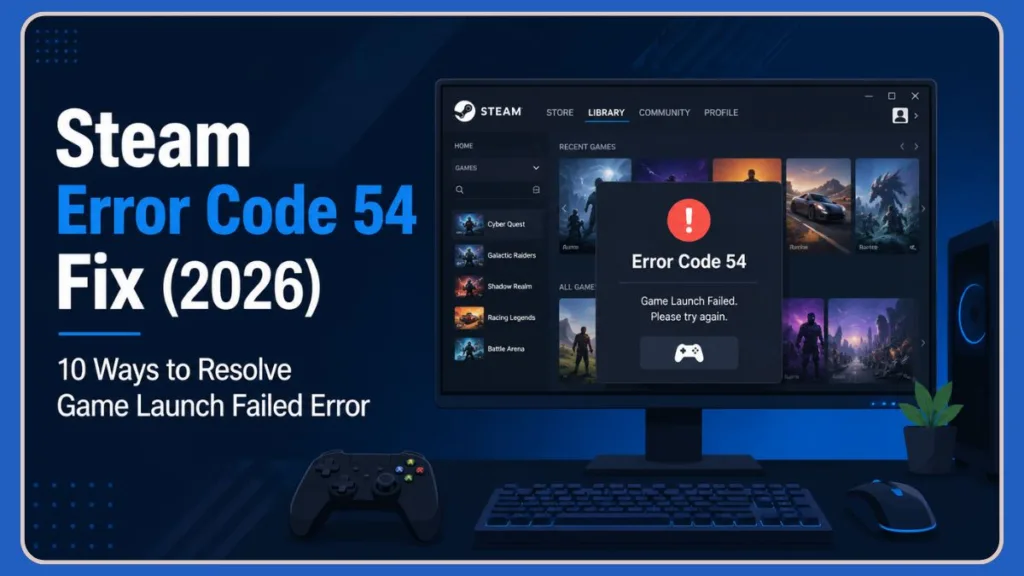
You might see the specific, frustrating message below:
Steam Error Code 54
This specific Steam error often strikes without warning. It can appear whether you are trying to launch a newly installed game or one you have played for years, even when your internet connection is fine and other software runs perfectly. Many gamers report this happening specifically on modern operating systems like Windows 11 23H2 or Windows 10, where strict security permissions sometimes clash with older game engines.
While it disrupts your gaming session, the good news is that this issue is usually temporary. Furthermore, it rarely results from anything you broke on your PC, so you generally won’t lose your games or saved data. The problem usually stems from a miscommunication between the game executable, the client’s digital rights management (DRM), and your local storage.
In this comprehensive guide, we will walk you through exactly what this error means, why your games might fail to launch, and the specific steps you must take to fix it quickly on Windows 11 and Windows 10.
What Does Steam Error Code 54 Mean?
To better understand the problem, you must first define what the error actually signals.
This message means Steam was unable to successfully start or synchronize your game at that exact moment. It does not automatically indicate a hardware failure, a permanent account ban, or that your save files are completely gone. Instead, it is essentially a timeout or access denied flag generated by the client’s internal processes.
Think of it like trying to open a locked door while the security system is updating; the door is fine, but the system isn’t granting access right now. Depending on the game and your system configuration, the error may appear as:
- Steam Error Code 54
- Game Launch Failed (Error Code 54)
- Steam Failed to Start Game
- Steam Launch Failed Error 54
You might see it immediately after clicking Play or during the game’s startup process. Common symptoms include games refusing to launch, Steam crashing during startup, game freezes during loading, missing or corrupted game content, Steam Cloud synchronization failures, and repeated launch failure messages. In some instances, the game process actually starts in the background but remains invisible, tricking the system into thinking the application is already running.
Why This Error Happens
Based on real usage patterns, technical troubleshooting, and official Steam Support documentation, this error usually stems from one or more of the specific reasons below.
1. Corrupted Game Files
If important game files become damaged or go missing, Steam may fail to launch the game correctly. This often happens after an interrupted download, a sudden power outage while the game was saving, or when a game patch fails to unpack completely in the downloading folder.
2. Steam Cloud Synchronization Problems
Steam Cloud helps keep your saved data synchronized across devices. If synchronization fails to sync properly, Steam may display Error Code 54. This is especially prevalent if you frequently switch between a desktop PC and a Steam Deck, as the remote servers may struggle to determine which save file is the most recent.
3. Antivirus or Firewall Interference
Some security software mistakenly blocks Steam processes or game executables, preventing games from launching because it views them as a false threat. Aggressive heuristic scanners in programs like Avast, Bitdefender, or even standard Windows Defender can quarantine essential .exe files without notifying you.
4. Background Application Conflicts
Overlay tools like Discord, recording software like NVIDIA ShadowPlay, RGB utilities like Razer Synapse, and other background applications can sometimes interfere with the Steam client. Software that hooks into your game to display frames-per-second (FPS), such as RivaTuner Statistics Server, is a notorious culprit for triggering launch failures.
5. Corrupted Steam Cache
Temporary Steam data can become corrupted over time, causing download and launch-related problems that repeat every time you click Play. Your local cache stores old manifest data, and if it conflicts with the live servers on the Steam Content Delivery Network (CDN), the client will refuse to proceed.
6. Outdated Graphics Drivers and Windows System Issues
Older GPU drivers, missing Windows Updates, or damaged runtime libraries can create compatibility issues with newer games and Steam updates. If your system is missing the latest .NET Framework or has a corrupted DirectX installation, the game engine simply cannot initialize.
Quick Checks Before You Try Fix
Before you dive deep into troubleshooting settings, you should quickly run through this diagnostic checklist to save time:
- Does the error happen for every game in your Library, or just one specific title?
- Does the error still appear when you fully restart your computer?
- Does the same issue occur if you try launching a game without background apps running?
- Did the problem start suddenly after a major Windows Update or Steam client update?
- Are your game drives functioning properly? Listen for clicking sounds on mechanical Hard Drives (HDD) or check the health of your Solid State Drive (SSD) using tools like CrystalDiskInfo.
If you answered yes to most of these questions, the issue is likely a broad system conflict or temporary Steam service issue rather than a broken game installation.
How to Fix Steam Error Code 54: 10 Step Guide
To resolve this efficiently, follow these steps in order. We strongly recommend that you do not skip ahead, as the simpler fixes often work best. Always ensure your account credentials are handy, as some of these steps will require you to log back in.
Step 1: Restart Steam and Your Computer
Before making any changes, perform a simple restart. A fresh restart often resolves temporary software conflicts. Be aware that the Fast Startup feature in Windows can sometimes prevent a true reboot, so manually ending the tasks is crucial.
- Exit Steam completely.
- Open Task Manager by pressing Ctrl + Shift + Esc.
- End all Steam-related processes (look for Steam Client WebHelper and the main Steam executable).
- Restart your computer.
- Launch Steam again and test the game.
Step 2: Verify Integrity of Game Files
Corrupted game files are one of the most common causes of Steam Error Code 54. If a recent update, crash, or interrupted download corrupted files, verification restores the required game data by comparing your local files against the official master files on the servers.
- Open Steam.
- Navigate to your Library.
- Right-click the affected game.
- Select Properties.
- Open the Installed Files tab.
- Click Verify Integrity of Game Files.Steam will scan the installation and automatically replace damaged or missing files. This process can take anywhere from a few minutes to an hour, depending on the game’s size and your storage speed.
Step 3: Clear Steam Download Cache
A corrupted Steam cache can cause various launch and update issues. Doing this forces the client to establish a fresh connection to the content delivery network.
- Open Steam.
- Click Steam in the upper-left corner.
- Select Settings.
- Open the Downloads section.
- Click Clear Download Cache.
- Sign back into your Steam account.After clearing the cache, attempt to launch the game again. You will not lose any installed games, but you will need to re-enter your password.
Step 4: Run Steam as Administrator
Permission issues can prevent Steam from accessing required files. Sometimes, User Account Control (UAC) in Windows blocks the client from creating necessary save folders or modifying registry keys. If the game launches successfully, consider configuring Steam to always run as administrator.
- Close Steam.
- Right-click the Steam shortcut on your desktop.
- Select Run as Administrator.
- Launch the affected game.
Step 5: Temporarily Disable Antivirus Software
Security programs occasionally flag Steam files incorrectly. This is incredibly common with indie games or newly released updates that haven’t yet been whitelisted by global security databases.
- Temporarily disable real-time protection in your antivirus (such as toggling it off in Windows Security).
- Launch Steam.
- Start the affected game.If the game works after disabling antivirus protection, add Steam and the game folder to your antivirus exclusion list before re-enabling protection. Never leave your PC unprotected long-term.
Step 6: Disable Steam Cloud Synchronization
Since some gamers experience Error Code 54 due to synchronization problems, disabling Steam Cloud can help identify the cause. This stops the client from getting stuck in an infinite loop while trying to upload a broken save state.
- Open Steam Library.
- Right-click the game.
- Select Properties.
- Under General, locate Steam Cloud settings.
- Disable synchronization temporarily.Launch the game and check whether the error disappears. If it does, your local save data is likely fine, but the cloud data is corrupted.
Step 7: Update Your Graphics Drivers
Outdated graphics drivers can lead to launch failures and game instability. Modern games rely heavily on updated shader caches and Vulkan/DirectX libraries provided directly by the hardware manufacturers.
- NVIDIA users should install the latest GeForce drivers directly from the official NVIDIA download page.
- AMD users should install the latest Adrenalin drivers.
- Intel users should update through the Intel Driver & Support Assistant.After updating, restart your PC and try launching the game again. We recommend choosing a Clean Install option if your graphics software provides one.
Step 8: Repair Your Steam Library Folder
If the Steam library itself becomes corrupted, repairing it may resolve Error Code 54. This is especially helpful if you store your games on an external hard drive that may have been disconnected unexpectedly.
- Open Steam Settings.
- Navigate to Storage.
- Select your Steam library drive.
- Click the three-dot menu.
- Choose Repair Library.Steam will scan the library and correct detected issues, restoring correct folder permissions in the process.
Step 9: Reinstall the Problematic Game
If only one game is affected, reinstalling it may be faster than reinstalling Steam. This removes damaged files that verification may not fully repair. It also clears out outdated mods that might be causing hidden conflicts.
- Back up important save files if necessary (usually located in Documents or AppData).
- Uninstall the game through Steam.
- Restart your computer.
- Download and install the game again.
Step 10: Reinstall Steam
If none of the previous fixes work, reinstalling Steam may help. Before Reinstalling: Back up the steamapps folder to avoid downloading all your games again.
- Uninstall Steam via the Windows Settings app.
- Download the latest Steam installer from the official website.
- Install Steam.
- Restore your game files if needed by moving the steamapps folder back into the main directory.
- Test the affected game. If you want a faster method, simply delete everything inside your main Steam directory except the
steamappsfolder and thesteam.exeapplication, then run the executable to force a fresh download of the client files.
Additional Troubleshooting Steps
If Steam Error Code 54 continues to appear, try these advanced solutions:
- Install Windows Updates: Make sure your operating system is fully updated. You can also run the System File Checker by typing
sfc /scannowin an elevated Command Prompt to fix corrupted Windows files. - Scan for Malware: Run a full system scan to eliminate malware-related conflicts that might be hijacking your network ports.
- Free Up Storage Space: Low disk space can affect Steam operations and game updates. Ensure you have at least 10% to 15% of your drive completely empty for virtual memory paging.
- Reinstall Microsoft Visual C++ Redistributables: Some games rely on Visual C++ runtime components. Reinstalling them can fix startup problems. You can download the latest supported redistributable packages directly from Microsoft.
- Check Your Internet Connection: An unstable connection may cause Steam Cloud synchronization failures. Try switching from a Wi-Fi connection to a wired Ethernet cable to rule out packet loss.
Is Steam Down Right Now? How to Tell
Steam can experience partial service issues where some features fail while others remain accessible. This means you might still load your Library, but new game sessions won’t authenticate. This happens most frequently during massive server loads, such as the launch day of a highly anticipated AAA game.
You should check unofficial trackers like SteamDB or the Steam Status website first. Additionally, third-party services like DownDetector can provide real-time user reports to confirm if others are facing the same outage.
However, strong signs of a wider issue include:
- The error appears for every game you attempt to launch.
- None of the fixes work across different PCs on your network.
- The issue starts suddenly on a Tuesday (regular Steam maintenance day) and persists without change. Valve traditionally conducts routine server maintenance every Tuesday around 3:00 PM to 6:00 PM Pacific Time, which frequently disconnects users temporarily.
When this happens, waiting is often the only effective solution as the engineering team at Valve Corporation works to restore the service.
Why the Status Page May Still Look Normal
Status indicators typically track core systems, not every individual game server. They may not reflect:
- Regional access issues specific to your location.
- Authentication failures affecting only third-party launchers like the EA App or Ubisoft Connect that are tied to your game.
- Frontend or interface-level problems.
That is why you can see an error even when everything appears operational on official dashboards. If the game relies on a separate publisher’s backend, Steam will show everything as green, even if the third-party server is completely offline.
Can This Error Affect Steam Deck or Linux Users?
Yes, absolutely. File corruption or synchronization issues can also affect players using SteamOS or Proton. Because Linux handles file permissions differently than Windows, launch errors can sometimes be traced back to incorrect read/write rights.
You may successfully boot up your Steam Deck but still encounter failures when executing games. In these cases, the same fixes—verifying integrity, clearing the download cache, or checking your Wi-Fi network—apply to your handheld environment. Additionally, you can try forcing a different compatibility layer by going into the game’s properties, selecting the Compatibility tab, and manually checking the box to use a specific version of Proton (such as Proton Experimental).
How to Prevent This Error in the Future
While you cannot prevent all service-side issues, you can significantly reduce the chances of seeing this error again by maintaining good PC hygiene.
To keep your gaming sessions stable:
- Keep Steam Updated: Install Steam updates as soon as they become available.
- Verify Game Files After Major Updates: Running file verification occasionally can catch corrupted files early.
- Avoid Overly Aggressive Antivirus Settings: Configure security software to trust Steam and your installed games.
- Maintain a Stable Internet Connection: Reliable connectivity helps prevent Steam Cloud synchronization issues. Consider using a UPS (Uninterruptible Power Supply) to prevent PC shutdowns during downloads.
- Update Graphics Drivers Regularly: Driver updates often include compatibility fixes for newer games.
- Keep Sufficient Free Disk Space: Leaving adequate free storage helps Steam manage updates and temporary files efficiently.
These steps help maintain a clean, stable environment and prevent launch errors from interrupting your playtime.
FAQs
What is Steam Error Code 54?
Steam Error Code 54 is a launch-related error that usually occurs when Steam encounters problems with game files, Steam Cloud synchronization, software conflicts, or system permissions.
Why does Steam say Game Launch Failed Error Code 54?
The error often appears because Steam cannot access required game files or complete synchronization with Steam Cloud services. It acts as a safeguard to prevent further data corruption.
Does verifying game files fix Error Code 54?
Yes. Verifying game files is one of the most effective fixes because it repairs missing or corrupted files automatically. It is always the best first step for any specific game glitch.
Can antivirus software cause Steam Error 54?
Yes. Some antivirus programs may block Steam processes or game executables, resulting in launch failures.
Is Steam Error Code 54 related to Steam Cloud?
In some cases, yes. Steam Cloud synchronization problems have been linked to Error Code 54 for certain games. Disabling the cloud feature temporarily is a quick way to test this.
Will reinstalling Steam delete my games?
Not necessarily. Backing up the steamapps folder allows you to preserve your installed games before reinstalling Steam.
How do I clear Steam cache?
Open Steam Settings, go to Downloads, and select Clear Download Cache.
Can outdated graphics drivers cause Steam launch error?
Yes. Old or corrupted graphics drivers can create compatibility issues that prevent games from launching correctly.
What to Do If Nothing Works
If you have tried every fix listed above and the error still appears, the best option is to stop retrying and wait. Steam Error Code 54 can be frustrating, but it is usually caused by a fixable issue rather than a serious, permanent problem.
In most situations, verifying game files, clearing the Steam download cache, disabling antivirus interference, or repairing your Steam library will resolve the error. If it does not, repeated attempts during a temporary issue won’t speed things up and may just cause more frustration. We recommend you come back later and try again once conditions stabilize. If the issue continues for days, consider reaching out to official Steam Support with your specific system details so you can get back to gaming seamlessly.
Have you managed to fix Error 54 using a method not listed here? Let us know your experience in the comments below!
Visit Our Post Page: Blog Page
Discover more from Izoate
Subscribe to get the latest posts sent to your email.