
Learn how to install Claude Code CLI natively on Windows PowerShell in 2026. Step-by-step setup to fix the “claude command not found” error and PATH issues.
Tried setting up Anthropic’s new Claude Code CLI on your Windows machine, only to watch Windows PowerShell spit out a wall of red error text? You are definitely not alone.

Many users run into the exact same roadblocks: the dreaded “claude command not found” message, path resolution failures, and script execution blocks. This guide covers the complete working setup, diagnosing exactly why your setup is failing, and the exact troubleshooting steps needed to get Claude Code running flawlessly in your local terminal. We’ll walk you through bypassing the quirks of Windows package management to achieve a stable, permanent installation.
Quick Answer: How to Install Claude Code on Windows PowerShell
Time-Saving Tip: If you need to get up and running immediately, here is the cheat sheet:
- Open PowerShell as Administrator.
- Run
irm https://claude.ai/install.ps1 | iex- Add
%USERPROFILE%\.local\binto your Windows Environment Variables PATH.- Restart your terminal.
- Run
claude --versionto verify.
(Still getting errors? Read the full breakdown below for the exact fixes).
What Is Claude Code CLI and Why Use It on Windows?
At its core, Claude Code CLI is a terminal-based AI assistant powered by Anthropic’s language models. Instead of copying and pasting code snippets back and forth from a browser window, you bring the AI directly into your local workspace.
Key capabilities include:
- Executing deep code reviews across your entire project directory.
- Debugging live console errors.
- Generating and modifying scripts without leaving your command line.
Historically, Windows developers had to route this through the Windows Subsystem for Linux (WSL). However, with the recent 2026 updates bringing native Windows PowerShell support, you can now interact directly with your Windows file system, registry, and environment variables natively.
Under the hood, Claude Code leverages Anthropic’s state-of-the-art models specifically optimized for coding tasks. It respects your standard ignore files automatically, meaning it won’t accidentally ingest your massive node_modules folder or sensitive compiled binaries.
Fix Claude CLI Not Working in PowerShell: Why Installation Fails
If your installation failed, don’t panic. The community subreddits are flooded with developers hitting the exact same hurdles. The reality is that most “installation failures” are actually just misconfigured Windows environments.
The most common culprits include:
- Unconfigured PATH Variables: The tool installs, but Windows doesn’t know where to look for the command.
- Execution Policies: PowerShell’s default security settings actively block third-party installation scripts.
- Missing Dependencies: Outdated versions of Node.js or a missing Git installation halting the background processes.
Unlike Linux or macOS environments, Windows uses a rigid Registry-based Environment Variable system. When an automated script attempts to modify this registry without explicit Administrator elevations, it silently fails. This leaves the executable stranded in a hidden folder, completely invisible to your terminal until manually linked.
Prerequisites (Before You Install)
Before executing any commands, double-check that your machine meets these baseline requirements to prevent mid-installation crashes.
- Operating System: Windows 10 or Windows 11.
- Node.js: You must have Node.js version 18 or newer installed (check via
node -v). - PowerShell: Preinstalled on Windows, though PowerShell 7 (
pwsh) is highly recommended for better compatibility. - Anthropic Account: An active API key or Pro subscription.
- Git for Windows (Optional but highly recommended): Necessary if you want Claude to manage version control tasks.
How to Install Claude Code CLI on Windows PowerShell (Step-by-Step)
Step 1: Open PowerShell
Right-click your Start button and select Terminal or Windows PowerShell. Run it as an Administrator to ensure you have the necessary write permissions.
Step 2: Run the Install Command
Paste the following official installation string into your terminal and hit Enter:
PowerShell
irm https://claude.ai/install.ps1 | iex
irmstands forInvoke-RestMethod, which safely downloads the installation script from Anthropic’s servers.iexisInvoke-Expression, which commands Windows to execute the script you just downloaded.
Installation Tip: Depending on your network speed and enterprise firewall settings, this process usually takes under 60 seconds. Do not close the terminal if it appears to pause; it is likely unpacking the Node.js runtime wrappers.
Claude Command Not Found Windows Fix (Step-by-Step PATH Guide)
This is the most widespread issue for Windows users. The script downloads the files perfectly, but when you type claude, Windows PowerShell says the command is not recognized. This happens because the installer occasionally fails to add the target folder to your system’s PATH.
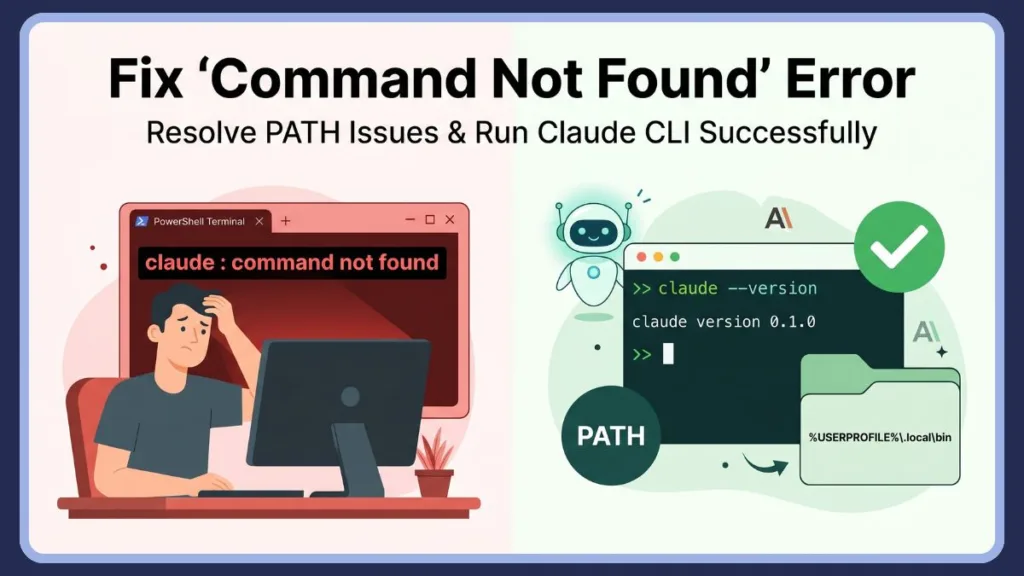
How to fix your PATH manually:
- Press
Win + Ron your keyboard, typesysdm.cpl, and hit Enter. - Navigate to the Advanced tab and click on Environment Variables at the bottom.
- Under the User variables section, find the
Pathvariable and click Edit. - Click New and paste the following exact directory:
%USERPROFILE%\.local\bin - Click OK on all windows, and restart your terminal entirely.
[Insert Screenshot: The Windows Environment Variables dialog box with the %USERPROFILE%\.local\bin path highlighted]
Crucial System Tip: It is crucial to add this specifically to your User variables (the top box) rather than the System variables. Modifying System variables requires a full system reboot and can affect other user profiles on the machine. Make sure there are no spaces before or after the
%USERPROFILE%string.
Reload PATH Without Restart (Quick Fix)
If you are deep in a workflow and don’t want to close your current terminal session, you can force PowerShell to reload your environment variables instantly by running this command:
PowerShell
$env:Path = [Environment]::GetEnvironmentVariable("Path", "Machine") + ";" + [Environment]::GetEnvironmentVariable("Path", "User")
This specific string manually queries the Windows Registry for both the Machine-level and User-level paths, concatenates them with a semicolon, and injects them into your active session’s memory.
Verify Installation & Authenticate Claude CLI
Once your PATH is sorted out, confirm the installation was successful by typing:
PowerShell
claude --version
Pro Tip: If it spits out a version number, try running
claude updateto ensure you pulled the absolute latest patch right out of the gate.
To link your terminal to your Anthropic account, trigger the app for the first time:
PowerShell
claude
A welcome screen will appear offering authentication methods:
- Claude Account: Connects to your standard Pro subscription.
- API Billing: Utilizes your Anthropic Console credits (best for heavy, automated usage).
- Third-Party: Connects via AWS Bedrock or Vertex AI.
[Insert Screenshot: The Claude Code CLI welcome screen showing the three authentication options]
Select your preference, follow the automated browser pop-up to log in, and you will be routed back to the terminal.
Basic Usage & Security Best Practices
Now that you are up and running, here are a few ways to start automating your workflow:
- Standard Interactive Mode: Simply type
claudein your project folder. - One-Off Prompts: Use the print flag to ask a quick question without launching a full session.
claude -p "review my python code and optimize it" - Piping Error Logs: Feed Windows errors directly to the AI.
Get-Content error.log | claude -p "explain this error and tell me how to fix it" - Generating Files: Tell the CLI to output code directly to a new file.
claude -p "write a boilerplate React component" > app.jsx
Security Tip: Never hardcode secrets: Do not paste raw API keys into your prompts. Security Tip: Review before executing: Always read the scripts Claude suggests before letting it execute them. Security Tip: Use
.claudesignore: Just like Git, Claude Code respects ignore files to guarantee the model never reads or transmits your private infrastructure keys.
New Feature: PowerShell Tool in Claude Code (2026 Update)
With the release of version 2.1.84, Anthropic finally introduced native Windows PowerShell tooling. By enabling the PowerShell tool preview in your /config menu, Claude can now natively execute Azure CLI commands, query your Active Directory, manage local Windows services, and handle advanced file system operations without the pathing translation errors that plagued earlier versions.
To force this manually via the configuration file instead of the UI, navigate to %USERPROFILE%\.claude\settings.json and ensure this block is present:
JSON
{
  "tools": {
    "powershell": {
      "enabled": true,
      "version": "pwsh"
    }
  }
}
This bridges the gap between AI code generation and local IT operations, allowing Claude to restart local IIS services, query WMI objects, and manage Hyper-V instances.
Fix Claude CLI Not Working in PowerShell: Common Error
Script execution disabled
The Problem: PowerShell throws a red error stating “running scripts is disabled on this system.” The Fix: You need to relax your local execution policy. Run this command: Set-ExecutionPolicy RemoteSigned -Scope CurrentUser
pwsh not found
The Problem: You configured Claude to use PowerShell 7, but it isn’t installed. The Fix: Install the modern version of PowerShell via the Windows Package Manager: winget install --id Microsoft.PowerShell -e
Too many security prompts
The Problem: Claude keeps pausing to ask permission for simple Get-ChildItem tasks. The Fix: You can add specific safe commands to an allow-list inside your settings.json file under the .claude directory.
Browser authentication hangs
The Problem: You type claude, select a login method, but the browser never loads or throws a ‘localhost connection refused‘ error. The Fix: This is usually a port conflict or a strict corporate VPN blocking localhost loopbacks. Temporarily disable your VPN or look for a manual authentication link printed in the terminal.
NPM Conversion Breaks
The Problem: You originally installed Claude via npm install -g @anthropic-ai/claude-code and now the native updates are failing. The Fix: You must completely purge the Node version first. Run npm uninstall -g @anthropic-ai/claude-code, clear your npm cache, and then run the native .ps1 script to avoid overlapping binaries.
Alternative Installation Methods
If the PowerShell script absolutely refuses to cooperate due to strict corporate IT policies, there are fallback methods. Attempting to force the installation via Node.js (NPM) and later converting it to a native Windows executable is known to cause severe file-path breakages and should be avoided.
Alternative Method Tip: If you must bypass PowerShell execution policies entirely, you can utilize the Command Prompt (CMD) fallback. Open
cmd.exeas an administrator and execute the alternative script host by wrapping the PowerShell command:powershell -Command "irm https://claude.ai/install.ps1 | iex".
FAQ
Can I install Claude on Windows without WSL?
Yes. As of the recent v2.1.84 update, Claude Code CLI features native Windows PowerShell support.
Why is Claude not working after a successful install?
99% of the time, this is a PATH environment variable issue. You must ensure %USERPROFILE%\.local\bin is added to your Windows user variables.
Is Node.js required for Claude CLI?
Yes. The terminal application relies on a Node.js runtime environment (version 18 or higher) to function.
Which PowerShell version is best for this?
While it works on the default Windows PowerShell 5.1, upgrading to PowerShell 7 (pwsh) is strongly recommended to avoid command-line argument splitting errors.
Does Claude Code use my local GPU?
No. Claude Code is a lightweight CLI that sends your prompts and file context to Anthropic’s cloud APIs. Your local hardware only needs enough power to run Node.js and standard terminal operations.
Conclusion
Getting Claude Code CLI working on Windows PowerShell takes a few extra configuration steps compared to a Mac, but once your environment variables are set correctly, the setup is incredibly stable. By fixing your PATH and enabling the native PowerShell tools, you eliminate the need to constantly jump between WSL and Windows.
Try this now: Open your terminal, apply the irm install command, update your PATH variable, and see how much time you can shave off your next debugging session.
Still stuck getting the “claude command not found” error or facing script blocks? Drop a comment below with your specific error code, and we’ll help you troubleshoot your environment!
Visit Our Post Page: Blog Page
Discover more from Izoate
Subscribe to get the latest posts sent to your email.