
Learn how to link Pokémon GO to Twitch and claim exclusive Twitch Drops rewards. Connect your Pokémon Trainer Club account, earn Timed Research, and redeem Pokémon GO Twitch reward codes easily.
If you’ve been watching Pokémon GO tournaments on Twitch and wondering how to get those exclusive rewards everyone’s talking about, you’re in the right place. Pokémon GO Twitch Drops are one of the best ways to score rare items, special Timed Research, and even unique Pokémon encounters — all just by watching live streams you’d probably watch anyway. Whether you’re a casual trainer checking in on the Pokémon GO competitive scene or a dedicated player who never misses a championship broadcast, the Twitch Drops system is built for you.
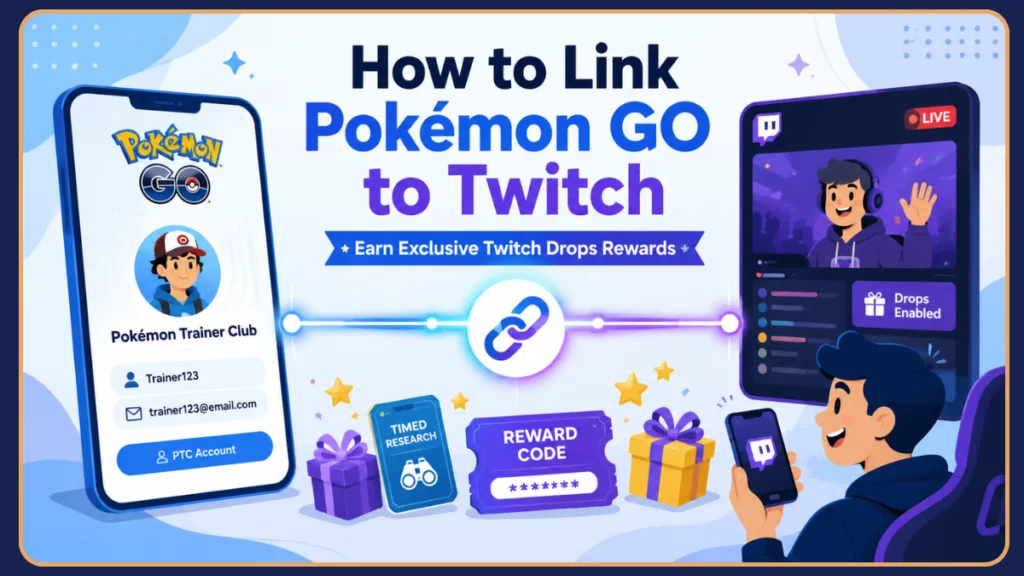
But here’s the thing a lot of players get confused about: you don’t directly connect the Pokémon GO app to Twitch. Instead, you link your Pokémon Trainer Club (PTC) account to your Twitch account through the official Pokémon Rewards portal at rewards.pokemon.com. Once that connection is in place, in-game rewards earned on Twitch flow straight into your Pokémon GO account as a trainer.
This guide walks you through everything — the one-time account setup, how to earn Twitch Drops, how to claim and redeem your rewards, and what to do if something goes wrong.
What Happens When You Link Pokémon GO to Twitch?
Understanding the Connection Between Pokémon GO and Twitch
Your Pokémon GO profile is tied to your Pokémon Trainer Club (PTC) account — not to a standalone in-app login. Twitch Drops work by connecting that PTC account to your Twitch account using the Pokémon Rewards portal.
Once linked, any rewards you earn by watching eligible streams on Twitch are automatically sent to your PTC account through the Pokémon GO rewards system. You then grab a code from rewards.pokemon.com and redeem it in Pokémon GO to activate the content.
Think of it like a three-step chain: Twitch → Pokémon Rewards → Pokémon GO.
Benefits of Linking Pokémon GO to Twitch
Once your accounts are connected, you unlock the ability to earn some genuinely exciting rewards during major Pokémon live events:
- Exclusive Timed Research tied to specific tournaments and championship livestreams
- Rare Pokémon encounters — past events have featured Pokémon like Altaria, Skarmory, Sableye, and even costumed Pikachu variants (with shiny encounter chances)
- Elite Charged TMs — one of the most valuable items in the game for competitive players
- Stardust and Candy XL to power up your best Pokémon
- Tournament bonuses during events like the Pokémon North America International Championships (NAIC), the Latin America International Championships (LAIC), and the Pokémon World Championships
You’re essentially getting rewarded for being a Pokémon GO fan. If you follow competitive Pokémon GO streams anyway, Twitch Drops are a no-brainer addition — free streaming rewards that land directly in your game.
Requirements Before You Link Pokémon Trainer Club to Twitch
You Need These Accounts First
Before you do anything on rewards.pokemon.com, make sure you have both of the following:
A Pokémon Trainer Club (PTC) Account
This is the central account that manages your Pokémon GO profile. If you’ve been playing Pokémon GO for a while, you may already have one — but if you signed up through Google or Facebook (sometimes called a Niantic account via social login), you might not have a separate PTC account set up yet. You can create a free PTC account at pokemon.com/en/pokemon-trainer-club/sign-up.
A Twitch Account
If you don’t already watch Pokémon GO streams on Twitch, you’ll need to create a free Twitch account at twitch.tv. This is the account you’ll use as a Pokémon GO viewer to watch live content and claim your Drop rewards from.
Important Warning Before You Link
Before you hit that “Link” button, there are a few things you absolutely need to know:
- The link is permanent. Once your PTC account and Twitch account are connected, you cannot unlink them — even by deleting one of the accounts.
- You can only link one PTC account to one Twitch account. There’s no way to add more accounts or switch later.
- Pokémon Customer Support cannot see or change your link. If you link the wrong account, they won’t be able to help you fix it.
Take a moment to double-check you’re logging into the correct PTC account — the one actually connected to the Pokémon GO trainer profile you want rewards on. Running a quick account verification before you link is the easiest way to avoid a permanent mistake. This is the most common error players make, and there’s no way to undo it.
How to Link Pokémon GO to Twitch: Step-by-Step
Step 1: Open the Pokémon Rewards Portal
Open your web browser and go to rewards.pokemon.com. This is the only official page for the Pokémon Twitch Rewards Program — the hub for linking accounts and managing your Pokémon Twitch rewards. Use a standard desktop or mobile browser — avoid consoles or streaming devices, as those can sometimes cause issues.
Step 2: Sign In Using Your Pokémon Trainer Club Account
Click the Log In button on the page and enter your PTC username and password. Be careful here — make sure you’re using the PTC account that’s connected to the Pokémon GO profile you play on.
Step 3: Choose the Twitch Connection Option
Once you’re logged in, you’ll see an option to link your account with Twitch. Click “Link with Twitch” to proceed.
Step 4: Log In to Twitch
You’ll be redirected to Twitch’s login page. Enter your Twitch username and password to sign in.
Step 5: Authorize the Connection
Twitch will ask you to authorize the connection between your accounts — this is a standard Twitch account authorization step used for all third-party connections. Review the permissions and click Authorize to confirm. This grants the Pokémon Rewards system access to deliver your Drop rewards.
Step 6: Confirm Your Accounts Are Linked
After authorizing, you’ll be redirected back to rewards.pokemon.com. If everything worked correctly, you’ll see a confirmation that your accounts are linked. If the page doesn’t load correctly, refresh it and check again.
That’s the setup done. You only need to do this once, and all future Twitch Drop campaigns and Drop events will automatically work with the linked accounts.
How to Earn Twitch Drops for Pokémon GO
Find Pokémon Streams With Drops Enabled
Not every Pokémon stream on Twitch offers Drops. You need to watch a Drops-enabled stream for the rewards to count. Here’s how to find the right one:
- Follow the official Pokémon GO Twitch channel at twitch.tv/PokemonGO
- Look for the “DropsEnabled” tag on a stream’s broadcast — this tells you rewards are active
- On Twitch’s Browse page, you can also search or filter by the DropsEnabled tag
- Follow Pokémon GO’s social media channels (Instagram, X/Twitter, Facebook) for announcements about upcoming Drop campaigns
Major events like the NAIC, LAIC, and Pokémon World Championships are typically the biggest Drop opportunities of the year. Official Pokémon GO co-streamers and eligible affiliate streamers may also qualify for certain campaigns, giving you more flexibility on which eligible Twitch stream you watch.
Watch the Required Twitch Stream Watch Time
Most Pokémon GO Twitch Drop campaigns require you to watch for at least 30 minutes to hit the Drop milestone and earn a reward. Some multi-day events offer separate rewards for each day of streaming, so watching 30 minutes across different days can get you multiple Drop codes.
The good news is that you don’t have to watch all 30 minutes in one sitting. The watch timer picks up where you left off, so you can leave and come back to the stream during the same campaign day. Just be aware that if the campaign ends, any incomplete progress is lost.
How to Check Your Twitch Drop Progress
While you’re watching, you can track how close you are to earning your Drop by visiting the Twitch Drops Inventory Page — think of it as your personal Drop tracker. You can find this under your Twitch account settings. The progress bar shows you the exact percentage of the watch time requirement you’ve completed.
One important note: do not mute or minimize the stream. When you do, Twitch stops counting you as an active viewer and pauses your progress toward the reward milestone.
How to Claim Pokémon GO Twitch Rewards
Step 1: Open Your Twitch Drops Inventory
Once your watch progress hits 100%, a pop-up reward notification will appear in Twitch chat as a chat alert, prompting you to claim your Drop. If you miss that pop-up, you can also head directly to your Twitch Drops Inventory Page to find it waiting there.
Step 2: Click “Claim” on Your Earned Drop
Click the Claim button on the Drop reward. This sends the reward to your linked Pokémon Trainer Club account. You have 24 hours after the campaign ends to claim your Drops before the Drop expiry kicks in and they disappear, so don’t put this off.
Step 3: Return to the Pokémon Rewards Portal
Head back to rewards.pokemon.com and log in with your PTC account. Select “View Inventory” to see your claimed rewards.
Step 4: Show and Copy Your Reward Code
Find the reward in your inventory and click “Show Code.” This reveals your unique promo code — a one-time redemption code in an 11-digit alphanumeric format. Copy it to your clipboard.
Step 5: Where to Enter Your Pokémon GO Twitch Code
Open your browser and go to the Pokémon GO Offer Redemption page at store.pokemongolive.com/offer-redemption — also known as the Pokémon GO web store redemption page. Log in with your Pokémon GO account credentials and paste your code into the “Enter Code” field to activate your reward.
Android users can also redeem codes directly in the Pokémon GO app by going to Main Menu → Shop → scroll to the bottom → enter code.
How Exclusive Timed Research Rewards Appear in Pokémon GO
After a successful redemption, your exclusive Timed Research will appear as special research tasks the next time you open Pokémon GO. Navigate to your in-game research tab and look for the new Timed Research tied to the event. Completing it will earn you the featured Pokémon encounters, items, and other bonuses.
Important Things to Know Before Linking Twitch and Pokémon GO
Can You Unlink Pokémon GO From Twitch?
No — once your PTC account is linked to a Twitch account, that connection is permanent. There’s no account disconnect option, and no way to remove the Twitch connection, even if you delete one of the accounts or contact Pokémon Customer Support. This is the most critical thing to get right the first time.
Can You Link Multiple Accounts?
No. The system only supports a one-to-one link between a single PTC account and a single Twitch account. If you manage multiple Pokémon GO profiles or want to use a secondary account, that isn’t possible — you can’t link additional accounts later, and you can’t switch which accounts are connected.
What Happens if You Use the Wrong Pokémon Trainer Club Account?
If you accidentally link the wrong PTC account, your Drop code delivery will route to that account instead of the one you play on, resulting in a missing reward on your main profile. Unfortunately, Pokémon Customer Support cannot see which accounts are linked or move rewards between accounts. Your only option would be to log into the correct PTC account on rewards.pokemon.com — but if you’ve already created a permanent link with the wrong account, there’s no fix available.
This is why it’s worth taking a few extra seconds to double-check before linking.
How Long Do Twitch Drops Last Before Expiring?
Once a campaign ends, you have 24 hours to claim your earned Drop from your Twitch Drops Inventory. After you’ve claimed it and the code appears in your Pokémon Rewards inventory, codes are typically valid for a limited code validity window tied to each specific campaign (for recent events, codes have expired around two weeks after the event). Always redeem before expiry rather than letting them sit.
Pokémon GO Twitch Drops Not Working? Try These Fixes
Pokémon GO Twitch Drop Not Showing Up
If you’ve claimed a Drop on Twitch but can’t see it on rewards.pokemon.com — a classic case of a claimed Drop missing or reward not delivered — the most common cause is being logged into the wrong PTC account. Log out of the Rewards portal and log back in — make sure you’re using the exact PTC account that was linked to your Twitch account when you set things up.
Twitch Watch Progress Is Not Counting
If your progress bar isn’t moving — a sign your watch time is not registering — while you’re watching a stream, try these steps:
- Check that the stream is not muted or minimized. Twitch stops counting muted or minimized streams toward Drop progress, and you lose your active viewer status.
- Refresh the stream page and check if the DropsEnabled tag is still active for the broadcast.
- Avoid watching on consoles, via Chromecast, or via AirPlay. Twitch Drops may not work reliably on these platforms. Stick to a PC browser or the Twitch mobile app.
Rewards Portal Not Loading Properly
If rewards.pokemon.com isn’t loading correctly or isn’t showing your inventory, a quick session reset and browser compatibility check can usually fix things:
- Try a different browser — Chrome or Firefox tend to work most reliably
- Clear your browser cache, then sign back in
- Check if there are any known server issues on Pokémon’s social media channels, since major event days can cause temporary slowdowns
Check for Account Linking Errors
If you’re seeing errors or a connection failure during the linking process itself, log out of both your PTC and Twitch accounts entirely, clear your cookies and cache, and try the linking process again fresh through rewards.pokemon.com. Attempting the process through any unofficial third-party linking tool or site can cause persistent linking failures.
How to Fix the Invalid Client ID Twitch Pokémon Link Error
Why the Invalid Client ID Error Appears
If you see an “invalid client ID” or similar OAuth error and authorization mismatch when trying to link your accounts, it usually means there’s a mismatch between the Twitch authorization request and the Pokémon Rewards system. This can happen during high-traffic events or when there’s a temporary issue on Pokémon’s servers.
Check Twitch Authorization Permissions
Head to your Twitch account settings > Connections and look for any Pokémon-related authorizations. If you see a partial or broken Twitch connection, revoke access and try reconnecting from scratch through the official portal.
Reconnect Through the Official Rewards Portal
Always start the linking process from rewards.pokemon.com — the official Pokémon account linking page — not from Twitch’s side. Going directly through the official portal ensures the correct OAuth flow is used every time.
Wait for Pokémon Server Issues to Be Resolved
During major events like the World Championships or NAIC, Pokémon GO server status can show high load due to a traffic outage. If you’re getting persistent errors that don’t match anything you’ve done wrong, it may simply be a temporary server issue. Wait an hour or two and try again.
Frequently Asked Questions
How do I link my Pokémon GO account to Twitch?
To connect Pokémon GO to Twitch, visit rewards.pokemon.com, log in with your Pokémon Trainer Club account, and select the option to link with Twitch. Follow the prompts to authorize the connection from your Twitch account.
Do I need a Pokémon Trainer Club account for Twitch Drops?
Yes, absolutely. Your Pokémon GO account login is managed through your PTC account, and a PTC login is required for rewards to be delivered. Without a PTC account connected to Twitch, you can’t receive Drops.
What rewards can I get from Pokémon GO Twitch Drops?
Rewards vary by event but have included exclusive Timed Research, rare Pokémon GO event rewards like special encounters (sometimes featuring shiny Pokémon), Elite Charged TMs, Stardust, Candy XL, and tournament-related bonuses.
How long do I need to watch Twitch streams for Pokémon GO rewards?
Most campaigns have a minimum watch time of at least 30 minutes per reward as the stream watching requirement. Some events offer multiple rewards across different streaming days.
Why isn’t my Twitch Drop progress counting?
Make sure you’re meeting all Twitch viewer requirements: the stream isn’t muted or minimized, you’re watching on a compatible platform (PC or mobile browser), and you’re logged into the correct Twitch account. Try clearing your cache and refreshing.
Why are my Pokémon GO Twitch rewards not showing up?
You’re likely logged into the wrong PTC account on rewards.pokemon.com. Log out and sign back in with the PTC account that was linked to your Twitch account.
Where do I redeem my Pokémon GO Twitch Drop code?
For Pokémon GO code redemption, visit store.pokemongolive.com/offer-redemption in your browser, or use the in-app redemption option in Pokémon GO on Android (Main Menu → Shop → enter code at the bottom).
Can I unlink Pokémon GO from Twitch after connecting it?
No. The link between your PTC account and Twitch account is permanent and cannot be reversed by you or by Pokémon Customer Support.
Final Thoughts
Linking your Pokémon GO account to Twitch is a one-time setup that completes your Pokémon GO Twitch integration and opens the door to exclusive rewards you genuinely can’t get any other way. The process itself is straightforward: create the link at rewards.pokemon.com, watch eligible streams for around 30 minutes, claim your Drop from the Twitch inventory, grab your code from the Pokémon Rewards portal, and redeem it in Pokémon GO.
The most important thing to remember is to double-check your accounts before linking — since that connection is permanent, getting it right the first time saves you a lot of frustration.
Going forward, keep an eye on the official Pokémon GO Twitch channel and Pokémon’s social media for announcements about upcoming Twitch campaigns and Drop events. Major events like international championships and World Championships regularly bring fresh rewards, and all you have to do is tune in.
Have you already linked your accounts, or are you running into any issues with the process? Drop a comment below — we’d love to help you get those Drops rolling in!
Visit Our Post Page: Blog Page
Discover more from Izoate
Subscribe to get the latest posts sent to your email.