
Learn how to see logged in devices on Amazon, check your device list on desktop or mobile, remove unknown devices, and secure your account with simple steps.
Want to know exactly which devices are connected to your Amazon account right now? Whether you’ve noticed something suspicious or you’re just doing a routine security check, learning how to see logged in devices on Amazon is one of the smartest things you can do to protect your account, your payment details, and your Prime subscription.
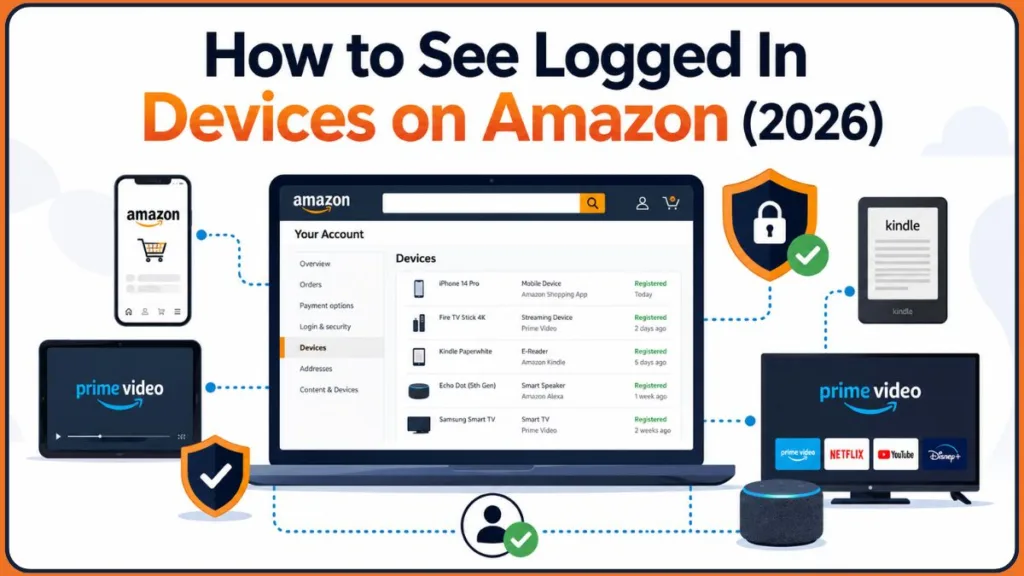
In this guide, you’ll find clear, step-by-step instructions to check your Amazon logged in devices on any platform — desktop browser, iPhone, Android app, and more. You’ll also learn how to remove devices you don’t recognize, what to do if something looks wrong, and how to lock things down before a problem gets worse.
Why You Should Check Your Amazon Logged In Devices Regularly
Most people only think about their Amazon account security after something goes wrong — an unexpected charge, an order they didn’t place, or a security email out of nowhere. But by then, unauthorized access may already be in progress.
Your Amazon account holds a lot of sensitive information. Saved credit cards, delivery addresses, Prime Video access, Kindle books, Audible subscriptions, digital purchases, and even your Alexa voice data are all tied to a single login. If someone gains access, the consequences can go well beyond a few unwanted purchases.
Here are some of the most common reasons people want to check devices logged into their Amazon account:
- You received a suspicious login notification from Amazon and want to see which devices are active.
- You’re sharing your account with family members but want to keep better track of access.
- You’ve recently sold, lost, or upgraded a device and want to make sure the old one no longer has access.
- Your Prime Video keeps buffering due to too many active streams on the account.
- You want to do a routine security check to make sure nothing looks unfamiliar.
Whatever your reason, Amazon makes it fairly straightforward to review your device list — once you know where to look.
Does Amazon Show You a Login History?
Before diving into the device steps, it’s worth clearing something up that confuses a lot of people.
Amazon does not offer a dedicated login history page. Unlike Google, Facebook, or your bank, you won’t find a dashboard that shows every sign-in attempt, IP address, location, or timestamp associated with your account.
What Amazon does provide is a Devices section — found inside “Manage Your Content and Devices” — that shows every piece of hardware and app currently registered to your account. This is the closest thing Amazon has to a login activity monitor, and it’s genuinely useful for spotting unauthorized access.
Think of it this way: if someone is actively using your account, there’s a good chance their device shows up here.
How to See Logged In Devices on Amazon (Desktop Browser)
The easiest and most complete way to check your Amazon logged in devices is through a desktop browser. The full device list is more detailed here than anywhere else.
Step-by-Step: Check Amazon Devices on Desktop
- Open your browser and go to Amazon.com (or your regional Amazon site).
- Sign in to your account if you haven’t already.
- Hover over “Account & Lists” in the top-right corner.
- Click on “Account” from the dropdown.
- Scroll down and select “Content & Devices” (sometimes listed as “Manage Your Content and Devices”).
- Click the “Devices” tab at the top of the page.
You’ll now see a full list of every device registered to your Amazon account. This includes Kindle e-readers, Fire tablets, Fire TV sticks, Echo smart speakers, smartphones, smart TVs, and any other device that has accessed Amazon services using your credentials.
Each entry typically shows the device name, device type, registration date, and the Amazon service it’s associated with (Shopping, Kindle, Prime Video, Alexa, etc.).
Take a few minutes to go through the list carefully. If everything looks familiar, you’re in good shape. If you spot something you don’t recognize, keep reading — the next section explains exactly what to do.
How to Check Logged In Devices on the Amazon App (iPhone & Android)
If you’re on your phone, you can check your Amazon account devices directly through the mobile app without needing a desktop browser.
Step-by-Step: Check Devices via the Amazon Mobile App
- Open the Amazon app on your iPhone or Android device.
- Sign in if you’re not already logged in.
- Tap the profile icon or the menu icon (three horizontal lines) in the bottom navigation bar.
- Select “Your Account.”
- Scroll down and tap “Manage Content and Devices.”
- Open the “Devices” tab.
You’ll see the same list of registered devices available on desktop. The layout may look slightly different depending on your app version or whether you’re on iOS or Android, but the information is the same.
This is particularly useful if you primarily shop or stream through your phone and want to do a quick security check without sitting down at a computer.
What You’ll See in the Amazon Devices List
Once you’re inside the Devices section, Amazon breaks things down by category. Depending on what services you use, you might see entries such as:
- Kindle devices and reading apps
- Fire Tablet and Fire TV devices
- Echo and Alexa-enabled speakers
- Smartphones (iPhones, Android phones with the Amazon Shopping or Prime Video app installed)
- Tablets and computers
- Smart TVs and streaming sticks registered for Prime Video
- Third-party devices like Chromecast or Apple TV with the Prime Video app
Each entry shows key details like the device name and type. Some entries will also show the last used date or registration date, which can be very helpful when you’re trying to figure out whether a device is still in active use.
If you share your Amazon account with your partner, a parent, or a sibling, it’s normal to see multiple devices listed. The important thing is that you can identify every single one of them.
How to Check Devices Connected to Amazon Prime Video Specifically
Prime Video has its own device management layer that’s worth checking separately — especially if you’re hitting streaming limits or suspect someone else is watching on your subscription.
Where to Find Prime Video Devices
- Go to primevideo.com in your browser.
- Click on “Account & Settings” from the top menu.
- Select “Your Devices.”
Here you’ll see the devices specifically registered for Prime Video streaming. This is separate from the main Amazon device list and focuses on hardware that has access to your video content.
How Many Devices Can Stream Amazon Prime Video?
This is one of the most common questions people ask, and the answer matters if you think someone is using your account.
As of 2026, Amazon Prime Video allows streaming on up to 5 registered devices per account, with a limit of 2 of those being TVs. You can stream on up to 3 devices simultaneously, but the same title can only be watched on 2 devices at the same time.
If you’re regularly seeing a “too many streams” error message or if Prime Video keeps telling you the device limit has been reached, that’s a strong signal to check your registered devices and remove any you no longer use or recognize.
How to Remove a Device From Your Amazon Account
If you’ve spotted a device you don’t recognize — or one you simply no longer use — removing it is quick and straightforward. Amazon calls this process Deregistering.
Step-by-Step: Deregister a Device on Amazon
- Go to Manage Your Content and Devices and open the Devices tab.
- Find the device you want to remove.
- Click or tap on the device to open its details.
- Select the “Deregister” button.
- Confirm your choice when prompted.
The device is immediately disconnected from your account. It will no longer be able to access Amazon Shopping, Prime Video, Kindle, Audible, Amazon Music, or any other service linked to your account — unless someone signs in again using your credentials.
This is why deregistering an unknown device should always be followed by changing your password. Deregistering alone removes the device, but if someone has your login details, they can simply sign back in.
What Happens After You Deregister a Device?
Once a device is deregistered, here’s what changes:
- Prime Video access is removed from that device.
- Kindle content will no longer sync or be available for reading.
- Audible audiobooks will become inaccessible.
- Amazon Music services will stop working.
- Alexa features will require reauthorization.
- Purchased digital content will no longer be available on the deregistered device.
The process is reversible — the device can be reconnected by signing in again with your Amazon account credentials. This is normal for devices you own and simply forgot to remove after upgrading or replacing them.
How to Sign Out of Amazon on All Devices at Once
If you suspect your account has been compromised and want to quickly cut off access across all devices, Amazon gives you an option to sign out remotely.
Step-by-Step: Sign Out of Amazon Everywhere
- Go to your Amazon account and open Login & Security settings.
- Look for the section labeled “Manage Login Sessions” or similar wording.
- Select the option to sign out of all active sessions or remove active sessions.
This is different from deregistering devices. Signing out ends active sessions and requires anyone — including you — to sign back in. Deregistering removes a device’s registration entirely and cuts off its access to digital content and services.
For a full security lockdown, it’s worth doing both: signing out of all sessions and then manually deregistering any devices you don’t recognize.
How to Tell If Someone Else Is Logged Into Your Amazon Account
Since Amazon doesn’t give you a traditional login history, you need to read the warning signs across multiple areas of your account. If any of the following apply, it’s worth investigating further:
- An unfamiliar device appears in your registered devices list.
- Orders you didn’t place show up in your purchase history.
- Password reset emails you didn’t request arrive in your inbox.
- New shipping addresses have been added to your account.
- Unfamiliar payment methods appear in your billing section.
- Prime Video titles you never watched show up in your viewing history.
- Alexa interactions or Amazon Music listening history seems unusual.
- Security alert emails from Amazon notify you of a sign-in from an unrecognized location or browser.
One of these on its own might not mean much. But if you’re noticing several of these signs at once, treat it as a potential compromise and act quickly.
Why Is an Unknown Device Showing on My Amazon Account?
Finding an unfamiliar device doesn’t always mean someone has hacked your account. There are a few innocent explanations worth considering first:
- An old phone or tablet you forgot about and no longer use.
- A smart TV or streaming device that someone in your home connected to your Amazon account.
- A gaming console (PlayStation, Xbox) that you or a family member signed into.
- A hotel TV or shared computer you briefly signed into while traveling.
- A device you sold without deregistering it from your Amazon account beforehand.
Ask yourself: could this device belong to someone in my household? Did I recently change phones? Have I signed into Amazon on a friend’s device or a work laptop?
If you can confidently answer yes to any of those questions, the mystery is probably solved. If not, remove the device and change your password immediately.
What to Do If Your Amazon Account Has Been Compromised
If you find a device you genuinely don’t recognize and start noticing other warning signs, take these steps in order:
Complete Amazon Account Security Checklist
- Change your Amazon password immediately. Choose something unique that you’re not using on any other website or app.
- Remove all unfamiliar devices from the Devices section using the Deregister option.
- Sign out of all active sessions from the Login & Security settings.
- Enable Two-Step Verification (2SV). Even if someone has your password, they won’t be able to sign in without a one-time verification code sent to your phone or authentication app.
- Review your recent order history for purchases you didn’t make.
- Check archived orders — unauthorized users sometimes archive orders to hide them from the main history.
- Verify your saved payment methods and remove anything unfamiliar.
- Check your saved shipping addresses for any addresses you didn’t add.
- Review Prime Video watch history for content you never watched.
- Visit Amazon’s Secure Your Account recovery page if you can’t access your account at all.
- Contact Amazon Customer Support if you discover unauthorized charges or believe your account has been taken over.
How to Enable Two-Step Verification on Amazon
Two-Step Verification (also called Two-Factor Authentication or 2FA) is the single most effective way to protect your Amazon account from unauthorized access. Once enabled, anyone trying to sign in from a new device will need both your password and a verification code — something only you can receive.
Step-by-Step: Turn On Amazon Two-Step Verification
- Sign in to your Amazon account and go to Account & Lists > Your Account.
- Click on Login & Security.
- Find Two-Step Verification (2SV) and click Manage.
- Follow the on-screen setup instructions.
You can choose to receive your verification code via SMS text message, or through an authenticator app like Google Authenticator or Authy. The authenticator app method is generally more secure and works even without a cell signal.
Once enabled, Amazon will send you a code every time someone tries to sign in from an unrecognized browser or device.
Tips for Keeping Your Amazon Device List Clean
Beyond the security angle, keeping your Amazon devices list tidy also improves your streaming experience and helps you stay under Prime Video’s device limits.
Here are a few practical habits to build:
- Deregister old devices whenever you sell, trade in, or recycle a phone, tablet, or streaming stick.
- Review your device list every few months — think of it the same way you’d check your bank statement or update your passwords.
- Don’t sign into Amazon on shared computers unless you sign out immediately after. A browser session that stays open is effectively a registered session.
- Use a separate Amazon account for personal purchases if you frequently share your primary account with others.
- Create viewer profiles on Prime Video so each family member has their own watch history without needing a completely separate account.
Final Thoughts on How to Check Logged In Devices on Amazon
Your Amazon account is more than just a shopping profile. It’s a hub for streaming, reading, listening, voice control, and stored payment information. Keeping track of what devices have access to it is one of the simplest — and most overlooked — things you can do for your online security.
To recap everything:
- Use Manage Your Content and Devices > Devices on desktop or mobile to see your full device list.
- Check Prime Video’s “Your Devices” section separately if you’re focused on streaming access.
- Deregister any device you don’t recognize or no longer use.
- Follow up by changing your password and enabling Two-Step Verification for complete peace of mind.
If you’ve found something unusual in your device list or have a question about Amazon account security, drop it in the comments below — we’re happy to help you work through it.
Frequently Asked Questions
Q1: How do I see devices logged into my Amazon account? Go to Account & Lists > Your Account > Content & Devices > Devices tab. This shows all registered devices linked to your Amazon account.
Q2: Can I see Amazon login history? Amazon doesn’t provide a traditional login history page. However, you can review registered devices, order history, browsing history, and account changes to piece together recent activity.
Q3: How do I remove a device from Amazon? Open the Devices section, select the device you want to remove, and click Deregister. The device will immediately lose access to your Amazon services.
Q4: How do I sign out of Amazon on all devices? Go to Login & Security settings and use the option to manage or end all active login sessions. You should also change your password afterward.
Q5: Where is Devices in Amazon account settings? Go to Account & Lists > Your Account, then scroll down to “Content & Devices.” Click the Devices tab once you’re inside.
Q6: How do I deregister a device from Prime Video? Go to primevideo.com > Account & Settings > Your Devices. Select the device and choose to deregister or remove it from that screen.
Q7: How do I know if someone logged into my Amazon account? Check for unfamiliar devices in your Devices section, unexpected orders in your purchase history, new shipping addresses, or security alert emails from Amazon.
Q8: How do I secure my Amazon account after a suspicious login? Change your password, deregister unknown devices, sign out of all sessions, enable Two-Step Verification, and review your recent orders and payment methods.
Q9: How do I turn on two-step verification on Amazon? Go to Account > Login & Security > Two-Step Verification (2SV) > Manage. Follow the setup steps to link your phone number or an authenticator app.
Q10: How do I log out of Amazon on a lost phone? Go to the Devices section on a trusted device, find the lost phone in the list, and click Deregister. Then change your Amazon password immediately.
Q11: Can I remove unknown devices from my Amazon account? Yes. Open the Devices tab in Manage Your Content and Devices, click on the unfamiliar device, and select Deregister.
Q12: Does Amazon notify me of new logins? Amazon may send security alerts for sign-in attempts from new devices or locations, especially if Two-Step Verification is enabled. These notifications come via email or as a verification request.
Q13: How many devices can stream Amazon Prime Video at the same time? As of 2026, up to 3 devices can stream simultaneously from one account, but the same title can only play on 2 devices at once. The account can have a maximum of 5 registered streaming devices, with no more than 2 TVs among them.
Q14: Why is an unknown device showing on my Amazon account? It could be an old device you forgot about, a smart TV a family member connected, or a device you signed into while traveling. If you can’t identify it, deregister it and change your password to be safe.
Useful Official Resources for Viewing and Managing Logged In Devices on Amazon
If you want reliable, Amazon-backed information about checking your connected devices, removing unauthorized access, and strengthening your account security, the following official resources are worth bookmarking. They cover how to use Amazon’s built-in device management tools, how to handle suspicious activity, and how to protect your account step by step.
Manage Your Content and Devices – Official Device Overview: Amazon’s central hub for reviewing every device registered to your account. This is the go-to starting point when you want to see your Amazon logged in devices list, including Kindle, Fire TV, Echo, smartphones, and third-party devices connected through Prime Video or the Amazon app.
How to Register or Deregister an Amazon Device or App – Official Support Guide: A user-friendly guide covering how to get registration or deregistration help for your Amazon device or app, with specific support based on your device type. This is the place to go when you need to remove an unfamiliar or unwanted device from your account cleanly and officially.
Deactivate Your Device From Your Amazon Account – Step-by-Step Deregistration: Amazon’s official explanation of what deregistering actually does: it removes a device from your Amazon account and disconnects it from all your digital content and Amazon Services. Importantly, after deregistering, your device will temporarily lose access to your Amazon account, purchased content, and Amazon Services — but access can be restored simply by registering the device again. Essential reading before you start removing devices.
About Multi-Factor Authentication – Account Sign-In Security: Amazon’s official explanation of how multi-factor authentication works on your account. It covers when Amazon asks for an extra verification step, how a six-digit passcode is sent to your registered email or phone, and a critical reminder that Amazon will never contact you first to ask for your password or verification codes.
What Is Two-Step Verification? – Advanced Login Protection: Amazon’s dedicated guide explaining how Two-Step Verification works: when you try to log in, 2-Step Verification sends you a unique security code, and you need to enter both the code and your password to complete the sign-in. This is the most effective defense against someone accessing your account even if they already have your password.
About Security Alerts – Notifications for Suspicious Login Activity: Amazon’s official page explaining the security alerts it sends when it notices new or unusual activity on your account. If you receive a security alert about activity you don’t recognize, you can tap the link in your email or SMS inbox and select “Deny” — which will immediately reset your Amazon password to secure the account.
How to Keep Your Account Safe and Secure – General Security Best Practices: Amazon’s broader account protection guide, covering how to avoid impersonating scams where someone pretends to be a trusted company in order to extract your account details or payment information. A useful reference for anyone doing a full account security review alongside checking their device list.
Update Privacy Settings for Amazon Devices – Device-Level Privacy Controls: Amazon’s official guidance for managing privacy settings across your registered hardware, including location data, app usage, and device activity — all manageable through Manage Your Content and Devices. The page also directs you to enable Two-Step Verification as an additional layer of account protection.
Manage My Device, Content, and Account – Full Device Help Hub: Amazon’s central help hub covering everything from fixing Two-Step Verification issues and resolving device registration errors, to how to fully deregister an Amazon device, check for software updates, and understand Amazon’s device terms. A good bookmark if you’re working through multiple device management tasks at once.
Visit Our Post Page: Blog Page
Discover more from Izoate
Subscribe to get the latest posts sent to your email.