
Can’t find the sign-out button on your Netflix TV app? Learn 4 quick fixes to log out, whether you have the TV with you or not, in seconds.
If you’ve ever gone looking for the Netflix sign-out button and come up empty, you’re not imagining things. It really is hidden. Netflix builds its TV app around the idea that one household uses one TV, so staying logged in forever is the default — and signing out feels like an afterthought buried a few menus deep.
The good news is that once you know where to look, it only takes a few seconds. And depending on your situation, there’s more than one way to do it. Maybe you’re sitting right in front of the TV with the remote in hand. Maybe you already left that hotel room and can’t get back to the screen. Or maybe you’ve tried everything and the sign-out option simply isn’t there.
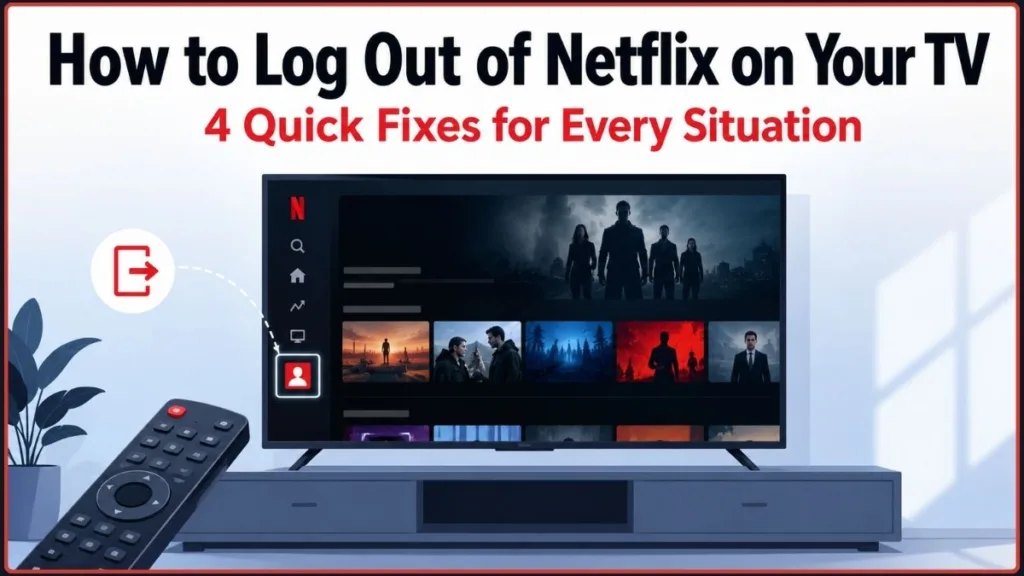
This guide walks you through all three situations, so you can jump straight to the one that matches yours.
Which Logout Method Should You Use?
If you want the short answer before diving in, here’s how the main options stack up:
| Method | Best for | What it does |
|---|---|---|
| Netflix app on the TV | You have the TV and remote in hand | Signs out that one TV |
| Manage Access and Devices | You left the TV behind | Signs out a specific device remotely |
| Sign out of all devices | You want a complete reset | Signs out every connected device at once |
| Change your Netflix password | You suspect someone else knows your password | Forces every device to sign in again |
The rest of this guide walks through each of these in detail, starting with the one most people need first.
How to Sign Out of Netflix on Your Smart TV (Standard Method)
If you have the TV and the remote in front of you, this is the fastest route. It works on the vast majority of smart TVs and streaming devices running a current version of the Netflix app.
- Open the Netflix app on your TV and wait for it to fully load. If a profile screen pops up, pick any profile — it doesn’t matter which one, since signing out applies to the whole account.
- Press the Left button on your remote once you’re on the main browse screen. This slides out a sidebar menu that most people never notice, since it isn’t visible until you press that button.
- Scroll to the bottom of the sidebar and select your profile icon, a gear icon, or a Settings/Get Help label, depending on your TV’s app version.
- Find and select Sign Out. It’s usually the very last item in the menu that opens.
- Confirm the prompt. A pop-up will ask if you’re sure — select Yes to complete the sign-out.
Quick tip: On most TVs, the confirmation prompt defaults to “No.” Make sure you actually move the highlight to “Yes” before pressing OK, or you’ll end up back where you started.
Once it’s done, you should land on the Netflix welcome screen with no profile names or Continue Watching rows in sight. If you still see your profiles, back out of the app and reopen it — sometimes the session needs a refresh to fully clear.
Signing Out of Netflix on Samsung and LG Smart TVs
Samsung and LG televisions generally follow the same sidebar steps, with a couple of brand-specific quirks worth knowing:
- Samsung (Tizen): The sidebar opens the same way as described above. On some older 2016–2018 Samsung models, though, the menu shows a Get Help label instead of a direct Sign Out option — select Get Help first, and the sign-out choice appears on the next screen.
- LG (webOS): Make sure you press Left from the top navigation row rather than while a thumbnail is highlighted, or the sidebar may not open at all. From there, look for a gear icon or Netflix Settings, then select Sign Out.
Signing Out of Netflix on Roku, Fire TV, and Apple TV
The sidebar method above works on most streaming sticks and boxes too, with a few small differences:
- Roku: The sidebar and Sign Out option work the same way. If you can’t find it, you can also highlight the Netflix app on your Roku home screen, press the Star (*) button, and choose Remove Channel as an alternative reset.
- Fire TV / Fire TV Stick: Use the same in-app sidebar steps. If Sign Out isn’t working, go to Settings > Applications > Manage Installed Applications > Netflix > Clear Data instead.
- Apple TV: Swipe left on your Siri Remote’s trackpad to bring up the sidebar. If that doesn’t work, you can hold down the Netflix icon on your Apple TV home screen and delete the app entirely to force a logout.
Logging Out of Netflix on PlayStation and Xbox
Game consoles handle it a little differently since they use controller buttons instead of a directional remote:
- PlayStation (PS4/PS5): Open Netflix, press the Circle button to bring up the in-app menu, then go to Settings > Sign Out.
- Xbox (One/Series X|S): Open Netflix, press the B button to open the menu, then go to Settings > Sign Out.
Both confirm with a Yes prompt before actually logging you out, just like the standard TV method.
How to Log Out of Netflix on a TV You No Longer Have Access To
Not every situation lets you sit in front of the screen. Maybe you already checked out of the hotel, dropped off a rental car, or handed a TV to its new owner. In these cases, you can sign it out remotely from your phone or laptop instead.
How to Remove a Specific Device from Your Netflix Account
This is the method to use if you want to sign out one TV without disturbing anyone else who’s logged into your account.
- Go to netflix.com in a web browser and sign in.
- Click your profile icon in the top-right corner and select Account.
- Look for the Devices section (sometimes labeled Manage Access and Devices) under Security & Privacy.
- You’ll see a list of every device currently signed in, along with the last title watched and roughly when it was last active. Use those details to spot the TV you want to remove.
- Click the Sign Out button next to that device.
The change usually takes effect within a couple of minutes, though Netflix notes it can occasionally take longer depending on the device’s connection status.
How to Sign Out of Netflix on All Devices at Once
If you’re not sure which device is the problem, or you suspect someone else has been using your account, signing out everywhere at once is the simpler option.
- From Account, scroll to the Security & Privacy section.
- Select Sign Out of All Devices.
- Confirm your choice.
Keep in mind this logs out every device tied to your account — your phone, laptop, and any other TVs included — not just the one you’re trying to remove. You’ll need to sign back in on any device you still use. Netflix states this can take up to eight hours to fully process across all devices, though actively connected TVs are often signed out within a few minutes.
You can also trigger this from the Netflix mobile app if that’s what you have on hand:
- Open the Netflix app on your phone and tap My Netflix in the bottom navigation bar.
- Tap the hamburger menu or profile icon in the top corner.
- Select Account, then scroll down to the Security & Privacy section.
- Tap Sign Out of All Devices and confirm.
Change Your Netflix Password to Force a Sign-Out
If you suspect someone else knows your Netflix password, changing it is a more security-focused way to clear every device at once — and it stops that person from simply logging back in afterward, which a plain sign-out doesn’t do.
- Go to your account’s Security settings.
- Choose Change Password.
- Enter your current password and a new one.
- Look for a checkbox along the lines of “Require all devices to sign in again with new password” and make sure it’s ticked before saving.
Warning: If you leave that checkbox unticked, existing sessions can stay active, and the TV or device you were worried about may keep streaming. This method is more disruptive than a standard sign-out, since you’ll need to log back in everywhere, including your own phone and laptop — so save it for when you genuinely suspect unauthorized access rather than a routine logout.
Netflix Sign Out Not Working? Try This
Sometimes the sign-out option is nowhere to be found, or the app itself is too frozen to respond. Here’s what to try, roughly in the order worth attempting.
Netflix’s Hidden Sign-Out Shortcut on Older TVs
Some older Netflix app builds hide a diagnostic screen behind a specific remote button sequence, and that screen includes its own sign-out option. From the Netflix home screen, try entering:
Up, Up, Down, Down, Left, Right, Left, Right, Up, Up, Up, Up
If it works, a hidden menu appears with options like Sign Out, Deactivate, or Reset. Select Sign Out or Deactivate to log the device out. Note that this shortcut has been removed from many newer app versions, so if nothing happens after a couple of tries, your TV likely doesn’t support it anymore — skip ahead to the remote-logout method above instead.
The App Is Frozen or Unresponsive
An unresponsive Netflix app is one of the most common reasons people can’t find the sign-out option in the first place. Before assuming the feature is missing, try:
- Force-closing and reopening the app through your TV’s app-switcher or settings menu.
- Restarting the TV completely — unplugging it from the wall for about 60 seconds does more than putting it in standby, since standby can leave the app’s memory state untouched.
- Checking for a Netflix app update through your TV’s app store, since outdated versions are more likely to glitch or hide menu options.
Clearing the Netflix App Cache on Your TV
If restarting doesn’t help, clearing the app’s stored data often resolves stuck menus:
- Go to your TV’s main Settings.
- Find Apps (sometimes labeled Applications).
- Select Netflix, then choose Clear Cache or Clear Data.
- Reopen the app and try signing out again.
Reinstalling the Netflix App as a Last Resort
If nothing else works, deleting and reinstalling the Netflix app wipes the stored login locally. This is worth trying last, since it can also reset your app preferences and download queue. If the on-device options are exhausted, your best bet is falling back to the remote logout method above — a sign-out initiated from the Netflix website works even if the TV’s own app is completely unresponsive.
Still Showing as Signed In? Try Resetting Your Connection
If you completed a remote sign-out but the TV still plays content as though nothing changed, it’s likely serving a cached session rather than checking in with Netflix in real time. Disconnect the TV from Wi-Fi for about 30 seconds, then reconnect — this usually forces the app to refresh its session and recognize that it’s been signed out.
It’s also worth confirming the issue isn’t on Netflix’s end. Account and session changes can occasionally fail silently during a service outage, so if sign-out attempts keep failing across multiple methods, check whether Netflix is experiencing wider issues before assuming the problem is with your TV.
How to Switch Netflix Accounts on the Same TV
If your goal is really to hand the TV over to a different Netflix account, the process is simple once you’ve signed out using the method above.
- Follow the standard sign-out steps to log the current account off the TV.
- Once you land on the Netflix welcome screen, select Sign In.
- Enter the email and password for the account you want to use instead.
That’s it — no need to reset the app or clear any additional data first.
What Happens When You Sign Out of Netflix on a TV
It helps to know exactly what signing out changes, and what it leaves untouched.
What stays the same: Your profile, viewing history, My List, and personalized recommendations are all saved to your account in the cloud, not to the device. Signing out of one TV doesn’t erase any of it — everything reappears exactly as you left it the next time you sign back in, on that TV or any other.
What you lose: Any content you downloaded to that specific device for offline viewing will be removed, since downloads are tied to the device rather than the account.
It’s also worth knowing the difference between three actions that often get confused:
- Sign Out removes the account’s login credentials from the device entirely.
- Exit Netflix just closes the app — you’ll still be signed in the next time someone opens it.
- Switching Profiles changes which profile is active but keeps the whole account logged in, meaning anyone with the remote can switch right back.
If your actual concern is privacy rather than full account security — say, a shared family TV — a profile PIN might solve the problem better than logging out every time. And if what’s really bothering you is just seeing certain titles show up under Continue Watching, you can remove individual entries from that row without signing out of the account at all.
Logging Out of Netflix on a Hotel or Airbnb TV
Hotel and rental TVs are one of the most common reasons people search for this in the first place, and for good reason — leaving your account logged in on a screen you don’t own means the next guest could pick up right where you left off.
Whenever possible, sign out directly on the TV before you check out, using the standard method above. It takes less than a minute and it’s the cleanest way to leave no trace behind.
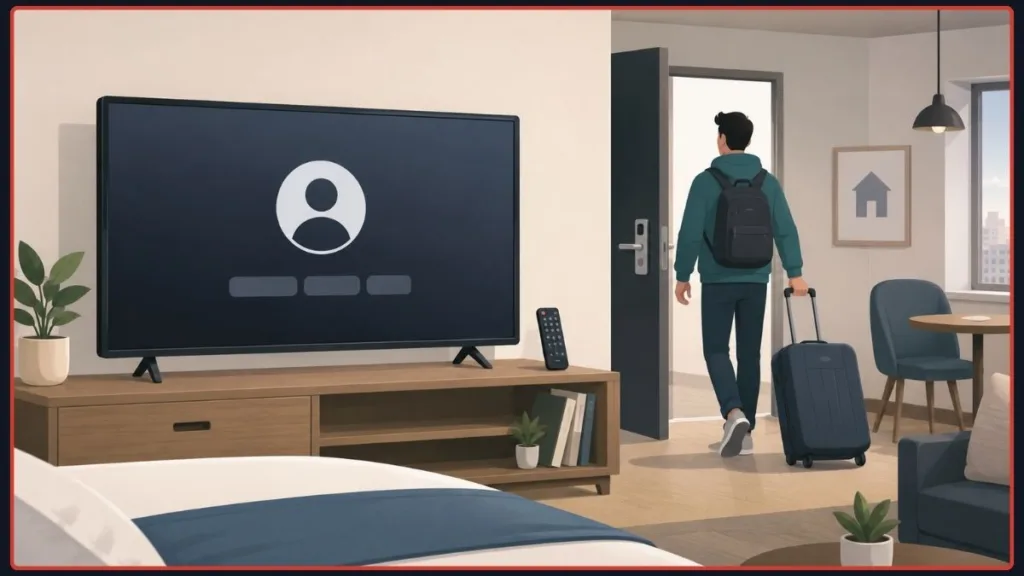
If you’re already home and realize you forgot, don’t worry — you don’t need to go back. Use the remote device logout method covered earlier to sign that specific TV out from your phone or laptop instead. Checking your account’s device list every so often is also a good habit if you travel or stay in shared spaces often, just to confirm nothing unfamiliar is still connected.
Some hotel TVs may prompt for your Netflix password again before letting you sign out, as an extra confirmation step — so it’s worth having your login details handy if you’re doing this on your way out the door. If you’re staying somewhere often or share the account with several people, making a habit of checking your device list roughly once a month and using a strong, unique password for your Netflix account goes a long way toward keeping unfamiliar TVs off your account entirely.
Frequently Asked Questions
Why can’t I find the Sign Out button on my Netflix TV app?
It’s not on the home screen — it’s tucked inside a sidebar menu that only appears when you press Left on your remote. Scroll to the bottom of that sidebar and look for your profile icon or a Settings/Get Help label to reveal it.
Does signing out of Netflix delete my viewing history?
No. Your profile, watch history, and My List are all saved to your account, not the device, so none of it disappears when you sign out.
How do I log out of Netflix on a TV I don’t have anymore?
Sign in to your account on the Netflix website or app, go to your account’s Devices section, and select Sign Out next to that specific TV.
Does exiting Netflix count as signing out?
No — exiting just closes the app. The account stays logged in on that device until you use the actual Sign Out option.
How long does it take to sign out of Netflix remotely?
Signing out a single device from your account settings usually takes effect within a couple of minutes. Signing out of all devices at once can take longer for some devices to process, though actively connected TVs typically clear within minutes.
Does switching Netflix profiles log me out?
No. Switching profiles only changes which profile is active on the screen — the account itself stays fully signed in, and anyone with the remote can switch right back without entering a password.
Can I sign out of Netflix on just one TV without affecting my other devices?
Yes. Use the device-specific option under Manage Access and Devices in your account settings, and only that TV will be signed out — your phone, laptop, and any other TVs stay logged in.
Final Thoughts
No matter which situation you’re in — TV right in front of you, already out the door, or fighting with a frozen app — there’s a fast way to take back control of that Netflix session. Once you know where the sign-out option actually lives, it’s a habit you can knock out in under a minute.
Quick recap, by situation:
- Have the TV in front of you? → Netflix app → press Left → Sidebar → Settings/Get Help/Profile → Sign Out.
- Left the TV behind? → Account settings → Manage Access and Devices → Sign Out the specific TV.
- Want to reset everything? → Account settings → Sign Out of All Devices.
- Think someone has your password? → Change your password and require devices to sign in again.
Which method worked for you? Let us know in the comments, and mention which device you were using — it helps other readers dealing with the same TV.
Useful Resources for Logging Out of Netflix on TV
If you want to double-check anything in this guide straight from the source, these official Netflix Help Center pages cover sign-out, remote device management, and troubleshooting in more detail.
- How to Sign Out of Netflix — Netflix’s own step-by-step instructions for signing out on TVs, streaming media players, and other supported devices.
- Manage Access and Devices — See every device currently signed into your account and sign out a specific TV or streaming device remotely.
- How to Change or Reset Your Netflix Password — Update your password and force connected devices to sign in again if you think someone else has access to your account.
- Restart Your Device — Netflix’s recommended restart steps for when the app freezes, stops responding, or won’t let you sign out.
- Device Troubleshooting — Additional sign-out and troubleshooting guidance for supported TVs and streaming devices.
- Security & Privacy — More on protecting your account and what to do about unfamiliar activity.
Visit Our Post Page: Blog Page
Discover more from Izoate
Subscribe to get the latest posts sent to your email.