
Want to put multiple pictures together on Facebook? Learn how to create a photo collage on Facebook for free using the built-in grid, Facebook’s camera roll suggestions, collage makers, Stories, and cover photos.
You open your camera roll to pick one photo for Facebook, and ten minutes later you’re still scrolling. The sunset. The group selfie. The blurry-but-hilarious shot from the dinner table. Picking just one feels wrong, and posting all of them separately feels like spam.
That’s exactly what a photo collage solves. It packs the best moments into one post, so your friends see the whole story at a glance instead of scrolling through ten separate updates.
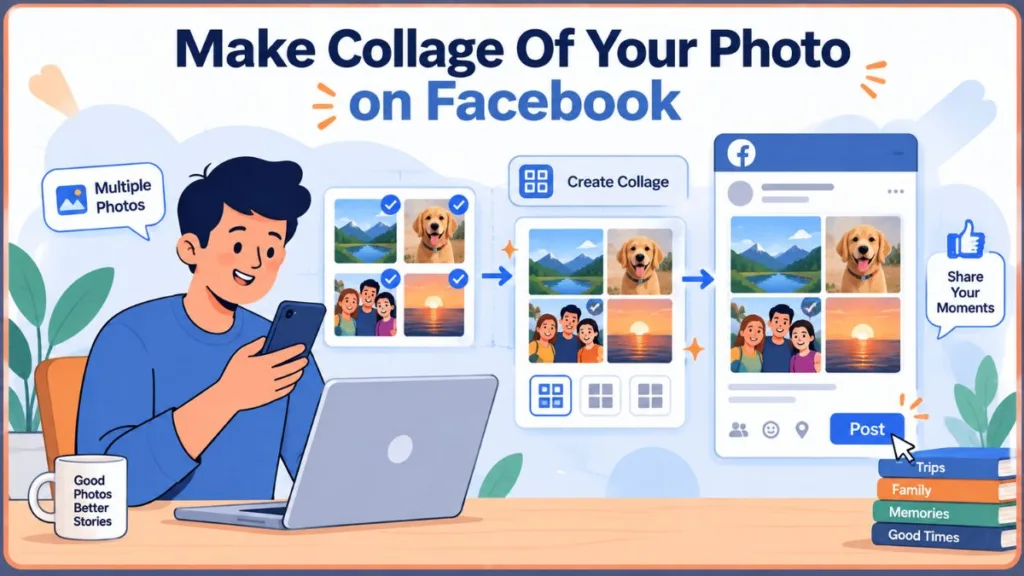
If you’ve been asking yourself how do I do a collage on FB or how do you put multiple pictures together on Facebook, this guide has you covered. You’ll learn how to use Facebook’s built-in photo grid, how Facebook’s newer camera roll suggestions can build a collage for you, and how to design a custom one with free tools. You’ll also get fixes for when the option isn’t showing up, plus ideas to help your collage stand out.
Why Everyone Loves Photo Collages and “Photo Dumps” Right Now
Casual, unpolished sharing has become one of the most popular ways to post online. The “photo dump,” a handful of loosely connected snapshots bundled into one post, took off on Instagram and has spread across other platforms. People like it because it feels real. It looks more like flipping through a friend’s camera roll than watching a highlight reel.
On Facebook, that same instinct shows up as multi-photo posts and collages. The two aren’t exactly the same. A photo dump is usually several photos in one post. A collage is one designed image with several photos inside it. Either way, you’re sharing a story instead of a single frame.
Key Insight: A collage lets you show the before, the during, and the after in one glance. It also gives your friends more to look at and more to react to, which is what makes a post feel worth commenting on.
What Is a Photo Collage on Facebook?
A photo collage on Facebook is a group of pictures shown together in one layout. It might be a weekend trip, a birthday party, a home makeover, or a “then and now” comparison.
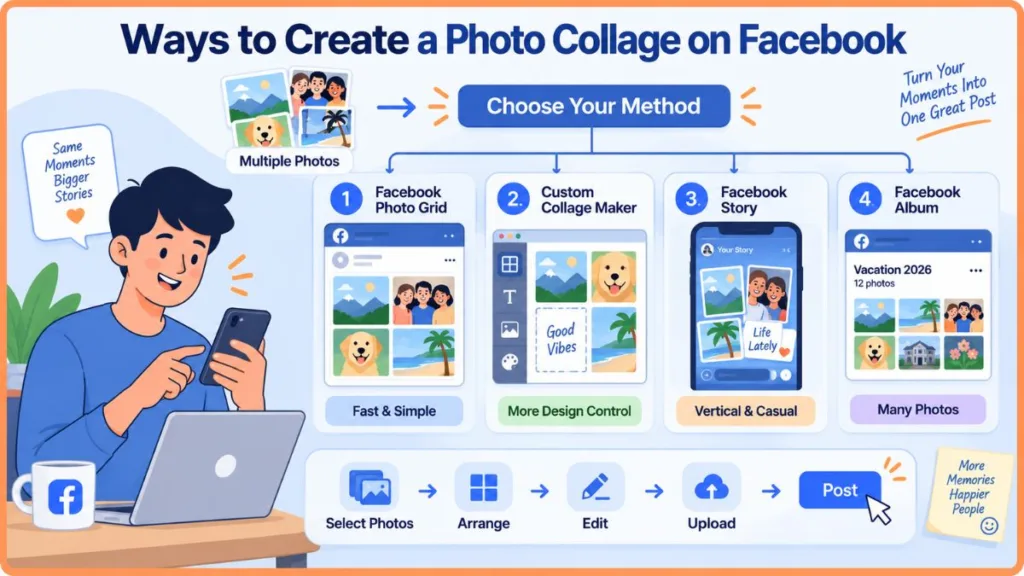
You can create one in a few different ways:
- Facebook’s built-in multi-photo grid: You select several photos, and Facebook arranges them in your post.
- Facebook’s camera roll suggestions: In some regions, Facebook can suggest collages made from your own photos.
- A custom collage: You design the layout in a free app or website, then upload it as one image.
Facebook’s grid is fast, but you don’t control the layout. A custom collage lets you choose the borders, colors, text, and placement. The right choice depends on how much time you have and how polished you want the result to look.
If you like comparison-style posts, you might also enjoy our guide on how to make a then and now post on Facebook.
Why Collages Catch Attention (and What Meta Says About It)
Put two or more photos side by side, and your eyes automatically start moving between them. You spot who’s in each shot, what changed, and which one you like best. That extra looking is what makes a collage feel more engaging than a single image.
It also fits how Facebook works. Meta’s Transparency Center explains that Feed uses signals such as whether people comment, react, or reshare, and how long they spend viewing a post. It even looks at how long people spend looking at photos. Nobody outside Meta knows exactly how much weight a collage gets, so it isn’t a magic trick. But a post that gives people something to look at and something to talk about is off to a good start.
How to Create a Photo Collage on Facebook (Step-by-Step)
Method 1: Post Multiple Photos Using Facebook’s Built-In Grid (Mobile App)
This is the fastest option, and it’s completely free. It’s also the simplest answer to how to grid pictures on Facebook, because Facebook does the arranging for you.
- Open the Facebook app (Android or iPhone).
- Tap “What’s on your mind?”
- Tap Photo/Video.
- Select two or more photos. Tap them in the order you want them to appear.
- Tap Next or Done to preview how Facebook arranges them.
- Add a caption, tag friends, or add a location.
- Choose your audience (Public, Friends, or Custom).
- Tap Post.
Quick Tip: The first photo you select usually becomes the biggest one in the grid. Lead with your strongest shot.
Depending on your app version, you may also see a layout option in the preview. If you do, try each one before you post.
How to Reorder or Remove Photos Before Posting
If the order looks off, go back to the photo picker, deselect the images, and tap them again in the order you prefer. You can also remove a photo from the post preview before you publish.
How Facebook Displays 2, 3, 4, and 5+ Photos
The grid changes with the number of photos, and it also depends on whether your pictures are square, landscape, or portrait:
- 2 photos: Usually side by side or stacked.
- 3 photos: One larger image with two smaller ones.
- 4 photos: A tidy grid, or one larger photo with smaller ones beneath it.
- 5 photos: All five appear in a mixed layout.
- 6 or more: Facebook shows the same layout as five photos and puts a number overlay on the last image, showing how many photos are hidden.
Facebook doesn’t publish these layouts in its Help Center and adjusts them from time to time, so your post may look slightly different.
Method 2: Let Facebook Suggest a Collage From Your Camera Roll (Where Available)
Izoate 2026 Update: Facebook has been rolling out an opt-in feature called camera roll sharing suggestions. When you turn it on, Meta AI can suggest collages, recaps, and edits built from photos on your phone, including ones you haven’t posted yet.
Availability varies by country, device, and account, so you may not see it yet. If you do, here’s how to find it:
- Open the Facebook app and tap your profile picture or the Menu icon.
- Go to Settings & privacy, then Settings.
- Scroll to Preferences and tap Camera roll sharing suggestions.
- Turn on the option for creative ideas made for you from your camera roll. The wording may vary slightly.
- Accept any permission prompts. You may also see a similar pop-up when you start creating a Story.
- When a collage suggestion appears, preview it, edit it, and decide whether to post.
This feature uses “cloud processing,” which means Facebook uploads selected photos from your phone to its servers so Meta AI can analyze them. Meta says the suggestions are private to you until you choose to share them. If you’re not comfortable with that, skip this method or turn it off later from the same menu.
Method 3: Put Multiple Pictures Together on Facebook From a Computer
The process is almost identical on desktop:
- Go to Facebook.com and log in.
- Click “What’s on your mind?” at the top of your feed.
- Click Photo/Video.
- Select several photos from your computer. Hold Ctrl (Windows) or Command (Mac) to pick more than one.
- Add a caption and choose your audience.
- Click Post.
You’ll get the same automatic grid you’d see on your phone. Facebook’s website doesn’t have a collage editor, so if you want borders, text, or a custom layout, use Method 4 to design your collage first.
Method 4: Make a Photo Collage for Facebook for Free With a Collage Maker
This is how you take control of the design. You build the collage outside Facebook, download it as one image, and upload it like any other photo.
Option A: Use a Free Facebook Photo Collage Maker Like Canva
- Open Canva and search for “photo collage” or “Facebook post.”
- Pick a template with the number of photo slots you need.
- Upload your photos and drop them into the frames.
- Adjust colors, spacing, and text.
- Download your design as a JPG or PNG.
- Upload it to Facebook like a normal photo.
Option B: Use a Facebook Collage Maker With No Download
Some collage makers run entirely in your browser, so there’s nothing to install. That’s handy on a shared computer or when your phone storage is full. Just watch for watermarks. Photovisi, for example, works fully online, but free collages carry a watermark, and its premium plan removes it. For a cleaner free result, try Canva, Adobe Express, or Google Photos.
Option C: Use Your Phone’s Built-In Collage Tools
- Google Photos: Open the app, select up to six photos, and tap Create Collage. On a computer, photos.google.com lets you pick up to nine.
- Samsung Gallery: Open Gallery, select your photos, tap Create, then choose Collage. It supports up to six images.
- iPhone: Apple’s Photos app doesn’t have a collage maker. Use the Photo Grid shortcut in the Shortcuts app, Google Photos, or a free app like Canva.
Izoate 2026 Update: Older guides often recommend Layout from Instagram. Instagram discontinued that standalone app on May 29, 2024, and moved its features into the main Instagram app for Stories. If a guide tells you to download Layout, it’s out of date.
Advanced Tools for 2026: Beyond the Basic Grid
If you want more than Facebook’s automatic layout, these tools are worth a look.
1. Canva: The Template Favorite
Canva has collage templates made for Facebook posts, cover photos, and Stories, so the sizing is done for you. The free plan includes a limited selection of templates, graphics, and fonts, and some premium elements are paid. Stick to the free ones and you’re fine.
2. Google Photos: The Fastest Free Option
If you already use Google Photos, you don’t need another app. Pick up to six photos on mobile (up to nine on the web), choose a template, and save. You can even add or remove photo slots and adjust the layout as you go.
3. Adobe Express: Clean Layouts and Story Templates
Adobe Express offers a free collage maker and Facebook Story templates. It’s a good pick when you want clean typography or a polished look for an event or a business post.
4. PicCollage and Picsart: Stickers, Filters, and Fun
PicCollage is beginner-friendly, with grids and stickers. Its VIP plan removes watermarks and ads, so expect a watermark on free exports. Picsart is stronger on filters and creative editing. Projects using premium assets or AI tools may carry a watermark unless you pay.
Best Free Facebook Photo Collage Makers Compared
| Tool | Best For | Key Feature to Know |
|---|---|---|
| Canva | Facebook post, cover, and Story templates | Free plan has a limited template selection |
| Google Photos | Fast, simple collages | Up to 6 photos on mobile, 9 on the web |
| Adobe Express | Clean layouts and Story templates | Free collage maker and Facebook Story tools |
| PicCollage | Beginners and stickers | Free app, but the free version adds a watermark |
| Picsart | Filters and creative editing | Watermarks on some exports without a paid plan |
| Photovisi | Browser-based, no download | Free collages carry a watermark |
Free plans change, so double-check current limits before you commit.
Free Photo Collage Templates for Facebook (Where to Find Them)
Templates save you from starting with a blank canvas. To find free photo collage templates for Facebook, search “Facebook collage template” in Canva, Adobe Express, or Picsart. Then match the template to the moment:
- Events (weddings, birthdays): Clean layouts with room for a date or a short message.
- Travel: Grids with more photo slots for a variety of scenes.
- Family memories: Simple layouts so the faces stay the focus.
- Business: A consistent color palette that matches your brand.
Does Facebook Still Do Collage Cover Photos?
This is one of the most common questions, so here’s the short answer. You won’t find a dedicated collage cover maker inside Facebook. Facebook describes a cover photo as a single larger photo at the top of your profile. If you want a collage, you build it first and then upload it.
How to Make a Free Facebook Cover Collage
- Open a free tool like Canva and search for “Facebook cover collage.” Canva has collage templates made for Facebook covers.
- Choose a template sized for a cover.
- Add three to six photos. Any more and each picture gets too small.
- Keep text short and away from the edges.
- Download the finished image.
- On Facebook, go to your profile, tap the camera icon on your cover, choose Upload Photo, adjust the position, and save.
A free Facebook cover collage maker like Canva makes this a five-minute job, and it’s a nice way to refresh your profile for a holiday or event.
Best Cover Photo Size and Safe Zone Tips
- Facebook’s recommended size: Facebook’s Help Center says a cover loads fastest as an sRGB JPG that’s 851 × 315 pixels and under 100 KB. The minimum is 400 × 150 pixels, and PNG can work better if your image has text or a logo. That guidance is published for Pages, and other guides report the same dimensions for personal profiles.
- How it displays: Guides commonly report about 820 × 312 pixels on desktop and 640 × 360 pixels on mobile.
- Optional: Some designers build at double size (1640 × 624 pixels) for extra sharpness, though Facebook may compress it.
Keep faces and text away from the edges. Facebook crops and resizes covers for different screens, and your profile picture covers part of the left side, so avoid the bottom-left corner.
How to Create a Facebook Home Page Photo Collage
When people search for a Facebook home page photo collage, they usually mean their profile page or their News Feed. Your News Feed (the “home page”) is controlled by Facebook, so you can’t customize it directly. You can still make your collage easy to find:
- Post your collage using the built-in grid or a custom design.
- Add photos to your Featured section. From your profile, tap Edit public details, find Featured, and choose photos or Stories to showcase. Menu names can vary by app version.
- Try pinning the post if you manage a Page. Facebook says you need to be an admin or editor to pin Page posts. On personal profiles, the pin option isn’t available to every account. If you don’t see it, use Featured instead. Our guide on how to highlight a post on Facebook covers the options in more detail.
- Match your profile picture and cover photo so they look like a set.
How to Make a Photo Collage for a Facebook Story
Stories are great for quick, casual collages, and they disappear after 24 hours, so there’s less pressure to make them perfect.
Step-by-Step: Add Multiple Photos to Your Story
- Open the Facebook app and tap Create Story at the top of your feed.
- Tap Select Multiple and choose your photos.
- Tap Next. If you see a Photo Collage option, tap it to place the photos side by side or on top of each other.
- Drag and resize each photo until the arrangement looks right.
- Add text, stickers, or music.
- Tap Share to Story.
If you don’t see a collage option, try this instead: start a Story with one photo, tap the sticker icon, choose your gallery, and add another picture. Repeat until you’ve added them all.
Best Facebook Story Templates and Layouts
For a more polished look, design your Story outside the app. Meta recommends the vertical 9:16 format at 1080 × 1920 pixels for Stories. Keep text and logos away from the top and bottom edges so Facebook’s on-screen buttons don’t cover them.
The best Facebook Story templates usually come from Canva, Adobe Express, and similar tools. Here are a few ideas:
- Travel recap: A vertical grid with three to four destination photos.
- Birthday shoutout: One large photo surrounded by small candid shots.
- Weekly highlights: A simple four-photo grid with a “This Week” label.
- Product launch: A bold layout with a photo, a short line of text, and your logo.
How to Create a Facebook Album (Step-by-Step)
If you have far more photos than one collage can hold, an album is the better choice. Think of the collage as your highlight reel and the album as the full collection. Facebook’s Help Center suggests albums for a special time or place, such as a birthday party or holiday.
On mobile:
- Open the Facebook app and go to your profile.
- Tap Photos, then open the Albums tab.
- Tap Create Album (or the + icon).
- Give your album a name and, if you like, a description.
- Choose who can see it.
- Add your photos and tap Post or Save.
On desktop:
- Go to your profile and click Photos.
- Click Albums, then Create Album. If you don’t see Photos, click More to open the dropdown menu.
- Select your photos, name the album, and choose your audience.
- Click Post.
A neat trick is to post a collage as your highlight and mention the full album in the caption. Menu names can shift between app versions, so if you don’t see an option, look under the three-dot or More menu.
Multi-Photo Post Engagement Ideas
A good collage can start a conversation. Here are some multi-photo post engagement ideas to try:
- “Then and now” collage: Show how far you’ve come.
- “Best 9 of the year”: A 3 × 3 grid of your favorite moments.
- Event highlights: Weddings, graduations, reunions, or trips.
- “Guess the story”: Post a few photos and ask friends what happened.
- Monthly photo dump: A casual roundup of your month.
- Business spotlight: Before-and-after shots or a product lineup.
Caption Ideas for Your Collage Post
- Emotional: “Grateful for every one of these moments.”
- Funny: “Photo dump loading… please wait.”
- Short and sweet: “Weekend well spent.”
- Question: “Which one is your favorite?”
Ending with a question is a simple way to invite comments.
Best Time to Post and Hashtag Tips
There’s no single perfect time to post. If you run a Page, check your Page insights to see when your audience is most active. On a personal profile, notice when your friends usually react and try posting around then. For hashtags, keep it light with two or three relevant ones, such as #PhotoDump, #Throwback, or #WeekendVibes.
Using Photo Collages for Your Business or Facebook Page
Collages aren’t just for personal profiles. If you manage a Page, they’re a quick way to show a lot in one post:
- Event recaps: A collage of the best moments from a launch or meetup.
- Product lineups: Several items in one image, with a caption that explains the range.
- Behind the scenes: Your team, your workspace, and your process in one frame.
- Before and after: A renovation, a makeover, or a project result.
Pages have a few extras. Facebook says admins and editors can pin posts to the top of a Page, so your best collage stays visible. You can also use a collage as your cover photo, following the size guidance above.
Fix: Photo Collage Option Not Showing on Facebook
If you can’t find the collage option you expected, don’t worry. It’s a common issue, and there’s usually a simple reason. Try these fixes:
- Update the Facebook app. Layouts and Story options often depend on your app version.
- Check the “More” or three-dot menus. Some options are tucked away.
- Clear the cache (Android) to refresh the app.
- Log out and log back in.
- Try the mobile app. Some options, like Story collages, are mobile-first.
- Use a collage app instead. If Facebook won’t cooperate, build the collage in Canva or Google Photos and upload it.
Why is my collage or camera roll suggestion option missing? Facebook doesn’t have a dedicated collage editor in the post composer. It arranges multiple photos into a grid automatically, so there’s no “collage button” to find. Camera roll collage suggestions are opt-in and may not be available in your country or on your account. If you don’t see them, the manual methods above will get you the same result.
Why does my collage look blurry after posting? Facebook compresses images when you upload them. Start with a high-resolution collage and export it at a larger size to keep it sharp.
Best Practices for a Perfect Facebook Photo Collage
- Stick to one theme or color palette so the photos feel connected.
- Use high-quality images. Blurry photos look worse when shrunk into a grid.
- Limit your collage to three to six photos so each one stays visible.
- Leave a little space between images for a cleaner look.
- Keep text short. A date or a two-word label is plenty.
- Preview it on mobile. Most people will see your post on their phones.
Accessibility Matters: Making Your Collage Inclusive
People who use screen readers rely on descriptions to understand your photos. Facebook generates alt text automatically, and you can edit it to make it more accurate and useful.
How to add alt text:
- On mobile, tap the three dots on the photo in your post preview and choose Edit Alt Text. On a computer, click Edit on the image, then Alternative Text.
- If you can’t find the option before posting, open the photo after it’s posted, tap the three dots, and choose Change Alt Text.
- Be descriptive: “Collage of four photos from a beach trip, showing friends laughing, a sunset, a picnic, and a group selfie.”
It takes a few seconds, and it means everyone in your community can enjoy your post.
Stay Safe: Privacy & Security Tips
Sharing memories is fun, but it’s worth pausing for a moment before you post.
- Choose the right audience. Use “Friends” instead of “Public” for personal photos.
- Check the backgrounds. Look out for house numbers, license plates, or school uniforms.
- Ask before posting other people’s photos, especially children.
- Review your tagging settings so you can approve tags before they show up on your profile.
- Think before enabling camera roll suggestions. Cloud processing uploads photos from your phone to Meta’s servers. You can turn it off any time in Settings & privacy under Camera roll sharing suggestions.
Common Mistakes to Avoid
- Cramming too many photos into one collage
- Mixing photos with very different quality or lighting
- Placing faces or text too close to the edges
- Skipping the caption
- Forgetting to check how it looks on mobile
- Posting the same collage style over and over
Pro Tips to Get More Comments and Shares on Your Collage Post
- Lead with your best photo. It’s the one most people see first.
- Ask a question in your caption. It gives people an easy reason to reply.
- Reply to comments. A conversation keeps your post active, and comments are one of the signals Meta says Feed looks at.
- Post around a moment. Birthdays, anniversaries, and trips give friends a natural reason to react.
- Try a Reel. Facebook lets you import photos into a Reel. Tap the + at the top of the app, choose Reel, pick your photos, add music or text, and share. Button names can vary by app version.
- Keep hashtags light. Two or three relevant ones are plenty.
Best Image Size & Format for Facebook Collages
- Cover photo: 851 × 315 pixels as an sRGB JPG under 100 KB (minimum 400 × 150). Use PNG if it has text or a logo.
- Story: 1080 × 1920 pixels (9:16).
- Regular post: There’s no single required size. A square (1080 × 1080) or vertical (1080 × 1350) canvas gives you plenty of room.
- Format: JPG or PNG. JPG is usually the safer choice for photo-heavy collages.
FAQs About Photo Collages on Facebook
How do I create a photo collage on Facebook?
Select multiple photos when you create a post and Facebook arranges them in a grid. For a custom design, make a collage in a free tool like Canva and upload it as one image.
How do you put multiple pictures together on Facebook?
Tap Photo/Video in your post, select several images, and Facebook combines them into a single grid post.
How do I make a photo collage for Facebook for free?
Use a free collage maker such as Canva, Google Photos, or Adobe Express, then download your design and upload it. Some tools add a watermark to free exports, so check before you download.
How do I grid pictures on Facebook?
When you add several photos to one post, Facebook grids them automatically. For a specific layout, build the grid in a collage app first.
Can Facebook make a collage for me?
In some regions, yes. If you turn on camera roll sharing suggestions, Facebook can suggest collages from your photos. It’s opt-in, and availability varies.
Can I make a collage without downloading anything?
Yes. Browser-based collage makers work without installing an app.
Does Facebook still do collage cover photos?
Facebook doesn’t have a dedicated collage cover maker, but you can design a collage cover elsewhere and upload it as your cover photo.
How do I post a collage on Facebook?
Tap “What’s on your mind?”, choose Photo/Video, select your collage image (or several photos), add a caption, and post.
What is the best free collage maker for Facebook?
Canva is a popular pick for templates, Google Photos is a quick watermark-free option, and browser-based tools are great if you don’t want to download anything.
What size should a Facebook collage be?
For a cover photo, Facebook recommends 851 × 315 pixels. For Stories, use 1080 × 1920 pixels. For regular posts, use a high-resolution square or vertical image.
Can I make a collage for a Facebook Story?
Yes. Use the multiple-photo option in Stories, or design a 1080 × 1920 collage and upload it.
Collage Ideas That Tell a Story
The best collages don’t just show photos. They tell a small story. A few ideas to spark yours:
- The trip: Open with a wide shot of the destination, then add a close-up of the food, a candid of your friends, and a sunset to end.
- The glow-up: The same spot, the same pose, a few years apart.
- The small business: The workshop on day one next to the finished shop today.
- The family tradition: The same holiday table across different years.
If you can describe your collage in one sentence, you’ve picked the right photos.
Conclusion: Share Your Story One Photo Grid at a Time
Creating a photo collage on Facebook doesn’t have to be complicated. If you want speed, use the built-in multi-photo grid. If you’d like a little help, try Facebook’s camera roll suggestions where they’re available. And if you want a polished look, a free collage maker like Canva or Google Photos gives you full control over the layout.
Whichever route you choose, the secret is the same: pick photos that belong together and let them tell a story. Have you tried making a collage on Facebook? Which method worked best for you? Share your experience or ask a question in the comments below. We’d love to hear from you.
Final Tip: Save your favorite templates in Canva or your preferred app. Your next collage will take just a few minutes.
Visit Our Post Page: Blog Page
Discover more from Izoate
Subscribe to get the latest posts sent to your email.