
Can’t load games or delete stuck downloads due to PS5 error CE-107857-8? Learn how to fix this frustrating PlayStation 5 error without losing your save data.
You finally clear out enough gigabytes on your SSD, queue up an essential update or a new game download, and settle in—only to be halted by a grey pop-up box:
“There was a problem loading the application. (CE-107857-8)”
This specific error code is notorious across the PlayStation community. Unlike garden-variety download errors that resolve with a simple pause-and-resume, CE-107857-8 often traps your console in a loop: downloads fail at the exact same percentage, DLC add-ons turn into “ghost files” that cannot be installed or deleted, or games crash straight back to the home menu seconds after boot.
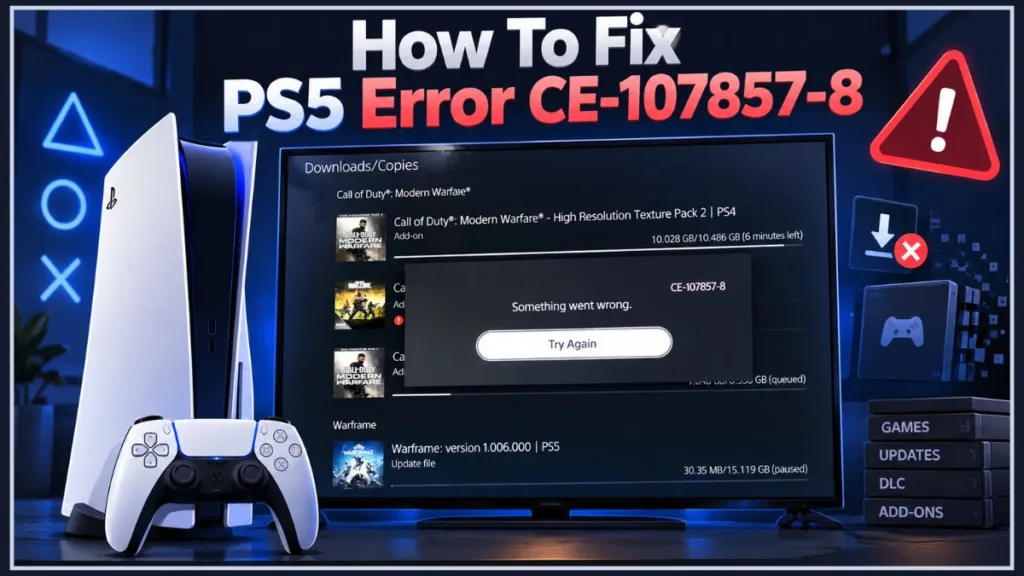
If you have already searched for a solution, you have likely run into Sony’s standard advice—and found that it accomplished nothing. Below is an exhaustive breakdown of why this happens, why the official advice fails, and the community-tested workarounds discovered on Reddit that actually clear the error.
The Official Sony Fix for CE-107857-8 (And Why It Often Fails)
On PlayStation’s official support portal, error CE-107857-8 is officially classified with a single line:
“An error occurred while loading or updating the application.”
To resolve it, Sony outlines a standard 4-step sequence:
- Restart your PlayStation 5 console.
- Ensure both the console system software and the game application are updated to the latest version.
- Delete the game from Settings > Storage and reinstall it.
- Boot the console into Safe Mode and select Clear Cache and Rebuild Database > Rebuild Database.
Why Standard Rebuilds and Reinstalls Don’t Work
While these steps represent reasonable baseline hygiene, Reddit threads across r/PS5 and r/PlayStation_X confirm that they almost never resolve an active CE-107857-8 loop:
- Surface-level uninstalls leave junk behind: Deleting an application from the home screen removes the primary game container, but broken update manifests and partial download segments frequently remain trapped in the system cache or hidden storage partitions. When you reinstall, the PS5 attempts to reuse those cached chunks, instantly reproducing the error.
- Database rebuilds do not clear download queues: The Safe Mode “Rebuild Database” command reconstructs your console’s media index, but it does not clear frozen download threads managed by the PlayStation Network (PSN) background daemon.
- Firmware updates cannot fix server-side mismatches: If the underlying issue is an entitlement desync or an unverified add-on pack, checking for system updates does not address the actual permission block.
What Causes the CE-107857-8 Error Code on PS5?
Through community trial and error across games like Call of Duty: Modern Warfare, Black Ops Cold War, Demon’s Souls, Returnal, Mortal Kombat 11, and Cyberpunk 2077, players have isolated several root causes:
1. The “Undeletable” Data Pack Bug
Games structured around modular packages (such as separate campaign, multiplayer, and high-resolution texture packs) are the most vulnerable. If the PS5 OS downloads Pack B before Pack A finishes verifying, the dependency chain breaks. The operating system marks the pack as “in progress,” preventing you from completing the install while simultaneously disabling the “Cancel and Delete” button.
2. Digital Entitlement Token Desync
When you purchase digital games, DLC, or cross-gen bundles, your console stores local security certificates that validate your license against Sony’s authentication servers. If these local tokens become desynchronized—frequently seen during major PSN network maintenance or game patch rollouts—the console blocks the installation process at the final verification stage.
3. Extended Storage (External HDD/SSD) Bottlenecks
Attempting to download PS4 backwards-compatible game packs or heavy PS5 update data directly to an external USB drive often triggers a write-timeout error. If the external drive experiences latency spikes or filesystem indexing delays, the PS5 misidentifies the interrupted stream as corrupted application data.
4. Wi-Fi Packet Fragmentation on 5 GHz Bands
The PS5’s internal network card can experience silent packet drops over 5 GHz Wi-Fi when downloading massive multi-gigabyte archives. While regular streaming or web browsing masks these micro-drops, a single dropped byte during the decompression of a 30 GB game archive invalidates the entire checksum, prompting the CE-107857-8 halt.
5. Upstream Server-Side Manifest Bugs
In some instances, the fault lies entirely with the publisher or the content delivery network (CDN). If an update file is pushed with an incomplete manifest (as was documented with specific Modern Warfare and Warzone updates), every console pulling that specific regional build will throw this error until a corrective hotfix is deployed to the server.
Proven PlayStation 5 Error CE-107857-8 Fixes from the Community
Before resorting to a full system wipe, walk through these community-verified solutions in order, starting with the least invasive methods.
Fix 1: Restore Licenses and Toggle Console Sharing and Offline Play
Best for: Digital games that crash on launch (e.g., Demon’s Souls, Cyberpunk 2077) or purchases failing initial download authorization.
This procedure forces your PS5 to wipe its local license cache and request fresh entitlement certificates directly from Sony’s servers:
- Close every running application and game.
- From the home screen, select the Settings gear icon in the top-right corner.
- Navigate to Users and Accounts > Other > Restore Licenses.
- Select Restore and wait for the progress bar to reach 100% (this may take a few minutes if you own a large digital library).
- Once complete, stay on the Other screen and select Console Sharing and Offline Play.
- Select Disable. Wait approximately 10 to 15 seconds.
- Re-enter the menu and select Enable.
- Restart your console normally and re-attempt the download or game launch.
Fix 2: Bypass the Download Queue via Manage Game Content
Best for: DLC, multiplayer packs, or season updates stuck in an undeletable loop.
When the primary download queue locks up and refuses to cancel an item, you can bypass the PlayStation Store download manager entirely by going through the title’s root content manager:
- Hover over the game’s icon on the PS5 dashboard.
- Press the Options button (the three horizontal lines) on your DualSense controller.
- Select Manage Game Content from the context menu.
- You will see an itemized list of all base files, compatibility packs, and DLC licenses tied to your account.
- Identify the component throwing the error. If a download arrow appears next to it, select it directly from this screen. This initiates a direct, single-threaded install that skips the standard home-screen queue.
Fix 3: Manually Purge Hidden Corrupted Download Data
Best for: Installs that consistently fail at the exact same percentage.
When a download crashes midway through, the PlayStation operating system frequently saves the damaged portion to disk as an orphaned file rather than discarding it. Unless you purge this specific orphaned item, every subsequent download attempt will hit the bad sector and abort:
- Delete the primary game icon from your home screen if it is present.
- Open Settings > Storage > Console Storage.
- Select Games and Apps.
- Scroll all the way to the bottom of the list. Look specifically for any item with a generic grey folder icon labeled “Corrupted Data” or bearing an obscure file string.
- Highlight the corrupted item, press the Delete prompt, and confirm removal.
- Check your Save Data tab under Storage as well to ensure no broken temporary save states exist.
- Power down the console, restart, and begin your download from your Game Library.
Fix 4: Optimize Network Settings and Disable Background Downloads
Best for: Downloads that hang indefinitely on “Calculating remaining time…” before throwing the error.
To stop the system from dropping packets or choking internal input/output bandwidth during installation:
- Disable Background Multi-Tasking: Go to Settings > Saved Data and Game/App Settings > Automatic Updates. Temporarily toggle off Auto-Download and Auto-Install in Rest Mode. This prevents the console from fetching background telemetry or updates for other titles while prioritizing your current download.
- Switch Connection Media: If you are connected via 5 GHz Wi-Fi, run a temporary hardwired Ethernet cable directly to your router. If physical cabling is impossible, open your PS5 Network Settings, select your Wi-Fi network, press Options, and change Wi-Fi Frequency Bands from Automatic to 2.4 GHz (which is slower, but significantly more resilient against packet dropouts over distance).
- Configure Static Public DNS:
- Go to Settings > Network > Settings > Set Up Internet Connection.
- Highlight your connection, press Options, and choose Advanced Settings.
- Set DNS Settings to Manual.
- Enter either of these high-reliability configurations:
- Cloudflare: Primary:
1.1.1.1| Secondary:1.0.0.1 - Google Public DNS: Primary:
8.8.8.8| Secondary:8.8.4.4
- Cloudflare: Primary:
- Leave MTU and Proxy settings on their defaults and save.
Fix 5: Clear System Cache with a Hard Power Drain
Best for: Games that freeze the entire console and trigger an abrupt shutdown.
Modern consoles keep system memory in a low-power standby state even during standard power cycles. A physical drain flushes non-volatile memory and clears system-level hang states that standard reboots cannot touch:
- Press the PS button on your controller, select the Power menu, and choose Turn Off PS5 (do not use Rest Mode).
- Wait until the white indicator lights on the console completely shut off.
- Physically disconnect the AC power cord from the back of the PS5.
- Leave the power cord disconnected for at least 60 full seconds. (While unplugged, press the console’s physical front power button once to fully discharge the internal power supply capacitors).
- Plug the power cable back in.
- Press and hold the power button on the front of the console until you hear two distinct beeps (one immediate, the second roughly seven seconds later) to enter Safe Mode.
- Connect your DualSense controller via USB cable, select Clear Cache and Rebuild Database, and pick Clear System Software Cache.
Fix 6: Rebuild the Database and Factory Reset as a Last Resort
Best for: Severe cases where the OS download partition is corrupt, and error loops persist across multiple unrelated titles.
If data pack pointers are permanently damaged in the system registry, a complete reset will wipe the storage structure clean.
Crucial Warning: This erases all data from console storage. Back up your game saves to the PlayStation Plus Cloud or export them manually via Settings > Saved Data and Game/App Settings > Saved Data (PS4/PS5) > USB Drive before proceeding.
- Go to Settings > System > System Software > Reset Options.
- Select Reset Your Console.
- Choose Reset to confirm.
- After the setup wizard completes, log back into your PlayStation Network account, restore your licenses first (Fix 1), and reinstall your games one at a time.
CE-107857-8 Symptom to Solution Matrix
| Symptom / Specific Issue | Recommended Community Fix | Underlying Mechanism |
| DLC or Data Pack stuck in queue with no “Cancel” option | Fix 2: Use Manage Game Content menu | Circumvents the locked main OS download queue |
| Digital title crashes instantly upon launch | Fix 1: Restore Licenses + Toggle Console Sharing | Refreshes corrupted local authentication certificates |
| Download fails at the exact same percentage mark | Fix 3: Delete game + purge hidden Corrupted Data | Cleans out orphaned, unindexed file fragments |
| Download hangs on “Calculating remaining time…” | Fix 4: Hardwired LAN + Cloudflare/Google DNS | Eliminates silent packet dropouts on large archives |
| Console shuts down or crashes on game start | Fix 5: 60-second power cable unplug + Cache Clear | Fully purges lingering errors from volatile system memory |
| Multiple games fail across the entire system | Fix 6: Cloud backup followed by Factory Reset | Wipes corrupted OS partitions and rebuilds file tables |
Frequently Asked Questions About PS5 Error CE-107857-8
What does error code CE-107857-8 mean on PS5?
It is an internal system-level exception thrown when the PlayStation 5 operating system fails to read, verify, unpack, or execute an application file. While Sony defines it generally as a loading or updating issue, it is almost always caused by broken file manifests, interrupted download writes, or account entitlement mismatches.
Why does CE-107857-8 primarily hit titles like Call of Duty?
Games like Call of Duty: Modern Warfare and Black Ops Cold War divide game modes into separate modular downloads (Multiplayer Pack 1, Multiplayer Pack 2, Spec Ops, etc.). If one component finishes out of order or encounters a silent network timeout, the main game launcher cannot reconcile the dependency tree, locking the installer into the CE-107857-8 error state.
Can a broken game patch on Sony’s servers cause this error?
Yes. On multiple occasions, publishers have pushed update packages with broken checksum manifests to Sony’s Content Delivery Network (CDN). When this happens, local console troubleshooting cannot resolve the issue because the file hosted on the server itself is flawed. In these cases, you must wait for the game studio or Sony to deploy a replacement hotfix.
Will rebuilding the database delete my saved games?
No. Rebuilding the database simply reorganizes the index table of the files stored on your internal drive, functioning similarly to defragmenting or re-indexing a PC drive. It does not delete your save files, capture gallery media, or game installations.
Why won’t my PS5 let me click “Cancel and Delete” on the stuck file?
When an installation process crashes during the disk-write phase, the PS5 operating system often keeps that file flagged as “In Use” or “Verifying.” Because the system believes an active write operation is underway, it grays out or ignores the deletion request to prevent drive corruption. Performing a hardware power drain (Fix 5) or removing it via the Manage Game Content screen (Fix 2) breaks this lock.
Visit Our Post Page: Blog Page
Discover more from Izoate
Subscribe to get the latest posts sent to your email.