
Want to organize your YouTube channel and keep viewers watching longer in 2026? Learn how to make a playlist on YouTube using simple steps. From creating playlists on desktop and mobile to optimizing titles and managing your full playlist library. Stay in control of your channel growth today.
If your YouTube channel has been growing but feels disorganized, you’re not alone. Videos stack up in upload order, Shorts sit next to tutorials with no clear connection, and a viewer who finishes one video has to figure out what to watch next on their own.
That’s exactly where playlists come in — and they do a lot more than just group videos together. Learning how to make a playlist on YouTube is one of the simplest things you can do to improve your channel’s organization and keep viewers watching longer. A well-built playlist shapes how viewers move through your channel, tells YouTube’s algorithm what your content is about, and keeps people watching longer by automatically playing the next video when one ends.
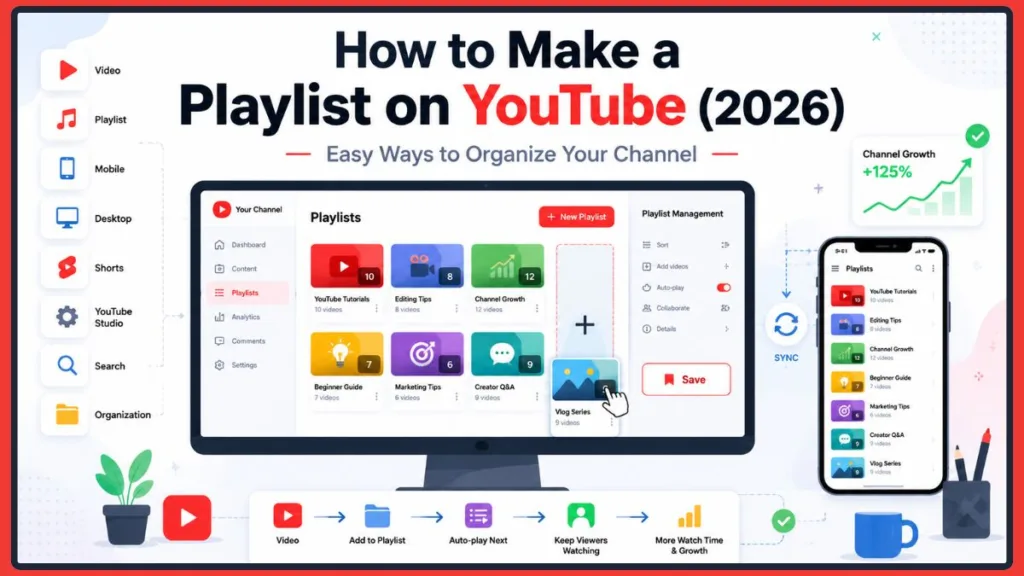
Whether you’re creating a playlist in YouTube for the first time or building a full system to organize an established channel, this guide covers every method across desktop, mobile, and YouTube Studio — plus how to make your playlists actually work for channel growth.
Here’s the quick answer if you just need the steps:
Here’s how to create a YouTube playlist in a few simple steps:
- Open YouTube and go to any video you want to add
- Click or tap the Save button under the video
- Select + New Playlist from the menu
- Type a name for your playlist — up to 150 characters
- Choose your privacy setting — Public, Unlisted, or Private
- Click or tap Create
That’s all it takes to start creating a new playlist on YouTube. Keep reading for every method in detail, plus the strategies that make playlists work harder for your channel.
Which YouTube Playlist Creation Method Is Right for You?
Before diving into the steps, here’s a quick overview of every way to create a YouTube playlist and when each one makes the most sense.
| Method | Desktop | Mobile | Best For |
|---|---|---|---|
| From a Video | ✅ | ✅ | Fastest method |
| Home Page | ✅ | ✅ | Browsing and saving videos quickly |
| Shorts | ✅ | ✅ | Organizing Shorts |
| You Page | ✅ | ✅ | Creating an empty playlist before adding videos |
| YouTube Studio | ✅ | ❌ | Managing multiple playlists and channel organization |
If you’re just getting started, creating a playlist directly from a video is the quickest and most straightforward option. If you’re managing a growing channel with multiple playlists, YouTube Studio gives you the most control — letting you create, edit, reorder, and organize everything from one dashboard.
What Is a YouTube Playlist and Why Does It Matter for Your Channel?
A YouTube playlist is a collection of videos grouped together under a common theme, topic, or purpose. Viewers can find your playlists on your channel page, and when someone starts watching a video inside a playlist, YouTube automatically plays the next one when it ends.
That last part matters more than most creators realize.
When a viewer has to manually choose what to watch next, there’s a real chance they leave your channel entirely. A playlist removes that friction. It keeps them in your content and increases your total watch time — which is one of the signals YouTube uses to decide how often to recommend your videos to other people.
Here’s the practical difference between an upload list and a playlist:
- An upload list shows what you published and when
- A playlist shows viewers what they should watch next
- A playlist system tells both YouTube and your audience how your channel is structured
According to YouTube, public playlists are discoverable through search and appear on your channel page, giving your content an additional way to be found beyond individual video searches. That means a well-titled playlist isn’t just an organizational tool — it’s a second entry point for new viewers to find your channel.
Think of playlists as curated pathways through your content. They’re not just folders for storage. They’re the system that turns a pile of uploads into an intentional channel viewers want to spend time on.
How to Create a YouTube Playlist on Desktop From a Video
This is the fastest method when you’re already watching one of your videos and want to start creating a new playlist on YouTube right away — no need to open YouTube Studio or navigate away from the video.
Step-by-step:
- Open YouTube and navigate to any video you want to add
- Click the Save button located under the video player — it sits between the Share and Thanks buttons
- A menu will appear showing your existing playlists
- Click + New Playlist at the bottom of the menu
- Type a name for your playlist — you can use up to 150 characters
- Choose your privacy setting from the dropdown menu
- Click Create
Your playlist is ready, and the video has been added automatically.
When you create a new playlist in YouTube this way, it’s saved instantly — so you don’t need to worry about losing your work before you finish adding videos.
How to Choose the Right Privacy Setting for Your YouTube Playlist
Choosing the right privacy setting is important because it controls who can find and watch your playlist.
- Public — Anyone on YouTube can find it, watch it, and share it. According to YouTube, public playlists are discoverable through search results and appear on your channel page. This is the best option for playlists you want viewers to find.
- Unlisted — Only people with the direct link can watch it. YouTube confirms that unlisted playlists are accessible only through their direct URL and won’t appear in search results or on your channel page. Useful for sharing with a specific group before making a playlist public.
- Private — Only you can see it. YouTube states that private playlists are visible only to the account owner. Good for playlists you’re still building or organizing before they’re ready for your audience.
Tip: Set most of your channel playlists to Public. Private and Unlisted playlists won’t help with discovery or watch time growth — they’re best used as staging areas before a playlist is ready for your audience.
How to Enable Collaborative Playlists on YouTube
When creating a playlist in YouTube, you’ll also see an option to enable Collaborate. Turning this on lets other people add videos to your playlist using a shared link. This works well if you’re co-managing a channel or want to build a community playlist with other creators in your niche.
How to Create a YouTube Playlist From the YouTube Home Page
If you’re browsing your YouTube feed and spot a video you want to use as the starting point for a new playlist, this is one of the quickest ways to create a new playlist in YouTube without opening the video first.
Step-by-step:
- Find a video on your YouTube home page
- Click the three-dot icon (⋮) that appears below the video thumbnail
- Select Save to playlist from the menu
- Click + New Playlist
- Name your playlist, set the privacy setting, and click Create
Note: This method works for regular videos only. If you want to create a playlist from a YouTube Short, the steps are slightly different — covered in the next section.
This method is especially useful when you’re casually browsing and want to quickly build a playlist around content you’re already discovering — without interrupting what you’re watching.
How to Create a YouTube Playlist From a YouTube Short
So how do you make a playlist from a YouTube Short? The process is slightly different from a regular video, but just as straightforward.
Step-by-step:
- Open a YouTube Short you want to add
- Tap or click the three-dot icon (⋮) in the upper-right corner of the Short
- Select Save to playlist
- Tap + New Playlist
- Name your playlist, choose your privacy setting, and tap Create
Note: If you’re watching a Short on desktop and the three-dot icon doesn’t appear, refresh the page. Shorts sometimes don’t load all their options correctly on the first load.
Tip: Shorts work well inside playlists when they support a topic — for example, quick tips that complement a longer tutorial series. They work less well when they interrupt a deep learning sequence and break the viewing pace. Think about whether a Short adds context to the playlist before adding it.
How to Create a YouTube Playlist From Your You Page
This method is the best option when you want to start a completely new playlist without a specific video in mind — useful when you’re planning your channel structure from scratch.
Step-by-step:
- On desktop, click You in the left-hand sidebar. On mobile, tap the You icon in the bottom-right corner of the screen
- Scroll down to find the Playlists section — it sits just below your YouTube history
- Click or tap the + icon on the right side of the Playlists header
- Select + New Playlist
- Name your playlist, set the privacy setting, and tap Create
This gives you a clean starting point. You can go back and add videos to the playlist afterward at any time.
How to Create and Manage YouTube Playlists Using YouTube Studio
YouTube Studio is the best method for channel managers who work with multiple playlists regularly. It gives you full control over creation, editing, and organization in one place — without needing to jump between individual videos.
Step-by-step:
- Go to studio.youtube.com and sign in
- Click Playlists in the left-hand menu
- Click the New Playlist button in the top-right corner
- Enter a title and an optional description for your playlist
- Choose your visibility setting — Public, Unlisted, or Private
- Click Create
Your playlist now appears in your Playlists dashboard.
How to Add Videos to a Playlist in YouTube Studio
Once the playlist is created, here’s how to add videos:
- Click the edit pencil icon next to the playlist you just created
- Click the three-dot menu inside the playlist
- Select Add videos
- Under Your YouTube videos, select the videos you want to include
- Click Add videos to confirm
How to Reorder Videos in a YouTube Studio Playlist
To change the order of videos in your playlist:
- Open the playlist in YouTube Studio
- Click and drag the video using the two-line handle on the left side of each video
- Drop it into the position you want
Important: YouTube Studio is the most efficient place to manage playlists when your channel has a lot of content. Everything — titles, descriptions, video order, privacy settings — can be edited from a single dashboard without opening individual videos.
How to Create a YouTube Playlist on Mobile Using the YouTube App
Creating a playlist in YouTube on mobile is just as straightforward as on desktop, and it’s perfect for capturing ideas on the go. If you’ve been wondering how to make a playlist on YouTube from your phone, the steps are nearly identical to the desktop process.
Step-by-step:
- Open the YouTube app and navigate to a video you want to add
- Tap the Save button below the video player
- A list of your existing playlists will appear
- Tap + New Playlist or Create new playlist
- Type a name for your playlist
- Choose your privacy setting — Public, Unlisted, or Private
- Tap Create
The video is added to the new playlist automatically.
Watch Out for This Common Mobile Playlist Mistake
One of the most common mistakes on mobile is accidentally adding a video to the wrong playlist. When you tap Save, YouTube sometimes defaults to the last playlist you used or adds the video to Watch Later without asking.
Always check the confirmation screen after tapping Save. If the wrong playlist is shown, tap Change to select the correct one before confirming.
Tip: Mobile is great for quick playlist building when you’re reviewing content on the go. For deeper organization — restructuring video order, writing descriptions, or planning a full playlist system — desktop or YouTube Studio gives you more control.
How to Add Videos to a YouTube Playlist on Mobile
Once your playlist is created, adding more videos to it is simple — whether you’re adding one video, a batch of videos, or going back to fill out a playlist you created earlier.
Adding one video:
- Find a video while browsing the app
- Tap the Save button below the video
- Select your playlist from the list that appears
- The video is added instantly
Adding multiple videos at once:
- Go to the Library tab
- Tap the playlist you want to add to
- Tap the three-dot icon next to the playlist name
- Select Add videos
- Search and select multiple videos to add in one go
Adding videos later from YouTube Studio: If you want to add videos to a playlist after the fact, YouTube Studio is the most efficient option. Go to Playlists, open the playlist you want to update, click the three-dot menu, select Add videos, and choose from your uploaded content. This is especially useful when you’ve published several new videos and want to assign them all at once without opening each one individually.
How to Edit and Manage Your YouTube Playlists Effectively
Creating a playlist is just the beginning. Knowing how to manage your YouTube playlists well is what keeps your channel organized as it grows — and it’s one of the things that separates channels that feel intentional from those that feel like a pile of uploads.
How to Rename a Playlist and Update Its Description
- Open the playlist in YouTube Studio or from your channel page
- Click the pencil icon to open editing options
- Update the title and description as needed
- Save your changes
YouTube notes that playlist titles and descriptions help viewers understand what a playlist contains — so it’s worth treating them as more than an afterthought. A strong playlist title should be clear and descriptive. A good description adds more context — who the playlist is for, what problem it solves, and what order makes sense for watching. Revisit both regularly as your content evolves.
How to Change a YouTube Playlist Thumbnail
YouTube automatically uses the thumbnail from the first video in your playlist. You can change this to any video within the playlist:
- Open the playlist
- Click the three-dot menu next to the video you want to use as the thumbnail
- Select Set as playlist thumbnail
Choose a thumbnail that matches your playlist title. A relevant, eye-catching thumbnail increases the chance that someone clicks on your playlist when it appears in search results or on your channel page.
How to Reorder Videos in a YouTube Playlist
The order of videos in your playlist directly affects whether viewers keep watching. A strong opening video hooks them. A logical sequence keeps them going.
- On desktop: Click and drag videos into position using the handle on the left side
- On mobile: Tap and hold a video, then drag it to the new position
How to Change YouTube Playlist Privacy Settings After Creation
You can update your privacy settings at any time:
- Open the playlist in YouTube Studio
- Click the edit pencil
- Update the visibility dropdown to Public, Unlisted, or Private
- Save changes
How to Delete a YouTube Playlist
If a playlist no longer fits your channel, you can delete it:
- Navigate to the playlist
- Click the three-dot menu
- Select Delete playlist
- Confirm when prompted
Important: Deleting a playlist is permanent. Once it’s gone, you cannot recover it. The good news is that deleting a playlist does not delete the videos inside it — they remain on your channel completely untouched. Before deleting, consider whether setting the playlist to Private is a better option, so you can keep it for reference without it being visible to viewers.
Why You Should Update Your Playlists Regularly
Managing your playlists isn’t a one-time task. As your channel grows and new videos are published, go back and check whether existing playlists need new additions, a stronger opening video, or a clearer title. Channels that treat playlist management as an ongoing habit stay organized much more easily than those that treat it as a cleanup project.
How to Use YouTube’s Official Series Playlist Feature for Connected Videos
If you publish content that follows a natural sequence — tutorials, lessons, episodic vlogs, or multi-part guides — YouTube’s Official Series Playlist feature is worth knowing about.
An Official Series Playlist tells YouTube that the videos inside belong to one continuous series. When you designate a playlist as an official series, YouTube uses that information to better understand the relationship between those videos. This can help with how your content is organized and presented to viewers who are watching through the series.
To set a playlist as an Official Series Playlist, open the playlist settings in YouTube Studio, click the edit option, and look for the Set as official series for these videos checkbox under the playlist details.
A few things to keep in mind:
- Not every playlist qualifies. The Official Series option is only available for videos you own. You can’t use it for playlists that include videos from other channels.
- It works best for sequential content — step-by-step tutorials, multi-part lessons, episodic series, or any content where watching in order genuinely matters.
- It’s not necessary for every playlist. Topic collections, curated best-of playlists, and mixed-format playlists don’t need this designation. Save it for content where the series structure is a core part of the viewing experience.
If you’re building a course, a documentary-style series, or a structured learning path on YouTube, marking it as an Official Series Playlist is a simple step that helps YouTube recognize and treat your content as a connected series rather than a group of unrelated uploads.
How to Optimize YouTube Playlists for Search and Channel Growth
Creating a playlist is easy. Optimizing it for search and watch time takes a little more thought — but it’s worth it.
Write YouTube Playlist Titles That Match What Viewers Search For
Your playlist title is one of the first things YouTube’s algorithm reads. It’s also what potential viewers see when your playlist appears in search results.
Avoid vague titles like “My Videos” or “Content.” Instead, write titles that are specific and searchable.
- Weak: Email Marketing
- Better: Email Marketing for Beginners
- Even better: Email Marketing Setup Tutorials — Step by Step
The title should tell viewers exactly what they’ll find and match the language they’d actually type into the search bar.
How to Write a YouTube Playlist Description That Improves Discoverability
Your playlist description can be up to 5,000 characters — use it. Explain who the playlist is for, what problem it solves, and what viewers can expect from the videos inside.
Include relevant keywords naturally throughout the description. This helps your playlist appear in more search results and gives YouTube more context about your content.
A simple description structure that works:
- One sentence summarizing what the playlist covers
- Who it’s designed for
- What they’ll be able to do after watching
- A few naturally placed keywords
Why Your Best Video Should Always Be First in a Playlist
The first video in your playlist sets the tone for everything that follows. If it doesn’t hook the viewer, they may not stay for the rest.
Check your YouTube Analytics to find which videos have the highest watch time or bring in the most new subscribers. Those are your strongest openers.
How to Build a Narrative Flow That Keeps Viewers Watching
Think of your playlist like episodes of a TV show. Each video should feel like a natural continuation of the one before it. When the order makes sense, viewers feel guided — and they keep watching.
If you create tutorials, arrange them so each video builds on the previous one. If you create vlogs, arrange them in chronological order so the story flows. If you create reviews or comparisons, group similar topics together so viewers who care about one subject find everything relevant in one place.
Create a “Start Here” Playlist to Guide New Channel Visitors
New visitors to your channel don’t know where to begin. A dedicated “Start Here” playlist removes that confusion.
Fill it with your best videos — the ones that clearly show what your channel is about, represent your content at its strongest, and give new viewers a reason to subscribe. Think of it as the About page of your channel.
How Many Videos Should a YouTube Playlist Have?
A playlist with 2 or 3 videos feels thin. A playlist with 50 videos feels overwhelming. Aim for 8 to 12 videos as a starting target — enough to feel substantial and intentional, without burying viewers in choices.
If a topic grows beyond that range, consider splitting it into a beginner playlist and an advanced playlist rather than cramming everything into one.
Assign Every New Video to a Playlist at Upload Time
This is the habit that separates organized channels from disorganized ones. Every time you publish a video, decide where it belongs before closing the tab.
Ask yourself: Does this video extend an existing series? Does it fit an existing topic playlist? Does it need a new playlist of its own?
Making that decision at upload time keeps your library clean and your viewer pathways intact. Leaving it for later creates a backlog — and backlog turns playlist strategy into a cleanup project.
Best YouTube Playlists for Beginners: Where to Start
If you’re just starting out, knowing which playlists to create first makes a real difference. The best YouTube playlists for beginners aren’t necessarily the most complex — they’re the ones that help new visitors understand your channel quickly and give them an easy path to keep watching.
Here are the playlist types that work best when you’re building a channel from the ground up:
Start Here playlist: This is the single most useful playlist for any new creator. It answers the question every first-time visitor has: What is this channel about and where do I begin? Fill it with 5 to 8 of your strongest videos that clearly represent your channel’s focus.
Beginner tutorials: If your channel teaches anything — a skill, a subject, a tool — a dedicated beginner playlist removes the intimidation factor for new viewers. Label it clearly so people know it’s designed for them.
Most Popular videos: Group your top-performing videos together. New visitors often want to know what others have found most useful or entertaining. A “Most Popular” or “Fan Favorites” playlist answers that immediately.
Frequently Asked Questions: If you’ve covered common questions in your videos, collecting them into one FAQ playlist saves viewers from searching through your entire library. It also signals that you understand your audience’s needs.
Complete learning series: If you have a full beginner-to-advanced journey spread across multiple videos, packaging it as a complete series playlist helps viewers commit to watching the whole thing rather than dropping off after one video.
Shorts highlights: If you publish Shorts regularly, a dedicated Shorts playlist gives viewers who prefer short-form content an easy way to browse everything in one place without it getting mixed into your long-form library.
Latest uploads: A “New Videos” or “Latest Uploads” playlist keeps returning viewers up to date without them having to scroll through your entire channel page. It’s a simple addition that rewards loyal viewers.
Building even two or three of these YouTube playlists for beginners gives your channel an immediate sense of structure — and makes it far easier for new viewers to find their footing.
YouTube Playlist Ideas for Every Type of Channel
Not every channel needs the same playlist structure. Here’s how to think about playlist organization based on what your channel does.
For New Creators Just Getting Started
If you’re still building your library, keep it simple. Start with two or three focused playlists rather than trying to organize everything at once. A “Start Here” playlist and one topic-based playlist is enough to give your channel structure while you grow. These are the most practical YouTube playlists for beginners — straightforward to build, easy for viewers to follow, and simple to expand as you publish more content.
For Educators and Tutorial Channels
If your channel teaches a skill or subject, build a tiered library:
- Beginner playlist — foundational videos for people just starting out
- Intermediate playlist — implementation and deeper understanding
- Advanced playlist — edge cases, troubleshooting, and strategic application
This prevents beginners from getting overwhelmed by advanced content and stops experienced viewers from sitting through basics they already know.
For Business and Service Channels
If your channel supports a business, playlists can guide viewers through a natural decision-making path:
- Awareness playlist — broad, useful videos that answer common questions
- Consideration playlist — videos that compare approaches or explain trade-offs
- Decision playlist — case studies, process videos, and examples that help viewers take the next step
The key is making sure every playlist still feels genuinely useful even if the viewer never becomes a customer. Playlists that feel like a hard sell lose viewers early.
For Creators With Mixed Content
If your channel publishes tutorials, Shorts, commentary, and long-form content, you need multiple playlist layers:
- Audience-entry playlists — designed for new visitors to understand your channel
- Topic playlists — organized by subject for returning viewers exploring a specific area
- Format-specific playlists — Shorts in their own playlist, long-form in their own playlist, when the formats serve different viewer needs
For Vloggers and Storytellers
If your content follows a narrative — travel series, challenge videos, documented builds — arrange playlists in chronological order so the story unfolds naturally from video to video. End each video with a clear hook for what’s coming next, and make sure your playlist order reflects that sequence.
How to Add Your Playlist to Your YouTube Channel Page and Fix Visibility Issues
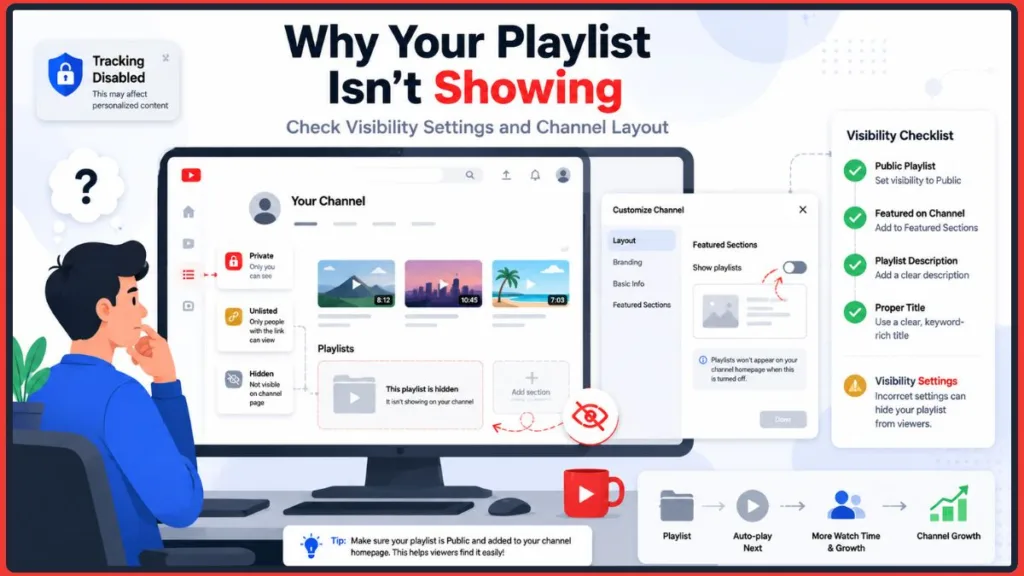
If you’ve created a playlist but can’t see it on your channel page, here’s what to check.
How to Add a Playlist to Your YouTube Channel Homepage
Creating a playlist doesn’t automatically place it on your channel homepage. To add a playlist to your YouTube channel so visitors can find it, you need to feature it manually using the Customize Channel option:
- Go to your YouTube channel page
- Click Customize channel
- Under Featured sections, click Add section
- Select Single playlist or Multiple playlists
- Choose the playlist you want to feature
- Save your changes
Once saved, the playlist will appear as a dedicated section on your channel homepage — making it visible to every visitor who lands on your channel. Homepage changes may take a short time to appear — if you don’t see the update immediately, refresh the page and check again.
Check Your Playlist Visibility Setting
The most common reason a playlist doesn’t appear publicly is a privacy setting mistake. Go to YouTube Studio, open the playlist, and confirm the visibility is set to Public — not Private or Unlisted.
Review and Clean Up Your Playlists Monthly
Set a reminder to review your playlists once a month. Look for:
- Vague playlist names that don’t clearly describe the content — rename them
- Overlapping playlists covering the same topic — merge them into one stronger collection
- Thin playlists with only one or two videos that don’t serve a clear purpose — either build them out or remove them
- Outdated playlists that no longer reflect your channel’s direction — set them to Private rather than deleting them entirely
Common YouTube Playlist Mistakes That Hurt Your Channel Growth
Even creators who understand the mechanics often make avoidable mistakes that quietly hurt their channel’s performance. Here are the most common ones — and how to fix them.
Mixing unrelated topics in one playlist: Grouping videos together just because they’re on the same channel isn’t enough. When a playlist jumps between unrelated subjects, viewers lose interest quickly and YouTube has a harder time understanding what the playlist is about. Fix it by keeping each playlist focused on one clear theme or audience need.
Leaving playlists without descriptions: A playlist without a description misses an easy opportunity to improve discoverability. YouTube uses playlist titles and descriptions to understand content context — and so do viewers deciding whether to click. Even two or three sentences explaining what the playlist covers and who it’s for makes a real difference.
Keeping important playlists set to Private: This is one of the most common mistakes on growing channels. A playlist set to Private won’t appear in search results, won’t show on your channel page, and can’t be shared with anyone. If a playlist is finished and ready for viewers, set it to Public.
Forgetting to feature playlists on the channel homepage: Creating playlists is only half the work. If they’re not featured on your channel homepage, most new visitors will never find them. Add your most important playlists as featured sections so they’re visible the moment someone lands on your channel.
Creating playlists with dozens of unrelated videos: A playlist with 40 loosely connected videos doesn’t guide viewers — it overwhelms them. Aim for focused collections of 8 to 12 videos. If a topic has grown large, split it into separate playlists by subtopic or difficulty level rather than letting one playlist become a catch-all.
Random video ordering instead of logical sequencing: Dropping videos into a playlist in upload order or without thinking about flow is a missed opportunity. Viewers who feel guided through a logical sequence are far more likely to keep watching. Take a few minutes to arrange videos so each one naturally leads into the next.
Never updating playlists as new videos are published: A playlist that never changes signals to both viewers and YouTube that the channel isn’t active. When you publish new videos, check whether they belong in an existing playlist and add them. A regularly updated playlist also gives returning viewers a reason to come back and see what’s new.
Final Thoughts: Why YouTube Playlists Should Be Part of Every Creator’s Workflow
YouTube playlists are one of the most underused tools on the platform. Most creators learn the mechanics — click Save, name the playlist, hit Create — and stop there. The channels that grow faster are the ones that go one step further and treat playlists as part of their channel architecture.
Here’s a quick recap of every method covered in this guide:
- From a video: Click Save → + New Playlist → name it → set privacy → Create
- From the home page: Three-dot icon under a video → Save to playlist → + New Playlist
- From a Short: Three-dot icon → Save to playlist → + New Playlist
- From the You page: Tap You → + icon next to Playlists → + New Playlist
- From YouTube Studio: Playlists → New Playlist → add videos → reorder → publish
Beyond the mechanics, the playlists that actually move the needle are the ones built with intention — strong titles, logical video order, a clear audience in mind, and a regular habit of updating them as your channel grows.
Every video you publish deserves a home in a playlist. When videos are organized into clear, focused collections, viewers find related content more easily, watch time increases, and YouTube gains a clearer picture of what your channel is about. That combination — better viewer experience and stronger algorithmic context — is what makes playlists one of the highest-return habits a creator can build. Make playlist assignment part of your publishing workflow from the very next video you upload, and you’ll start seeing the difference sooner than you’d expect.
Frequently Asked Questions About YouTube Playlists
Q1: Do I need a YouTube account to create a playlist?
Yes. You need to be signed into a YouTube account to create, save, or manage playlists. If you’re not signed in, you can still watch public playlists created by others, but you won’t be able to build your own.
Q2: How many videos can I add to a YouTube playlist?
YouTube doesn’t set a hard limit on the number of videos in a playlist, but keeping playlists focused and manageable works better for viewers. A good starting target is 8 to 12 videos. If a topic grows larger than that, consider splitting it into separate playlists by difficulty level or subtopic.
Q3: Can I add videos from other channels to my playlist?
Yes. You can add any public YouTube video to your playlist — whether it’s from your own channel or another creator’s channel entirely. This is a great way to curate comprehensive topic playlists that offer real value to your viewers.
Q4: What is the difference between a Public, Private, and Unlisted YouTube playlist?
A Public playlist is visible to everyone and can appear in search results and on your channel page. An Unlisted playlist can only be watched by people who have the direct link — it won’t show up in search or on your channel page. A Private playlist is visible only to you. For channel growth, Public is almost always the right choice for finished playlists.
Q5: Can I create a YouTube playlist on my phone?
Yes. Open the YouTube app, find a video, tap Save, and select Create new playlist. The full creation process works on mobile, though for deeper organization and reordering, YouTube Studio on desktop gives you more control.
Q6: How do I add my playlist to my YouTube channel homepage?
Go to your channel page, click Customize channel, then Add section under Featured sections. Select Single playlist or Multiple playlists, choose the ones you want to feature, and save. Your playlists will now appear on your channel homepage for visitors to find.
Q7: Will deleting a playlist delete my videos?
No. Deleting a playlist only removes the playlist itself — all the videos inside it remain on your channel completely untouched. That said, deletion is permanent, so consider setting the playlist to Private instead if you think you might want it back later.
Q8: How do I make a collaborative YouTube playlist?
When creating or editing a playlist, toggle the Collaborate option in the playlist settings. This generates a special link you can share with other creators, allowing them to add videos to your playlist. It’s a great tool for community playlists and cross-channel collaborations.
Q9: Can I add one video to multiple YouTube playlists?
Yes. A single video can be added to as many playlists as you like. This is useful when a video fits more than one theme — for example, a beginner tutorial that belongs in both a “Getting Started” playlist and a broader topic collection. Adding the same video to multiple playlists doesn’t affect how it appears on your channel or how it plays for viewers.
Q10: Do YouTube playlists improve SEO?
Yes, in a few meaningful ways. Public playlists can appear in YouTube search results on their own, separate from individual videos. A playlist with a well-written title and description gives YouTube additional context about your content, which can help your videos surface for relevant searches. Playlists also increase watch time by keeping viewers in a continuous session — and watch time is one of the factors YouTube considers when deciding how widely to recommend content.
Q11: Can Shorts and long-form videos be included in the same playlist?
Yes. YouTube allows both Shorts and regular videos to coexist in the same playlist. That said, mixing formats works better in some contexts than others. A Short that introduces a topic or summarizes a key point can fit naturally alongside longer videos on the same theme. However, if a playlist is designed as a structured learning path or a sequential series, Shorts can sometimes interrupt the flow. Think about whether each Short genuinely supports the playlist’s purpose before adding it.
Q12: Why isn’t my YouTube playlist appearing in search results?
There are a few common reasons. First, check that the playlist is set to Public — Private and Unlisted playlists won’t appear in search. Second, make sure the playlist has a descriptive title and a written description that includes relevant keywords. Playlists without descriptions give YouTube very little to work with. Third, newer playlists may take some time to be indexed — if everything looks correct, give it a few days before drawing conclusions. If the playlist still isn’t appearing, consider whether the title closely matches what your target viewers are actually searching for.
Q13: How do I create a YouTube playlist?
The quickest way is to open any video on YouTube, click or tap Save, then select + New Playlist. Give it a name, choose a privacy setting — Public, Unlisted, or Private — and click Create. The video is added automatically and your playlist is ready to build on. If you prefer to manage everything from one place, YouTube Studio lets you create and organize playlists from the Playlists section in the left-hand menu.
Q14: How do I add videos to a YouTube playlist?
To add a single video, tap or click Save under the video and select the playlist you want to add it to. To add multiple videos at once, go to YouTube Studio, open the playlist, click the three-dot menu, and select Add videos. You can also add videos later from the Library tab on mobile by selecting a playlist and tapping Add videos. There’s no limit to how many times you can add to a playlist, so it’s easy to keep building over time.
Q15: How do I manage my YouTube playlists?
The best place to manage all your playlists is YouTube Studio. From the Playlists section, you can rename playlists, update descriptions, change privacy settings, reorder videos, add new videos, and delete playlists you no longer need. On mobile, you can handle basic management directly from the YouTube app — though for anything involving reordering or bulk changes, desktop gives you more control. A good habit is to review your playlists once a month to keep them current, accurate, and well-organized.
Q16: How do I make a playlist from a YouTube Short?
Open the Short you want to add, then tap the three-dot icon (⋮) in the upper-right corner. Select Save to playlist, then tap + New Playlist. Name it, choose your privacy setting, and tap Create. If you’re on desktop and the three-dot icon doesn’t appear, try refreshing the page — Shorts occasionally don’t load their full options on the first attempt.
Visit Our Post Page: Blog Page
Discover more from Izoate
Subscribe to get the latest posts sent to your email.