
Want to keep your iPhone activity private in 2026? Learn how to stop apps from tracking you on iPhone using simple steps. From blocking tracking requests to managing location access and Safari privacy settings. Stay in control of your personal data today.
Introduction: Stop Apps from Tracking You on iPhone
You open a shopping app, browse a pair of sneakers for two minutes, close it — and then suddenly, ads for those exact sneakers are following you around in completely unrelated apps. Sound familiar?
That’s not a coincidence. That’s app tracking doing exactly what it’s designed to do.
Most iPhone apps don’t just collect data about what you do inside their own app. Many of them track your activity across other apps and websites, building a detailed profile of your habits, interests, and behavior — all to serve you more targeted ads or share your data with third parties you’ve never heard of.
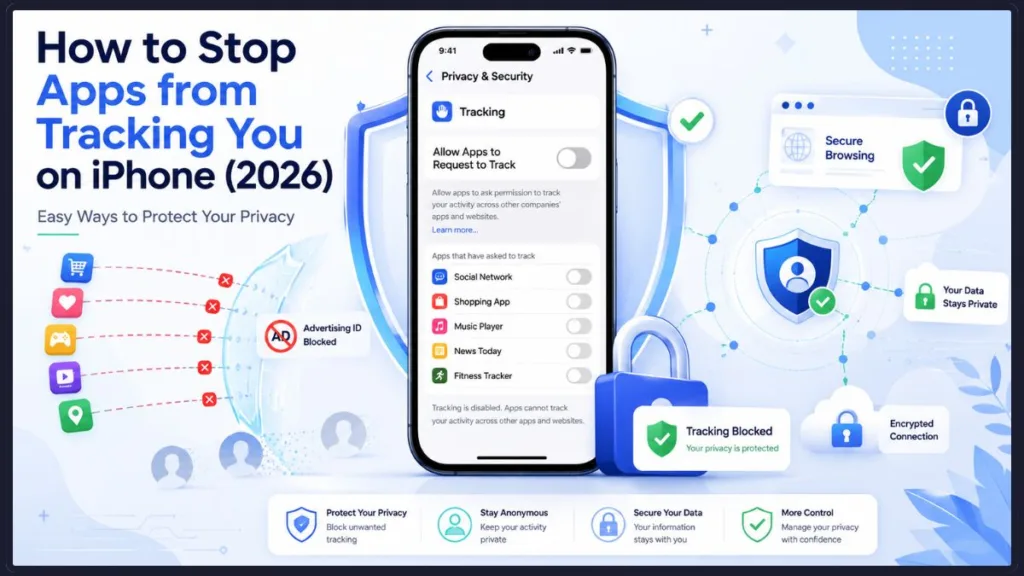
The good news? Your iPhone gives you real, practical control over all of this. Apple has built some genuinely powerful privacy tools directly into iOS, and once you know where to find them, you can stop apps from tracking you in just a few taps.
This guide walks you through every setting you need — from blocking all tracking requests at once to managing location access, analytics, Safari privacy, and more. Whether you want to stop app tracking completely or just tighten things up a bit, you’ll find exactly what you need here.
No complicated steps. No tech jargon. Just clear, simple instructions that anyone can follow.
Quick Answer: Stopping Apps from Tracking You on iPhone
- Open the Settings app on your iPhone.
- Go to Settings > Privacy & Security > Tracking.
- Toggle off Allow Apps to Request to Track to block all future tracking requests automatically.
- Scroll down and review any apps already listed — turn off tracking for any you no longer trust.
Why Do iPhone Apps Track You?
Before jumping into the settings, it’s worth understanding what app tracking actually means and why so many apps do it in the first place.
What App Tracking Actually Means on iPhone
When an app tracks you, it isn’t just watching what you do inside its own app. Cross-app tracking means an app is monitoring your activity across other apps and websites that it doesn’t own or operate. It’s like a store following you home, watching which other shops you visit, and sharing notes with their marketing team.
This is made possible through something called the Identifier for Advertisers (IDFA) — a unique code assigned to your iPhone that advertisers and apps use to link your behavior across different platforms. Think of the IDFA as a name tag your phone quietly wears everywhere it goes online.
Cross-website tracking works similarly. Scripts and tracking pixels embedded in websites can follow your browsing behavior from one site to another, feeding data back to ad networks and analytics platforms.
Why Apps Want This Data
Apps and companies track your activity for a few key reasons:
- Better ad targeting. The more an advertiser knows about your interests, habits, and behavior, the more precisely they can target ads at you — and the more they can charge for that ad space.
- Analytics and user behavior. Many apps track which screens you spend time on, which buttons you tap, and how often you return. This helps developers improve their products, but it also means your behavior is being recorded and analyzed.
- Data sharing with third parties and data brokers. Some apps sell or share the data they collect with third-party companies, including data brokers — businesses that specialize in compiling and selling personal information. This is where tracking can cross from mildly intrusive into genuinely concerning.
Not every app that tracks you has bad intentions, but the data they collect is still your data. And you have every right to decide who gets access to it.
What Is App Tracking Transparency on iPhone?
Apple recognized the problem with unchecked app tracking and introduced a feature called App Tracking Transparency (ATT) to put users back in control. It’s one of the most significant iPhone privacy improvements Apple has made in recent years.
How Apple’s App Tracking Transparency (ATT) Feature Works
Before ATT existed, apps could quietly track your activity across other apps and websites without ever asking for your permission. It happened in the background, and most users had no idea.
ATT changed that entirely. Under Apple’s official privacy framework, any app that wants to track your activity outside of its own environment must ask for your permission first — no exceptions. You’ll see a pop-up that looks something like this:
“Allow [App Name] to track your activity across other companies’ apps and websites?”
You get two options: Allow or Ask App Not to Track. It’s a simple choice, but it carries real weight.
Note: According to Apple, all apps on the App Store are required to request your permission before tracking you or your iPhone across websites or apps owned by other companies — whether for advertising purposes or to share your information with data brokers. This requirement is enforced at the platform level through ATT.
What Happens When You Choose “Ask App Not to Track”
When you tap Ask App Not to Track, Apple steps in and enforces that decision at the system level. Here’s what actually happens behind the scenes:
- Apple blocks the app’s access to your IDFA — the advertising identifier that apps use to track and link your behavior across platforms. Without it, building a detailed cross-app profile of you becomes much harder.
- The app loses permission to track your activity across other apps and websites. It can still function normally inside its own app, but its ability to follow you around the broader digital ecosystem is cut off.
It’s worth noting that ATT specifically addresses cross-app and cross-website tracking. It doesn’t cover every form of data collection — which is why the rest of this guide covers the other privacy settings worth adjusting too.
Tip: The good news is that you can change your tracking permissions at any time. If you ever want to review or update which apps have permission to track you, just head to Settings > Privacy & Security > Tracking and adjust the settings from there.
How to Stop Apps from Tracking You on iPhone
If you want the fastest, most complete way to stop app tracking on your iPhone, this is the setting you’re looking for. Apple gives you a master switch that blocks all tracking requests before apps even get the chance to ask.
Note: The steps below apply to iPhones running iOS 14.5 and later, including iOS 17, iOS 18, and iOS 26. Menu names may vary slightly depending on your iOS version, but the privacy controls and navigation paths remain largely the same across all recent versions.
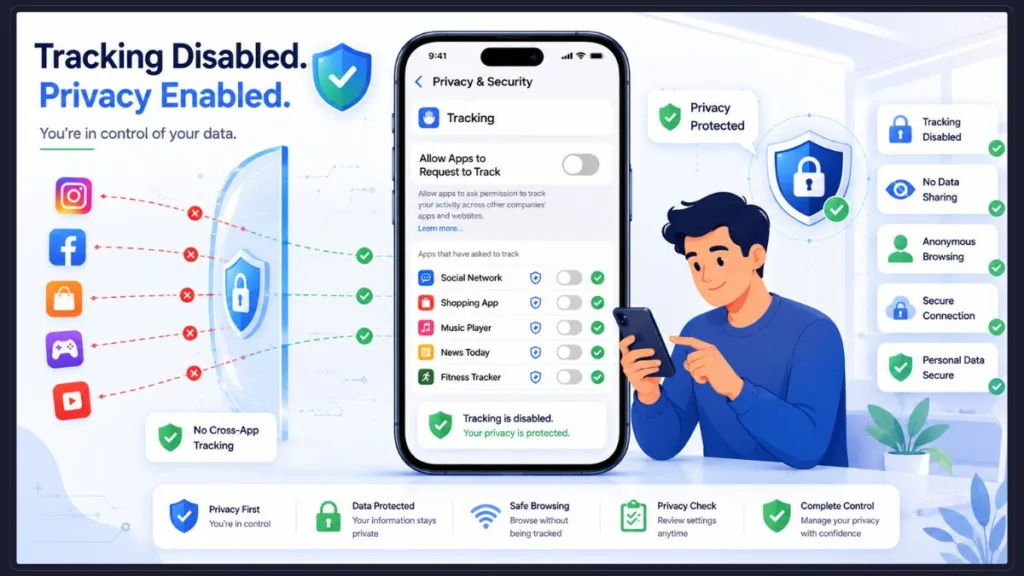
Turn Off “Allow Apps to Request to Track” in iPhone Settings
Here’s how to do it:
- Open the Settings app on your iPhone.
- Scroll down and tap Privacy & Security.
- Tap Tracking.
- Toggle off Allow Apps to Request to Track.
Once that switch is off, apps can no longer pop up and ask for your permission to track you. Your iPhone automatically denies the request before it ever reaches you. No more pop-ups. No more having to decide in the moment.
Note: This setting works for all apps going forward — and it also sends an automatic “no” to any future tracking requests without you having to do anything.
This is one of the most impactful iPhone privacy settings, and it takes about ten seconds to change. If you do nothing else in this guide, do this.
Review Apps That Already Have Tracking Permission
If you’ve been using your iPhone for a while, there’s a good chance you’ve already tapped Allow on a few tracking requests — maybe without fully thinking about it. Don’t worry, you can take that permission back at any time.
On the same Tracking screen in Privacy & Security, you’ll see a list of apps that have previously requested permission to track you. Some of those apps may still have tracking enabled. Here’s what to do:
- Go to Settings > Privacy & Security > Tracking.
- Look at the list of apps shown below the master toggle.
- For any app that has tracking turned on, simply flip the switch off.
It takes seconds, and you can revisit this list whenever you want. If you ever change your mind about a specific app, you can always turn it back on.
Tip: Apps like Facebook, Instagram, and other social media platforms are among the most likely to have tracking enabled. These are good ones to check first.
How to Know if App Tracking Is Already Disabled on iPhone
Not sure whether app tracking is already off on your iPhone? Here’s how to quickly confirm your current status without guessing.
Head to Settings > Privacy & Security > Tracking and look for the following signs:
- Allow Apps to Request to Track is turned off. If the master toggle at the top of the screen is switched off, your iPhone is already blocking all new tracking requests automatically.
- No apps appear with tracking enabled. If you scroll through the app list below the toggle and none of them show tracking as active, your existing app permissions are already clean.
- Newly installed apps no longer display tracking permission pop-ups. If you’ve recently installed apps and haven’t seen any “Allow [App] to track your activity” prompts, the master toggle is doing its job.
- Previously approved apps no longer have tracking enabled. If you once allowed tracking for certain apps but have since turned it off individually or via the master toggle, those apps will show as disabled in the list.
If all of the above are true, your app tracking is already disabled and you’re in good shape. You can still work through the rest of this guide to tighten up your other privacy settings — location access, analytics, Safari tracking, and app permissions — for a more complete level of protection.
How to Disable Tracking for Individual Apps on iPhone
Maybe you don’t want to block tracking for every single app — perhaps there’s one or two where you genuinely don’t mind personalized recommendations. iPhone lets you manage tracking on an app-by-app basis so you stay in control of each one individually.
Manage App-by-App Tracking Permissions in iPhone Privacy & Security
Here’s how to review and adjust tracking for each app:
- Go to Settings > Privacy & Security > Tracking.
- You’ll see the full list of apps that have requested tracking permission.
- Review each app in the list and toggle off tracking for any app you don’t want following your activity.
The apps you see here are only the ones that have specifically asked to track you under Apple’s ATT framework. You can turn any of them off without affecting the app’s core functionality.
When to Keep Tracking Enabled for Specific Apps
Honestly, very few apps genuinely need cross-app tracking permission to work properly. Tracking is almost always tied to advertising and analytics — not the core features you actually use the app for.
You might consider leaving tracking on for an app if:
- It provides genuinely useful personalized recommendations that you value and trust.
- You’ve read its privacy policy and are comfortable with how it uses your data.
For most users, though, leaving tracking off across the board is the safer and simpler choice. The apps still work. You just stop handing over your data to ad networks in the process.
Pro Tip: If an app prompts you to re-enable tracking through an in-app message — claiming it’s needed for a “better experience” — you can safely dismiss it. Turning tracking off doesn’t break any core app features.
Who Should Disable App Tracking on iPhone?
The short answer: most people. But disabling app tracking is especially beneficial if you fall into any of the following categories:
- You value your privacy. If you’d rather keep your digital habits to yourself, turning off tracking is one of the most direct steps you can take.
- You prefer fewer personalized ads. If you find hyper-targeted advertising intrusive or uncomfortable, disabling tracking significantly reduces how precisely ads can be aimed at you.
- You want to reduce data sharing with advertisers. Turning off tracking limits what ad networks and data brokers can collect and build from your iPhone activity.
- You frequently use social media apps. Platforms like Facebook and Instagram are among the most aggressive when it comes to cross-app tracking. If these apps are a regular part of your day, disabling tracking is especially worthwhile.
- You want greater control over how your personal information is used. Even if you’re not concerned about specific threats, having clear boundaries over who can access your data is a healthy digital habit.
If none of these sound like you, that’s okay too — but it’s still worth knowing the option exists. Taking a few minutes to review your tracking settings costs nothing, and the privacy benefit is immediate.
What Happens When You Turn Off App Tracking on iPhone?
If you’re wondering what actually changes after you disable app tracking, here’s the honest, clear picture.
Benefits of Disabling App Tracking on iPhone
- More privacy. Your activity across apps and websites is no longer being collected, linked, and shared by apps you use every day.
- Less data sharing. Apps can’t pass your advertising identifier or behavioral data to third parties, ad networks, or data brokers.
- Fewer personalized ads. You’ll still see ads, but they won’t be eerily tailored to things you searched for five minutes ago in a completely different app.
- Less creepy cross-app profiling. Without access to your IDFA, it becomes significantly harder for advertisers to build a detailed picture of who you are and what you do online.
Possible Downsides of Turning Off App Tracking
To be straightforward with you, the trade-offs are pretty minor:
- Ads may feel less relevant. Instead of targeted ads based on your behavior, you’ll see more generic advertising. Most people find this a perfectly acceptable trade-off.
- Some apps may ask again in different ways. A few apps — particularly social media platforms — may prompt you to re-enable tracking through in-app messages or settings. You can safely ignore these.
- Slightly less personalized experiences. Some recommendation features in certain apps may feel slightly less tailored. In practice, most users barely notice this.
Note: Turning off app tracking does not stop all ads. You will still see advertising inside apps and on websites — it just won’t be as precisely targeted to your recent behavior. Think of it as moving from hyper-personalized ads to more generic ones.
The bottom line: you lose very little, and you gain a much cleaner, more private experience. For most people, it’s an easy decision.
Why the Tracking Toggle Might Be Greyed Out on iPhone
If you head to Settings > Privacy & Security > Tracking and find that the Allow Apps to Request to Track toggle is greyed out or missing entirely, you’re not doing anything wrong. There are a few specific situations where iOS restricts access to this setting.
Common Reasons the App Tracking Setting Is Unavailable
- Child account. If the Apple Account is set up as a child’s account under Family Sharing, tracking is automatically blocked and the setting is controlled by the family organizer.
- Recently created Apple Account. If the Apple ID was created very recently, iOS may temporarily block tracking requests automatically while the account is new.
- Device managed by school or work. If your iPhone is enrolled in a Mobile Device Management (MDM) profile through an employer or educational institution, certain privacy settings may be locked by an administrator.
- Configuration profile or Screen Time restrictions. A configuration profile or Screen Time content restriction set up on the device may be overriding access to the tracking controls.
What to Do If the Tracking Option Is Missing
- Update iOS. If you’re running an older version of iOS, the Tracking menu may not be available or may be labeled differently. Updating to the latest version of iOS should resolve this.
- Check Screen Time restrictions. Go to Settings > Screen Time > Content & Privacy Restrictions and check whether privacy settings are being restricted. If so, you’ll need the Screen Time passcode to make changes.
- Ask an administrator if the phone is managed. If your iPhone is a work or school device, contact your IT administrator. They control which privacy settings are accessible on managed devices.
Note: App Tracking Transparency was introduced in iOS 14.5. If your iPhone is running an older version, you won’t see the Tracking menu at all. Updating to a supported iOS version is the first step.
Stop Other iPhone Privacy Tracking Too
Blocking cross-app tracking is a great start, but it’s only one part of the picture. Your iPhone shares data in several other ways that are worth reviewing. Here’s how to tighten up the rest of your iPhone’s privacy settings.
Check Location Services on iPhone
Location data is one of the most sensitive types of information your iPhone collects. Some apps — like Maps or weather apps — genuinely need your location to work. But many others request location access unnecessarily, and some track it constantly in the background.
Here’s how to review and clean up location permissions:
- Go to Settings > Privacy & Security > Location Services.
- You’ll see a complete list of every app that has requested location access.
- Tap each app and set the appropriate permission level:
- Never — the app gets no location access at all.
- Ask Next Time or When I Share — the app will prompt you before using your location.
- While Using the App — location is only accessible when the app is open and in use.
- Always — the app can access your location at any time, even in the background. Use this sparingly.
Pro Tip: For most apps, While Using the App is the right choice. Reserve Always only for apps where background location access is genuinely necessary — such as navigation apps you use while driving or a find-my-device app that needs to run in the background.
Warning: Granting Always location access to apps that don’t truly need it means those apps can track where you are around the clock, even when you’re not using them. Review this setting carefully for every app that has it enabled.
Turn off Precise Location where unnecessary. When you tap into an individual app’s location settings, you’ll also see a Precise Location toggle. Turning this off gives the app a general idea of your area rather than your exact GPS coordinates. For apps like weather or local news, this is more than enough.
Go through this list every few months. You’ll often find apps with location access that they have no real reason to have.
Turn Off Apple Personalized Ads on iPhone
Apple also runs its own advertising system, serving personalized ads in places like the App Store, Apple News, and Apple Stocks. These ads are based on your activity within Apple’s ecosystem — your App Store searches, downloads, and purchases.
To turn off Apple’s personalized advertising:
- Go to Settings > Privacy & Security > Apple Advertising.
- Toggle off Personalized Ads.
You’ll still see ads in those Apple apps, but they’ll no longer be tailored based on your personal activity. It’s a quick change that takes five seconds.
Review Analytics & Improvements Settings on iPhone
Apple collects analytics data from your iPhone to help improve its products and services. This includes information about how you use your device, app crashes, Siri interactions, and more. While Apple states that this data is anonymized, you can opt out entirely if you’d prefer not to share it.
Here’s how:
- Go to Settings > Privacy & Security > Analytics & Improvements.
- Turn off the following options:
- Share iPhone Analytics — stops your device from sending usage and diagnostic data to Apple.
- Share with App Developers — prevents Apple from sharing your analytics data with the developers of apps you use.
- Improve Siri & Dictation — stops Apple from using your Siri interactions and dictation audio to improve its voice recognition.
Turning these off doesn’t change how your iPhone works. You’ll have the exact same experience — just without the background data sharing.
Review Permissions for Contacts, Photos, Camera, Microphone, Bluetooth, and Local Network
App tracking and location aren’t the only ways apps gather data about you. Many apps request access to your Contacts, Photos, Camera, Microphone, Bluetooth, and Local Network — often for reasons that aren’t immediately obvious.
Here’s how to audit these permissions:
- Go to Settings > Privacy & Security.
- Tap into each category — Contacts, Photos, Camera, Microphone, Bluetooth, Local Network — one at a time.
- Review which apps have access and turn off access for any app that doesn’t genuinely need it.
Some practical examples to consider:
- A photo editing app needs Camera and Photos access. A simple calculator app does not.
- A smart home app might need Local Network access. A word processor does not.
- A voice recording app needs Microphone access. A flashlight app does not.
Tip: If you’re ever unsure whether an app actually needs a particular permission, deny it first. Most apps will still work for their core purpose, and you can always grant access later if something stops working as expected.
Check Safari Privacy Settings on iPhone
Safari has its own set of privacy controls that work separately from the app tracking settings. These focus specifically on protecting your privacy while you browse the web.
To review Safari‘s privacy settings:
- Go to Settings > Safari.
- Make sure Prevent Cross-Site Tracking is turned on. This blocks third-party trackers from following you from one website to another as you browse.
- If available on your iPhone, enable Hide IP Address. This masks your IP from trackers, making it harder to identify and profile you across websites.
- If you’ve been seeing ads that seem too targeted based on your recent web browsing, tap Clear History and Website Data. This removes stored cookies, browsing history, and cached data that sites use to recognize and track you.
Warning: Clearing your history and website data will log you out of most websites, so you’ll need to sign back in to your accounts. Make sure you have your passwords handy before proceeding.
Extra iPhone Privacy Settings Worth Checking
Once you’ve handled the main privacy controls, there are a few more settings tucked away in your iPhone that are worth reviewing. They don’t get talked about as often, but they’re relevant if you want comprehensive privacy protection.
Significant Locations on iPhone
Your iPhone quietly keeps a log of places you visit frequently — your home, your workplace, your regular coffee shop. This feature, called Significant Locations, is used to improve Maps, suggest relevant apps, and power certain Siri predictions.
If you’d prefer your iPhone not store this kind of history, here’s how to clear and disable it:
- Go to Settings > Privacy & Security > Location Services > System Services > Significant Locations.
- You’ll need to authenticate with Face ID, Touch ID, or your passcode.
- Review the stored location history and tap Clear History to delete it.
- Toggle off Significant Locations to prevent further recording.
System Services Privacy Settings on iPhone
Beyond individual apps, iOS itself has a set of location-based system services running quietly in the background. Some of these share data with Apple to improve its products.
To review and adjust these:
- Go to Settings > Privacy & Security > Location Services > System Services.
- Consider turning off the following if you want to limit data sharing:
- Improve Location Accuracy — shares location data with Apple to refine GPS performance.
- Improve Maps — contributes your location data to Apple’s mapping improvements.
These are optional features, and turning them off won’t affect your ability to use Maps or location-based apps normally.
Motion & Fitness Privacy Settings on iPhone
Your iPhone’s motion sensors collect data for health features, fitness tracking, and handwashing detection. While this data stays on your device in most cases, it’s still worth reviewing which apps have access to it.
Here’s what to check:
- Go to Settings > Privacy & Security > Motion & Fitness.
- If you don’t use any fitness tracking features, you can turn off Fitness Tracking entirely.
- Review the list of apps with motion and fitness access and revoke permissions for any app you don’t recognize or trust.
Health Permissions on iPhone
Health data — things like your step count, heart rate, sleep patterns, and other personal health metrics — is some of the most sensitive information on your iPhone. It deserves careful attention.
To review which apps can access your health data:
- Go to Settings > Privacy & Security > Health.
- Tap through each app listed and review exactly what health data it can read or write.
- Revoke access for any app that doesn’t need it or that you no longer use.
Warning: Health data is among the most personal information stored on your iPhone. Be especially selective about which apps you grant read or write access to — and if you no longer use an app that has health permissions, remove its access immediately.
App Privacy Report on iPhone
This is one of the most useful privacy tools Apple has built into iOS, and it often gets overlooked. The App Privacy Report gives you a behind-the-scenes look at what your apps are actually doing — which data types they access, how often, and which websites and domains they connect to.
To enable it:
- Go to Settings > Privacy & Security > App Privacy Report.
- Tap Turn On App Privacy Report.
- Give it a few days to collect data, then come back and review it.
You might be surprised at how often certain apps are reaching out to ad networks, analytics platforms, or third-party domains — even when you’re not actively using them. The App Privacy Report makes this visible in a clear, readable format.
Pro Tip: If you notice a particular app making an unusually high number of connections to third-party trackers or ad networks through the App Privacy Report, it’s worth reconsidering whether you need that app installed at all.
Best Practices to Stay Private on iPhone
Good iPhone privacy isn’t just about flipping a few switches once. It’s a habit — a few small, mindful choices that add up over time. Here’s how to stay on top of it without it becoming a chore.
Don’t Allow Permissions Blindly on iPhone
When an app asks for permission — whether it’s tracking, location, contacts, or photos — take a moment before you tap Allow. Ask yourself: Does this app actually need this to do what I’m using it for?
The answer is often no. Defaulting to Ask App Not to Track, While Using the App for location, and Limited Access for photos puts you in a much stronger privacy position without really limiting what you can do.
Tip: Think of every permission request as a question: “Does this app genuinely need this to function?” If the answer isn’t obviously yes, deny it. You can always grant access later if something doesn’t work as expected.
Check App Store Privacy Labels Before Downloading Apps
Before you install a new app, scroll down to the App Privacy section in the App Store listing. Apple requires developers to disclose what data their app collects — things like location, contact info, browsing history, identifiers, and usage data.
If you see a very long list of data types for a simple app, that’s a signal worth paying attention to. A basic flashlight app, for example, has no reason to collect your location or contact information. Checking privacy labels before downloading takes thirty seconds and can save you from installing an app that treats your data as a product.
Pro Tip: In the App Store, look for the “Data Not Collected” label — that’s the cleanest privacy score an app can get. Apps labeled “Data Linked to You” collect and associate data with your identity, which is worth reviewing carefully before downloading.
Review Privacy Settings Regularly on iPhone
Your iPhone privacy settings aren’t a set-it-and-forget-it situation. Apps update, new ones get installed, and iOS itself changes with major software updates.
A practical approach:
- Check your privacy settings every couple of months. Go through Location Services, Tracking, and app permissions and make sure everything still looks right.
- Revisit privacy settings after major iOS updates. Apple sometimes changes menu names, reorganizes settings, or introduces new privacy controls. A quick check after an update ensures you’re not missing anything.
Note: After major iOS updates, it’s always worth revisiting Settings > Privacy & Security to check for any new privacy options Apple may have added or any settings that may have reset. Taking five minutes to review your settings after an update is a simple habit that keeps your privacy protection current.
This doesn’t need to take long. Ten to fifteen minutes every few months is enough to stay in control.
Repeat the Privacy Setup on Other Apple Devices
If you use multiple Apple devices — an iPad, a second iPhone, or even a Mac — keep in mind that privacy settings don’t always sync across devices the way you might expect. The changes you make on your iPhone stay on your iPhone.
Take a few minutes to go through the same settings on your other devices. The steps are largely the same across iOS and iPadOS, so once you’ve done it once, the rest goes quickly.
Troubleshooting Common iPhone App Tracking Problems
Even after you’ve adjusted your settings, you might run into a few situations where things don’t seem to be working as expected. Here’s how to handle the most common ones.
The Tracking Menu Is Missing on iPhone
If you can’t find the Tracking option under Privacy & Security, there are two likely explanations:
- Your iOS version is outdated. App Tracking Transparency was introduced in iOS 14.5. If you’re running something older, update your iPhone to the latest available version of iOS and the menu should appear.
- Device restrictions are in place. If Screen Time is active on your device, go to Settings > Screen Time > Content & Privacy Restrictions and check whether privacy settings are being restricted. If the iPhone is managed by a school or workplace, contact the administrator.
Apps Still Seem to Track You
If you’ve turned off tracking but certain apps still seem to know your habits unusually well, here’s what to check:
- Review the app’s own in-app privacy settings. Many apps — particularly social media platforms — have their own separate privacy and ad settings inside the app itself. These operate independently of Apple’s ATT controls. Look for a privacy, ads, or data settings section within the app.
- Log out of the app and back in. Some apps collect data tied to your account rather than your device. Logging out and reviewing the account’s privacy settings directly can help.
- Check whether you’re logged in with a shared account. If you share an account with someone else, their activity may be influencing what you see.
Personalized Ads Still Appear on iPhone
If you’re still seeing ads that feel targeted after adjusting your settings, run through this quick checklist:
- Recheck Apple Advertising settings. Go to Settings > Privacy & Security > Apple Advertising and confirm that Personalized Ads is toggled off.
- Review Safari settings. Go to Settings > Safari and make sure Prevent Cross-Site Tracking is enabled. If web-based ads still feel targeted, try clearing your history and website data.
- Remember that turning off tracking reduces personalization but doesn’t eliminate ads entirely. If ads still feel specific, it may be based on broader contextual targeting rather than your personal activity.
Settings Do Not Seem to Apply
If you’ve made changes but your iPhone doesn’t seem to be respecting them:
- Restart your iPhone. Some settings changes take effect cleanly only after a reboot. Hold the side button and a volume button, slide to power off, then turn the phone back on.
- Reopen the app. Some apps cache their settings and don’t pick up permission changes until they’re fully closed and relaunched. Swipe the app away from the app switcher and open it fresh.
Apps and Tools That Can Block Trackers on iPhone
If you’ve gone through all the built-in settings and you want to take things a step further, there are a handful of apps and tools that add an extra layer of protection. None of these are strictly necessary, but they’re worth knowing about if privacy is a priority for you.
Lockdown Privacy for iPhone Tracker Blocking
Lockdown Privacy works like a firewall for your iPhone. It blocks known trackers at the system level — not just in Safari, but across all apps. Once it’s set up, it runs quietly in the background and intercepts outgoing connections to known ad networks and tracking services.
It’s one of the most effective third-party privacy tools available for iPhone, and it’s free to use for the core blocking features.
1Blocker or AdGuard for Safari Tracker Blocking
Both 1Blocker and AdGuard are excellent options if most of your privacy concerns are centered around web browsing. They integrate directly with Safari as content blockers, stopping ads and tracking scripts from loading before they even reach your browser.
Beyond privacy, they also make pages load faster by preventing the scripts and assets that slow down web browsing. If you spend a lot of time browsing in Safari, these tools are genuinely useful.
DuckDuckGo Privacy Browser for iPhone
DuckDuckGo offers a privacy-focused browser app for iPhone that blocks trackers by default, doesn’t store your search history, and gives you a one-tap “Fire Button” to instantly clear all your tabs and browsing data.
If you’d like an alternative to Safari that has aggressive tracker blocking built in from the ground up, DuckDuckGo is a solid, user-friendly option.
iCloud Private Relay for Safari Privacy
If you subscribe to iCloud+, you have access to a feature called Private Relay that adds an extra privacy layer to your Safari browsing. It works by routing your Safari traffic through two separate servers — one operated by Apple and one by a third party — so that no single entity can see both who you are and what you’re browsing.
Think of it as a lightweight, built-in privacy layer for Safari — not a full VPN, but a meaningful step up from browsing without any protection.
To enable it:
- Go to Settings > [Your Name] > iCloud > Private Relay.
- Toggle it on if it’s available in your region.
Note: Private Relay only applies to Safari browsing and select system services. It does not cover all app traffic the way a full VPN would. If you need broader network-level privacy protection, a dedicated VPN app would be a more complete solution.
FAQs: How to Stop Apps from Tracking You on iPhone
Can iPhone apps still track me if I choose “Ask App Not to Track”?
Not through Apple’s official tracking framework. When you choose Ask App Not to Track, Apple blocks the app’s access to your IDFA — the advertising identifier that apps rely on for cross-app tracking. Without it, the app can’t link your behavior across different apps and websites using Apple’s system. That said, some apps may still collect data through other means, such as your account login or behavioral data within their own app. This is why it’s worth reviewing in-app privacy settings and limiting other permissions like location and contacts as well.
Does turning off app tracking stop all ads?
No. Turning off app tracking reduces how targeted and personalized those ads are, but you’ll still see advertising in apps and on websites. The difference is that the ads won’t be based on your activity across other apps and websites — they’ll be more generic instead. Most people find this a very acceptable trade-off.
Is app tracking the same as location tracking?
No, these are two different things. App tracking (controlled through the ATT framework) refers to apps monitoring your activity across other apps and websites — primarily for advertising purposes. Location tracking refers to apps accessing your physical GPS location. You control location access separately through Settings > Privacy & Security > Location Services. Both are worth reviewing, but they’re managed independently.
Can I turn app tracking back on later?
Yes, absolutely. Go to Settings > Privacy & Security > Tracking and toggle Allow Apps to Request to Track back on. You can also re-enable tracking for individual apps from the same screen. Your preferences are never permanent, and you can adjust them whenever you like.
Why do apps still ask for other permissions after I disable tracking?
Because tracking is only one type of permission among many. Turning off Allow Apps to Request to Track prevents apps from requesting permission to track your activity across other apps and websites. Apps can still separately request access to your Camera, Microphone, Location, Contacts, and Photos — these are different types of permissions managed individually under Privacy & Security. Each one needs to be reviewed on its own.
Does Apple still collect any data?
Yes, to some extent. Apple collects analytics and diagnostic data to improve its products, and it personalizes ads within its own apps and services. However, you can limit most of this by turning off Share iPhone Analytics, disabling Improve Siri & Dictation, and switching off Personalized Ads in Apple Advertising — all within Settings > Privacy & Security. Apple’s data collection is generally less aggressive than third-party app tracking, but the controls are there if you want to use them.
Can apps still collect data without tracking permission?
Yes. Turning off tracking through ATT specifically blocks cross-app and cross-website tracking using your IDFA. However, apps can still collect data about how you use them within their own environment — things like which features you tap, how long you spend on certain screens, and in-app behavior. Apps may also collect data tied to your account. ATT is an important layer of protection, but it works best when combined with reviewing your other permissions — Location, Contacts, Camera, and Microphone — as well.
Why is “Allow Apps to Request to Track” turned off automatically?
There are a few reasons this can happen automatically. If the iPhone belongs to a child’s account under Family Sharing, iOS disables tracking by default as a protective measure. If the Apple ID was created very recently, iOS may temporarily block tracking requests while the account is still new. Devices managed by schools or workplaces through MDM profiles may also have tracking disabled by an administrator. In these cases, the toggle will appear greyed out and can’t be changed without the appropriate access.
Does stopping app tracking improve battery life?
It can make a small difference. Many tracking-related processes — such as apps pinging ad servers, running background analytics, or syncing behavioral data — consume a minor amount of processing power and network activity. Blocking trackers with tools like Lockdown Privacy can reduce these background connections, which may contribute to modest battery savings over time. That said, don’t expect a dramatic improvement. The bigger benefit of stopping tracking is privacy, not battery performance.
Does a VPN stop app tracking on iPhone?
A VPN helps protect your privacy by masking your IP address and encrypting your internet traffic, but it doesn’t stop app tracking on its own. Apps can still use your IDFA and other identifiers to track your activity across apps and websites, regardless of whether a VPN is active. For app tracking specifically, the most effective tool is Apple’s ATT framework combined with the privacy settings covered in this guide. A VPN is a useful addition for network-level privacy — especially on public Wi-Fi — but it’s not a substitute for adjusting your iPhone’s built-in tracking controls.
Can Facebook still track me after I disable tracking?
Facebook’s ability to track you across other apps and websites using Apple’s IDFA is blocked when you deny tracking permission through ATT. However, Facebook can still collect data about your activity within its own app — what you like, share, search for, and engage with. It may also use other signals, such as your email address or phone number, to connect your activity across its own platforms (Facebook, Instagram, Messenger). For the most complete protection, deny tracking permission through ATT, review Facebook’s own in-app privacy settings, and consider limiting the personal information stored in your account.
Conclusion: How to Stop Apps from Tracking You on iPhone
Stopping apps from tracking you on your iPhone is genuinely one of the most impactful privacy upgrades you can make — and it takes only a few minutes.
The most important step is turning off Allow Apps to Request to Track in Settings > Privacy & Security > Tracking. That single toggle blocks all future tracking requests before they even reach you. From there, reviewing your Location permissions, Analytics & Improvements settings, Apple Advertising, Safari privacy controls, and individual app permissions gives you comprehensive protection across every area where your data might otherwise be quietly collected and shared.
You don’t need to be a privacy expert to take control here. The tools are already on your iPhone — you just need to know where to find them.
A few key things to take away:
- Turn off the master tracking toggle to block all cross-app tracking requests at once.
- Review individual app permissions for Location, Contacts, Photos, Camera, and Microphone regularly.
- Check your Safari privacy settings to stop cross-site tracking on the web.
- Disable Apple Personalized Ads and Analytics & Improvements if you’d prefer not to share data with Apple’s own systems.
- Revisit your settings every few months, especially after iOS updates.
Your iPhone is a powerful, personal device. These settings exist so that it works for you — on your terms, not on the terms of ad networks and data brokers.
Now it’s your turn. Spend five minutes opening Settings > Privacy & Security and work through the controls covered in this guide. Review your app permissions, turn off tracking, and check your location access while you’re there. It takes almost no time, and the result is an iPhone that’s genuinely working in your interest — not quietly handing your data to advertisers in the background. You don’t have to sacrifice any functionality to get there. A more private iPhone experience is just a few taps away, and once it’s done, you’ll wonder why you didn’t do it sooner.
Visit Our Post Page: Blog Page
Discover more from Izoate
Subscribe to get the latest posts sent to your email.