
Want to open Jupyter Notebook from CMD? Learn how to run it from the command line on Windows, Mac, and Linux. Use Anaconda, fix errors, and launch JupyterLab.
If you’ve just installed Jupyter Notebook and you’re staring at a blank Command Prompt window wondering what to type next, you’re in the right place. Jupyter Notebook is one of the most popular tools for writing and running Python code, and it’s a go-to choice for data scientists, students, and developers who want to mix live code, visualizations, and notes in a single interactive document.
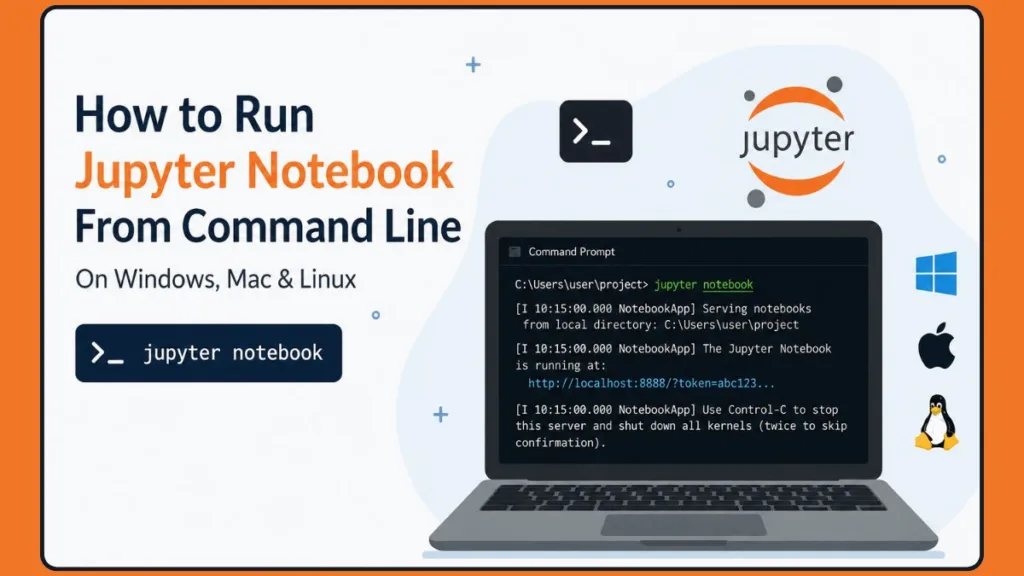
The catch is that Jupyter Notebook doesn’t open like a normal desktop app. There’s no icon to double-click (unless you’ve set one up). Instead, you launch it from the command line — whether that’s CMD, PowerShell, Anaconda Prompt, or Terminal — and it spins up a local server that opens in your browser.
That can feel like an extra hurdle if you’re new to it, but once you know the commands, it takes about ten seconds. In this guide, you’ll learn:
- How to open Jupyter Notebook from CMD on Windows, Mac, and Linux
- How to launch it from a specific folder, the Anaconda Prompt, and PowerShell
- How to fix the dreaded “jupyter is not recognized” error
- How to run it on a different port, without a browser, or inside a virtual environment
- The difference between Jupyter Notebook and JupyterLab, and which one you should actually be using
Let’s get your notebook server up and running.
Quick Answer: To open Jupyter Notebook from CMD, open Command Prompt, navigate to your project folder using
cd, and typejupyter notebook. This launches a local server and automatically opens the Jupyter Dashboard in your default browser athttp://localhost:8888.
What You Need Before Opening Jupyter Notebook From CMD
Before you can launch anything, your system needs two things installed: Python and Jupyter Notebook itself. Let’s check both quickly.
Check Whether Python Is Installed
Jupyter Notebook runs on Python, so this is your starting point. Open Command Prompt and type:
python --versionIf Python is installed correctly, you’ll see something like Python 3.12.4 printed back. If instead you get an error, try the alternative command, which works better on some Windows setups where the python alias isn’t registered:
py --versionTip: If neither command works, you’ll need to install Python first from the official python.org website. During installation, make sure you check the box that says “Add Python to PATH” — skipping this step is the single most common reason people run into “command not recognized” errors later.
Check Whether Jupyter Notebook Is Installed
If Python is working, check whether Jupyter is already on your system:
jupyter --versionThis command returns version numbers for Jupyter core components, including the notebook server itself. If you see a list of versions, you’re already set up and can skip ahead. If you get an error, you’ll need to install it.
Install Jupyter Notebook From CMD
Installing Jupyter Notebook is a one-line job using pip, Python’s package manager:
pip install notebookIf that doesn’t work because of PATH issues, run it through Python directly instead:
py -m pip install notebookThis approach is often more reliable on Windows because it bypasses any confusion around which pip your system is actually pointing to.
Fact: As of recent releases, installing
notebookvia pip pulls in Jupyter Notebook 7, which is built on top of JupyterLab’s underlying components. You’re technically getting a JupyterLab-powered interface even when you launch the “classic” notebook command — the two tools have converged behind the scenes, even though they still look and feel different on the surface.
Upgrade Jupyter Notebook From the Command Line
If you’ve had Jupyter installed for a while and want the latest features and bug fixes, upgrading is just as simple as the original install:
pip install notebook --upgradeThis pulls the newest version available on PyPI and replaces your current one.
Uninstall Jupyter Notebook From CMD
If you ever need to remove Jupyter entirely — maybe to do a clean reinstall while troubleshooting — use:
pip uninstall notebookConfirm with y when prompted, and pip will remove the package along with its entry points.
Once installation finishes, you’re ready to actually launch the notebook server.
How to Open Jupyter Notebook From CMD on Windows
This is the core workflow most Windows users are looking for. Here’s exactly how it works, step by step.
Open Command Prompt
How you open Command Prompt depends slightly on your Windows version:
- Windows 10: Click the Start menu, type
cmd, and press Enter. - Windows 11: Click Start, type
cmdorCommand Prompt, and select it from the results. You can also right-click the Start button and choose Terminal, which opens a similar command-line environment.
Navigate to Your Project Folder
Before launching Jupyter, it helps to move into the folder where your project files live. Use the cd (change directory) command:
cd C:\Users\YourName\Documents\ProjectsReplace the path with wherever your actual project folder is located. This step matters because whatever folder you’re in when you run the launch command becomes Jupyter’s starting directory in the browser.
Launch Jupyter Notebook
Now for the main event. Type:
jupyter notebookPress Enter, and Jupyter will take it from there.
What Happens After Running the Command?
A few things happen in quick succession:
- CMD prints a series of log messages as a local server starts in the background.
- Your default browser opens automatically, loading the Jupyter interface.
- You land on the Jupyter Dashboard, which displays the files and folders from your current directory.
- The address bar shows a default URL using
localhost:8888— this confirms the server is running locally on port 8888.
Tip: Don’t close the Command Prompt window while you’re working. That window is running the actual server process. If you close it, your notebook session ends and any unsaved work in open notebooks could be lost.
Want Jupyter to Open in the Right Place? Start It in a Specific Folder
Open Jupyter Notebook in a Specific Folder From CMD
By default, Jupyter opens in whatever directory you launched it from. If you want more control over where it starts, here are a few ways to do that.
Change Directory Before Launching
The simplest method is exactly what you did above — use cd to move into your target folder first, then run the launch command:
cd D:\Data Science Projects
jupyter notebook
This works on any drive, not just C:. Just make sure you switch drives correctly if your folder is on a different one (Windows requires you to type the drive letter with a colon, like D:, before using cd to move into folders on that drive).
Open Using Shift + Right Click in Windows
Here’s a handy shortcut that skips typing cd entirely. In File Explorer, navigate to your target folder, hold Shift, and right-click inside the folder. You’ll see an option like “Open Terminal Here” (Windows 11) or “Open Command Window Here” (Windows 10). Selecting it opens CMD already pointed at that exact folder, so you can run jupyter notebook immediately.
Change Jupyter’s Startup Directory
If you always want Jupyter to open in the same folder no matter where you launch it from, you can set a permanent default directory through Jupyter’s configuration file. Generate a config file with:
jupyter notebook --generate-configThis creates a jupyter_notebook_config.py file (usually inside your user folder under .jupyter). Inside it, you can set the NotebookApp.notebook_dir (or in newer versions, ServerApp.root_dir) option to a fixed path, so Jupyter always opens there by default.
Change the Working Directory With a Command-Line Flag
If editing a config file feels like overkill for a one-off session, you can override the working directory right from the launch command itself, without permanently changing any settings:
jupyter notebook --notebook-dir="D:\Data Science Projects"This tells Jupyter to treat that folder as its root for this session only, regardless of which directory CMD was actually sitting in when you ran the command. It’s a quick way to open Jupyter Notebook in a specific directory without first navigating there with cd.
How to Open Jupyter Notebook From CMD as Administrator
Occasionally — usually when you’re hitting permission denied errors or installing packages system-wide — you’ll need elevated privileges. To open Jupyter Notebook from CMD as Admin on Windows:
- Search for Command Prompt in the Start menu.
- Right-click the result and choose “Run as administrator.”
- Confirm the User Account Control (UAC) prompt if it appears.
- Navigate to your project folder with
cdand runjupyter notebookas usual.
Tip: Running as Administrator isn’t something you need for everyday use. Reach for it specifically when a normal CMD window throws a permissions error that a regular launch doesn’t.
How to Open an Existing Notebook (.ipynb File) Directly From CMD
Sometimes you don’t want the whole dashboard — you want one specific notebook file to open immediately.
Launch a Specific Notebook
If your .ipynb file is in your current directory, just include the filename in the launch command:
jupyter notebook analysis.ipynbThis opens the Jupyter Dashboard and automatically loads that notebook in a new browser tab, saving you a click.
Open Notebook Using Full Path
If the file isn’t in your current folder, you can skip navigating there altogether and just point to the full file path instead:
jupyter notebook C:\Projects\analysis.ipynbThis is especially useful when you’re jumping between multiple project folders throughout the day and don’t want to keep changing directories.
How to Open Jupyter Notebook From Anaconda Prompt
If you installed Python through Anaconda rather than the standalone installer, you’ll usually want to launch Jupyter through Anaconda Prompt instead of regular CMD. This ensures Jupyter runs inside the correct Conda environment with all your data science packages available.
Using Anaconda? Here’s How to Open Jupyter Notebook From Anaconda Prompt
Open Anaconda Prompt
Search for “Anaconda Prompt” in your Start menu and open it. It looks similar to CMD but is pre-configured to recognize Conda commands.
Activate Your Conda Environment
If you’ve created a custom environment (which is common practice for keeping project dependencies separate), activate it first:
conda activate myenvReplace myenv with the actual name of your environment. If you’re just using the default base environment, you can usually skip this step.
Start Jupyter Notebook
Once your environment is active, the launch command is identical to the standard one:
jupyter notebookWhen to Use CMD vs Anaconda Prompt
If you installed Jupyter using plain pip in your system Python, regular CMD works fine. But if you manage your packages through Conda environments — which is extremely common for data science work because it keeps package versions isolated between projects — Anaconda Prompt is the safer choice. It automatically loads the correct environment variables so Jupyter can find all your installed libraries (NumPy, Pandas, Matplotlib, and so on) without conflicts.
How to Open Jupyter Notebook in a Virtual Environment
Virtual environments let you keep each project’s dependencies separate from your global Python installation, which avoids version conflicts between projects. Here’s how to run Jupyter inside one.
Running Jupyter Inside a Virtual Environment the Right Way
Create a Virtual Environment
From CMD, navigate to your project folder and run:
python -m venv myenvThis creates a new folder called myenv containing an isolated Python installation.
Activate the Environment
Activate it using:
myenv\Scripts\activateYou’ll know it worked because your command prompt line will now show (myenv) at the beginning.
Launch Jupyter Notebook
With the environment active, install Jupyter inside it if you haven’t already (pip install notebook), then launch as usual:
jupyter notebookTip: If Jupyter can’t “see” packages you know you’ve installed, there’s a good chance you installed them in a different environment than the one currently active, or in your global Python instead of the virtual one. Double-check which environment is active before troubleshooting further.
How to Open Jupyter Notebook From PowerShell
PowerShell is Microsoft’s more modern command-line shell, and it comes built into Windows 10 and 11. The good news is that launching Jupyter from PowerShell works almost identically to CMD.
Launch PowerShell
Search “PowerShell” in the Start menu, or right-click the Start button and select Windows PowerShell or Terminal.
Navigate to Folder
PowerShell uses the same cd command as CMD:
cd C:\ProjectsRun Jupyter Notebook
Then launch exactly as before:
jupyter notebookYour browser opens the dashboard the same way it would from CMD. The only real difference between the two shells in this context is syntax for more advanced scripting — for basic Jupyter launches, they behave the same.
How to Open Jupyter Notebook From Terminal on Mac
Mac users follow a nearly identical process, just using Terminal instead of Command Prompt.
Open Terminal
You can find Terminal through Spotlight search (Cmd + Space, then type “Terminal”) or in Applications > Utilities.
Navigate to Project Folder
Use cd just like on Windows, though Mac paths use forward slashes:
cd ~/Desktop/my-notebookThe ~ symbol is shorthand for your home directory, which saves some typing.
Launch Jupyter Notebook
The launch command is exactly the same as on Windows:
jupyter notebookYour default browser will open with the Jupyter Dashboard, just as it does on Windows and Linux.
How to Open Jupyter Notebook on Linux or Ubuntu
If you’re on Ubuntu or another Linux distribution, the process barely changes at all — Jupyter’s command-line interface is designed to behave consistently across operating systems.
Open Terminal
On most Linux distributions, you can open a terminal with the keyboard shortcut Ctrl + Alt + T, or find it in your applications menu.
Navigate to Project Directory
Use cd to move into your project folder, the same way you would on Mac:
cd ~/projects/my-notebookStart Jupyter Notebook
Run the same command you’d use anywhere else:
jupyter notebookOne thing worth noting on Linux, especially on a server without a graphical desktop: Jupyter may fail to open a browser automatically simply because there isn’t one installed. In that case, you’ll want to use the no-browser method covered later in this guide.
How Jupyter Notebook Runs Your Python Code
It helps to understand what’s actually happening once your notebook is open, especially if you’re troubleshooting later.
What Is a Kernel?
Every notebook you open connects to a kernel — a background process that actually executes your code and keeps track of your variables between cells. The default kernel for Jupyter is built on IPython, an enhanced interactive Python shell that Jupyter itself grew out of. When you run a code cell, you’re really sending that code to the kernel and getting the result back to display inline.
How to Run a Python Script Inside Jupyter Notebook
If you’ve got an existing .py script and want to run it from within a notebook rather than rewriting it cell by cell, open a new notebook and use the %run magic command in a cell:
%run myscript.pyThis executes the entire script using the notebook’s active kernel, and any variables or functions it defines become available in your notebook session afterward — handy if you’re importing logic from a script you already wrote outside of Jupyter.
How to Open Jupyter Notebook Using Python
There’s a lesser-known way to launch Jupyter Notebook that bypasses the jupyter command entirely and instead routes through Python directly.
Launch Jupyter Through Python
python -m notebookOr, on systems where py is the working alias:
py -m notebookWhen This Method Is Useful
This trick comes in handy in a couple of specific situations:
- PATH problems: If your system can’t find the
jupytercommand but Python itself works fine, running Jupyter as a Python module sidesteps the issue completely. - Multiple Python installations: If you have more than one version of Python installed (which is common if you’ve used both the standalone installer and Anaconda at different points), this method ensures Jupyter launches using the specific Python interpreter you’re currently pointing to.
How to Open Jupyter Notebook in Your Browser
Default Browser Launch
In nearly all cases, running jupyter notebook automatically opens your system’s default web browser and loads the dashboard for you — no extra steps needed.
Find the Local URL
If you ever need to open it manually, check your CMD window for a line showing the local address. It usually looks something like:
http://localhost:8888/treeOpen Jupyter Manually
If the browser doesn’t open automatically, or you accidentally closed the tab, just copy that URL from CMD and paste it into any browser window. As long as the server is still running in the background, the dashboard will load right up.
Find Your Access Token
Newer versions of Jupyter generate a security token for each session to prevent unauthorized access to your notebook server. If you’re asked for a token or password, you can retrieve the current one by running:
jupyter notebook listThis shows you all currently running servers along with their full URLs, tokens included.
Set a Password Instead of Using a Token
If you’d rather not copy a long token every time, you can set a permanent password instead:
jupyter notebook passwordYou’ll be prompted to enter and confirm a password in CMD. From then on, you can log into Jupyter using that password instead of hunting down a fresh token each session.
Change the Default Browser Jupyter Opens
By default, Jupyter launches whatever browser your operating system has set as default. If you’d rather it open in a different browser — Chrome instead of Edge, for example — you can specify one using the --browser flag:
jupyter notebook --browser=chromeSwap chrome for firefox, safari, or another supported browser name depending on what you have installed.
How to Open Jupyter Notebook Without Opening a Browser
There are plenty of situations — running Jupyter on a remote server, working over SSH, or simply preferring to open it in a browser tab yourself — where you don’t want it launching a browser automatically.
Start the Server Only
Add the --no-browser flag to your launch command:
jupyter notebook --no-browserThis starts the local server and prints the access URL in CMD, but it won’t try to open any browser window.
Open the URL Manually
Copy the localhost URL (complete with its token) from the CMD output and paste it into whichever browser you’d like to use.
Tip: This combination —
--no-browserpaired with manually opening the URL — is the standard approach when you’re running Jupyter Notebook on a remote server and accessing it through SSH port forwarding from your local machine.
How to Run Jupyter Notebook on a Different Port
By default, Jupyter tries to use port 8888. But sometimes that port is already taken, or you simply want to run more than one notebook server at once.
Change the Port Number
Use the --port flag followed by your chosen port number:
jupyter notebook --port=8889Replace 8889 with any available port you’d like to use.
When Port 8888 Is Already in Use
If you launch Jupyter without specifying a port and 8888 is occupied (maybe from a previous session you forgot to close), Jupyter is smart enough to automatically try the next available port instead, such as 8889 or 8890. You’ll see the actual port it landed on printed right there in CMD.
Running Multiple Notebook Servers
Need to run two separate projects side by side? Just open a second CMD window, navigate to the second project’s folder, and launch with a different port number than the first session is using. Each server runs independently, and you can switch between them using separate browser tabs.
How to Open JupyterLab From CMD
If you’ve heard people talk about JupyterLab and wondered how it’s different, this section is for you.
Install JupyterLab
pip install jupyterlabLaunch JupyterLab
jupyter labThat’s the entire process — just one word different from the regular notebook command, and a noticeably different interface opens in your browser.
JupyterLab vs Jupyter Notebook
So which one should you actually be using? Here’s a side-by-side breakdown:
| Feature | Jupyter Notebook | JupyterLab |
|---|---|---|
| Interface style | Single-document view, one notebook per tab | Multi-panel, IDE-style workspace |
| File browser | Basic dashboard view | Integrated, persistent file browser |
| Multiple files at once | Limited — manage multiple browser tabs | Yes — notebooks, terminals, text files side by side |
| Extensions | Minimal support | Mature extension ecosystem (Git integration, debugger, language servers) |
| Best for | Beginners, quick single-notebook tasks | Larger projects, multi-file workflows |
| Underlying engine | Built on JupyterLab components since Notebook 7 | Native |
Notebook 7 is built directly on JupyterLab’s components, and the old classic Notebook interface from version 6 and earlier now only receives maintenance updates through a compatibility layer. In practical terms, that means the two tools have largely merged under the hood — the real decision is just which interface feels more comfortable for the way you work.
Fact: If you mostly work with one notebook at a time and prefer a clean, minimal screen, Jupyter Notebook is still a completely valid choice. If you regularly juggle multiple notebooks, terminals, and data files together, JupyterLab will likely save you a lot of tab-switching.
Fix “Jupyter Is Not Recognized as an Internal or External Command”
This is one of the most common errors beginners run into, and it’s almost always a PATH issue rather than a problem with Jupyter itself.
Verify Installation
First, confirm Jupyter is actually installed:
jupyter --versionIf this also fails, Jupyter likely isn’t installed correctly, and you’ll want to revisit the installation step earlier in this guide.
Check Python Path
Next, check where your system thinks Python lives:
where pythonThis returns the file path to your active Python installation. If nothing shows up, Python itself isn’t properly added to your system PATH.
Check Jupyter Path
Similarly, check where Jupyter’s executable is located:
where jupyterIf this comes back empty even though Jupyter is installed, the Scripts folder containing Jupyter’s executable likely isn’t included in your system’s PATH environment variable.
Reinstall Jupyter
Sometimes the cleanest fix is simply reinstalling:
pip install notebookUse Python Module Launch
If PATH issues persist and you’d rather not mess with environment variables, fall back to the Python module method covered earlier:
python -m notebookThis works because it calls Jupyter through Python directly rather than relying on a separate jupyter command being discoverable on your PATH.
Tip: On Mac, this same “command not found” issue can happen if Jupyter was installed under a different Python version than the one your Terminal defaults to — especially common if you have both a system Python and a Homebrew-installed Python. Running
which python3andwhich jupytercan help you spot a mismatch.
Other Common Jupyter Notebook CMD Errors and Fixes
Beyond the PATH issue above, a handful of other hiccups tend to come up regularly.
- Browser does not open: Check your CMD window for the local URL and open it manually, as covered earlier. This can happen if your system’s default browser setting is misconfigured.
- Port 8888 already in use: Either let Jupyter auto-select the next available port, or specify one manually using
--port=. - Notebook kernel not starting: This usually points to a broken or missing Python kernel. Try reinstalling with
pip install ipykerneland then runningpython -m ipykernel install --user. - Permission denied errors: Try running CMD as Administrator (right-click, “Run as administrator”), or check that you have write access to the folder you’re launching Jupyter from.
- Wrong working directory: If Jupyter opens but you don’t see the files you expected, double-check that you used
cdto navigate to the correct folder before launching.
How to Stop a Jupyter Notebook Server Running in CMD
When you’re done working, you’ll want to properly shut down the server rather than just closing the window.
Close the Server
Click back into the CMD window running Jupyter and press:
Ctrl + CConfirm Shutdown
Depending on your Jupyter version, you may be prompted to confirm. Type:
yand press Enter to confirm the shutdown.
Check Running Servers
If you’re not sure whether a server is still active in the background (or you’ve lost track of which window it’s running in), list all active servers with:
jupyter notebook listThis shows every currently running notebook server along with its URL and port, which is especially handy if you’ve opened several sessions and lost track of one.
Can You Use Jupyter Notebook Online?
If installing anything locally isn’t an option — maybe you’re on a school computer, a Chromebook, or just want to test something quickly — there are solid Jupyter Notebook online alternatives.
What Is Jupyter Notebook Online?
These are browser-based services that run a Jupyter environment on remote servers, so you get the same notebook interface without installing Python or Jupyter on your own machine at all.
Google Colab
Google Colab is probably the most widely used option. It’s free, runs entirely in your browser, and even gives you access to free GPU and TPU resources for machine learning work — something that’s genuinely hard to replicate on a personal laptop.
Binder
Binder lets you turn a GitHub repository into an interactive, shareable notebook environment. It’s especially popular for sharing reproducible research or demos, since anyone with the link can run your code without installing anything.
JupyterHub
JupyterHub is more of an institutional solution — it’s what universities and companies often use to give multiple users their own individual Jupyter Notebook environments, all managed centrally on shared infrastructure.
When Online Notebooks Make Sense
Online notebooks are a great fit when you need to get started fast, don’t want to manage installations, or need to collaborate with others without worrying about everyone having matching local setups. For everyday personal or professional data science work, though, most people still prefer running Jupyter locally for better performance and offline access.
Frequently Asked Questions
How do I open Jupyter Notebook from Command Prompt on Windows? Open CMD, navigate to your project folder using cd, and type jupyter notebook. The dashboard will open automatically in your default browser.
Why does CMD say “jupyter is not recognized”? This almost always means Jupyter (or Python) isn’t added to your system’s PATH. Try python -m notebook as a workaround, or reinstall Jupyter and verify your PATH settings.
How do I open Jupyter Notebook in a specific folder? Use cd to navigate to that exact folder before running jupyter notebook, or use Shift + Right Click inside the folder in File Explorer to open a terminal already pointed there.
How do I run Jupyter Notebook without opening a browser? Add the --no-browser flag: jupyter notebook --no-browser. Then copy the URL printed in CMD into any browser manually.
How do I change the port for Jupyter Notebook? Use the --port flag, like jupyter notebook --port=8889, to launch on a port other than the default 8888.
How do I launch Jupyter Notebook in a Conda environment? Open Anaconda Prompt, activate your environment with conda activate myenv, then run jupyter notebook as usual.
How do I open Jupyter Notebook from PowerShell? The process is identical to CMD — navigate with cd, then run jupyter notebook.
How do I open Jupyter Notebook after installing Anaconda? Open Anaconda Prompt from your Start menu and type jupyter notebook. Anaconda automatically configures the environment so Jupyter can find your installed packages.
How do I stop a Jupyter Notebook server running in CMD? Click into the CMD window running the server and press Ctrl + C, then confirm with y if prompted.
How do I open Jupyter Notebook on a remote server? Launch it with jupyter notebook --no-browser --port=8888 on the remote machine, then use SSH port forwarding to access that port from your local browser.
How do I open multiple Jupyter Notebooks from the same command prompt? You can open multiple notebook files by launching separate CMD windows and specifying a different port for each session, or simply opening multiple .ipynb files as separate browser tabs from within a single running dashboard.
What is the command to run a Jupyter Notebook file (.ipynb)? Use jupyter notebook filename.ipynb, replacing filename.ipynb with your actual file name or full file path.
How do you run a Python script in Jupyter Notebook from terminal? Open a notebook and run %run myscript.py inside a code cell. This executes the script using the notebook’s active kernel and makes its variables and functions available afterward.
How do I change the default browser for Jupyter Notebook from CMD? Use the --browser flag, like jupyter notebook --browser=chrome, to specify which browser Jupyter should open instead of your system default.
How do I upgrade or uninstall Jupyter Notebook from the command line? Upgrade with pip install notebook --upgrade. Uninstall with pip uninstall notebook and confirm when prompted.
How do I find my Jupyter Notebook token in CMD? Run jupyter notebook list to see all currently running servers along with their URLs and authentication tokens.
Final Thoughts
Opening Jupyter Notebook from CMD isn’t complicated once you’ve done it a couple of times — it really comes down to one command: jupyter notebook. From there, everything else in this guide is just variations on that theme: picking a different folder, using a different port, skipping the browser, or running it inside an isolated environment.
If you’re managing multiple projects with different package requirements, get in the habit of using virtual environments or Conda environments — it’ll save you from a lot of dependency headaches down the road. And if you find yourself frequently working across multiple files at once, it’s worth giving JupyterLab a try, since it’s increasingly where the Jupyter ecosystem is headed anyway.
Bookmark this page if you think you’ll need it again — between PATH errors, port conflicts, and browser issues, even experienced developers occasionally need a quick refresher. Got a different error message we didn’t cover here? Drop it in the comments and we’ll help you sort it out.
Helpful Resources to Keep Handy
As you get more comfortable running your notebooks from the command line, you might want to dive a little deeper or customize how your server runs. Whether you are setting up complex data science environments or just looking for a cloud backup when your local machine acts up, here are a few bookmarks you will definitely want to save:
Project Jupyter Official Documentation: If you are ever stuck on an installation command or want to explore advanced features, this is your absolute go-to hub. It is the ultimate source of truth for keeping your local Jupyter server running smoothly.
Jupyter Notebook Configuration Guide: Are you tired of using the cd command every single time you launch? If you want to permanently change your default startup folder or set up a password instead of copying tokens, this guide walks you through tweaking your jupyter_notebook_config.py file.
Anaconda Environment Management: If you are using Anaconda, keeping your packages organized is crucial. This page shows you exactly how to create and manage Conda environments so your project libraries never conflict with one another.
Python’s Official venv Documentation: Not using Anaconda? No problem. You can still keep your Python projects safely isolated using built-in virtual environments. This resource breaks down how to use the venv module right from your command prompt.
JupyterLab Documentation: If you find yourself juggling multiple notebooks, terminals, and datasets at the same time, you might be ready to upgrade your workspace. Check out the documentation for JupyterLab to see how the next-generation interface works.
Google Colab: Sometimes, you just want to write Python code without worrying about local installations, PATH errors, or command lines. If you are on a restricted work laptop or just need a quick coding environment on the go, Google Colab gives you a free Jupyter-style setup right in your web browser.
Visit Our Post Page: Blog Page
Discover more from Izoate
Subscribe to get the latest posts sent to your email.