
Learn how to set a YouTube Shorts timer in 2026. Stop doomscrolling, manage your screen time, and regain control of your day with this step-by-step guide.
You sit down with your morning coffee, intending to check one single video. Then, the algorithm takes over. You snap out of a scrolling trance, look at the clock, and experience that mildly panicked moment of clarity: an entire hour has vanished into a continuous loop of 15-second videos. The endless swipe, the sudden realization of lost time, and that heavy, fatigued frustration—it is an incredibly draining feeling.
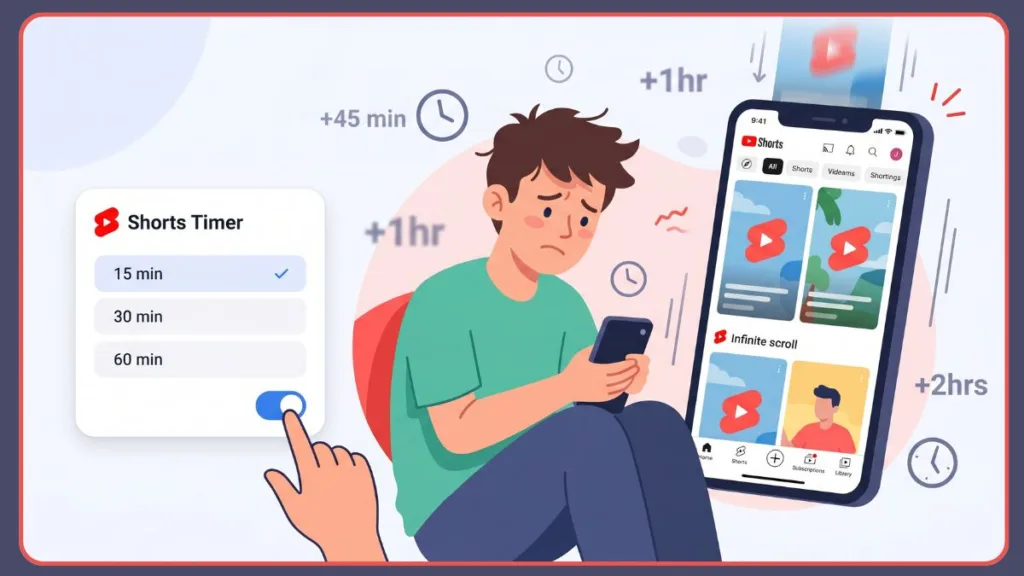
If you are tired of losing your afternoons to the infinite scroll, you are not alone, and it isn’t your fault. Short-form video platforms are designed exactly like slot machines, and your willpower feels hijacked because the system is incredibly good at keeping you hooked. You cannot rely on sheer willpower to close the app, which is why finding a digital barrier to break the spell is so important.
Let’s answer your search immediately: learning how to set YouTube Shorts time limit settings is a simple, highly effective way to save yourself from the trap. This guide will show you exactly how to manage YouTube Shorts viewing time so you can shed that guilt and regain control of your day.
What Is the YouTube Shorts Timer and How Does It Work?
The YouTube Shorts timer (officially known within the app as the YouTube Shorts feed limit) is a dedicated built-in tool that allows you to decisively cap the amount of time you spend watching short-form vertical videos on the platform.
Once you reach your predetermined YouTube Shorts daily limit, the app automatically triggers a full pause screen, abruptly interrupting the endless flow of content. Think of it not as a strict digital prison, but as an essential ally—a gentle tap on the shoulder waking you up from the “doomscrolling” trance. This feature is a massive step forward for digital wellbeing and screen time management, forcing you out of autopilot to make a conscious choice about whether to keep watching or put the phone down.
Tip: Implementing this feature is highly recommended for anyone experiencing scrolling fatigue, as it shifts the burden of stopping from your active willpower to an automated system.
Why YouTube Introduced a Timer for Shorts (And Why You Need It)
In recent years, the cultural conversation around short-form video addiction and shrinking attention span issues has reached a boiling point. The endless scrolling loop has prompted widespread psychological concern over how these apps subconsciously impact our daily lives and rapidly drain our mental energy.
In response to this desperate need for boundaries, the platform expanded its YouTube digital wellbeing settings. The timer was introduced to give users robust YouTube time management tools that directly address the unique, fast-paced, and highly addictive nature of Shorts. This update aligns perfectly with a broader tech industry push for stricter social media screen time limits, serving as an empowering protective measure against aggressive engagement algorithms.
How to Set YouTube Shorts Time Limit (Step-by-Step Guide)
Setting up your digital boundaries takes less than a minute, but the relief it provides lasts all day. Here is your comprehensive YouTube Shorts daily limit step by step walkthrough.
Step-by-Step on Mobile (iPhone & Android)
- Open the YouTube app on your mobile device and ensure you are logged in.
- Tap on your Profile Picture (the “You” tab) located in the bottom-right or top-right corner, depending on your device’s current UI version.
- Tap the Settings gear icon.
- Navigate to General (on some devices, this is located under Time watched or your Time Management Dashboard).
- Locate and tap on Shorts feed limit.
- You will be prompted with a list of minute increments. Select your preferred cutoff time to set daily limit YouTube Shorts intervals (such as 15, 30, or 60 minutes).
Tip: Setting the limit to a very low threshold initially can help you gauge exactly how fast time slips away while watching short-form content.
What About Desktop and Smart TVs?
As of the YouTube Shorts viewing limit 2026 rollout, this feature is strictly mobile-first. You can easily set your limits on the Android and iOS smartphone and tablet apps. Currently, there is no announced integration for the desktop web version or smart TV applications, primarily because mobile devices are the main culprits for compulsive, endless scrolling.
What Happens When Your YouTube Shorts Timer Runs Out?
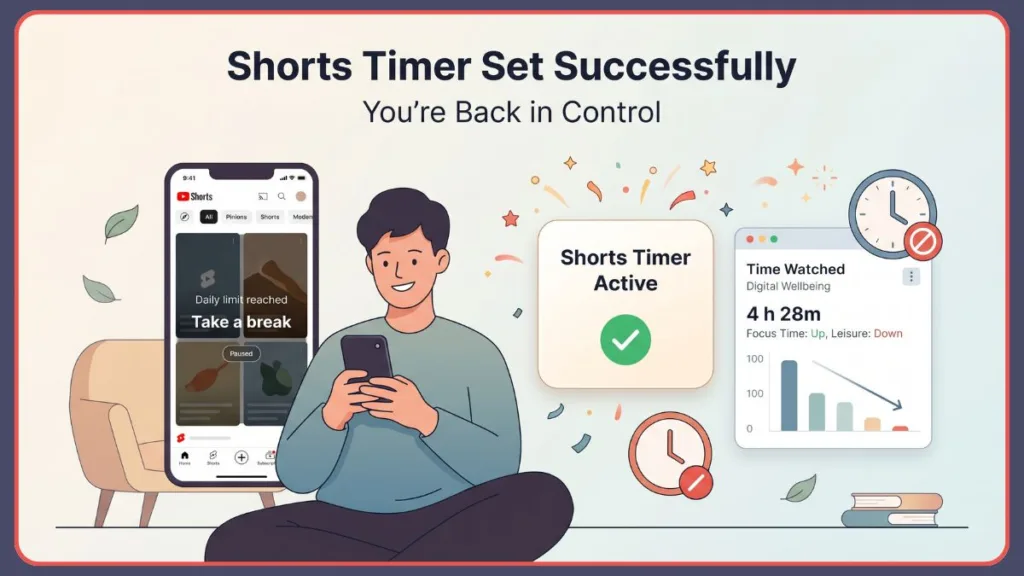
So, what happens when YouTube Shorts timer runs out? Once you hit your specific time cap, the app initiates a hard YouTube Shorts feed pause. An on-screen reminder will immediately appear over the video, clearly stating that your scrolling is paused for the day.
Currently, this prompt offers user choice. You can choose to dismiss the reminder and keep watching, or you can use this ally to break the spell, lock your phone, and walk away with a profound sense of relief.
Tip: Treat the pause screen as an absolute stop sign rather than a suggestion. If you consistently dismiss it, the timer loses its psychological effectiveness.
Can You Completely Turn Off YouTube Shorts Using the Timer?
Many users ask how to disable YouTube Shorts entirely out of sheer frustration with the format. While YouTube doesn’t offer a master switch to delete the feature from the app entirely, you can use the YouTube Shorts zero minute option.
If you set Shorts limit to zero, the app will immediately trigger the pause screen the very second you attempt to scroll the feed. This effectively acts as a reliable way to turn off YouTube Shorts feed scrolling, creating a massive friction point that stops the habit dead in its tracks.
If an accidental deep-dive into Shorts has you worried about your overall app usage, you might also want to learn how to adjust your broader YouTube recommendation settings to clean up your homepage entirely.
How Is the YouTube Shorts Timer Different from Take a Break Reminder?
You might be wondering how this differs from existing digital health tools.
- Take a Break reminder YouTube: This feature tracks your overall, continuous app usage across all video types, including long-form documentaries or tutorials.
- Bedtime reminder YouTube: This feature simply prompts you to log off and sleep at a specific, pre-set hour of the night.
- Shorts Timer: This is completely unique because it only tracks the time you spend actively swiping through the vertical Shorts feed, directly targeting that specific, high-speed algorithmic loop.
Can the YouTube Shorts Daily Limit Help Reduce Doomscrolling?
Absolutely. The timer is engineered specifically to disrupt the short video dopamine loop. Scrolling fatigue happens because the interface removes all natural stopping cues—there is no “end” to the page. By throwing up a sudden physical roadblock, the timer pulls you violently out of autopilot. This disruption is essential for building mindful viewing habits and directly combating the core mechanics of doomscrolling so you can reclaim your mental agency.
Should You Combine the Shorts Timer with Apple Screen Time or Android Digital Wellbeing?
If you want the ultimate, unbreakable defense against wasted time, layering your digital boundaries is the absolute best strategy. The YouTube timer is highly effective on its own, but pairing it with system-level restrictions turns your smartphone into an impenetrable fortress of productivity.
- Android Digital Wellbeing app: Set an overall daily app timer for YouTube that shuts the app down completely once your minutes are up.
- Apple Screen Time: Use the App Limits feature in your iOS settings to restrict access to YouTube after a certain duration.
Utilizing these built-in system features makes them the best screen time apps for YouTube and guarantees a foolproof, locked-down method on how to reduce phone screen time.
Tip: Layering an in-app prompt with a system-level lockout ensures that even if your willpower fails and you dismiss the Shorts prompt, the OS will step in to save your time.
Can Parents Use the YouTube Shorts Timer for Their Children?
Yes, and this is where the feature truly shines for families desperate to protect their kids’ developing attention spans. Through supervised accounts, parents can utilize the YouTube Shorts parental controls timer to rigidly restrict how much short-form content their children consume daily.
Will Shorts Timer Alerts Be Dismissible for Younger Users?
While standard adult users can dismiss the prompt, YouTube is rolling out a non-dismissible timer kids feature later this year. This will allow parents to set hard, locked limits via Google Family Link, ensuring children absolutely cannot bypass the warning.
Does Setting the Shorts Timer to Zero Remove Shorts Everywhere?
To clarify your YouTube Shorts recommendation control: no, it does not. Setting the timer to zero successfully breaks the infinite scroll feed. However, you will still occasionally see individual short-form videos suggested on a channel’s homepage, within the subscription tab, or appearing in standard search results. It is a powerful behavioral barrier, not a total platform wipe.
What Is the Minimum Time You Can Set on the Shorts Feed Limit?
The most aggressive limitation you can set is the zero-minute limit. Aside from zero, the standard presets usually begin at 10 or 15 minutes, allowing you to seamlessly tailor the restriction exactly to your desired lifestyle and schedule.
Extra Tips to Stop Watching YouTube Shorts All Day
If you are actively searching for how to stop watching YouTube Shorts all day, the timer is merely step one. To further break your vertical video habit and fix your attention span social media drain:
- Adjust your recommendations: Actively and aggressively use the “Don’t recommend channel” button to clean up your feed.
- Use app blockers: Third-party focus apps can strictly lock YouTube entirely during your designated work or study hours.
- Turn off autoplay: Stop the algorithm from feeding you the next long-form video seamlessly, forcing you to actively choose your content.
FAQs About the YouTube Shorts Timer
- How to set YouTube Shorts time limit quickly? Open the YouTube app, tap your Profile Picture, go to Settings, select General (or Time watched), tap Shorts feed limit, and select your preferred daily minute allowance.
- Can I turn off YouTube Shorts completely? While you cannot permanently delete the feature from the app’s code, you can set your Shorts feed limit to zero minutes. This will immediately pause the Shorts feed the second you open it, effectively disabling the continuous scrolling feature.
- Does YouTube Shorts timer affect recommendations? No. The timer simply tracks your viewing duration and pauses the feed when you hit your limit. It does not alter your underlying algorithm, watch history, or standard video recommendations.
- Is YouTube Shorts timer available worldwide? Yes, the feature is currently rolling out globally to all users on the mobile YouTube app (iOS and Android). It may take a little time to reach every individual account depending on regional update schedules and app versions.
Conclusion: Take Back Control of Your Time
You do not have to live with the heavy guilt of lost hours. Less daily stress, significantly better sleep, vastly improved focus, and healthier digital habits are just a few taps away. The timer is not a punishment; it is a vital tool of personal empowerment.
By taking a minute to follow this guide and set up your limits today, you are actively choosing to use the platform on your own terms. You are shedding the fatigue and frustration, and definitively taking back control of your precious time and your attention span.
Tip: Check your screen time analytics weekly to ensure your new Shorts limits are actively lowering your overall phone usage, and adjust your timer downwards if you find yourself continually slipping into old habits.
Visit Our Post Page: Blog Page
Discover more from Izoate
Subscribe to get the latest posts sent to your email.