
Want to share your iPhone location with Android users without opening Find My? Discover how to send a location pin or share your Live Location.
You might want to share your iPhone location with a family member who uses Android, or perhaps you’d rather not open Apple’s Find My app every time someone asks where you are. Whatever the reason, there are several ways to share your location without relying on Find My.
You can share your location on an iPhone without Find My using apps such as Google Maps, Life360, and WhatsApp. Depending on the app, you can send someone your current location or let them follow your movements through Live Location sharing.
There’s also an option built into your iPhone. Apple Messages lets you send a one-time location pin without opening Find My, although its ongoing location-sharing feature works differently.
The important thing is to choose a method that suits both you and the person receiving your location. Here’s how each option works.
Can You Really Share Your iPhone Location Without Find My?
Yes, you can share your iPhone location without opening the Find My app. Apple’s location-sharing system isn’t the only way to let someone know where you are. Third-party apps can access your iPhone’s location through iOS Location Services and share it with the people you choose.
For instance, Google Maps lets you share your real-time location with someone using an Android phone or computer. Life360 is designed for families who want to share their locations regularly, while WhatsApp makes it easy to send your location through an individual or group conversation.
Before choosing an app, it helps to know the difference between the two main types of location sharing:
- Current Location: This sends a snapshot of your position at the time you share it. The recipient can open the map and see your location, but the pin won’t move automatically as you travel.
- Live Location: This lets someone follow your changing position for a selected period or until you manually stop sharing, depending on the app.
One thing to keep in mind is that avoiding Find My doesn’t mean you can turn off every location permission on your iPhone. Apps such as Google Maps and WhatsApp still need access to Location Services to determine and share your position.
What Are The Options for Sharing Location Without Find My
The best option depends on who needs to see your location and how you want to share it. Google Maps is a useful choice when the recipient uses Android or a computer. Life360 works well for families who want regular location updates, while WhatsApp is convenient for sharing your position through a conversation.
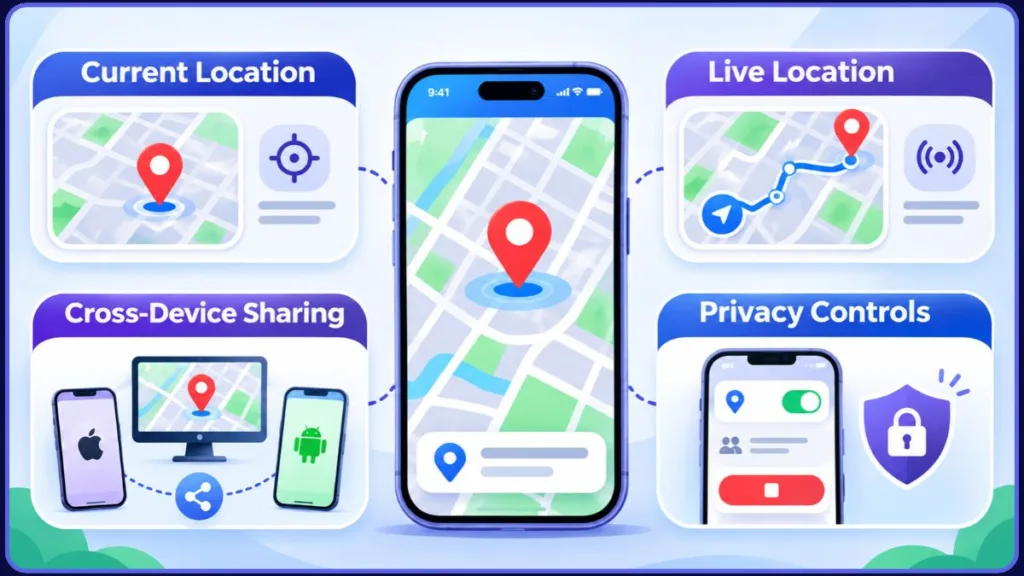
If you don’t want to install another app, you can also send a location pin using Apple Messages.
1. Share Your iPhone Location With Google Maps
Google Maps is a practical alternative if you want to share your iPhone location with someone who uses Android. You can share your real-time position directly with a Google contact or create a link for someone who doesn’t have a Google Account.
The link option is especially handy when a family member wants to check your location in a browser rather than install another application.
Follow these steps to share your iPhone location using Google Maps:
- Open Google Maps and sign in: If you haven’t installed Google Maps yet, download it from the App Store. Open the app and sign in to your Google Account. Make sure Location Services are enabled for Google Maps on your iPhone, too.
- Go to Location Sharing: Tap your profile picture or initial in the upper-right corner. Select Location sharing, then choose New share or Add people, depending on which interface you’re seeing.
- Select a sharing duration: Choose how long you want the other person to see your location. Google Maps offers sharing for a set period and, for eligible direct-sharing accounts, an option to keep sharing until you turn it off.
- Choose who receives your location: If you’re sharing directly with a Google contact, select their profile and tap Share. The recipient needs a Gmail account for this type of sharing.
- Send a location-sharing link if needed: If the person doesn’t have a Google Account, choose the link-sharing option instead. You can send the link through Messages, WhatsApp, email, or another messaging app.
Once the recipient opens the link, they’ll be able to view your shared location. They don’t need an iPhone, and they can also check your position through Google Maps on a computer.
Important: Google Maps link-based Live Location sharing lasts for up to 24 hours. Direct sharing with an eligible Google contact has different duration options and can last longer.
How to stop sharing: Open Google Maps, tap your profile picture, and select Location sharing. Choose the person you no longer want to share with, then tap Stop.
There’s also some additional information to consider before sharing. Google Maps can show the recipient your name, profile picture, recent device location, and battery level. If they enable location-sharing notifications, they may also receive arrival or departure information for selected places.
For your privacy, only send a location-sharing link to someone you trust.
2. Share Your iPhone Location With Life360
If you want your family members to check your location regularly, Life360 is another option. Rather than sending a location through a chat, the app groups family members into shared spaces called Circles.
Everyone joins a Circle using an invitation and their own Life360 account. Once members enable location sharing, they can see one another’s reported positions on the Circle map.
This arrangement can be particularly useful when some family members use iPhones and others use Android devices.
Here’s how to set up location sharing with Life360:
- Install Life360 and create an account: Download the official Life360 app from the App Store. Open it, select Get Started, and follow the account setup instructions. The available sign-in options may depend on your country.
- Create a family Circle: Tap the Circle Switcher at the top of the screen and select Create a Circle. Give your group a name, such as Family, and continue.
- Invite your family members: Select Add a person or the invitation option, then tap Send Code. Choose how you’d like to send the invitation, such as through a text message, email, or WhatsApp.
- Have everyone join the Circle: Each invited person needs to install Life360, create their own account, and enter the invitation code. Keep in mind that invitation codes expire after 72 hours. If someone doesn’t join in time, you’ll need to send them a fresh code.
- Allow the necessary location permissions: On your iPhone, open Settings > Privacy & Security > Location Services > Life360. Select Always and enable Precise Location. Then open Life360, select your Circle, go to Settings > Location Sharing, and make sure sharing is turned on.
After everyone has joined and enabled location sharing, their reported positions should appear on the Circle map. You can select an individual family member to view their location.
How to stop sharing: Open Life360, select the relevant Circle, and go to Settings > Location Sharing. Switch off location sharing to stop sharing your position.
If you belong to more than one Circle, remember to check each one separately. Turning off location sharing in one Circle doesn’t automatically disable it in your other Circles.
Life360 also relies on every member keeping their own account and location settings in order. If someone logs out, disables the required location permissions, or switches off sharing, their location will stop updating.
The app can show status information to help explain what’s happening. For example, a location-permission warning can mean that a member has disabled a required phone permission. A greyed-out map icon can indicate a connection problem.
It’s also worth remembering that Life360 is an opt-in service. You can’t stop another Circle member from switching off their own location sharing.
3. Share Your iPhone Location With WhatsApp
WhatsApp is a convenient choice when you want to share your location without setting up a separate family group in another app. You can send a one-time location pin or share your Live Location in an individual or group conversation.
The two options work differently, so choose the one that matches what you want the recipient to see.
Send your current location through WhatsApp:
- Open WhatsApp on your iPhone and enter the conversation with the person you want to share your location with.
- Tap the Plus (+) button beside the message field.
- Select Location.
- Choose Send Your Current Location.
- Send the location message.
The recipient will receive a static location showing where you were when you sent the message. They won’t be able to follow your movements because the pin doesn’t update as you travel.
Share your Live Location through WhatsApp:
If you want someone to follow your movements, follow the first three steps above, but select Share Live Location instead.
Choose the sharing duration shown in WhatsApp and send the message. The recipient can then open the location in the conversation and follow your position while the sharing session is active.
You don’t have to wait for the selected duration to end if you want to stop sharing sooner. WhatsApp lets you end an active Live Location session manually.
How to stop sharing: Open the conversation where you shared your Live Location, tap Stop Sharing, and confirm your choice.
You can also manage active sessions through WhatsApp Settings > Privacy > Live Location. From there, you can stop sharing in individual or group chats.
One detail that can be confusing is what happens after sharing ends. When Live Location expires or you stop it, the recipient may still see the original location as a static thumbnail. They can also open it to view your last updated position. This doesn’t mean that Live Location tracking is still running.
WhatsApp states that Live Location sharing is end-to-end encrypted, meaning only the people you’ve shared your location with can see it through this feature.
4. Drop a Location Pin Using Apple Messages
If you’d rather not install another application, Apple Messages gives you a way to send a one-time location pin directly in a conversation.
This works well when you simply want someone to see where you are right now. However, there’s an important distinction: Apple’s ongoing Live Location feature in Messages uses Find My. So, while you can send a location pin without opening Find My, Messages isn’t a completely independent alternative for continuous location sharing.
Follow these steps to send a location pin through Messages:
- Open the Messages app on your iPhone.
- Select the conversation with the person who needs your location.
- Tap the Plus (+) button beside the message field.
- Select Location to open the map.
- Tap the map-pin button near the top of the map.
- Move the map until the pin is in the correct position, then tap Send Pin.
- Send the message.
The recipient will receive a map pin showing the location you selected. They can open it to view the place and get directions.
Remember: The pin won’t change as you move. If you want someone to follow your movements through Live Location sharing, use Google Maps, Life360, or WhatsApp instead.
Why Isn’t Your iPhone Location Sharing Working?
You might send your location successfully, only to find that the recipient sees an old position or can’t access the shared location at all. This doesn’t necessarily mean there’s a problem with your iPhone’s GPS.
The issue could be related to app permissions, an expired sharing session, restricted background access, or an unreliable internet connection. Before trying a different app, check the following settings.
1. Location Services Is Switched Off
Third-party apps need permission to access your iPhone’s location. If Location Services is disabled, the app can’t obtain the information it needs to share your position.
Open Settings > Privacy & Security > Location Services and make sure Location Services is switched on.
Next, find the application you’re using and check its individual location permission.
Apple provides several access options:
- Never
- Ask Next Time Or When I Share
- While Using the App
- Always
The options available can vary depending on the application.
2. The App Doesn’t Have the Right Location Permission
Even when Location Services is enabled, an app may only have permission to access your location while you’re actively using it. That can affect ongoing location sharing in the background.
For apps such as Life360 and WhatsApp Live Location, check whether the feature requires Always access.
You can review this setting under Settings > Privacy & Security > Location Services > [App Name].
There’s no need to give every application unrestricted location access automatically. Choose the permission needed for the sharing feature you actually want to use.
3. Precise Location Is Turned Off
Your iPhone can provide an approximate location instead of a more precise position.
If the recipient can see the general neighbourhood you’re in but not your exact location, check the app’s Precise Location permission.
Go to Settings > Privacy & Security > Location Services, select the application, and turn on Precise Location if you need more accurate position sharing.
This can make a difference when you’re sharing your location with family members who need to find your exact position rather than just the surrounding area.
4. Your Internet Connection Isn’t Working
Your iPhone needs a working internet connection to send updated location information to a sharing service.
Check whether Wi-Fi or cellular data is working. If you’re somewhere with poor network coverage, the recipient may continue seeing an older location until your phone reconnects.
Life360’s official troubleshooting guidance also recommends keeping Wi-Fi enabled, turning Airplane Mode off, and checking your cellular data connection.
5. Background Location Access Is Limited
Apps that provide ongoing location updates need the appropriate background permissions. If an app only updates your location when you open it, some of its permissions or other device settings may be restricting background updates.
For example, Life360 recommends setting iPhone location access to Always. Its troubleshooting guidance also identifies Low Power Mode, network settings, and Physical Activity permissions as possible factors affecting location accuracy.
If Life360 works only while the app is open, review these permissions and follow the app’s troubleshooting recommendations.
One thing worth clarifying: Background App Refresh doesn’t control every location update on its own. Location Services permissions and an application’s background-location implementation are separate considerations.
6. Your Sharing Session Has Run Out
Some location-sharing methods only work for a selected period. When that period ends, the recipient stops receiving new location updates.
Open the app and check whether the sharing session is still active. If it has expired, start a new session and send the updated location.
For Google Maps, remember that link-based Live Location sharing is limited to 24 hours. Direct sharing with eligible Google contacts has different duration options.
7. The Other Person Hasn’t Joined Yet
This is especially important when you’re using Life360.
Creating a Circle doesn’t automatically make every family member visible on the map. Each person needs to accept the invitation, join the Circle, stay signed in, and enable location sharing.
Check the invitation status and make sure the recipient has completed the setup. If the invitation code has expired, generate and send another one.
8. The App Just Needs a Refresh
Sometimes an app loses its connection or simply hasn’t updated your position recently. Reopen it and give it a little time to refresh.
If you’re using Life360, check the location-status message displayed under the member’s name. A greyed-out location icon can point to a connection problem, while a location-permission warning indicates a different issue.
If the problem continues after you’ve checked permissions and connectivity, consult the application’s official support instructions. Repeatedly changing unrelated iPhone settings is unlikely to help.
What Are the Drawbacks of Sharing Location Without Find My?
Apps such as Google Maps, Life360, and WhatsApp make it easier to share your iPhone location without Find My. However, each service works a little differently, and there are a few trade-offs worth understanding before you choose one.
- Third-party apps may need extra setup. Google Maps requires a Google Account for direct person-to-person sharing, while Life360 requires everyone to install the app and join a Circle. WhatsApp, on the other hand, requires an individual or group conversation with the recipient.
- Location accuracy isn’t guaranteed. Your iPhone uses information from GPS, Wi-Fi, Bluetooth, and cellular networks to estimate your position. Poor signal conditions, indoor positioning, and approximate-location permissions can affect the location displayed on the map.
- Continuous sharing can use additional battery power. Apple’s developer documentation explains that frequent background location updates increase an application’s energy use. The actual impact depends on how the app requests location updates, how frequently it needs them, and how you use your phone. There isn’t a reliable basis for saying that every third-party app uses more battery than Find My.
- Different services handle your location data differently. Google Maps, Life360, and WhatsApp each have their own privacy practices. Before enabling ongoing location access, take a moment to review what information the service collects and shares.
- Life360 has one additional detail worth knowing: turning off Location Sharing stops future updates, but it doesn’t automatically delete location history the service has already collected. If you want to manage previously collected information, check the service’s privacy and history controls.
- Live Location generally needs an internet connection. If your iPhone loses its connection, the recipient may see your last reported position rather than your current location.
- Desktop support varies between apps. Google Maps allows recipients to view shared locations on a computer, while other services may require the recipient to use a mobile app or a supported sharing link.
If you’re sharing your location with family members regularly, choose an app that everyone understands and agrees to use. For a one-time meeting or journey, a temporary location link or a location shared through a messaging app is usually enough.
Frequently Asked Questions
Can I share my iPhone location with someone who uses Android?
Yes. You can share your iPhone location with Android users through Google Maps, Life360, or WhatsApp. Google Maps lets you send a location-sharing link that the recipient can open without a Google Account. Life360 supports shared Circles across iPhone and Android, while WhatsApp lets you send a location pin or share your Live Location through a conversation.
Can I share my iPhone location without installing another app?
Yes. You can use Apple Messages to send a one-time location pin without installing another application. Open a conversation, tap the Plus (+) button, select Location, tap the map-pin button, adjust the map, and select Send Pin. However, this only sends a static location. Ongoing Live Location sharing through Messages uses Find My.
What is the difference between Current Location and Live Location?
Current Location sends a snapshot of where you are when you share it. The recipient can open the map and see that position, but the pin won’t move as you travel.
Live Location allows someone to follow your changing position while the sharing session remains active. Google Maps, Life360, and WhatsApp support ongoing location sharing, although their setup and duration options differ.
How can I share my Google Maps location with someone who doesn’t have a Google Account?
Open Google Maps, tap your profile picture, select Location Sharing, and start a new share. Choose the link-sharing option instead of selecting a Google contact. You can then send the link through Messages, WhatsApp, email, or another messaging app.
The recipient can open the link without a Google Account. However, Google Maps link-based Live Location sharing lasts for up to 24 hours.
How long does iPhone location sharing last without Find My?
It depends on the app and sharing method. Google Maps link-based Live Location sharing lasts for up to 24 hours, while direct sharing with eligible Google contacts has different duration options. Life360 sharing continues while members remain in the Circle and keep location sharing enabled. WhatsApp lets you choose from the available Live Location durations when starting a session.
A one-time location pin sent through WhatsApp or Apple Messages doesn’t continuously update as you move.
How do I stop sharing my iPhone location without Find My?
You need to stop sharing through the app you originally used:
- Google Maps: Open your profile, select Location Sharing, choose the person, and tap Stop.
- Life360: Open the relevant Circle, go to Settings > Location Sharing, and switch sharing off. If you belong to multiple Circles, check each one separately.
- WhatsApp: Open the conversation containing your Live Location, tap Stop Sharing, and confirm.
- Apple Messages: A one-time location pin doesn’t create an ongoing sharing session, so there’s no Live Location session to stop.
Why is my iPhone location not updating for someone else?
An outdated location can result from disabled Location Services, incorrect app permissions, Precise Location being turned off, a weak internet connection, or an expired sharing session. Background access and other device settings can also affect ongoing updates.
Start by checking Settings > Privacy & Security > Location Services, then review the permissions for the app you’re using. Also make sure your Wi-Fi or cellular connection is working and that the sharing session is still active.
Can someone still see my location after I stop sharing on WhatsApp?
When you stop sharing or your WhatsApp Live Location session expires, the recipient may still see the original location as a static thumbnail. They can also open it to view your last updated position. This doesn’t mean that Live Location tracking is still active.
Visit Our Post Page: Blog Page
Discover more from Izoate
Subscribe to get the latest posts sent to your email.