
Need to share your LinkedIn profile? Learn how to copy your LinkedIn profile URL, customize your link, and share it from desktop or mobile in 2026.
Why Sharing Your LinkedIn Profile Matters
Whether you’re applying for a job, connecting with a recruiter, networking with professionals, collaborating with clients, or adding your profile to a resume, knowing how to share your LinkedIn profile is an essential professional skill. Instead of manually typing your details or explaining your work experience, you can simply send your LinkedIn profile link, allowing others to instantly view your experience, skills, certifications, recommendations, and professional achievements.
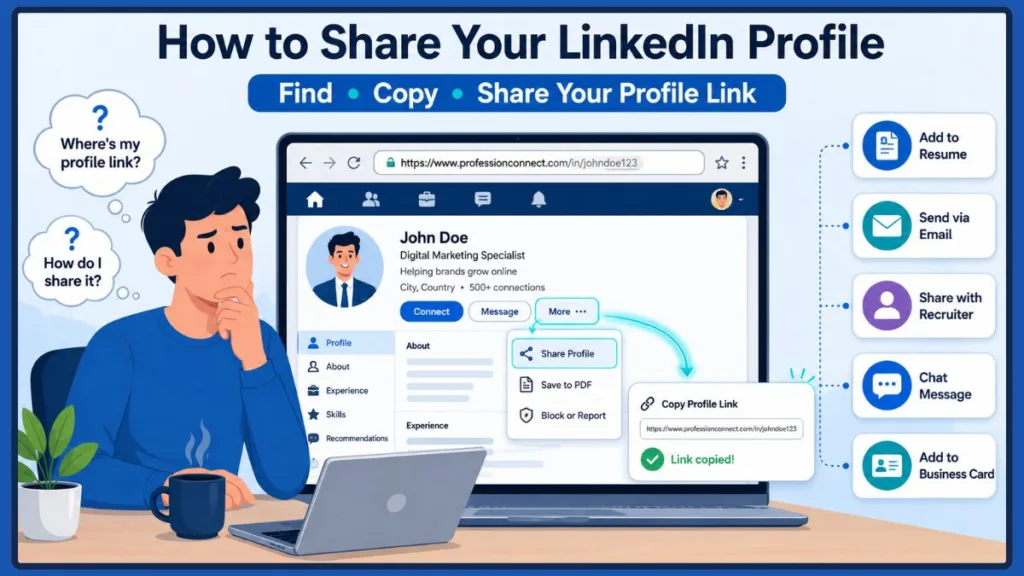
Fortunately, LinkedIn offers more than one way to share your profile. You can either copy your LinkedIn profile URL and paste it wherever you need it, or use LinkedIn’s built-in sharing feature to send your profile directly to your connections. Both methods are quick, easy, and work across desktop and mobile devices.
In this guide, you’ll learn how to share your LinkedIn profile on desktop and mobile devices, find and copy your LinkedIn profile URL, and even share someone else’s LinkedIn profile when needed. We’ll also cover practical tips to help you share your profile professionally and make a stronger first impression.
Quick Answer: How Do You Share Your LinkedIn Profile?
There are two simple ways to share your LinkedIn profile:
- Copy your LinkedIn profile URL and paste it into an email, resume, job application, message, or any platform where you want to share your professional profile.
- Use LinkedIn’s built-in Share Profile or Send Profile in Message feature to send your profile directly to your LinkedIn connections without manually copying the link.
Both methods work on desktop browsers and the LinkedIn mobile app for Android and iPhone. If you frequently share your profile with recruiters, employers, clients, or business contacts, it’s also a good idea to use a custom LinkedIn URL, which looks cleaner, is easier to remember, and gives your profile a more professional appearance.
Method 1: How to Copy and Share Your LinkedIn Profile URL
Copying your LinkedIn profile link is the easiest and most flexible way to share your professional profile. Since the link is copied to your clipboard, you can paste it almost anywhere—including job applications, resumes, emails, messaging apps, business cards, portfolios, or social media profiles.
This method is ideal when you want complete control over where and how you share your LinkedIn profile.
How to Share Your LinkedIn Profile URL on Desktop
Follow these steps to copy your LinkedIn profile URL from a desktop browser:
- Open LinkedIn in your preferred web browser and sign in to your account.
- Click the Me icon at the top of the page, then select View Profile.
- Once your profile opens, locate the browser’s address bar.
- Highlight the complete LinkedIn profile URL and copy it using Ctrl + C on Windows or Command + C on Mac.
- Paste the copied link wherever you want to share your profile.
You can use your LinkedIn profile link in:
- Job applications
- Resume or CV
- Email signature
- Microsoft Teams
- Slack
- Professional portfolios
- Business cards
- Social media profiles
- Cover letters
- Online networking communities
Sharing your profile this way makes it easy for recruiters, hiring managers, and professional contacts to access your latest career information without requesting additional documents.
Tip: If your copied profile URL contains unnecessary characters after your profile name, you can use a customized LinkedIn URL for a cleaner and more professional appearance.
How to Share Your LinkedIn Profile on Android or iPhone
If you’re using the LinkedIn mobile app, you can copy and share your profile in just a few taps.
- Open the LinkedIn app.
- Tap your profile picture, then select View Profile.
- Tap the More or three-dot menu on your profile page.
- Choose Share Profile or Share via, depending on the version of the app.
- Select Copy Link (or Copy URL) if you want to paste your profile elsewhere.
After copying the link, simply paste it into an email, messaging app, resume, digital portfolio, online application, or any platform where you want to share your LinkedIn profile.
Since the profile link is copied to your clipboard, you can reuse it multiple times without having to revisit your LinkedIn profile each time.
Method 2: How to Share Your LinkedIn Profile Using LinkedIn’s Built-In Share Feature
If you’re sharing your profile with another LinkedIn member, the built-in sharing option is often the fastest and most convenient choice. Instead of copying and pasting your profile URL, LinkedIn allows you to send your profile directly through its messaging system, making the process quicker and more seamless.
This method is particularly useful when connecting with:
- Recruiters
- Hiring managers
- Clients
- Colleagues
- Professional connections
- Business partners
- Potential collaborators
How to Share Your LinkedIn Profile from Desktop
- Open your LinkedIn profile.
- Click the More button below your profile header.
- Select Send Profile in Message.
- Search for the LinkedIn connection you want to send your profile to.
- Add a short message explaining why you’re reaching out.
- Click Send.
Adding a brief introduction makes your message feel more professional and provides helpful context for the recipient. Whether you’re applying for a role, introducing yourself after an event, or reconnecting with someone in your industry, a personalized message can leave a stronger impression than sending a profile link by itself.
How to Share Your LinkedIn Profile from the LinkedIn Mobile App
- Open your LinkedIn profile.
- Tap the More or three-dot menu.
- Select Share Profile.
- Choose whether you want to send it through a LinkedIn message or another supported app.
- Select the recipient and share your profile.
This method eliminates the need to manually copy and paste your LinkedIn profile link while keeping the conversation within LinkedIn. It’s especially helpful if you’re already chatting with someone on the platform.
How to Find Your LinkedIn Profile URL on Desktop and Mobile
Before you can share your profile, you’ll first need to know where your LinkedIn profile URL is located.
On a desktop browser, your profile URL appears in the address bar after opening your profile page. It usually follows this format:
linkedin.com/yourname
On the LinkedIn mobile app, open your profile and access the Share Profile or More menu to view or copy your profile link.
Depending on when you created your account, your LinkedIn URL may include extra letters or numbers. Although this doesn’t affect how your profile works, many professionals choose to customize their URL to make it shorter, easier to remember, and more suitable for resumes, business cards, and email signatures.
How to Copy Your LinkedIn Profile Link on Any Device
The process of copying your LinkedIn profile link is simple, regardless of whether you’re using a desktop browser or the LinkedIn mobile app.
On Desktop
- Open View Profile.
- Copy the URL directly from the browser’s address bar.
- Paste the copied link wherever you want to share your professional profile.
On Android or iPhone
- Open your profile.
- Tap the More menu.
- Select Share Profile.
- Tap Copy Link or Copy URL.
Once copied, your LinkedIn profile link is stored in your device’s clipboard until you replace it with something else. You can then paste it into emails, resumes, online job applications, documents, messaging apps, or any platform where you want others to access your profile.
How to Share Someone Else’s LinkedIn Profile on Desktop or Mobile
There may be times when you want to recommend a colleague, introduce a professional contact, refer a candidate to a recruiter, or share a company profile with someone else. In these situations, LinkedIn also makes it easy to share another person’s profile.
On Desktop
- Open the person’s LinkedIn profile.
- Copy the profile URL from your browser’s address bar if you want to share it outside LinkedIn.
- Alternatively, click More and choose Send Profile in Message to share it with one of your LinkedIn connections.
On Android or iPhone
- Open the person’s LinkedIn profile in the mobile app.
- Tap the More or three-dot menu.
- Choose Share Profile to send the profile using LinkedIn or another supported app.
- If available, select Copy Link to paste the profile URL wherever needed.
Sharing another person’s LinkedIn profile can be useful when making professional introductions, recommending someone for an opportunity, or helping others connect with the right expert or organization.
Best Practice: Before sharing someone else’s LinkedIn profile in a professional setting, it’s courteous to ensure they’re comfortable with you sharing their information, especially if you’re introducing them to new contacts or clients.
How to Customize Your LinkedIn Profile URL
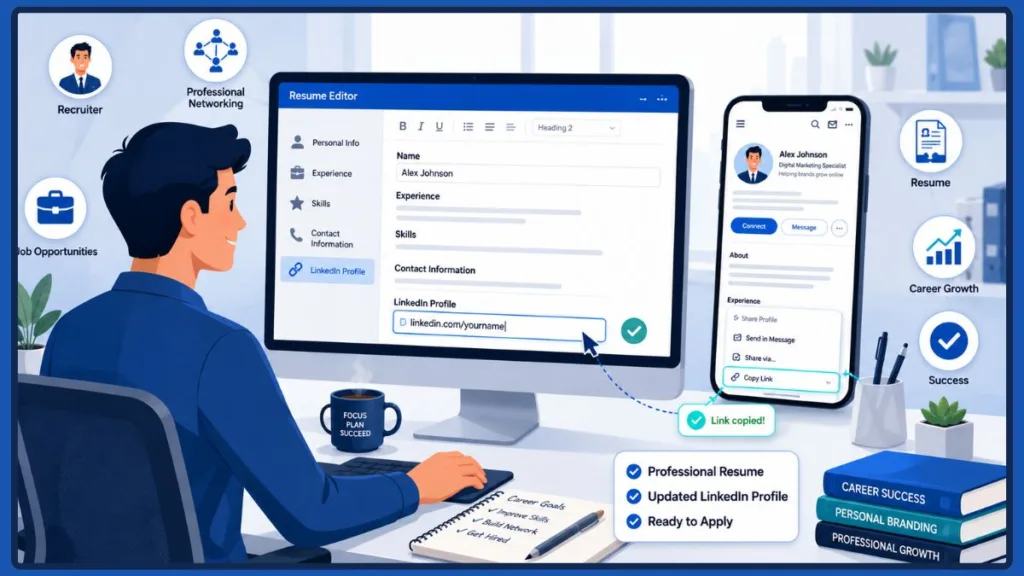
By default, your LinkedIn profile URL may include extra letters or numbers after your name. While this doesn’t affect your profile’s functionality, a custom LinkedIn URL looks more professional, is easier to remember, and is ideal for resumes, email signatures, business cards, and job applications.
A customized URL typically follows a clean format like:
linkedin.com/us/yourname
A shorter URL is also easier to type, share verbally, and include in printed materials. Whether you’re networking at an event or submitting a job application, a clean profile link helps others identify you quickly and leaves a more polished impression.
How to Change Your LinkedIn Profile URL
- Sign in to your LinkedIn account and open View Profile.
- On the desktop version, click Edit public profile & URL from the right side of your profile page.
- Under Edit your custom URL, click the Edit (pencil) icon.
- Enter the custom name you’d like to use. Whenever possible, use your full name or a professional variation that’s easy to recognize.
- Click Save to apply the changes.
If your preferred URL is already in use, try adding your middle initial, profession, or a relevant identifier while keeping it simple and professional. Avoid using unnecessary numbers, special characters, or informal words, as these can make your profile link harder to remember.
Tip: After updating your LinkedIn profile URL, remember to replace the old link anywhere you’ve previously shared it, such as your resume, portfolio, email signature, personal website, digital business card, or social media profiles. This ensures people always reach your latest profile.
Where Should You Share Your LinkedIn Profile?
Knowing how to share your LinkedIn profile is only part of the process. It’s equally important to know where sharing your profile provides the most value. Sharing your profile strategically helps recruiters, clients, and professional contacts learn more about your experience without requesting additional information.
Your LinkedIn profile acts as a digital extension of your resume. Instead of sending multiple documents or explaining your background repeatedly, you can simply share your profile link so others can explore your qualifications, skills, recommendations, certifications, and recent professional activities.
Here are some of the best places to use your LinkedIn profile link.
Add Your LinkedIn Profile to Your Resume or CV
Including your LinkedIn profile on your resume or CV gives hiring managers quick access to additional information that may not fit within a one- or two-page resume. They can explore your work history, certifications, recommendations, featured projects, and professional accomplishments before scheduling an interview.
For the best presentation, use your custom LinkedIn URL instead of a long default link.
Adding your LinkedIn profile also demonstrates that you maintain an active professional presence online, making it easier for employers to verify your experience and view your latest career updates.
Include Your LinkedIn Profile in Your Email Signature
Adding your LinkedIn profile link to your professional email signature makes networking effortless. Every email you send becomes another opportunity for colleagues, recruiters, clients, or potential employers to connect with you.
A simple signature might include:
- Your name
- Job title
- Company
- Email address
- LinkedIn profile link
This small addition can improve your professional visibility over time, especially if you frequently communicate with new clients, vendors, recruiters, or business partners.
Share Your LinkedIn Profile During Job Applications
Many online job applications include a dedicated field for your LinkedIn profile. Even when it isn’t required, including your profile link can help employers verify your experience, review endorsements, and gain a more complete understanding of your professional background.
Since your LinkedIn profile can be updated more frequently than a resume, recruiters may also see your latest projects, certifications, volunteer work, or recently added skills that aren’t reflected in your application documents.
Send Your Profile to Recruiters and Hiring Managers
If a recruiter asks for more information, sharing your LinkedIn profile URL is often faster than sending multiple documents. Your profile acts as a living resume that can showcase updated experience, certifications, projects, and recommendations.
Whenever possible, include a brief personalized message explaining why you’re reaching out.
A short introduction helps establish context and makes your outreach feel more genuine. For example, you can mention the role you’re interested in, where you found the opportunity, or how you connected with the recruiter.
Tip: Always include a short message when sharing your profile with recruiters. This increases your chances of getting a response and shows professionalism.
Share Your Profile with Professional Contacts
Your LinkedIn profile can also be shared with:
- Clients
- Business partners
- Colleagues
- Industry peers
- Networking groups
- Conference contacts
- Mentors
This helps build stronger professional relationships and makes it easier for people to stay connected with you.
It’s also useful when introducing yourself after networking events, webinars, workshops, or business meetings where exchanging LinkedIn profiles is often more practical than exchanging paper resumes.
Share on Professional Platforms and Messaging Apps
You can also share your LinkedIn profile link through:
- Microsoft Teams
- Slack
- Portfolio websites
- Professional communities
- Digital business cards
Choose the platform that best matches your audience while keeping the conversation professional.
If you’re sharing your profile outside LinkedIn, consider adding a short sentence explaining why you’re sharing the link. This provides context and encourages recipients to view your profile.
Tip: When sharing your profile on messaging apps, always include a brief explanation so recipients understand why you’re reaching out.
Should You Use a LinkedIn QR Code?
A LinkedIn QR code offers another convenient way to share your profile, especially during in-person networking events, conferences, workshops, career fairs, or business meetings.
Instead of asking someone to search for your profile manually, they can simply scan your QR code to open your LinkedIn profile instantly.
Depending on your version of the LinkedIn mobile app, you may be able to access LinkedIn’s built-in QR code feature directly from the search area. If that option isn’t available, you can generate a QR code using your public LinkedIn profile URL with a trusted QR code generator.
A QR code can be useful on:
- Business cards
- Event badges
- Presentation slides
- Portfolios
- Marketing materials
- Printed resumes
It can also be added to brochures, exhibition booths, conference materials, or presentation handouts to help attendees connect with you quickly.
While a QR code isn’t required for most users, it can make networking faster and more convenient during face-to-face interactions. It’s particularly helpful when you’re meeting multiple people and want to share your profile without manually exchanging contact details.
Tip: Use a QR code when attending events to make sharing your profile faster and more efficient.
Tips for Sharing Your LinkedIn Profile Professionally
Sharing your profile is about more than simply sending a link. Following a few best practices helps you make a stronger first impression and encourages people to connect with confidence.
A well-presented LinkedIn profile reflects your professionalism and increases the likelihood that recruiters, employers, or potential clients will engage with your profile after opening it.
Keep Your LinkedIn Profile Updated
Before sharing your profile, review your:
- Profile photo
- Headline
- Work experience
- Skills
- Certifications
- Contact information
An updated profile gives recruiters and professional contacts accurate information about your background.
It’s also worth reviewing your featured section, recent accomplishments, licenses, education, and employment dates to ensure everything is current and consistent with your resume.
Tip: Always update your LinkedIn profile before sharing it to ensure accuracy and professionalism.
Use a Custom LinkedIn URL
A shorter, customized profile URL is easier to remember and looks more professional than a default link containing random characters.
It also improves readability when printed on resumes, business cards, portfolios, or presentation materials.
Add a Personal Message
If you’re sending your LinkedIn profile directly to someone, avoid sharing only the link.
Instead, include a short introduction explaining why you’re reaching out.
For example:
Hi Sarah, it was great speaking with you today. As discussed, here’s my LinkedIn profile if you’d like to learn more about my experience. I look forward to staying connected.
A personalized message provides context and creates a more professional networking experience. It also increases the chances of receiving a positive response because the recipient immediately understands why you’ve contacted them.
Share the Right Version of Your Profile
Before sending your profile, double-check that you’re sharing your own LinkedIn profile and not another page or an outdated link.
If you’ve recently customized your LinkedIn URL, verify that you’ve copied the updated version instead of an older bookmarked link.
Review Your Public Profile
If you expect people outside your LinkedIn network to view your profile, make sure your public profile settings allow them to see the information you’d like to showcase.
Review your profile periodically to ensure sensitive information isn’t publicly visible unless you intentionally want to share it.
Tip: Check your privacy settings before sharing your profile publicly.
Common Mistakes to Avoid When Sharing Your LinkedIn Profile
Even though sharing your LinkedIn profile is straightforward, a few common mistakes can make the process less effective.
Avoid these issues whenever possible.
- Sharing an outdated or incorrect profile link.
- Forgetting to customize your LinkedIn profile URL.
- Sending your profile without any context when contacting recruiters or clients.
- Sharing your profile before updating your work experience or skills.
- Accidentally copying another person’s LinkedIn profile link.
- Using an incomplete profile with missing information or no profile photo.
- Forgetting to update your resume or email signature after changing your LinkedIn URL.
Another common mistake is assuming your profile is fully visible to everyone. If portions of your profile are hidden due to privacy settings, recipients may not see the information you intended to share.
Tip: Always review your profile before sharing to avoid mistakes and ensure a strong impression.
Troubleshooting Common LinkedIn Profile Sharing Issues
If you’re having trouble sharing your LinkedIn profile, these solutions can help.
I Can’t Find My LinkedIn Profile URL
Open your profile first. On desktop, your profile URL appears in the browser’s address bar. On mobile, open your profile and use the Share Profile or More menu to access your profile link.
If you’re still unable to locate it, make sure you’re viewing your own profile rather than the LinkedIn home feed.
I Can’t Copy My LinkedIn Profile Link
If the Copy Link option isn’t available, use the Share Profile option and select Copy URL if provided. On desktop, you can always copy the address directly from your browser.
If necessary, update your LinkedIn app to the latest version, as menu options may vary slightly between versions.
My LinkedIn URL Looks Too Long
Long profile URLs often include extra characters. You can create a custom LinkedIn URL from your profile settings to make it shorter and easier to share.
Using a shorter URL also gives your profile a cleaner appearance on resumes, business cards, and email signatures.
I Can’t Change My LinkedIn URL
If LinkedIn doesn’t accept your preferred URL, it’s likely already being used by another member. Try a professional variation using your middle initial, profession, or another recognizable identifier.
Keep your custom URL simple so it’s easy for recruiters and colleagues to remember.
The Person Can’t Open My LinkedIn Profile
Confirm that you’ve copied the correct profile link and that your profile visibility settings allow others to access your public profile when appropriate.
Also ensure you haven’t accidentally removed part of the URL while copying or editing the link.
Frequently Asked Questions
How do I share my LinkedIn profile?
You can share your LinkedIn profile by copying your LinkedIn profile URL and pasting it wherever you need it, or by using LinkedIn’s Share Profile feature to send it directly through LinkedIn.
Both methods work on desktop browsers and the LinkedIn mobile app.
Where can I find my LinkedIn profile URL?
On desktop, open your profile and copy the URL from your browser’s address bar. On the LinkedIn mobile app, open your profile and use the Share Profile option to copy your profile link.
How do I copy my LinkedIn profile link on my phone?
Open the LinkedIn app, go to View Profile, tap the More menu, choose Share Profile, and select Copy Link or Copy URL, depending on your app version.
Can I share someone else’s LinkedIn profile?
Yes. Open their profile, then either copy the profile URL or use LinkedIn’s built-in sharing option to send it to another LinkedIn member.
Should I customize my LinkedIn profile URL?
Yes. A custom URL looks cleaner, is easier to remember, and is more suitable for resumes, email signatures, business cards, and professional networking.
Is it safe to share my LinkedIn profile?
Yes. Sharing your LinkedIn profile is generally safe, especially when networking or applying for jobs. Before sharing publicly, review your profile visibility settings to ensure they match your preferences.
Can I add my LinkedIn profile to my resume?
Absolutely. Including your LinkedIn profile on your resume allows recruiters and employers to view additional details about your experience, recommendations, and professional achievements. It also gives them access to the most up-to-date version of your professional background.
Conclusion
Knowing how to share your LinkedIn profile makes it easier to build professional relationships, apply for jobs, connect with recruiters, and expand your network. Whether you choose to copy your LinkedIn profile URL or use LinkedIn’s built-in sharing feature, both methods let you quickly share your professional profile from a desktop browser or the LinkedIn mobile app.
For the best results, keep your profile updated, use a custom LinkedIn URL, and include a short personalized message whenever you’re reaching out to new connections. Small improvements like these can help you present yourself more professionally and make it easier for others to connect with you.
As your career progresses, remember to review your LinkedIn profile regularly so it reflects your latest experience, skills, certifications, and accomplishments. An up-to-date profile not only supports successful networking but also helps recruiters, employers, and clients gain a complete picture of your professional expertise.
If you’re actively using LinkedIn for career growth, you may also find it helpful to learn how to optimize your LinkedIn profile, update your profile visibility settings, and make your profile stand out to recruiters.
Visit Our Post Page: Blog Page
Discover more from Izoate
Subscribe to get the latest posts sent to your email.