
Learn how to fix Gemini Error 9 (“Something Went Wrong”). Find out why it happens, whether it’s a server issue, and the best community-tested workarounds.
You’re in the middle of something important — maybe you’re getting Gemini to review a document, brainstorm ideas, or help you work through a coding problem — and suddenly it just stops. Instead of a response, you get a blunt little message: “Something went wrong (9).”
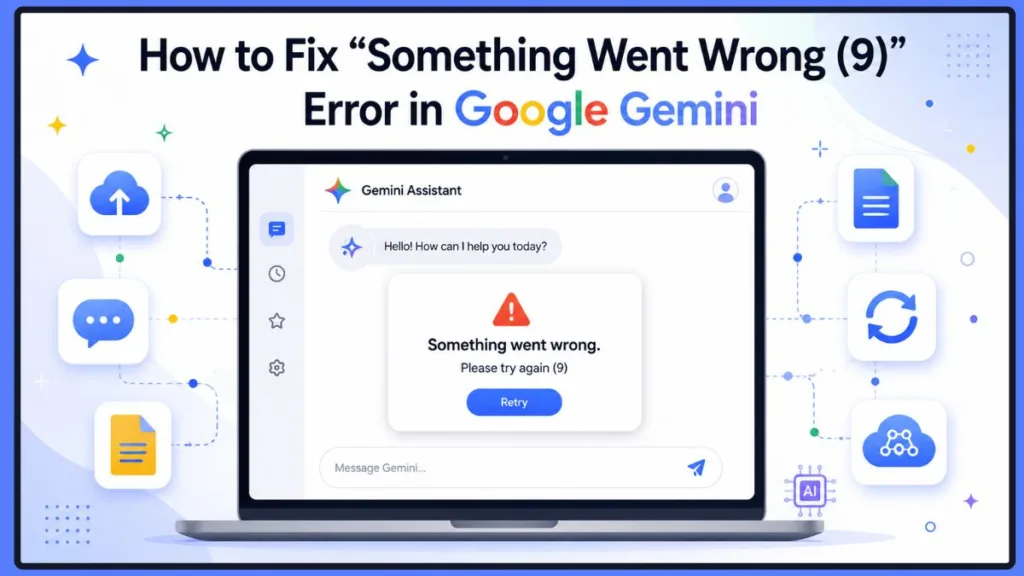
No explanation. No obvious reason. Just a dead end where your answer should be.
If you’ve refreshed the page, tried again, and gotten the exact same error, you’re not imagining things. This is a real, widely reported issue, and you’re far from the only one dealing with it. What makes Gemini Error 9 especially annoying is that it usually doesn’t just interrupt one message — it can lock up your entire conversation, so every new prompt you send afterward fails too, even if it has nothing to do with whatever triggered the error in the first place.
What We Found
Before writing this guide, I went through real reports on the Gemini Apps Community and Reddit to see what people actually experience when Error 9 shows up. Here’s a summary of what came out of that research:
- Google has acknowledged user reports of this issue and confirmed its team is aware and working on a fix.
- Most reported cases affect only a single conversation, not your entire Gemini account.
- Linked Google Docs appear to trigger the error for some users, especially after the document gets edited.
- Starting a new conversation is the most commonly reported workaround, and it tends to work quickly.
- Google has not officially explained what Error 9 means — everything below is based on Google’s public acknowledgement plus patterns observed across community reports, not a published technical breakdown.
Keep that last point in mind as you read on. This guide is built on the best available evidence, not guesswork dressed up as an official explanation.
Common Symptoms of Gemini Error 9
Before getting into why this happens, it helps to check whether what you’re seeing actually matches Error 9. You’re likely dealing with it if you notice:
- Gemini stopped responding mid-conversation, without warning
- Gemini won’t answer any new prompt, even ones unrelated to your last message
- The message “Something went wrong (9)” appears every time you try again
- Your existing conversation becomes unusable, no matter what you type
- A new chat works fine, while the old one keeps failing
- Gemini appears stuck right after you submit a prompt, with no response coming through
- The problem started shortly after you linked a Google Doc in the conversation
If several of these sound familiar, you’re in the right place — the rest of this guide walks through why it happens and how to fix it.
Quick Fix for Gemini Error 9
If you’re stuck right now and just need to get back to work, start here:
- Start a brand-new chat instead of retrying the broken one
- Remove any Google Docs links from your prompt
- Paste the document’s text directly instead of linking to it
- Refresh the page
- Sign out and back into your Google account
- Try a different browser
- Switch to the Gemini mobile app
- Check whether Gemini is down for everyone, not just you
- Send feedback to Google if nothing else works
We’ll walk through each of these in more detail below, but if you’re in a rush, working through that list in order will resolve the issue for most people.
What Is Gemini Error 9?
Gemini Error 9 shows up as the message “Something went wrong (9)” in the middle of a chat, whether you’re using Gemini on the web, on Android, or on iPhone. It usually appears right after you send a prompt — Gemini either fails to respond at all or cuts off mid-process.
Here’s the honest answer: Google hasn’t published an official explanation of what Error 9 specifically means. There’s no support article that breaks down the technical cause the way you might expect. What you do have is a growing trail of real user reports on the Gemini Apps Community and Reddit, and a few patterns keep showing up again and again.
Based on those reports, Error 9 seems to be tied to something going wrong within a specific conversation, rather than a problem with your device, your internet connection, or your Google account as a whole. That’s an important distinction, because it changes how you should approach fixing it.
Why Does Gemini Keep Saying “Something Went Wrong (9)”?
There’s no single confirmed cause here, but if you look across enough reports, a few situations come up more than others:
- You’ve linked a Google Doc in your conversation with Gemini
- You edited that Google Doc after sharing it, then went back to the chat
- You’re in a long-running conversation with a lot of back-and-forth
- Google’s servers are having a temporary issue on their end
One user also mentioned that telling Gemini not to use search tools seemed to help in their specific case. That’s worth keeping in mind, but it’s a single anecdotal report rather than a confirmed fix, so don’t treat it as a guaranteed solution.
Tip: If you’re not sure what triggered your Error 9, think back to your last few messages. Did you share a link, upload a file, or ask Gemini to search the web right before it happened? That’s usually your best clue.
Is Gemini Error 9 a Server Problem?
In many cases, yes — and this isn’t just a guess. On Reddit, a verified Google Help Community account responded directly to a user’s report of Error 9 with this:
“Hi there, thanks for flagging. Our team is aware of this issue and is working on a fix. We appreciate your patience.”
That’s a meaningful confirmation. It tells you that at least some cases of Error 9 aren’t caused by anything you did — they’re being tracked internally by Google’s team. So if you’ve already tried the basics and you’re still stuck, know that you’re dealing with a known issue, not a mistake on your end.
Does Gemini Error 9 Affect Gemini Advanced?
Yes. If you’re paying for Gemini Advanced, you might assume a premium subscription would insulate you from an error like this — but reports show that isn’t the case. Both free users and Advanced subscribers have described running into the exact same “Something went wrong (9)” message.
That tells you Error 9 isn’t limited to a particular plan or tier. Whatever is causing it appears to sit somewhere in how conversations are processed, not in which subscription you’re on.
Can Google Docs Cause Gemini Error 9?
This is one of the clearest patterns to come out of the community reports, so it deserves its own section.
Multiple users independently traced their Error 9 issue back to Google Docs integration. Here’s the pattern one Reddit user pinned down:
- They linked a Google Doc inside their Gemini conversation
- They went back and edited that document
- They returned to the same Gemini chat, and every new prompt failed with Error 9
Removing the link didn’t just stop new errors — in this case, it actually got the conversation working again. Another user confirmed something similar: they swapped out the live document link for the actual text of the document, pasted directly into the chat, and the error disappeared.
Tip: If you’re working with a Google Doc in Gemini, paste the relevant text straight into your prompt instead of sharing a live link — especially if you plan on editing that document later. It’s a small extra step, but it can save you from losing an entire conversation.
Here’s why this pattern is worth taking seriously: it didn’t just show up once. Both the Gemini Apps Community and Reddit contain independent reports describing nearly identical behavior after working with linked Google Docs — different users, different platforms, same sequence of events. Google hasn’t confirmed this as the official cause of Error 9, but the consistency across separate, unrelated reports makes it one of the strongest community-backed explanations available right now.
Why Does Gemini Error 9 Usually Affect Just One Chat?
Here’s something you’ll notice if you dig through enough reports: Error 9 tends to be specific to one conversation, not your whole Gemini account.
People consistently describe the same pattern — the broken chat stays broken no matter what they type into it, but starting a new conversation works completely normally right away. That’s a strong signal that whatever is going wrong is tied to the state of that particular chat thread, rather than something wrong with your login, your device, or Gemini as a whole.
This is genuinely useful to know, because it means you usually don’t need to log out, switch devices, or wait around — you can often just start fresh.
It also helps to know how Error 9 compares to a broader Gemini server outage, since the fix for each is different:
| Issue | Gemini Error 9 | General Gemini Server Outage |
|---|---|---|
| One conversation affected | Usually | Rarely |
| New chat works | Often | Usually not |
| Google Docs involvement | Sometimes reported | No known connection |
| Waiting may resolve it | Sometimes | Usually |
If every conversation is failing — not just one — and a new chat doesn’t help either, you may be dealing with a wider outage rather than Error 9 specifically. Checking the Google Workspace Status dashboard can help you tell the difference quickly.
How to Fix Gemini Error 9 (Step-by-Step)
If you’re currently stuck, work through these steps in order:
1. Stop Resubmitting the Same Prompt
It’s tempting to hit send again and again, but repeatedly resubmitting the same prompt in a broken chat generally won’t fix anything. Give it a rest and move to the next step.
2. Save Your Work First
Before you do anything else, copy your most recent prompt and any important content you don’t want to lose — code snippets, drafts, or key parts of the conversation. You can paste these into a fresh chat afterward.
3. Start a New Chat
Since Error 9 is usually tied to one specific conversation, opening a new chat is often the fastest fix. Paste in your saved prompt or a quick summary of what you were working on, and continue from there.
4. Remove or Replace Google Docs Links
If your original chat involved a linked Google Doc, don’t carry that same link into your new conversation. Paste the document’s text directly instead, especially if you’ve edited the doc recently.
5. Refresh the Page
A simple refresh won’t fix a conversation-specific issue, but it’s still worth doing to rule out a stale page or a temporary loading glitch.
6. Sign Out and Sign Back In
Signing out of your Google account and logging back in refreshes your session. It’s not guaranteed to fix Error 9 specifically, but it’s a safe step that clears up other login-related hiccups along the way.
7. Try a Different Browser
If you’re using Gemini through Chrome, try switching to Firefox, Edge, or Safari to see if the issue follows you. This helps you figure out if something local to your browser is playing a role.
8. Switch to the Gemini Mobile App
If you’re stuck on the web version, try continuing the same task in the Gemini mobile app on Android or iPhone. Since it’s a different platform, it sometimes succeeds where the web version won’t.
9. Check Whether Gemini Is Down
If nothing above works, it’s worth checking whether the problem is bigger than just your account. Visit the official Google Workspace Status Dashboard to see if there’s a known, ongoing service disruption.
10. Report the Bug to Google
If you’ve tried everything and Error 9 keeps coming back, use the feedback option inside Gemini to report it. This sends details straight to Google’s team and helps them track down what’s causing it.
What Doesn’t Usually Fix Gemini Error 9
It’s worth knowing what’s not likely to help, so you don’t waste time on it:
- Clearing your cache — this can help with general browser glitches, but reports suggest it doesn’t reliably fix Error 9 itself
- Reinstalling the app — unlikely to make a difference if the issue is tied to a specific conversation
- Disabling browser extensions — worth ruling out for other issues, but not something users have connected to Error 9 specifically
Since the strongest evidence points to this being a conversation-state issue rather than something wrong with your local setup, starting a new chat will usually get you further than deep troubleshooting on your device.
What Gemini Error 9 Doesn’t Mean
It’s easy to jump to worst-case conclusions when an error like this pops up, so it’s worth being clear about what Error 9 doesn’t usually indicate:
- Your Google Account hasn’t been suspended
- Your Gemini subscription hasn’t expired
- You haven’t necessarily exceeded a usage limit
- Your browser isn’t infected
- Your files or documents haven’t been permanently deleted
Based on everything gathered from community reports, Error 9 points to a conversation-level hiccup — not a red flag on your account or your device. That doesn’t guarantee every single case works exactly this way, but it’s a reasonable takeaway from the evidence available so far.
How to Prevent Gemini Error 9 Going Forward
You can’t guarantee this error never shows up again, but a few habits can lower your chances:
- Avoid extremely long, sprawling conversations — start a new chat every so often, especially for unrelated topics
- Paste document text instead of linking live Google Docs whenever you can
- Avoid editing a linked Google Doc in the middle of an active Gemini conversation
- Save your prompts and key content as you go, so you’re never caught off guard
- Start a fresh conversation periodically, even if things are working fine, particularly before big or important tasks
When Should You Contact Google Support?
If you’ve already:
- Started a new chat
- Removed any Google Docs links
- Tried a different browser
- Tested the mobile app
- Checked for a wider outage
…and Error 9 is still showing up, it’s time to reach out directly. Open Gemini, use the Send Feedback option, and describe exactly what you were doing when the error appeared. Screenshots help a lot here, and so does mentioning whether you were working with a linked document, a long conversation, or something else entirely.
Final Thoughts
Gemini Error 9 is frustrating, especially when it shows up in the middle of something you were counting on finishing quickly. But based on everything the community has reported — and what Google itself has confirmed — this usually isn’t something you did wrong. It tends to be tied to a specific conversation, often connected to Google Docs links, and Google has acknowledged it’s an issue their team is actively working to fix.
Because Google hasn’t published a technical explanation for Error 9, the recommendations in this guide combine Google’s official acknowledgements with recurring community reports rather than undocumented assumptions.
Your best move if you run into it: don’t fight the broken chat. Save what matters, start a new conversation, skip the live document links, and you’ll likely be back up and running in a couple of minutes.
If Error 9 keeps coming back no matter what you try, don’t hesitate to report it to Google directly — the more details they get from people experiencing this, the faster they can track down a permanent fix.
If you’re running into other Gemini hiccups along the way, you may also find these guides useful: Gemini Loading Forever, Gemini Error 1099, Gemini Error 1076, Gemini Not Responding, and if you need somewhere to work while you wait things out, our roundup of the best Google Gemini alternatives can help.
Frequently Asked Questions
What does “Something went wrong (9)” mean in Gemini?
It’s an error message that appears when Gemini can’t complete your request. Google hasn’t officially defined what Error 9 means, but based on real user reports, it’s commonly connected to issues within a specific conversation, Google Docs integration, or temporary backend problems — not an issue with your Google account.
Why does Gemini keep saying “Something went wrong (9)”?
You might see this after long conversations, after attaching a Google Doc, after editing a linked document, or during temporary service hiccups on Google’s end. In most cases, it only affects the one conversation you’re in, while starting a new chat works fine.
Is Gemini Error 9 a server issue?
Often, yes. Google has directly acknowledged reports of this error and confirmed its team is working on a fix, which points to at least some cases being server-side rather than something caused by your device.
Can Google Docs cause Gemini Error 9?
Yes, according to multiple user reports. Sharing a Google Doc link and then editing that document afterward has been linked to this error. Replacing the link with the document’s actual text has resolved the issue for some people.
Why does Gemini Error 9 usually affect only one conversation?
Based on user reports, the broken chat stays broken while a brand-new conversation typically works right away. This suggests the issue is tied to that specific conversation’s state rather than your entire account.
Does starting a new chat fix Gemini Error 9?
Often, yes. One of the most commonly recommended fixes is to start a new conversation and paste in your previous prompt or a summary of what you were working on, rather than continuing in the broken chat.
Does Gemini Advanced also get Error 9? Yes. Both free users and Gemini Advanced subscribers have reported this error, so it isn’t limited to any particular subscription plan.
Can long conversations trigger Gemini Error 9? Possibly. While Google hasn’t confirmed this directly, several users have reported the error after long, extended conversations. Starting fresh chats periodically may help reduce the chances of running into it.
Should I clear my browser cache to fix Gemini Error 9?
You can try it, but community reports suggest it doesn’t consistently fix this specific error. Since Error 9 tends to be tied to your conversation or Google’s servers rather than your browser, starting a new chat is usually more effective.
Can a VPN cause Gemini Error 9? There’s no confirmed link between VPN use and this error. Still, temporarily disabling your VPN is a reasonable step if you’re troubleshooting and want to rule out connection issues.
Why does Gemini Error 9 happen after uploading files?
Some users have run into this error after uploading documents or working with linked Google Docs. If a file or document can’t be processed properly, Gemini may fail to generate a response and show Error 9 instead.
Can I recover a conversation after Gemini Error 9?
Sometimes. If the chat still opens, copy your important prompts before doing anything else. If it stays unusable, start a new conversation and paste in your previous work to keep going.
Is Gemini Error 9 permanent?
No, it’s generally temporary. It tends to clear up once you start a new chat, remove a problematic Google Docs link, or once Google resolves whatever’s happening on their end.
How do I report Gemini Error 9 to Google?
Open Gemini, tap the Help or Send Feedback option, and describe exactly what led to the error. Adding a screenshot makes it easier for Google’s team to investigate and work toward a fix.
Visit Our Post Page: Blog Page
Discover more from Izoate
Subscribe to get the latest posts sent to your email.