
Wondering why your Facebook comments appear to friends? Learn how to stop Facebook from sharing your comments with friends, understand why your activity becomes visible, and discover practical ways to reduce comment visibility on public posts, pages, and groups.
Picture this: You are planning a surprise family vacation, so you ask a quick question in a popular travel group. Or maybe you are having car trouble and comment on a local mechanic’s public page asking for advice. Next thing you know, your spouse is asking about the secret trip, your coworkers are offering unsolicited car advice, and your family members are chiming in on your supposedly “private” question.
Have you ever commented on a Facebook post only to discover that your friends, family members, or coworkers somehow saw it later? Maybe you shared your opinion on a news article, or asked a question on a community board. Then, unexpectedly, someone from your friends list mentioned your comment or reacted to the exact same thread.
If you’ve ever dealt with this, you know how frustrating it is when Facebook broadcasts your activity to people you never intended to share it with. You are certainly not alone in this; thousands of frustrated users frequently search for terms like “how to stop Facebook from sharing your comments with friends,” “hide Facebook comments from friends,” or “why are my Facebook comments showing up in friends’ feeds.”
You may be looking for a magic privacy setting that stops Facebook from showing your comments to your friends list. Many people believe this feature exists, but the reality of how Meta’s algorithms handle your data is a bit more complicated. The truth is that Facebook’s privacy system doesn’t work exactly the way many users expect. While Facebook offers various privacy configurations, there is currently no single switch that completely prevents friends from seeing your comments on public content.
Let’s break down exactly why your network is seeing your activity and, more importantly, what practical steps you can take to regain control of your digital footprint.
Why Are My Facebook Comments Showing Up to Friends?
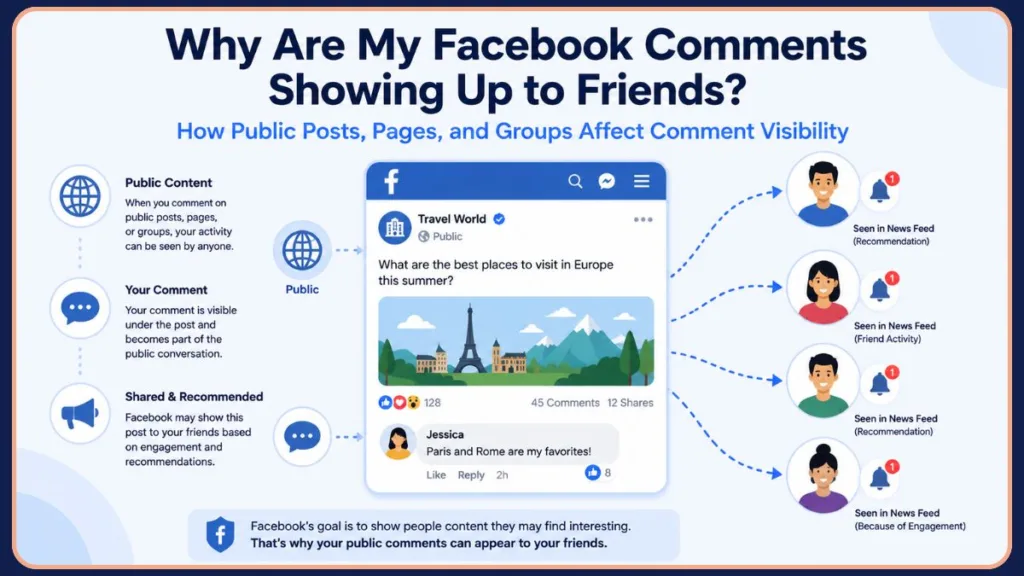
When your friends casually mention a comment you left on a random meme page, it can feel like Facebook is actively spying on you. One of the biggest misconceptions about Facebook is that comments are completely private unless someone directly visits the post. Unfortunately, that’s not how the platform operates. Here is what is actually going on behind the scenes.
Facebook Treats Public Interactions as Public Activity
The biggest misconception about social media is how “public” content truly works. Whenever you comment on:
- A public Facebook post
- A public Facebook Page
- A public Facebook Group
- A public news article shared on Facebook
Your interaction automatically becomes part of that public discussion. Because the original content is open to everyone, your comment may also become visible to anyone who can access that content.
Important Note: Just like posting on a public X (formerly Twitter) thread or an open Instagram profile, your comments are not shielded by your personal profile’s privacy settings. If the original post is public, your comment is public, too. This means that even if you didn’t tag anyone or share the post directly, Facebook may still surface your interaction through its automated distribution networks.
How Facebook’s Recommendation System Works
Facebook constantly analyzes user engagement to keep people active and scrolling on the platform. It isn’t necessarily sending a direct push notification to your friends every time you type a comment. Instead, the platform’s recommendation algorithm is designed to surface content that keeps people engaged. Your friends might see your activity through:
- Friend activity recommendations: Posts showing up directly in their feed with a label like “Your friend commented on this.”
- Suggested posts: Activity-related suggestions where the algorithm assumes that if you found a post interesting, your friends with similar demographics might like it, too.
- Engagement-based visibility: Highly active threads naturally rise to the top of the News Feed based on engagement patterns, dragging your comments along with them.
Why Facebook Shows Posts You Interact With
At its core, Facebook is an engagement machine. The platform’s primary goal is to highlight active discussions, connect users through shared interests, and keep people on the app longer.
The platform assumes that if you found a discussion interesting enough to comment on, your friends might also find it relevant. As a result, Facebook promotes public content connected to your activity to pull your friends into the same conversation. While this can help people discover new communities, it can also create massive privacy concerns when you don’t want your private interactions attracting unnecessary attention.
Can You Stop Facebook From Sharing Your Comments With Friends?
This is the central question most users want answered. Here is the direct, honest, short answer: No. > Warning: Facebook currently does not offer a universal privacy setting that completely prevents your friends from seeing the comments you leave on public content. This is a critical distinction because many online articles falsely suggest there is a hidden privacy option that can make all your comments private. In reality, no such setting exists.
To navigate this effectively, it helps to understand exactly what you can and cannot control.
What Facebook Allows You to Control
Facebook does allow you to manage:
- Profile privacy: You can strictly limit who views the information, posts, photos, and updates you publish on your own personal timeline.
- Audience settings: You can choose exactly who sees your specific status updates, stories, and reels (e.g., Friends, Only Me, or Custom lists).
- Group privacy: You can restrict your visibility by exclusively creating or interacting within Private groups.
- Follower permissions: You can manage who can follow you and who can send you friend requests.
What Facebook Does Not Allow
Currently, Facebook does not allow users to:
- Make individual public comments private: You cannot manually set a comment on a public post to “Friends Only.”
- Hide all comments from friends automatically: There is no toggle switch to stop friends from seeing your interactions on public pages.
- Prevent Facebook from potentially surfacing public interactions: You cannot opt out of Facebook using your public engagement to push content into your friends’ feeds.
- Create a universal “friends cannot see my comments” setting: Understanding these structural limitations will help you avoid wasting time searching for features that simply don’t exist.
What Happens When You Comment on Different Types of Facebook Content?
Not all Facebook interactions carry the same level of exposure. Understanding where you are posting is your best line of defense. As a general rule, the more public the original content is, the greater the chance that your interaction will become visible to others.
| Content Type | Can Friends Potentially See Your Comment? | Visibility Details |
| Public Facebook Post | Yes | Anyone on or off Facebook can see it. |
| Public Facebook Page | Yes | Highly visible to friends via algorithmic recommendations. |
| Public Facebook Group | Yes | Activity is often pushed directly to your friends’ feeds. |
| Private Facebook Group | Usually only group members | Non-members (even your friends) cannot see it. |
| Friend’s Friends-Only Post | Depends | Based entirely on the original poster’s chosen audience settings. |
| Messenger Conversation | No | Completely private between the specified participants. |
How to Reduce the Chances of Friends Seeing Your Facebook Comments
While Facebook doesn’t provide a perfect, one-click solution, there are several ways to use smarter habits to significantly shrink your digital footprint and protect your privacy. You can try the following steps to protect your personal activity.
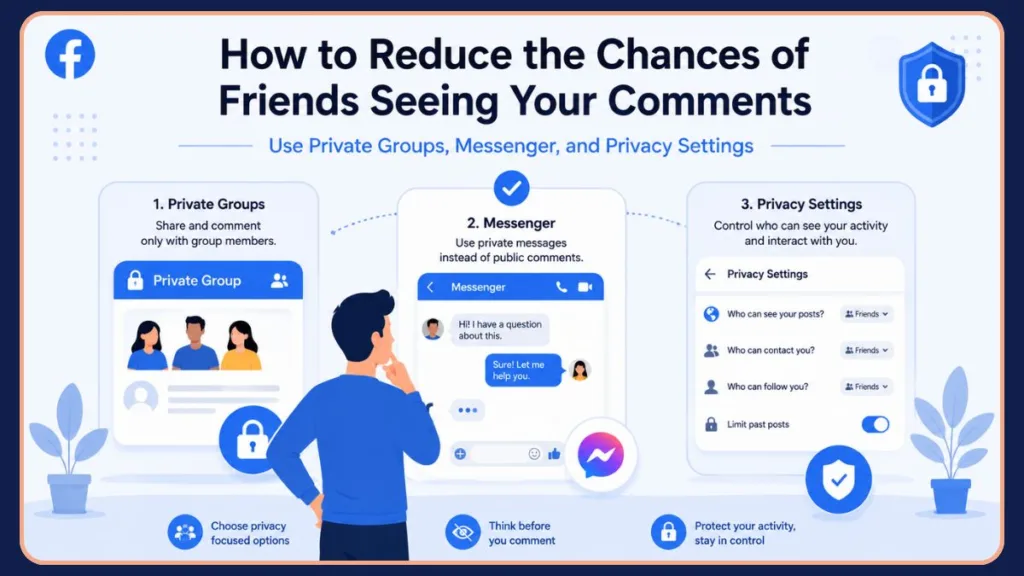
Use Private Facebook Groups Whenever Possible
Private Facebook Groups offer one of the best alternatives for users who want complete control over who sees their discussions. When you post or comment inside a Private Group, Facebook strictly restricts that content to approved members of that specific group. Even if your friends look for your name, they won’t see your questions or answers unless they are also members of that exact same community.
Check Group Privacy Before Posting
Tip: Never assume a group is private just because it requires admin approval to join or features questions to enter. Many groups are entirely public, meaning everything you say there is broadcasted to the wider platform. Always verify the group’s privacy status before hitting enter.
Before commenting, make it a habit to open the group homepage, look directly beneath the group name, and confirm its active privacy description.
Avoid Commenting on Sensitive Topics on Public Pages
If privacy matters to you, think carefully and simply do not engage with sensitive content on public business pages, news outlets, or open community boards. Be especially careful when discussing:
- Upcoming travel plans or family vacations
- Relationship advice, marriage issues, or family disputes
- Medical questions, prescription drugs, or health conditions
- Financial concerns, career choices, or job hunting
- Heated political or social discussions
Remember that these public comments are completely discoverable and highly likely to be surfaced through Facebook’s recommendation systems.
Use Facebook Messenger Instead
Recommendation: If your goal is to ask a business page or a specific person a question without your entire network seeing it, take the conversation out of the public comments section. Send them a direct message through Facebook Messenger (or contact them via WhatsApp or email). Direct messages provide true privacy.
Review Your Followers and Public Content Settings
While adjusting these preferences won’t completely hide comments you leave on other people’s public posts, performing regular privacy audits helps limit your overall public exposure.
- Open your Facebook Settings.
- Scroll down to the Audience and visibility section.
- Select Followers and Public Content.
- Review each option carefully and adjust who can follow you and comment on your public posts from Public to Friends.
How to Check Whether a Facebook Group Is Public or Private
Before you type out a sensitive response, a few seconds of verification can prevent your activity from being exposed to a wider audience than intended.
On Mobile (iOS and Android)
- Open the Facebook app and navigate to the Group in question.
- Look directly under the group’s name at the very top of the screen.
- You will see a label clearly stating either Public group or Private group.
On Desktop
- Go to Facebook.com and open the group’s main page.
- Check the “About” section on the right-hand side of the screen, or look directly under the group’s main title banner.
- It will display a globe icon for a Public group or a padlock icon for a Private group.
Can Friends See My Comments in Facebook Groups?
Group privacy architecture determines everything when it comes to who sees your comments.
- Public Groups: Yes, absolutely. Anyone on or off Facebook can see the group’s members, posts, and comments. Facebook heavily relies on public group activity to generate automated feed recommendations for your friends.
- Private Groups: Usually, no. Only current members of that specific group can see your comments. Your outside friends will not see this activity pop up in their News Feed.
Important 2026 Update: Meta recently gave group admins the ability to convert Private Groups into Public Groups. If an admin changes a group’s privacy to public, Facebook protects your existing data: all past comments and posts made before the switch will remain hidden from the general public (visible only to original members and admins). However, any new comments you make after the switch will be fully public and broadcasted to friends. You will see an explicit prompt reminding you of this change before posting.
- Hidden Groups: Hidden (or secret) groups are a specialized type of private group that do not even show up in public search results. Your comments here are highly secure and only visible to invited members.
Can You Hide Comments You’ve Already Made?
If you’ve already left a comment on a public post and are worried about friends or coworkers seeing it, your options are limited, but you can take immediate action to mitigate the damage.
- Delete the Comment: This is the most effective solution. Once deleted, the comment is removed entirely from the platform and will stop appearing in your friends’ feeds.
- Edit the Comment: You can alter the text to remove sensitive information, though the structural log indicating that you commented on the post will still exist.
- Remove the Post From Your Activity Log: You can comprehensively manage your past interactions through your Facebook Activity Log, allowing you to systematically delete old comments, reactions, and likes that you no longer want associated with your profile.
Warning: Deleting a comment removes it from Facebook’s active architecture, but if someone has already taken a screenshot or received an email notification containing your comment text, deleting it won’t erase it from their offline storage or email inbox.
Facebook Privacy Settings You Should Review
To keep your personal account as secure as possible, take a few minutes to complete a quick diagnostic review of these core privacy settings:
- Who Can See Your Future Posts: Ensure this is set to Friends rather than Public in your primary Privacy Settings.
- Followers and Public Content: Limit who can follow your personal profile without an approved friend request in your Follower Settings.
- Profile Visibility: Restrict who can look up your personal profile using your associated email address or phone number.
- Tagging and Timeline Review: Turn on timeline review options in Profile and Tagging so you have to manually approve any posts you are tagged in before they are allowed to appear on your personal profile.
- Activity Log: Regularly audit your historical interactions via your Activity Log to clean up old, public comments.
Common Facebook Privacy Myths
Important Note: Don’t let these widespread social media misconceptions trick you into sharing more personal information than you intend to.
- Myth #1: I Can Make My Public Comments Private. False. A comment always inherits the privacy settings of the original post. If the original post is public, your comment is public.
- Myth #2: Setting My Profile to “Friends Only” Protects My Comments Everywhere. False. Your personal profile settings only apply to content published on your own timeline, not your interactions on external pages.
- Myth #3: Deleting a Comment Removes All Visibility Instantly. Partially true. While it vanishes from the live feed, it does not wipe out notifications already sent or screenshots already taken.
- Myth #4: Facebook Has a Secret “Hide My Comments” Setting. False. There is no universal toggle or premium setting to hide your public engagement from your friends list.
What to Do If Facebook Keeps Showing Your Activity to Friends
If you feel like your network is constantly watching your every move on the platform, you have to fundamentally adjust how you interact with the application.
- Rely heavily on Private Groups for advice and discussions.
- Transition sensitive inquiries over to direct, encrypted Messenger chats.
- Limit your overall engagement (likes, reactions, and comments) on large, public meme pages, viral videos, or national news outlets.
- Regularly review and purge your past public interactions using your Activity Log.
Recommendation: Adopt a simple, foolproof rule of thumb: If you wouldn’t want a boss, coworker, spouse, or family member to read your comment, do not post it on a public Facebook page.
Frequently Asked Questions
Why does Facebook show my comments to friends? Facebook uses your public interactions to generate automated feed recommendations for your friends list, hoping to spark more engagement and keep your network active on the platform.
Can I stop friends from seeing comments on public posts? No. There is no privacy setting on Facebook that completely hides your comments on public posts or public business pages from your friends list.
Does Facebook notify friends when I comment? Facebook usually doesn’t send a direct, real-time push notification, but it will frequently place the post you commented on directly into your friends’ News Feeds with a prominent banner stating that you engaged with it.
Can I make Facebook comments private? You cannot make an individual comment private. A comment always defaults to the privacy infrastructure of the original post.
Can friends see comments I leave in Facebook groups? If the group is Public, yes. If the group is Private, they can only see your comments if they are also approved members of that exact same group.
How do I stop Facebook from recommending posts I commented on? You cannot explicitly disable this recommendation algorithm. The only way to stop algorithmic recommendations based on your activity is to stop commenting on public posts.
Can I hide my activity from specific friends? You can use the Restricted List to stop specific friends from seeing personal posts on your own timeline, but this does not stop them from seeing comments you leave out in the wild on public pages.
Conclusion
At the end of the day, Facebook currently doesn’t provide a universal setting that stops your friends from seeing the comments you leave on public posts, pages, or groups. Because the platform is built from the ground up to encourage connection and user engagement, it actively uses your public interactions to fill your friends’ feeds.
Key Takeaway: You don’t have to give up your privacy entirely. You can significantly reduce the visibility of your activity by shifting your discussions into private groups, double-checking group privacy settings before you type, and avoiding sensitive topics on public business pages altogether. Whenever true privacy is required, rely on direct messaging platforms instead.
Have you ever been caught off guard by a friend mentioning a comment you left on a public page? Share your experiences or ask any lingering privacy questions in the comments below!
Visit Our Post Page: Blog Page
Discover more from Izoate
Subscribe to get the latest posts sent to your email.