
Seeing “Something Went Wrong (1100)” on Google Gemini? Don’t worry. This guide explains what Gemini error 1100 means, why it happens, and the most effective ways to fix it so you can get back to using Gemini without interruptions.
Whether you’re using Gemini for research, content creation, coding assistance, or everyday questions, encountering an unexpected error can quickly disrupt your workflow. Many users report that Gemini suddenly stops responding and displays a “Something Went Wrong (1100)” message when trying to submit prompts. Some users also encounter Gemini Error 1097 immediately after Error 1100. This usually indicates that the original session problem has not been resolved and Gemini continues rejecting subsequent requests.
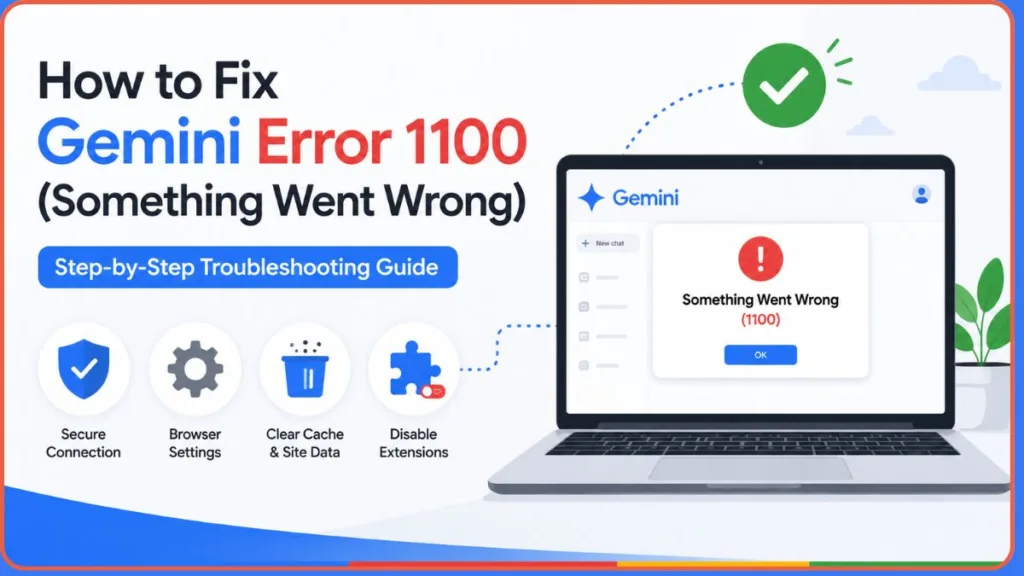
Fortunately, in most cases, this issue is not permanent. Based on troubleshooting patterns and user experiences, this issue is commonly linked to corrupted browser cache or site data, browser extension conflicts, expired Google workspace account sessions, browser compatibility issues, and a temporary server-side problem affecting communication between Gemini and Google’s services.
Unlike some Gemini errors that are tied to massive platform-wide outages, Error 1100 often appears to be related to your browser environment. That means you can usually resolve it within a few minutes by following the detailed troubleshooting steps below.
Quick Fix Checklist
If you’re short on time, try these quick solutions first: clear Gemini site data, disable browser extensions, reload Gemini, open Gemini in Incognito Mode, sign out and back into your Google account, update your browser, try another browser, or check your internet connection.
Important: Do not clear your entire browser history unless necessary. In most cases, removing Gemini-specific site data is enough and prevents you from being signed out of other websites.
Quick Tip: The most successful fix reported by users is clearing Gemini-specific site data and temporarily disabling browser extensions before reopening Gemini.
What Does Gemini Error 1100 Mean?
Gemini Error 1100 generally appears when Gemini cannot properly complete a request or maintain communication with the services required to generate a response.
You may encounter this error when opening Gemini, submitting a prompt, generating a response, switching between conversations, or accessing Gemini after a long browser session.
When this happens, you might receive an alert stating the “Gemini web couldn’t load this chat,” the interface may stop loading entirely, display a blank response area, or show a message such as:
“Something Went Wrong (1100)”
Google has not publicly documented the exact cause of Error 1100. However, troubleshooting patterns suggest that the error often occurs when browser data becomes corrupted or when browser extensions interfere with Gemini’s authentication and communication processes.
What Gemini Users Are Reporting About Error 1100
Users commonly report that Gemini works in Incognito but not normal mode, the error appears only in Chrome, the Gemini side panel fails while the main web app loads, clearing site data immediately fixes the issue, and the error sometimes appears alongside Error 1097.
What Causes Gemini Error 1100?
Understanding the cause of the error can make troubleshooting much easier.
Corrupted Gemini Site Data
One of the most common causes of Error 1100 is corrupted browser data associated with Gemini.
Modern browsers store cookies, site permissions, cached files, and authentication tokens. Over time, these files can become outdated or corrupted. When Gemini attempts to use this data, the service may fail to authenticate correctly and trigger Error 1100.
Browser Extension Conflicts
Browser extensions can interfere with Gemini in unexpected ways.
Common offenders include ad blockers, privacy protection tools, script blockers, VPN extensions, security extensions, and AI assistant browser add-ons. These extensions sometimes block requests that Gemini requires to function properly, resulting in communication failures.
Expired Login Sessions
Gemini relies on Google account authentication.
If your login session becomes stale or partially corrupted, Gemini may struggle to verify your account properly and display Error 1100 instead of loading normally.
Outdated Browser Versions
Gemini depends on modern browser technologies.
Running an outdated version of Chrome, Edge, Firefox, or another browser can occasionally lead to compatibility problems that prevent Gemini from functioning correctly.
Browser-Specific Problems
Sometimes the issue affects only a specific browser profile. This explains why Gemini may fail in Chrome, work in Edge, work in Firefox, or function correctly in Incognito Mode. In these situations, the problem is often tied to local browser settings rather than Gemini itself.
How to Fix Gemini Error 1100
Clear Gemini Site Data (Most Effective Fix)
If you only try one solution, start here.
Many users have resolved Gemini Error 1100 simply by clearing Gemini-specific site data and allowing the browser to create a fresh connection.
Why This Fix Works
Gemini stores cookies, cached files, and permissions in your browser.
If any of these files become corrupted, Gemini may repeatedly fail to authenticate or load properly. Removing the stored data forces the browser to create a clean session.
Step-by-Step Instructions
- Close all active sessions: Make sure to completely close all open Gemini tabs, including any active chats in the Chrome browser side panel.
- Access your browser menu: Open your browser and click the three-dot menu icon located in the top upper-right corner of your screen.
- Navigate to Settings: Scroll down the dropdown menu and select Settings to open your configuration dashboard.
- Find Privacy controls: On the left-hand sidebar, locate and click on Privacy and Security.
- Access cookie management: Look for the section labeled Third-Party Cookies (or “Cookies and site data”) and click it.
- View all stored data: Scroll down and click on See All Site Data and Permissions to load a list of every website storing data on your computer.
- Search for Gemini data: Use the search bar at the top right of the list and type in “Gemini” or “Google”.
- Delete the corrupted files: Locate the Gemini-related data in the results. Click the trash icon next to these entries to fully clear browser cache and site data associated with the AI.
- Finalize and test: Close the settings page entirely. Reopen Gemini in a fresh tab and submit a prompt to see if the error is resolved.
Recommended Fix: Clearing Gemini site data removes corrupted browser files that frequently trigger Error 1100.
Disable Browser Extensions
If clearing site data does not work, the next step is disabling browser extensions.
Why Extensions Cause Problems
Many extensions interact with web pages by modifying scripts, blocking requests, or filtering content. While these tools improve privacy and security, they can accidentally interfere with Gemini’s functionality.
How to Disable Extensions
- Open your extension manager: Click the puzzle piece icon in the top right corner of your browser toolbar, then click on Manage Extensions.
- Toggle off extensions: You will see a grid of installed extensions. Temporarily disable all of them by clicking the blue toggle switch on each one until it turns gray.
- Perform a hard refresh: Go back to your Gemini tab and press Ctrl + Shift + R (Windows) or Cmd + Shift + R (Mac) to refresh the page and force a fresh load.
- Submit a test prompt: Type a question into Gemini. If it begins working again, you know an extension is the root cause.
- Isolate the conflicting add-on: Re-enable your extensions one at a time, refreshing Gemini after each, to identify exactly which add-on is causing the glitch.
Important: Privacy-focused extensions and ad blockers are among the most common causes of Gemini communication issues.
Open Gemini in Incognito Mode
Incognito Mode provides a clean browsing environment. Most extensions are disabled automatically, and no previously stored Gemini cookies are used.
Steps
- Launch a private session: Click the three-dot menu in your browser and select New Incognito window (or press Ctrl + Shift + N).
- Navigate to the platform: Visit the main Gemini Web App via the address bar.
- Authenticate your account: Sign into your Google workspace account or personal Google account.
- Run a diagnostic test: Test Gemini with a new prompt.
If Gemini works correctly in Incognito Mode, the issue likely originates from cached data or browser extensions in your normal browsing profile.
Sign Out and Sign Back In
Refreshing your Google account session can resolve authentication-related issues.
Steps
- Log out completely: Click your profile picture in the top right corner of Gemini and select Sign out. If logged into multiple accounts, sign out of all of them.
- Clear your workspace: Close all open Gemini tabs and related Google services.
- Restart the application: Completely close your web browser so it stops running in the background, then restart it.
- Establish a fresh session: Navigate to Google and sign back into your primary account.
- Test the AI: Open Gemini again. This process refreshes authentication tokens and can eliminate account session conflicts.
Update Your Browser
Running the latest browser version helps prevent compatibility issues.
Google Chrome
- Open Google Chrome and ensure your internet is connected.
- Click the three-dot menu in the upper right.
- Hover over Help and select About Google Chrome.
- Chrome will scan automatically; install any available updates and click Relaunch.
Microsoft Edge
- Open Microsoft Edge.
- Click the three-dot menu button.
- Navigate down to Help and Feedback, then select About Microsoft Edge.
- Update if necessary and restart the browser.
Mozilla Firefox
- Open Mozilla Firefox.
- Click the three-line menu button.
- Select Help, then click About Firefox.
- Install updates and restart.
Try Another Browser
If the issue persists, testing another browser can quickly reveal whether the problem is browser-specific. While troubleshooting, some users temporarily switch to ChatGPT or utilize the Microsoft Copilot Edge side panel, but testing a different browser is the best way to isolate the issue.
Popular options include Google Chrome, Microsoft Edge, Mozilla Firefox, Brave, and Opera. If Gemini works in another browser, you have confirmed that your original browser configuration is causing the issue.
Check Your Internet Connection
Network issues can occasionally interrupt Gemini’s communication with Google’s servers.
Try the following detailed checks: restart your router, disable your VPN, switch to a mobile hotspot, or test another Wi-Fi network. If all else fails, use the Help and feedback tool in the bottom left corner of Gemini. Submit your system logs and screenshots so Google’s engineering team can investigate the backend error.
A stable connection is essential for Gemini’s real-time responses.
How to Prevent Gemini Error 1100
Once you’ve fixed the issue, you should regularly clear outdated site data, keep your browser updated, avoid installing unnecessary extensions, disable conflicting privacy tools, sign out and back in occasionally, and maintain a stable internet connection. Following these habits can help ensure a smoother Gemini experience.
Frequently Asked Questions
Is Gemini Error 1100 Permanent?
No. Error 1100 is usually temporary and can often be resolved through browser troubleshooting.
What Causes Gemini Error 1100?
The most common causes include corrupted site data, browser extension conflicts, expired login sessions, and browser compatibility issues.
Will Clearing Cache Fix Gemini Error 1100?
Yes. Clearing Gemini-specific site data is one of the most effective solutions.
Can Browser Extensions Cause Gemini Error 1100?
Absolutely. Extensions that modify scripts, block requests, or alter web content can interfere with Gemini.
Why Does Gemini Work in Incognito Mode?
Incognito Mode disables most extensions and creates a fresh browsing session, which can bypass browser-related conflicts.
Does Gemini Error 1100 Affect Gemini Advanced Users?
Yes. Both free and paid Gemini users can encounter Error 1100.
Conclusion
In most cases, Gemini Error 1100 is caused by corrupted browser data or extension conflicts rather than a major Gemini outage. Start by clearing Gemini site data and disabling extensions, as these solutions resolve the issue for many users. If Gemini still isn’t working, test Incognito Mode or another browser to isolate the source of the problem.
Have you found another fix that worked? Share your experience in the comments to help other Gemini users troubleshoot the error faster.
Visit Our Post Page: Blog Page
Discover more from Izoate
Subscribe to get the latest posts sent to your email.