
Webpage longer than your screen? Stop piecing images together. Learn how to take a full-page, scrolling screenshot in Microsoft Edge without extra extensions.
Need to Take a Long Screenshot in Microsoft Edge?
You found the page you were looking for, but there’s one problem: it’s much longer than your screen. A normal screenshot captures only what’s visible, so you end up scrolling, taking another screenshot, scrolling again, and trying to piece everything together.
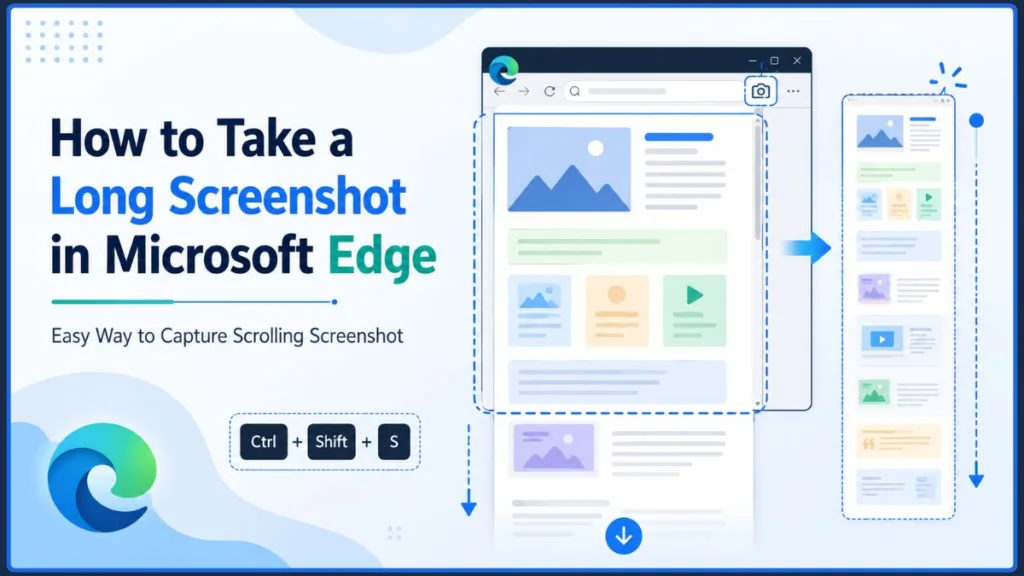
The good news is that you don’t have to do that. Microsoft Edge has a built-in Screenshot tool that lets you capture the entire webpage as one continuous image—no extra software required.
Want to Know If Microsoft Edge Can Take Screenshots?
Yes. Microsoft Edge includes a built-in Screenshot feature that lets you capture an entire webpage.
Here is the quick workflow: Open your webpage > Screenshot > Capture full page > Save.
You can also press Ctrl + Shift + S to open the Screenshot tool.
What Can Microsoft Edge’s Screenshot Tool Do?
Edge’s built-in screenshot tool gives you what you need without making you download extra browser extensions. It offers two main functions: Capture area (for grabbing a specific box or image) and Capture full page.
When you choose to capture the full page, Edge captures the content that extends beyond the visible screen and combines it into one long screenshot.
Screenshot vs. Web Capture
Here is where things can get slightly confusing. If you are looking at older tutorials, you might see this feature called Edge Web Capture. Web Capture was the previous name for the feature, and Microsoft now calls it Screenshot. So, if you are searching through Edge’s menu and cannot find Web Capture, don’t worry—you are looking for Screenshot instead.
Ready to Take a Long Screenshot in Microsoft Edge?
Follow these straightforward steps to capture an entire page from top to bottom.
Step 1: Open the Webpage in Microsoft Edge
First, open the webpage you want to capture in Microsoft Edge. Make sure the page has completely finished loading, especially if you are capturing a long article or a site where content appears as you scroll down.
Step 2: Open Screenshot
In the top-right corner of your browser window, click the three-dot menu (⋯) and select Screenshot.
Prefer using the keyboard? Just press Ctrl + Shift + S instead.
Step 3: Choose Capture Full Page
Select Capture full page rather than capturing just an area. Edge captures the content that extends beyond the visible screen, giving you one long scrolling screenshot.
Step 4: Review the Screenshot
A preview window will open. Take a quick look through the image to make sure the full page was captured correctly.
Step 5: Edit the Screenshot
Need to point something out? You can use the drawing tools at the top of the window to highlight text or draw arrows to emphasize important information before saving.
Step 6: Save the Long Screenshot
When everything looks right, click Save to keep your long screenshot. Your screenshot will be saved to your device.
Prefer Keyboard Shortcuts? Here’s How to Take a Full-Page Screenshot
If you prefer keeping your hands on the keys, using the Microsoft Edge screenshot shortcut is a great option.
Ctrl + Shift + S opens the Screenshot tool. It does not by itself create the full-page screenshot.
Once the tool is open, here is how you finish taking a long screenshot in Edge with the shortcut: Screenshot > Capture full page > Save
Where Did Your Saved Screenshot Go?
Once you click Save, you might be wondering where the image actually went. Edge saves the screenshot to your device based on your browser’s download settings.
You can usually find it by opening File Explorer and checking your Downloads folder. You can also click the Downloads icon (the downward-pointing arrow) in the top-right corner of your Edge browser window to locate the saved file.
What Else Can You Do With Screenshot in Microsoft Edge?
Now that you know how to capture an entire webpage, you may be wondering what else Edge’s Screenshot tool can do.
How to Capture Part of a Webpage
Need just one section instead of the whole page? Open the tool and select Capture area. Your cursor will turn into a crosshair, letting you click and drag a box around exactly what you need.
How Does Edge Capture a Scrolling Screenshot?
You don’t need to manually scroll down and capture the page section by section. When you choose Capture full page, Edge captures the content beyond the visible screen for you and creates one long screenshot.
Can You Take a Screenshot of a PDF in Edge?
Absolutely. Edge’s Screenshot feature also supports PDF content, so you can capture supported PDF content from the browser.
Where Did Web Capture Go in Microsoft Edge?
Looking for Microsoft Edge Web Capture because an older tutorial told you to use it? Web Capture was the previous name for the feature, and Microsoft now calls it Screenshot.
Got Questions About Taking Long Screenshots in Edge?
Does Microsoft Edge have a screenshot feature?
Yes. Microsoft Edge includes a built-in Screenshot tool that can capture part of a webpage or the entire page.
How do I take a full-page screenshot in Microsoft Edge?
Click the three-dot menu, select Screenshot, and then choose Capture full page. Finally, click Save.
What is the shortcut for a long screenshot in Edge?
Press Ctrl + Shift + S to open Edge’s Screenshot tool, then select Capture full page.
How do I take a scrolling screenshot in Microsoft Edge?
Open the browser’s Screenshot tool and choose Capture full page. Edge captures the content that extends beyond the visible screen.
Can I take a full-page screenshot without manually scrolling?
Yes. Choose Capture full page, and Edge captures the webpage beyond the visible screen for you.
What happened to Web Capture in Microsoft Edge?
Web Capture was the older name for Edge’s screenshot feature. In current versions, you will find it under Screenshot.
Can Microsoft Edge save a full-page screenshot?
Yes. After previewing your capture, click Save to save the image to your computer.
Can I edit a screenshot before saving it?
Yes. The Screenshot preview window includes markup tools that let you draw on or highlight the image before saving it.
Is there an extension that lets me scroll while taking a screenshot in Microsoft Edge?
While there are browser extensions available, you don’t actually need one for this basic task. Edge’s built-in Screenshot tool can handle full-page scrolling captures without an extra download.
Can I scroll while taking a screenshot in Microsoft Edge?
You don’t have to scroll manually. Just select Capture full page, and Edge will capture the content that extends beyond the visible part of the webpage.
Do I need an extension to take a scrolling screenshot in Edge?
No. You do not need any third-party extension for this basic task. Microsoft Edge’s built-in Screenshot feature can manage full-page scrolling captures directly within the browser.
Can Microsoft Edge take a screenshot while I scroll down the page?
Yes. When you choose Capture full page, Edge captures the content beyond your visible screen and combines it into a single screenshot.
Why does my Edge scrolling screenshot include the website’s navigation bar?
Some webpages keep navigation elements visible while you scroll. When you use a full-page capture, those elements may also appear in the resulting screenshot. A Reddit user specifically reported this issue when capturing Facebook in Edge.
Why is the Facebook navigation bar included in my Microsoft Edge screenshot?
Facebook can keep navigation elements visible while you scroll. Because those elements can remain visible during the capture, they may also appear in the resulting full-page screenshot.
How can I prevent fixed navigation bars from appearing in a scrolling screenshot?
The built-in tool captures what the webpage displays during the full-page capture. If a navigation bar appears in your image, try using Capture area for more control or crop the finished screenshot before sharing it. The exact result can vary depending on how the webpage handles fixed elements.
Ready to Capture Your Next Long Webpage?
Taking a screenshot of a long webpage doesn’t have to mean scrolling, capturing, and trying to piece together multiple images. Microsoft Edge’s built-in Screenshot tool lets you capture the entire page in one go without needing another browser extension.
The next time a webpage is longer than your screen, just remember the quick workflow:
Ctrl + Shift + S > Capture full page > Save
Have you tried using this built-in tool yet, or did you run into any issues capturing a specific webpage? Let me know in the comments below!
Visit Our Post Page: Blog Page
Discover more from Izoate
Subscribe to get the latest posts sent to your email.