
Do you want your Instagram photos, backgrounds, text, or design elements to flow smoothly from one carousel slide to the next? You don’t need Canva to pull that off.
A seamless Instagram carousel turns several individual slides into what feels like one connected visual story. That effect works great when you’re sharing photography, showing off a product, walking people through a tutorial, telling a story, or just trying to make your feed look more creative.
For this kind of design, SCRL is a solid Canva alternative. It’s a social-media design platform built specifically for multi-slide content, and it supports seamless carousel-style designs right out of the box. You can start with a blank project or a template, arrange your photos across a larger composition, add text and graphics, preview the result, and export the finished frames straight to Instagram. SCRL is available on iOS, Android, and the web.
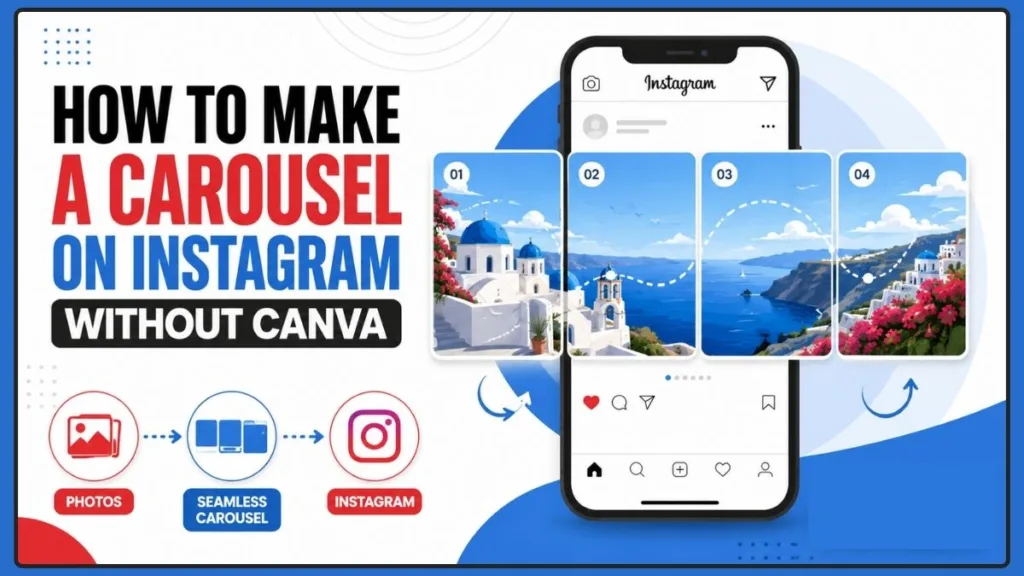
In this guide, you’ll learn how to make a carousel on Instagram without Canva using SCRL, how to arrange your photos into a seamless mosaic, how to sidestep common mistakes, and how to upload your finished frames to Instagram in the right order.
What Is a Seamless Instagram Carousel?
A seamless Instagram carousel is a multi-image carousel designed so the content flows naturally from one frame into the next.
- A regular Instagram carousel simply contains multiple photos or videos that people swipe through. Instagram officially describes any post with multiple photos or videos as a carousel.
- A seamless carousel takes that idea further. Instead of making each slide look like its own separate image, you design every frame as part of one bigger composition.
For example, a single large photo can visually continue into the next slide. A background can stretch across several frames. A graphic can start on one slide and pick back up on the next. Text and other decorative elements can be positioned so that swiping feels like one continuous visual experience.
This style works especially well for:
- Photography portfolios
- Travel and event photos
- Product showcases
- Before-and-after posts
- Visual stories
- Step-by-step tutorials
- Wedding and event content
- Creative Instagram feeds
The real difference comes down to how you approach the design. With a regular carousel, you can usually think about each image on its own. With a seamless carousel, you need to think about the whole thing as one composition before you worry about individual frames.
Tip: Think of your carousel as one large design that just happens to be split across multiple Instagram slides.
That small shift in perspective makes it much easier to create transitions that feel intentional instead of accidental.
What Is SCRL?
SCRL is a social-media design platform that helps you build multi-image posts and layouts that work together as a single visual composition.
SCRL describes itself as a purpose-built social-media design platform. Its current feature set lets you design up to 20 slides at once, preview your work, and upload directly to social media. It also comes with templates, photo and video editing, text, shapes, stickers, frames, grids, drawing tools, and other layout features.
For this tutorial, SCRL stands out because it’s built around exactly the kind of multi-frame, seamless carousel workflow you’re trying to create. SCRL‘s own site specifically lists seamless carousels and panorama posts among the content types you might want to make.
You don’t have to build everything from scratch, either. SCRL gives you ready-made templates you can customize, plus blank-canvas tools when you want full control to arrange your own photos and build your own seamless composition.
So when your goal is a seamless Instagram carousel without Canva, SCRL can handle the design side of things before you move the finished frames over to Instagram.
- You can explore SCRL‘s full feature set and get started directly on SCRL’s official website.
- SCRL is available to download from the App Store for iOS and from Google Play for Android.
How to Make a Seamless Instagram Carousel Using SCRL
Now that you know what you’re building and which tool to use, here’s the complete workflow.
1. Start a New Post or Choose a Template
Open SCRL and decide whether you want to start from scratch or use a template.
Starting from scratch works best when you already have a clear idea for your carousel. You get to choose the format, decide how many frames you need, and build the composition around your own photos.
SCRL‘s template ecosystem is the faster route. Instead of building the whole layout yourself, you pick an existing design and customize the colors, backgrounds, frames, photos, text, and other visual elements. SCRL currently promotes a large template library, and every template can be customized.
Starting from scratch
When you build the carousel yourself, you’ll want to:
- Choose the image size or format you want to work with
- Decide how many frames you need
- Think through the complete composition before you start positioning photos
- Plan where the important subjects and transitions should land
The original SCRL workflow describes starting from scratch as choosing your image size and number of frames upfront. SCRL‘s current product pages also confirm the platform supports multi-slide projects, with up to 20 slides in its current feature set.
Using a template
Templates can save you time once you already know the look you’re going for.
You select a design, then customize elements like:
- Colors
- Backgrounds
- Frames
- Number of frames
- Photos
- Text
- Graphics
- Other decorative elements
The advantage here is that you’re not designing every part of the carousel from a blank canvas.
Tip: If you’re making carousels regularly, a reusable layout can save you a lot of time. You can keep the same visual structure and just swap in new photos and text for each post.
2. Add and Choose Your Photos
The photos you pick have a huge impact on how seamless your final carousel actually looks.
Start by choosing images that work well together. You want enough detail in each photo for them to connect visually across the frames. Images with large open backgrounds can sometimes make the transition feel less connected, depending on how you arrange them.
The original SCRL workflow recommends picking photos that are zoomed in enough to show real detail, and being cautious with images that have a lot of open background.
Once your photos are added, start shrinking and repositioning them so you can see how they work together as a group.
Don’t stress about getting a perfect arrangement right away. At this stage, you’re just working out the rough composition. You can:
- Shrink individual photos
- Zoom in and out as you work
- Move photos into different positions
- Arrange images to match your planned sequence
- Check how close or far each image sits from its neighbors
One small detail matters more than it seems: make sure you’ve selected the exact image you want to change before you move or resize it. When photos overlap, it’s easy to accidentally grab the wrong one.
Take your time here. A few extra minutes spent choosing and organizing the right photos makes the final seamless effect much easier to pull off.
Tip: Don’t pick photos just because they look great on their own. Pick photos that also make sense together as one visual story.
3. Arrange Your Photos Into a Seamless Mosaic
This is the most important part of the whole process.
A seamless carousel works because the individual frames are designed to connect. Instead of treating each photo as its own isolated square or rectangle, arrange your images across the larger composition so viewers discover the connections as they swipe. There are a few approaches you can try.
Use white space
White space can separate your photos while still keeping them visually connected. This works especially well for a clean, editorial look.
Let image edges touch
You can position photos directly next to each other so their edges meet. This creates more of a continuous photo-collage effect.
Overlap backgrounds
A shared background can help connect otherwise separate images. Repeated colors, textures, or other visual elements create continuity across the carousel.
Pay attention to important subjects
This is one of the most important rules in seamless carousel design.
Avoid splitting a person’s face, an important product detail, or another key subject directly across a frame boundary, unless that’s the effect you’re deliberately going for.
For example, if someone’s face ends up landing halfway between two slides, the swipe can make the whole composition look off. The same problem can happen with text, logos, products, buildings, or any other focal point.
Before you lock in your layout, check exactly where every important element falls. SCRL‘s editing tools include grids, frames, snapping, layer ordering, and other features that help you organize elements precisely on the canvas.
Tip: Zoom out regularly while you’re editing so you can see the entire carousel as one composition, not just a single frame at a time. This matters even more on a detailed mosaic, since a section can look perfect up close but feel disconnected once you view the whole thing.
4. Preview Your Carousel and Save Your Work
Once your images are positioned, don’t rush to export just yet.
First, preview the complete carousel. SCRL currently lets you preview your work before uploading or sharing it, which gives you a chance to catch visual problems before they ever reach Instagram. Look out for:
- Unexpected gaps
- Awkward crops
- Misaligned image edges
- Unwanted lines
- Split faces
- Split subjects
- Text sitting too close to a frame boundary
- Backgrounds that don’t continue naturally
- A transition that suddenly feels disconnected
Try to think about the experience from a viewer’s perspective. Picture seeing the first frame, then swiping to the second one. Does the design naturally carry you there?
Once you’ve reviewed everything, save your project.
There’s one workflow detail worth remembering here: SCRL may save your finished photos in reverse order, so it’s worth double-checking the sequence before you publish.
This matters because Instagram lets you arrange your selected photos before you share the carousel, but once the post is live, Instagram says you can’t reorder, edit, or delete individual parts of it.
Important: Double-check the order every time before you publish. A reversed or out-of-sequence set of frames can break the seamless effect completely.
5. Add Text, Graphics, and Stickers
Your carousel doesn’t have to be made up of only photos.
SCRL currently gives you tools for adding text, shapes, stickers, frames, grids, drawings, and photo-editing effects directly to your project, along with multiple fonts and other customization tools.
That means you can turn a simple set of photos into a more complete Instagram design. For example, you could add:
- A headline
- Supporting text
- Brand colors
- Decorative shapes
- Stickers
- Frames
- Graphic accents
- Handwritten elements
The key here is moderation. Since you’re building a seamless carousel, every extra design element needs to work with the overall composition. Add too many unrelated stickers, shapes, or text boxes, and the design can quickly start to feel cluttered.
Be especially careful with text. If an important word lands exactly on a frame boundary, it can look awkward once someone swipes, unless splitting the text is intentional. Keep important words and phrases within a single, clear frame. The same rule applies to logos, product details, faces, and anything else viewers need to understand at a glance.
6. Export Your Carousel for Instagram
Once you’re happy with the final design, export the project.
Your goal is to end up with the individual frames that make up your full seamless composition, ready for Instagram. SCRL‘s current platform is built around multi-slide social content and supports previewing and sharing finished designs directly to social media.
Before you open Instagram, take a quick look through the exported files. Check that:
- Every frame has been exported
- The images look the way you expect
- The edges still line up
- No important content got unexpectedly cropped
- The frames are in the correct sequence
- The overall design still looks continuous
It’s easy to skip this step since the project looked fine inside the editor. But checking your exported files gives you one last chance to catch a problem before it goes live.
7. Post the Images as an Instagram Carousel
Once your individual frames are ready, it’s time to head to Instagram.
Open Instagram and start a new post. Choose the option for selecting multiple photos or videos, then pick the frames you exported from SCRL.
Instagram’s official help documentation explains that you can share multiple photos or videos as a single carousel post and arrange their order before sharing. According to that same documentation, you can select up to 10 photos or videos in a carousel and drag them into whatever order you want before publishing.
- You can read Instagram’s own guidance directly in its Help Center article on sharing a post with multiple photos or videos.
For a seamless design, getting that order right matters even more than usual. Before you publish:
- Select all of your exported frames
- Verify they’re in the correct sequence
- Check the preview
- Make sure the first slide works as your opening frame
- Confirm each transition flows naturally into the next
- Add your caption
- Add any location or tags you want to include
- Publish the carousel
Instagram confirms that people can swipe through the photos or videos in a carousel, while the first image is what shows up as the primary image on your feed and profile.
Tip: Treat your first frame like a hook. Your seamless design might unfold across several slides, but that first image still needs to make people stop and swipe.
Tips for Creating a Better Seamless Instagram Carousel With SCRL
Getting the technical layout right is only part of the process. Your photo choices and design decisions are what actually determine whether people enjoy swiping through your carousel.
Keep Your Photos Visually Consistent
Try to maintain a similar visual style across all your images. Pay attention to:
- Lighting
- Color tones
- Editing style
- Overall aesthetic
Your photos don’t need to be identical. In fact, a little variation can make a carousel more interesting. What you really want to avoid are combinations that feel completely disconnected from each other.
For example, following a dark, moody photo with a very bright, heavily saturated image can create a visual break that makes the whole seamless layout feel less cohesive. Think through your overall color story before you start arranging images.
Plan the Carousel Before You Start
A little planning saves you a lot of time later.
Before you start moving photos around in SCRL, decide:
- Which photos belong together
- Which photo should open the carousel
- Where the important subjects should appear
- How the background should flow
- Which elements should continue between frames
- What you want people to discover as they swipe
You don’t need a detailed sketch. Even a quick mental outline can help you avoid moving the same images around over and over again.
Think About Your Instagram Grid
Your carousel isn’t only seen by people who swipe through the whole post. The first frame also becomes the main visual representation of that post on your Instagram profile.
That means it’s worth thinking about how the first frame fits into your existing grid. Ask yourself:
- Does the first image hold up on its own?
- Does it match the visual identity of the rest of your profile?
- Is it interesting enough to make someone want to open the post and swipe?
A good seamless carousel should work in two ways at once: as a full swipe-through experience, and as one piece of your overall Instagram profile.
Use the Carousel to Tell a Story
The seamless format can do more than just make your feed look good. You can use it to guide people through a visual story.
For example, a photographer could use it to showcase an entire wedding or event. A business could use it to introduce a product and then reveal its features one by one. A creator could use it to walk through a concept step by step.
A seamless carousel works well for:
- A photo story
- A wedding or event
- A product showcase
- A before-and-after
- A visual tutorial
- A travel experience
- A portfolio presentation
Whatever the topic, the goal stays the same: give people a reason to keep swiping.
Common Mistakes to Avoid When Making a Seamless Carousel
A seamless carousel can look genuinely impressive when it’s done well, but a few small mistakes can make the whole thing feel disconnected.
Splitting Faces or Important Details
Avoid placing important visual details directly on a frame boundary unless you’ve deliberately designed it that way. A face, product logo, headline, or other focal point can look awkward when part of it shows up on one slide and the rest on another.
Before you export, scan through the entire layout and flag any spots where the slide boundaries cut across important subjects.
Using Photos That Don’t Match
Not every collection of good photos automatically makes a good carousel. Even strong individual images can feel disconnected when combined without considering their:
- Lighting
- Color
- Composition
- Mood
- Subject matter
Choose images that feel like they belong to the same story.
Forgetting the Image Order
This one matters a lot for a seamless carousel specifically. Your design can be perfect, but if the slides get uploaded backwards, the visual story stops flowing correctly.
SCRL‘s workflow includes a warning about saved image order, so always check your exported files before uploading. Instagram lets you change the order of your selected photos before publishing by dragging them into place, but its current help documentation states that once a multi-photo post is shared, you can’t reorder, edit, or delete individual parts of it.
Adding Too Many Design Elements
Text, graphics, stickers, and shapes can make your carousel more interesting, but they can also make it harder to follow. A seamless carousel already has a lot going on visually since the images connect across frames.
Only use design elements when they add something meaningful, not just because the editor gives you the option.
Posting Without Previewing
This is one of the easiest mistakes to avoid, and also one of the most common: publishing before checking the entire carousel.
Every frame might look great on its own while the transition between frames looks completely wrong. Always preview the whole sequence before you post.
Why Use SCRL Instead of Canva for Instagram Carousels?
If all you want is an Instagram post with a few images, there are plenty of tools that could get the job done. But this guide is specifically about building a seamless carousel without Canva, and SCRL stands out here because its current product is purpose-built for social-media design and multi-slide posts. SCRL‘s own materials specifically call out seamless carousels and panorama posts as supported use cases.
SCRL can be useful when you want to create:
- Seamless swipe-through designs
- Multi-frame photo layouts
- Panoramic-style compositions
- Mobile-first carousel designs
- Creative photo stories
- Custom social-media layouts
Its current toolkit includes photo and video editing, variable fonts, shapes, stickers, frames, grids, drawing, snapping, layer controls, filters, background removal, and support for projects with up to 20 slides. You can also start with a template instead of a blank canvas, since SCRL‘s template system is built around ready-made social-media layouts you can customize.
None of this means Canva is bad, or that every Instagram carousel needs to be made in SCRL. It simply means you don’t need Canva to create a seamless Instagram carousel. SCRL just gives you another workflow that’s particularly well suited to multi-frame social-media designs.
- If you still use Canva for other parts of your workflow, you may also find this Izoate guide on how to remove a background in Canva useful.
Is SCRL Free?
SCRL currently offers a Basic Free plan and a Premium plan. Here’s how the current SCRL pricing page breaks down the differences:
| Feature | Free | Premium |
|---|---|---|
| Basic creation tools | ✅ | ✅ |
| Templates | Limited | Unlimited |
| Slides per project | 10 | 20 |
| Advanced creation tools | ❌ | ✅ |
| Video layers | ❌ | ✅ |
| Premium trial | — | 7 days |
SCRL currently advertises a 7-day Premium trial, and its pricing page notes that the Free plan includes the basic tools you need to get started.
This distinction matters because how many slides you have access to depends on your plan. The free version of this workflow tops out at 10 slides per project, while the current Premium plan raises that to 20 slides per project.
So before you follow a tutorial that assumes a specific number of frames, double-check which SCRL plan you’re actually using.
- You can compare the Free and Premium plans in full on SCRL’s official pricing and subscription page.
Frequently Asked Questions
Can I Make a Seamless Instagram Carousel Without Canva?
Yes. You don’t need Canva to make a seamless Instagram carousel. You can use SCRL to build a multi-frame composition, arrange your photos so they flow from one frame into the next, add text or graphics, preview the result, and prepare your individual frames for Instagram. SCRL officially describes its software as a tool for creating seamless carousel posts for social media, and it’s available on iOS, Android, and the web.
How Do I Make a Seamless Carousel on Instagram?
The basic workflow looks like this: create the design in SCRL, arrange your photos into one seamless composition, preview it, export the individual frames, and upload them to Instagram in the correct order.
The design work happens before you post. Instagram is simply where you combine the exported frames into one carousel. Instagram’s current help documentation confirms that multiple photos or videos can be combined into a single carousel and reordered before you publish.
Can I Create a Seamless Instagram Carousel on My Phone?
Yes. SCRL is available on iOS and Android, as well as the web, so you can build your carousel without needing Canva on a desktop computer. This comes in handy when your photos are already sitting on your phone and you want to create, preview, and prepare the carousel from the same device.
Is SCRL Good for Instagram Carousels?
SCRL is particularly well suited to multi-image social-media layouts. Its current feature set includes multi-slide projects, templates, grids, frames, text, stickers, photo editing, drawing, layer controls, previewing, and social sharing, and it specifically highlights seamless carousels and panorama posts as use cases.
That makes it a practical option whenever your main goal is a carousel where several frames work together visually.
How Do I Keep Instagram Carousel Images in the Correct Order?
Check the order at two separate points. First, check the exported files from SCRL. Second, check the order of your selected images inside Instagram before you publish.
Instagram currently lets you rearrange your selected photos or videos before sharing the carousel by dragging them into position. This step matters even more with the SCRL workflow described in this guide, since the source process notes that photos can be saved in reverse order, and a reversed sequence can completely break a seamless design.
Once the carousel is published, Instagram’s current help documentation states you can’t reorder, edit, or delete individual parts of that shared multi-photo post. You can only delete the whole post.
How Many Images Can I Use in SCRL?
That depends on your SCRL plan. SCRL‘s current pricing page lists 10 slides per project on the Free plan and 20 slides per project on Premium. The current SCRL product page also advertises projects of up to 20 slides.
So if you’re building a larger seamless composition, check which plan you’re on before you start. It’s also worth keeping in mind that Instagram’s current help documentation separately caps standard carousel posts at up to 10 photos or videos. In other words, how many frames you can design in SCRL and how many photos or videos Instagram currently lets you publish in one carousel are two different numbers.
Final Thoughts
You don’t need Canva to create a polished, seamless Instagram carousel. With SCRL, you can start from scratch or customize a template, add and arrange your photos, build a continuous mosaic, add text and graphics, preview your work, export the finished frames, and upload everything to Instagram as a carousel. SCRL is built specifically for social-media design, and it currently supports multi-slide projects, with 10 slides on the Free plan and 20 slides on Premium.
The goal was never to pack in as many effects as possible. Focus on choosing photos that genuinely work well together, keeping your lighting and colors visually consistent, positioning your important subjects carefully, and checking the complete carousel before you hit publish.
And don’t forget to double-check your image order before sharing. The whole seamless effect depends on every frame landing in exactly the right position. Instagram lets you reorder your selected images before publishing, but not after the carousel has already gone out.
At the end of the day, the trick isn’t making every single slide look impressive on its own. It’s making all of the slides work together as one visual story.
Visit Our Post Page: Blog Page
Discover more from Izoate
Subscribe to get the latest posts sent to your email.