
Need to teleport a player in Minecraft? Learn how to teleport someone to you in Minecraft using TP commands.
Have you ever been exploring deep underground, only to realize your friend is hopelessly lost in a sprawling ravine? Whether you are rescuing a buddy from a dark cave, gathering everyone together for a massive Ender Dragon boss fight, or simply managing a large multiplayer server, moving players around shouldn’t be a frustrating hassle.
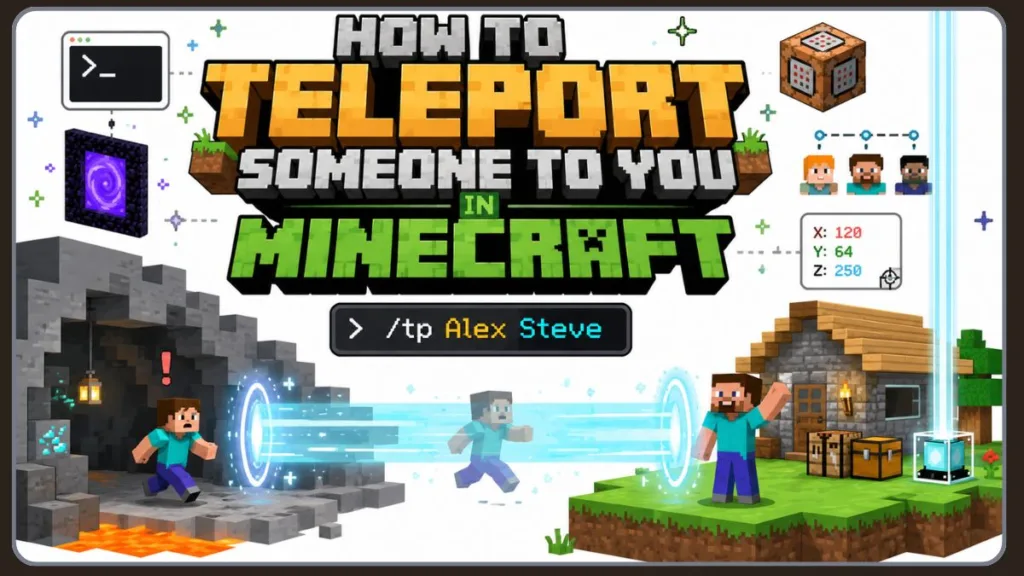
The ultimate solution to these navigation problems is learning the command to teleport someone in Minecraft. By mastering this tool, you can instantly transport any player out of danger and right back to your base.
In this practical, comprehensive guide, we will walk you through the exact steps and variations for both Java Edition and Bedrock Edition. We will also cover how to successfully enable cheats, how to teleport to specific locations, and how to troubleshoot common issues so you can get back to building!
The Quick Answer: The Basic Minecraft TP Command
When you need a swift rescue or want to learn how to teleport someone to you in Minecraft, the Minecraft TP command is your best friend.
So, what is the command to teleport a player to another player in Minecraft? To bring a player directly to your location, simply open your chat window and use this core command:
/tp PlayerName YourName
For example, if your username is Steve and you want to bring your friend Alex to you, you would type /tp Alex Steve. This is the fundamental Minecraft command for teleporting another person.
If you are running the command yourself and want to instantly bring a friend to your exact coordinates, you can use the @s shortcut (which stands for “self”):
/tp PlayerName @s
This is typically the cleanest, most efficient way to use the Minecraft teleport command in modern versions of the game. Using minecraft tp player to player shortcuts like @s saves you time, especially if your username is long or complicated.
What is the difference between /tp and /teleport in Minecraft?
Functionally, there is absolutely no difference! Both commands achieve the exact same result. The /tp command is just a quick shorthand version that most players prefer.
What You Need Before You Can Teleport Someone
Before you start typing the minecraft teleport someone command, it is important to note that teleport commands do not work in a standard vanilla survival world by default.
What permissions are needed to use teleport commands in Minecraft? You need the correct permissions (often referred to as cheats or OP status) to alter the game state. Here is how to get those permissions based on your setup:
- Single-Player & LAN Worlds: You must toggle Allow Cheats to ON when creating your world. If you forgot to do this during world generation, don’t worry! You can open your world to LAN via the pause menu, enable cheats temporarily, and then use the command.
- Multiplayer & Realms: You will need OP (Operator) status to use commands. If you own the server, you can adjust your server operator settings directly from the console by typing
/op YourUsernameto grant yourself these permissions. This makes the teleport command for Minecraft server admins incredibly easy to access.
How to Use the Teleport Command (Java Edition vs. Bedrock Edition)
The steps to execute a command to teleport a player to another player in Minecraft differ slightly depending on the version of the game you play.
Java Edition Specifics
If you are wondering how do you teleport players in Minecraft Java Edition, the process is highly streamlined.
In Java, the commands /tp and /teleport function identically, so feel free to use whichever you prefer. A fantastic time-saver here is the Tab key. Once you start typing the target player username, simply press Tab to autocomplete their name! This is the best way to avoid any spelling errors when you teleport player to another player minecraft.
Here is an example of how to teleport another player in Minecraft Java Edition:
- Open the chat (press
T). - Type
/tp Alex Steveand press Enter.
Bedrock Edition Specifics (Consoles & Mobile)
Can you teleport another player in Minecraft Bedrock Edition? Absolutely! For Bedrock players, getting to the chat bar to type your minecraft tp command is a breeze.
If you want to know how do you teleport players in Minecraft Bedrock Edition, here are the controls to open the chat:
- Press the Right D-pad on your console controller (Xbox, PlayStation, Switch).
- Tap the chat icon at the top of your mobile screen.
Crucial Tip for Bedrock: If you are learning how to teleport someone to you in Minecraft Bedrock and their gamertag has a space in it, you must use quotation marks.
- Example: /tp “Cool Player” @s
Targeting Multiple Players and Using Selectors
You don’t always have to type out exact names, especially if you want to know how to teleport multiple players at once in Minecraft or manage a busy multiplayer server. Minecraft uses target selectors to make teleporting faster and much more flexible.
How do you teleport all players to your location in Minecraft? You use the @a selector! If you want a Minecraft command to teleport all players to me, just type /tp @a @s.
Here is a quick, scannable reference table for the most useful selectors to help you easily manage your multiplayer server:
| Selector | What It Does | Example Command |
| @s | Targets yourself (the command executor) | /tp Alex @s |
| @a | Targets all players on the server | /tp @a @s |
| @p | Targets the nearest player | /tp @p @s |
| @r | Targets a random player | /tp @r @s |
| @e | Targets all entities (mobs, items) | /tp @e[type=cow] @s |
Note on Entities: If you want to know how to teleport entities Minecraft (like moving your livestock), you use the @e selector combined with the entity type, as shown in the table above.
Advanced: Teleporting to Specific X, Y, and Z Coordinates
Sometimes you don’t want to bring a friend directly to your character. Instead, you might be asking, how do you teleport a player to specific coordinates in Minecraft? This is where X, Y, and Z coordinates come into play.
First, you need to find your coordinates. You can do this by pressing F3 in Java Edition or toggling Show Coordinates in your Bedrock world settings. Once you know exactly where they need to go, you can use the Minecraft teleport command with coordinates.
How to teleport someone to coordinates in Minecraft:
/tp PlayerName X Y Z
- Command to teleport spawn Minecraft:
/tp PlayerName 0 64 0(assuming your spawn is near 0,0). - Command to teleport stronghold:
/tp PlayerName 1250 -30 840(using exact located coordinates). - Minecraft command to teleport end: You cannot directly teleport across dimensions with vanilla coordinates alone without using the
/executecommand, but once inside the End, you can use/tp PlayerName 0 60 0to return them to the central island.
Relative Coordinates:
If you want to teleport someone relative to where you are standing, use the tilde (~) symbol. For instance, /tp PlayerName ~ ~2 ~ will safely drop your friend exactly two blocks above your head!
Can you teleport players using command blocks?
Yes! You can place a Minecraft command to teleport player inside a command block. For example, placing /tp @p 100 64 100 inside a command block connected to a pressure plate will instantly transport whoever steps on it to those exact coordinates.
How to Teleport Safely: Safety Tips
Because teleportation is instantaneous, it is absolutely vital to check your surroundings before running the command to teleport player me.
- Avoid Hazards: Make sure you aren’t standing near open lava pools, deep water, or the edge of a bottomless void when you pull a friend to you.
- Prevent Suffocation: If you are in a tight cave, use relative coordinates (like
/tp PlayerName ~ ~1 ~) to teleport them one block above the ground. This stops them from accidentally clipping into solid stone blocks and taking unnecessary suffocation damage. - Warn Your Friends: If you are executing a teleport player to me Minecraft command, always warn them in Discord or server chat first so they don’t fall off a ledge in surprise!
Why is My Teleport Command Not Working?
Even the most experienced server admins run into hiccups when figuring out how to use the tp command in Minecraft multiplayer. Here are the most common errors and how to fix them practically:
- “You Do Not Have Permission”: This means you do not have OP rights. You need to enable cheats or ask your server owner for Operator status.
- “Player Not Found”: Double-check your spelling! If you are on Bedrock, ensure you wrapped names with spaces in quotation marks. Also, ensure the player is actually logged into the server.
- Reversed Names: The most common mistake is typing the destination first. Always remember the golden rule of teleporting: Target first, Destination second. (e.g., /tp PlayerName YourName is correct;
/tp YourName PlayerNamewill accidentally teleport you to them!). - Command Block Errors: If you are using a command block, ensure it is set to “Needs Redstone” (and is actively powered) or “Always Active,” and double-check that your selectors (like
@p) are formatted correctly.
Frequently Asked Questions (FAQs)
How do you teleport someone to you in Minecraft?
The fastest way is to open your chat and type /tp PlayerName @s. This instantly brings the specified player directly to your current location.
How do you teleport friends in a Minecraft server?
If you are an admin, use the standard /tp PlayerName @s. If you are playing on a public survival server without OP permissions, you will likely need to use server-specific plugin commands like /tpa PlayerName, which asks your friend to accept the teleport request.
How do you teleport someone without using coordinates?
You can use player names or selectors! Simply type /tp PlayerName TargetPlayerName to move someone to another player’s location without ever needing to know the exact X, Y, and Z numbers.
Can you teleport a player to your exact location?
Yes. By using the @s (self) selector in your command (e.g., /tp PlayerName @s), the target player will arrive at the exact block you are currently standing on.
How to tp someone to you in Minecraft using commands if their name is long?
Use the Tab key to autocomplete their name in Java Edition, or use a selector like @p (nearest player) if they are the closest person to you in the game world.
Conclusion
Mastering the command to teleport someone in Minecraft is incredibly simple once you get the hang of the “Target first, Destination second” rule. Whether you are using a quick @s shortcut to rescue a friend, utilizing the Minecraft multiplayer teleport command to manage a community, or moving entire groups using selectors, you now have the tools to navigate your blocky world effortlessly.
Keep this Minecraft commands list teleport guide handy for your next multiplayer session, try out some command blocks, stay safe out there, and happy building!
Useful Resources
- Minecraft Teleport Command Documentation – Learn the complete
/tpand/teleportcommand syntax, target selectors, coordinates, and Java vs. Bedrock differences. - Minecraft Commands Reference Guide – Explore all available Minecraft commands, including teleportation, execute, locate, spawnpoint, and command block commands.
- Minecraft Command Blocks Tutorial – Discover how to use command blocks for automatic teleporters, adventure maps, minigames, and custom server mechanics.
Visit Our Post Page: Blog Page
Discover more from Izoate
Subscribe to get the latest posts sent to your email.