
Want to automate your PC shutdowns in 2026? Learn how to set a Windows shutdown command timer using simple steps. From running CMD commands to setting up Task Scheduler and creating desktop shortcuts.
There are times when you want to let your device handle heavy tasks while you step away for a break or head to bed. Modern operating systems are incredibly capable of managing background processes, but sometimes they just need to be told exactly when to stop. A Windows shutdown command timer is a simple, highly effective built-in utility that tells your computer to automatically power off after a specific amount of time.
Why do users schedule automatic shutdowns? It’s all about convenience and efficiency. Some of the most common use cases include letting overnight downloads finish, completing large file transfers, allowing Windows updates to install without disrupting your workday, or running complex backups and video rendering tasks without interruption.
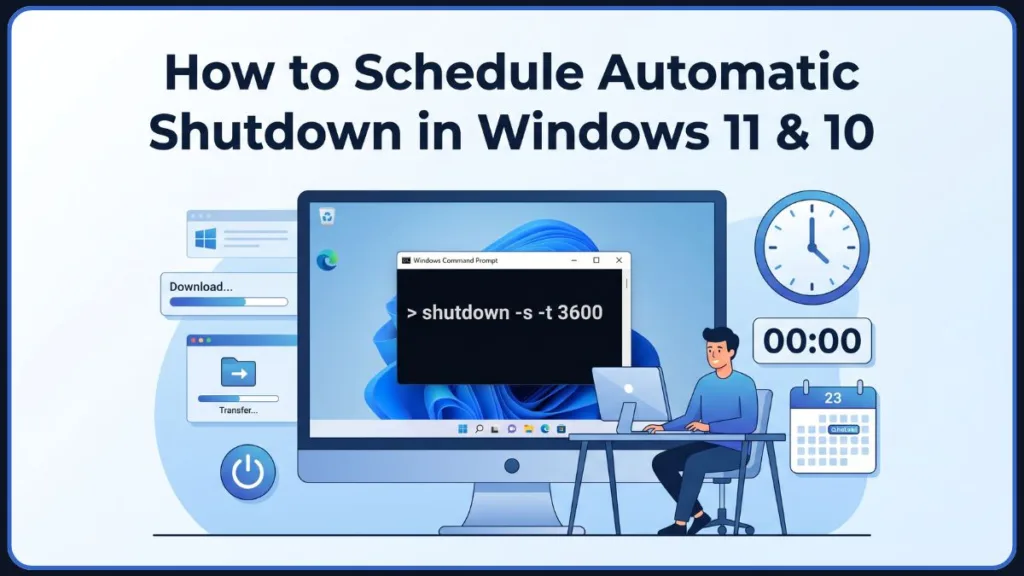
Using a shutdown timer is also an excellent way of saving electricity and battery life by preventing a PC from running all night and generating unnecessary heat.
Fact: Leaving a high-performance desktop PC running 24/7 can add a noticeable amount to your annual electricity bill. Utilizing a scheduled shutdown is an effortless way to go green and save money!
The best part? You don’t need to install any extra apps. Windows includes several built-in methods to create an automatic shutdown timer without third-party software. In this detailed guide, we will explore exactly how to use the Command Prompt, Run dialog, Windows Terminal, PowerShell, Task Scheduler, desktop shortcuts, and batch files to completely automate your PC’s power schedule!
Quick Answer: Windows Shutdown Command Timer
If you are in a hurry and just need the commands right now, here is your quick cheat sheet for the most common timer requests.
Fastest Way to Schedule an Automatic Shutdown
shutdown -s -t 3600
How to Shut Down a PC After 30 Minutes
shutdown -s -t 1800
How to Shut Down a PC After 1 Hour
shutdown -s -t 3600
How to Cancel a Shutdown Timer
shutdown -a
Tip: If you ever forget these exact numbers, just remember that the number at the end of the command always represents the total time delay in seconds.
What Is a Windows Shutdown Command Timer?
The built-in Windows Shutdown utility is a powerful command-line tool that controls the core power state of your computer. When you append a timer to this command, you are telling the operating system exactly when to trigger the final power-off sequence, bypassing the need for manual clicks.
It is absolutely important to note how the timer works: it uses seconds, not minutes. If you want your PC to turn off in 10 minutes, you must calculate that time in seconds (which is 600 seconds).
There is also a clear difference between a one-time shutdown and a recurring shutdown schedule. A command-line timer is a one-time event that happens once and disappears. If you want your computer to shut down at the exact same time every single day, you will need to use a recurring schedule via the Task Scheduler.
The great news is that this tool offers incredibly broad compatibility. The commands and steps outlined below work seamlessly across Windows 11, Windows 10, Windows 8, and Windows 7.
Fact: The core
shutdown.exetool has been a reliable part of the Windows operating system architecture since the days of Windows NT and Windows XP!
How Does the Windows Delayed Shut Down Command Work?
When you enter the delayed shutdown command, Windows instantly registers a countdown in the background system processes. A window will pop up confirming that it received your request, and you will receive a handy warning notification a few minutes before the actual shutdown occurs to remind you.
Why Use a Shut Down PC Command Timer Instead of Manual Shutdown?
Using a timer completely frees you from your desk. Instead of waiting around for a massive 100GB game to download or a huge 4K video file to render, you can confidently set the timer, walk away, and trust that your PC will safely power off, save energy, and cool down on its own.
Understanding Windows Shutdown Command Syntax
To get the absolute most out of these tools, it helps to understand exactly what you are typing into your computer and what each letter tells the operating system to do.
What Does shutdown -s -t Mean?
This is the core syntax you will use every time. It translates directly to the system as: “Shut down the computer, and do it after this specific amount of time has elapsed.”
Understanding the Most Important Shutdown Parameters
Here is a detailed breakdown of the individual switches (the letters with dashes) you can use to fully customize your command:
shutdown
This is the primary executable command that initiates the power-control utility within the Windows System32 folder.
-s
This switch safely instructs the command that you want to shut down the computer entirely (as opposed to restarting it or putting it to sleep).
-t
This switch strictly specifies the time schedule. It must always be followed immediately by a number representing the delay in seconds (for example, -t 60 for a one-minute delay).
-a
This switch instantly aborts the shutdown sequence. However, it can only be used safely during the time-out period before the PC actually turns off.
-f
This switch forcefully forces running applications to close without warning users or asking for confirmation. This ensures the shutdown completes successfully even if a stubborn app is trying to block it.
Tip: You can also add a custom message to your timer using the
-cswitch! For example,shutdown -s -t 3600 -c "Time to sleep!"will display your message on the screen when the countdown begins.
Difference Between shutdown -s -t and shutdown /s /t
You might see various online tutorials using dashes (-s -t) while others use forward slashes (/s /t). There is absolutely no functional difference between the two! Both syntaxes are perfectly accepted by the Windows command processor and will perform the exact same action.
How to Set a Shutdown Timer Using the Run Command
Using the Run dialog box is arguably the quickest, most accessible way to set a timer without opening a scary, intimidating black console window.
Open the Run Dialog
Simply press the Windows key + R keyboard shortcut to instantly open the Run command box at the bottom left of your screen. Alternatively, you can right-click the Start button and choose “Run” from the Power User menu.
Enter the Shutdown Timer Command
Type the following exact shutdown timer command directly into the Open box:
shutdown -s -t 3600
What Happens After Running the Command
Click OK or press Enter. A small window will briefly pop up to confirm that Windows has received your request. Your computer will seamlessly log off and power down exactly at the requested time.
How Do I Set a Timer for Shutdown on Windows?
Using the Run dialog as shown above is the absolute most straightforward answer for everyday users. Just remember to always calculate your desired wait time into seconds!
Using the Run Shut Down Command Timer for Quick Scheduling
Because the Run dialog is designed to remember your previously entered commands, it is an incredibly fast tool for quick daily scheduling. The next time you press Win + R, your previous shutdown command will likely still be sitting there, highlighted and ready to go with just one press of the Enter key.
Tip: The Run dialog bypasses the Windows search index, making it the most reliable way to execute system commands even if your Start menu is lagging or unresponsive.
How to Schedule an Automatic Shutdown Using Command Prompt
For users who prefer traditional command-line interfaces, the classic Command Prompt (CMD) is the perfect environment for scheduling system power tasks.
Open Command Prompt
Launch the Windows search tool (Windows key + S), type CMD, and press Enter. For some advanced parameters (like forcing deep system processes to close), you may need to right-click the top result and select Run as administrator to ensure you have the proper system privileges.
Run the Shutdown Command
In the Command Prompt window, type your precise command and press the Return key to execute it.
How to Timer Shut Down a PC Using CMD
Simply pair the -s and -t parameters with your carefully calculated desired time in seconds.
How to Shutdown Windows 10 Using CMD Timer
Whether you are on Windows 10 or the newer Windows 11, the command architecture is completely identical. Type shutdown -s -t XXXX (replacing the XXXX with your specific seconds).
How to Shutdown Computer in 30 Minutes Using CMD
shutdown -s -t 1800
How to Shut Down PC After 1 Hour Using Command Prompt
shutdown -s -t 3600
How to Shutdown CMD in 2 Hours
DOS
shutdown -s -t 7200
How to Schedule a Shutdown in 4 Hours
shutdown -s -t 14400
Shut Down PC Command Timer Examples for Daily Use
You can easily automate your daily Windows tasks by keeping a simple sticky note of your most frequently used times (like 3600 for one hour or 7200 for two hours) right next to your computer monitor or saved in a digital notepad!
Fact: The Command Prompt processes commands sequentially. Once you hit enter, the timer is handed off to the Windows system kernel, meaning you can safely close the CMD window without canceling the timer!
Shutdown Timer Seconds Conversion Chart
Since the CMD and Run command processes strictly use seconds to measure time (not minutes or hours), the math can sometimes get a little tricky in your head. Use this chart as a quick, foolproof reference!
Minutes to Seconds Conversion for Shutdown Commands
| Time | Seconds | Command |
| 5 Minutes | 300 | shutdown -s -t 300 |
| 10 Minutes | 600 | shutdown -s -t 600 |
| 15 Minutes | 900 | shutdown -s -t 900 |
| 30 Minutes | 1800 | shutdown -s -t 1800 |
| 1 Hour | 3600 | shutdown -s -t 3600 |
| 2 Hours | 7200 | shutdown -s -t 7200 |
| 4 Hours | 14400 | shutdown -s -t 14400 |
| 6 Hours | 21600 | shutdown -s -t 21600 |
Why Windows Uses Seconds for Shutdown Timers
Command-line operations in Windows require extremely high precision. Measuring exclusively in seconds allows system administrators and IT professionals to script highly specific, complex tasks down to the exact fractional moment they need a server operation to end.
Tip: Don’t want to rely on the chart? The math is simple: just take the number of minutes you want to wait and multiply it by 60. For example, 45 minutes x 60 = 2700 seconds!
How to Set a Shutdown Timer Using Windows Terminal
Windows Terminal is the beautiful, modern command-line application available natively in newer versions of Windows. It combines everything into one cohesive space.
Open Windows Terminal
Input the exact keyword Windows Terminal within the Windows search box. Right-click the app icon and select Run as administrator. Click the small downward-facing arrow or the “Open a new tab” button at the top and select Command Prompt from the dropdown menu.
Run the Shutdown Command
Enter this exact command in the prompt’s active tab: shutdown -s -t XXXX and hit the Return key to activate it.
When to Use Windows Terminal Instead of CMD
Windows Terminal is an absolutely excellent tool if you are already working heavily with multiple tabs or profiles (like rapidly switching between traditional CMD, PowerShell, and Azure Cloud Shell) within a single unified window.
Running a Turn Off Computer Timer Command in Windows Terminal
Because Terminal is just a modern wrapper, the core syntax is exactly the same as the Run or traditional CMD methods, making it incredibly versatile and visually pleasing.
Tip: In Windows 11, Windows Terminal is often set as the default command-line experience. You can customize its appearance, background, and text colors to make running commands easier on the eyes!
How to Schedule an Automatic Shutdown With PowerShell
PowerShell works a bit differently than CMD. It is an advanced scripting environment. It doesn’t actually offer a native, single command with a built-in timer for shutting down, but we can cleverly chain two distinct commands together to get the exact same job done!
Open PowerShell
Open the Start menu, search for PowerShell, right-click the top resulting application, and firmly select Run as administrator to ensure full access.
Use the Start-Sleep and Stop-Computer Commands
PowerShell
Start-Sleep -Seconds 3600; Stop-Computer
Understanding the PowerShell Shutdown Command
This method brilliantly uses the Start-Sleep command to explicitly tell the system processor to pause and wait for a specific amount of time. Once those exact seconds pass, the semicolon (;) tells it to immediately follow up with the next command, Stop-Computer, which gracefully turns off your PC. (Note: If you use Stop-Computer -ComputerName localhost completely on its own, it will shut down your computer immediately without any delay!)
When PowerShell Is Better Than the Standard Shutdown Command
PowerShell is heavily favored and ideal for advanced power users, system admins, and developers who want to tightly integrate a delayed shutdown into much larger, more complex IT automation scripts and logic sequences. For more deep dives into advanced scripting, check out our PowerShell tutorials.
Fact: PowerShell is object-oriented, meaning it passes complex data structures between commands rather than just plain text like the traditional Command Prompt. This makes it infinitely more powerful for system management.
How to Cancel a Scheduled Shutdown Timer
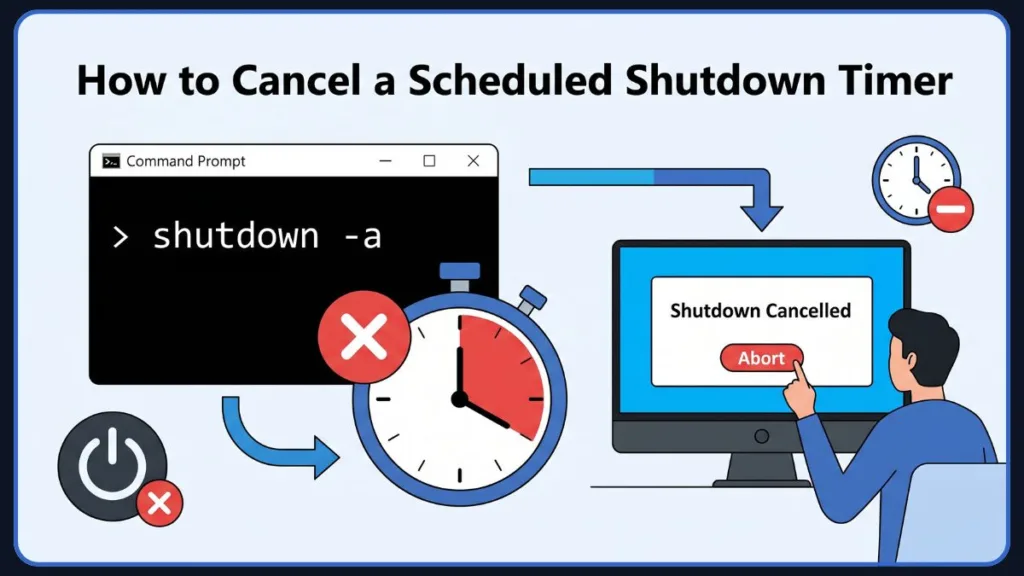
Did you accidentally make a mistake with your math, or simply decide you want to stay up a bit later to keep working? No problem at all! Canceling a timer is incredibly fast and easy.
Use the Shutdown Abort Command
DOS
shutdown -a
What Happens After Cancelling the Timer
Once you run the vital abort command (via CMD, Run, or Terminal), a system message that says “Logoff is canceled” will successfully appear on your lower screen area, confirming the abort command worked perfectly.
Common Reasons to Cancel a Shutdown
You might suddenly realize your massive game download needs another full hour, or you panicked because you forgot to save an incredibly important document right before initiating the timer.
How to Stop an Automatic Shut Down Before It Starts
Simply press Win + R, rapidly type shutdown -a, and hit Enter. It is without a doubt the fastest way to stop the power-down process dead in its tracks!
Tip: If you frequently use shutdown timers, it’s a great idea to create a separate “Abort” desktop shortcut containing the
shutdown -acommand so you can cancel timers with a frantic double-click in an emergency!
How to Check a Scheduled Shutdown Timer in Windows
While setting a timer is incredibly easy, you might naturally wonder how to check exactly how much time is left on the clock.
How to Check CMD Shutdown Timer
Unfortunately, Windows does not natively feature a live, visual, ticking clock on your desktop screen to constantly show the exact real-time countdown of a CMD timer.
Can You View Active Shutdown Timers in Windows?
You cannot view a live, moving countdown natively. However, Windows will reliably show you a pop-up confirmation window detailing the scheduled time right when you first run the command.
Understanding Windows Shutdown Notifications
Windows is intelligently designed to keep you informed. You will absolutely receive a persistent warning notification on your screen a few minutes before the actual shutdown happens to loudly remind you that your time is almost entirely up.
Ways to Confirm a Scheduled Shutdown Is Active
If you aren’t completely sure if your timer was accepted by the system, you can try running your shutdown -s -t XXXX command a second time. If a timer is already actively running, Windows will throw an error letting you know a shutdown is already pending. Alternatively, you can always cancel it with shutdown -a and simply set a brand-new, fresh timer just to be totally safe!
How to Know if a Shutdown Command Is Still Running
Rely on the system confirmation pop-ups. As long as you haven’t physically rebooted your PC or run the -a abort command, rest assured your timer is actively counting down in the background kernel.
Use Command Prompt to Check Pending Shutdown Events
Although Windows does not show a live countdown timer on the display, you can diligently review shutdown-related system events through the hidden Event Viewer utility, or simply monitor the critical shutdown notification displayed in the system tray right after scheduling.
Fact: When you schedule a shutdown, Windows logs an event with Event ID 1074 in the System event log, which network administrators use to track exactly when and why a computer was turned off.
Things to Know Before Using a Shutdown Timer
Before you dive in and start automating all your system power settings, there are a few very important best practices and safety tips to keep in mind.
Save Your Work Before Scheduling a Shutdown
Always, always make sure you have actively saved or safely closed any important text documents, spreadsheets, or editing apps. A background timer does not care at all if you are in the middle of writing a masterpiece!
How Forced Shutdown Commands Affect Open Programs
If you specifically use the /f switch (e.g., shutdown /s /f /t 3600), it forcefully commands all running applications to terminate and close immediately to complete the command without hesitation.
Avoid Losing Unsaved Files
Because the forced /f switch aggressively bypasses the usual, helpful “Do you want to save your changes?” prompt from your software programs, using the standard -s -t command is highly recommended and generally much safer for daily use unless a stubborn app is specifically keeping your PC awake.
Tip: If you rely on cloud storage like OneDrive or Google Drive, make sure your files have fully finished syncing to the cloud before your scheduled timer hits zero!
How to Schedule Shutdown at a Specific Time With Task Scheduler
If you want your computer to shut down at a specific, exact clock time every single day (like exactly at 11:00 PM), the one-time CMD methods simply won’t cut it. You absolutely need the powerful Task Scheduler.
Open Task Scheduler
Press the Windows key + R to open the Run box, type the exact text taskschd.msc, and click OK to launch the administrative tool.
Create a Basic Task
Look on the right side of the main Task Scheduler window and click Create Basic Task. Enter a clear, identifiable name (like “Daily Scheduled Shutdown”) and click Next.
Choose the Shutdown Schedule
You will be properly prompted to pick exactly when you want the automated task to run:
One Time
Great for a highly specific date and time far in the future.
Daily
Ideal for strictly enforcing a healthy bedtime for your PC every single night of the week.
Weekly
Perfect if you only want the PC to shut down automatically on your busy weekdays, but stay on during the weekends.
Monthly
Incredibly useful for scheduled monthly server maintenance or deep system cleaning.
Configure shutdown.exe
After carefully choosing your specific date and time, click Start a program and hit Next. Click the Browse button, navigate deep into your system drive to C:\Windows\System32\shutdown.exe, and select Open. In the “Add arguments” box, carefully type -s (or /s /f /t 0 if you want it to force close apps instantly).
Finish and Test the Task
Click Next, carefully review the summary information to ensure accuracy, and select Finish. Your powerful, recurring schedule is now completely active!
How to Turn Automatic Shut Down Into a Daily Schedule
By intentionally choosing the “Daily” trigger in the Task Scheduler wizard, you permanently ensure your PC powers down predictably and reliably, completely automating your daily energy savings without a second thought.
Create a Recurring Shut Down PC Command Timer
Task Scheduler is currently the only native, built-in way to make your system shutdowns repeat automatically day after day without having to manually enter a text command every single time you use the computer. For more robust automation and incredibly advanced triggers, explore our Task Scheduler-related content.
How to Edit a Scheduled Shutdown Task
If you change your mind about the time, simply open Task Scheduler, find your custom task inside the Task Scheduler Library, double-click it, and easily modify the precise details within the Triggers or Actions tabs.
How to Disable a Shutdown Schedule
Open the Task Scheduler Library, carefully locate your specific “Shutdown” task, right-click it with your mouse, and simply choose Disable to pause it temporarily without losing your settings.
How to Delete an Automatic Shutdown Task
If you decide you no longer need the scheduled routine at all, just right-click the task in the library and confidently choose Delete to wipe it away forever.
Tip: Inside Task Scheduler, you can use the Conditions tab to tell Windows: “Only run this shutdown task if the computer has been completely idle for 30 minutes.” This ensures the PC never turns off if you decide to work late!
How to Create a Shutdown Timer Desktop Shortcut
Want all the incredible power of a timer but with the simplicity of just a quick double-click? Creating a customized desktop shortcut is incredibly practical and user-friendly.
Create a New Shortcut
Right-click any completely empty space on your desktop wallpaper and carefully select New > Shortcut from the context menu.
Add the Shutdown Command
In the exact item location box, enter your preferred timer command: shutdown -s -t XXXX (replacing XXXX with your calculated seconds, like 7200 for exactly two hours). Click Next to proceed.
Customize the Shortcut Icon
Enter a friendly, obvious title for the shortcut (e.g., “Shutdown in 2 Hours”) and carefully select Finish.
Run the Shortcut Whenever Needed
Whenever you desperately need that specific timer, simply double-click the new “Scheduled Shutdown” shortcut you just added to your desktop screen!
Create a One-Click Windows 10 Shut Down Timer Shortcut
The only minor caveat here is that if you ever want to change the timer length later on, you will have to right-click the shortcut, go deep into Properties, and manually modify the exact timer value in the “Target” field.
Tip: You can make this shortcut look awesome! Right-click your new shortcut, go to Properties, click Change Icon, and search for the universal red power button icon included in Windows to make it look official. You can even pin this shortcut directly to your taskbar!
How to Create a Shutdown Batch File
For those computer enthusiasts who absolutely love scripting, creating a .bat (Batch) file is another truly excellent, highly customizable one-click alternative.
Create a New Notepad File
Open the main Start menu, search for the classic Notepad application, and open the blank app.
Add the Shutdown Command
Type your carefully desired shutdown command directly into the blank text area (e.g., shutdown /s /f /t 7200).
Save the File as BAT
Click the File menu at the top left and choose Save as. Select your desktop for easy access, and crucially, you absolutely must confirm the name ends with the .bat file extension (for example, typing exactly shutdown.bat). Be sure to change the “Save as type” dropdown to “All Files.”
Run the Batch File
Simply double-click the newly created file to seamlessly run the script, and it will immediately configure your computer system to shut down automatically based entirely on the time you coded into the file.
Automate Repetitive Shutdown Tasks With Batch Scripts
Batch files are absolutely fantastic because you can easily create several of them (one for exactly 30 minutes, one for 2 hours, one to cancel) and keep them all neatly organized in a specific desktop folder for whenever you might need them.
Tip: Batch files are completely editable. If you want to change the time, just right-click the
.batfile and select Edit to open it back up in Notepad and adjust the seconds!
Windows Shutdown Command Examples
Here is a comprehensive, quick reference guide of the most frequently requested timers. You can safely copy and paste these right into your Run dialog or shortcut location box!
| Time | Command |
| 5 Minutes | shutdown -s -t 300 |
| 10 Minutes | shutdown -s -t 600 |
| 30 Minutes | shutdown -s -t 1800 |
| 1 Hour | shutdown -s -t 3600 |
| 2 Hours | shutdown -s -t 7200 |
| 4 Hours | shutdown -s -t 14400 |
| 6 Hours | shutdown -s -t 21600 |
Most Useful Turn Off Computer Timer Commands for Everyday Use
Definitely keep these extremely handy! The 1-hour and 2-hour commands are easily the absolute most popular choices for letting large media downloads completely finish while you comfortably go to sleep.
Tip: If you are leaving the house for the day but running a heavy virus scan, the 4-hour (
14400) timer is usually the perfect sweet spot to ensure the scan finishes without leaving the PC on all day.
How to Schedule an Automatic Restart Instead of Shutdown
Many system users often search for shutdown and restart features together. If you desperately need to let heavy system updates process and cleanly reboot your machine instead of powering it off completely, you can simply use the restart switch (-r)!
Restart After 30 Minutes
DOS
shutdown -r -t 1800
Restart After 1 Hour
DOS
shutdown -r -t 3600
Cancel Restart Timer
DOS
shutdown -a
Fact: Regularly restarting your computer is one of the absolute best ways to clear out memory leaks, fix minor software glitches, and keep your Windows operating system running at peak performance.
Shutdown vs Sleep vs Hibernate: What’s the Difference?
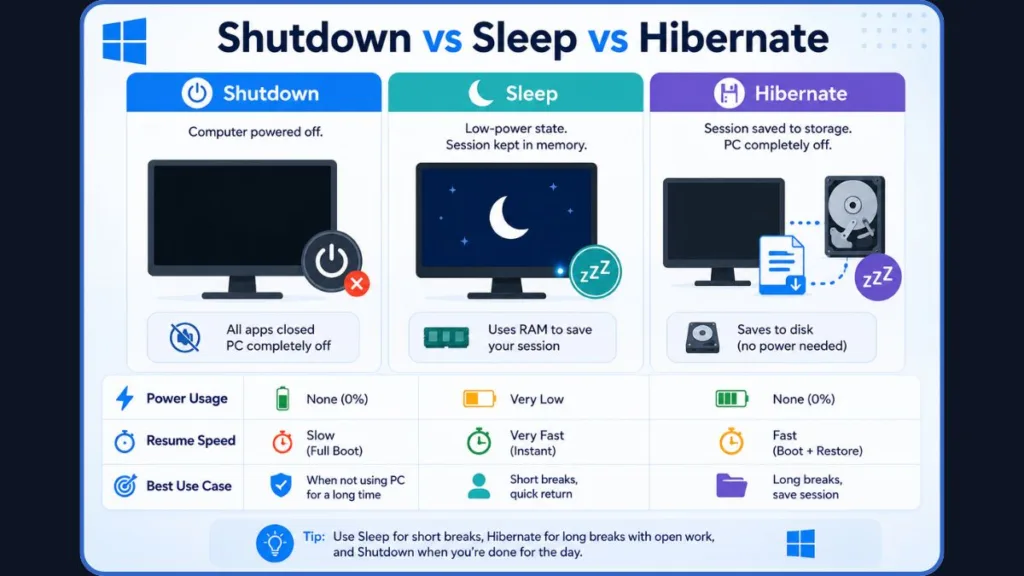
Before heavily relying on the shutdown command, it is definitely worth completely understanding your PC’s other available power states so you choose the right one for the job.
Shutdown
Completely closes all running applications, securely clears the system RAM memory, and safely completely cuts all electrical power to the internal hardware components.
Sleep
A highly efficient low-power state where your PC saves your exact current session to the system RAM. You can usually wake it up almost instantly by moving the mouse. You can easily set an automatic sleep timer via Settings > System > Power & battery > Screen and sleep.
Hibernate
Intelligently saves your exact current working session directly to your primary hard drive storage and completely powers off the PC to save maximum electricity, allowing you to resume exactly where you left off later.
Which Option Should You Choose?
Rely on sleep mode if you are just quickly stepping away for lunch. Use a complete shutdown for critical overnight hardware cooldowns, clearing stubborn memory leaks, or aggressively saving maximum electricity. Use hibernate if you want to power down completely but have fifty browser tabs you refuse to close!
When to Use a Shutdown Timer Instead of Sleep Mode
You should use a rigid shutdown timer when you specifically need the PC to securely remain fully active and awake to finish a vital task (like a massive file transfer to an external drive) before turning completely off.
| Feature | Shutdown Timer | Sleep Timer |
| Power State | Completely powered off | Low-power state (RAM active) |
| Setup Method | CMD, Run, Task Scheduler | Windows Settings GUI |
| Best For | Overnight tasks, system updates | Short breaks, quick resumes |
| Energy Usage | Zero | Very Low |
Fact: Because Hibernate writes massive amounts of session data to your storage drive every single time it is used, frequent use can actually contribute slightly to wear and tear on solid-state drives (SSDs) over many years compared to standard shutdowns.
Why Use an Automatic Shutdown Timer?
If you aren’t already using this incredible system feature yet, here are a few undeniable reasons why you should absolutely start today!
Save Electricity
PCs left running fully active 24/7 consume a surprisingly noticeable amount of electrical power over an entire year. Routinely shutting down saves hard-earned money and significantly reduces your environmental carbon footprint.
Prevent Unnecessary PC Usage
If you regularly fall asleep comfortably watching a movie in bed, a simple timer ensures your expensive PC doesn’t stay awake all night blindly playing through an entire television series.
Let Downloads Finish Automatically
You should never have to sit around agonizingly staring at a slow progress bar ever again. Simply estimate the download time, generously add a safe 30-minute buffer, set your timer, and happily walk away.
Run Backups and File Transfers Overnight
Extremely heavy hardware tasks can painfully slow down your PC while you are actively trying to work. Schedule them for 2:00 AM, and beautifully use Task Scheduler to safely shut the PC down at 4:00 AM!
Improve Device Longevity
Allowing your sensitive device hardware to completely cool down for an extended period drastically improves its daily performance and helps expensive internal hardware components (like fans and thermal paste) last significantly longer.
Benefits of Using a Windows Delayed Shut Down Command
It ultimately puts you in complete, total control of your hardware, ensuring your system strictly works on your schedule—not the other way around.
Fact: Running heavy downloads during off-peak overnight hours often results in much faster download speeds, as your local neighborhood’s internet bandwidth is far less congested!
Does the Windows Shutdown Command Timer Work on All Windows Versions?
Yes, absolutely! The true beauty of these robust command-line tools is their incredible legacy support. The specific syntax has proudly remained virtually unchanged for over a decade.
Windows 11
Fully and natively supported via CMD, Run, Terminal, PowerShell, and the classic Task Scheduler.
Windows 10
Fully supported. The exact steps are completely identical to Windows 11.
Windows 8 and 8.1
You can quickly press Windows + X to elegantly open the Quick Access Menu, select Run, and use the exact same shutdown -s -t commands flawlessly.
Windows 7
The beloved Run dialog and CMD methods still work absolutely perfectly here as well!
Fact: The core concepts of these shutdown commands have been utilized by network administrators since the release of Windows NT in the early 1990s!
Common Shutdown Timer Mistakes to Avoid
Even though it is an incredibly simple command, there are still a few common, easily avoidable pitfalls that routinely catch people off guard.
Using Minutes Instead of Seconds
This is hands-down the absolute number one mistake! If you casually type shutdown -s -t 60 hoping for a one-hour delay, your computer is going to aggressively shut down in exactly 60 seconds. Always double-check your math!
Forgetting to Save Work
A strict shutdown timer will ruthlessly follow your system command to the letter. Make a solid daily habit of hitting Ctrl + S on all your open documents before setting any delayed shutdown.
Using the Wrong Command Syntax
Forgetting the mandatory spaces (like typing shutdown-s-t) or accidentally mixing up the letters will instantly cause the command to completely fail and throw an error. Stick exactly to the precise spacing shown in our helpful examples.
Confusing Shutdown and Sleep Timers
A genuine shutdown timer safely kills the electrical power entirely. If you just want your screen to temporarily turn off and safely save your place while you grab a quick coffee, heavily rely on your Windows Power & Sleep settings instead.
Tip: If you are prone to typos, stick to creating a permanent batch file or a desktop shortcut. That way, you only have to type the command perfectly once!
Troubleshooting Windows Shutdown Timer Issues
Running into a frustrating system hiccup? Here are a few very common issues and exactly how to fix them effortlessly.
Shutdown Command Not Working
Double-ensure you are strictly using the correct syntax. Remember, there must be clear spaces completely separating the parameters: shutdown -s -t 3600, not shutdown-s-t3600.
Timer Doesn’t Start
Check your math again! The system explicitly uses seconds. If you accidentally type shutdown -s -t 60 thinking it clearly means 60 minutes, your PC will urgently shut down in 1 minute!
Scheduled Task Doesn’t Run
Carefully open the Task Scheduler application and deeply check the Triggers tab for your specific task. Ensure the start date and time haven’t already passed in the past and that the critical task isn’t accidentally set to “Disabled.”
PowerShell Command Fails
Always remember that PowerShell strictly uses entirely different syntax. You absolutely must use Start-Sleep -Seconds XXXX; Stop-Computer. The traditional shutdown parameters simply do not work the exact same way inside native PowerShell cmdlets.
Shutdown Gets Cancelled Unexpectedly
If a running background application stubbornly refuses to close, it might completely halt the entire shutdown process. Cautiously add the /f parameter to aggressively force apps to close (e.g., shutdown /s /f /t 3600).
Shutdown Command Works but PC Does Not Turn Off
This highly specific issue usually implies a critical background system service is severely hanging. Try running the command prompt securely as an administrator and aggressively using the /f force parameter.
Antivirus or Security Software Blocking Shutdown Commands
Occasionally, overly strict security software might falsely flag and block a batch file or automated command-line script. If this annoying issue happens, try scheduling it safely via the native Task Scheduler GUI instead.
Administrator Permission Issues
Some specific network commands may strictly require elevation depending on your exact user account control settings. If a standard command fails, right-click CMD or Windows Terminal and actively select Run as administrator.
Fixing Common Windows 10 Shut Down Timer Problems
If all standard command-line methods completely fail, relying on the Task Scheduler is almost always a guaranteed, surefire fix, as it beautifully integrates deeply with Windows administrative privileges. If bizarre issues persistently continue, you might need to thoroughly review your core system settings in our Windows update and power management articles.
Tip: Ensure your Windows operating system is fully up to date. Sometimes, pending updates can block scheduled shutdown commands because the system wants you to use the “Update and Shut down” button from the Start menu instead!
Frequently Asked Questions
How do I set a shutdown timer in Windows?
Simply press Win + R to immediately open the Run dialog, accurately type shutdown -s -t [seconds], and click OK.
How do I set a timer for shutdown on Windows?
Use the classic Command Prompt and the shutdown -s -t syntax, replacing the very end of the command with your desired time precisely in seconds.
What is the shutdown command in CMD?
The absolute base command to instruct a PC to turn off is simply shutdown -s. To successfully add a timer, append -t strictly followed by the total seconds.
How do I shut down my computer after 1 hour?
Run the exact command: shutdown -s -t 3600.
How do I shut down my computer after 30 minutes using CMD?
Run the exact command: shutdown -s -t 1800.
How do I schedule a shutdown in 4 hours?
Run the exact command: shutdown -s -t 14400.
How do I cancel a shutdown timer?
Quickly open the Run dialog or CMD and boldly type: shutdown -a. You will instantly get a system message confirming the logoff is officially canceled.
Can I schedule a daily shutdown?
Yes, you absolutely can! Use the native Task Scheduler app. Create a Basic Task, specifically select “Daily,” and correctly point the action directly to C:\Windows\System32\shutdown.exe with the argument strictly set to -s.
Can I schedule a shutdown every week?
Absolutely. Carefully follow the exact Task Scheduler steps detailed above, but securely select “Weekly” when choosing your specific trigger day.
Does Windows 11 have a built-in shutdown timer?
Yes, it is beautifully built directly into the core operating system via the command-line utility, strictly requiring absolutely no third-party software whatsoever.
Can I schedule shutdown without third-party software?
Yes, you can safely and easily use the Run dialog, CMD, PowerShell, or Task Scheduler natively right out of the box.
How do I shut down Windows using PowerShell?
Type the exact cmdlet Stop-Computer -ComputerName localhost for an immediate, rapid shutdown, or intelligently pair it with Start-Sleep for a precise timer.
What does shutdown -s -t mean?
The -s specifically tells the computer to absolutely shut down, and the -t explicitly specifies that a strict time delay (measured strictly in seconds) will exactly follow.
What does shutdown -a do?
The -a specifically stands for “abort.” It successfully and instantly cancels any active shutdown timers currently running in the deep background of the system.
How do I check a CMD shutdown timer?
While you unfortunately cannot view a live, ticking visual clock, Windows will helpfully pop up a clear notification to comfortably confirm your timer was safely set, and will kindly warn you a few minutes right before the shutdown physically happens.
Can I create a shutdown timer shortcut?
Yes, simply right-click the empty desktop, clearly choose New > Shortcut, and perfectly paste your exact shutdown -s -t command directly into the item location box.
Is There a Built-In Windows Shutdown Scheduler?
Yes, the robust Task Scheduler perfectly acts as a highly customizable, extremely powerful GUI scheduler for fully automating system power states.
Can I Shut Down My Laptop Automatically?
Yes, all of these exact commands and brilliant schedules work absolutely identically on both bulky Windows desktop PCs and portable battery-powered laptops!
Conclusion
Scheduling your PC to safely power off doesn’t ever have to be a complicated, frustrating process! The absolute easiest method for a quick, reliable one-time timer is simply pressing the Win + R keys together and cleanly using the shutdown -s -t command. Whether you comfortably use the Run dialog or the classic Command Prompt, these robust tools remain the absolute fastest solutions for practical everyday use.
Windows generously provides incredible, deeply built-in flexibility to beautifully create an automatic, completely reliable shutdown schedule without ever needing to download potentially unsafe third-party software. We highly encourage you to eagerly try out a few of these unique methods and confidently choose the specific one that absolutely best fits your unique daily routine and overall automation needs.
To smoothly wrap things up, here is a highly actionable, quick guide on exactly which method you should confidently choose today:
- Best method for absolute beginners > The simple Run command box.
- Best method for advanced power users > The traditional Command Prompt or Windows Terminal.
- Best method for creating recurring daily schedules > The highly robust Task Scheduler.
- Best method for seamless one-click automation > Custom PowerShell scripts or handy batch files.
Visit Our Post Page: Blog Page
Discover more from Izoate
Subscribe to get the latest posts sent to your email.