
Trying to verify your new Amazon account email but stuck? Find out how to receive OTP on email and what to do when your Amazon verification code doesn’t arrive or work.
Creating a new Amazon account is usually straightforward, but email verification is one step that can catch you off guard if you’re not sure what to expect.
When Amazon asks you to verify your new account, it typically sends a one-time password, or OTP, to the email address you registered with. In most cases, you find the code, enter it on Amazon, and you’re done. Simple enough.
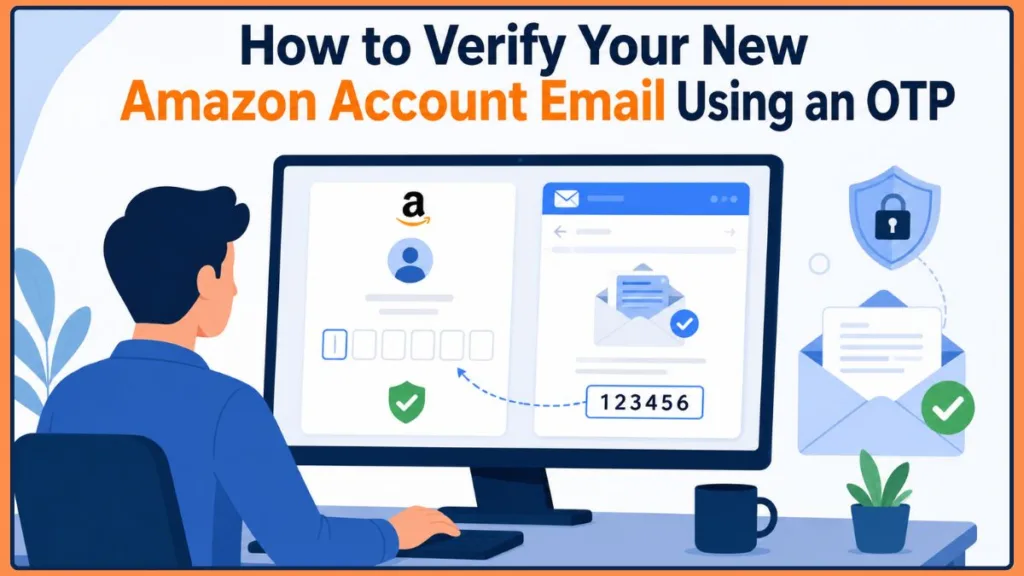
But what happens when the Amazon verification email doesn’t show up in your inbox? What if you receive the OTP but Amazon keeps telling you the code is wrong? Or what if Amazon asks for another security check even after you’ve already verified your email?
If any of that sounds familiar, you’re in the right place. This guide walks you through how to verify your new Amazon account email, how to receive your OTP on email, where to find your Amazon verification code, and exactly what to do when things don’t go as expected.
Quick tip: Always complete your Amazon verification through Amazon’s official website or app. If you receive an unexpected email with a link asking you to verify your account, don’t use that link to enter your login details or OTP. Go directly to Amazon instead.
What Is the “Verify Your New Amazon Account” Email?
When you create a new Amazon account, or when Amazon needs to confirm that you actually have access to the email address on file, it sends you a verification message. That message typically includes a verification code or OTP that you need to enter to prove you own the email address.
It’s worth knowing that this is not the same as a password reset email. A password reset email is sent when you’ve forgotten your password and need to get back into your account. The account verification email is specifically about confirming access to your registered email address.
So if you’re waiting for the message, start by checking the exact email address you used when you signed up for or accessed your Amazon account.
How to Verify Your New Amazon Account Email Step by Step
Once Amazon prompts you to verify your account, the process itself is fairly quick. Here’s how to get through it.
Step 1: Open Amazon and Begin the Sign-In or Setup Process
Head to Amazon’s official website or open the Amazon Shopping app on your phone or tablet.
Enter the email address or mobile phone number linked to your Amazon account and continue. Depending on your situation, Amazon may then prompt you to complete a verification step before you can go any further.
Step 2: Check Your Email Inbox for the Amazon OTP
Open the email account connected to your Amazon account and look for a recent message from Amazon. That message should contain your verification code or one-time password.
If you don’t see it in your main inbox straight away, don’t panic. Check your Spam, Junk, Promotions, or any other filtered folder your email provider uses. Automated verification emails sometimes end up there instead of your main inbox.
Step 3: Find and Copy the Latest Verification Code
Open the most recent Amazon verification email and locate your OTP.
If you’ve requested more than one code, make sure you’re using the newest one. Entering an older code is one of the most common reasons Amazon verification fails, so it’s worth double-checking before you type anything in.
Step 4: Enter the OTP on Amazon
Go back to the Amazon verification screen and type in the code from your email. Then select the option to continue.
If Amazon accepts the code, your new Amazon account email is verified and you can carry on with your account setup or sign-in.
Step 5: Take Care of Any Additional Security Steps
In some cases, verifying your email isn’t the last thing Amazon asks you to do.
Depending on your account setup, Amazon may also ask for a code sent to your primary phone number or another security method you’ve connected to your account.
Good to know: Email verification and Two-Step Verification are both security features, but they’re not always the same step. You can finish email verification successfully and still be asked for a separate security code when you sign in from a new or untrusted device.
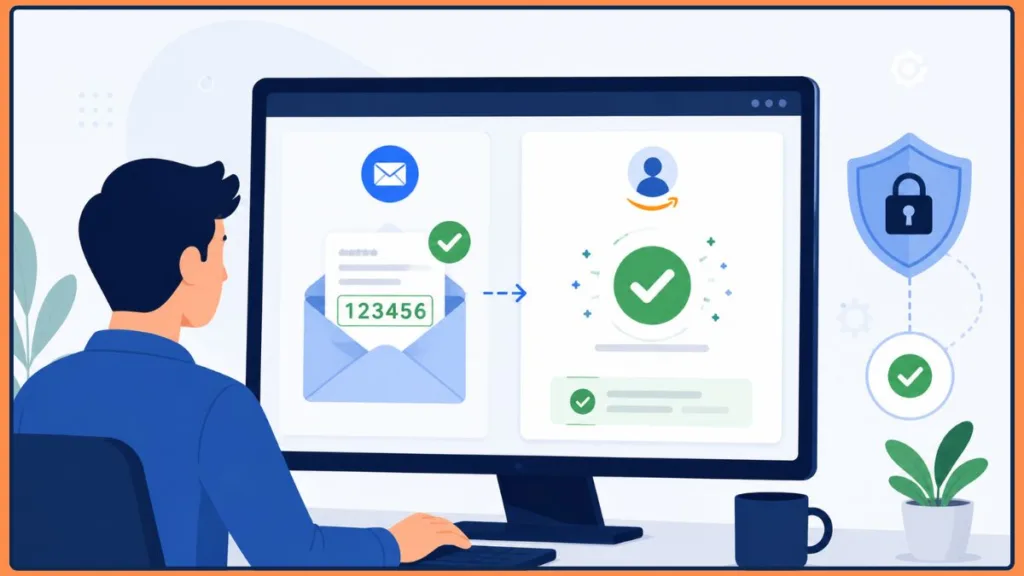
How to Receive Your OTP on Email From Amazon
If you’re trying to receive your OTP on email and it’s not arriving, the first thing to check is whether you’re looking at the right email address.
Open the inbox that’s connected to your Amazon account and look for the verification message. If you can’t spot it immediately, try searching your mailbox for terms like Amazon, OTP, or verification code.
Also check your Spam and Junk folders. Your email provider may have automatically filtered the message out of your main inbox.
It’s also worth giving the current request a few minutes before you ask for another code. Verification emails don’t always arrive instantly, and waiting a little can save you a lot of frustration.
If you’ve been clicking resend multiple times in a row, that could actually be slowing things down. Requesting too many OTPs one after another can trigger a temporary rate limit on Amazon’s end, which means no new codes until that limit resets.
Depending on which Amazon verification screen you’re looking at, you may also be offered the option to receive your security code by text message or automated phone call. If email isn’t working for you, that’s worth trying.
Tip: If you’ve received several Amazon verification emails, always use the most recent OTP. Older codes are likely expired and won’t work.
Amazon OTP Not Received or Not Working? Here’s What to Do
Not getting an Amazon verification code doesn’t necessarily mean something is seriously wrong. In most cases, it comes down to a simple delivery issue or a small mistake that’s easy to fix.
Check your Spam or Junk folder first
This is the quickest fix and often the right one. Check your Spam, Junk, Promotions, and any other folders your email provider uses to sort automated messages.
Make sure you’re in the right email account
If you have more than one email address, it’s easy to end up checking the wrong inbox. Make sure you’re signed in to the email account that’s actually linked to your Amazon account.
Give it a few minutes
Verification emails don’t always land immediately. If Amazon confirmed that your request went through, wait a few minutes before doing anything else.
Stop repeatedly clicking Resend
Requesting multiple codes in a short period of time can trigger temporary limits on Amazon’s side. Instead of clicking Resend over and over, wait a while and then try again once.
Search your inbox for Amazon
Use your email provider’s search bar and look for terms like Amazon, OTP, or verification code. The message may have been automatically sorted somewhere you haven’t checked yet.
Try a different verification method
If email delivery keeps failing, Amazon may offer you another way to receive your security code, such as SMS, an automated phone call, or an authenticator app. Amazon’s own troubleshooting guidance also suggests checking your connection and registered contact details, and using an authenticator app when an OTP isn’t coming through by email.
If your code arrived but won’t work
Sometimes the OTP reaches your inbox but Amazon still rejects it. The most common reason is that you’re entering an older code when Amazon is expecting the newest one.
Request a fresh OTP and use that one instead. Also double-check that you’ve typed every digit correctly and haven’t accidentally included any extra spaces.
If Amazon has temporarily limited your verification attempts, entering more codes won’t help straight away. Give it some time and try again.
Tip: Keep only the most recent verification email open when you’re entering your code. That way you won’t accidentally grab a digit from an older message.
Amazon’s own OTP troubleshooting guidance notes that having multiple OTPs in your inbox can cause confusion and recommends always using the newest code within its validity period.
What If Amazon Doesn’t Show the OTP Screen or Asks for More Verification?
Not every Amazon sign-in looks exactly the same, and that can throw you off if you’re not expecting it.
When you’re signing in from a new or untrusted device, you might run into Amazon’s Two-Step Verification process, and in some cases, there won’t be a separate field for you to enter the security code.
If that happens, Amazon’s Alternate Sign-In method can help you get through.
Start by entering your email address or phone number and password as you normally would. If Amazon is asking for a security code but isn’t showing you a separate box for it, enter your password followed immediately by your security code, with no space between them.
So if your password is:
amazon123
and your security code is:
45678
you’d enter:
amazon12345678
Then submit your sign-in attempt as usual.
One thing to keep in mind: Amazon won’t let you save the device as a trusted device when you use this Alternate Sign-In method. That means you may need to enter a security code again next time you sign in from that device.
Successfully verifying your email doesn’t always mean you’re completely done with Amazon’s security checks.
Amazon’s Two-Step Verification adds an extra layer of protection during certain sign-ins and device registrations. Depending on how your account is set up, Amazon may send an additional security code through a text message, an automated phone call, or an authenticator app. Amazon’s own account-security documentation covers all of these delivery options for Two-Step Verification.
During device registration, it’s also possible to receive two separate codes in the same session. You might get an OTP by email or text as part of the registration process and then be asked for a completely separate Two-Step Verification security code on top of that.
Important: The OTP you receive to verify your email or complete a registration step is not the same as the security code used for Two-Step Verification. Don’t mix the two up.
If you’re dealing with a Two-Step Verification problem rather than a basic email verification issue, start by trying any backup verification method or trusted device you still have access to.
If the expected security-code prompt isn’t showing up on a new or untrusted device, the Alternate Sign-In method explained above is worth trying.
If you’re using your phone for verification, check that it has a working network connection and that the phone number registered with Amazon is correct. Restarting your phone can also help, and it’s worth checking whether Amazon’s number has been blocked by your carrier or phone settings.
If you forgot your password during device registration, Amazon may send an OTP as part of that process before asking for a separate Two-Step Verification code. Amazon’s troubleshooting documentation also recommends confirming your registered phone number and trying another delivery method if an OTP isn’t coming through.
Can’t Verify Your Amazon Account at All? Here’s What to Try Next
If you’ve lost access to your registered email address or phone number, or if your Two-Step Verification method simply isn’t available anymore, you’re no longer dealing with a standard verification issue. At that point, you’re looking at Amazon account recovery.
Before you go down that road, try signing in from a trusted device or using any registered backup method you still have access to.
If none of that works, Amazon offers a Two-Step Verification Account Recovery process. In some cases, this process requires you to verify your identity using a government-issued ID document.
You’ll need to follow Amazon’s specific instructions for uploading the document. Make sure your name, address, and the issuing authority are clearly visible. Any sensitive information, such as account numbers or ID numbers, should be covered, concealed, or removed as instructed by Amazon.
The identity-verification process can take one to two days to complete.
Once Amazon finishes the review, it can disable Two-Step Verification so you can sign back in with your password. Keep in mind that Amazon may still ask for an additional security step when you sign in, such as a one-time code sent to your email or primary phone number.
Amazon’s account-recovery guidance confirms that government-issued identification is part of the recovery process when backup verification methods aren’t available, and that the process typically takes one to two days.
Important: Never upload identity documents through a link from an unexpected email or text message. Start the account-recovery process directly from Amazon’s official website.
Is the “Verify Your New Amazon Account” Email Actually Legit?
If you recently created an Amazon account or kicked off a verification process yourself, receiving a verification email is completely normal. But if the message showed up out of nowhere, it’s worth being a little cautious before you do anything with it.
Never share your Amazon OTP with anyone. Your verification code is meant for your account only and should only ever be entered during the legitimate Amazon verification process on Amazon’s official website or app.
If you’re unsure about a message you’ve received, skip any links it contains and go directly to Amazon’s website or app to complete verification from there.
Be especially careful with any messages that claim your Amazon account is on hold, that your account will be suspended, or that you need to urgently confirm your details through an unfamiliar website. These are common signs of phishing attempts.
Stay safe: Amazon recommends using its secure account pages for any account-security actions rather than sharing your credentials or codes anywhere outside of those pages.
Frequently Asked Questions
How do I verify my new Amazon account email?
Start the Amazon account setup or sign-in process, then check the email address associated with your account for the verification message. Enter the latest Amazon OTP on the verification screen to complete the process.
How do I receive OTP on email from Amazon?
Use the email address associated with your Amazon account and check your Inbox, Spam, Junk, and filtered folders for the verification message. If the code doesn’t arrive, wait a few minutes and request another OTP when the option is available.
Why didn’t I receive my Amazon verification code?
Check that you’re using the correct email account, look through your Spam or Junk folders, and give the message some time to arrive. Repeated OTP requests can also trigger temporary limits, so avoid continuously requesting new codes.
Why is my Amazon OTP not working?
You may be entering an older or expired code, or the code may have been typed incorrectly. Request a new OTP and use the latest code you receive.
Can I verify my Amazon account without an email OTP?
The available verification method depends on the Amazon security flow you’re seeing. Some situations may offer another delivery method, such as SMS, a phone call, or an authenticator app.
What happens if I can’t access my Amazon email or phone?
If you can’t use any registered verification method, you may need to go through Amazon’s account-recovery process. In some cases, Amazon requires identity verification with a government-issued document before it will make changes to your Two-Step Verification settings.
How long does Amazon identity verification take?
Amazon’s Two-Step Verification recovery process can take one to two days. After successful verification, Amazon will email you to confirm that Two-Step Verification has been disabled, although another security check may still be required the next time you sign in.
Final Thoughts
For most people, verifying a new Amazon account comes down to three simple steps: open the verification email, find your OTP, and enter it on Amazon. Done.
The process gets frustrating when the Amazon verification email doesn’t show up, the code keeps getting rejected, or Amazon piles on extra security checks you weren’t expecting.
If you hit a wall, start with the basics. Make sure you’re checking the right email account, look through your Spam and Junk folders, give the message a minute or two to arrive, and avoid hammering the Resend button.
If you’re signing in from a new or unfamiliar device, Amazon’s Two-Step Verification and Alternate Sign-In features may also come into play. And if none of the standard fixes work, Amazon’s account-recovery process is there for situations where you’ve completely lost access to your registered verification methods.
Whatever you do, keep the process on Amazon’s official website or app, and never share your OTP with anyone. If you’ve worked through these steps and still have questions, drop them in the comments below and we’ll help you figure it out.
Visit Our Post Page: Blog Page
Discover more from Izoate
Subscribe to get the latest posts sent to your email.