
Want to use ChatGPT with Apple Shortcuts on your iPhone? Learn how to set it up without an API key and create 10 useful ChatGPT shortcuts for everyday tasks in 2026.
If you’ve wished ChatGPT could work inside the Shortcuts app on your iPhone, without an OpenAI developer account, billing details, or an API key, you’re in luck. It’s now built into iOS, and you can set it up in a few minutes.
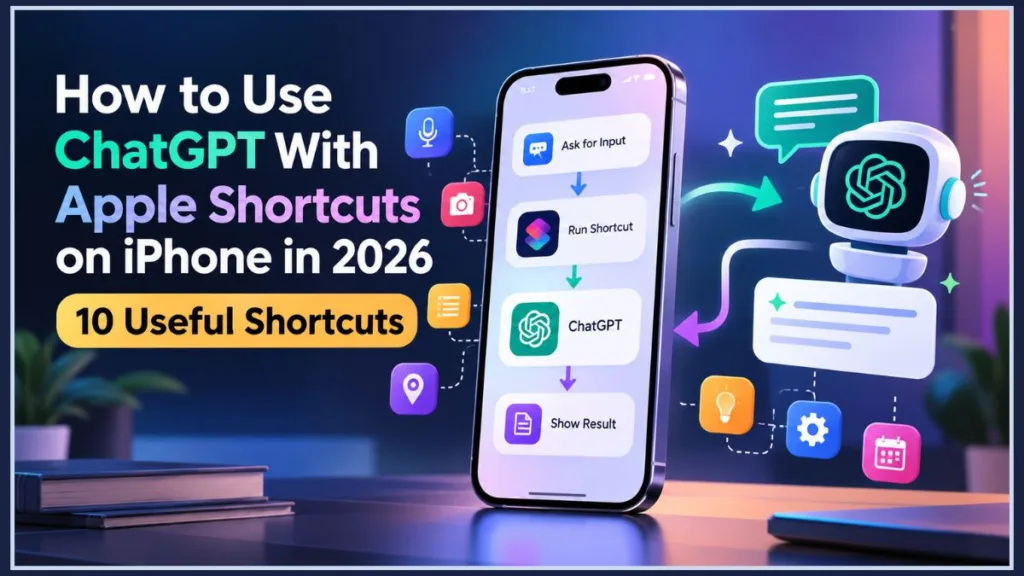
There are two routes. Newer iPhones have a built-in Use Model action that can send a prompt to ChatGPT. If your iPhone doesn’t support that, the ChatGPT app adds its own Shortcuts actions instead. This guide walks you through both, gives you ten shortcuts you can build today, and covers what to do when an option doesn’t show up.
Which Method Should You Use?
Most of the confusion around ChatGPT and Shortcuts comes from mixing these two routes up. This table shows how they differ.
| Method 1: Use Model action | Method 2: ChatGPT app actions | |
|---|---|---|
| What it is | Apple’s built-in Apple Intelligence action | Actions added by the official ChatGPT app |
| Software | iOS 26 or later | Whatever the ChatGPT app currently supports |
| iPhone | iPhone 15 Pro or newer | Most iPhones that can run the ChatGPT app |
| ChatGPT app needed? | No | Yes |
| ChatGPT account? | Optional, with limits | Yes (a free account works) |
| Best for | Passing AI answers into the next step of a shortcut | Voice chats, the Action Button, older iPhones |
Not sure which one you have? Open Shortcuts, tap +, and search for Use Model. If it appears, Method 1 works on your iPhone. If it doesn’t, skip ahead to Method 2.
Tip: You don’t have to pick one. Many people use Method 1 for text shortcuts and automations, and Method 2 for a voice shortcut on the Action Button.
What’s New in iOS 27 for ChatGPT and Shortcuts
iOS 27 was released to the public on September 14, 2026. A few changes matter for this guide:
- Describe a Shortcut. When you tap New Shortcut, you can describe what you want in plain language and Apple Intelligence builds it. Apple’s own features list treats this as beta, so review the result before you rely on it.
- New model names. Apple’s iOS 27 guide lists On-Device, Cloud, Cloud Pro, and Extension Model.
- Automations moved. Automation is no longer a separate section, and triggers now sit with the regular actions.
- A new Siri app. iOS 27’s Siri app lets you switch between Siri and ChatGPT.
Everything in this guide works on iOS 26 as well. Where steps or names differ, you’ll see both.
Method 1: Use ChatGPT with the Use Model Action
The Use Model action sends a prompt to an Apple Intelligence model or to ChatGPT, then passes the answer to the next action. Apple says you can use a model to provide input to an action, parse an action’s output, and more. There’s no web request or JSON to set up.
What You Need
- An Apple Intelligence-compatible iPhone. Apple Intelligence features require an iPhone 15 Pro or newer.
- iOS 26 or later.
- Apple Intelligence turned on, with a supported device language and region.
- ChatGPT available where you live. The extension only works in regions where ChatGPT is available, and you must be at least 13 or the minimum age in your country.
Warning: If an option is missing, don’t install configuration profiles from random websites. A missing option almost always means your device, region, language, or software version isn’t supported yet.
Choose the Right Model
Every Use Model action asks which model should handle your prompt. The names changed slightly with iOS 27.
| iOS 26 name | iOS 27 name | Where it runs | Best for |
|---|---|---|---|
| On-Device | On-Device | Your iPhone | Simple rewrites and short summaries |
| Private Cloud Compute | Cloud | Apple’s secure servers | Bigger tasks that stay in Apple’s system |
| Not offered | Cloud Pro | Apple’s servers, with extended context | Larger tasks and questions that need web results |
| Extension Model | Extension Model | ChatGPT | Broad knowledge and longer or more creative answers |
Apple says On-Device handles simple requests without a network connection, and that Extension Model uses ChatGPT. Cloud Pro can search the web for questions that need information from the internet.
Step 1: Turn On the ChatGPT Extension
On iOS 26:
- Open Settings and tap Apple Intelligence & Siri.
- Under Extensions, tap ChatGPT, then tap Set Up.
- Tap Enable ChatGPT to use it without an account, or Use ChatGPT with an Account to sign in.
On iOS 27:
- Open Settings and tap Siri.
- Find ChatGPT. If you’re using Siri AI (Beta), Apple says to tap Set Up Extensions, tap ChatGPT, then turn on Use Extension.
Menu names can shift while Siri AI is in beta. If yours look different, search Settings for “ChatGPT.”
Tip: Requests are only saved to your ChatGPT chat history if you’re signed in to an account.
Step 2: Build Your First ChatGPT Shortcut
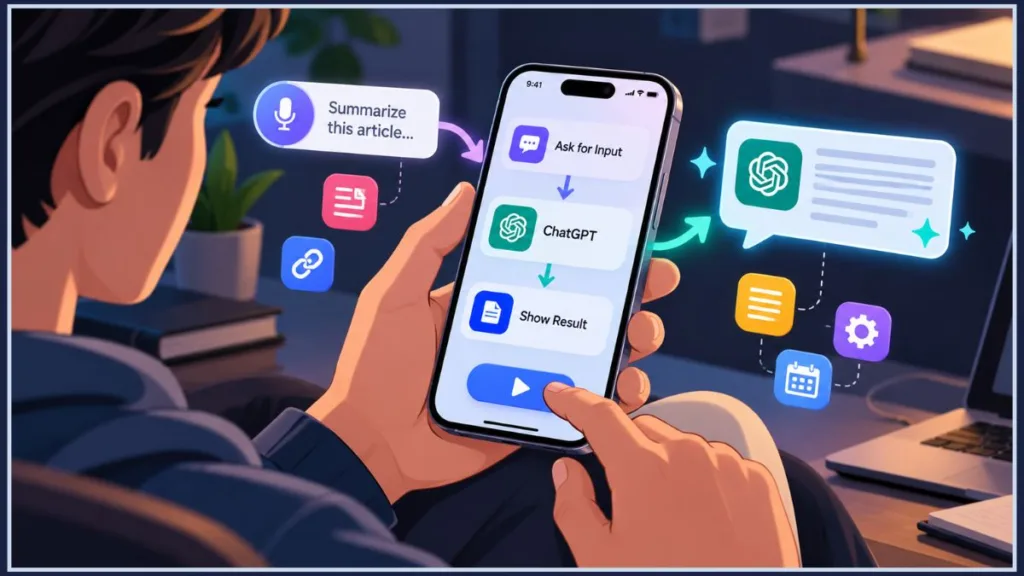
Every shortcut in this guide follows the same pattern: input, model, output. You give it something to work with, ChatGPT handles it, and the answer appears where you want it.
- Open Shortcuts and tap + (called Add on iOS 27).
- Name the shortcut Ask ChatGPT.
- Add Ask for Input and set the prompt to “What would you like to ask?”
- Add Use Model and set the model to Extension Model.
- In the prompt field, select the result from Ask for Input.
- Add Show Result at the end.
Two settings are worth knowing about. Follow Up shows you the model’s response and lets you refine your request before the answer moves to the next action. The Output menu shapes the answer for whatever comes next, so use it when you plan to pass the result to Notes or Reminders.
Prefer to describe it instead? On iOS 27, you can type something like “Ask me a question, send it to ChatGPT, and show me the answer.” Then open the editor and check that Extension Model is selected, because the builder may choose a different model.
Tip: A shortcut’s name is also its Siri command. Name it Ask ChatGPT and you can say “Hey Siri, Ask ChatGPT” to run it hands-free.
Step 3: Test It with a Harmless Question
Before you connect anything personal, run a quick test.
- Tap Play.
- Type a simple, non-personal question, such as “What is the boiling point of nitrogen in Fahrenheit?”
- If iOS asks permission to send your request to ChatGPT, read the prompt and tap Allow.
- Check that a sensible answer appears.
If it works, you’re set. If not, jump to the troubleshooting section further down.
Method 2: Use ChatGPT Through the ChatGPT App
This route works even if your iPhone doesn’t support Apple Intelligence, and it’s the better choice for voice conversations.
Set It Up
- Install the official ChatGPT app and sign in. Check that OpenAI is the publisher, because other apps use similar names.
- Open Shortcuts, tap +, and search for ChatGPT.
- Pick the action you want. The app has offered actions such as Ask ChatGPT and Start voice conversation.
- Set the message to Ask Each Time, or connect the action to an Ask for Input step.
- Add Show Result and run the shortcut.
Note: Action names can change as the ChatGPT and Shortcuts apps update. If you can’t find the exact name from an older tutorial, choose the closest current ChatGPT action.
Older iPhones Without Apple Intelligence
You can still use ChatGPT in Shortcuts. Once the ChatGPT app is installed, Siri can recognize the “Ask ChatGPT” command on many iPhones without Apple Intelligence. Because this route goes through the app, your requests fall under your ChatGPT account’s terms rather than Apple’s extension setup.
Advanced Option: The Direct API Method
If you want full control, you can connect an OpenAI API key using the Get Contents of URL action. It needs JSON setup, and API billing is separate from a ChatGPT subscription. Available models change often, so check OpenAI’s current documentation before you start.
How to Write Prompts That Work in Shortcuts
A shortcut runs the same prompt every time, so a clear prompt matters more here than in a normal chat. These habits make the results more consistent:
- Say exactly what you want. “Summarize this article” is fine. “Summarize this article in three bullet points” is better.
- Set a length. Add a word or sentence limit so the answer fits a notification or a note.
- Name the tone or audience when it matters, such as “friendly and professional.”
- Put your instruction first and the input after it. Add a label like “Text:” and then insert the variable, so the model can tell them apart.
- Test with a few different inputs before you rely on it, then adjust the wording.
Not sure where to begin? Apple’s Shortcuts Gallery has an Apple Intelligence category with ready-made examples you can open and adapt.
10 Useful ChatGPT Shortcuts for Your iPhone
Recipe 1 uses the ChatGPT app (Method 2). Recipes 2 to 10 use Use Model set to Extension Model (Method 1). If you’re on an older iPhone, swap in the ChatGPT app’s Ask ChatGPT action wherever you see Use Model.
1. Hands-Free Voice Assistant on the Action Button
Best for: asking questions while driving, cooking, or walking.
- In Shortcuts, tap + and search for ChatGPT.
- Choose the voice conversation action.
- Name the shortcut AI Voice.
- Go to Settings > Action Button, swipe to Shortcut, tap Choose a Shortcut, and pick AI Voice.
Good to know: Apple says the Action button is available on iPhone 15 Pro or later. No Action Button? See “Ways to Run Your ChatGPT Shortcut” below for Back Tap and other options.
2. Quick Text Query
Best for: meetings and quiet places where you can’t talk out loud.
- Create a shortcut called Quick Query.
- Add Ask for Input with the prompt “Ask anything…”
- Add Use Model, choose Extension Model, and pass in the input.
- Add Show Result.
Good to know: Turn on Follow Up in the Use Model action if you’d like to refine the answer before it appears.
3. One-Tap Safari Article Summarizer
Best for: long news stories and reviews on a small screen.
- Create a shortcut called Summarize Article.
- Open the shortcut details (the i icon) and turn on Show in Share Sheet for Safari web pages and URLs.
- Add Get Article using Safari Reader to pull only the readable text.
- Add a Text action with this prompt, then insert the article text:
Summarize this article in no more than 120 words, then list the three most important takeaways as bullet points.- Add Use Model (Extension Model), then Show Result.
Good to know: Cleaning the page first matters. Raw page code is full of menus and scripts that waste space and muddy the summary.
4. Morning Digest from RSS Feeds
Best for: catching up on news without opening each site.
- Create a shortcut called Morning Digest.
- Add Get Items from RSS Feed, paste a feed address, and set how many items to pull.
- Add Combine Text using New Lines as the separator.
- Add a Text action with this prompt, then the combined text:
Write one short paragraph about the main trends in these news items, then list any notable announcements.- Add Use Model (Extension Model), then Show Result or Create Note.
Good to know: The RSS action pulls 10 items by default, so lower the number for a shorter briefing. To run this one on its own each morning, see “Make Your Shortcuts Run Automatically” below.
5. Camera Math and Problem Solver
Best for: checking homework and worked examples.
- Create a shortcut called Solve Equation.
- Add Take Photo.
- Add Extract Text from Image so iOS reads the text on the page.
- Add a Text action with this prompt, then the extracted text:
Solve this problem step by step. Show your working, name any formulas you use, and put the final answer in bold at the end.- Add Use Model (Extension Model), then Quick Look so you can scroll through the steps.
Good to know: Always double-check the answer. AI can misread handwriting and make small math mistakes.
6. Screenshot Analyzer
Best for: confusing error messages and unfamiliar products.
- Create a shortcut called Analyze Screen.
- Add Take Screenshot.
- Add Use Model (Extension Model) and pass in the screenshot.
- Use this prompt:
Look at this screen. Identify what's shown, read out any error text or codes, and explain what it means or how to fix it.- Add Show Result.
Good to know: Apple says model input can include photos, along with variables and the output of earlier actions. If your iPhone doesn’t accept the image, add Extract Text from Image first and send the text instead. iOS 27 also updates the Get What’s On Screen action, which can pass text, titles, or links from your display.
7. Voice Note to Polished Email
Best for: turning a rambling thought into a clear message.
- Create a shortcut called Draft Email.
- Add Dictate Text and set it to stop when you tap.
- Add a Text action with this prompt, then the dictated text:
Turn these voice notes into a short, polite, professional email. Fix grammar, organize it into clear paragraphs, and end with a clear next step.- Add Use Model (Extension Model).
- Add Copy to Clipboard, then Open App and choose Mail.
Good to know: Add your usual sign-off to the prompt, and read the draft before you send it.
8. Voice-to-Outline Idea Catcher
Best for: ideas that show up on a commute or a walk.
- Create a shortcut called Capture Ideas.
- Add Dictate Text.
- Add a Text action with this prompt, then your dictated notes:
Turn these rough notes into: 1) three working titles, 2) a four-part outline, and 3) a short list of risks or counterpoints to consider.- Add Use Model (Extension Model).
- Add Create Note and save it to a folder called Brainstorms.
Good to know: Saving to a dedicated folder keeps your ideas in one place, so they’re easy to find at your desk later.
9. Social Media Post Repurposer
Best for: turning something you read into a short post.
- Create a shortcut called Repurpose for Social.
- Turn on Show in Share Sheet for text and URLs.
- Add a Text action with this prompt, then the Shortcut Input:
Find the most useful or surprising idea in this content and write one social post about it. Keep it under 240 characters, start with a strong hook (no "Did you know?"), and end with two lowercase hashtags.- Add Use Model (Extension Model), then Copy to Clipboard and Show Result.
Good to know: Check the character count before you post. Models don’t always follow length limits exactly.
10. Podcast Show Notes Generator
Best for: episode titles, descriptions, and timestamps.
- Create a shortcut called Generate Show Notes.
- Add Get Text from Input so you can paste a transcript or share a text file into it.
- Add a Text action with this prompt, then the transcript:
From this transcript, write: an SEO-friendly episode title, a 150-word description, a chronological list of topics with placeholder timestamps like [00:00], and three short pull-quotes.- Add Use Model (Extension Model), then Quick Look to review before saving.
Good to know: The timestamps are placeholders, so replace them with real ones before you publish.
Ways to Run Your ChatGPT Shortcut
Once a shortcut is built, you can start it from several places. Apple’s Shortcuts guide covers options like Siri, Control Center, the Action button, the Home Screen, Search, and Back Tap.
| Way to run it | How to set it up | Good for |
|---|---|---|
| Siri | Say the shortcut’s name | Hands-free use |
| Action Button | Settings > Action Button > Shortcut | One-press access on supported iPhones |
| Back Tap | Settings > Accessibility > Touch > Back Tap | iPhones without an Action Button |
| Control Center | Add the shortcut as a control | Quick access from any screen |
| Home Screen or Search | Add it to the Home Screen, or swipe down and search its name | Frequently used shortcuts |
| Share Sheet | Turn on Show in Share Sheet in the shortcut details | Summaries and rewrites of what you’re reading |
Make Your Shortcuts Run Automatically
Some shortcuts, like the morning digest, work best when you don’t have to start them.
On iOS 26:
- Open Shortcuts and tap the Automation tab.
- Tap + and choose a trigger such as Time of Day.
- Choose your shortcut.
- Set it to Run Immediately if you don’t want to confirm each time.
By default, a personal automation sends a notification asking whether to run it, and you can edit it to run without asking. It’s also specific to one device, so it doesn’t sync to your others.
On iOS 27: there’s no separate Automation tab. You can describe the timing when you create a shortcut, for example “Every weekday at 7:30 AM, run Morning Digest,” or look for triggers when you add actions in the editor. Supported triggers include time of day, location, an app action, a screenshot, and incoming notifications. Because this layout is new, test the result before you rely on it.
Make the Action Button Switch by Time of Day
You might want ChatGPT during work hours and the flashlight in the evening. An If / Otherwise rule handles that.
- Open your AI Voice shortcut and tap to edit it.
- Add Date at the top, then Format Date below it, set to show only the hour.
- Add an If action that checks whether the hour is between 8 and 18.
- Place the voice conversation action under If.
- Under Otherwise, add Set Flashlight or another action you prefer.
Tip: If the rule misbehaves, the hour may be treated as text. Add Get Numbers from Input after Format Date to convert it.
Siri or a ChatGPT Shortcut: Which One Should You Use?
Both can get you an answer from ChatGPT, so it comes down to what you’re doing.
- Use Siri for one-off questions. Starting your request with “Ask ChatGPT” skips the confirmation step, though Siri always asks before sending files.
- Use a shortcut for tasks you repeat, like summarizing every article you share from Safari or cleaning up every voice note.
If you find yourself asking the same kind of question again and again, that’s a sign it should be a shortcut.
Is It Safe to Send Data to ChatGPT from Shortcuts?
That depends on which model you pick and whether you’re signed in.
- On-Device: your text stays on your iPhone.
- Cloud (or Private Cloud Compute): the request goes to Apple’s servers.
- Extension Model (ChatGPT): the request leaves Apple’s system.
For ChatGPT, your account matters. Apple says that without an account, your IP address is hidden from OpenAI, and OpenAI must not store your request or use it for training. When you’re signed in, Apple says your ChatGPT account settings and OpenAI’s privacy policies apply, which can include logging requests and using them to improve models.
A safe rule: don’t send passwords, banking details, private client files, or health records through an Extension Model shortcut. Use the on-device or Apple cloud options for anything sensitive. For the full details, open Settings > Siri > ChatGPT and tap About ChatGPT Extension & Privacy.
What ChatGPT Shortcuts Can’t Do
Knowing the limits saves frustration.
- They can be wrong. Check facts, math, and anything you plan to act on.
- Usage limits may apply. Apple’s fine print names server-based Shortcuts models among the features that can have daily limits.
- They need internet, except for On-Device.
- They vary by device, language, and region.
- Very long inputs can fail. Trim or split large pages and transcripts.
ChatGPT Shortcut Not Working on iPhone? Try These Fixes
Why Is Use Model or Extension Model Missing?
| Problem | Likely cause | Fix |
|---|---|---|
| Use Model doesn’t appear | Older iOS or an unsupported iPhone | Update to iOS 26 or later and confirm your iPhone supports Apple Intelligence |
| Extension Model isn’t listed | ChatGPT extension isn’t set up | Finish setup in Settings > Apple Intelligence & Siri > ChatGPT, or under Siri on iOS 27 |
| Apple Intelligence is missing | Language or region isn’t supported | Set your device and Siri language to a supported option |
| Options are blocked | A restriction is turned on | Apple says you can block the ChatGPT extension in Screen Time, so check there |
| Menus look different | You’re on iOS 27 | Look for Cloud, Cloud Pro, and the Siri settings |
How to Fix Blank or Failed Results
- Add Show Result right after your input step and run the shortcut. If your text appears, the input is fine.
- Move Show Result below Use Model. If nothing appears now, the problem is in the model step, often a timeout or a prompt that’s too long.
- Tap the Use Model prompt and make sure it points to the right variable, not “No Variable.”
- Check your internet connection and try again.
- Restart the Shortcuts app, then your iPhone, if it keeps failing.
Can You Use Claude or Gemini in Shortcuts Too?
Sometimes. Some other AI apps add their own actions to Shortcuts once you install them. Open Shortcuts, tap +, and search for the app’s name to see what’s available.
The Extension Model option is different. Apple’s iOS 27 guide describes it as sending your request to ChatGPT. Reports say Apple plans to let other assistants plug in through Extensions, but sources disagree on whether that’s switched on yet, so check the model list on your own iPhone.
Frequently Asked Questions
Can you use ChatGPT in the iPhone Shortcuts app for free?
Often, yes. Apple’s setup lets you use the ChatGPT extension without an account, though limits may apply. The ChatGPT app method needs the app and an account, and a free account works.
Do you need an API key to use ChatGPT with Shortcuts?
No. Both methods work without one. You only need an API key for the advanced direct method.
What’s the difference between Extension Model and the ChatGPT app actions?
Extension Model is part of Apple’s Use Model action and needs iOS 26 or later on a supported iPhone. The ChatGPT app actions come from the app and work on more iPhones.
What’s the difference between Cloud, Cloud Pro, and Extension Model?
Cloud and Cloud Pro run on Apple’s servers, and Cloud Pro handles larger tasks and can search the web. Extension Model sends your request to ChatGPT.
Can you put ChatGPT on the Action Button?
Yes, on iPhone 15 Pro or later. Create a shortcut with the ChatGPT voice action, then choose it in Settings > Action Button.
Can Shortcuts build a ChatGPT shortcut for you?
On iOS 27, yes, as a starting point. Describe what you want, then open the editor and confirm the model and steps.
Does this work on iPhone 14 or older?
Use Model won’t be available, but the ChatGPT app’s actions may work depending on the app’s requirements.
Is it safe to send personal information through a ChatGPT shortcut?
Avoid sensitive information. Anything sent to Extension Model leaves Apple’s system.
Why is my shortcut returning a blank result?
It’s usually a disconnected variable, a network issue, or a prompt that’s too long. Follow the Show Result test in the troubleshooting section.
Final Thoughts
You don’t need an API key, a developer account, or any code to use ChatGPT with the Apple Shortcuts app on your iPhone. If you have a supported iPhone on iOS 26 or 27, Use Model is the easiest place to start. If you don’t, the ChatGPT app’s actions cover you.
A good order is to build Ask ChatGPT first, then the Action Button voice shortcut, then the article summarizer. Once those feel natural, the other recipes are quick variations.
Have you built a ChatGPT shortcut you use every day, or run into a problem this guide didn’t cover? Share it in the comments and we’ll help you sort it out.
Visit Our Post Page: Blog Page
Discover more from Izoate
Subscribe to get the latest posts sent to your email.