
Getting Roblox Error Code 317 in RIVALS? Don’t panic. Here’s a complete step-by-step guide to understand the supported device error and fix it fast.
If you are right in the middle of an intense Roblox Rivals match—maybe you were just about to secure a clutch victory or rank up—and suddenly get kicked out to a screen full of technical jargon, don’t panic. Getting booted from your favorite game is incredibly frustrating, especially when your internet connection is perfectly fine, your ping is low, and other apps like YouTube or Meta’s Instagram are working normally.
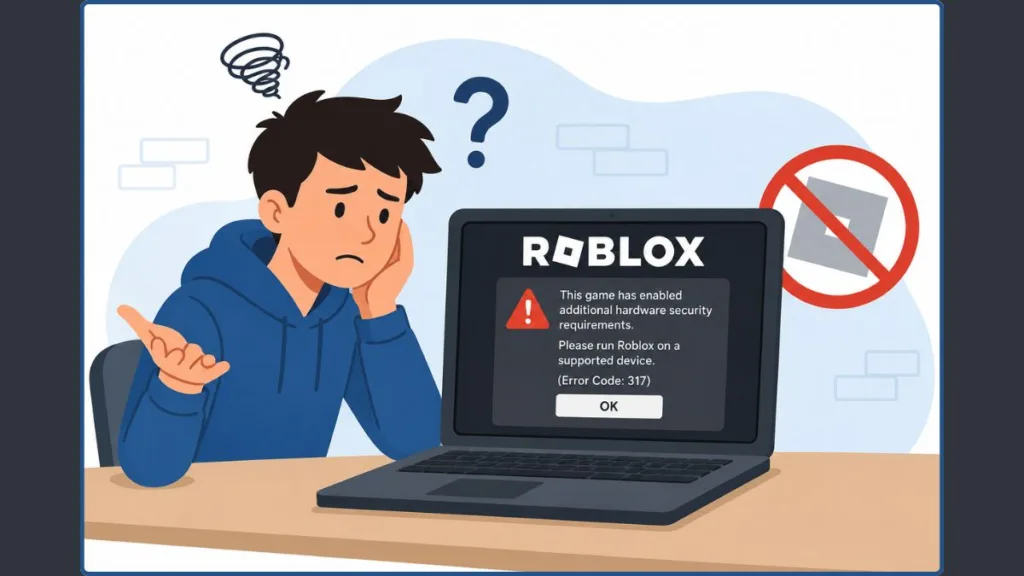
You might be seeing this exact, confusing message pop up on your screen:
“This game has enabled additional hardware security requirements. Please run Roblox on a supported device. (Error Code: 317)”
The good news is that you haven’t broken the game, and your account is absolutely safe—you are not banned, and your Robux haven’t been compromised. In this comprehensive guide, we will walk you through exactly what this roblox hardware security requirements error means, why your specific device is suddenly being flagged by the system, and the highly practical steps you can take to get back to playing your favorite games.
What Does Roblox Error Code 317 Actually Mean?
To solve the problem, we first need to clearly define what the error is doing behind the scenes. Think of the game’s anti-cheat system like a strict bouncer at an exclusive VIP club. The club (the game server) is open, the music is playing, and everything is working perfectly. However, the bouncer has checked your ID (your device’s hardware integrity) and decided you don’t meet the strict entry requirements.
When your screen displays roblox error code 317, it means you are facing a client-side rejection. The developers of highly competitive games have flipped a switch in their game settings to enforce strict device integrity checks to keep hackers and exploiters out. Your current phone or tablet is failing that invisible background check, prompting the server to immediately disconnect you to protect the lobby.
Why Is This Error Happening in Games Like Rivals?
Based on recent updates to the Roblox platform and its anti-cheat engine, this error usually stems from one of the following triggers on your specific device:
- Strict Anti-Cheat Triggers: Competitive shooters like Rivals rely heavily on fair play. Developers use these enhanced security checks to stop players from using script injectors, aimbots, and wallhacks to gain an unfair advantage. If the game cannot verify that your phone is running a clean, untouched operating system, it will refuse to let you join the server.
- Developer Mode is On: If you are playing on an Android phone, having “Developer Options” enabled in your system settings often looks like suspicious activity to the Roblox app. Features hidden in this menu—like USB debugging or mock location tracking—are frequently used by exploiters, so the game preemptively blocks devices with this mode turned on.
- Outdated Google Play Security: Modern Android devices use something called the Play Integrity API to prove to apps that they are secure. If your device is missing core system updates, or if you are running a custom ROM that bypasses official Google security certificates, the game automatically assumes your environment is unsafe and blocks you from joining.
Error 317 vs. Error 319: The Critical Difference
It is incredibly easy to confuse these two common crash codes, as they often appear under similar circumstances. However, knowing the difference helps you decide exactly how to troubleshoot without wasting your time.
| Feature | Error Code 317 | Error Code 319 |
| The Message | “Hardware security requirements“ | “Not able to verify game integrity“ |
| The Meaning | Your device’s settings or age are failing a strict security check. | The game client is struggling to communicate with the server. |
| The Source | Hardware or Operating System (Android/Fire OS). | Often a temporary network drop or corrupted game file. |
Key Takeaway: If you see error 317, you need to look at your device settings and hardware capabilities. If you see error code 319, you should look at your internet connection, restart your router, or completely reinstall the app.
How to Fix Roblox Error 317: A Step-by-Step Guide
If you are trying to figure out how to fix error code 317 on roblox, follow these proven steps in order to bypass the block. We have organized these from the easiest, most common fix to the more complex solutions.
1. Disable Developer Mode (Android)
High-security games often flag developer settings as a major security risk. Turning this off is the most common fix for the roblox error 317 android crash. If you’ve ever tapped your “Build Number” seven times to unlock these hidden settings, you’ll need to reverse that process.
- Action: Open your phone’s Settings app. Scroll all the way down to System or About Phone. If you see a menu labeled Developer Options, tap it and toggle the master switch at the top of the screen to Off. Once disabled, force close the Roblox app completely and restart your game.
2. Update Google Play Security
Your device needs the latest security patches to pass the game’s integrity check. Sometimes, these updates don’t install automatically in the background.
- Action: Go to your device Settings > Security & Privacy > System & Updates. Tap on Google Play system update. Your phone will check for any available patches. If one is found, download it, install it, and be sure to restart your device afterward to ensure the changes take effect.
3. Remove Third-Party Executors
If you (or perhaps a sibling sharing your device) have ever downloaded or installed third-party modified apps (APKs), script injectors, or executors like Delta, the game’s anti-cheat system will catch it immediately. Even if the executor is for a different game, its presence on your phone can trigger a flag.
- Action: You must completely uninstall any modification tools, auto-clickers, or unsupported APK files. Afterward, navigate to your app settings, find Roblox, and clear both the app cache and the app data. The device must be entirely clean of third-party software before you attempt to log in again.
4. Repair Game Files (PC Users)
While this is mostly a mobile gaming issue, some Windows 10 and Windows 11 users experience this error if their temporary system cache is corrupted after a major platform update.
- Action: Close the game entirely. Press Windows Key + R to open the Run dialog box, type
%localappdata%, and hit enter. Scroll down until you find the Roblox folder and delete it to completely clear your cache. Empty your recycle bin, reinstall the game from the official website, and ensure you right-click the shortcut to run it as an Administrator.
5. The “New Device” Reality Check
Sometimes, despite all your best troubleshooting efforts, a device is simply too old to pass modern security standards. Older hardware often lacks the built-in security chips required to run modern device integrity checks.
- Action: If you are playing on an older Amazon Fire tablet, an outdated budget smartphone, or a device running an Android version older than Android 10, it may officially be categorized as an unsupported device. You might need to switch to a newer Samsung device, an Xbox Series X/S, or a Windows PC to play these highly secure games.
Avoid These “Placebo” Solutions
When troubleshooting a stressful gaming issue, it is easy to waste time on steps that won’t actually help. For this specific error, do not bother doing the following:
- Resetting your home Wi-Fi router or tweaking DNS settings.
- Changing your account password or logging out of other devices.
- Using a VPN to change your virtual location.
Error 317 is strictly a hardware and operating system integrity block. Your internet connection speed, Wi-Fi stability, and account credentials have absolutely nothing to do with it.
Roblox Integrity Error Codes: A Quick Reference
If you are experiencing other disconnects and aren’t sure what is causing them, this table helps you quickly identify the root cause so you don’t have to keep searching for answers.
| Error Code | Category | Meaning |
| 267 | Security | You were kicked by a server script (often by a game admin or anti-cheat detecting abnormal movement). |
| 277 | Network | Lost connection to the server; check your Wi-Fi or cellular data connection. |
| 317 | Hardware | Device failed hardware security requirements. |
| 319 | System | Client could not verify game integrity; you need to reinstall the app or check for network packet loss. |
Frequently Asked Questions (FAQ)
Why am I only getting Error 317 on Rivals and not Adopt Me?
Different developers can set completely different security rules for their specific experiences. The developers behind Rivals have manually enabled strict hardware checks because it is a highly competitive shooter where split-second fairness matters. Casual, social games like Adopt Me or Brookhaven usually leave these strict checks turned off so that a wider range of players on older devices can still join the fun.
Does Error 317 mean I am banned?
No. It is purely a temporary device block, not a permanent account ban. Your account, in-game items, friends list, and Robux are perfectly safe. If you simply log in to your account on a supported, newer device, you can start playing immediately without any penalties.
Can I bypass Error 317 on an Amazon Fire Tablet?
Usually, no. Amazon Fire tablets run on Fire OS, which is a heavily modified version of Android that does not natively support Google Play Services. Unless your specific Fire tablet is capable of receiving official, up-to-date Google OS security updates (which usually requires complex rooting), the Roblox client will continue to flag the modified operating system as unsupported and unsafe.
Final Thoughts
As Roblox continues to upgrade its Byfron anti-cheat software and enforce stricter device integrity checks across its most popular experiences, mobile gamers on older operating systems might occasionally get left behind. While it can be incredibly annoying to be locked out of your favorite lobby, these updates are absolutely necessary to keep competitive games fair, balanced, and free of malicious hackers.
If your current phone simply won’t run the game anymore no matter what settings you tweak, switching over to a broader ecosystem—like a Windows 11 PC, an Xbox console, a Meta Quest headset, or a newer smartphone—is the best way to keep your gaming session alive.
Did turning off Developer Mode fix the issue for you, or are you still locked out? Let us know what device you are currently using to play in the comments below!
Visit Our Post Page: Blog Page
Discover more from Izoate
Subscribe to get the latest posts sent to your email.