
Want iOS 27 before everyone else? Discover how to download iOS 27 beta for free, join Apple’s beta programs, access Siri AI, check compatible iPhones, and safely install the latest update.
Apple has officially unveiled iOS 27 during WWDC 2026, and if you’ve been watching the keynote or reading about the new Siri AI features, you’re probably wondering how to get iOS 27 beta on your iPhone right now.
Good News: You don’t have to wait until the full public release later this year.
Apple has already made the iOS 27 Developer Beta available, giving early adopters, developers, and technology enthusiasts a chance to explore the next generation of iPhone software before everyone else.
However, installing beta software isn’t the same as installing a regular iPhone update. Before you rush into downloading iOS 27 beta, it’s important to understand how Apple’s beta programs work, whether your iPhone is compatible, and what risks come with running pre-release software.
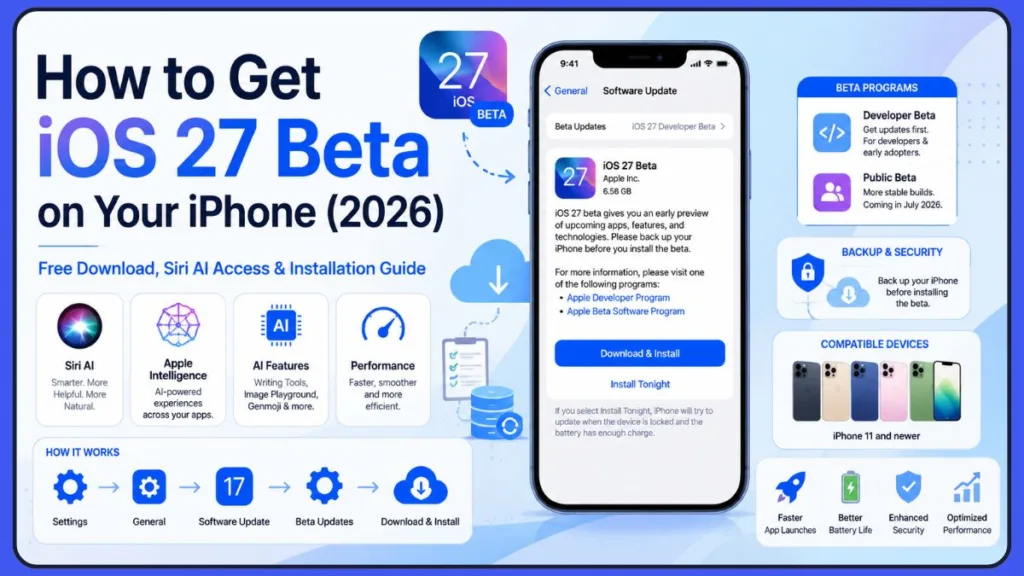
In this guide, you’ll learn how to download iOS 27 beta for free, how to join Apple’s beta programs, which iPhones support iOS 27, and whether the developer beta is worth installing on your primary device. We’ll also cover Siri AI, Apple Intelligence features, common beta issues, and what to expect before the stable release arrives.
What Is iOS 27 Beta and Why Is Everyone Talking About It?
Every year, Apple introduces the next version of iOS during its Worldwide Developers Conference (WWDC), giving users a first look at upcoming features before the official release. This year, Apple announced iOS 27 alongside iPadOS 27, macOS 27 “Golden Gate”, watchOS updates, and new Apple Intelligence enhancements.
Unlike previous releases that focused heavily on visual redesigns, iOS 27 places a strong emphasis on performance, stability, and AI-powered experiences. Apple has introduced a completely revamped Siri experience, expanded Apple Intelligence capabilities, improved writing tools, smarter shortcuts, and various system-wide refinements designed to make your iPhone feel faster and more capable.
Key Highlight: The feature generating the most excitement is Siri AI.
Apple is positioning Siri as a more intelligent assistant capable of understanding context, handling multi-step requests, accessing information across apps, and providing more natural conversations. For many users, this alone is a compelling reason to explore the beta.
The current developer beta offers an early preview of these features. While not every announced capability is available immediately, it provides a glimpse into what Apple plans to deliver when iOS 27 officially launches.
If you’re searching for the latest iPhone update and want to experience Apple’s newest software before everyone else, the beta program is currently the only way to do that.
iOS 27 Release Timeline: When Can You Download the Developer, Public, and Final Versions?
One of the most common questions people ask after a WWDC announcement is simple:
“When will iOS 27 actually be released?“
Apple follows a fairly predictable release schedule every year, and iOS 27 appears to be following the same pattern.
Immediately after WWDC 2026, Apple released the first iOS 27 Developer Beta. This version is intended primarily for developers and testers who want early access to the operating system.
The next major milestone will be the iOS 27 Public Beta. Apple typically launches public beta builds several weeks after the developer beta. Based on Apple’s announced timeline, the first public beta is expected to arrive in July 2026.
The final stable version of iOS 27 is expected to launch in September 2026 alongside Apple’s next iPhone lineup.
| Version | Expected Availability |
|---|---|
| iOS 27 Developer Beta | Available Now |
| iOS 27 Public Beta | July 2026 |
| iOS 27 Final Release | September 2026 |
Tip: If you’re eager to try the newest features immediately, the Developer Beta is your option today.
Tip: If you prefer a more polished experience with fewer bugs, waiting for the Public Beta may be the smarter choice.
Fact: Waiting for the Final Release remains the safest approach for maximum stability.
Can Anyone Install iOS 27 Beta, or Do You Need an Apple Developer Account?
Years ago, installing Apple’s developer beta required a paid Apple Developer Program membership. Many users still assume they need to pay an annual fee before they can access beta software.
Good News: That’s no longer the case.
Today, virtually anyone can install the iOS 27 Developer Beta by registering a free Apple Developer account using their Apple ID.
Fact: You do not need to purchase the full $99 Developer Program membership simply to access beta updates.
This change has made beta testing significantly more accessible. Whether you’re a developer, a technology enthusiast, or simply curious about the latest iPhone features, you can enroll and gain access without spending money.
That said, understanding the difference between Apple’s beta programs can help you choose the right option.
Apple Developer Program vs Apple Beta Software Program
Apple currently offers two primary paths to beta software:
- Apple Developer Program – Provides access to developer beta builds immediately after release. These versions receive updates first but may contain more bugs, unfinished features, and stability issues.
- Apple Beta Software Program – Designed for everyday users who want early access while avoiding some of the rough edges found in developer builds. Public betas typically arrive later and are generally more stable.
Tip: If your goal is to try iOS 27 as soon as possible, choose the Developer Beta.
Tip: If you want fewer bugs and a smoother experience, wait for the Public Beta.
Read This Before Installing iOS 27 Beta on Your iPhone
Before you start downloading the beta, it’s worth taking a moment to understand what you’re actually installing.
Important: A beta version is not finished software.
Apple releases beta builds so developers can test applications, report bugs, and help improve the operating system before its public launch. While many beta versions work surprisingly well, they’re still works in progress.
This means you may encounter:
- App crashes
- Unexpected restarts
- Battery drain
- Overheating issues
- Features that don’t function correctly
Warning: If your iPhone is essential for work, banking, travel, communication, or daily productivity, installing beta software on your primary device may not be the best idea.
Many experienced beta testers prefer to use a secondary iPhone. This allows them to explore new features without risking disruptions on their main device.
Another critical step is creating a backup.
Important Tip: Before installing iOS 27 beta, back up your iPhone using iCloud or a Mac.
Fact: If you later decide to downgrade to iOS 26, having a recent backup can prevent data loss.
You’ll also want to ensure that your iPhone has sufficient free storage available. Early beta builds are often large downloads, and Apple recommends keeping plenty of free space available for installation and future beta updates.
It’s equally important to manage your expectations.
Fact: Many users expect every WWDC feature to appear immediately, but Apple often rolls out features gradually throughout the beta cycle.
Some AI features may require additional updates, while others may initially be limited to specific devices.
Bottom Line: Beta software is exciting, but it’s also experimental.
If you’re comfortable with occasional bugs and want early access to Apple’s newest innovations, you’ll likely enjoy testing iOS 27. If reliability is your top priority, waiting for the Public Beta or Final Release may be the better option.
Is Your iPhone Eligible? Complete List of iOS 27 Compatible Devices
Before you learn how to install iOS 27 beta, you’ll need to confirm whether your device supports the update.
Apple has continued its recent trend of maintaining support for a wide range of devices.
Fact: If you’re using an iPhone 11 or newer, there’s a strong chance your device qualifies for iOS 27.
Compatible models include:
- iPhone 11 Series
- iPhone 12 Lineup
- iPhone 13 Family
- iPhone 14 Devices
- iPhone 15 Series
- iPhone 16 Models
- iPhone 17 Models
- Newer iPhone Air Variants
- Newer iPhone SE Models
Apple also continues support for newer iPhone SE models, making iOS 27 available to a broad range of users.
Important: Compatibility alone does not guarantee access to every feature.
Certain Apple Intelligence capabilities and advanced Siri AI functions may require newer hardware, particularly devices equipped with Apple’s latest processors.
How to Join Apple’s Beta Programs and Get Early Access to iOS 27
Before you can install the iOS 27 beta, you need access to one of Apple’s beta programs. This is where many users get confused because Apple offers both the Apple Developer Program and the Apple Beta Software Program.
Important: Joining either program is much easier than it used to be.
If your goal is to install the iOS 27 Developer Beta immediately, you’ll need a free Apple Developer account. Apple no longer requires most users to purchase the paid Developer Program membership simply to access developer beta builds.
If you’re planning to wait for the public beta release, you’ll instead enroll in Apple’s Beta Software Program once the iOS 27 Public Beta becomes available.
Let’s look at both options.
Option 1: Join the Apple Developer Program
The Developer Beta is currently the fastest way to experience iOS 27.
To get started:
- Visit Apple’s Developer Portal or download the Apple Developer app on your iPhone.
- Sign in using an Apple ID with two-factor authentication enabled.
- Agree to the Developer Agreement if prompted.
- Complete the identity verification process.
- Finish the registration process.
Once enrollment is complete, your Apple ID becomes eligible for beta updates.
Tip: If you were already signed into your iPhone during enrollment, restart your device to refresh beta eligibility and help the update appear correctly.
Option 2: Join the Apple Beta Software Program
If you’re not comfortable running an early developer beta, Apple’s Beta Software Program is usually the better choice.
Fact: Public beta releases typically arrive several weeks after developer betas and are generally more stable because Apple has already fixed many early bugs and performance issues.
To join:
- Visit Apple’s Beta Software Program website once enrollment opens for iOS 27.
- Sign in using your Apple ID.
- Complete the enrollment process.
After enrolling, you’ll gain access to future Public Beta updates through your iPhone’s Software Update settings.
For most everyday users, the Public Beta offers an excellent balance between early access and stability.
How to Get iOS 27 Beta Right Now (Step-by-Step Walkthrough)
If you’ve decided you’re ready to try iOS 27 before the public beta arrives, the installation process is surprisingly straightforward.
Before you begin, take a few minutes to prepare your device.
Make sure your iPhone is backed up, connected to Wi‑Fi, and has sufficient battery life. If possible, keep it plugged into power during the installation process.
You should also verify that you’re signed into your iPhone using the same Apple ID that you used to enroll in the Apple Developer Program.
Important: Many users who can’t find the beta later discover they’re signed into a different Apple account than the one they registered with.
Once you’ve confirmed everything is ready, you’re only a few steps away from installing the iOS 27 beta.
Fact: The entire process takes place within your iPhone’s Settings app and works similarly to a standard software update.
How to Install the iOS 27 Developer Beta on Your iPhone
Now let’s walk through the actual installation process.
- Open the Settings app on your iPhone.
- Tap General.
- Select Software Update.
- Tap Beta Updates if the option appears.
- Choose iOS 27 Developer Beta.
- Return to the previous Software Update screen.
- Wait for the update to refresh and appear.
- Tap Download and Install.
- Enter your passcode if prompted.
- Accept Apple’s beta software terms and conditions.
- Wait for the download to complete.
- Tap Install Now.
Your iPhone will restart and begin installing iOS 27.
Important: During installation, you’ll see the Apple logo and a progress bar. This is completely normal.
When installation finishes, your iPhone will boot into iOS 27 and complete final setup tasks in the background.
At this point, you’ve successfully installed the iOS 27 Developer Beta.
Note: Some of the features Apple announced during WWDC may not appear immediately. Certain headline features often arrive in later beta releases rather than in Beta 1.
Want iOS 27 Beta for Free? Here’s What You Need to Know
One of the biggest misconceptions surrounding Apple’s beta software is that you must pay for access.
You may have seen older guides mentioning a $99 annual Apple Developer Program membership and assumed beta access was behind a paywall.
Fact: That’s no longer true.
Apple now allows users to access Developer Beta software using a free Apple Developer account.
As long as you successfully register and sign in using the same Apple ID on your iPhone, you can install the iOS 27 Developer Beta without purchasing the paid membership.
The paid Developer Program still exists and provides additional tools for developers who publish apps, manage App Store listings, and access advanced development resources.
However, for beta testing purposes, the free tier is usually enough.
Important: If you’re searching for how to download iOS 27 beta for free or how to get iOS 27 beta without a paid developer subscription, simply create a free Apple Developer account and enroll your Apple ID.
That single change has made beta testing far more accessible than it was in previous years.
Prefer Stability? Here’s How to Get the iOS 27 Public Beta Instead
While the Developer Beta receives most of the attention, it isn’t always the best choice.
Many users simply want early access without dealing with the bugs, crashes, and occasional instability that come with developer software.
That’s where the iOS 27 Public Beta comes in.
Expected Release: Apple is expected to launch the first iOS 27 Public Beta in July 2026.
Unlike the Developer Beta, the Public Beta is specifically intended for broader testing. By the time it arrives, Apple typically addresses many of the most significant issues discovered in earlier developer builds.
Tip: If you’re willing to wait a few weeks, the Public Beta often provides a much smoother experience.
Once enrollment opens:
- Sign in to Apple’s Beta Software Program using your Apple ID.
- Open Settings on your iPhone.
- Navigate to General > Software Update.
- Tap Beta Updates.
- Select iOS 27 Public Beta.
- Download and install the update like any other iPhone software update.
Many users find this approach offers the best of both worlds. You still gain early access to upcoming features, but you’re less likely to encounter major bugs that could interfere with your daily activities.
Recommendation: If your iPhone is your primary device for work, school, travel, banking, or communication, waiting for the Public Beta is often the smarter choice.
By the time the Public Beta arrives, you’ll also benefit from feedback collected from thousands of Developer Beta testers who have already spent weeks identifying issues and reporting them to Apple.
What’s New in iOS 27? The Biggest Features Worth Trying First
Downloading a beta update is exciting, but most people aren’t installing iOS 27 just to see a new version number in Settings. You’re probably here because you’ve heard about Siri AI, Apple Intelligence, smarter productivity tools, and Apple’s promise of a faster, more reliable iPhone experience.
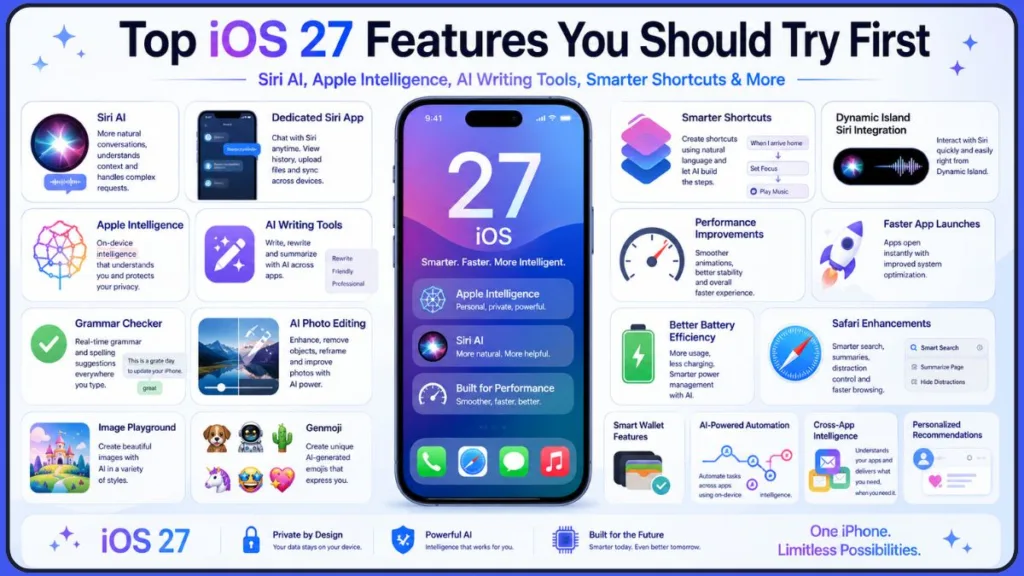
While Apple continues to refine features throughout the beta cycle, iOS 27 already introduces some of the most significant AI-focused improvements we’ve seen on the iPhone in years.
Rather than focusing on a single flagship feature, Apple appears to be integrating intelligence throughout the operating system. From writing assistance and photo editing to Siri conversations and shortcut creation, the goal is to make everyday tasks feel more natural and less repetitive.
To dive deeper into the coolest additions, check out our guide on the 8 hidden iOS 27 features you should try right now.
Key Fact: Apple is embedding AI throughout iOS 27 instead of limiting it to a single feature.
Let’s take a closer look at the biggest additions currently generating attention.
Siri AI: Apple’s Biggest iPhone Upgrade in Years
Without question, Siri AI is the headline feature of iOS 27.
For years, many iPhone users felt Siri lagged behind competing AI assistants. Apple is now attempting to change that by rebuilding Siri around its latest Apple Intelligence technologies.
The new Siri is designed to understand context more naturally, respond to complex requests, and provide more useful answers. Instead of handling only simple commands, Siri can now assist with tasks that involve multiple steps, understand information from various apps, and respond in a more conversational way.
For example, instead of issuing several separate commands, you may eventually be able to ask Siri to summarize an email, create a calendar event, and remind you about it later—all within a single interaction.
Apple is also introducing improved real-world knowledge capabilities, allowing Siri to answer broader questions and access web-based information when appropriate.
Important: “Siri AI” is designed to provide more natural conversations, contextual understanding, and multi-step task assistance.
For many users, Siri AI alone will be the primary reason to install the iOS 27 beta.
A Dedicated Siri App Changes How You Interact With AI
Another major addition is Apple’s new standalone Siri app.
Previously, Siri primarily existed as a voice assistant that appeared temporarily when activated. In iOS 27, Apple is transforming Siri into a more persistent experience.
The dedicated Siri app allows you to interact using both text and voice, maintain conversation history, upload files, and revisit previous discussions.
This approach makes Siri feel more like a modern AI assistant rather than a traditional voice command tool.
Your conversations can also sync across supported Apple devices through iCloud, making it easier to continue interactions regardless of which device you’re currently using.
Key Fact: The new Siri app supports conversation history and cross-device syncing through iCloud.
For users who regularly work with AI tools, this may become one of the most practical additions in iOS 27.
Apple Intelligence Expands Across the Entire Operating System
Apple Intelligence isn’t limited to Siri.
Throughout iOS 27, Apple is weaving intelligence into everyday experiences that millions of users already rely on.
The system is becoming more aware of your context, your activities, and your interactions across supported apps. This enables features that feel less like isolated AI tools and more like a natural extension of your iPhone experience.
Apple’s long-term vision appears to be reducing the number of manual steps required to complete common tasks. Instead of navigating multiple apps and settings, Apple Intelligence aims to help your iPhone understand what you’re trying to accomplish and assist accordingly.
Because Apple Intelligence relies heavily on modern hardware, some features may only be available on newer iPhone models.
Important Fact: Not every Apple Intelligence feature will be available on older iPhone models.
We’ll discuss device compatibility in more detail later in this guide.
AI Writing Tools Become More Useful
If you frequently write emails, messages, documents, or social media posts from your iPhone, you’ll likely appreciate Apple’s expanded writing tools.
iOS 27 introduces a more capable writing experience powered by Siri and Apple Intelligence.
A new “Write with Siri” option allows you to generate, rewrite, and improve text directly from the keyboard. Apple is also enhancing grammar checking and text refinement tools across the operating system.
Whether you’re drafting a professional email, correcting grammar mistakes, or rewriting content for clarity, these features aim to reduce the amount of manual editing required.
Rather than opening separate AI apps, many of these capabilities are integrated directly into the places where you already write.
Important: “Write with Siri” helps generate, rewrite, and refine text directly from your keyboard.
This tighter integration may prove more valuable than flashy AI demonstrations because it affects everyday productivity.
AI Photo Editing Gets Smarter
Apple continues to invest heavily in photography, and iOS 27 introduces several new AI-powered editing tools.
The Photos app gains additional capabilities designed to help you improve images without needing advanced editing skills.
New tools such as Extend, Enhance, and Reframe make it easier to modify photos using AI assistance.
Apple has also improved existing cleanup features, allowing users to remove distractions and improve compositions more effectively.
Image Playground and Genmoji are expected to receive significant enhancements as the beta cycle progresses, providing more creative options for users who enjoy generating personalized visual content.
Key Fact: Extend, Enhance, and Reframe are among the most notable AI photo-editing additions in iOS 27.
These updates demonstrate Apple’s ongoing effort to make advanced editing accessible to everyday users.
Smarter Shortcuts Could Save You Time
The Shortcuts app has always been powerful, but many users avoided it because creating automations felt too complicated.
iOS 27 attempts to solve that problem.
Instead of manually building complex workflows, you can describe what you want to accomplish using natural language.
Apple Intelligence can then help generate shortcuts automatically.
Imagine telling your iPhone:
Example Command: “Create a shortcut that turns on Do Not Disturb, opens my reading app, and lowers screen brightness every evening.”
Rather than manually configuring multiple actions, the system can assist with creating the automation for you.
Important Tip: Natural-language shortcut creation could make automation accessible to far more users.
For users who love productivity tools but dislike technical setup, this could become one of iOS 27’s most underrated features.
Performance Improvements You May Notice Every Day
Not every important feature involves AI.
Apple has repeatedly emphasized that iOS 27 focuses heavily on performance, stability, and reliability.
Many users care less about experimental features and more about whether their iPhone feels faster.
Apple claims iOS 27 delivers smoother animations, quicker app launches, improved responsiveness, and better overall system efficiency.
While real-world performance will continue to evolve throughout the beta cycle, these improvements could end up having a greater impact on everyday usage than some of the headline AI announcements.
Key Fact: Apple is prioritizing speed, responsiveness, and reliability alongside AI enhancements.
If Apple successfully improves reliability while introducing new intelligence features, iOS 27 may become one of the more balanced software updates in recent years.
How to Access Siri AI in iOS 27 Beta and Join the Waitlist
One mistake many users make after installing the beta is assuming Siri AI will automatically appear.
At the moment, access to certain Siri AI features is being rolled out gradually.
In many cases, you’ll need to join a waitlist before gaining access.
Important Fact: Installing the iOS 27 beta does not guarantee immediate access to all Siri AI features.
This means that installing iOS 27 beta does not guarantee immediate access to every AI capability Apple demonstrated during WWDC.
After updating, Apple may ask you to request access through the Siri interface or related Apple Intelligence settings. Once approved, additional features become available over time.
This rollout strategy helps Apple manage server demand while gathering feedback from early testers.
If you install iOS 27 beta and don’t immediately see the new Siri experience, it doesn’t necessarily mean something is wrong.
You may simply be waiting for access approval or for Apple to enable specific features on your device.
Important Tip: Be patient during beta testing, as feature access is often released in stages.
Patience is often required during early beta testing.
Which Devices Support Apple Intelligence Features in iOS 27?
Another important detail many users overlook involves hardware requirements.
Just because your iPhone supports iOS 27 doesn’t necessarily mean it supports every Apple Intelligence feature.
Apple’s most advanced AI capabilities require powerful on-device processing, which is typically found in newer hardware.
As a result, many Apple Intelligence features are expected to work best on devices such as:
- iPhone 15 Pro
- iPhone 15 Pro Max
- iPhone 16 series
- iPhone 17 series
- Newer future models
Important Fact: Advanced Apple Intelligence features are optimized for newer iPhone hardware.
Older supported devices may still receive the iOS 27 update, but some AI-driven features could be limited or unavailable.
This distinction is important because many users install the beta expecting full access to every WWDC announcement.
Important Tip: Verify device compatibility before upgrading specifically for Apple Intelligence features.
Before upgrading solely for Apple Intelligence, verify that your specific device supports the features you’re most interested in using.
iOS 27 Developer Beta vs Public Beta: Which One Should You Install?
One of the most common questions we receive is whether you should install the Developer Beta or wait for the Public Beta.
The answer depends on your priorities.
The Developer Beta gives you immediate access to new features. If you enjoy exploring technology, testing software, and discovering changes before everyone else, the developer beta can be a lot of fun.
However, you’ll also encounter more bugs, unfinished features, and occasional stability issues.
The Public Beta takes a different approach.
Although it arrives later, Apple uses the additional testing period to fix many early problems discovered by developer testers.
As a result, Public Beta releases are usually more reliable and better suited for everyday use.
To simplify the decision:
- Choose the Developer Beta if you want the earliest possible access to new features.
- Choose the Public Beta if you prefer a more stable experience with fewer bugs.
Important Tip: Most users should wait for the Public Beta unless they specifically enjoy testing unfinished software.
If your primary goal is to experience iOS 27 as early as possible, the Developer Beta makes sense.
If your goal is to use your iPhone normally while still gaining early access, the Public Beta is often the smarter choice.
For most readers, especially those installing the software on their primary device, waiting for the Public Beta remains the safer recommendation.
Key Takeaway: The Public Beta offers a better balance between early access and stability.
You’ll still get access to new features, but with fewer compromises along the way.
Common iOS 27 Beta Problems You May Run Into (and What to Expect)
Installing a beta version of iOS can be exciting, but it’s important to remember that you’re running software still under development.
Even if Apple has made major improvements to iOS 27 stability, early beta builds can still introduce unexpected behavior. Some issues are minor annoyances, while others can affect daily usability.
If you’ve never installed an Apple beta before, don’t be surprised if your experience isn’t quite as polished as the final release arriving later this year.
Let’s look at some of the most common issues beta testers typically encounter.
Battery Drain
Battery drain is one of the most frequently reported complaints during every beta cycle.
After installing iOS 27 Beta 1, your iPhone may spend several hours:
- Indexing files
- Optimizing apps
- Syncing data
- Performing background system tasks
During this period, battery life can appear significantly worse than normal. If you want to know exactly why this happens, read our full breakdown on “iOS 27 indexing in progress, what it means, and how long it takes”.
In many cases, battery performance improves after a few days of regular usage.
However, because beta software contains unfinished code, some users may continue experiencing reduced battery efficiency until later beta releases arrive.
If battery life is a top priority for you, waiting for the Public Beta may be the better choice.
Overheating
Another common beta issue is increased device temperature.
You may notice your iPhone becoming warmer than usual while:
- Downloading apps
- Processing photos
- Restoring data
- Running Apple Intelligence features
This doesn’t automatically indicate a hardware problem.
Beta software often contains background processes that haven’t yet been fully optimized.
That said, excessive overheating should always be monitored. If your device becomes uncomfortably hot for extended periods, reporting the issue through Apple’s Feedback app can help Apple address it in future updates.
App Crashes and Compatibility Issues
One of the biggest reasons Apple releases beta software months before launch is to give developers time to update their apps.
As a result, some third-party apps may not work correctly during the early stages of the beta cycle.
Banking apps, authentication tools, business software, gaming applications, and social media apps occasionally experience compatibility problems following major iOS updates.
If you rely on specific applications for work or school, consider checking community reports before upgrading.
Missing Features
Another source of confusion is feature availability.
Many users install Beta 1 expecting every WWDC announcement to appear immediately.
In reality, Apple frequently releases major features gradually.
Some capabilities remain hidden until later beta versions, while others require server-side activation or regional availability.
If a feature isn’t available immediately after updating, that doesn’t necessarily mean something went wrong.
Siri AI Not Available
Siri AI deserves its own mention because it has become one of the most anticipated features in iOS 27.
If you’ve installed the beta and can’t access the new Siri experience, there are several possible explanations:
- You may still be on the Siri AI waitlist.
- Apple may not have activated access for your account yet.
- Your device may not support certain Apple Intelligence features.
In many situations, the solution is simply waiting for Apple to expand availability.
Can’t Find the Update? Here’s How to Fix iOS 27 Beta Not Showing Up
One of the most common troubleshooting questions is:
“Why can’t I see the iOS 27 beta in Software Update?”
Fortunately, the issue is usually easy to fix.
Check the following:
- Verify your Apple ID.
- Ensure your iPhone is signed into the same Apple ID used for the Apple Developer Program or Apple Beta Software Program.
- Confirm that Beta Updates are enabled.
- Check whether your device supports iOS 27.
- Restart your iPhone to refresh Apple’s enrollment status.
- Make sure your enrollment process was completed successfully.
Navigate to:
Settings → General → Software Update → Beta Updates
If Beta Updates is disabled, the iOS 27 beta won’t appear.
Many users accidentally register one Apple account and use a different account on their device, which can prevent the update from showing up.
How to Fix iOS 27 Beta Update Errors During Download or Installation
Even when the beta appears correctly, installation problems can still occur.
If your download becomes stuck, try the following:
- Check your internet connection and use a stable Wi‑Fi network.
- Ensure you have enough available storage.
- Wait if Apple’s servers are experiencing heavy traffic.
- Confirm your battery level is sufficient.
- Restart your iPhone and try again.
Storage shortages are another common cause of installation failures.
Apple recommends maintaining plenty of free storage space before installing major software updates. If your device is nearly full, removing unused apps, videos, or downloads may help.
If you encounter verification failures or download interruptions during launch day, waiting a few hours and trying again often resolves the problem.
Some installations also require the device to be connected to power before the update can proceed.
Need to Go Back? How to Downgrade From iOS 27 Beta to iOS 26
Sometimes beta testing simply isn’t for everyone.
Maybe an important app isn’t working. Maybe battery life has become frustrating. Or perhaps you just prefer the stability of a production release.
The good news is that you can remove iOS 27 beta and return to iOS 26.
The bad news is that the process isn’t nearly as simple as installing the beta.
Downgrading typically requires:
- Putting your iPhone into Recovery Mode.
- Using an official iOS restore image.
- Restoring the device completely.
This process erases the device, which is why creating a backup before installing the beta is so important.
If you have a backup created before upgrading to iOS 27, restoring your data becomes significantly easier after the downgrade process.
For many users, the downgrade procedure is more complicated than expected. That’s one reason Apple strongly recommends avoiding beta software on your primary device.
If you think there’s a reasonable chance you’ll want to return to iOS 26, make sure you create a complete backup before installing the beta.
Should You Install iOS 27 Beta Now or Wait for the Public Release?
At this point, you may still be wondering whether installing iOS 27 beta is actually worth it.
The answer depends entirely on how you use your iPhone.
Install Now If…
- You enjoy exploring new technology before everyone else.
- You don’t mind occasional bugs, unfinished features, or temporary performance issues.
- You have a secondary iPhone available for testing.
- You specifically want early access to Siri AI, Apple Intelligence, and Apple’s newest software experiences.
Wait for the Public Beta If…
- You want a more polished experience.
- You still want early access but would prefer Apple to fix major bugs first.
- Your iPhone plays an important role in your daily routine, but you’re comfortable accepting some minor issues.
For many readers, this is the ideal balance.
Wait for the Final Release If…
- Your iPhone is your primary work device.
- You depend on maximum stability.
- You don’t want to troubleshoot software problems.
- You prefer updates that have already been thoroughly tested.
There is absolutely nothing wrong with waiting for the official release. In fact, that’s still the safest option for most users.
Frequently Asked Questions About iOS 27 Beta
How do I get the iOS 27 beta?
You can get the iOS 27 Developer Beta by enrolling in Apple’s Developer Program and enabling Beta Updates in your iPhone’s Software Update settings.
Is iOS 27 beta available now?
Yes. The Developer Beta is currently available, while the Public Beta is expected to arrive later.
Can anyone install the iOS 27 Developer Beta?
Yes. Apple now allows users to access developer betas using a free Apple Developer account.
Is the iOS 27 beta free?
Yes. You do not need a paid Developer Program membership simply to install the beta.
How do I join the Apple Beta Program?
You can enroll through Apple’s Beta Software Program website using your Apple ID once public beta enrollment becomes available.
When will the iOS 27 Public Beta be released?
Apple is expected to release the first Public Beta in July 2026.
Which iPhones support iOS 27 beta?
Most iPhone 11 models and newer devices are expected to support iOS 27.
Why can’t I see iOS 27 beta in Software Update?
The most common causes include enrollment issues, unsupported devices, disabled Beta Updates, or using the wrong Apple ID.
Is iOS 27 beta safe to install?
Generally yes, but it may contain bugs, battery drain, and compatibility issues that are typical of pre-release software.
Does iOS 27 beta drain battery?
Battery drain is common during early beta releases, especially during the first few days after installation.
Will installing iOS 27 beta erase my data?
The installation process itself should not erase your data, but creating a backup before upgrading is strongly recommended.
Does iOS 27 include Siri AI?
Yes. Siri AI is one of the major features introduced with iOS 27, although some capabilities may require a waitlist or newer hardware.
What devices support Apple Intelligence?
Apple Intelligence features are expected to work best on newer devices, including the iPhone 15 Pro, iPhone 16 series, and newer models.
Can I remove iOS 27 beta later?
Yes. You can downgrade back to iOS 26, although the process is more involved than installing the beta.
Final Thoughts: Is iOS 27 Beta Worth Installing Right Now?
If you’ve been eager to try Siri AI, explore Apple’s latest AI-powered tools, and experience the future of the iPhone before the public release, the iOS 27 Developer Beta provides an exciting early preview.
The installation process is easier than ever thanks to Apple’s free developer account access, and many users will appreciate the opportunity to test new features months before the official launch.
That said, beta software remains beta software.
You’ll likely encounter bugs, occasional performance issues, and features that are still evolving. For technology enthusiasts, that’s part of the experience. For users who rely heavily on their iPhone every day, waiting for the Public Beta or final release may be the smarter decision.
Whichever path you choose, make sure you:
- Back up your device.
- Verify compatibility.
- Understand the trade-offs before installing.
If you decide to move forward, you now have everything you need to download, install, and start exploring iOS 27 beta on your iPhone.
Visit Our Post Page: Blog Page
Discover more from Izoate
Subscribe to get the latest posts sent to your email.