
Having trouble viewing streets, pickup pins, or directions in Uber? Learn how to fix Uber unexpected map error with these practical solutions.
Whether you are trying to catch a ride home in the rain or you are sitting behind the wheel waiting to accept your next trip, nothing kills your momentum quite like opening the app and staring at a blank screen. Instead of street grids and routing lines, you are hit with the frustrating Uber unexpected map error.
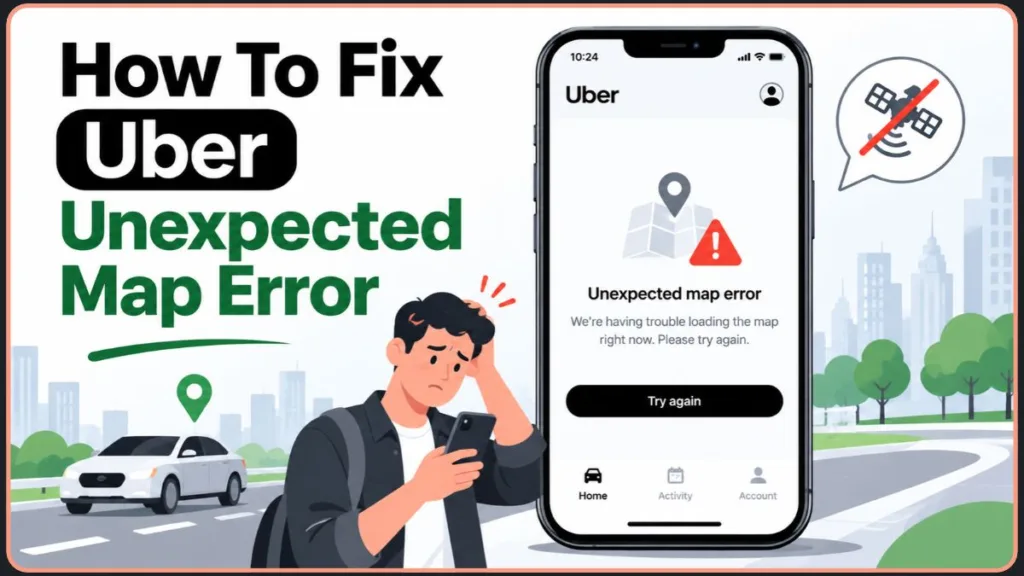
When this happens, it is easy to panic and assume your account is locked or the app is broken. But most of the time, a blank map or frozen screen is just a temporary communication breakdown between your smartphone’s GPS sensor and the app itself. Let’s walk through exactly how to get your navigation back online, starting with the fastest solutions.
Who Actually Needs This Troubleshooting Guide?
This breakdown covers fixes for both sides of the platform:
- Riders: Trying to track an incoming car or drop a precise pickup pin without the screen freezing.
- Drivers & Delivery Partners: Losing out on potential fares because the navigation fails mid-trip or refuses to load the surrounding surge zones.
Understanding the root cause is half the battle. Let’s look at what is actually happening behind the scenes.
What Is “Uber Unexpected Map Error” And What’s Actually Happening?
If you are asking yourself, “Why does Uber say unexpected map error?”, the answer almost always lies in your device’s network connection or permission settings.
“When your Uber app displays an unexpected map error or a blank screen, it typically means the app cannot establish a network handshake to download the visual map data, or your phone has restricted its access to your GPS coordinates.”
To show you where cars are on a map, the app has to do two things simultaneously: pinpoint your exact coordinates using the GPS chip, and download the visual street data using your cellular connection. If you have a weak cell signal, the app might know where you are, but it cannot download the map graphics to show you.
Is It a Local Software Glitch or a Global Uber Network Outage?
Before you start tearing through your phone settings, check to see if the issue is actually on your end. Occasionally, Uber experiences global server outages.
- Pro Tip: Take a quick glance at Downdetector or Uber Support’s social media channels. If thousands of other people are suddenly reporting an Uber map not loading, you are likely dealing with a platform-wide server issue. In that case, you just have to wait it out.
The 60-Second Fixes for an Uber Map Not Loading or Showing a Blank Screen
If your screen is completely grayed out, or the Uber app map keeps freezing every time you try to zoom in, try these rapid-fire steps to reset the connection.
- Force close the app: Don’t just minimize it. Swipe up from the bottom of your screen and flick the app away to fully kill the process. Reopening it forces a fresh connection to the server.
- Toggle Airplane Mode: Turn on Airplane Mode for about 10 seconds, then turn it back off. This forces your phone to disconnect from a weak cell tower and find the strongest nearby signal, which frequently fixes an Uber map showing blank screen instantly.
- Calibrate your phone’s compass: Sometimes the map loads, but it doesn’t know which way you are facing. On an iPhone, open the native Compass app and move your phone in a figure-eight motion. On Android, open Google Maps, tap your blue location dot, and select “Calibrate Compass“.
- Turn Wi-Fi on (Even outdoors): If your phone is struggling to find a GPS satellite, turning on Wi-Fi helps it estimate your location by pinging nearby routers.
Note on “Urban Canyons”: If you are navigating between tall skyscrapers, driving through a heavy forest, or sitting in a parking garage, your cellular and GPS signals are being physically blocked. Simply walking or driving a few blocks to secure stronger coverage is often all it takes to force the map to render.
How to Fix the “Uber GPS Not Working” Error and Persistent Location Glitches
If the map graphics load perfectly fine, but your Uber GPS not working leaves your little blue dot miles away from your actual physical location, you are dealing with a permissions issue.
When your Uber location not updating becomes a persistent headache, you need to verify exactly what data your phone is allowing the app to see.
Here is how to ensure your location permissions are set correctly:
- Open your smartphone’s main Settings menu.
- Scroll down to your list of apps and tap on Uber.
- Tap on Location.
- Change the access to Always (highly recommended for drivers) or While Using the App (standard for riders).
- Ensure the Precise Location toggle is turned On.
Without Precise Location enabled, your phone obscures your exact coordinates for privacy reasons, only giving the app your general neighborhood. This directly causes the dreaded Uber unable to determine location error.
The Battery Saver Trap: Why Your Uber Location Isn’t Updating
One of the most overlooked causes of a stationary blue dot is your phone’s battery management software. When your device drops below 20% and enters Low Power Mode (iPhone) or Battery Saver Mode (Android), it aggressively restricts apps from constantly pinging the GPS sensor to save battery life.
- The Fix: Plug your phone into a charger and disable battery-saving modes. The app requires constant, real-time GPS polling to calculate routes. If battery saver is active, location dropouts are almost guaranteed.
What to Do When the Uber Map Shows the Wrong Location
What happens when the app is working perfectly, but the Uber map showing wrong location insists on dropping your pickup pin in the alleyway behind your building?
The Quickest Correction: Manually Moving the Pickup Pin
If you frequently deal with an Uber wrong pickup location, always correct it manually before requesting the ride:
- On the ride request screen, tap your pickup address at the top.
- Zoom in closely on the map and manually drag the screen until the pickup pin rests exactly where you are standing on the curb.
- Tap Confirm to lock in those exact coordinates.
How to Report Persistent Map Errors to Uber
If the app consistently guides drivers down restricted private roads, misses newly built subdivisions, or suggests an illegal left turn, you can submit a ticket to get the geospatial data permanently corrected.
Uber relies on crowd-sourced feedback to fix these dead zones. You can use the dedicated Map Problem Reporting Tool to flag issues.
- Open the app and navigate to the Help section, or use the Anytime Feedback form by tapping the question mark (?) icon in the top right corner. You can also access the Map Problem Reporting Tool to submit details.
- Choose the specific issue type, such as “Road is missing,” “Incorrect business details,” or “Problem with private road“.
- Enter the address or drag the pin to mark the exact spot where the routing fails.
- Add detailed notes explaining why the route is impossible (e.g. incorrect traffic direction, wrong street name, road closure).
- Attach photos (Highly Recommended): Uploading a picture of a “No Left Turn” sign, a gated entrance, or an updated street sign gives the support team the physical proof they need to update the global map for everyone.
- Select Confirm location and then choose Submit to finalize your report.
Device-Specific Troubleshooting: Solve the App on Android and iPhone
If you are still facing persistent glitches, the problem might be tied to how your specific operating system caches temporary files. Here is how to deep-clean the app without losing your account data.
Clearing Out an Uber Map Error on Android Devices
If the Uber map is showing a blank screen on Android, you likely have corrupted temporary files that need to be flushed out.
- Open your Android Settings and tap on Apps.
- Scroll down and select Uber.
- Tap on Storage.
- Tap Clear Cache. (Do not tap Clear Data unless you want to completely log out and reset the app).
- Restart your phone and launch the app again.
Advanced Android Fix: Disabling Aggressive Battery Optimization Android is notorious for putting background applications to sleep to save memory. If the map freezes every time you switch over to answer a text message, check your battery optimization settings. Go to Settings > Apps > Uber > Battery, and ensure it is set to Unrestricted.
Resolving an Uber Map Error on Your iPhone
If you are dealing with an Uber map error iPhone issue, Apple’s “Offload” feature is the safest way to clear out software bugs without deleting your login credentials.
- Open iPhone Settings and tap General.
- Tap iPhone Storage and find Uber in the list.
- Tap Offload App and confirm.
- Once it finishes, tap Reinstall App.
Advanced iPhone Fix: Flushing Your Location & Privacy Settings If offloading didn’t work and your location is still lagging, resetting your iPhone’s core privacy settings often clears out deep-rooted iOS location bugs. Go to Settings > General > Transfer or Reset iPhone > Reset, and choose Reset Location & Privacy. You will have to grant location permissions to your apps again, but it gives your GPS sensor a completely fresh start.
Frequently Asked Questions (FAQs)
Can drivers use Google Maps or Waze instead of the built-in map?
Yes! If the native navigation is constantly giving you an unexpected map error, you can bypass it. In the Driver app, go to Account > App Settings > Navigation. From there, you can change your default navigation provider to Google Maps or Waze. The app will seamlessly pass the destination coordinates over to your preferred navigation tool.
Why does the map show the wrong address for my house?
Map data is compiled from massive, global geospatial databases. If your neighborhood is a brand-new development, or you live in a complex apartment layout, the global map might simply be outdated. Until it updates, manually drag your pickup pin to the street, and consider sending your driver a quick in-app message describing the outside of your building.
Visit Our Post Page: Blog Page
Discover more from Izoate
Subscribe to get the latest posts sent to your email.