
How to Change Your Facebook Business Page Name in 2026. Learn how to rename your Page on desktop, mobile, and Meta Business Suite, follow Facebook’s guidelines.
Your Facebook Business Page name is one of the first things people see when they discover your brand. Whether you’re rebranding your business, correcting an old spelling mistake, updating an outdated company name, or aligning your Page with a new direction, changing your Facebook Page name is one of the most impactful updates you can make to your online presence.
The process itself isn’t complicated—but Facebook does have a formal review system, strict naming guidelines, and permission requirements that can trip you up if you’re not prepared. And with Facebook now home to over 3 billion monthly active users in 2026, making sure your Page name accurately reflects your brand has never mattered more.
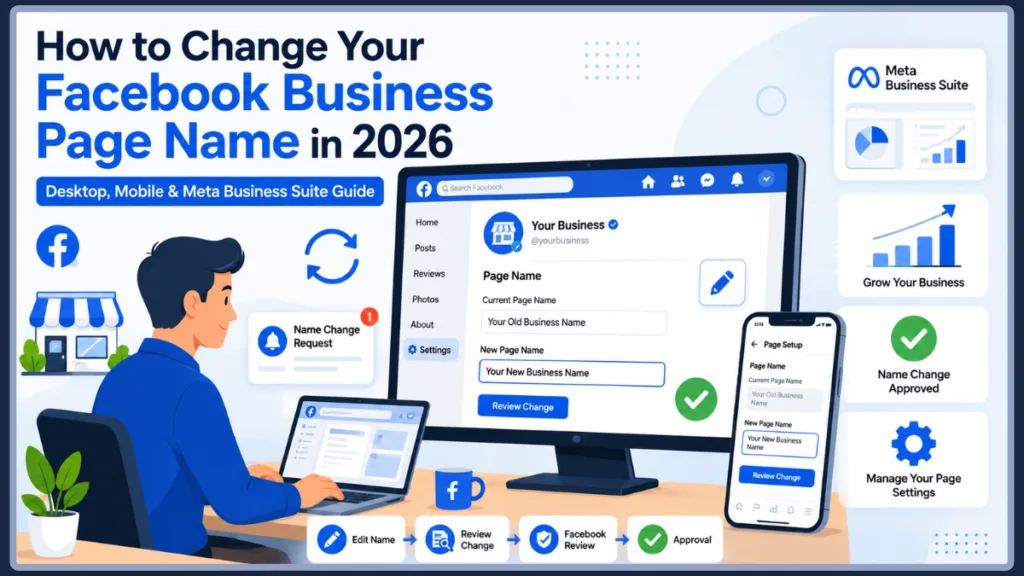
In this guide, you’ll learn exactly how to change your Facebook Business Page name on desktop, Android, iPhone, and Meta Business Suite. You’ll also find a breakdown of Facebook’s Page name guidelines, what happens after you submit your request, and how to fix the most common name change issues—including the frustrating cases where the edit option simply won’t appear. Whether you’re changing your FB business page name for the first time or navigating a complicated rebrand, this guide covers every scenario.
Let’s get into it.
What You Need Before You Change Your Facebook Page Name
Before you touch any settings, spend a minute reviewing these three essentials. Skipping this step is the most common reason name change requests get delayed or rejected.
Make Sure You Have Full Control Access
Not everyone who manages a Facebook Page can change its name. Facebook reserves that action specifically for users with Full Control (formerly Admin) access.
If you hold a lower role—such as Editor, Moderator, Analyst, or task-based access—you won’t see the Name field in Settings at all. It simply won’t appear. This is one of the top reasons people think Facebook “broke” or removed the name change option when in reality, it’s a permissions issue.
Before you go any further, check your Page Access settings to confirm your role. If you need to upgrade your access or ask another admin to grant Full Control, these guides can help:
Facebook only allows users with Full Control access to submit a Page name change request. This isn’t just a technicality—it’s how Facebook protects Pages from unauthorized identity changes. If you don’t currently hold Full Control access, you’ll need to work with an existing administrator to get that sorted before you can change your Facebook page name or anyone else’s on the account.
Depending on your situation, you may need to take one of the following steps:
- Add a new admin to the Page if no one currently has Full Control access
- Upgrade an existing admin’s role to Full Control so they can make the request
- Transfer Page ownership or management responsibilities if you’re taking over the Page from someone else or restructuring your team’s access
This is especially relevant for businesses managing their Page through Meta Business Suite, where access roles and task permissions can be more granular. Making sure your permissions are in order before you start saves you from running into a dead end mid-process.
These guides walk you through each scenario:
- How to Add an Admin to a Facebook Page — Learn how to invite a new person to help manage your Facebook Page and assign the appropriate access level.
- How to Upgrade an Admin to Full Control — Follow these steps if an existing admin needs Full Control permissions to manage Page settings, including Page name changes.
- How to Give Someone Admin Access to Your Facebook Business Page — A complete guide to granting admin access safely while maintaining control of your business assets.
Important: Only users with Full Control access can request a Facebook Page name change. If you can’t see the Name field in Page Setup, your permissions level is the most likely cause.
Check That Your Page Is Active
Facebook won’t let you change the name of a Page that has active restrictions, is currently unpublished, or is under a pending policy review. If your Page has any issues flagged in the Account Quality section, those need to be resolved first.
Also keep in mind: if you or another admin recently changed the Page name, Facebook enforces a 60-day cooldown period before you can request another change. This is firm—there’s no way to bypass it, so plan your update carefully. Once a name change is approved, you also won’t be able to unpublish the Page or change the name again for 7 days.
Warning: Facebook enforces a strict 60-day waiting period between Page name changes. Once you submit a request and it’s approved, you’re locked in—so double-check your new name carefully before hitting submit.
Understand Facebook Page Name Guidelines
Facebook reviews every name change request before approving it. Your new name needs to follow their guidelines, and violations will get your request rejected instantly.
Here’s a quick breakdown of what’s allowed and what isn’t:
Allowed:
- Your real business name or brand name
- Recognizable abbreviations that your audience would associate with your brand
- Names that accurately reflect your Page’s purpose and content
Not Allowed:
- Excessive or unusual capitalization (for example: tHe BeSt CaFe)
- Symbols, unnecessary punctuation, or special characters
- Misleading terms that don’t represent your Page
- Single generic words like “Shoes,” “Store,” or “Media” unless you’re an official representative
- The word “official” unless Facebook has verified your Page
- Variations of “Facebook,” “Meta,” or other Meta product names
- Slogans, descriptions, or promotional language
- General geographic locations unless they’re part of your organization’s actual name
Getting your name right before submitting saves you from waiting through a review cycle only to get rejected.
Best Practice: Before submitting your name change request, review Facebook’s naming rules carefully. A name that violates even one guideline will be rejected outright—and you’ll have to wait for the review cycle to complete before trying again.
How to Change a Facebook Page Name on Desktop
Updating your Page name from a computer is the most straightforward method. Here’s the step-by-step process using Facebook’s current 2026 interface. If you’ve been wondering how to edit page name Facebook desktop, this is exactly where you need to go.
Step 1: Switch Into Your Page Profile
Log in to Facebook and click your profile photo in the top-right corner. From the dropdown, select the Page you manage so you’re acting as the Page—not your personal account. This step is essential. If you’re still browsing as yourself, the name settings simply won’t be visible.
Step 2: Go to Settings & Privacy
Once you’ve switched into your Page, click your profile icon again in the top-right corner. Select Settings & Privacy, then click Settings.
Step 3: Open Page Setup
In the left sidebar, look for Page Setup under the Audience & Visibility section. Click it. This is where Facebook keeps your core Page identity settings, including the Name field.
Step 4: Click Edit Next to Your Name
In Page Setup, find the Name section and click Edit next to your current Page name. A text field will open where you can type your new name.
Step 5: Enter Your New Name and Review
Type your updated Page name carefully. Double-check spelling, capitalization, and spacing before moving on—because once you submit, you’re locked in for 60 days. Click Review Change when you’re ready.
Step 6: Confirm With Your Password and Submit
Facebook will ask you to enter your account password to verify the request. Once you do, click Request Change to submit. You’ll see a confirmation message that your request is under review.
Pro Tip: You can also update your Page username (the @handle and URL) from the same Page Setup section. If you’re rebranding, update both for consistency. Your Page name and username working together makes your Page much easier to find.
How to Request a Facebook Page Name Change
Something worth understanding before you move to mobile instructions: every Facebook Page name update is technically a request, not an instant change. This is true whether you’re changing your FB business page name on desktop, the mobile app, or Meta Business Suite—the mechanics are the same across all platforms.
When you click Review Change and confirm with your password, you’re not immediately renaming your Page. What you’re actually doing is submitting a Facebook Page name change request that gets placed into Facebook’s review queue. The platform evaluates the request before anything goes live publicly.
This review system exists to protect businesses, brands, and their audiences from misleading name changes. It’s the same process whether you’re making a minor spelling correction or a full rebrand.
Here’s what happens once you submit your request to change your Facebook page name:
- Some requests are approved within minutes. This typically happens when the new name closely matches the existing brand and doesn’t raise any flags.
- Others may take up to 3 business days—or longer—depending on several factors:
- The size of your Page — larger Pages with established audiences tend to receive more scrutiny
- The level of rebranding — dramatically different names raise more review flags than small adjustments
- Verification requirements — Facebook may ask for additional documentation if the new name doesn’t clearly align with your Page’s identity
- Policy review triggers — names that partially match Facebook’s restricted terms may go through an additional manual check
While you’re waiting, you won’t need to do anything. Your Page continues operating normally under its current name until the Facebook page name change request is either approved or rejected. If it’s approved, the new name goes live automatically. If it’s rejected, Facebook will indicate why, and you’ll be able to submit a revised request.
Note: Facebook may take up to 3 business days to review a name change request. Major rebranding submissions—especially for Pages with large audiences—can sometimes take longer if additional verification is required.
One practical tip: when you’re planning to rename a Facebook page, try to keep the new name as close to your existing brand as reasonably possible. Not only does this make the review faster, but it also helps your followers and search engines understand the transition without confusion.
How to Change Facebook Page Name on Mobile
The mobile process is just slightly different from desktop in terms of where the menus are located, but the steps are easy to follow once you know the path.
How to Change Facebook Page Name on Android
- Open the Facebook app and tap your profile photo in the top-right corner.
- Scroll down the menu and tap Pages, then find and select the Page you manage.
- Tap Switch when prompted to act as your Page.
- Tap your profile icon again, scroll down, and tap Settings & Privacy > Settings.
- Scroll to find Page Setup under Audience & Visibility, then tap it.
- Tap Name, then tap Edit, and enter your new Page name.
- Tap Review Change, enter your password, and tap Save Changes to submit.
You’ll receive a confirmation that your request is under review. Most Android submissions are processed quickly, though more significant name changes may take a little longer.
How to Change Facebook Page Name on iPhone
- Open the Facebook app and tap your profile photo (bottom-right on iPhone).
- Select your Page from the account list and tap Switch if prompted.
- Tap the menu icon at the bottom-right, then go to Settings & Privacy > Settings.
- Scroll to Page Setup and tap it, then tap Name.
- Tap Edit, type your updated Page name, and review the spelling carefully.
- Tap Review Change, confirm with your password, and tap Submit to send the request.
iPhone users often see approvals come through within minutes, though heavily scrutinized requests can take up to a few days.
Note: Meta has updated the Facebook mobile app significantly in recent years. If you can’t find Page Setup right away, try looking under Page Info, About, or the Manage Page menu—the labels can differ slightly depending on your app version.
How to Change Your Facebook Page Name Using Meta Business Suite
If you manage your Page through Meta Business Suite—either on desktop or the mobile app—you can handle the name change from there as well. Many business owners actually prefer this route since it keeps all Page management tasks in one place.
On Desktop (Meta Business Suite):
- Log into Meta Business Suite at business.facebook.com and make sure you’re viewing the correct Page using the Page selector in the top-left corner.
- Click Settings in the left sidebar, then select Page Info.
- Find the Name field and click the Edit icon next to it.
- Enter your new Page name, checking spelling and that it follows Facebook’s guidelines.
- Click Save or Review Change, then confirm with your password and submit.
On Mobile (Meta Business Suite App):
- Open the Meta Business Suite app and tap the menu icon.
- Tap Page Settings or Page Info under Manage Page.
- Locate the Name field and tap the edit icon next to it.
- Type your updated name and tap Save or Review Change to submit.
After approval, it’s a good idea to check that your username, connected Instagram account, ad accounts, and linked tools all still display correctly with the new name. Facebook updates these automatically, but a quick review never hurts.
Pro Tip: If the Name field isn’t visible in the standard Facebook interface, try switching to Meta Business Suite instead. The name settings often remain accessible there even when they’re temporarily hidden elsewhere.
Facebook Page Name vs. Username: What’s the Difference?
This confuses a lot of Page owners, so it’s worth spelling out clearly. These are two separate things, and changing one does not automatically change the other.
| Page Name | Username (@Handle) | |
|---|---|---|
| What it is | Your public business name | Your unique identifier |
| Where it appears | Top of your Page, search results, posts | Your Page URL |
| Can be changed | Yes, with Facebook review | Yes, separately |
| Affects your URL? | No | Yes |
A quick example: If you run a company called Auto Repair, your Page Name is Auto Repair—what people see when they visit your Page. Your Username might be @autorepairglobal, making your URL facebook.com/autorepairglobal. If you rename the Page to Auto Repair Global but don’t update your username, your URL still says “autorepairglobal,” which can create confusion for new visitors.
After your name change is approved, head back to Page Setup > Username and update your @handle to match. This keeps your branding consistent and your URL easy to share.
Important: Changing your Facebook Page name does not automatically update your username or Page URL. Always update both separately after your name change is approved to keep your branding consistent.
What Happens After You Request a Facebook Page Name Change?
Once you hit submit, here’s what happens on Facebook’s end—and what you should expect on yours.
Facebook Reviews Your Request
Your request goes into Facebook’s review system immediately. The review is designed to prevent misleading name changes, protect your followers from confusion, and ensure your new identity follows their policies. Facebook checks whether the new name accurately reflects your Page, whether it’s significantly different from the previous one, and whether it contains anything that violates their naming rules.
How Long Does Facebook Take to Approve a Name Change?
Most requests are approved within minutes when the new name closely matches your existing brand and clearly follows guidelines. However, review can take up to 3 days—and sometimes longer—in cases where the name change is significant, your Page has a large audience, or Facebook needs additional verification.
If you’re still waiting after 3 days with no response, visit the Support Inbox in your account for any pending messages from Facebook. You can also try submitting a follow-up request if the original appears stuck.
Note: If your name change request shows “under review” for more than 3 business days with no update, check your Support Inbox for messages from Facebook. You can also try contacting Meta Business Help directly with a screenshot of the pending request.
Will Followers Be Notified?
Yes. After your name change is approved, Facebook typically sends a small notification to your followers letting them know the Page name has been updated. This transparency helps avoid confusion, especially for active communities. Your followers, posts, photos, and engagement history remain completely intact—nothing is removed or reset.
Does Changing a Facebook Page Name Affect SEO?
This is one of the most common questions, and it’s worth a real answer.
Changing your Page name alone does not directly hurt your existing followers or content. However, it does carry some SEO considerations worth being aware of:
Since July 2025, Meta confirmed that public Facebook posts are now indexed by Google, meaning your Page name and content carry more SEO weight than ever before. A well-chosen, descriptive Page name helps your Page rank both within Facebook’s search and in Google results—especially for branded searches where someone Googles your business name directly.
The key SEO consideration is your username and URL. Your Page name change does not automatically change your Facebook URL. If your URL still says your old brand name after you’ve rebranded, you’re creating a mismatch that can confuse both visitors and search engines. Always update your username to match your new name after the change is approved.
Also expect a brief period where Facebook and external search engines are catching up to the new name—your old name may still appear in some searches for a short time, but this resolves on its own.
Facebook business branding and Page SEO are more intertwined than many business owners realize. Facebook Pages are increasingly indexed by Google and other search engines, which means your Page name is now part of your broader digital identity—not just your social media presence. When you approach business rebranding, this matters. A name that’s too different from your established brand can create a period of confusion not just for your followers, but for search engines that have already associated your old name with your business category, location, and content.
To protect your Facebook Page SEO during a name change, keep the new name as closely related to your existing brand as possible. If you’re expanding rather than completely overhauling your brand, carry over recognizable elements of your old name where you can. And beyond Facebook itself, make sure your new name stays consistent across Instagram, your website, Google Business Profile, and other business listings. Consistent Facebook business branding across every platform reinforces your identity, makes your business easier to discover, and gives both users and search engines a clear, trustworthy signal about who you are.
SEO Recommendation: Since Meta began indexing public Facebook posts in July 2025, your Page name now carries real SEO weight in Google search results. Choose a descriptive, brand-consistent name and update your username immediately after approval to avoid a mismatch between your Page name and your public URL.
Why Can’t I Change My Facebook Page Name?
If you’re staring at your Settings and thinking “I can’t change my Facebook Page name—where is the option?”, one of these common issues is almost certainly the reason.
You Don’t Have Full Control Access
The most common culprit. Only users with Full Control (Admin) access can request a Page name change. If your role is Editor, Moderator, or task-based, the Name field is completely hidden from your view.
Fix it: Ask an existing Full Control admin to either change the name on your behalf or upgrade your access level. These guides can help:
- Change Admin of Facebook Page — [internal link]
- Add Admin to Facebook Page — [internal link]
Your Page Recently Changed Its Name
Facebook enforces a 60-day waiting period between name changes. If a change was submitted recently—by you or any other admin on the Page—the name option will be locked until that window has passed.
Fix it: Check when the last change was made. If it’s within 60 days, you’ll need to wait. Plan future name changes carefully since once you submit, you’re committed.
Note: The 60-day cooldown applies to the entire Page—not just your account. Even if a different admin submitted the previous name change, you’ll still need to wait the full 60 days before a new request can be submitted.
Your Page Has Restrictions or Policy Flags
If Facebook has detected unusual activity, incomplete business information, or policy violations on your Page, it may disable the name change option as a protective measure.
Fix it: Visit Account Quality in your Page settings and check for any flagged issues. Resolve violations, complete any missing information, and make sure your Page is published before trying again.
Your Proposed Name Violates Facebook Guidelines
Facebook’s automated system can reject names before you even complete the submission if the proposed name triggers a violation flag—excessive symbols, generic terms, misleading language, and so on.
Fix it: Review the guidelines covered earlier in this article. Choose a name that clearly represents your brand, uses proper capitalization, and avoids promotional language. Minor adjustments to the name often clear the issue.
Tip: If your name change keeps getting rejected, try submitting a version that’s only slightly different from your current Page name. Facebook is less likely to flag minor updates than complete rebranding attempts.
You’re Browsing as Your Personal Profile
If you haven’t switched into your Page before going to Settings, the Page name option simply doesn’t appear. Facebook shows personal account settings when you’re acting as yourself.
Fix it: Click your profile icon, select your Page from the list to switch into it, then navigate to Settings. Make sure you can see your Page name in the top navigation before looking for the settings.
Your Page Is Part of a Global Page Structure
Regional Pages that fall under a global Page hierarchy can’t change their names independently. The naming is controlled at the global level.
Fix it: Contact the admin of the global Page and request the change be made from their side.
Common Facebook Name Change Issues and Fixes
Even when everything looks right, the process can still run into bumps. Here are the specific issues people run into most often—and how to fix Facebook name change issues when they come up.
Name Change Rejected Immediately
This almost always means the proposed name violated a guideline. Remove any symbols, fix unusual capitalization, and avoid generic or promotional terms. Make a small adjustment and resubmit.
Tip: If your request is rejected immediately, try submitting a name that changes only 1–2 words at a time rather than a full rebrand. Incremental changes are more likely to be approved without additional scrutiny.
Edit Button Is Missing Entirely
Check your Page role, confirm your Page is published and restriction-free, and make sure you’ve switched into the Page profile before entering Settings. Also try switching to Meta Business Suite—the name field often remains accessible there even when it’s hidden in the standard Facebook interface.
Name Change Has Been Under Review Too Long
Wait at least 72 hours before assuming something is wrong. If there’s still no response after 3 business days, check your Support Inbox. Some users have also reported success reaching Facebook through Meta Business Help with screenshots of the pending request.
Username Doesn’t Match New Name
After your name change is approved, go to Page Setup > Username and update your @handle separately. This keeps your URL consistent with your new branding.
Important: Changing your Page name does not change your Page URL. After approval, go to Page Setup > Username and update your @handle manually to match your new name.
Meta Business Suite Doesn’t Show Name Settings
Make sure you’re logged in as the correct user and that you’ve selected the right Page. The Name field appears under Settings > Page Info in the Business Suite interface. If you still can’t find it, try refreshing the interface or switching between the desktop and mobile app versions.
When Should You Change Your Facebook Business Page Name?
Knowing how to rename a Facebook Page is only half the picture. Equally important is knowing when it’s the right move. Here are the most common situations where changing your FB business page name makes sense—and why each one matters.
Business Rebranding
This is the most common reason Page owners look into how to rename their FB page. When a company evolves its brand identity—new logo, new direction, new target audience—the Facebook Page name needs to keep up. Leaving an outdated name in place creates a disconnect between how your business presents itself everywhere else and what people see when they land on your Page. If your branding has shifted significantly, updating your Page name is one of the most visible ways to make that change official.
Rebranding Advice: When rebranding, try to keep your new Facebook Page name as closely aligned with your previous name as possible. Facebook scrutinizes dramatic name shifts more heavily, and a gradual transition also helps your existing audience recognize the change without confusion.
Company Mergers or Acquisitions
When two businesses combine under a single brand, the Facebook Page typically needs to reflect the new unified identity. Changing the FB business page name in this scenario helps customers on both sides understand that they’re now dealing with one consolidated business. It also prevents confusion when followers from either legacy brand search for you by name.
Expanding Products or Services
Sometimes a business outgrows its original name. If your Page was originally named after a niche product or a single service but your offering has since expanded, a name that’s too specific can actually work against you. It may limit the type of audience that clicks through, or mislead new visitors about the full scope of what you provide. Updating your Page name to better reflect your current range of products or services is a legitimate and often necessary move.
Correcting Spelling Mistakes or Inaccuracies
It happens more often than you’d think—a Page gets created with a typo, an incorrect word, or a name that doesn’t quite match the official business name. These small inaccuracies can chip away at credibility, especially when new visitors notice a mismatch between your Page name and your website or storefront. If your Page name has an error, correcting it is always worth doing. Just remember: once you submit the new name, you’re locked in for 60 days, so double-check everything before you hit submit.
Local or Regional Expansion
If your business originally served a specific city or region and your Page name reflected that—for example, Smith Plumbing – Austin—but you’ve since expanded to serve a wider area, your name may no longer be accurate. Updating it to reflect your broader reach (while still following Facebook’s guidelines on geographic names) helps new customers in different locations recognize that you serve them too. It also keeps your Page from appearing limited in scope when you’re actively growing.
Tips for Successfully Renaming Your Facebook Business Page
A name change is more than a settings update—it’s a brand decision. Whether you’re figuring out how to rename your FB page for the first time or handling a full rebrand, following these tips helps make the transition clean, professional, and as smooth as possible.
Keep Your New Name Close to Your Existing Brand
The more similar your new name is to your current one, the faster and smoother the approval process. Facebook scrutinizes dramatic name shifts more heavily. If you’re rebranding, try to reflect the core of your existing brand rather than replacing it entirely.
Best Practice: Keep your new Page name as close to your existing brand as possible. Facebook approves incremental updates faster than complete name overhauls—and your followers will find the transition much easier to follow.
Update Your Username After Approval
As soon as your name change is approved, update your @handle in Page Setup. A matching username and Page name tells visitors—and Facebook’s search algorithm—exactly who you are.
Notify Your Followers About the Change
Don’t let the name change happen silently. Post a friendly announcement explaining the reason behind the update. Something like “We’ve updated our Page name from [Old Name] to [New Name]—same team, same service!” goes a long way in maintaining trust. Pin the post to the top of your Page so it’s the first thing new visitors see.
Update Your Website and Social Profiles
Check everywhere you’ve linked to your Facebook Page—your website, email signature, business listings, LinkedIn, Instagram bio, and any directories. If you updated your username, your old Facebook URL is now broken.
Warning: If you updated your username after a name change, your old Facebook Page URL is now broken. Update any links on your website, email signature, business listings, and other social profiles as soon as possible to avoid sending visitors to a dead link.
Review Connected Meta Assets
After approval, Facebook automatically updates your name across connected tools like Instagram, ad accounts, and Meta Business Suite. Still, do a quick check to make sure everything is displaying correctly before running any new campaigns.
Frequently Asked Questions
How do I change my Facebook Page name? Log in, switch into your Page profile, go to Settings > Page Setup > Name, click Edit, enter your new name, and submit it for review. Facebook will ask for your password to confirm the request.
How long does Facebook take to approve a Page name change? Most approvals happen within minutes. Complex requests or significant name shifts can take up to 3 business days. In rare cases, it may take longer if additional verification is needed.
Can I change my Facebook business Page name without admin access? No. Only users with Full Control (Admin) access can request a Page name change. If you have a lower role, you’ll need to ask an admin to change your access level or make the change on your behalf.
Why can’t I edit my Facebook Page name? The most common reasons are: you don’t have Full Control access, your Page recently had a name change (60-day cooldown), your Page has active restrictions or policy flags, or you haven’t switched into your Page profile before accessing Settings.
Will I lose followers if I rename my Facebook Page? No. Renaming your Page does not remove followers, delete posts, or reset your Page’s history. Your audience simply sees a new display name going forward.
Can I change my Facebook Page name on Android? Yes. Open the Facebook app, switch into your Page, go to Settings & Privacy > Settings > Page Setup > Name, and submit the change for review.
Can I change my Facebook Page name on iPhone? Yes. The process is the same as Android. Open the app, switch into your Page, navigate to Settings > Page Setup > Name, tap Edit, and submit for review.
What’s the difference between a Facebook Page name and a username? Your Page name is the public title visible on your Page and in search results. Your username (@handle) is the unique identifier that becomes part of your Page URL. Changing one does not automatically change the other.
How many times can I change a Facebook Page name? Facebook doesn’t publish a specific total limit, but enforces a 60-day waiting period between changes. Once approved, you also can’t change the name again for 7 days. Plan your updates carefully.
Does changing a Facebook Page name affect verification? Your verification badge typically stays in place after a name change. However, if the new name is drastically different from the identity Facebook originally verified, they may re-review your verification status to confirm authenticity.
Conclusion: Update Your Facebook Page Name With Confidence
Renaming your Facebook Business Page is a straightforward process once you know where to look and what to expect—and it’s an important step in keeping your brand identity accurate, professional, and easy to find.
Whether you used the desktop steps, the Android or iPhone method, or went through Meta Business Suite, the core process is the same: switch into your Page, navigate to Page Setup, edit the name, and submit for Facebook’s review. The review typically wraps up within minutes, though more significant changes may take up to three days.
The key things to have in place before you start: Full Control access, an active and restriction-free Page, and a new name that follows Facebook’s guidelines. Getting those three things right gives your request the best chance of smooth, fast approval.
After your new name goes live, remember to update your username, notify your followers, and check that your website and social profiles all reflect the change. Those small follow-up steps make a big difference in maintaining a consistent brand presence across every platform your customers might find you on.
It’s also worth stepping back to think about your Facebook Page name as something bigger than a setting. It’s a core part of your brand identity—the first impression you make when someone finds you through Facebook search, Google, or a shared link. Once your new name is approved, make sure your username matches, your website links are updated, and your Instagram, Meta Business Suite, Google Business Profile, and any other business listings all reflect the same name. Consistent branding across every platform isn’t just about appearances—it builds the kind of trust and recognition that makes your business easier to find, easier to remember, and easier to choose.
Useful Official Resources for Changing Your Facebook Business Page Name
If you’re planning to change your Facebook Business Page name, manage Page permissions, or troubleshoot approval issues, the following official Meta resources can help. These guides explain Facebook’s naming policies, Page access requirements, review processes, and business management tools directly from Meta.
Change Your Facebook Page Name – Official Meta Help Center: Meta’s official guide explains where to find the Page name settings, how to submit a name change request, and what happens after you request approval. This is the best place to verify the latest interface changes before updating your Page name.
Facebook Page Name Guidelines – Official Naming Rules: Before submitting a request, review Meta’s Page naming policies. This documentation explains which names are allowed, common reasons requests are rejected, and restrictions involving capitalization, symbols, misleading terms, and brand impersonation.
Manage Facebook Page Access – Official Support Guide: If you can’t see the option to edit your Page name, your access level may be the issue. This resource explains Full Control access, Page permissions, and how administrators can manage roles for team members.
Meta Business Suite – Official Management Hub: Meta Business Suite allows you to manage your Facebook Page, Instagram account, messages, insights, and Page settings from a single dashboard. If you’re managing a business Page professionally, it’s worth becoming familiar with this tool.
Account Quality – Check Restrictions and Policy Issues: Facebook may prevent Page name changes when a Page has restrictions, policy violations, or security concerns. The Account Quality section helps you identify and resolve issues that could block your request.
Page Transparency – View Page History and Changes: Page Transparency provides information about your Page’s history, including certain changes that have been made over time. This is especially useful when multiple administrators manage a Page and you’re unsure whether a previous name change was recently submitted.
Meta Business Help Center – Troubleshooting and Support: If your Page name change request is stuck, rejected unexpectedly, or requires additional verification, the Meta Business Help Center provides troubleshooting resources and support options for business users.
Meta Verified and Business Verification Resources: For businesses that have verification or authenticity concerns, Meta’s verification resources explain how business verification works and what may happen when significant Page name changes occur after verification.
Visit Our Post Page: Blog Page
Discover more from Izoate
Subscribe to get the latest posts sent to your email.