
Discover how to clear system data on iPhone and fix high storage usage with practical step-by-step methods. Clear cache, remove hidden files, manage app storage, and recover space without losing important data.
Imagine this: You invest in a brand-new iPhone 15 Pro with a generous 256GB of storage capacity. You think you have plenty of room for 4K videos, large apps, and years of photos. But one day, apps like Duolingo stop loading. Your phone starts lagging. You check your settings and discover that your storage is suddenly completely full—even if it feels like your iPhone storage is full but nothing is on it. The culprit? A mysterious, unclickable gray bar labeled “System Data.”
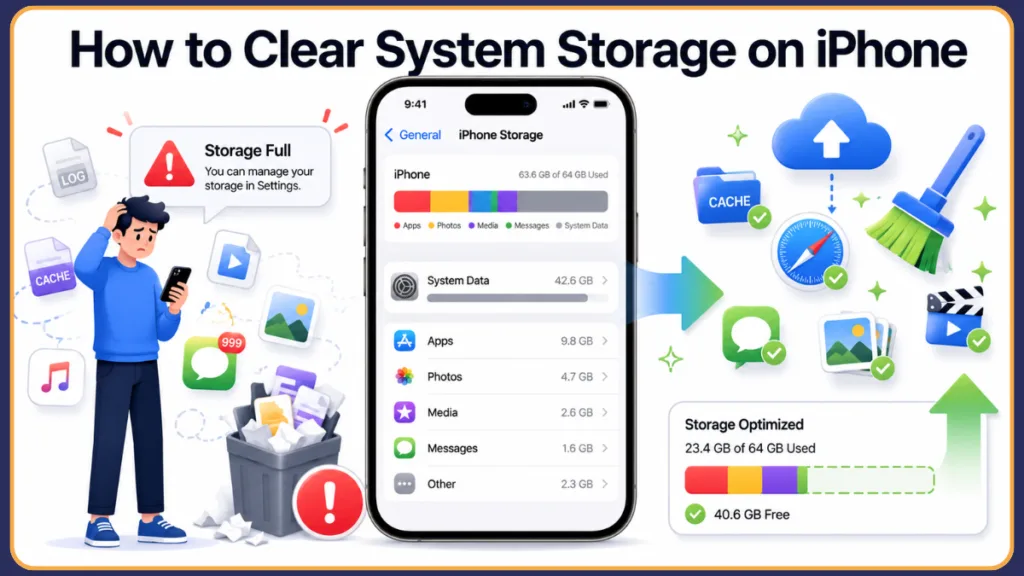
Whether you have a 64GB device or a 256GB model, “System Data” (formerly known as “Other” storage on older iOS versions) can unexpectedly balloon and limit your phone’s functionality. In this guide, we will break down exactly what this data is, how to implement standard fixes to clear your iPhone cache, the truth about a viral Reddit hack, and the ultimate option to permanently reclaim your space and reduce system data on your iPhone.
iPhone system data taking up space: What is it and Why Does it Happen?
System Data is essentially a catch-all category for files your iPhone cannot fit into standard categories like Apps, Photos, or Media. It consists of system logs, temporary update files, voice memos, saved messages, and, most importantly, app cache files. Think of it as your iPhone’s backstage area—it holds all the props and scripts needed to make the main performance (your daily app usage) run flawlessly. Unfortunately, Apple doesn’t allow you to see exactly what is inside this folder, making it incredibly frustrating to clean when you have iPhone system data taking up space. Because you cannot simply open a folder and delete individual logs, managing this space requires a strategic approach.
How much storage does my iPhone use? Checking Your Device Breakdown
To see exactly what is eating up your space and learn how to clear system storage on your iPhone, you need to check your device’s built-in storage breakdown. This visual representation is the first step in diagnosing your storage issues:
- Open Settings.
- Go to General.
- Tap iPhone Storage.
- Look at the color-coded bar at the top of the screen to get a quick visual overview of what categories are consuming the most room.
- Scroll to the very bottom of the list to find System Data. Note that it may take a minute or two for your iPhone to calculate the exact size of your files, so be patient and let the page fully load.
How much data does an iPhone take up? Understanding Core iOS Requirements
Under normal circumstances, the core iOS operating system usually takes up about 8GB to 10GB of untouchable space simply to keep the phone running. Normal System Data should sit somewhere under 15GB to 20GB. Some cache is necessary to make your phone run smoothly and load apps faster—it remembers your login sessions, loads website images instantly, and keeps your feed snappy. However, if your System Data is pushing 30GB, 50GB, or even 100GB+, you are experiencing data bloat that requires attention.
| System Data Size | Status |
| 5–20GB | Normal |
| 20–50GB | Elevated |
| 50–100GB | High |
| 100GB+ | Abnormal |
If your data falls into the “Elevated” category, it might just be a temporary spike from a recent iOS update that hasn’t cleared its installation files yet. But if you find yourself in the “High” or “Abnormal” tiers, your device is suffering from cache hoarding.
What Is a Normal Amount of System Data on iPhone? Setting Realistic Benchmarks
Based on user reports and the breakdown above, here is a general guide to evaluating your System Data sizes:
- Under 20GB: Normal
- 20–50GB: Elevated
- Over 50GB: Needs investigation
- Over 100GB: Usually indicates excessive cache accumulation or a storage issue
Why is my iPhone system data so large? Identifying Hidden App Caches
According to thousands of users on Reddit and the Apple Support Community, app caches are the biggest offenders. Media-heavy apps such as Spotify, YouTube, Discord, WhatsApp, and Instagram can contribute significantly to streaming app cache growth. They do this to ensure your user experience is seamless; for instance, social media apps preload videos before you even scroll to them. When these apps fail to delete the media you’ve already scrolled past, the hidden cache piles up invisibly.
Is there a iOS system data storage bug? Exploring the Cache Clearing Flaw
Yes and no. While accumulating cache is normal behavior for any operating system, iOS can struggle to clean it up when your storage gets critically low. By design, iOS is supposed to automatically purge old temporary files when you need more space. It relies on internal background maintenance scripts that are programmed to delete old logs when the phone is plugged in and asleep. However, user reports suggest this mechanism may sometimes fail to trigger, leaving users with “storage full” errors despite having very few personal files.
Diagnosing the Issue: How to Check If Your iPhone System Storage Is Too High
If you are dealing with iPhone system data storage problems, it is important to diagnose the severity before taking action. Treating a minor 20GB cache accumulation is very different from dealing with an 80GB system bloat that is actively crashing your device. If your iPhone system data too large warnings are popping up, here is how to evaluate your situation:
- How to find System Data: Navigate to Settings > General > iPhone Storage and scroll to the very bottom of the page. Wait a few moments for the system to calculate the exact size. Sometimes, simply opening this menu and letting the phone calculate the data can trigger a minor automatic cleanup.
- What size is normal: As outlined earlier, anything under 20GB is completely normal and healthy for an iPhone. If it sits between 20GB and 50GB, it is elevated and worth keeping an eye on. You don’t need to panic at 25GB, as cache fluctuates based on your daily usage.
- When you should take action: You only need to intervene if your iPhone system storage too high reaches the 50GB+ mark, or if the phone is actively giving you “Storage Full” warnings that prevent you from taking photos, receiving emails, or updating apps. Other warning signs include your phone getting unusually warm during basic tasks and battery drain.
Basic Solutions: How do I clean up my iPhone storage?
Before resorting to extreme measures, you should always start with the foundational, built-in methods to free up space on your iPhone. These steps are quick, safe, and often solve mild to moderate storage issues without requiring computer backups.
Quick Fixes: How to resolve iPhone storage full?
If your phone is giving you storage warnings, try these three quick fixes first:
- Clear Safari History: Go to Settings > Apps > Safari. Scroll down and tap Clear History and Website Data. Make sure you select “All Time” to actually make a dent in the System Data and clear your Safari cache. This removes tracking cookies, old website images, and leftover browser scripts that can easily consume 2GB to 5GB over a few months. If you’re tired of Safari’s performance altogether, you might consider learning how to change default browser on iPhone.
- Limit Message History: By default, iMessage keeps your texts forever. Go to Settings > Apps > Messages, tap Keep Messages, and change it from “Forever” to 30 Days or 1 Year.
- Delete Large Attachments: In the iPhone Storage menu, tap on Messages to review and delete large videos, photos, and stickers taking up hidden space as message history attachments. If there are photos you want to keep, make sure to save them to your main Photos app camera roll before deleting them from the Messages storage.
How can I free up space on my iPhone without deleting anything? Using Offload App Features
If you don’t want to lose your personal data or customize your app layouts again, use the Offload App feature. In your iPhone Storage settings, sort your apps by “Last Used Date.” If you want to see exactly how much time you spend on them, you can also learn how to check screen time on iPhone. Tap on an app you rarely use and select Offload App. This removes the app’s core installation files from your hard drive but keeps your personal documents and data intact for when you reinstall it. (Wondering what happens when you offload an app? It simply removes the application files while safely storing your personal settings! The app icon will remain on your home screen with a tiny cloud symbol next to it.)
Additionally, try to download media instead of streaming it. Downloading the media directly on Wi-Fi allows you to manually delete it later with a single tap, giving you full control over exactly what sits on your hard drive.
Beyond the Basics: How do I clear my system storage? (Advanced Fixes)
If the basic methods didn’t move the needle, it’s time to target the hidden caches directly so you can ideally delete system data on your iPhone without a reset. These methods require a bit more effort but are effective at combating stubborn storage bloat.
Strategies to clear system data from iPhone by targeting cache-heavy apps
Unlike Android devices, iOS does not have a universal “Clear Cache” button for individual third-party apps in the main settings. To figure out how to clear app cache on iPhone and purge the cache Discord or Instagram is hiding, you must completely delete the app from your phone and reinstall it from the App Store.
To identify which apps are the problem, go to iPhone Storage, tap on an app like Instagram, and look at the difference between the “App Size” (usually a few hundred megabytes) and “Documents & Data” (which can be several gigabytes). If the Documents & Data size is large, delete the app. Users on Apple Support forums frequently report dropping their System Data by 10GB to 15GB simply by deleting and reinstalling their top three most-used social and streaming apps. Once reinstalled, the app will start fresh with zero cache.
When iPhone system data keeps growing: Testing The Viral Date Hack
If you search for solutions online, you will likely encounter a viral Reddit trick often called the “Time Travel” hack. It attempts to trick the iOS internal maintenance system into thinking cache files are years old, forcing an automatic background purge.
How it works:
- Turn on Airplane Mode to disconnect from internet time servers.
- Go to Settings > General > Date & Time, and turn off “Set Automatically.”
- Change the date to 1 to 2 years in the future.
- Wait 60 seconds to let the system register the “time skip,” then change it back to automatic and turn off Airplane Mode.
The Reality Check: While some Reddit users report significant, instant drops (e.g., 60GB down to 10GB), it is often a temporary illusion. Many users report that within 20 to 30 minutes, the System Data bounces right back up to its original bloated size. Furthermore, messing with your system clock can temporarily confuse two-factor authentication apps, calendar alerts, and secure website certificates. Proceed with caution and understand it is a band-aid, not a cure.
The Ultimate Guide on how to delete system data on iPhone permanently (The Nuclear Option)
If nothing else works, Apple experts and power-users agree on the best approach. The most consistently effective fix reported by users involves a full factory reset. Because temporary system logs and app caches are intentionally excluded from encrypted backups, they vanish into thin air upon restoration, leaving you with a clean slate.
Before starting, ensure you have your Apple ID password handy, and if you use a Two-Factor Authenticator app (like Google Authenticator), ensure those codes are backed up to your cloud account so you aren’t locked out of your accounts after the reset.
- Connect your iPhone to a Mac or PC using a reliable USB cable.
- Open Finder (Mac) or the Apple Devices app/iTunes (PC).
- Select “Back up all the data on your iPhone to this Mac/PC.” Ensure your computer has enough hard drive space to hold the backup.
- Crucial Step: Check the “Encrypt local backup” box. If you don’t do this, your Wi-Fi passwords, Face ID data, saved Safari passwords, and sensitive Health data will be lost.
- Click Back Up Now and wait for the process to finish entirely without unplugging your device.
- Once complete, go to your iPhone’s Settings > General > Transfer or Reset iPhone and tap Erase All Content and Settings.
- Plug the erased, factory-fresh phone back into the computer, navigate to the setup screen, and choose to restore from the backup you just made.
Expert Tips for Troubleshooting iPhone system data storage problems
What to do when your iPhone storage system data huge and nothing is working
In extreme cases, System Data can grow to problematic sizes, impacting the device’s functionality. One user reported their 256GB iPhone 15 Pro being consumed by 134.91GB of System Data alone. They tried restarting, clearing Safari, and the Reddit date hack—nothing worked. Their phone was effectively unusable, with apps crashing instantly upon opening, until they resorted to the encrypted Mac backup and restore. (If you find yourself troubleshooting app performance, you might also look into how to close all apps on iPhone). After the restore, their System Data dropped to a normal 14.45GB, recovering over 120GB of usable space.
Why is my storage so full even after deleting my iPhone? The iCloud Backup Trap
If you wiped your phone but the System Data is still bloated, you likely restored from an old, cluttered iCloud backup. iCloud backups are convenient, but they can sometimes pull corrupted settings or lingering system errors back onto the device over the air. A clean, encrypted local backup to a physical computer is far more reliable for purging cache because it forces the operating system to rebuild its internal file structure from scratch locally.
Understanding why is system data so high iPhone: The streaming problem
If storage issues repeatedly return, reinstalling cache-heavy apps may help reduce accumulated data. Additionally, consider checking if those specific apps have their own built-in “Clear Cache” buttons in their individual settings menus (apps like TikTok and Telegram often offer this feature internally).
Long-Term Management: How to Prevent iPhone System Data From Growing Again
Once you have successfully cleared out the bloat, you want to ensure your iPhone system data keeps growing under control. Preventing the issue is much easier than dedicating an afternoon to backing up and wiping your phone. To prevent recurring iPhone system data storage problems, follow these helpful maintenance habits:
- Review App Storage Every Month: Periodically check your iPhone Storage settings to catch apps that are slowly hoarding cache before they get out of hand. Catching a 5GB spike early is much easier to manage than a 50GB issue. To streamline your monthly device maintenance tasks, it helps to know how to use Apple Shortcuts on iPhone for quick device shortcuts.
- Delete Large Message Attachments Regularly: Make it a habit to go into your iMessage settings and delete old 4K videos or large photo groups you no longer need. Group chats are notorious for generating gigabytes of hidden data over the course of a year.
- Clear Browser Data Occasionally: Emptying your Safari “All Time” cache every few months prevents website data from stacking up invisibly. If you use Chrome or Firefox on your iPhone, remember to clear the cache inside those specific apps as well.
- Keep iOS Updated: Apple frequently includes background bug fixes in iOS updates that help the system manage storage more effectively. Sometimes, minor point updates contain specific patches designed purely to fix memory leaks and storage calculation errors. Updating your iOS ensures you have the latest software improvements.
- Monitor Streaming and Social Apps: Be aware that heavy daily use of TikTok, Spotify, and Instagram will naturally inflate your System Data. If you notice a spike, consider offloading unused apps or reinstalling these specific offenders right away to keep your system lean and responsive.
iPhone system storage too high: Frequently Asked Questions and Solutions
Is it safe to clear system data on iPhone?
Yes, it is completely safe and actively encouraged if your device is malfunctioning. Clearing browser caches, old messages, and temporary files will not harm your device or delete your photo library. However, remember that some cache is good—it helps your apps open faster and saves your battery by preventing your phone from downloading the same images repeatedly. Don’t obsess over getting your System Data down to 0GB. Intervene only when it spirals out of control and impacts your phone’s performance.
Does clearing system data free up space on iPhone?
Absolutely. Depending on how badly your device is suffering from the storage bug, you can reclaim anywhere from 5GB to over 100GB of usable space by addressing System Data bloat. This freed space can be immediately used for new apps, taking high-resolution photos, or simply allowing your operating system room to breathe. Once you have the space to take more pictures, you can keep your gallery secure by learning .
Do I really need 256GB storage capacity?
Since iPhones do not have expandable MicroSD storage, choosing the right capacity at checkout is vital. If you are diligent about managing your caches and don’t mind doing a yearly backup and restore, 128GB is often enough for the average user. However, if you rely heavily on apps like Discord, WhatsApp, and Spotify, a 256GB model provides a necessary “buffer” so that inevitable System Data bloat doesn’t instantly crash your phone.
What if my iPhone system data too large to even update iOS?
If your iPhone is so full of System Data that you cannot download the latest iOS update over Wi-Fi, bypass the phone entirely. Plug your iPhone into a Mac or PC and update the device through Finder or iTunes. The computer will download and unpack the multi-gigabyte update file using its own hard drive, bypassing your iPhone’s storage limitations entirely and safely installing the fresh software onto your device.
Can System Data Exceed 100GB on High-Capacity iPhones?
Yes. In severe cases, particularly on 256GB or 512GB iPhones, a glitch in the iOS cache-clearing mechanism can cause System Data to swell to 100GB or more, often requiring a full encrypted backup and factory reset to fix.
Why Does System Data Keep Coming Back After a Clean-Up?
System Data returns because your iPhone is constantly generating new caches to load apps, websites, and media faster. As long as you use apps like Instagram or Spotify, your device will rebuild cache data. It is a natural part of modern computing; the goal is management, not permanent elimination.
Is System Data the Same as Other Storage on Older iOS Versions?
Yes. If you are wondering about system data vs other storage on iPhone, they are essentially identical. In older versions of iOS, Apple labeled this category as “Other.” In modern updates, it has been renamed to “System Data,” but it represents the exact same files (caches, logs, and temporary data), so the steps on how to clear other storage on iPhone are exactly the same.
Does Updating iOS Reduce System Data Automatically?
It can. Sometimes, a simple iOS update clears out temporary update files and resolves background bugs that were preventing the system from automatically purging old caches. The update process itself forces the phone to reorganize its file structure, which can inadvertently delete stale background data.
Can Instagram or WhatsApp Increase System Data Significantly?
Absolutely. Social media apps cache hundreds of photos and videos as you scroll your feed so they don’t have to re-download them if you scroll back up. Over time, apps like Instagram and WhatsApp become contributors to your System Data, especially if you view a lot of high-definition video content like Reels or Stories.
Visit Our Post Page: Blog Page
Discover more from Izoate
Subscribe to get the latest posts sent to your email.