
Frustrated by Error 1153 on Google Gemini? Discover the quickest troubleshooting steps to clear the “Something went wrong” message and resume your workflow.
Seeing “Something Went Wrong (1153)” in Google Gemini can be frustrating, especially when you’re in the middle of writing, coding, or researching. Fortunately, this error is usually temporary and can often be resolved with a few simple troubleshooting steps.
When you find Gemini not working, take a deep breath. You have not broken anything, your prompts are fine, and your account is likely in perfect standing.
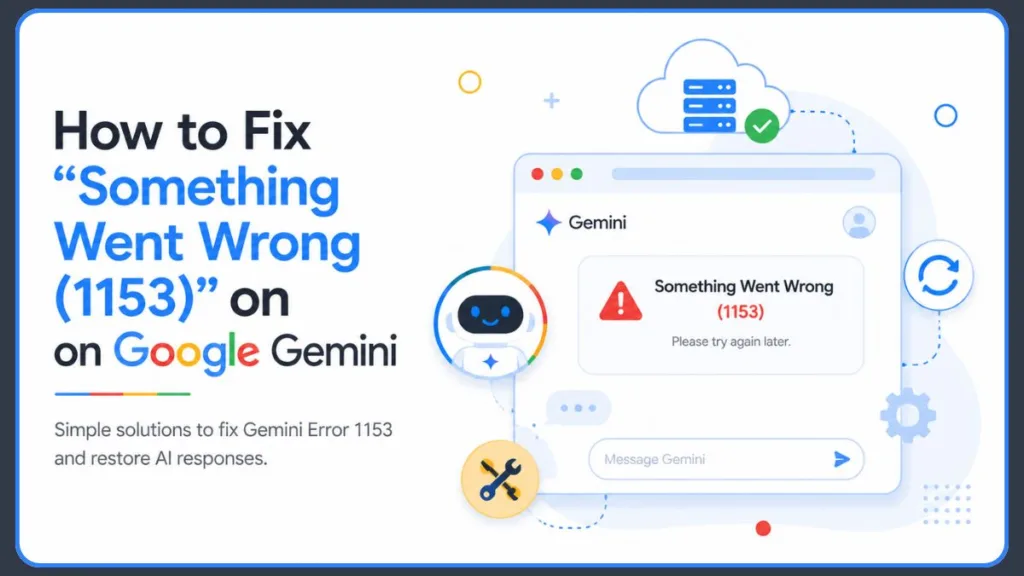
This alert represents a highly common, entirely fixable Gemini conversation error where your local browser and Google’s backend cloud systems simply lose their connection. While general tech support guides might offer generic, one-size-fits-all advice, this comprehensive guide goes much deeper. We have packed this article with community-tested, proven troubleshooting steps that understand the nuances of how this AI works under the hood. Our goal is simple: to help you resolve this glitch and get you back to prompting in minutes.
What Does Error 1153 Mean in Google Gemini?
At its core, this issue (which frequently appears alongside a family of similar codes like 1152 and 1154) can disrupt your workflow. While Google has not publicly documented Error 1153, user reports suggest it may be related to temporary communication, processing, or session issues between Gemini and Google’s servers.
What does error 1153 mean in Google Gemini?
Simply put, your web browser asked Google’s servers to generate an answer, but the servers either dropped the request or timed out before delivering it, leading to a situation where the AI fails to generate a response.
Is error 1153 caused by my account or Google servers?
While local browser configurations can occasionally be the culprit, insights from Google Support Community discussions and relevant Reddit discussions heavily indicate that this is primarily a server-side glitch. When the system is overwhelmed by complex requests, enterprise traffic spikes, or regional backend updates, it chooses to safely drop the connection rather than hanging indefinitely. This results in the AI response issue you see on your screen.
Why Does Gemini Show “Something Went Wrong 1153”?
Understanding the root cause of this loading timeout is half the battle. When you understand why the server disconnects, you can optimize your prompts to prevent it from happening again.
1. Canvas Overload and Context Limits
If you are using the dynamic, real-time editing interface, you might encounter a canvas error. Because the Canvas UI continuously updates, saves, and rewrites text in real-time, it consumes a massive amount of cloud computing power. Sustained, rapid-fire editing—especially with large blocks of code or long-form writing—can trigger a protective backend block, leaving the interface entirely unresponsive, similar to the feature limitations you face when seeing messages like sorry I can’t edit images for you yet.
2. Premium Tiers and Token Ceilings
Are Gemini Advanced users more likely to see error 1153? Yes, surprisingly so! Users on Gemini Advanced and Gemini Pro plans frequently encounter this error, and it comes down to ambition. Advanced users tend to push the model to its limits. Feeding the AI an exceptionally long prompt, or maintaining a single conversation that stretches into thousands of tokens, creates a massive “context window.” As the system struggles to recall and process that massive history, it eventually times out, triggering a backend failure.
3. Account Synchronization Conflicts
Many users experience issues tied to Workspace accounts. If you are switching between multiple Google accounts on the same browser profile—for instance, juggling a personal free account alongside a corporate Workspace account—the cloud session tokens can cross wires. Often, the error attaches itself to a premium Workspace account while leaving a secondary free-tier account completely untouched, resulting in a failure to respond.
How to Fix Gemini Error 1153 (Step-by-Step Solutions)
If your prompt is currently stuck in limbo, here is the ultimate solution list. These practical fixes are ranked from the most successful tricks found in Google Support Community discussions to standard technical support steps outlined on Official Gemini Help pages. If you want to resolve this issue quickly, follow these methods in order.
1. Sign Out and Sign In Completely (The Deep Reset)
Simply clicking “Refresh” on the web page or closing your Chrome tab rarely works. Why? Because refreshing does not clear the “stuck” session state on Google’s servers when a request fails.
Does signing out and back in resolve Gemini errors? Yes, it is consistently reported as the most effective fix. You must force a brand-new server handshake to reset the connection tokens.
1.Access Profile Settings: Click your Google profile picture located in the top right corner of the Gemini interface.
2.Terminate the Session: Select Sign out. This tells Google’s servers to actively terminate your current working session.
3.Re-Authenticate: Log back in with your credentials and navigate back to the Gemini dashboard.
Using this sign-out method effectively clears the phantom block on your account and forces the servers to recognize you as a fresh user.
2. Start a Brand New Chat
Why does Gemini stopped generating answers in an old thread, but works fine elsewhere? An old, extended chat carries a massive context load. The AI is trying to remember every single previous instruction in that specific window, which requires immense processing overhead.
Abandoning the overloaded chat window is a fantastic workaround. Highlight and copy your most important text or code, click the option to start a fresh chat session, and paste your work into the new prompt window. Users rarely see this specific error when creating a new chat because a fresh thread provides a clean slate with zero context baggage.
3. Clear Your Specific Browser Cache
Will clearing cache and cookies fix Gemini error 1153? While it isn’t a magic bullet for a true server outage, it is a crucial step for removing corrupted local script fragments that might be blocking the handshake.
If you are wondering how to resolve this on Chrome, do not clear your entire browser history—that will log you out of everything! Instead, specifically purge the site data for Gemini.
- Click the padlock (or settings icon) to the left of the URL bar while on
gemini.google.com. - Select Site settings.
- Click Clear data.
This targeted cache-clearing method forces your browser to download a completely fresh layout of the web application while keeping you logged into your other daily websites.
4. Try Incognito Mode and Disable Extensions
Does using incognito mode bypass Gemini error 1153? It very often does! If Gemini works flawlessly in a private window, it immediately tells you that the problem is local—a browser extension or corrupted site cookie is interfering with your main window. This is also a fantastic step if you encounter the 1096 error or error 13.
Can browser extensions cause Gemini error 1153? Absolutely. Gemini relies on complex WebSockets and real-time streaming scripts to generate text dynamically. Aggressive ad-blockers (like uBlock Origin), script-blockers, and even specific grammar-checking extensions can inadvertently intercept these scripts, assuming they are trackers. Navigate to your browser’s extensions page and temporarily toggle them off to see if the conflict resolves.
5. The Mobile App Workaround
If you try to bypass the desktop issue by using your smartphone, you might run into the mobile version of the crash (often labeled as Error 11). A quick mobile app fix involves a simple network toggle.
Disconnect your phone from your home or office Wi-Fi and switch to your mobile cellular data. This forces your mobile carrier to assign your device a fresh IP address, which bypasses any local network firewalls, corporate VPNs, or temporary routing glitches that might be flagging your data requests.
How Long Do Gemini Errors Like 1153 Usually Last?
If you have methodically tried the steps above and are still seeing the error, you are likely caught in a true temporary outage.
How long do Gemini errors like 1153 usually last? Similar to the 1099 error or the 1076 error, these are typically micro-outages or temporary rate limits imposed during peak enterprise usage hours (such as mid-day on weekdays), so they usually resolve themselves within a few minutes to a couple of hours.
You can verify whether you are dealing with a localized glitch or a global platform outage by checking the Google Workspace Status Dashboard. Searching for “gemini server status” or checking relevant Reddit discussions will also show if other users are reporting the same disruption.
How Do I Report Error 1153 to Google?
If the problem persists globally for days, or if the error seems permanently glued to your specific Workspace account despite trying every fix, you need to escalate the issue.
How do I report error 1153 to Google? You can easily report this incident to Google Support by utilizing the platform’s built-in telemetry tools.
- Look to the bottom right corner of the Gemini chat interface.
- Click the Help & Feedback (or Cog) icon.
- Select Send feedback.
- Clearly state your issue, explicitly mentioning the exact error code (1153).
- Crucial step: Ensure the box to include your system logs is checked.
This sends the specific backend account tokens to Google’s engineering team, providing them with the exact data they need to unblock your web provisioning on their end.
Conclusion
Encountering a server timeout right when you are in the zone is undeniably frustrating, but it is very rarely a permanent roadblock. Remember, you are dealing with a complex cloud ecosystem, and occasionally, the wires get crossed.
If you want to quickly implement a recovery strategy, remember the golden rules:
- Refresh your server connection by completely signing out and back in.
- Drop heavy context loads by starting a fresh chat window.
- Check for local friction by disabling aggressive browser extensions and clearing site-specific data.
Stay patient, apply these practical troubleshooting steps, and you will be back to generating brilliant ideas and pristine code in no time! If you have discovered a unique, out-of-the-box workaround, drop a comment below—your insight might just save someone else’s workday.
Visit Our Post Page: Blog Page
Discover more from Izoate
Subscribe to get the latest posts sent to your email.